Paste your event's HTML Code into a HubSpot email
Updated October 20, 2026
You can add your event's Add to Calendar buttons to a HubSpot marketing email. Your contacts click a button and the event opens in their calendar, already filled in. You copy the buttons from CalGet as HTML and paste them into an HTML module in HubSpot.
Copy the buttons in CalGet
- Go to Events and click your event.
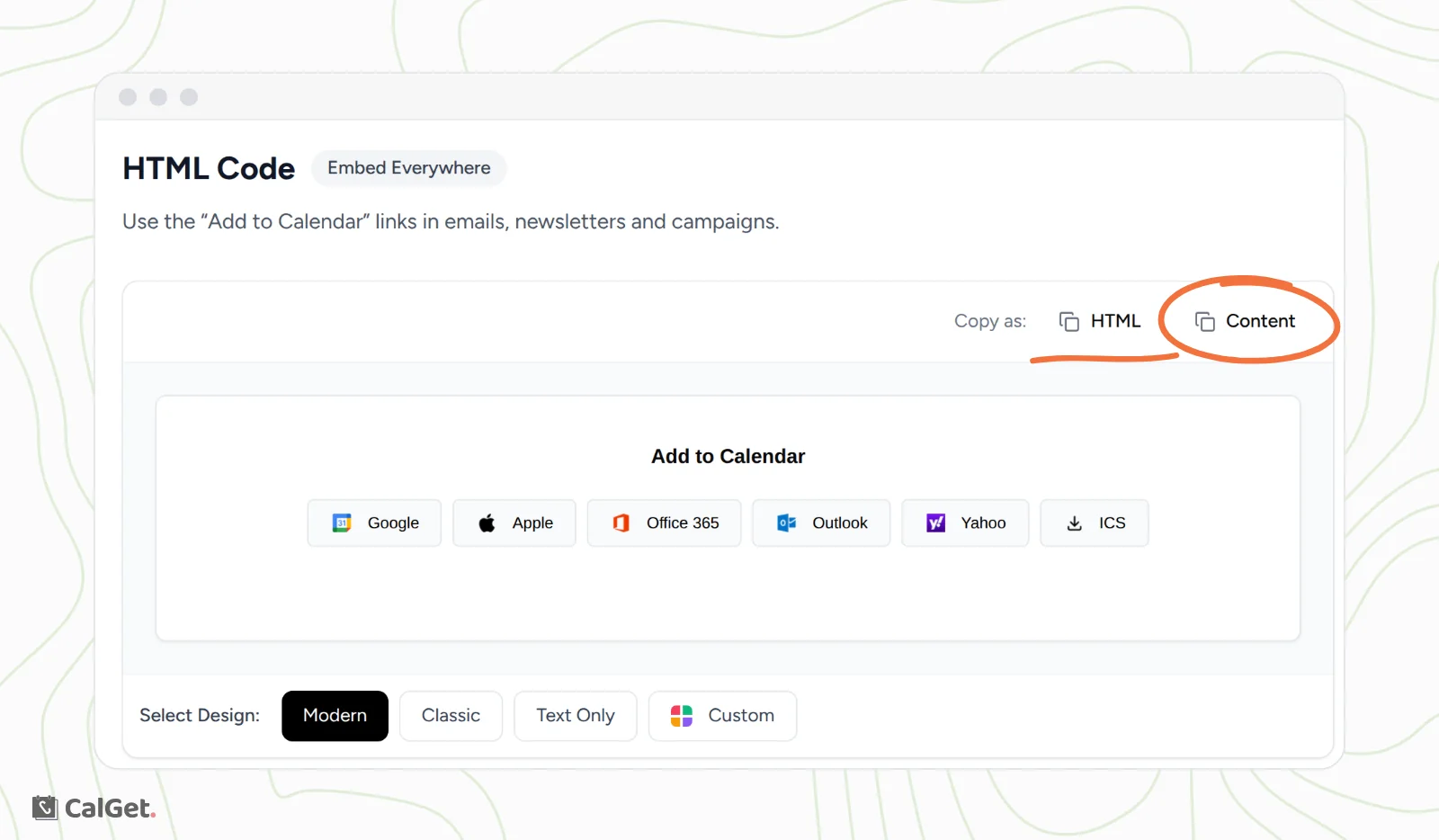
- Scroll to HTML Code.
- Next to Select Design, pick Modern, Classic, Text Only or Custom.
- Next to Copy as, click HTML.
Paste them into your HubSpot email
- In HubSpot, open your marketing email in the drag-and-drop editor.
- Drag an HTML module into the email where the buttons should go, for example under your event details.
- Paste the code into the module and save.
- Preview the email or send yourself a test, and click a button to check it.
The buttons always use the event's latest details from CalGet, so you don't need to copy them again after you edit the event.
Common questions
Can I collect RSVPs from a HubSpot email?
Yes. Turn on Collect RSVPs on the event and link to your event page from the email. Our blog shows the full setup in how to add an RSVP button to HubSpot emails.
Can I see how many people saved the event?
Yes. Each time someone uses a button, it counts on the event's Analytics tab under Calendar Adds.
Where's the full walkthrough?
Our blog has a step-by-step guide with HubSpot screens: Add to Calendar links in HubSpot emails.