Ask subscribers for their name and email
Updated October 20, 2026
Yes. You can ask people to fill in a short form before they subscribe to your calendar. By default it asks for their name and email, and you can add your own questions. Their answers show on the calendar's Subscribers tab and in the list you export.
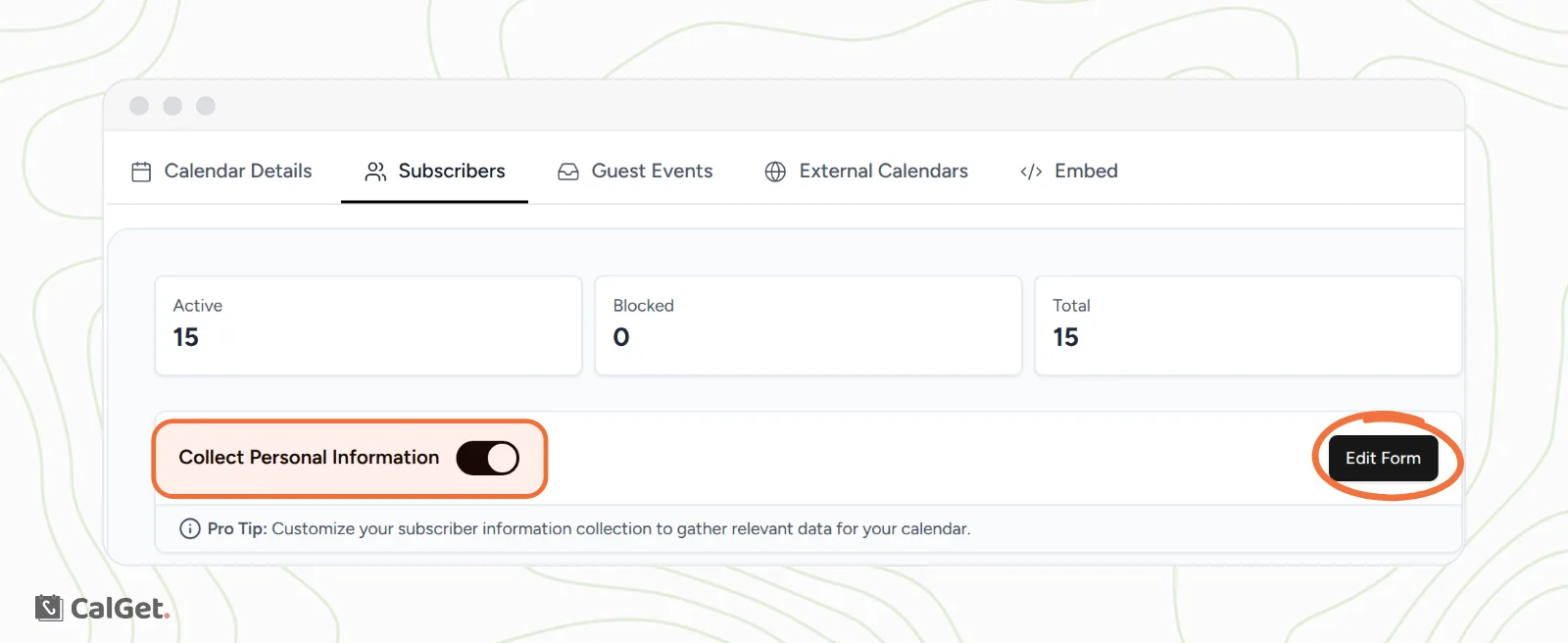
Turn on the form
- In the menu on the left, click Calendars, then click your calendar.
- Click the Subscribers tab.
- Turn on Collect Personal Information.
Choose the questions
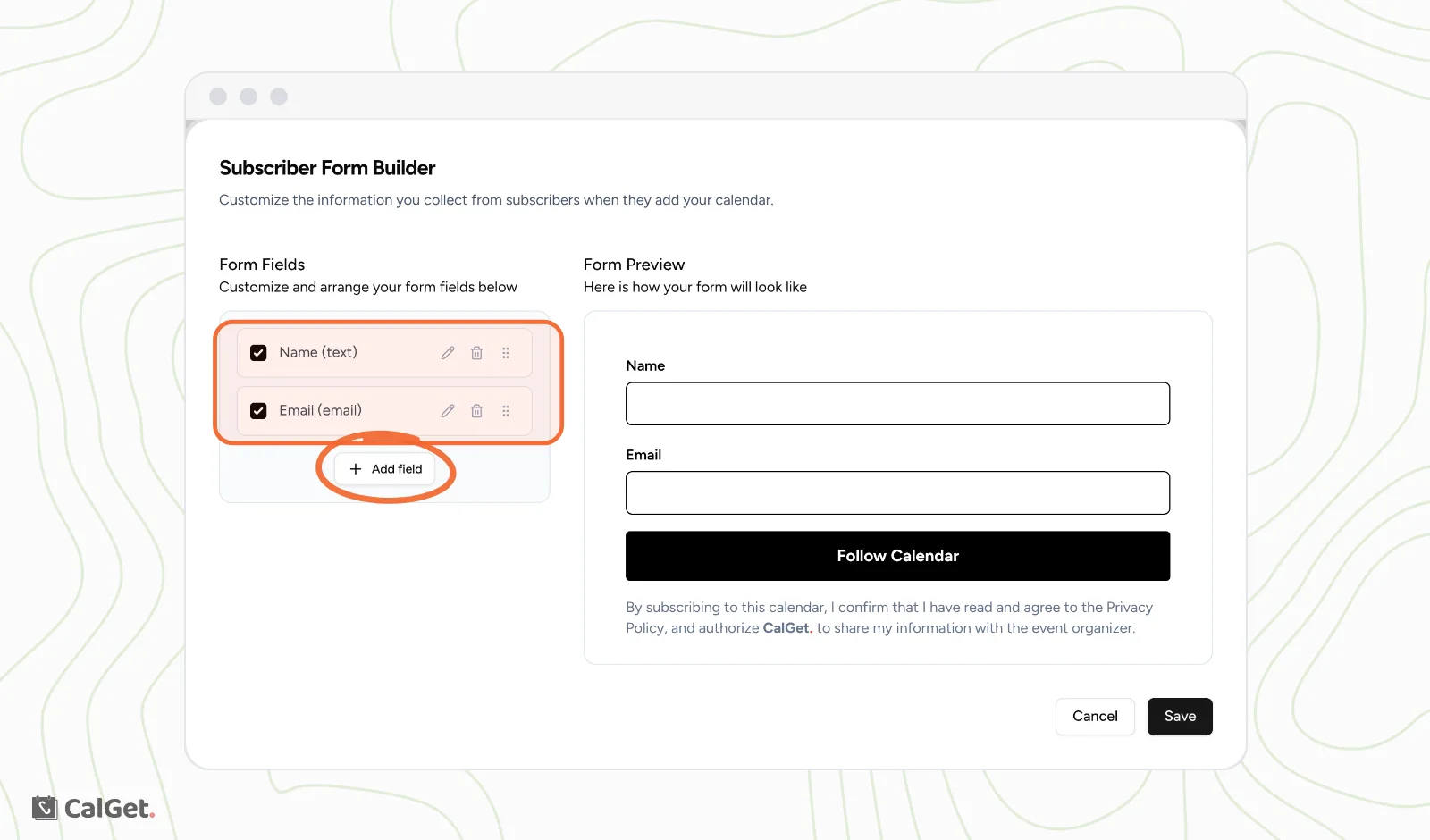
- Click Edit Form. The Subscriber Form Builder opens, with the Form Fields on the left and a Form Preview on the right.
- To ask something else, click Add field. Type the question in Field Text, choose a Type (Text, Number, Email or Dropdown (Options)), and choose whether it's Required.
- Untick a field to leave it out, or use the pencil and bin next to it to change or remove it.
- Click Save.
The questions work like the ones on RSVP forms. See Build a custom RSVP form for more on each type.
What visitors see
Your calendar's page asks visitors to Follow this calendar. They fill in the form and click Follow Calendar. Then they see your events and the Subscribe to Calendar button to choose their calendar app.
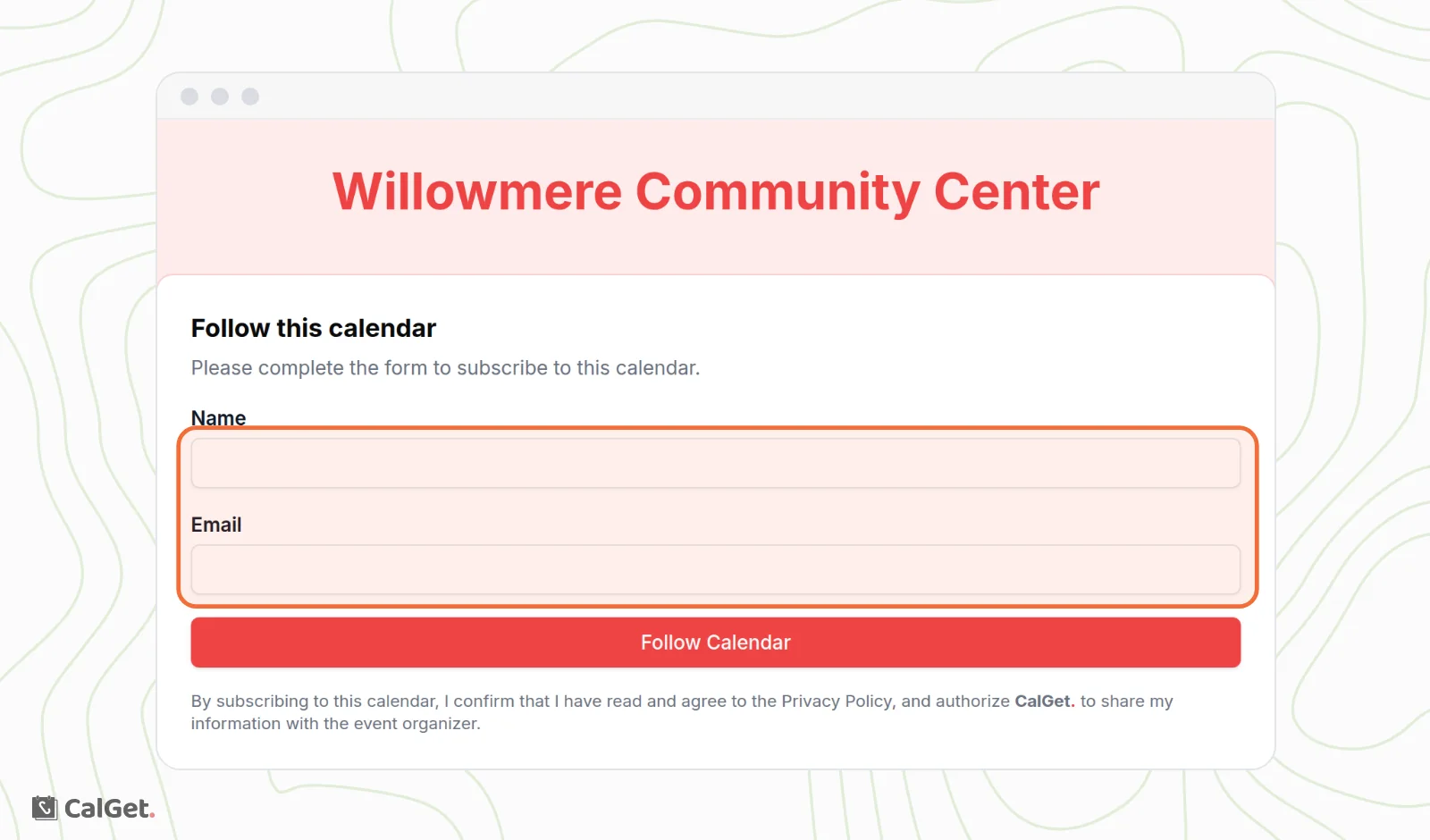
Under the button, a note tells visitors that their details are shared with you, the organizer.
See the answers
Each subscription's answers show in the Subscribers List. Click Export List to download them as a CSV file.
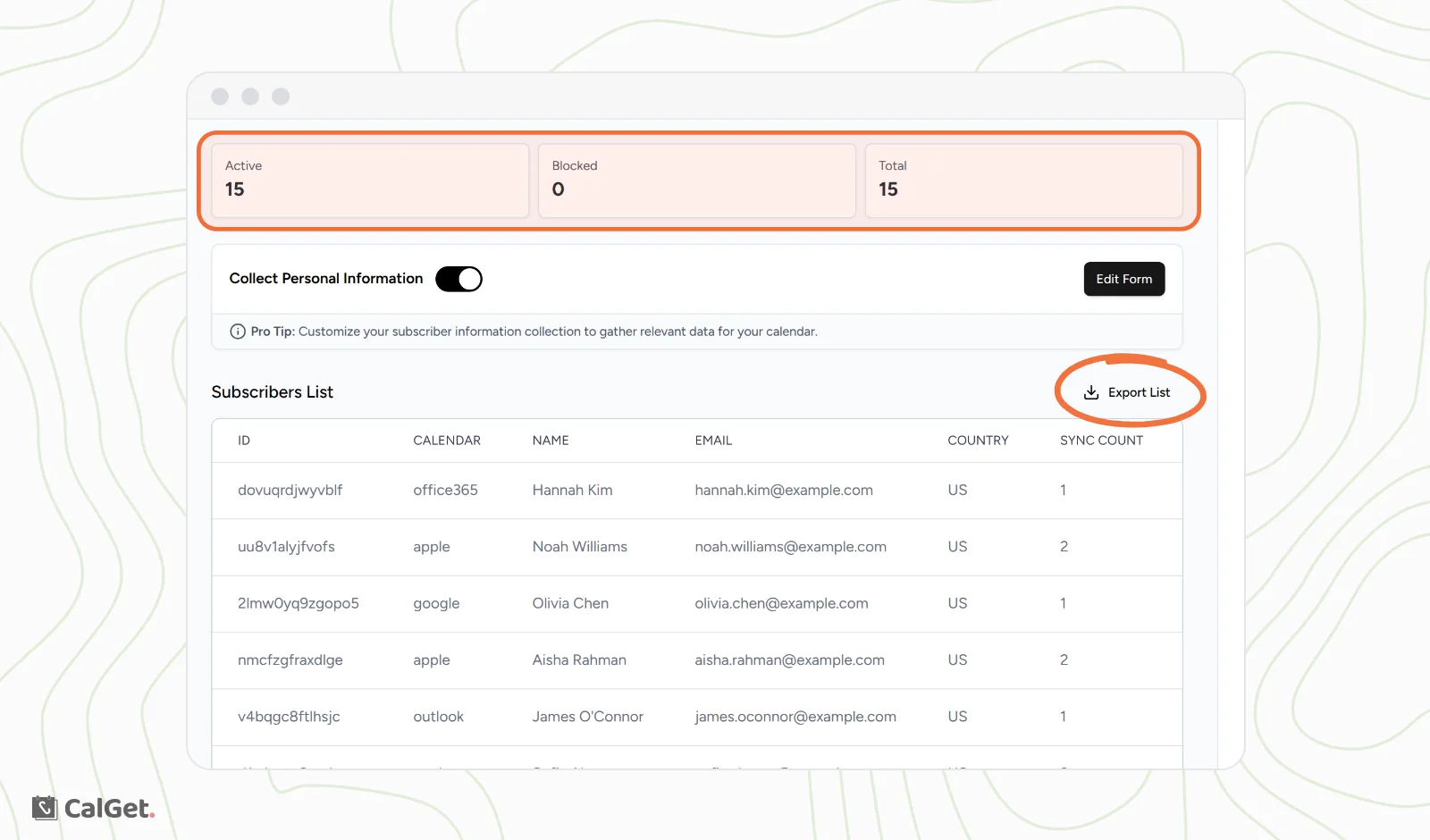
People who subscribed before you turned on the form show without a name or email. For more on the list, see View, export and block calendar subscribers.