Back to Blog
Google Forms Add to Calendar: How to Add the Link (2026)
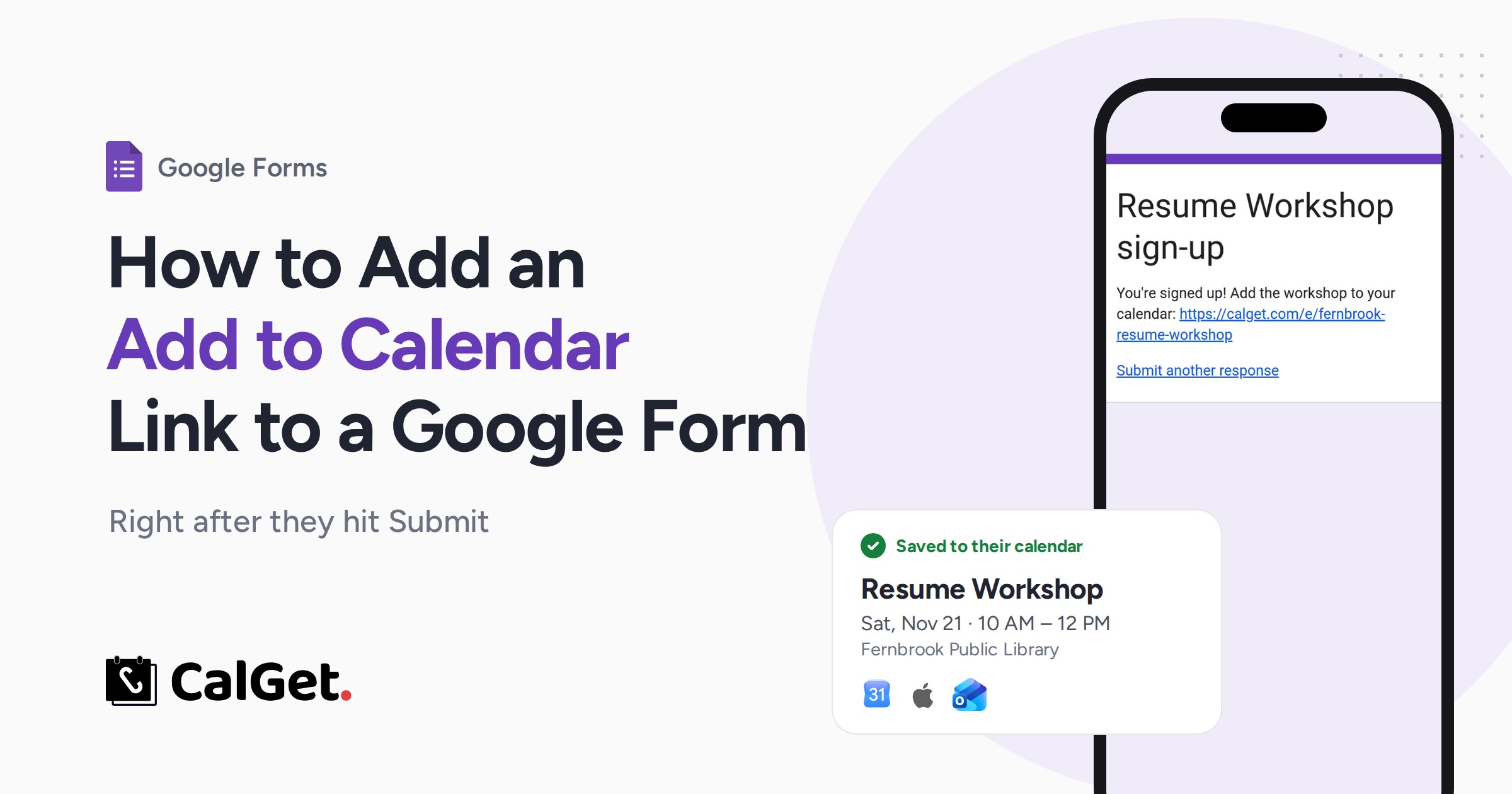
Google Forms ends every sign-up with "Your response has been recorded." Here is how to add an add to calendar link to the confirmation message and the description, so people save your event in one tap, on any calendar.
Written by
Last updated: October 2026. We checked every Google Forms and Google Calendar step against Google's own help pages and current screens in October 2026, and tested the CalGet part with a real event and real calendar saves.
Quick answer
Google Forms has no add to calendar button, but you can add an add to calendar link in two places:
- The confirmation message (people see it right after they submit): Settings → Presentation → Confirmation message → Edit. Paste the full link, starting with https://, and click Save.
- The form description: type "Add it to your calendar", select it, click the link icon and paste the link.
For the link itself, Google Calendar's "Publish event" link only adds to Google Calendar. A CalGet event link lets each person pick Google, Apple, Outlook, Office 365 or Yahoo.
Someone fills in your sign-up form, taps Submit, and Google Forms tells them "Your response has been recorded." That's the whole experience. Nothing lands in their calendar, and three weeks later your workshop is competing with everything else they forgot about.
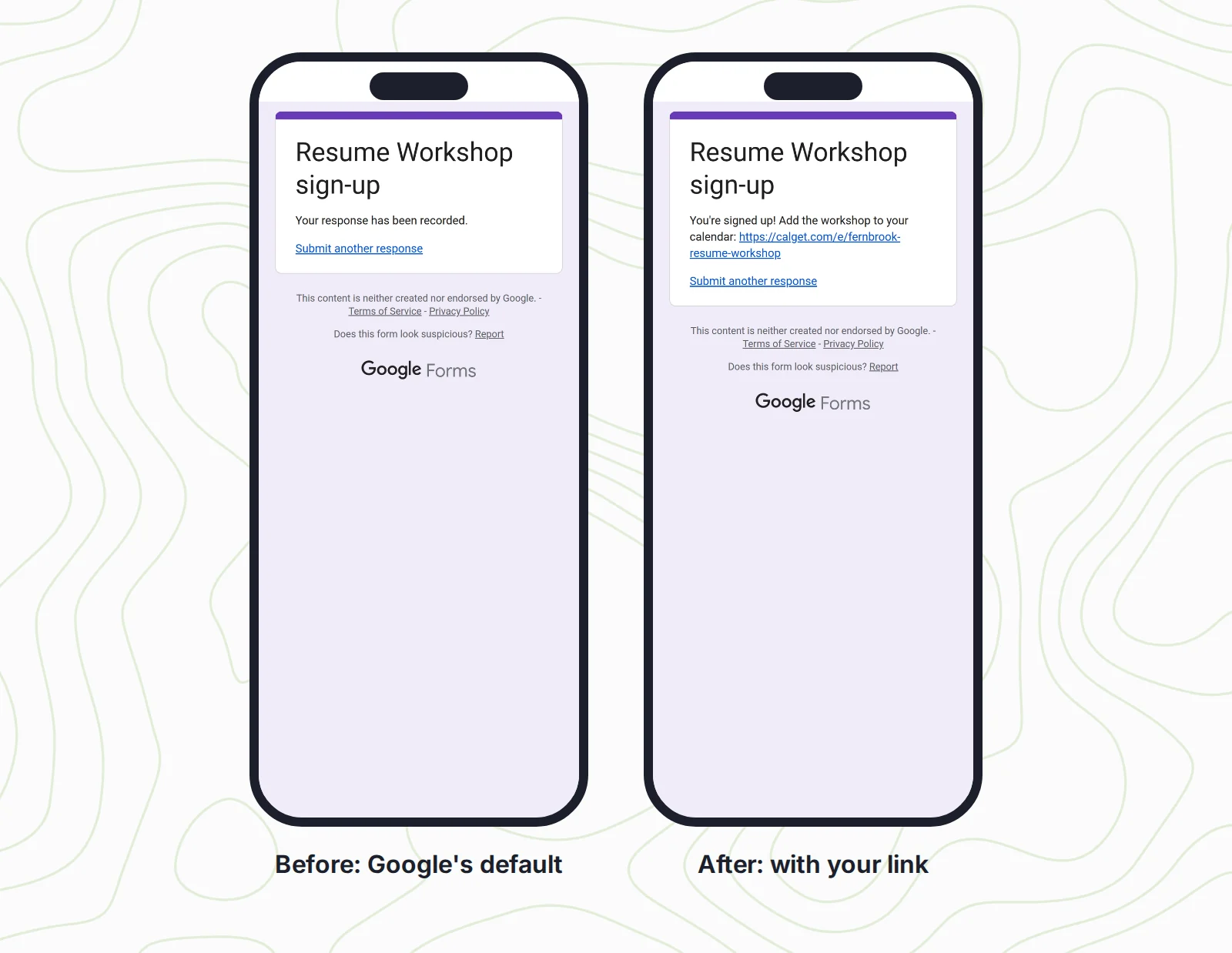
The fix takes about five minutes. You need a link that adds your event to a calendar, and two spots in your form to put it. Here's how to do both, using a real example: a library's resume workshop sign-up.
Google Forms add to calendar options, compared
There are three ways people get a Google Form event into calendars. They work very differently once your form is filled in on phones:
| Option | Which calendars | What you need | On a phone |
|---|---|---|---|
| Google Calendar's Publish event link | Google Calendar only | The event on a public Google calendar | Google says it works best on desktop; the app may show a blank event |
| An add-on or Apps Script that emails invites | Any calendar that accepts invites | Everyone's email address, and access to your calendar | Arrives by email, not on the confirmation page |
| A CalGet add to calendar link | Google, Apple, Outlook, Office 365, Yahoo, or an .ics file | A CalGet event | Opens a page with an Add to Calendar menu |
Option 1: Google Calendar's own link (and why it only half works)
Google Calendar can give you a link for a single event. Google's help page on adding a calendar or event to your website lists the steps:
- On a computer, open Google Calendar. You can't get this link from the phone app.
- Open the event. It has to be on a public calendar.
- Click More actions, then Publish event, and copy the link.
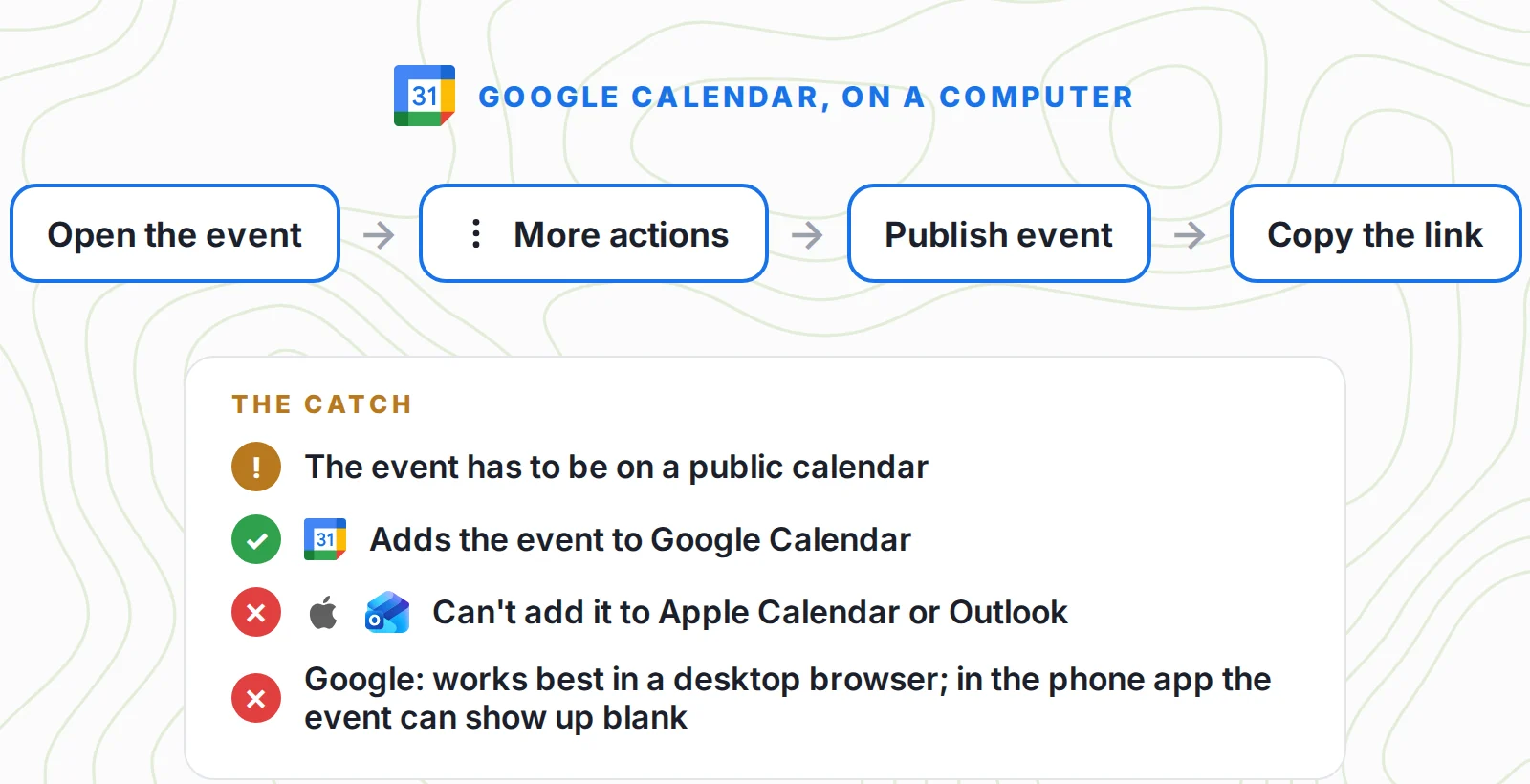
The catch is who it works for. The link adds the event to Google Calendar, so anyone on an iPhone calendar or Outlook is left out. Google also says these links work best in desktop browsers, and that in the Google Calendar app on a phone the event may not load correctly or may show up blank. A lot of sign-up forms get filled in on phones, so that's a real problem for a confirmation page.
Option 2: Add-ons and Apps Script that email invites
The Google Workspace Marketplace has add-ons that create calendar events or send Google Calendar invites when someone submits a form, and you can write the same thing yourself with Apps Script and a form-submit trigger.
It's a reasonable route if you already collect email addresses and you're comfortable giving an add-on access to your form and your calendar. Read the permissions before you install one. Keep in mind the invite arrives by email later, so people still see "Your response has been recorded" when they submit. Depending on the add-on, each sign-up becomes a guest on your event or a new event in your calendar.
Option 3: One add to calendar link that works with every calendar
This is the option we use, and the rest of this guide follows it. A CalGet event link opens a small event page with an Add to Calendar button, and each person picks their own calendar. If you're new to the idea, our explainer on what an add to calendar link is covers how these links work.
Here's how to make one in CalGet for our example, a Resume Workshop at Fernbrook Public Library on Saturday, November 21, from 10 AM to 12 PM:
- Click New Event.
- Add the title, the date and time, the time zone and the location. A one-line description helps too.
- Give it a short custom link if your plan includes them (ours is fernbrook-resume-workshop).
- Click Create Event Link.
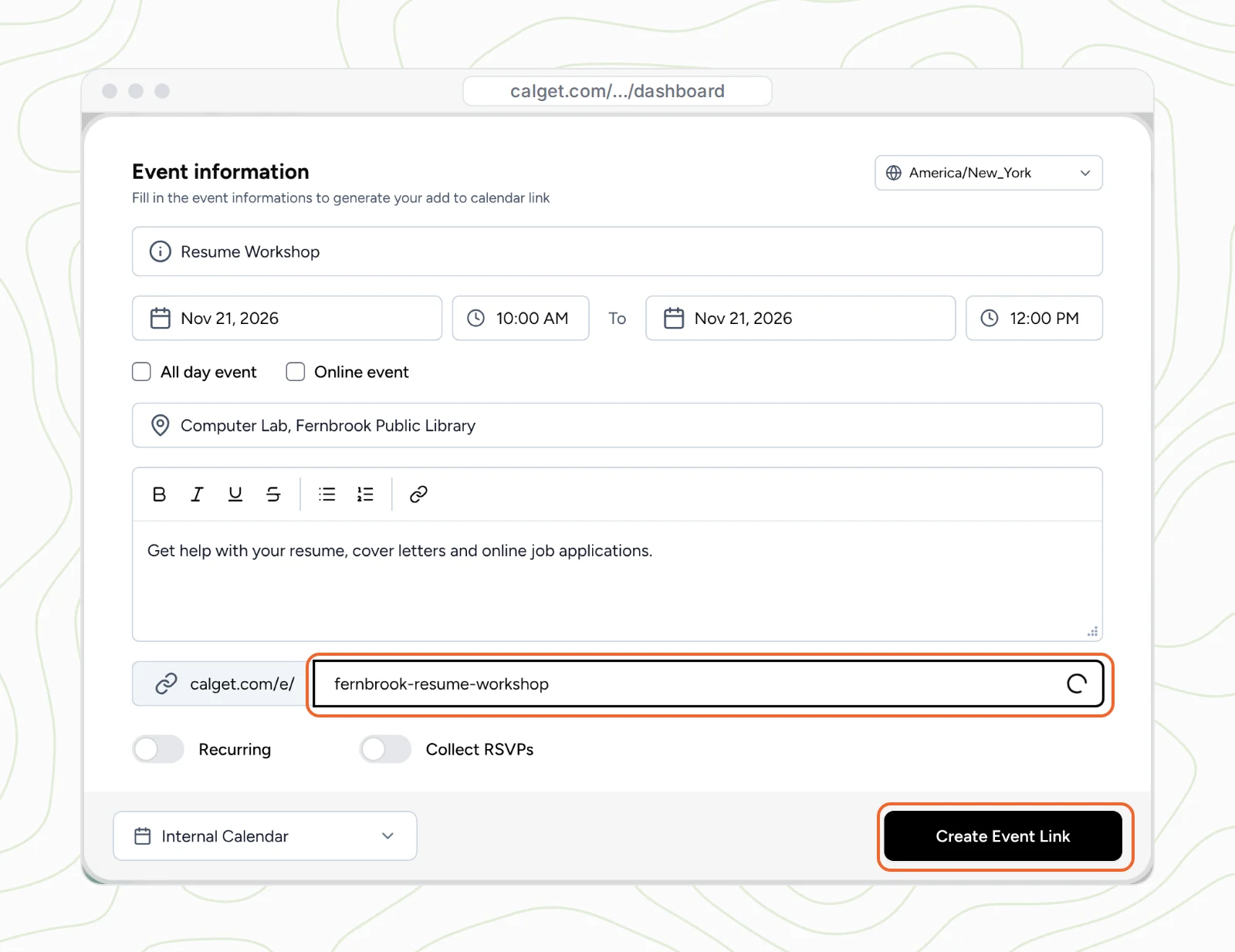
Open the event, and copy the link from Your Event Details:
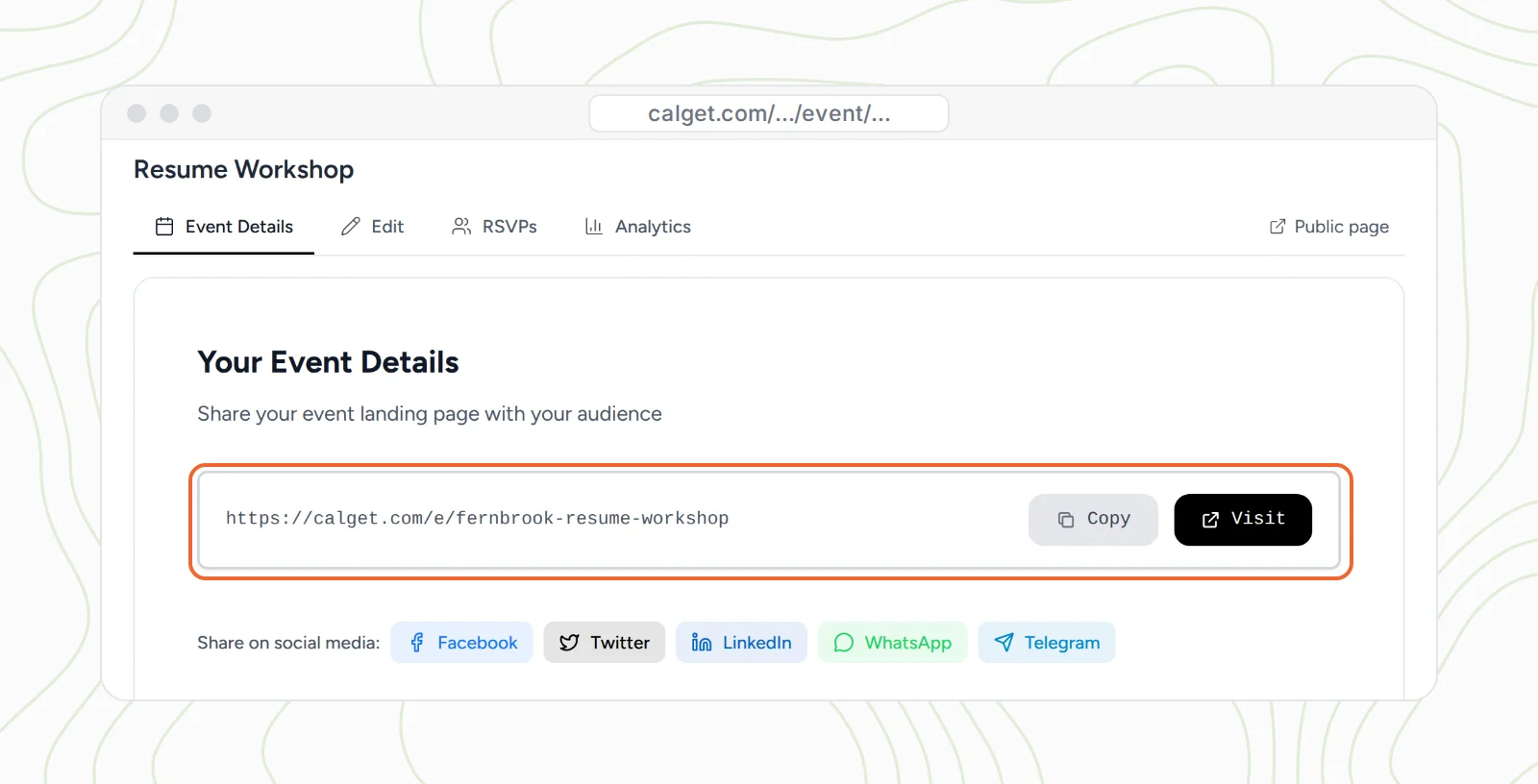
Tip: add ?utm_source=googleforms to the end of the link before you paste it. CalGet's Analytics then breaks results down by UTM source, so you can tell your form apart from your newsletter or website. The add to calendar link generator page shows everything else a CalGet event link can do.
Step 1: Put the add to calendar link in your Google Form's confirmation message
The confirmation message is the best spot, because people see it at the exact moment they've decided to come. In the Google Forms editor:
- Open the Settings tab.
- Expand Presentation.
- Next to Confirmation message, click Edit.
- Write a short line, such as "You're signed up! Add the workshop to your calendar:", then paste the link.
- Click Save.
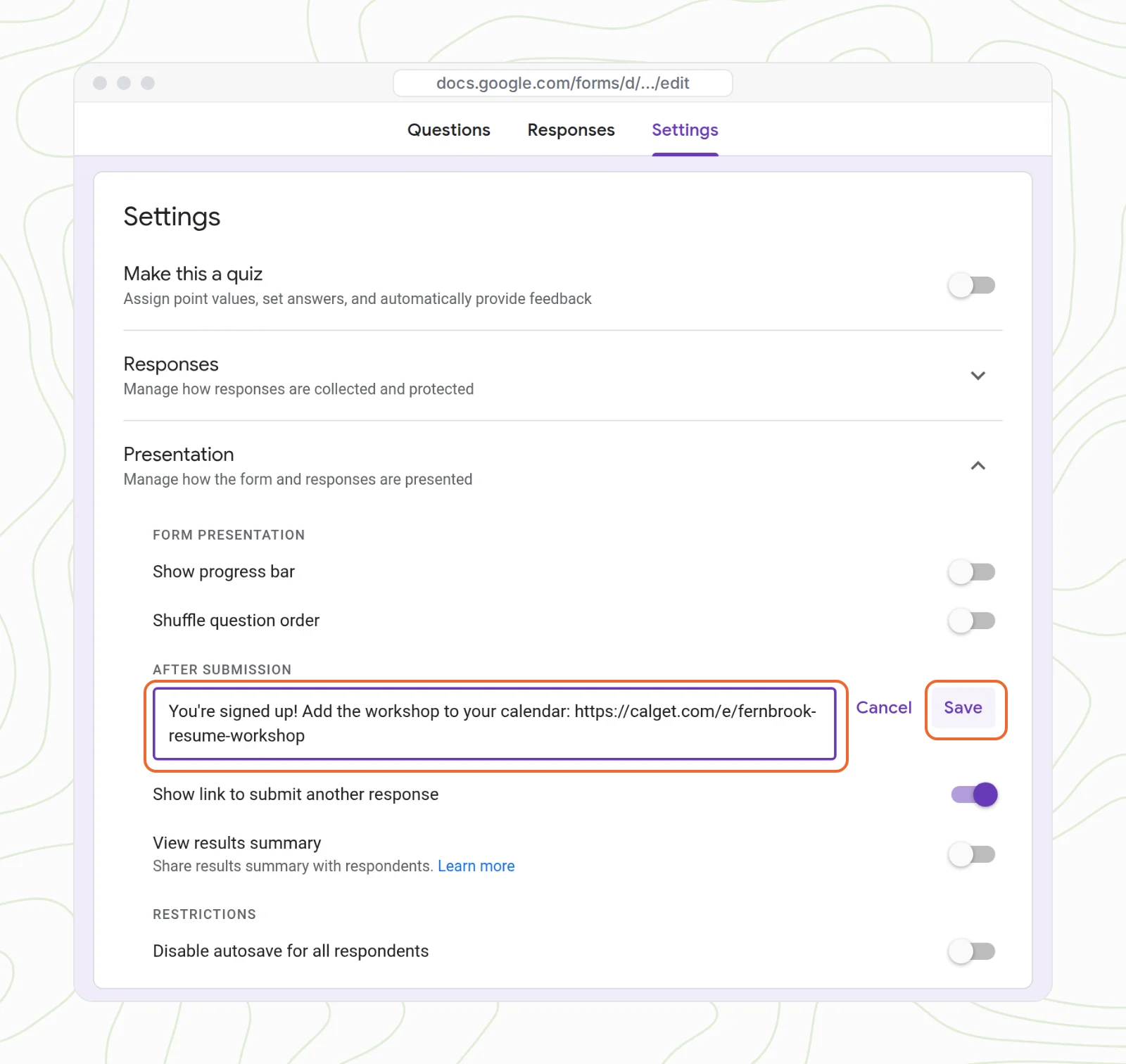
There's no link button in this box, so you can't hide the address behind nicer text. The full address shows. Keep the https:// at the start: educator Alice Keeler, who has written about Google Forms for years, notes that a link pasted with its http prefix becomes a live link on the confirmation page. Google doesn't document this, which is why you should test it once (see the last step).
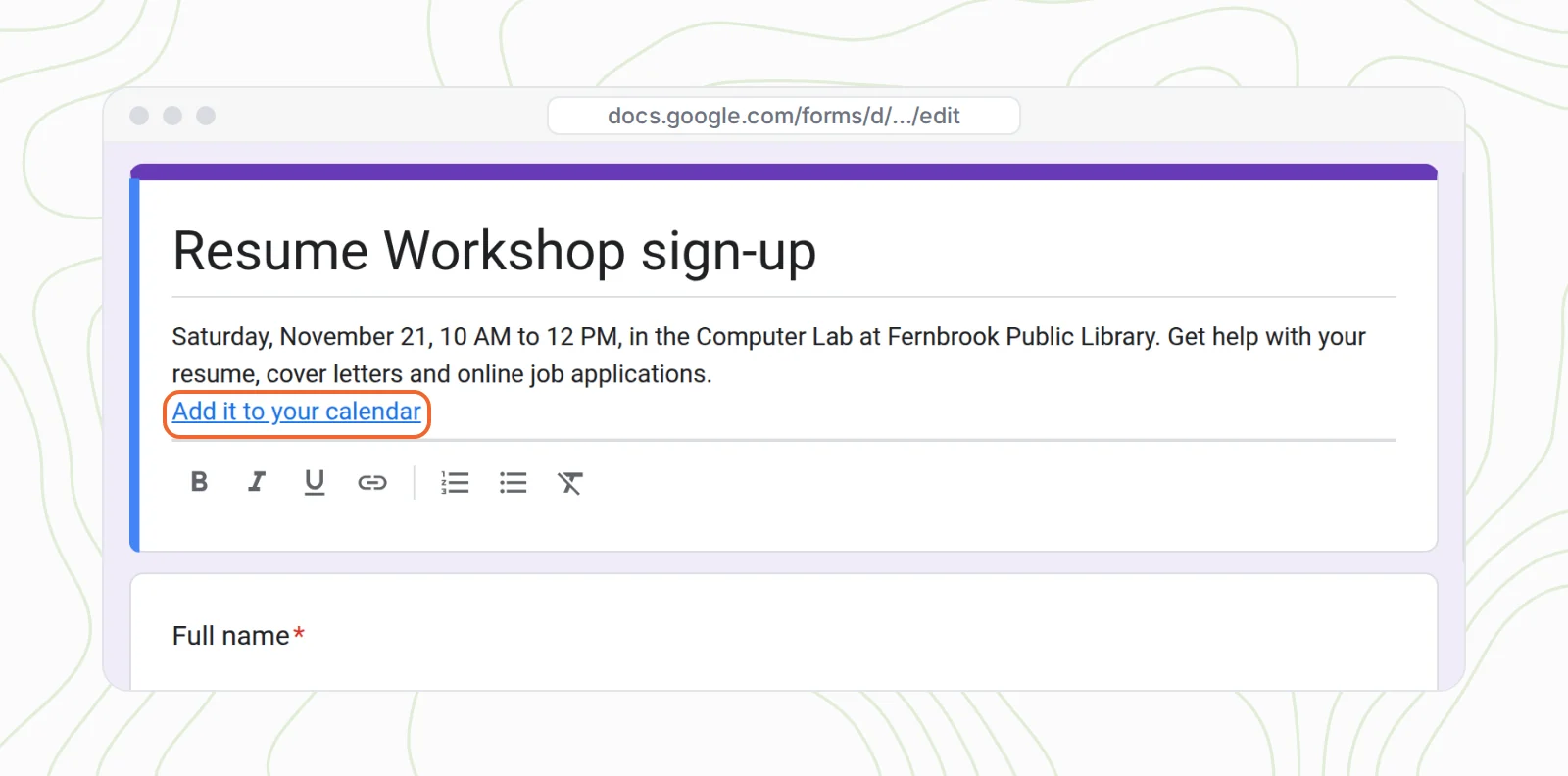
Step 2: Link "Add it to your calendar" in the form description
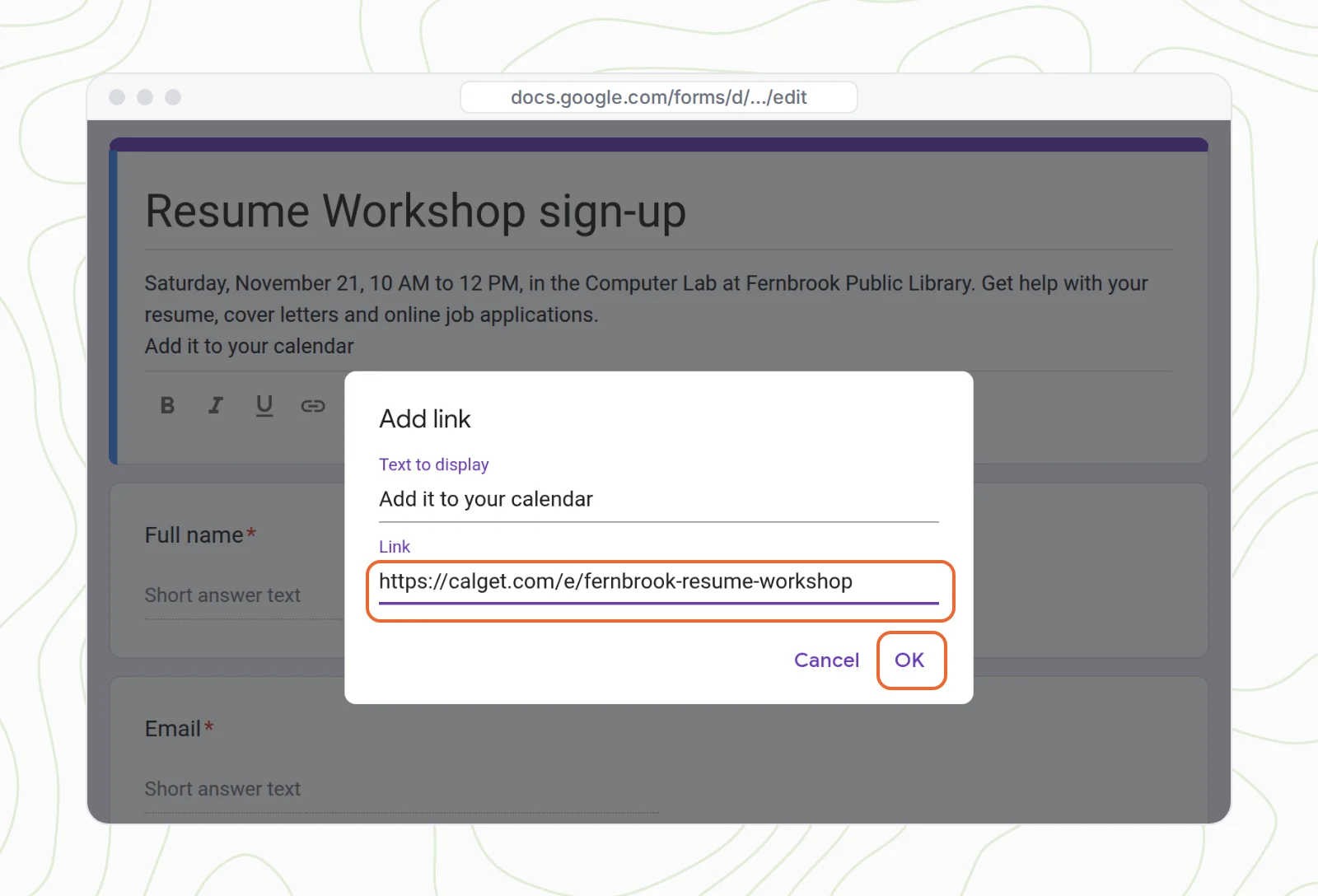
The description sits at the top of the form, so the link is there before anyone submits, and whenever someone opens the form again to check the date. Unlike the confirmation message, the description supports real links: Google added rich text formatting, including hyperlinks, to Forms titles and descriptions in 2022.
- Go back to the Questions tab and click the form's description.
- On a new line, type "Add it to your calendar".
- Select those words and click the link icon in the toolbar.
- Paste the link into Link and click OK.
If the form isn't live yet, click Publish at the top right and choose who can respond, then share it the way you always do.
What people see after they submit your Google Form
On a phone, it looks like this. Someone fills in the form and taps Submit. Your confirmation message shows the link. One tap opens the event page, they tap Add to Calendar, pick their calendar, and it's saved.
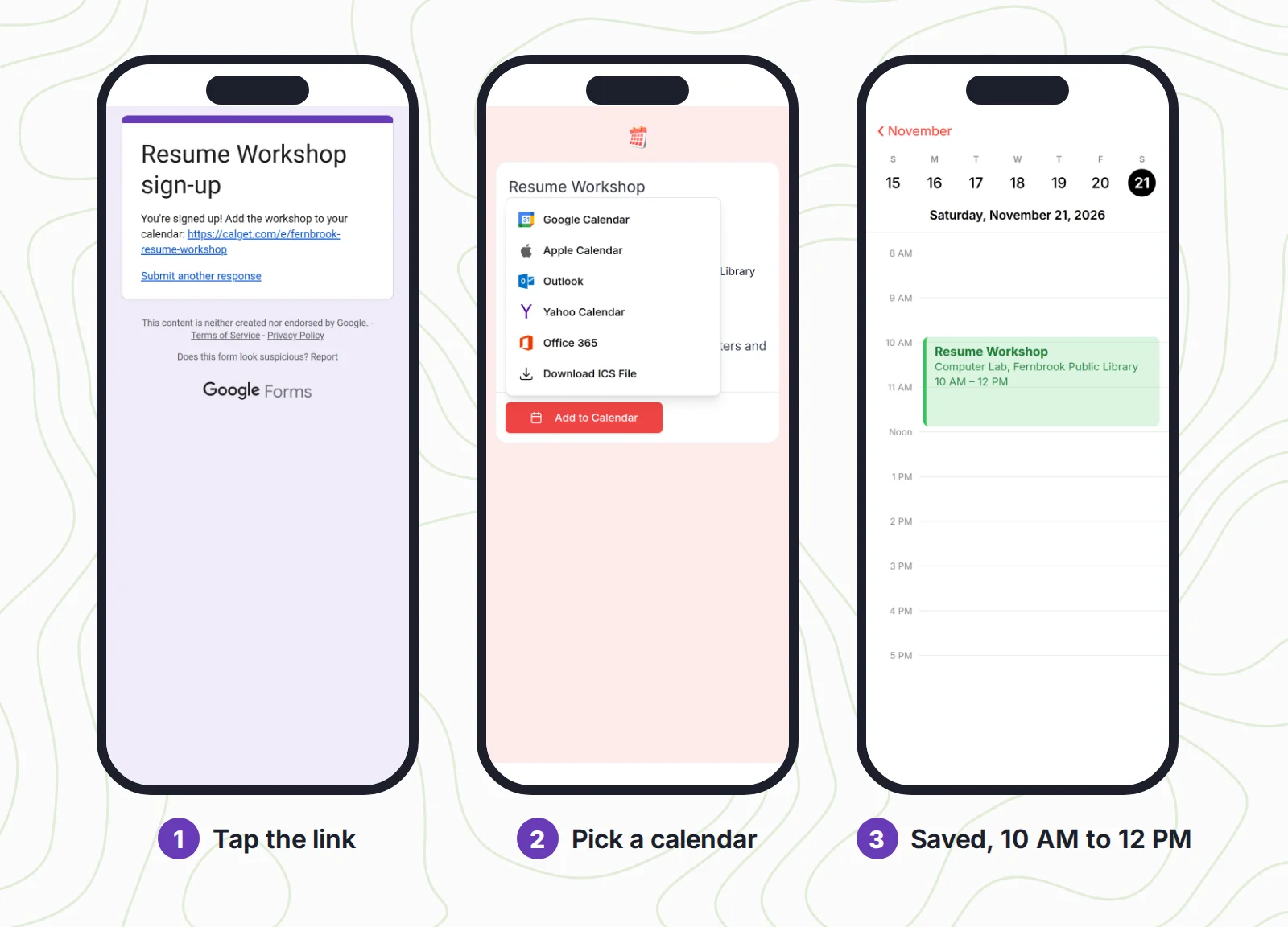
Because the event has a time zone, it lands at the right time on everyone's calendar, including people who signed up from another state.
Before you share the form, send one test response from your own phone and tap the link. It takes a minute, and it's the only way to see exactly what your respondents will see.
See how many sign-ups actually saved the date
A form tells you who signed up. It doesn't tell you who will remember. On CalGet's paid plans (see pricing), the event's Analytics tab shows clicks, calendar adds, and which calendars people chose. The numbers below are our own test saves for this guide:
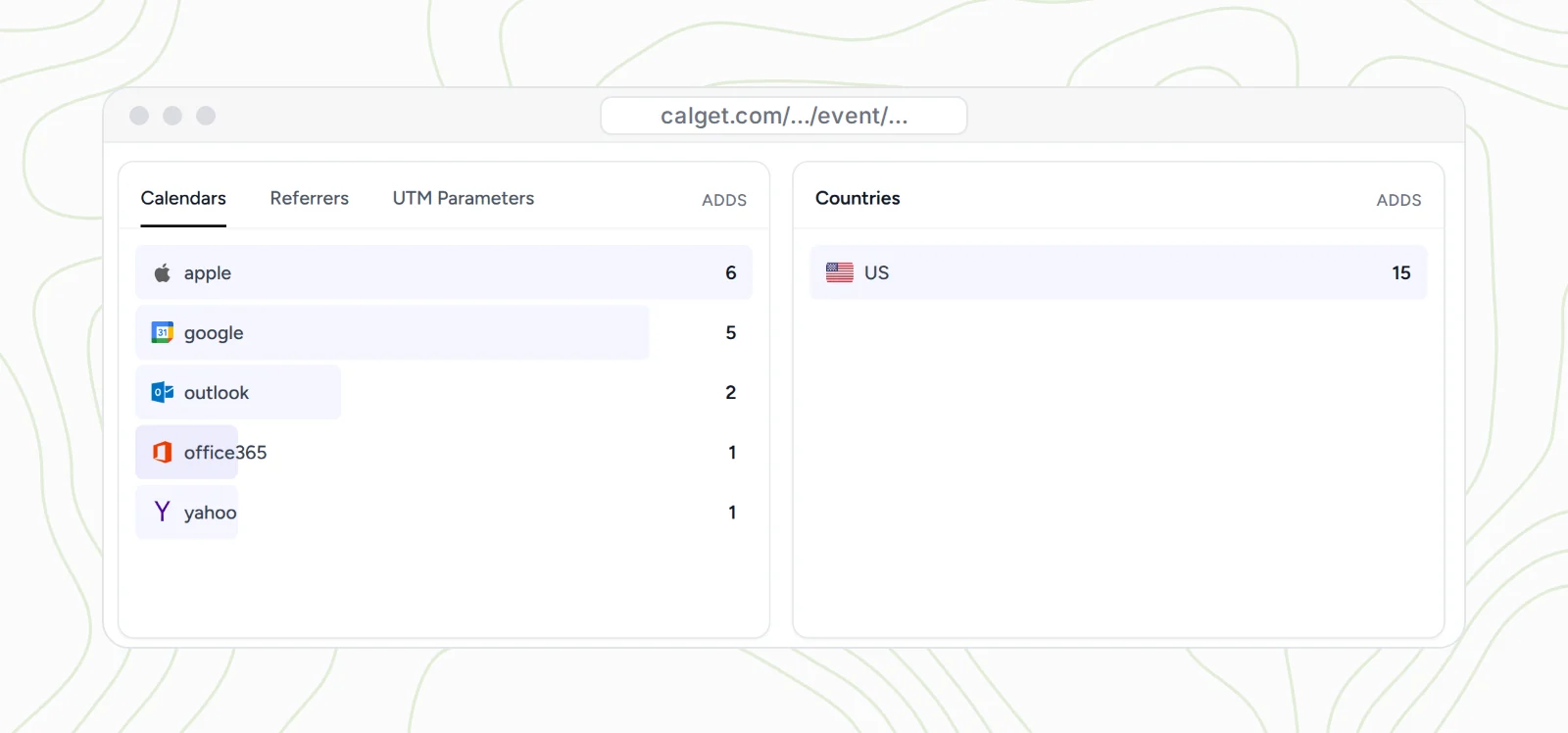
Compare that number with your sign-up count a few days before the event. If half your sign-ups never saved it, that's the group to send a reminder to.
Prefer one page instead of a form?
If your form only collects names and emails, you may not need Google Forms at all. In CalGet, turn on Collect RSVPs when you create the event, and people RSVP right on the event page, then add it to their calendar in the same place. You see who's coming in one list. Our page on collecting RSVPs with CalGet shows how it works. Using a different form builder? Here's how to add calendar links in Jotform.
Mistakes that keep the link from working
- Pasting the link without https:// in the confirmation message. Paste the whole address.
- Using a Google Calendar link for everyone. People on Apple Calendar or Outlook can't use it, and Google says it can show a blank event in its phone app.
- Testing only on a computer. Plenty of people fill in forms on their phones. Test there too.
- Making a new link when the time changes. Update the event in CalGet instead. The link in your form stays the same, and anyone who saves it from then on gets the new time. People who already saved it won't be updated automatically, so email them too.
- Forgetting the time zone. Set it on the event, or people in other time zones see the wrong time.
Frequently asked questions
Can Google Forms add an event to someone's calendar automatically?
Not on its own. Google Forms has no calendar setting. You can put an add to calendar link in the confirmation message and description so people save it in one tap, or use an add-on or Apps Script that emails a Google Calendar invite after each response.
Are links in a Google Forms confirmation message clickable?
A full address that starts with https:// shows as a link on the confirmation page, according to Google Forms educators like Alice Keeler, but you can't add custom link text there and Google doesn't document it. Send yourself one test response to check. Links in the form description are fully supported, with your own link text.
Where do I change the Google Forms confirmation message?
Open the form, go to the Settings tab, expand Presentation, and click Edit next to Confirmation message. The default text is "Your response has been recorded."
Does Google Calendar's Publish event link work for iPhone and Outlook users?
No. It adds the event to Google Calendar. People who use Apple Calendar or Outlook need a link that lets them pick their own calendar, like a CalGet event link, which offers Google, Apple, Outlook, Office 365, Yahoo and an .ics download.
Can I see how many people added my event to their calendar?
Google Forms can't tell you. With a CalGet link, the event's Analytics tab shows calendar adds and which calendars people used.
Running sign-ups through Google Forms? Make your add to calendar link with CalGet and paste it into your confirmation message and description today.
Written by the CalGet team
Updated October 2026 · Checked against Google's help pages
We build calendar tools for sharing events with lots of people, from sports clubs and schools to nonprofits. People at organizations like Harvard, Save the Children and OGC Nice use CalGet to get events into their audience's calendars.

“Great Add Event to Calendar platform. Easy to create events and add them to emails and websites. Support responds quickly to questions and provides clean and concise answers. Highly recommended.” Foto Guy, on Trustpilot
Get Your Events on Everyone's Calendar.
Generate universal "Add to Calendar" links that work everywhere. Perfect for social media, emails, and websites.


Written by
Yared