Back to Blog
How to Add Google Calendar to Wix (So It Fits on Phones)
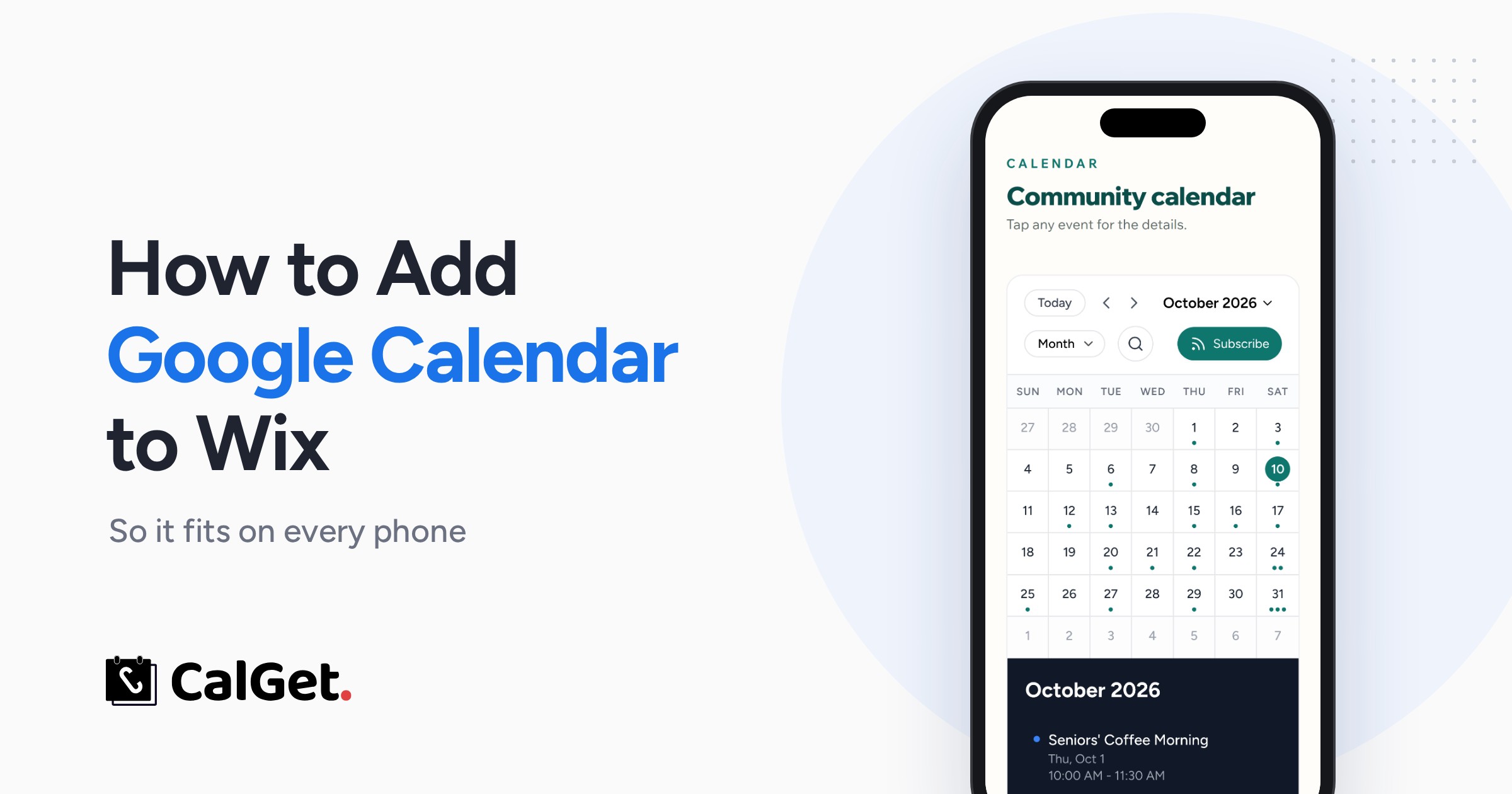
On December 3, 2025, Wix stopped supporting its Google Event Calendar app. Here are both ways to put your Google Calendar back on a Wix site, checked at phone size, plus the one step that makes a synced calendar work inside Wix.
Written by
Last updated: October 2026. Every step below was tested on October 10, 2026.
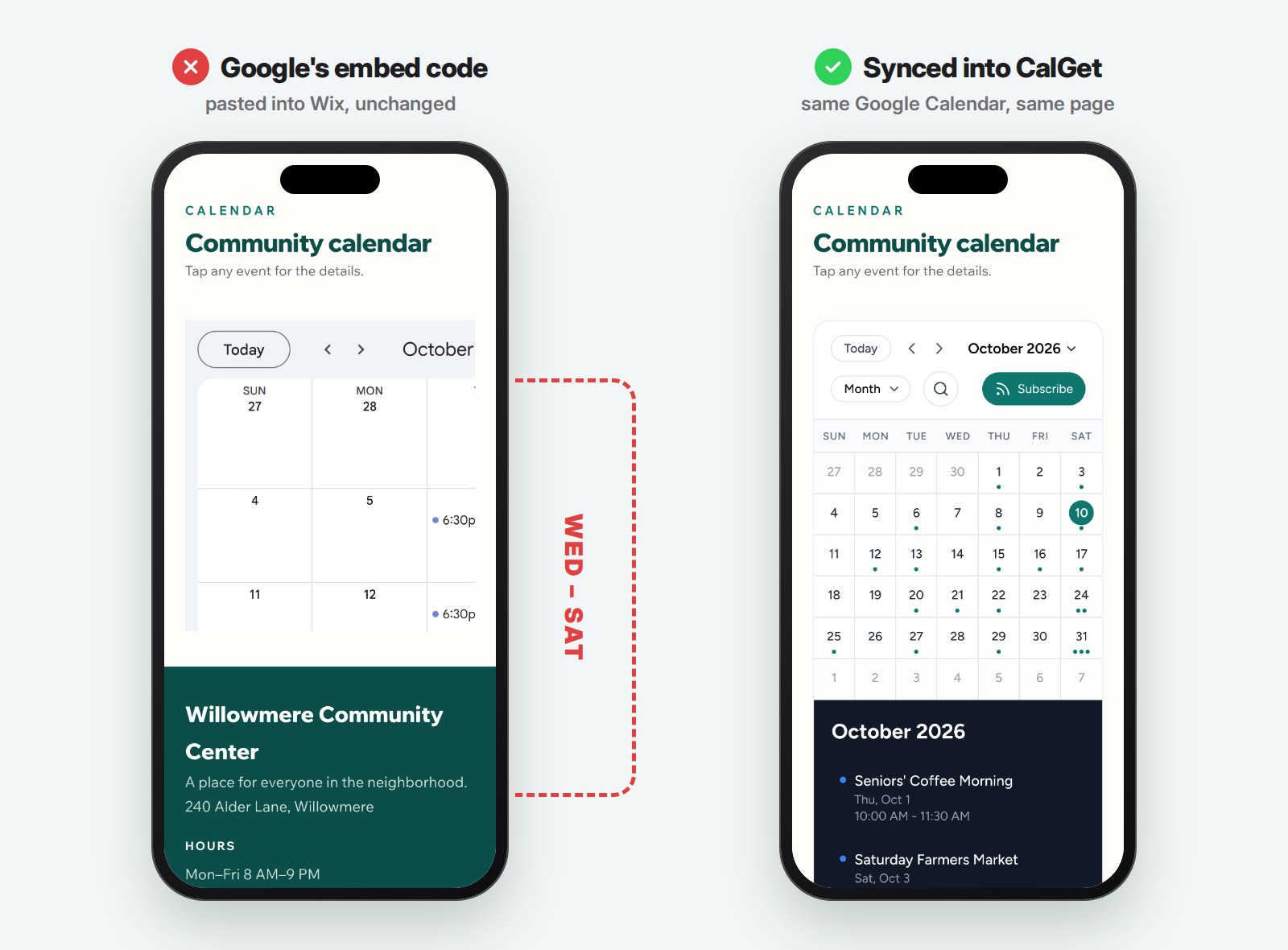
Paste Google Calendar's embed code into a Wix site, publish, and open the page on your phone. You'll see Sunday, Monday, and part of Tuesday. The rest of the week is still there, just off the edge of the screen, where none of your visitors will scroll to find it.
There are two ways to add Google Calendar to Wix. The first uses Google's own embed code, takes five minutes, and has that phone problem built in. The second keeps your events in Google Calendar but shows them through a calendar made for phones. We'll walk through both, show you exactly what each one looks like on a phone screen, and flag the one step in Way 2 that trips people up on Wix.
Prefer to watch? The full walkthrough is a 6-minute video.
Why the Google Calendar app disappeared from Wix
For years, the easy route was Wix's Google Event Calendar app. You connected your Google account, ticked the calendars you wanted, and the app handled the rest. That route is closed. Wix's help center now opens with this line: "As of December 3rd, 2025, the Google Event Calendar app is no longer supported."
If your events page went blank this winter, that's why. Wix points people to a different Google Calendar app in its App Market. We didn't test that app for this guide, so we won't judge it. Both methods below work without any Wix app at all, which also means they won't break the next time an app gets retired.
Way 1: Add Google Calendar to Wix with Google's embed code
This is the do-it-yourself route. All you need is a Google Calendar and edit access to your Wix site.
Make your calendar public
Visitors can only see a calendar that's public. In Google Calendar on a computer, open Settings, pick your calendar under "Settings for my calendars," and in "Access permissions for events," tick Make available to public.
Then check the dropdown next to it. Google offers "See only free/busy (hide details)" and "See all event details." Pick the second one. With free/busy, every event on your website shows up as a block labeled Busy, which tells your visitors nothing.
Copy the embed code and paste it into Wix
- In the same settings page, scroll to Integrate calendar and copy the Embed code. It's one line of code: an iframe that points to calendar.google.com.
- In the Wix Editor, click Add Elements, then Embed Code, then Embed HTML.
- Click Enter Code on the new element, paste the code under "Add your code here," and click Apply.
- Publish.
Those are the steps from Wix's own guide to embedding code. On a computer, Wix shows the code inside a box you size yourself. If the box is smaller than Google's calendar, you get scroll bars, and you can drag the box bigger. On a phone, it's a different story.
Why Google's calendar gets cut off on Wix phones
It comes down to two numbers. Google's embed code is 800 pixels wide and 600 tall unless you change it.
A site built in the Wix Editor lays out its phone version at a fixed 320 pixels wide. That's not a guess. It's the viewport setting Wix documents for mobile sites, and it's exactly what a Wix site sent to a phone when we checked in October 2026.
So an 800-pixel calendar lands in a box no wider than the phone layout, usually about 280 pixels. Wix doesn't shrink what's inside an Embed HTML element, because the element is an iframe. Wix says it plainly in its help article on HTML code on mobile: "if the content is larger than the iFrame, it will get cut off and will show scroll bars."
We tested this with an unmodified Google embed on an iPhone-sized screen. Sunday and Monday fit. About 40% of Tuesday fits. Wednesday through Saturday don't appear at all.
There's a second limit that's easy to miss. When a visitor opens an event in Google's embed, the way to save it is "Copy to my calendar," which takes them into Google Calendar. If they use Apple Calendar or Outlook, there's no button for that.
Wix's own advice for code that doesn't fit on phones is honest about this: "We recommend hiding the desktop code, and adding a mobile friendly alternative to your mobile site." That's what Way 2 is.
Way 2: Sync Google Calendar into a calendar built for phones
The idea is simple. You keep adding and editing events in Google Calendar exactly as you do now. CalGet reads your calendar's feed, and the calendar on your Wix site is CalGet's, styled to match your site and laid out for whatever screen it's on.
One honest note before you start: syncing an outside calendar like Google Calendar is part of CalGet's Standard plan (two synced calendars) and Professional plan (ten). The plan comparison has the details.
Step 1: Copy your Google Calendar's iCal address
In Google Calendar's settings for your calendar, scroll to Integrate calendar and copy the Public address in iCal format. It ends in .ics. Google notes that this address only works when the calendar is public, so do the "Make available to public" step above first, with "See all event details."
Want to keep the calendar private? Copy the Secret address in iCal format instead. It syncs the same way, but treat it like a password, because anyone who has it can read your events.
If iCal addresses are new to you, our explainer on what an ICS file is and how calendar feeds work covers the basics.
Step 2: Create a calendar in CalGet and sync it
In CalGet, go to Calendars, click New Calendar, give it a name, and create it. Open the External Calendars tab, click Add External Calendar, paste the address, and click Sync Calendar.
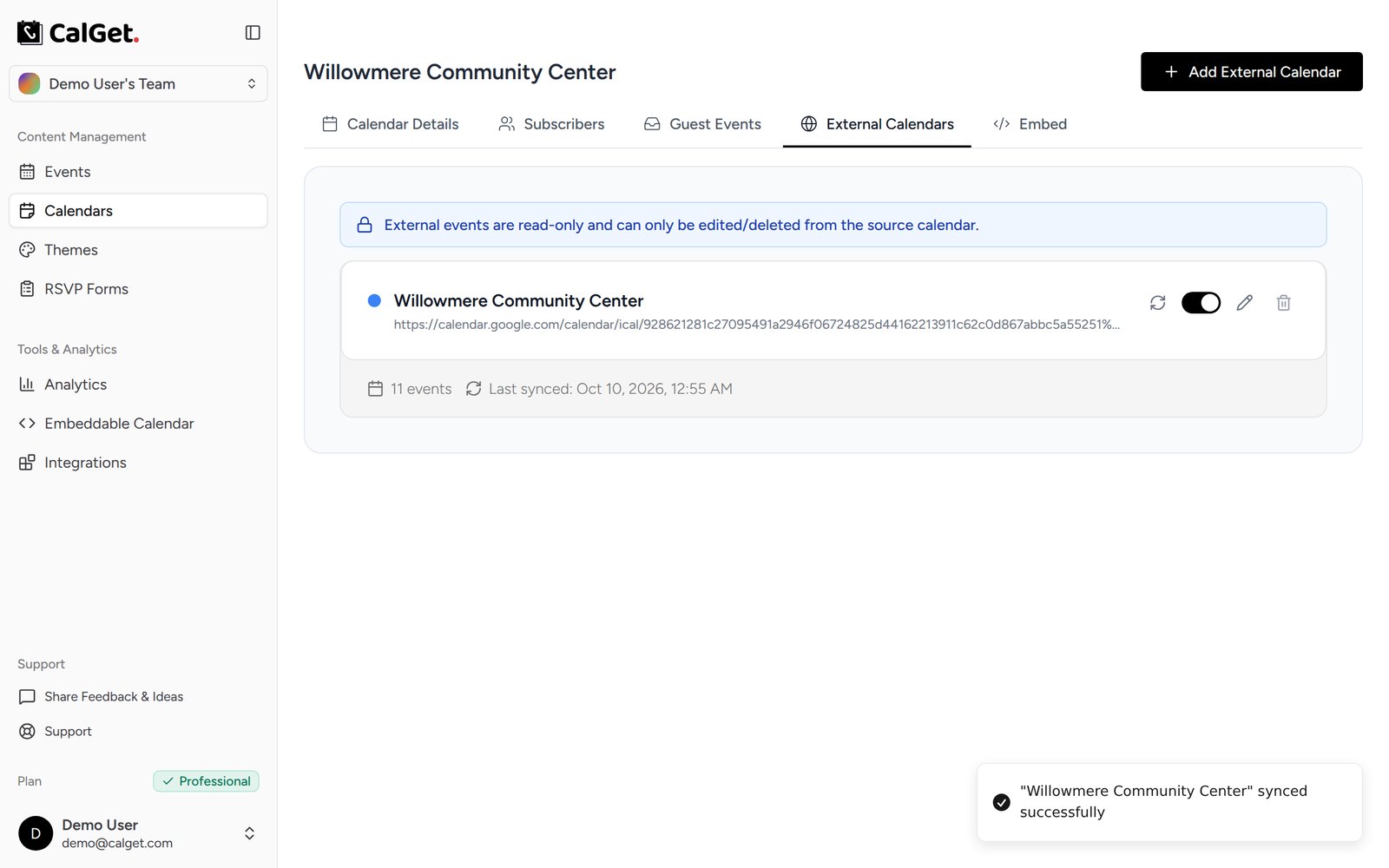
In our test, all 11 events came over on the first sync, including the weekly ones. From then on, CalGet syncs again every 12 hours, and there's a sync button for when you've just changed something and don't want to wait. Synced events are read-only in CalGet, which is the point: Google Calendar stays the one place you edit.
Got more than one Google calendar? Add each one the same way. We added Google's public US holidays calendar as a second one, and both showed up together on the site, each in its own color.
Step 3: Make it look like your site
Open Embeddable Calendar and pick the calendars you want to show. Then go through the options. Everything updates in the preview as you click, so you see the result before your visitors do.
You can set any color by hex code (we used the site's teal, #0f766e), choose light, dark, or auto (auto follows each visitor's device), and pick the view visitors see first: Month, Week, Schedule, or Cards. Under More options there are 20 languages, the first day of the week, a default time zone, and a switch for guest events. Turn on guest submissions for the calendar first, and visitors get a Submit event button; you approve each one before it goes live.
Our favorite is the side panel layout. The month sits on one side, and every event in it is listed right next to it, so nobody has to click through days to find what's on.
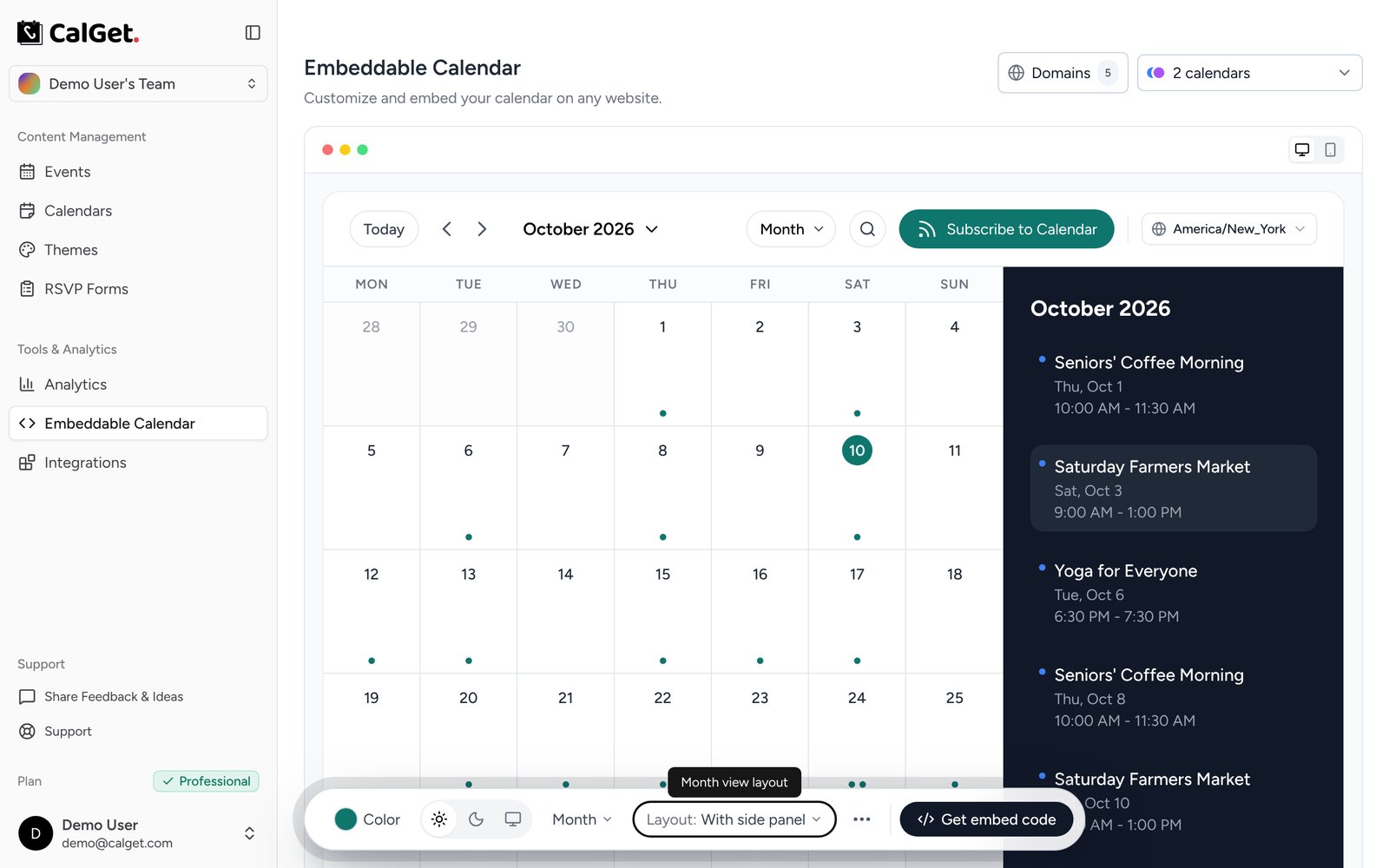
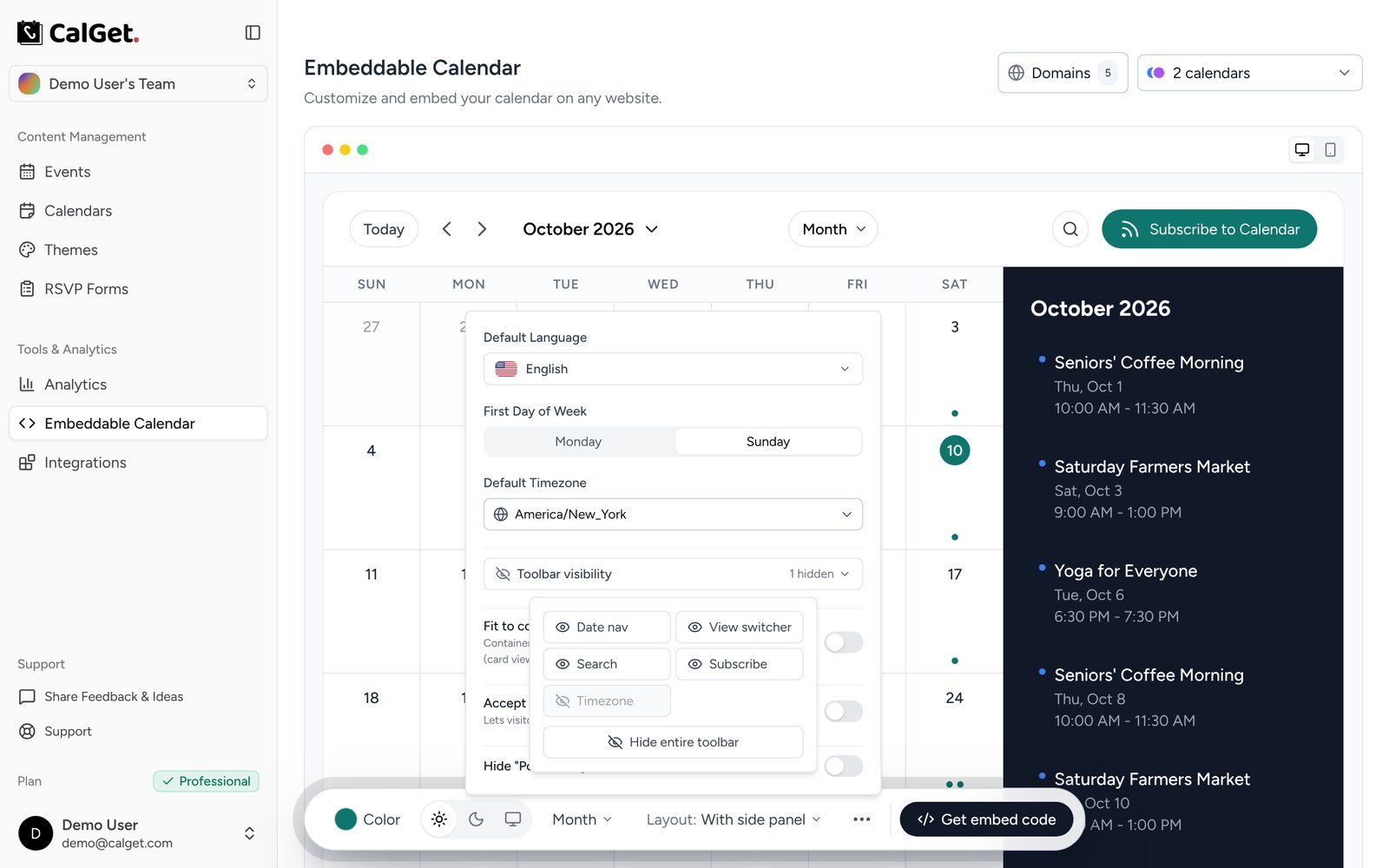
One Wix-specific tip from our testing: at Wix's 320-pixel phone width, the calendar's toolbar is tight. If your visitors are local, open Toolbar visibility and hide the time zone picker. Times still show in the time zone you set, and the toolbar fits cleanly on every phone.
When it looks right, click Get embed code and copy the JS Embed version. It resizes itself to fit its content, which matters inside a Wix box.
Step 4: Paste it into Wix and give it room
Back in the Wix Editor, add an Embed HTML element the same way as before: Add Elements, Embed Code, Embed HTML, Enter Code, paste, Apply.
Then size the box. Drag it to the full width of your page and make it tall enough for the calendar; with the side panel layout, that was about 900 pixels on desktop in our test.
Switch to the mobile editor and do the same there. About 860 pixels did it on the phone layout. The calendar fits itself to the width, so height is the only thing you set.
Step 5: Allow the address Wix runs your code from
This is the step that catches people. The first time you load the page, you may see a box that says "Access Restricted" instead of your calendar.
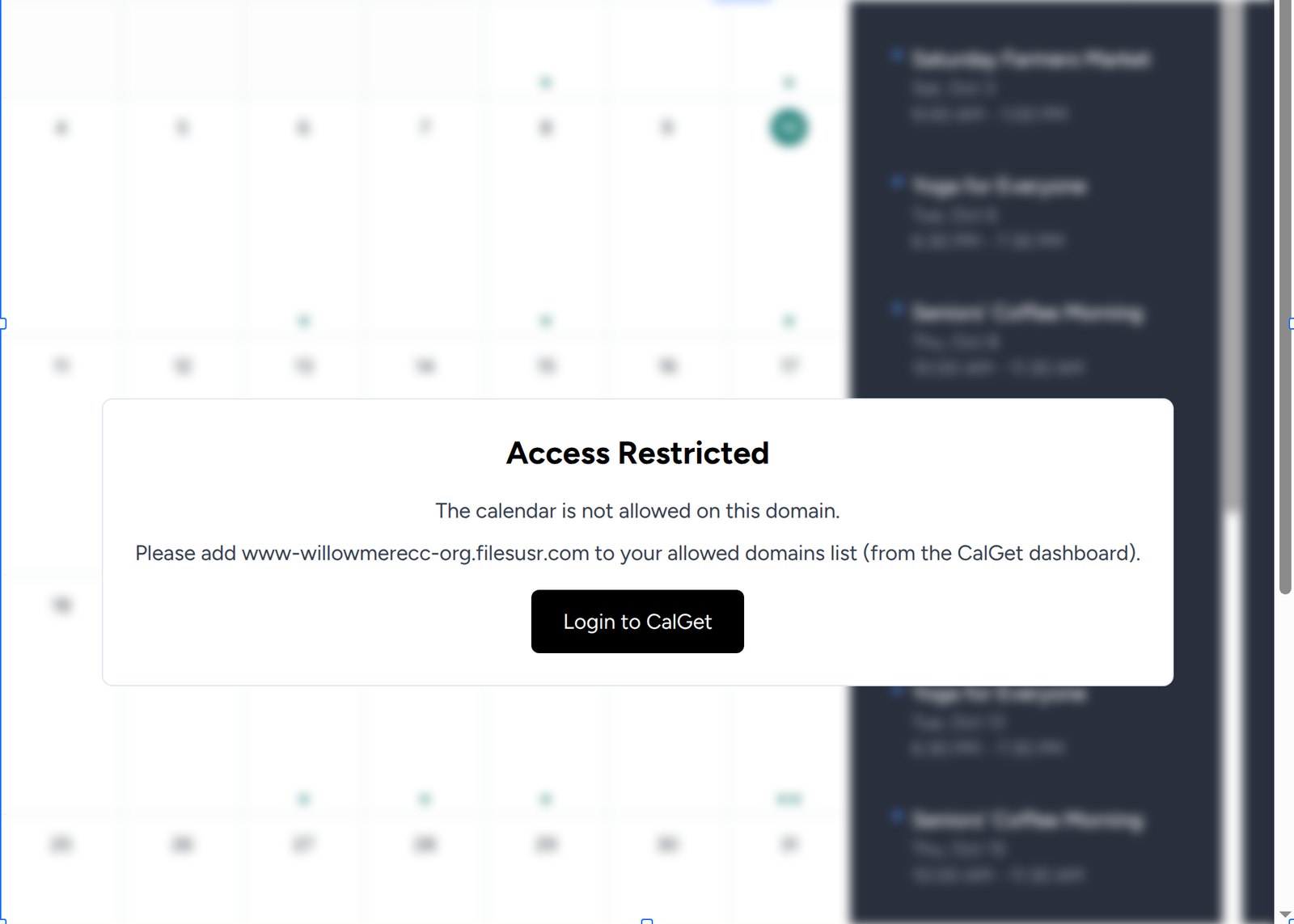
Here's what's going on. CalGet only shows your calendar on websites you've allowed, so nobody can copy your code onto their own site.
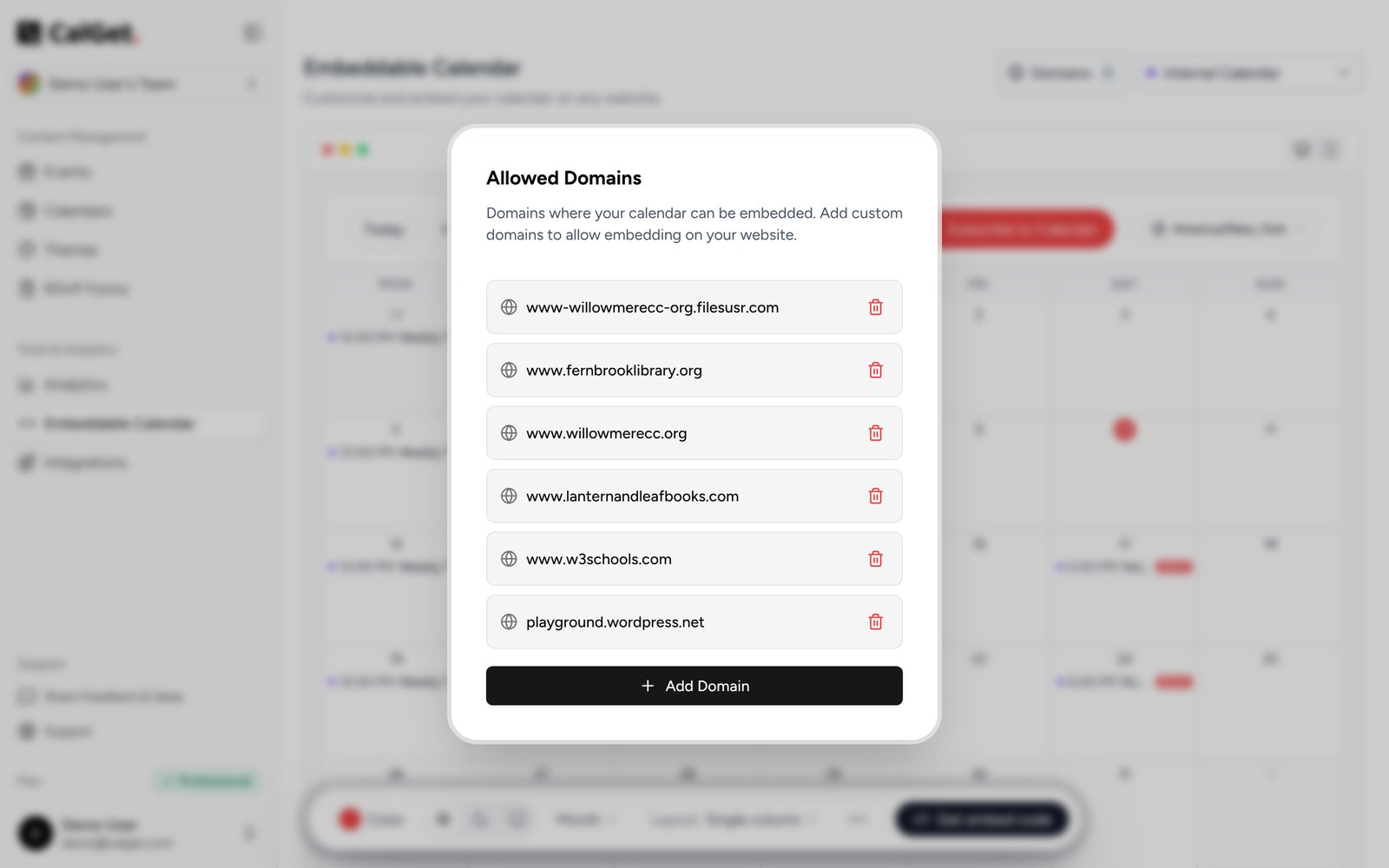
Wix, meanwhile, doesn't run Embed HTML code on your domain. It runs it on its own address, which looks like your site's address with the dots turned into dashes, on filesusr.com. For our test site, www.willowmerecc.org, that was www-willowmerecc-org.filesusr.com.
You don't need to work it out yourself. Copy the address from the message, open Domains in CalGet's Embeddable Calendar page, click Add Domain, paste it, and refresh. The calendar loads. This also explains a common Wix puzzle: if you added your own domain to an allowlist and the embed still says it's blocked, the filesusr.com address is the one that was missing.
What your visitors get on a phone (and on a computer)
Publish, and open the page the way a visitor would. On a computer, the calendar sits on your Wix page in your colors, with the month on the left and the events on the right.
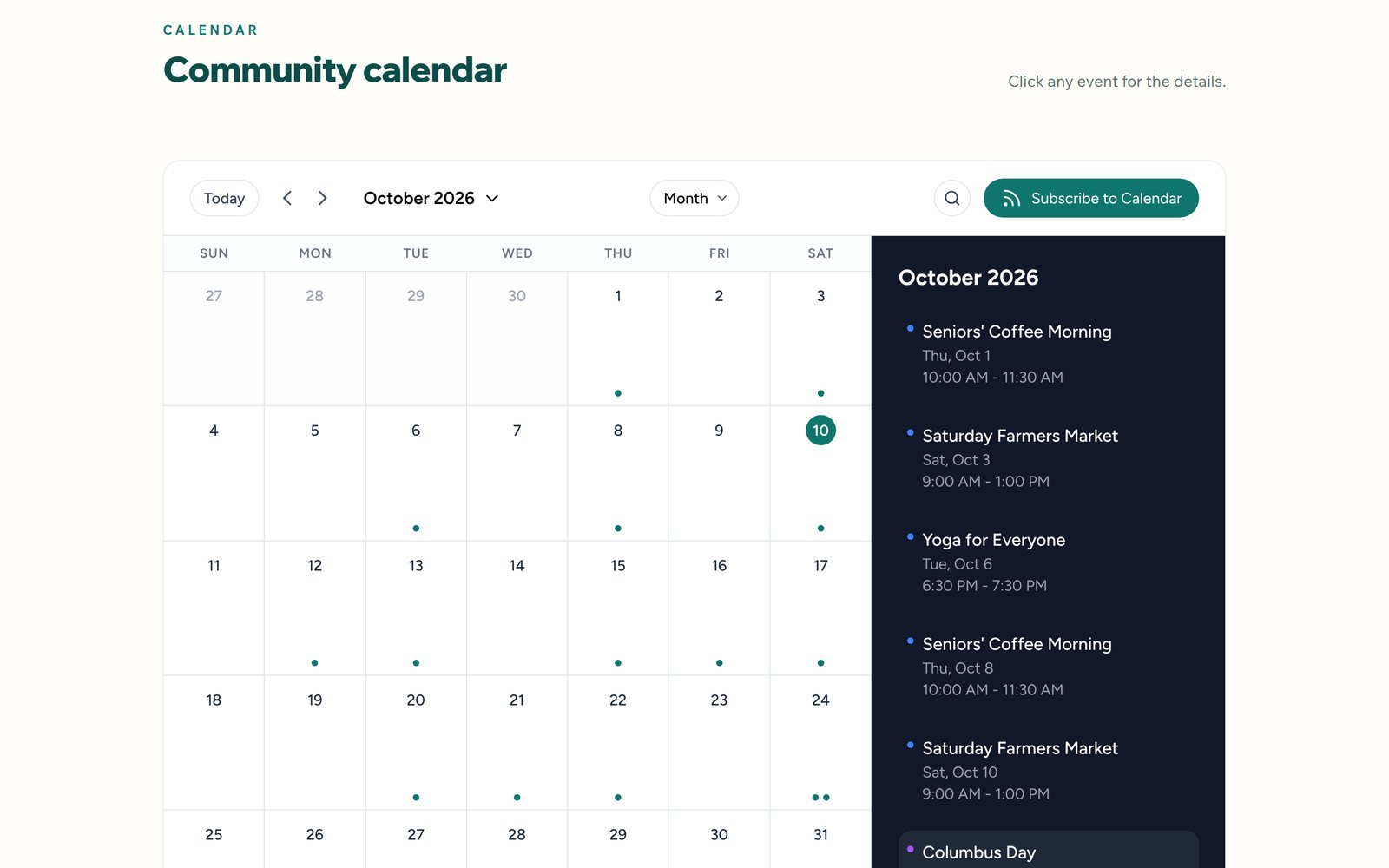
Visitors can search ("market" found the Saturday Farmers Market), tap a day to list just that day's events, and open any event for its time, place and description. From there, Add to Calendar saves it to Google Calendar, Apple Calendar, Outlook, or Yahoo, or downloads an ICS file. Subscribe to Calendar goes one step further: the visitor's calendar picks up every new event you add later, through a calendar subscription, with no reminder emails from you.
On a phone, the whole month fits and the side panel drops below it. That's the part Way 1 can't do inside Wix's phone layout.
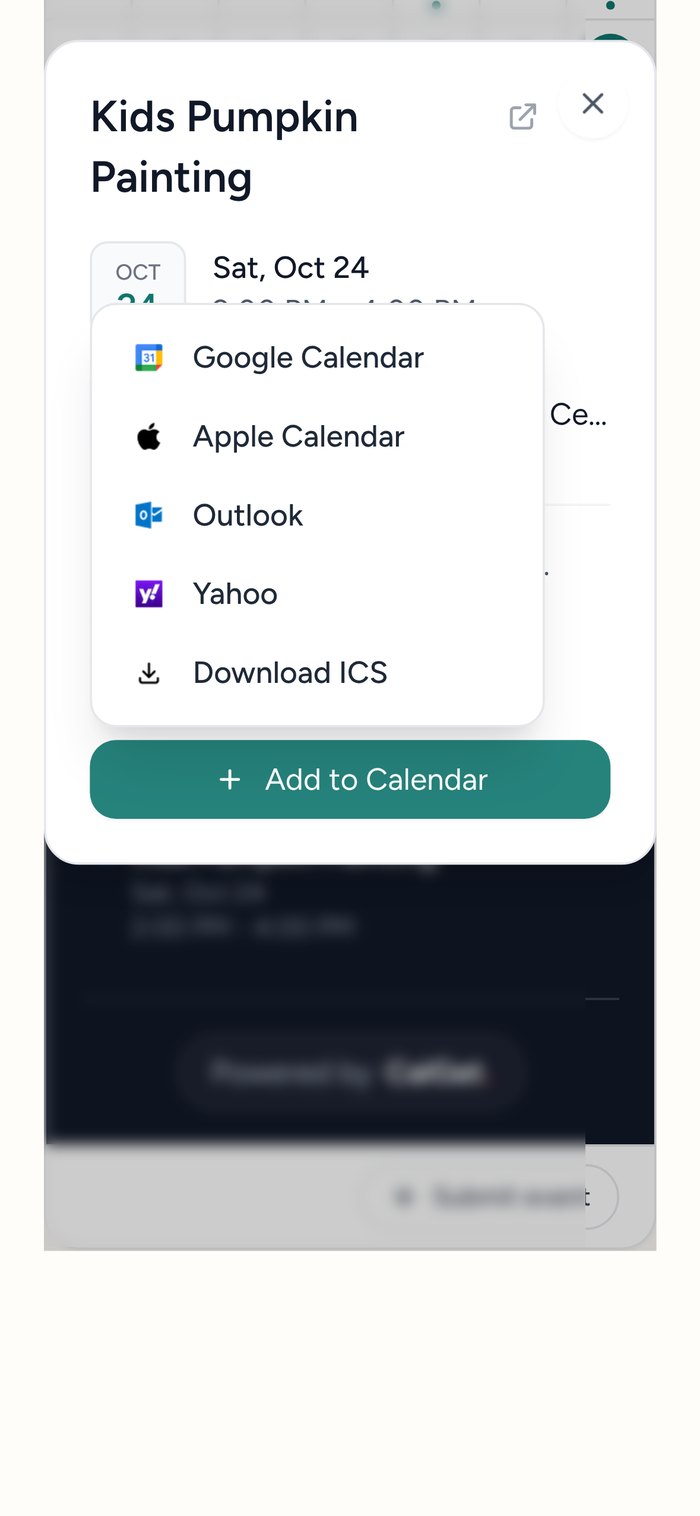
If you're ready to set this up, start in the Embeddable Calendar. It's the same calendar on Wix, WordPress, Squarespace, or anything else that takes embed code.
Google embed or CalGet: which one should you use on Wix?
Here's the short version, based on what we saw in testing.
| Google's embed code | Google Calendar synced into CalGet | |
|---|---|---|
| Setup time | About 5 minutes | About 15 minutes, once |
| On Wix's phone layout | Cut off after part of Tuesday | Fits the full month |
| Looks like | Google Calendar | Your site's color, light or dark |
| Saving an event | Copy to Google Calendar | Google, Apple, Outlook, Yahoo or ICS |
| Subscribe to all future events | Google Calendar only | Google, Apple, Outlook, Office 365 |
| Where you edit events | Google Calendar | Google Calendar (syncs every 12 hours or on demand) |
| What you need | A Google account | A CalGet Standard or Professional plan |
Our take: if your audience is mostly on computers and your events page is an afterthought, Google's embed is fine. Drag the box big enough and move on.
If people find your events on their phones, and for most community centers, churches, studios and clubs they do, Way 2 is the one that actually gets read. A calendar that shows two and a half days isn't a calendar to a phone visitor. It's a broken page.
Common mistakes when adding Google Calendar to Wix
The most common one is leaving the calendar on free/busy. The embed works, the sync works, and every event says Busy. Switch Access permissions to "See all event details."
The second is stopping at the "Access Restricted" message and assuming the embed doesn't work on Wix. It does. Wix's filesusr.com address just needs to be on your allowed list, as in Step 5.
The third is sizing the box on desktop and forgetting the mobile editor. Wix keeps a separate height for the phone layout, so a calendar that looks perfect on your laptop can still be cut short on a phone. Check both before you publish.
And last, editing events in the wrong place. With Way 2, change events in Google Calendar, not in CalGet. If you need the change on your site right away, click sync instead of waiting for the next automatic one.
How we tested this
We used a real Google Calendar with 11 community center events, including weekly ones, and Google's real embed code for it. We put both versions on a demo community center site laid out like a Wix Editor site: a 980-pixel desktop page and Wix's 320-pixel phone layout, with the code served from a filesusr.com address the way Wix serves Embed HTML.
The phone screenshots are from an iPhone 15-sized screen. The CalGet screens, the sync, and the "Access Restricted" message are all real. We tested on October 10, 2026; if Wix changes its editor, the menu names may move a little.
Frequently asked questions
Does Wix still have a Google Calendar app?
Wix stopped supporting its Google Event Calendar app on December 3, 2025, and points users to a different Google Calendar app in the Wix App Market. You can also add Google Calendar to Wix without any app, using an Embed HTML element and either Google's embed code or a synced calendar like CalGet.
Why is my Google Calendar cut off on Wix mobile?
Google's embed code is 800 pixels wide by default, and Wix Editor sites lay out their phone version 320 pixels wide. Wix doesn't shrink what's inside an Embed HTML element, so the calendar gets cut off and shows only Sunday, Monday and part of Tuesday.
Can I make Google's embed fit on a Wix phone?
Partly. You can edit the code's width and height, switch the view to Agenda in Google's Customize options, and set the box height in Wix's mobile editor. You'll get a narrower list in Google's styling. Wix's own advice for code that doesn't fit is to hide it on mobile and add a mobile-friendly alternative.
Will changes in Google Calendar show up on my Wix site?
With Google's embed, yes, almost right away. With CalGet, yes, on the next sync: CalGet syncs every 12 hours automatically, and you can click sync to update immediately.
Can I show more than one Google calendar on my Wix site?
Yes. In CalGet, add each Google calendar as an external calendar, then pick them all in Embeddable Calendar. They show together, each in its own color. Standard syncs two outside calendars and Professional syncs ten.
Put your Google Calendar back on your Wix site
Keep using Google Calendar the way you do now, and give your Wix visitors a calendar that works on the phone in their hand. The setup is about 15 minutes, once. If you're also running a WordPress site, the same calendar works there too; our guide to embedding Google Calendar on any website covers the general version of these steps.
Set up your embeddable calendar in CalGet and paste it into Wix today.
Written by the CalGet team. We build the calendar tools that organizers use to get events onto their websites and into their guests' calendars, and we tested every step in this guide ourselves.
Get Your Events on Everyone's Calendar.
Generate universal "Add to Calendar" links that work everywhere. Perfect for social media, emails, and websites.



Written by
Yared