Back to Blog
How to Add an Add to Calendar Link in an Outlook Email
Outlook can send meeting invites, but it can't make a link anyone can click to save your event. Here's how to add one to any Outlook email in about two minutes, what each button does, and what's inside the link.
Written by
Last updated: October 2026. We tested every link in this guide on a real event in October 2026.
Quick answer: Outlook can't make an Add to Calendar link by itself, but you can paste one into any Outlook email in about two minutes. Create the event in an add-to-calendar tool such as CalGet, copy its Add to Calendar buttons with Copy as: Content, and paste them into your email with Ctrl+V. If you'd rather use one line of text, select the words, click Link, and paste the event link. Each person who clicks can save the event to Google Calendar, Outlook, Office 365, Apple Calendar or Yahoo, at the right time in their own time zone.
You're emailing 300 people about a lunchtime Q&A. Some of them live in Outlook, some read email in Gmail, and a good third will open it on an iPhone between meetings. A meeting invite would fill your inbox with acceptances and show everyone's name to everyone else. A line that says "save the date" gets forgotten by Thursday.
An Add to Calendar link fixes both problems. Each person clicks once, picks their own calendar, and the event lands at the right time. Here's how to put one in an Outlook email, what your recipients see when they click it, and what the link actually contains, in case you're building these yourself.
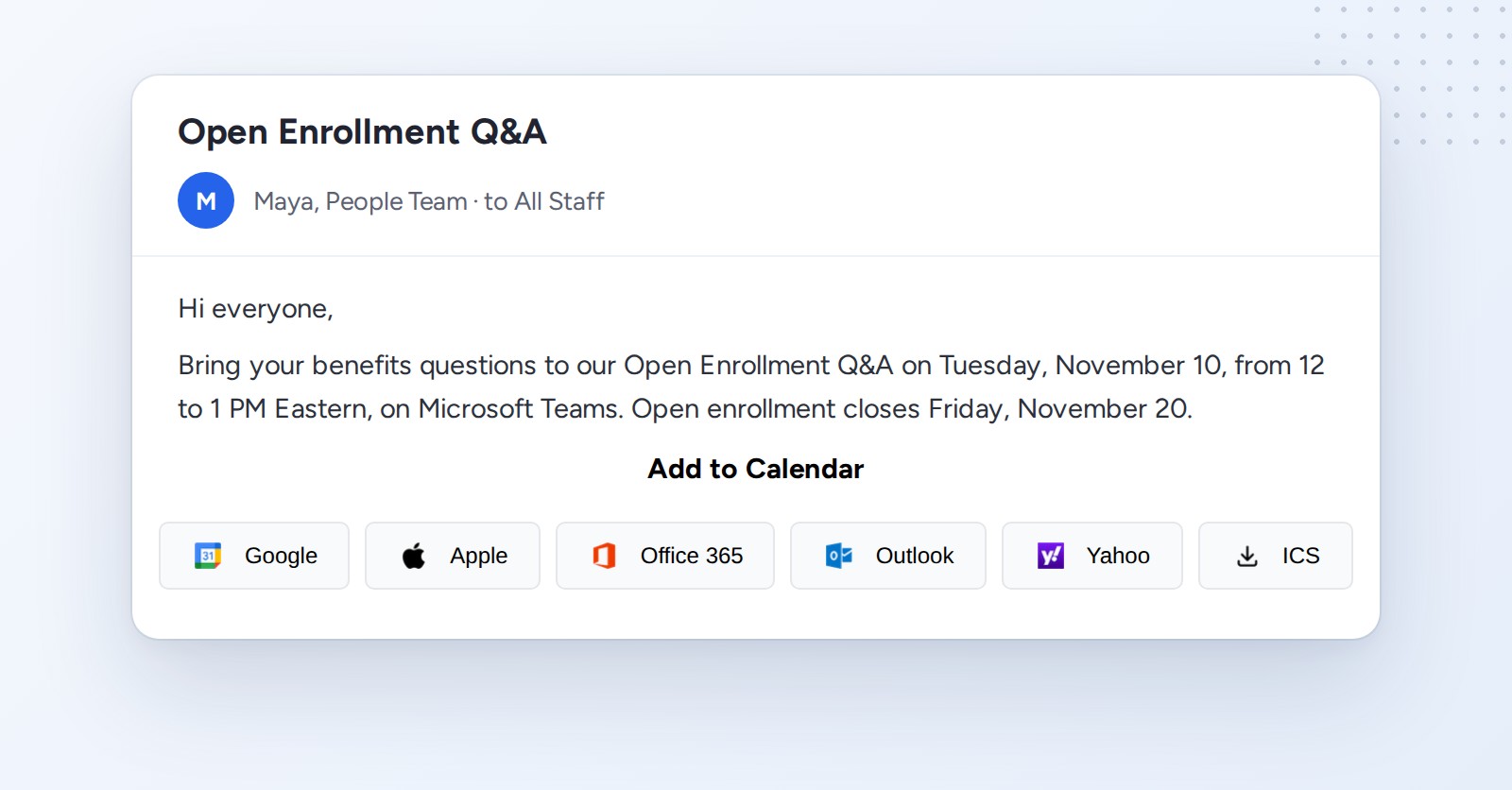
Prefer to watch? The whole thing takes under three minutes on video.
Meeting invite, .ics file, or Add to Calendar link?
Outlook gives you two built-in ways to share an event, and neither is ideal for a big list. Here's how the three options compare.
| Outlook meeting invite | .ics file attachment | Add to Calendar link | |
|---|---|---|---|
| Recipients see each other | Yes, on the attendee list | No | No |
| Replies to your inbox | Accept/decline replies, unless you turn off Request Responses | No | No |
| Works inside a normal email or newsletter | No, it's its own item | As an attachment | Yes, as buttons or a text link |
| Works for Gmail and iPhone users | Usually | Depends on the mail app | Yes, each person picks their calendar |
| Updates if you change the time later | Yes | No | No, send a new email |
| Best for | Small meetings you run | One-off sends to people on desktop | Announcements, newsletters, all-staff emails |
The honest trade-off is in the fifth row. A meeting invite stays connected to your calendar, so a time change reaches everyone. A link or a file gives each person their own copy. If your event is likely to move, or you publish a schedule that changes often, a subscription calendar keeps people up to date instead.
For everything else, the link wins. If you want the background, our guide to what an Add to Calendar link is covers how they work in more detail.
How to add an Add to Calendar link to an Outlook email
Step 1: Create the event in CalGet
In CalGet, click New Event and fill in the title, date, start and end time, and the location. For an online event, the location can be "Microsoft Teams" or the meeting link itself. Add a short description; it travels with the event into every calendar.
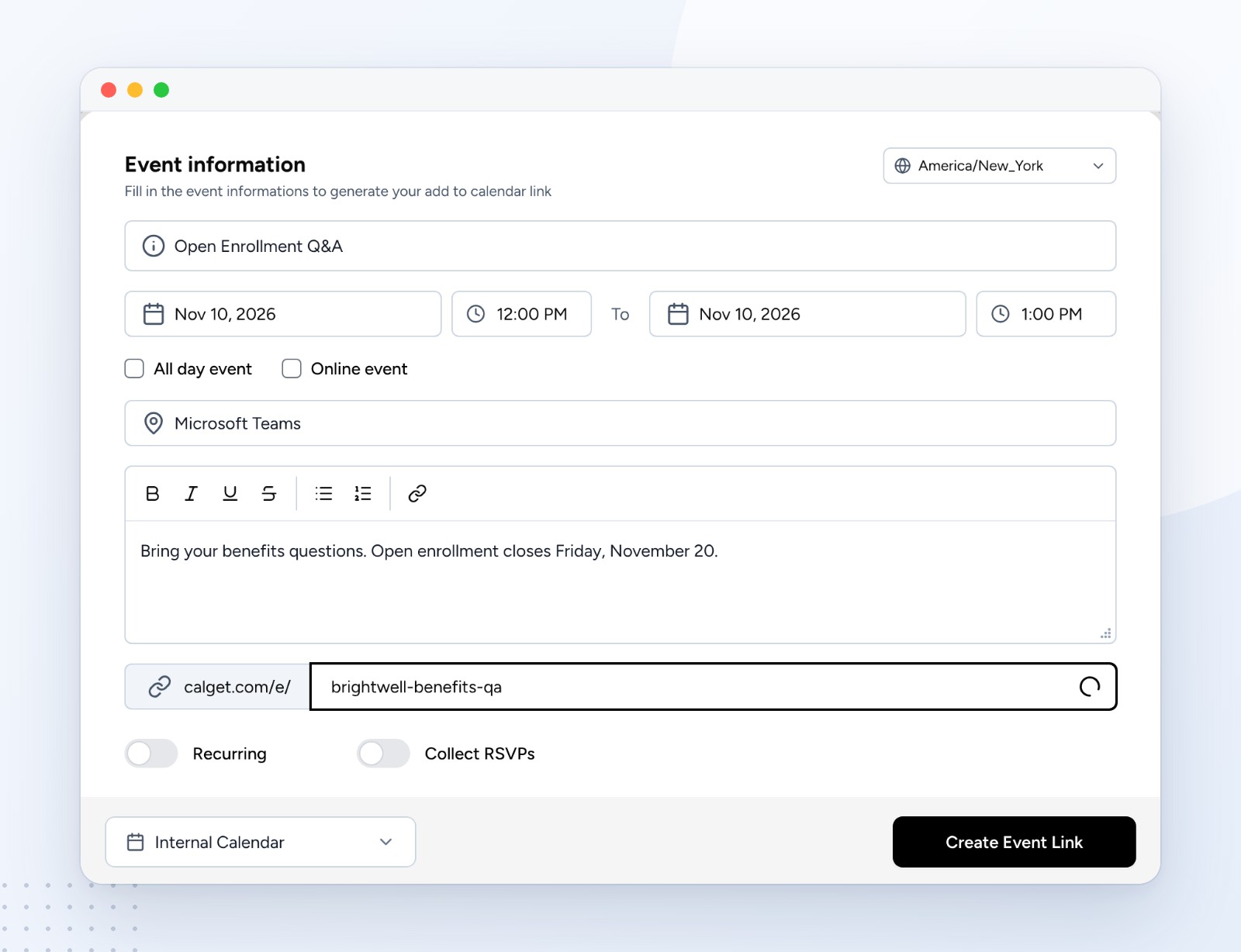
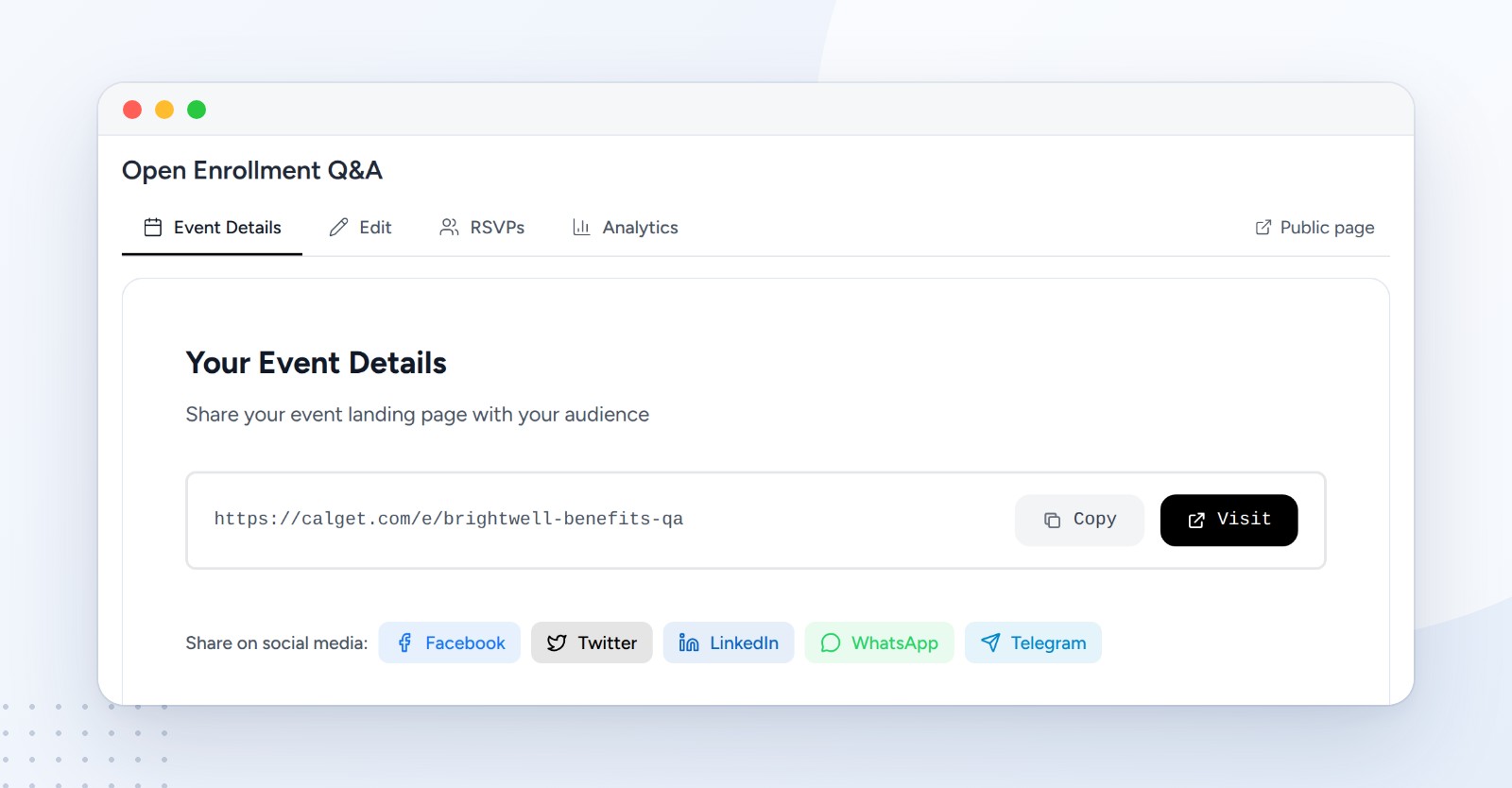
Check the time zone in the top corner before you save. Everyone's calendar converts from it, so a wrong zone means a wrong time for every single person. You can also give the event a readable link, like calget.com/e/brightwell-benefits-qa, then click Create Event Link.
Step 2: Copy the buttons with "Copy as: Content"
Open the event's Event Details tab and scroll to HTML Code. You'll see a preview of the Add to Calendar buttons and two copy options. Click Content.
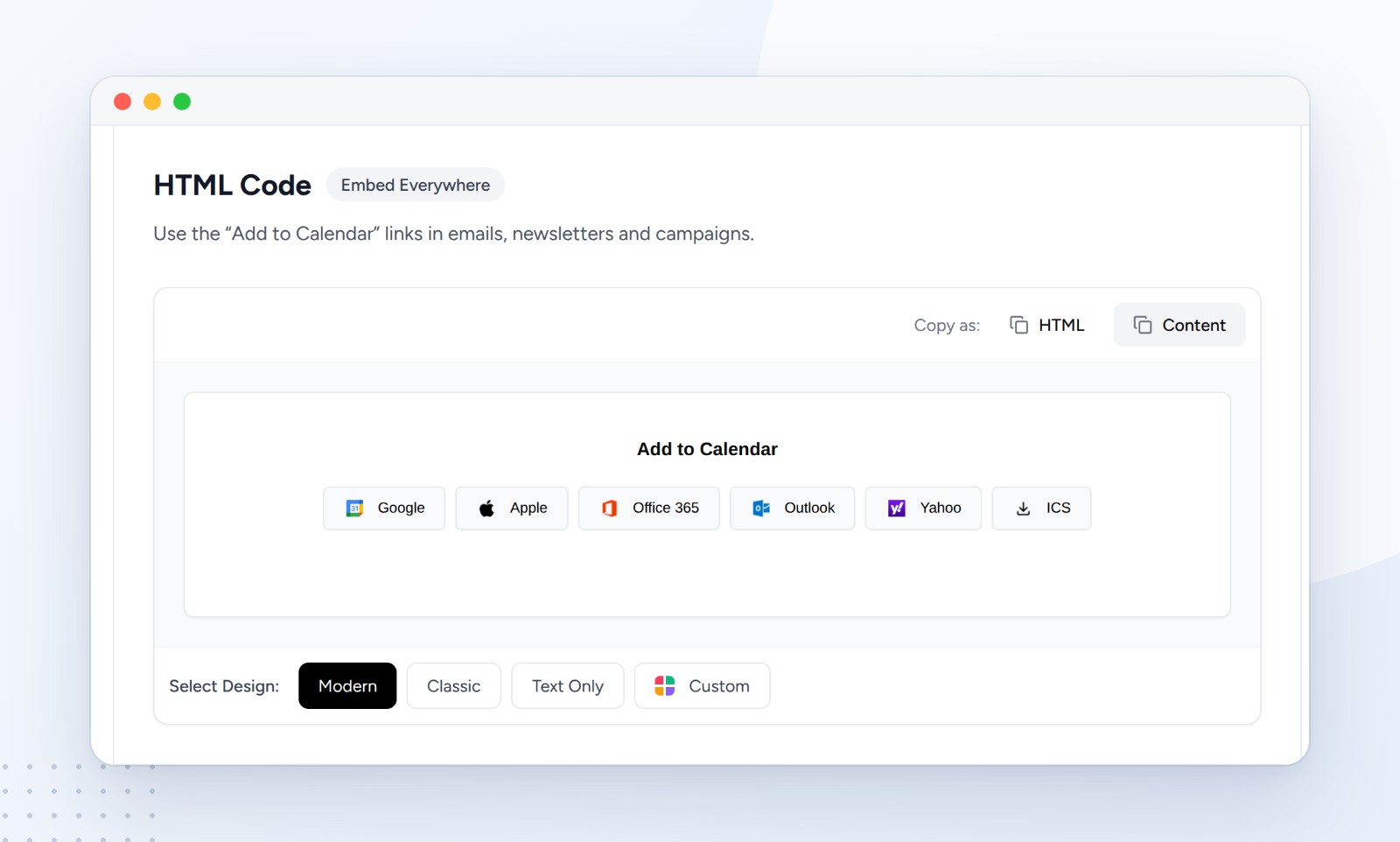
The choice matters because Outlook has no way to edit an email's HTML. If you copy the HTML code and paste it in, your recipients see a wall of code. "Content" copies the finished buttons, the same way you'd copy a table from a web page. You can switch the look first with the Modern, Classic, Text Only or Custom designs.
Step 3: Paste the buttons into your Outlook email
Click where you want the buttons in your message and press Ctrl+V (Cmd+V on a Mac). The row of buttons appears with every link in place. Send a test to yourself first and click one or two of them before it goes to the whole list.
Prefer one line of text? Link your own words
Some emails look better with a simple line like "Add it to your calendar". Copy your event link from the top of the Event Details tab, then link your words to it.
- New Outlook for Windows and Outlook on the web: select the text, go to the Message tab and choose Link (or find it under More options). Paste the link into Web address (URL) and click OK.
- Classic Outlook for Windows: select the text, choose Insert, then Link, paste the link into Address and click OK.
- Shortcut: Ctrl+K opens the link box on Windows, and Cmd+K does the same in Outlook for Mac.
Microsoft documents the same steps in its guide to adding hyperlinks in Outlook.
What your recipients see when they click
Each button opens a different calendar, and it pays to know which is which, especially the two Microsoft ones.
| Button | What happens | Who it's for |
|---|---|---|
| Opens a new event in Google Calendar, filled in | Gmail and Google Workspace users | |
| Office 365 | Opens a new event in Outlook on the web (outlook.office.com) | Work and school Microsoft 365 accounts |
| Outlook | Opens a new event in Outlook.com (outlook.live.com) | Personal Outlook.com and Hotmail accounts |
| Apple | Downloads a calendar file that opens in Apple Calendar | iPhone, iPad and Mac users |
| Yahoo | Opens a new event in Yahoo Calendar | Yahoo Mail users |
| ICS | Downloads a standard .ics calendar file | Desktop apps, including classic Outlook |
The mix-up we see most often: someone with a work account clicks Outlook and lands on a sign-in page for personal accounts. Work and school accounts belong to Office 365. People who live in the classic Outlook desktop app can use the ICS button, which on most Windows PCs opens the event straight in Outlook.
Time zones take care of themselves, because every link carries one. Our test event is at 12:00 PM Eastern. Someone in Chicago who saves it from the Office 365 button gets 11:00 AM, and someone in Los Angeles who saves it from the Apple button gets 9:00 AM. Nobody has to do any math.
What's inside an Add to Calendar link
This part is for developers, marketers who like to know how things work, and anyone asking an AI assistant to build these links. Each button points to a short CalGet link (calget.com/e/your-event?cal=google, ?cal=office365 and so on), which sends the visitor to the right calendar with the event filled in. These are the real addresses our test event produced in October 2026.
Google Calendar takes the local time plus a time zone (ctz):
https://calendar.google.com/calendar/render
  ?action=TEMPLATE
  &dates=20261110T120000/20261110T130000
  &ctz=America/New_York
  &text=Open+Enrollment+Q%26A
  &location=Microsoft+Teams
Office 365 (work and school accounts) takes the times in UTC, marked with a Z:
https://outlook.office.com/calendar/deeplink/compose
  ?path=/calendar/action/compose
  &rru=addevent
  &startdt=2026-11-10T17:00:00Z
  &enddt=2026-11-10T18:00:00Z
  &subject=Open%20Enrollment%20Q%26A
  &location=Microsoft%20Teams
Outlook.com (personal accounts) uses the same parameters on outlook.live.com/calendar/action/compose. Yahoo uses ST and ET in UTC on calendar.yahoo.com. Apple and ICS download a calendar file in the iCalendar format, where the event carries its own time zone:
BEGIN:VEVENT
SUMMARY:Open Enrollment Q&A
LOCATION:Microsoft Teams
DTSTART;TZID=America/New_York:20261110T120000
DTEND;TZID=America/New_York:20261110T130000
END:VEVENT
A few things trip up people who build these links by hand:
- Two kinds of time. Google wants local time plus ctz, while the Microsoft and Yahoo links want UTC, so one event needs two sets of times.
- Encoding. Every value has to be URL-encoded, which is why "Q&A" turns into Q%26A.
- No official API. Microsoft doesn't publish these deep links as an official API, so their format can change.
- The file format. The .ics file follows RFC 5545, the iCalendar standard. Our guide to ICS files explains it in plain English.
A generator handles all of this for you and keeps one link per event, which is also what makes the click counts below possible.
See how many people added your event
Because every button goes through your event's link, CalGet counts the clicks. The event's Analytics tab shows Clicks, Calendar Adds and RSVPs, and a breakdown of which calendars people used.
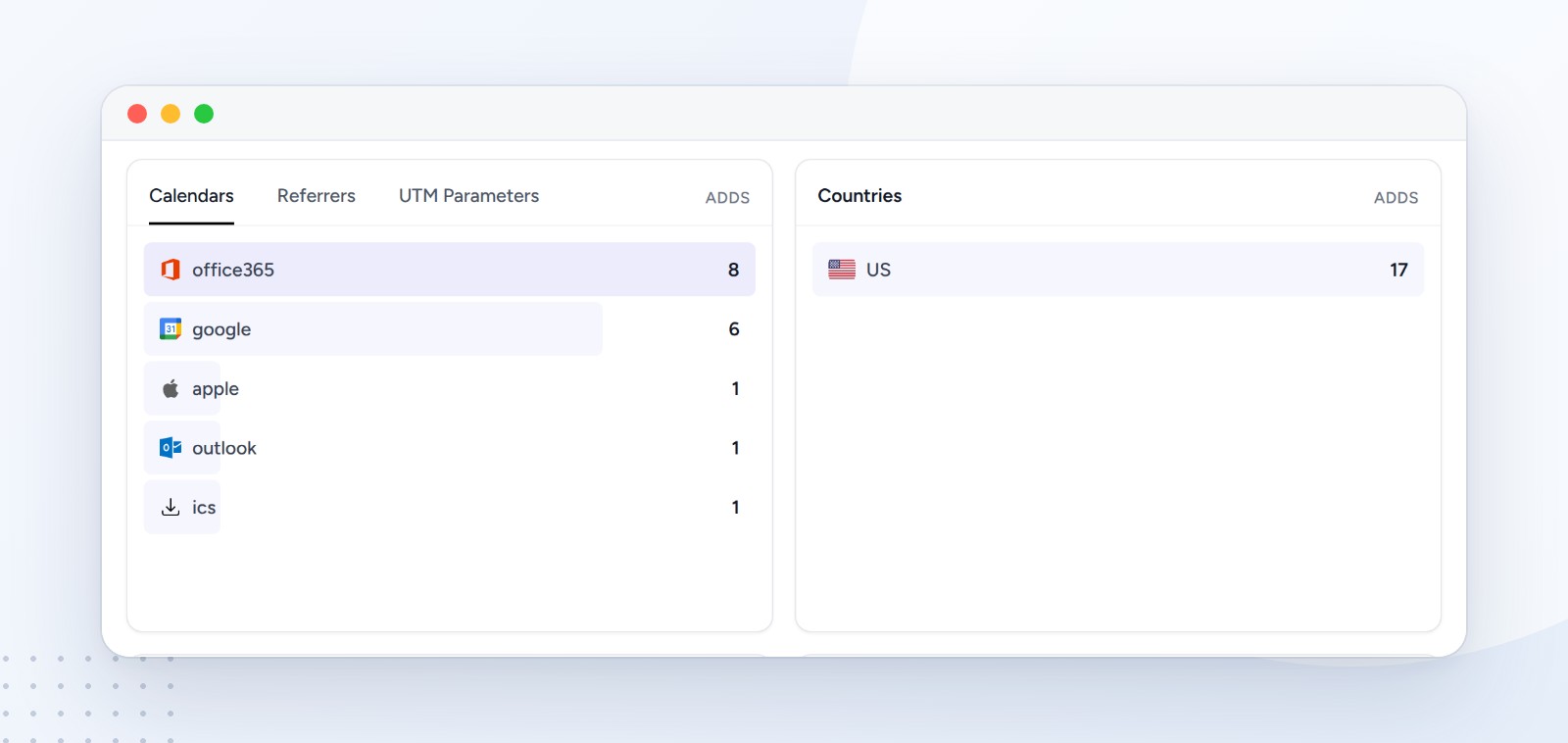
That breakdown is handy for the next email. If nearly everyone uses Office 365, you could lead with that button. If you also need to know who's actually coming, turn on RSVPs for the event and the same page collects yes, maybe and no answers.
Common mistakes with Add to Calendar links in Outlook
Pasting the HTML code instead of the content. Outlook shows it as raw code. Go back and use Copy as: Content.
Sending the Outlook button to a company on Microsoft 365. Work accounts need the Office 365 button. Keep both, or mention which one to click.
Changing the time after you send. Copies already saved in people's calendars don't change. Send a short update email with the new link, or use a meeting invite for events that might move.
Getting the time zone wrong. The event's time zone decides what everyone sees. Check it before you create the link.
Not testing. Send the email to yourself, click Google and Office 365, and open it on your phone. It takes a minute and saves an awkward correction email.
How we tested this
We created a real event in CalGet, an Open Enrollment Q&A on November 10, 2026 from 12:00 to 1:00 PM Eastern, and checked where every button leads by following each link. The addresses in the section above are the real ones, and we checked them again in October 2026. We confirmed that Copy as: Content puts the buttons on the clipboard as formatted content with all six links in place. The local times in this guide come from the links themselves: the Microsoft and Yahoo links carry the time in UTC, and the calendar file carries the Eastern time zone.
The company, Maya and the People Team are made up. The Outlook, Gmail and iPhone screens in the video are recreations; the CalGet screens in this guide are real.
Frequently asked questions
Can Outlook create an Add to Calendar link by itself?
No. Outlook can send meeting invites and you can attach a calendar file, but it has no feature that makes a link anyone can click to save your event to their own calendar. You make the link with an add-to-calendar tool, then paste it into the email.
Do Add to Calendar links in Outlook emails work for Gmail and iPhone users?
Yes. The link is ordinary web content, so it works in any mail app. Gmail users click Google, iPhone users click Apple, and each event opens in their own calendar.
Will the event show at the right time in other time zones?
Yes. Each link carries the time zone, so a 12:00 PM Eastern event shows as 11:00 AM in Chicago and 9:00 AM in Los Angeles.
What's the difference between the Office 365 and Outlook buttons?
Office 365 opens Outlook on the web for work and school accounts (outlook.office.com). Outlook opens Outlook.com for personal accounts like Hotmail (outlook.live.com). Most company emails need Office 365.
If I change the event, will it update in people's calendars?
No. Each person saves their own copy, so changes don't reach it. Send a new email with the updated link, or use a subscription calendar for schedules that change.
Put an Add to Calendar link in your next Outlook email
The difference between "save the date" and a saved date is one click. Create the event once, paste the buttons into Outlook, and everyone on your list gets it into the calendar they actually use, at the right time for them.
Create your Add to Calendar link in CalGet and paste it into your next Outlook email.
Written by the CalGet team. We build the Add to Calendar, RSVP and calendar tools that organizers use to get events into their audience's calendars, and we tested every link in this guide ourselves.
Get Your Events on Everyone's Calendar.
Generate universal "Add to Calendar" links that work everywhere. Perfect for social media, emails, and websites.



Written by
Yared