Back to Blog
Add an Events Calendar to Google Sites That Fits Phones
Google Sites only comes with Google's Calendar block: a sign-in wall when the calendar is private, cut-off titles, and a strip a week and a half tall on phones. Here's how to add a real events calendar to Google Sites instead, with every event in full, the whole month on phones and Add to Calendar for any calendar.
Written by
Last updated: October 2026. We checked every Google Sites step against Google's help pages and live Sites pages in October 2026, measured how Sites sizes calendars on phones, and built the calendar below with a real CalGet account.
Quick answer
Google Sites has no events calendar of its own. Its Calendar block shows a Google Calendar, which needs to be public, cuts titles off and shrinks to a strip on phones. To add a real events calendar to Google Sites:
- Add your events to a CalGet calendar.
- Style it in Embeddable Calendar, then Get embed code → JS Embed → Copy code.
- In Google Sites: Insert → Embed → Embed code → paste → Next → Insert.
- In CalGet, open Domains and add
*.googleusercontent.com. - Make the box taller than it is wide, so phones get the whole month. Publish.
Here's what a parent sees when they open your PTA's events page on their phone: a calendar the size of a sticky note, a week and a half tall, with every event title cut to "6pm Sp" and "9am Ca". If the calendar isn't public, they see something worse. A Google sign-in screen.
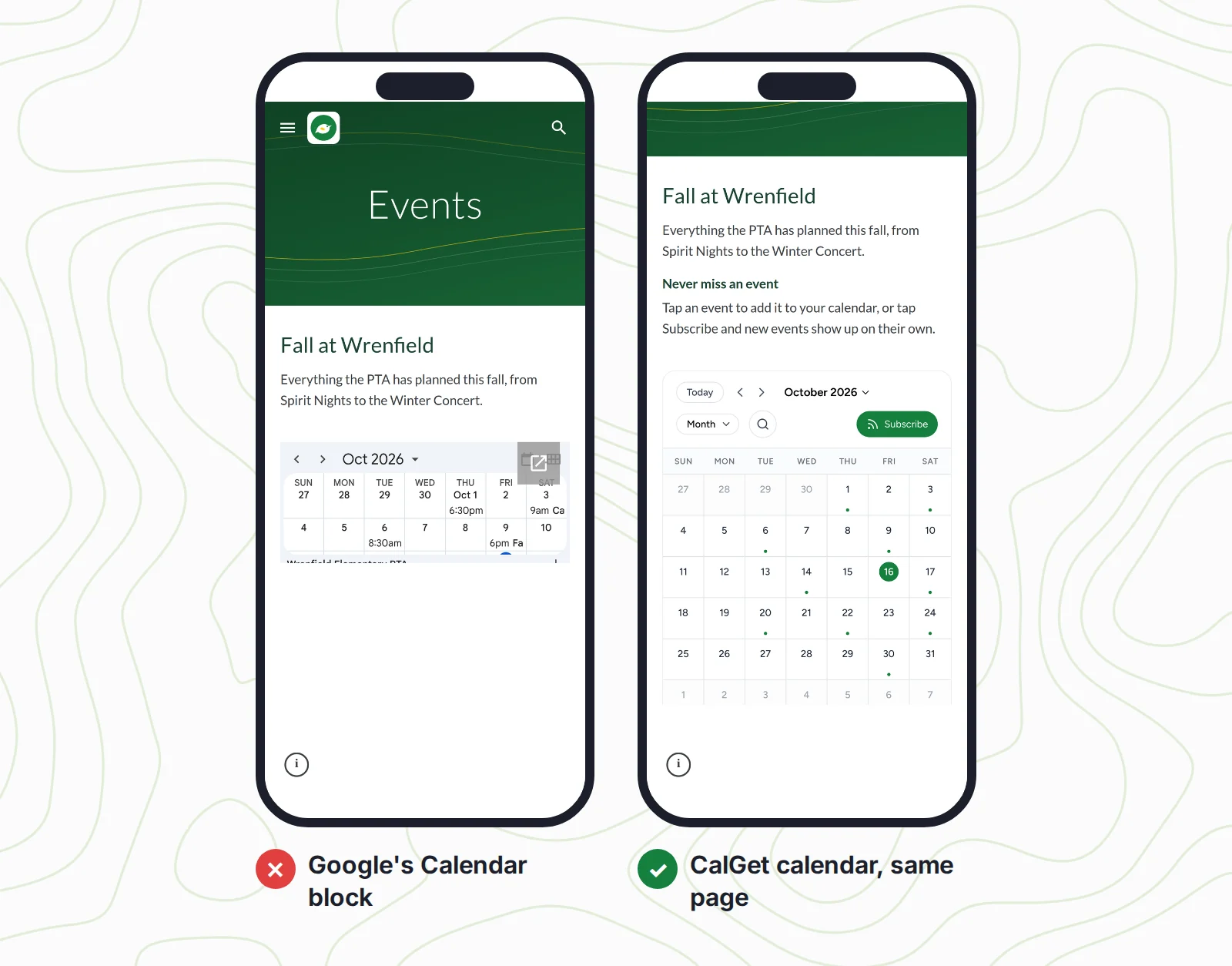
That's the default when you add a calendar to Google Sites. This guide shows you how to add an events calendar to Google Sites that fits phones, lets people save any event to their own calendar, and updates itself. We built it for a made-up school group, Wrenfield Elementary PTA, with 16 real events from October to December. Every screen below comes from that build.
Why Google Sites' Calendar block lets parents down
Google Sites doesn't have an events calendar. Click Insert and the only calendar option is Calendar, which drops a Google Calendar into your page (Google's help page on adding Google files and website content to Sites lists it next to YouTube and Map). It works fine for your own team. For a public events page, it has four problems.
1. Private calendars show a sign-in wall
If the calendar isn't public, visitors who aren't signed in to an account with access get Google's sign-in screen instead of your events.
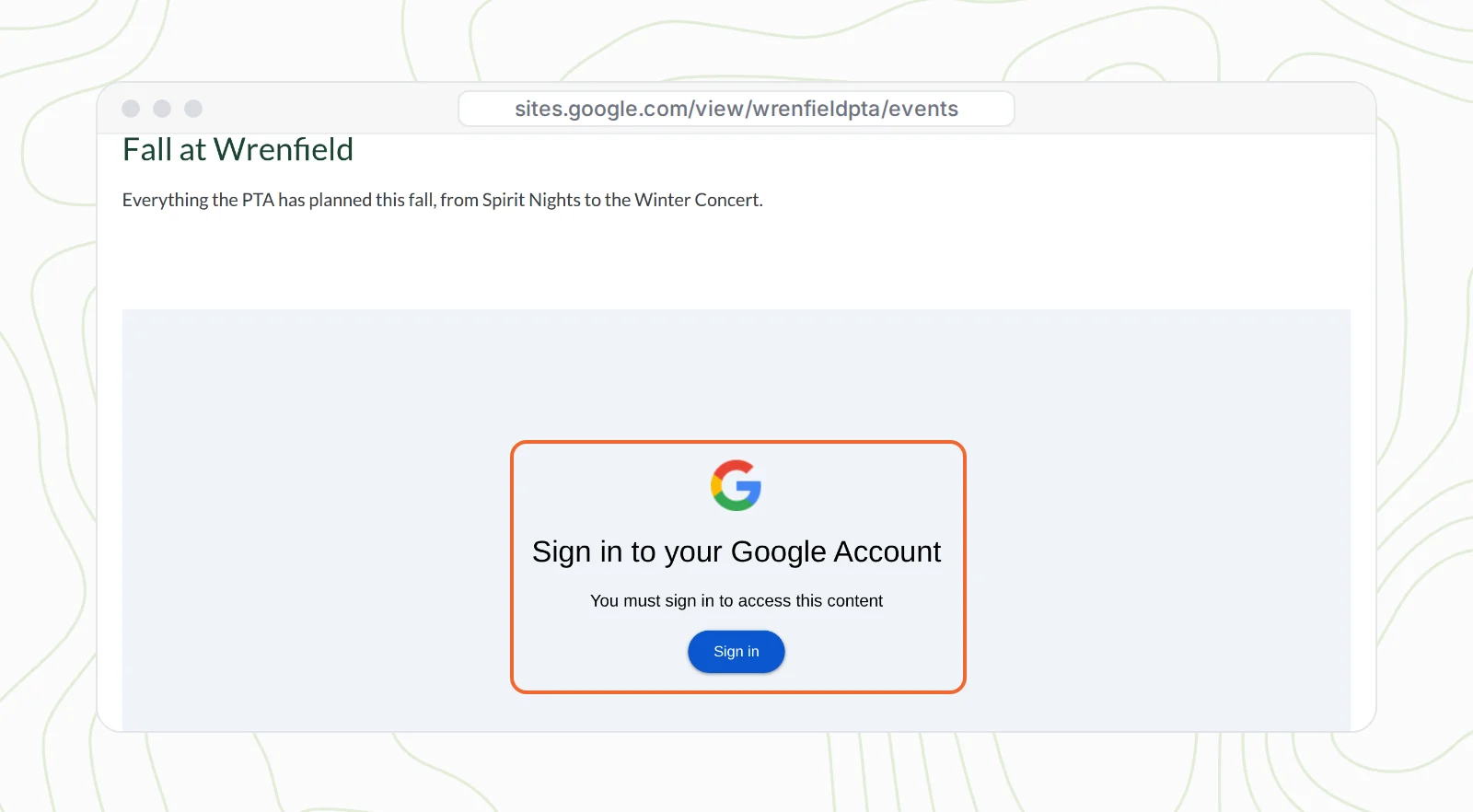
Making it public is a Google Calendar setting (Settings → your calendar → Access permissions → Make available to public). On a school or work account that may not be your call: Google's own page on making a Google calendar public warns that "Your domain's administrator may restrict your sharing settings." Many school districts do.
2. Event titles get cut off
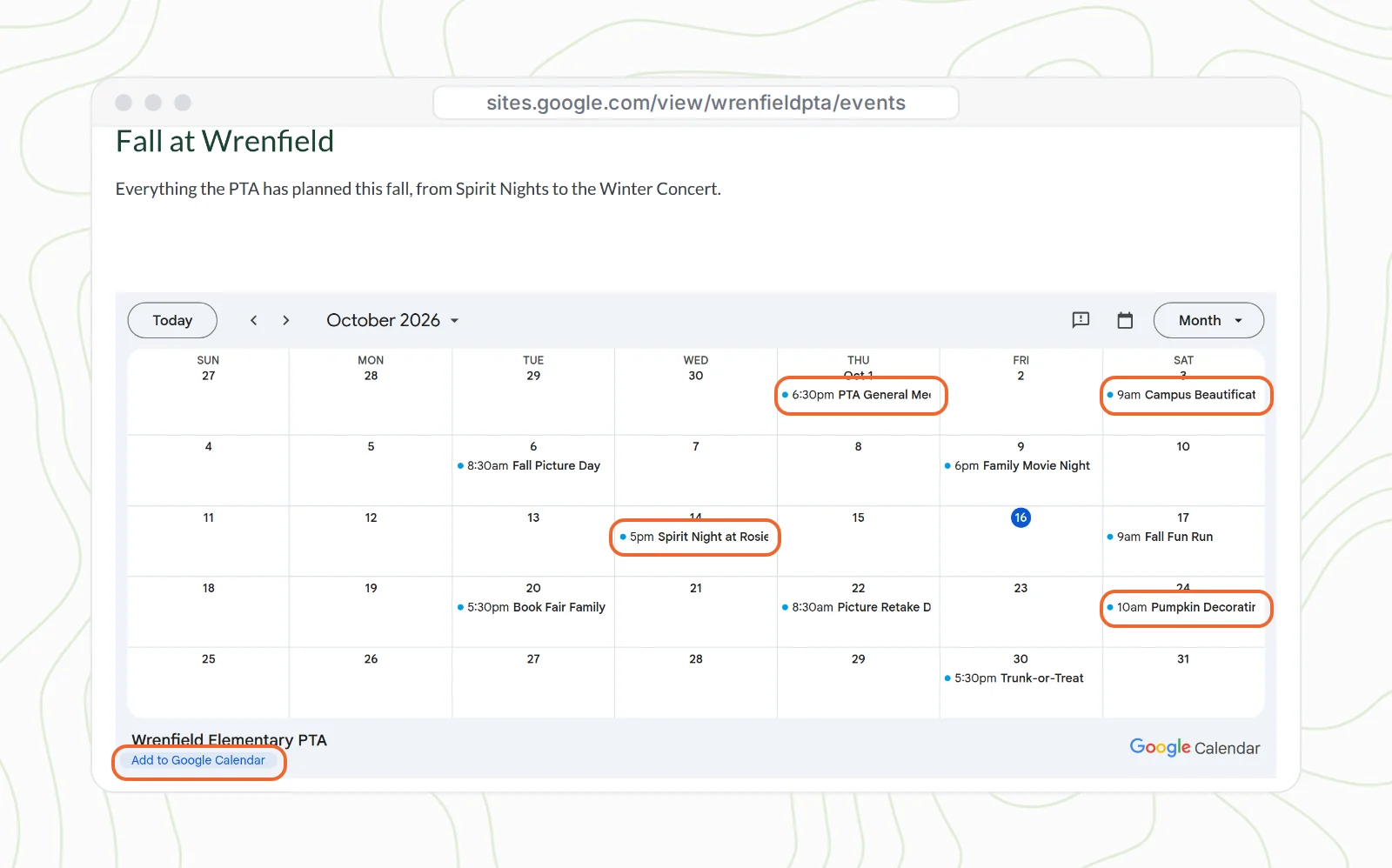
Even when it's public, month view gives each event one short line. "6:30pm PTA General Me". "9am Campus Beautificat". "10am Pumpkin Decoratir". Parents have to click each one to find out what it is.
3. On a phone, it's a strip
This is the one most guides miss. Google Sites doesn't rearrange an embedded calendar for phones. It keeps the box's exact shape and scales it down to the phone's width. We measured it on live Sites pages: the content area is 1154 pixels wide in a 1280-pixel laptop window and 352 on an iPhone. So a typical wide Calendar block, 1154 × 483, becomes 352 × 147 on a phone. That's about a week and a half, with titles like "Remind" and "11am D".
One real PTA site we looked at had given up and added a note under its calendar: "Click on the calendar above to open it fully." That's a workaround. It shouldn't be the plan.
4. Saving an event is Google-only
The only ways to save are Google's: "copy to my calendar" on an event, or "Add to Google Calendar" for the whole calendar. Both need a Google account. Parents who live in Apple Calendar or Outlook have nothing to tap.
Google's Calendar block vs a CalGet events calendar
| Google Sites Calendar block | CalGet events calendar | |
|---|---|---|
| Who can see it | Only if the calendar is public (your admin may block that) | Anyone who opens your page |
| Event titles | Cut off in month view | In full, in a side panel or as cards |
| On a phone | A 352 × 147 strip | The whole month (with the sizing tip below) |
| Saving an event | Google Calendar, with a Google account | Google, Apple, Outlook, Yahoo or an .ics file |
| Subscribe to every event | Google Calendar | Google, Apple, Outlook or Office 365 |
| Events from teachers or parents | No | Guest events, you approve each one |
How to add an events calendar to Google Sites, step by step
You'll need a CalGet account and edit access to your Google Site. Plan on 15 minutes, most of it typing in your events.
Step 1: Make your calendar and add your events in CalGet
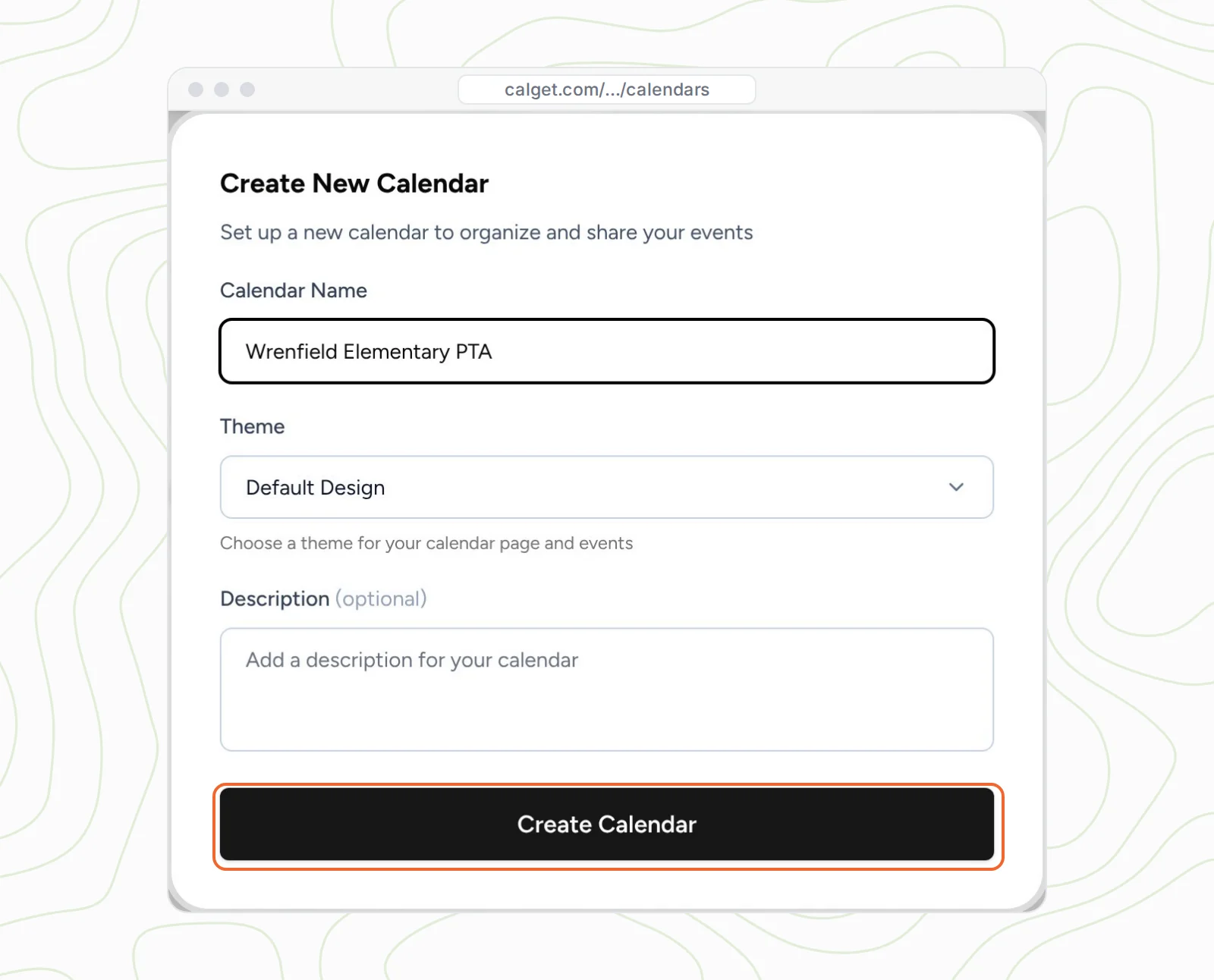
In CalGet, go to Calendars, click New Calendar, and name it after your group. The name shows up when people subscribe, so "Wrenfield Elementary PTA" beats "Calendar 1".
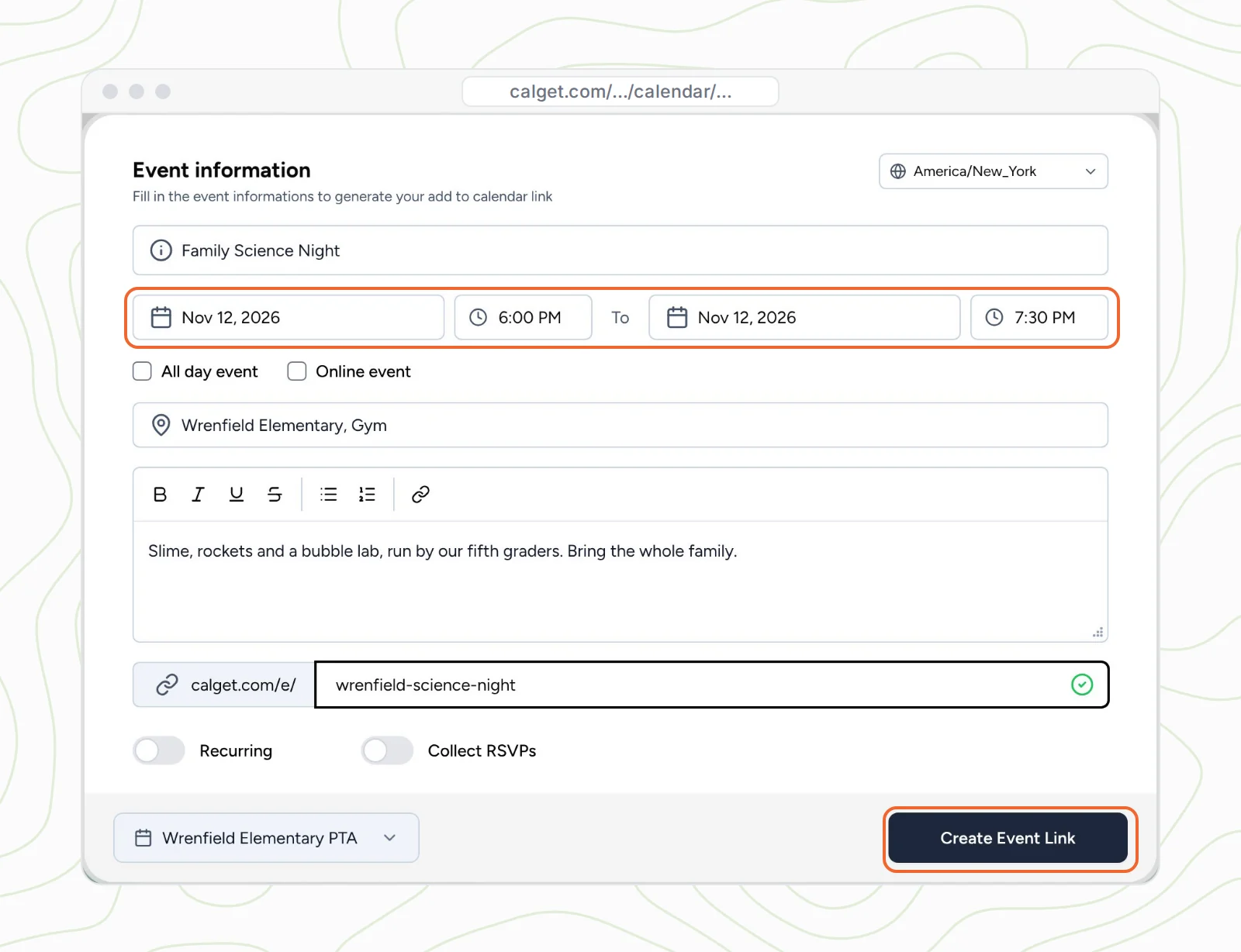
Open the calendar and click New Event. Add the title, the date and time, where it is and a line about it, then click Create Event Link. Check the time zone at the top right. It's what keeps 6:00 PM at 6:00 PM for every family.
Add the rest of your year the same way. For things that repeat, like a monthly PTA meeting, turn on Recurring instead of adding each one. Already keep your events somewhere else? A calendar can also pull them in from Google Calendar or Outlook under External Calendars, so you don't retype them.
Step 2: Make it look like your school
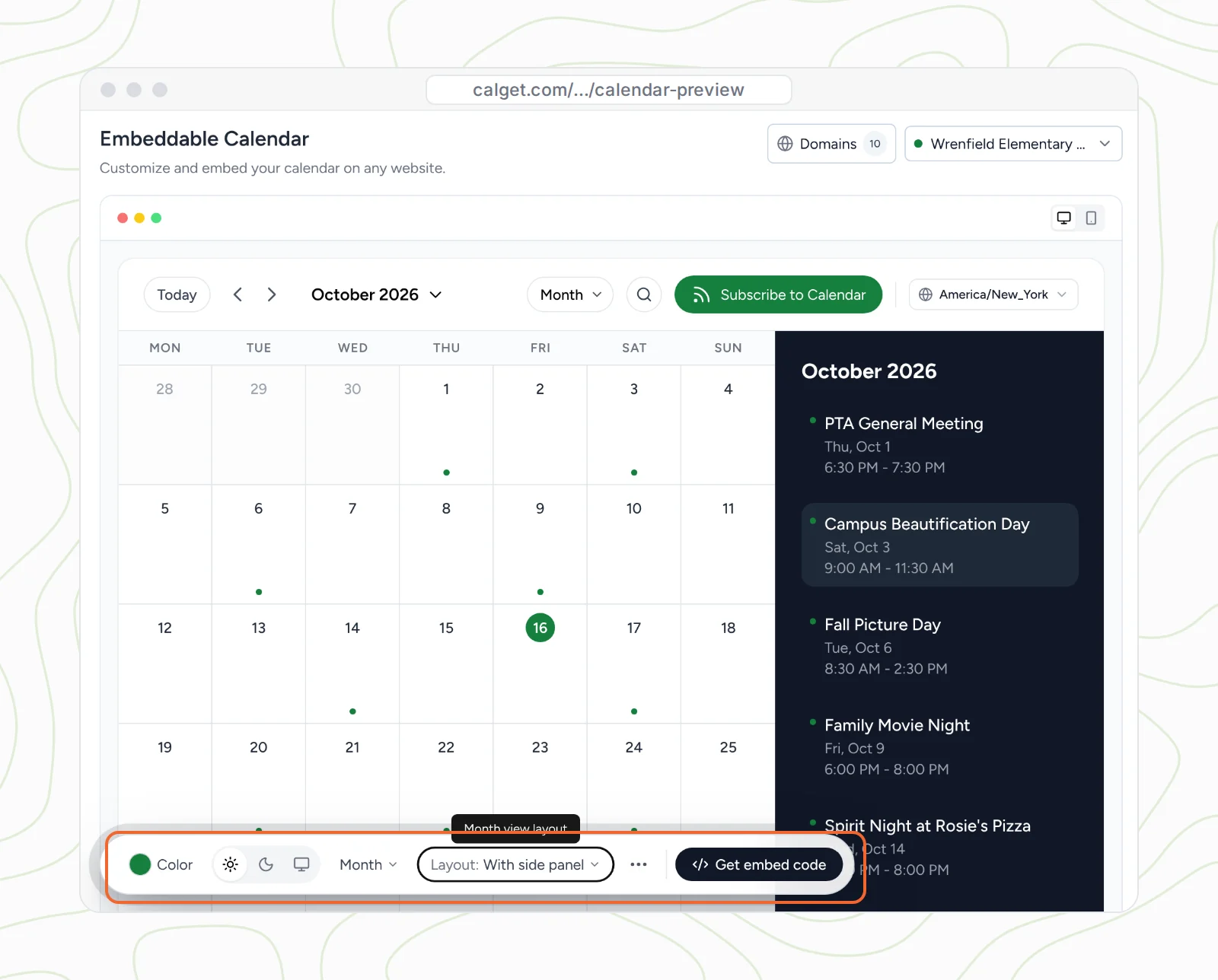
Open Embeddable Calendar and pick your calendar at the top right. The toolbar at the bottom is where it becomes yours:
- Color: your school color. We used the PTA's green, #15803d.
- Light or dark, to match your Sites theme.
- The view parents land on: Month, Week, Schedule or Card.
- Layout: With side panel, so a day's events show in full next to the month.
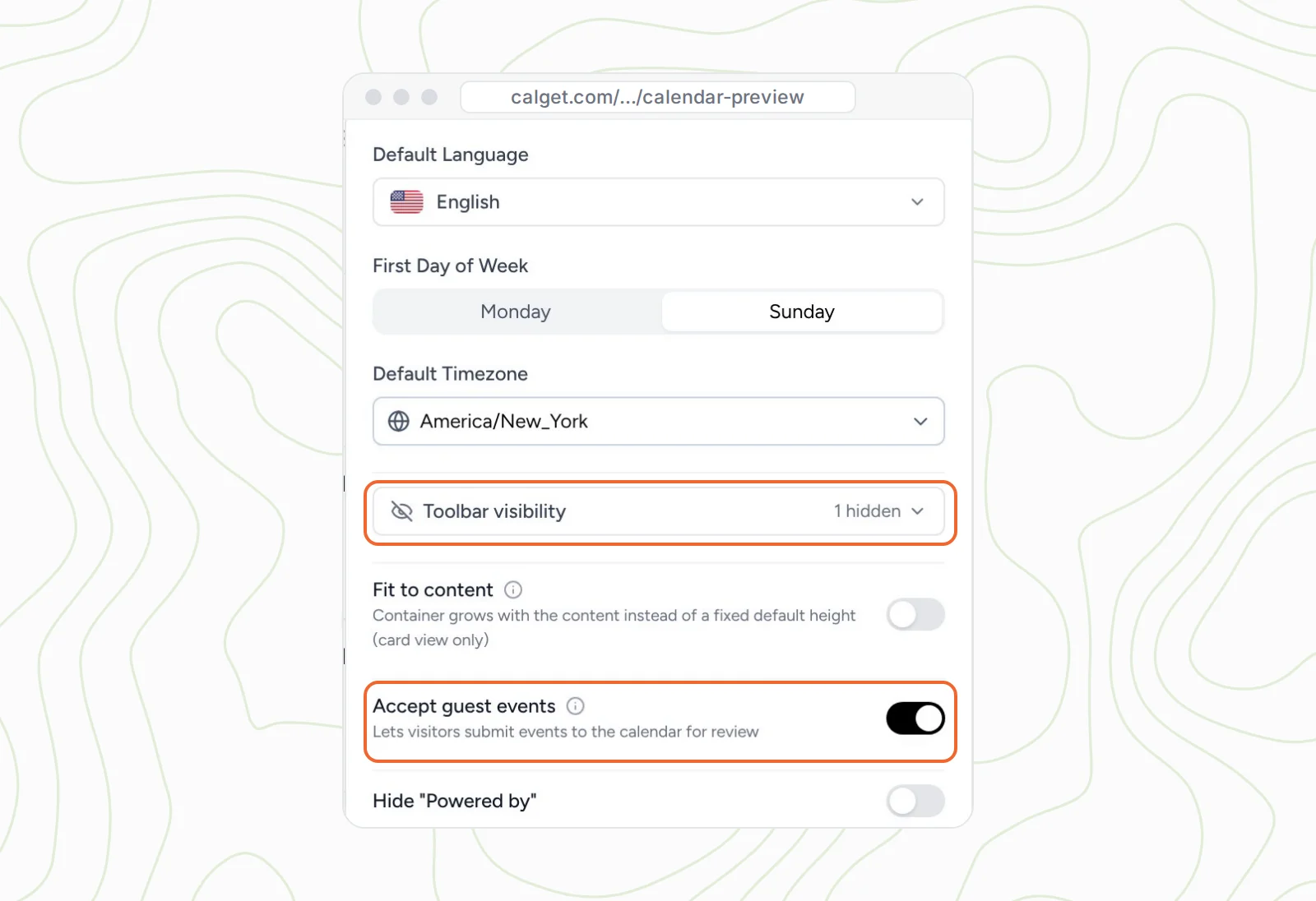
Two more options under the ⋯ menu are worth a look for a school. Hide the time zone picker (Toolbar visibility → Timezone), since every family is local. And turn on Accept guest events: teachers and room parents can send you events from the calendar, and nothing goes live until you approve it.
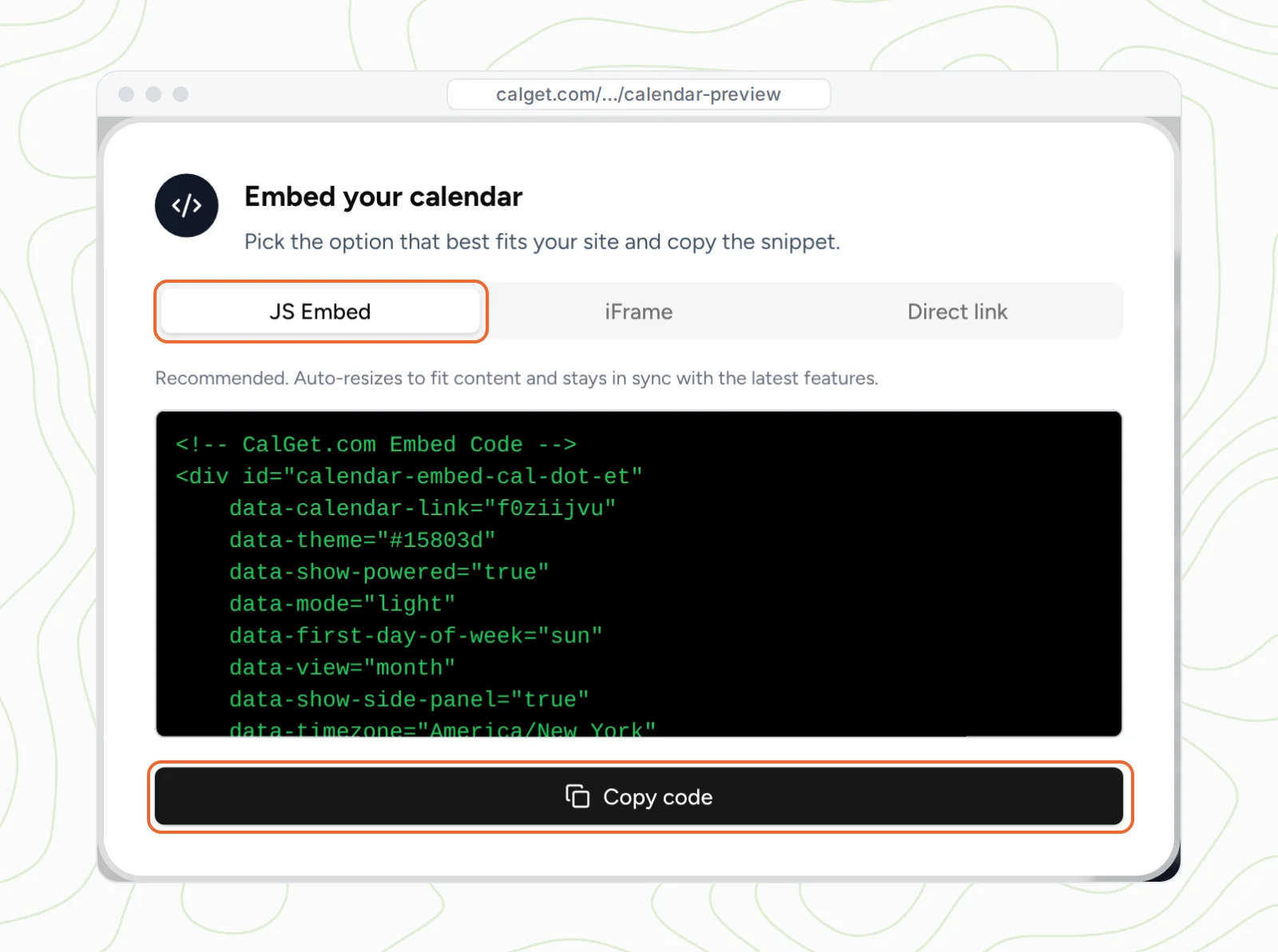
Step 3: Copy the embed code
Click Get embed code, keep JS Embed selected, and click Copy code. It's two parts, a short block with your settings and one script line. Copy all of it.
Step 4: Add it to your page with Insert → Embed
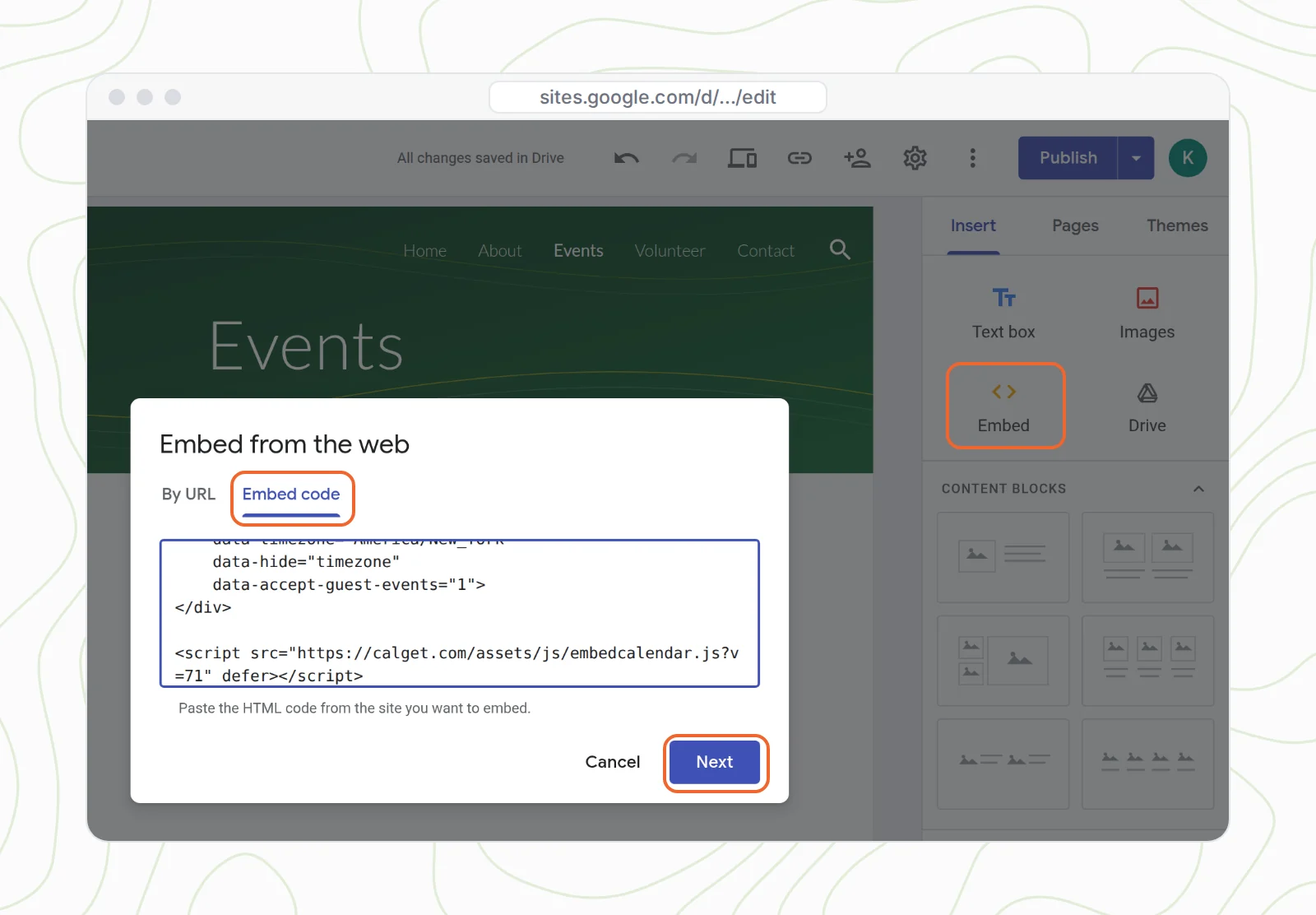
Open your site in the Google Sites editor and go to your events page. Then:
- On the right, click Insert, then Embed.
- Choose the Embed code tab.
- Paste your code and click Next.
Step 5: See "Access Restricted"? Allow Google Sites in CalGet
The preview will most likely say Access Restricted. Nothing is broken. CalGet only shows your calendar on websites you've allowed, so nobody can copy your code onto their own site.
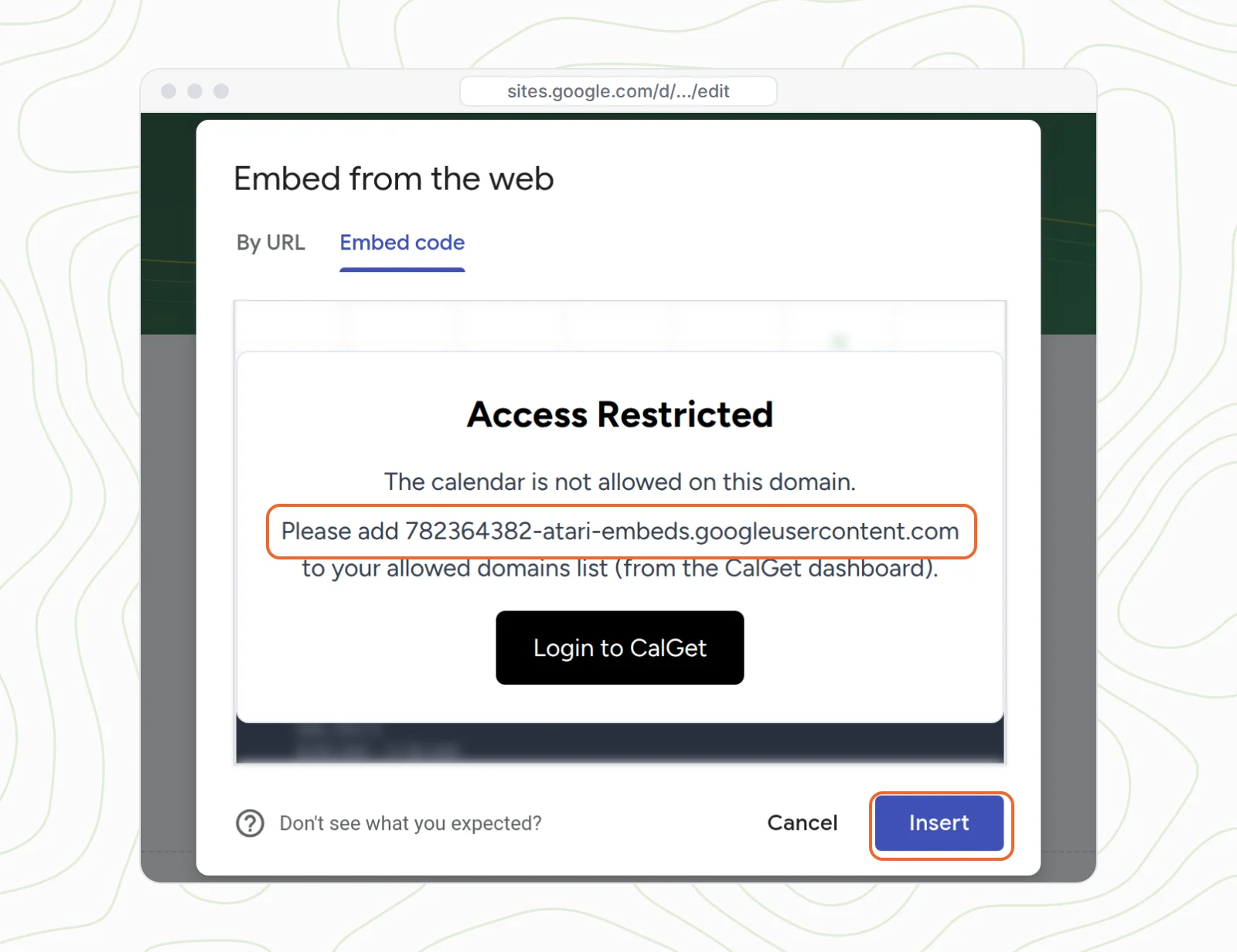
Here's the part no other guide explains. Google Sites doesn't run embed code on sites.google.com. It runs it in its own frame, on an address like 782364382-atari-embeds.googleusercontent.com, and the number at the front changes every time the page loads. So don't copy the address from the message. It'll be different next time. Click Insert for now.
Then, in CalGet, open Embeddable Calendar → Domains → Add Domain, type *.googleusercontent.com and click Add Domain. The star covers every one of those changing addresses. In our tests, plain googleusercontent.com didn't work. The star version did.
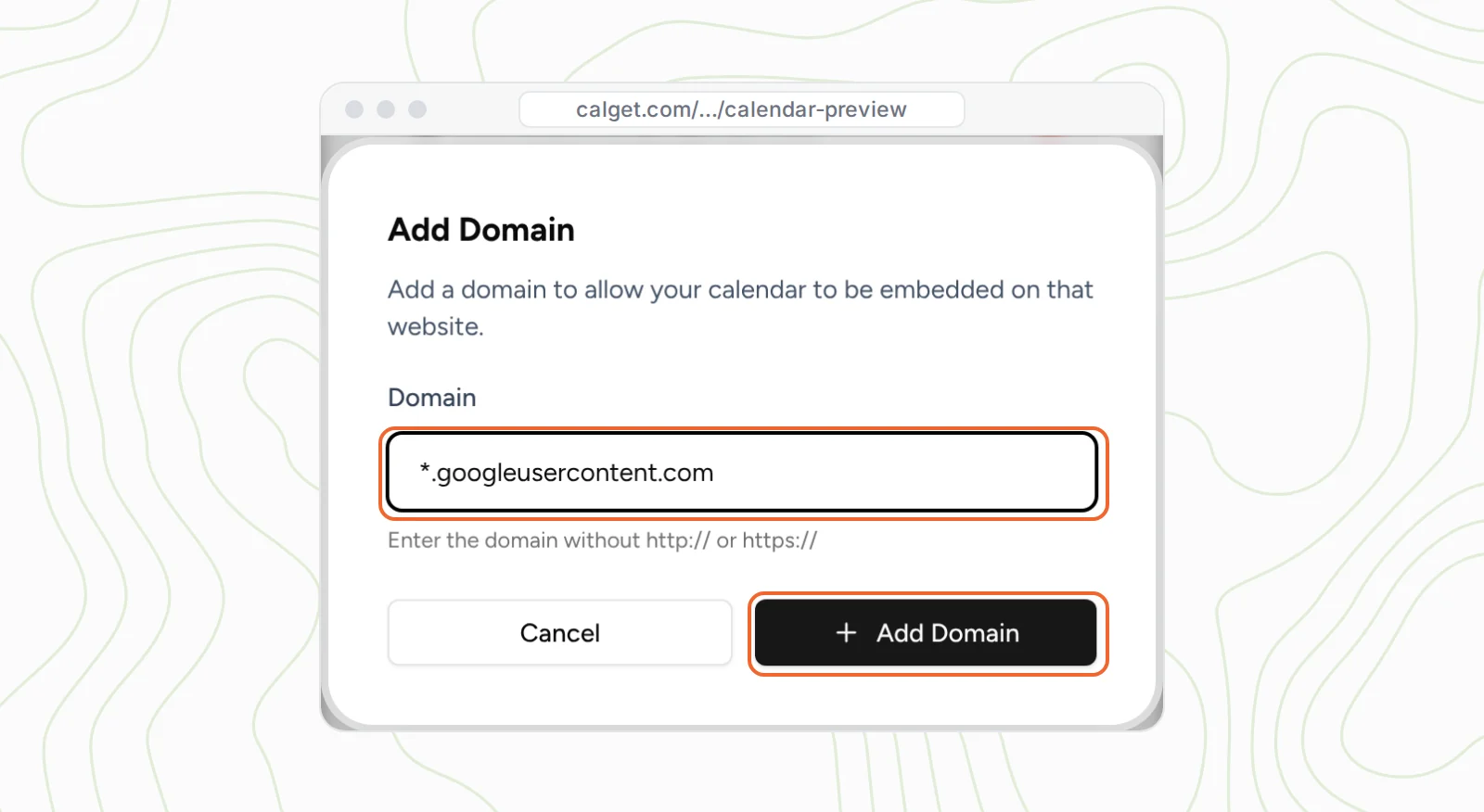
Back in Google Sites, refresh the editor. It can take a few seconds for the change to reach the calendar. Your calendar appears.
Step 6: Make the box taller than it is wide
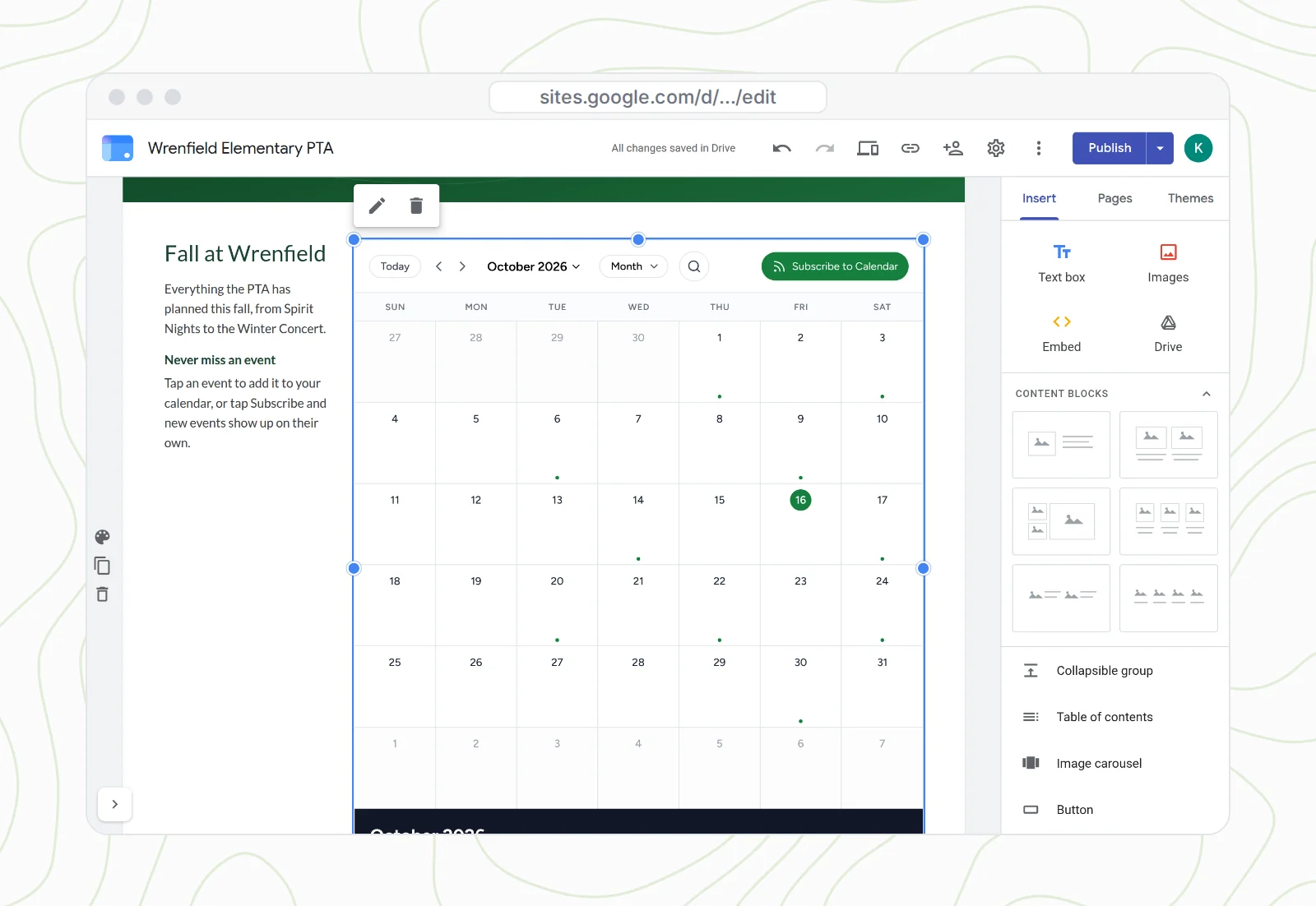
Drag the calendar where you want it, next to your intro text works well, and pull a corner handle to make it bigger. Now the sizing rule from earlier pays off. Sites will shrink this box to 352 pixels wide on a phone and keep its shape, so a wide, short box turns into a strip. Make it taller than it is wide.
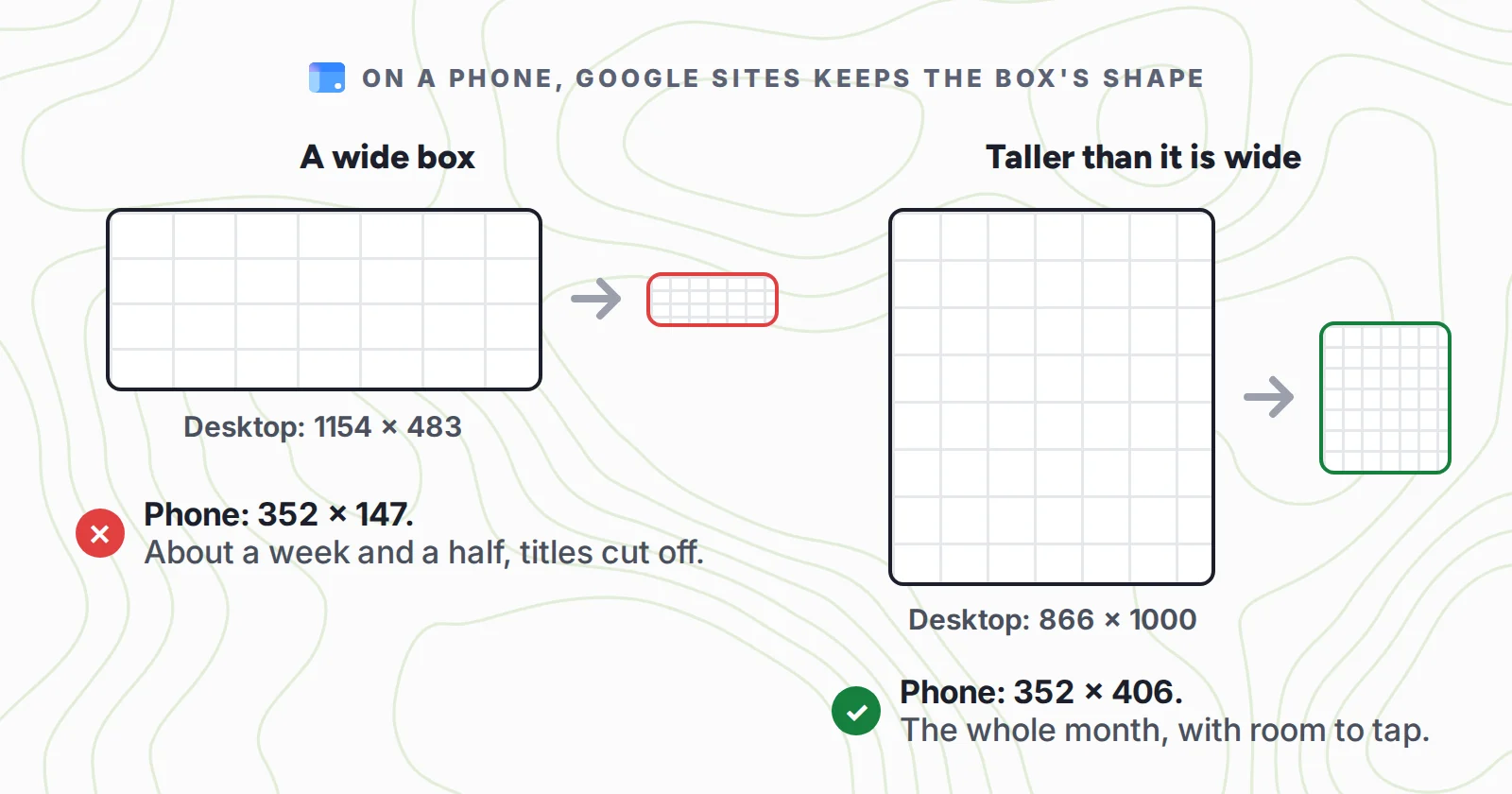
Ours is 866 × 1000 on a laptop, next to a short block of text. On an iPhone that becomes 352 × 406: the whole month, with room for a thumb.
Step 7: Publish
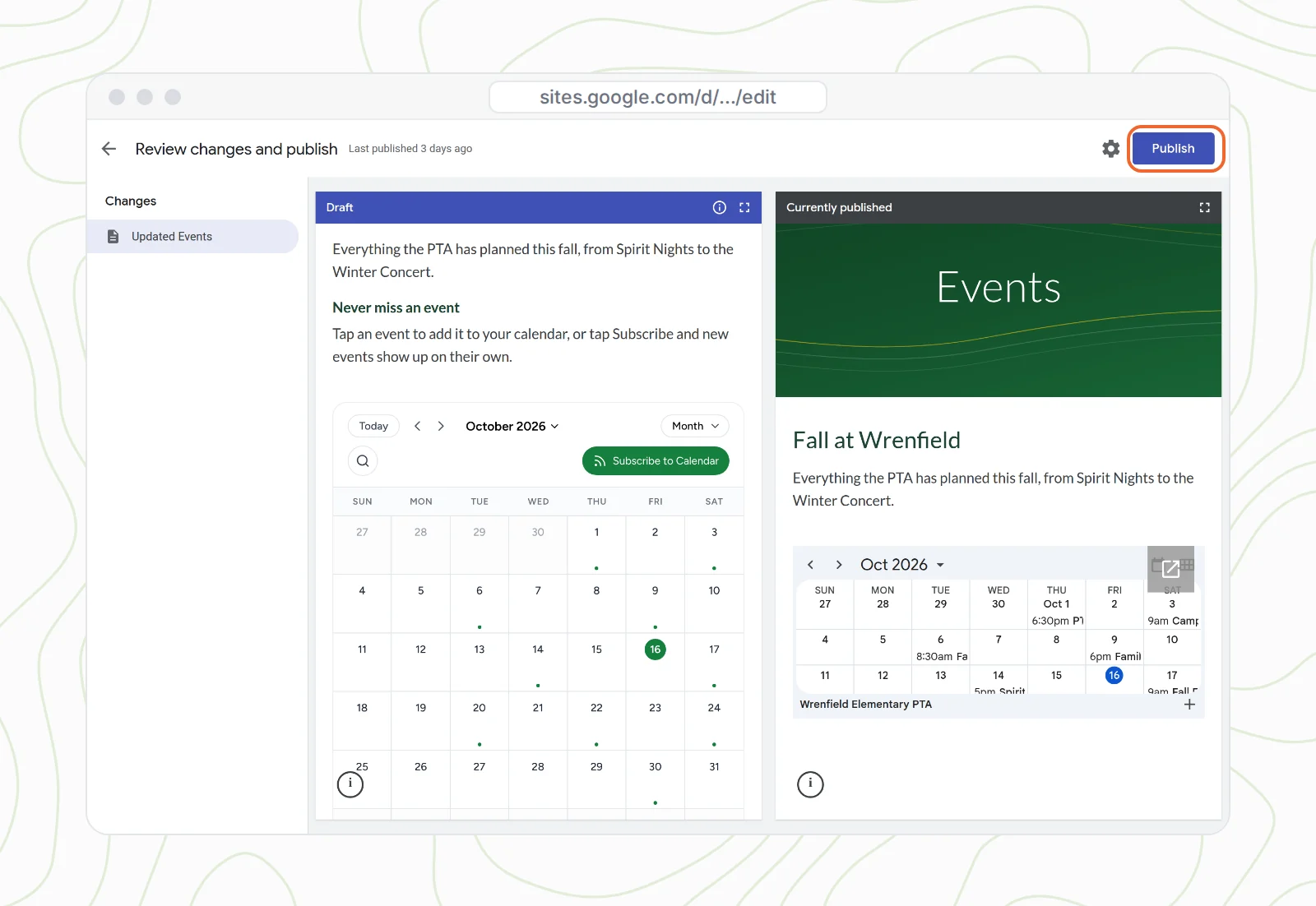
Click Publish. If the site is already live, Sites shows Review changes and publish, with your draft next to what's live now. Check it and click Publish.
What parents see on your Google Site
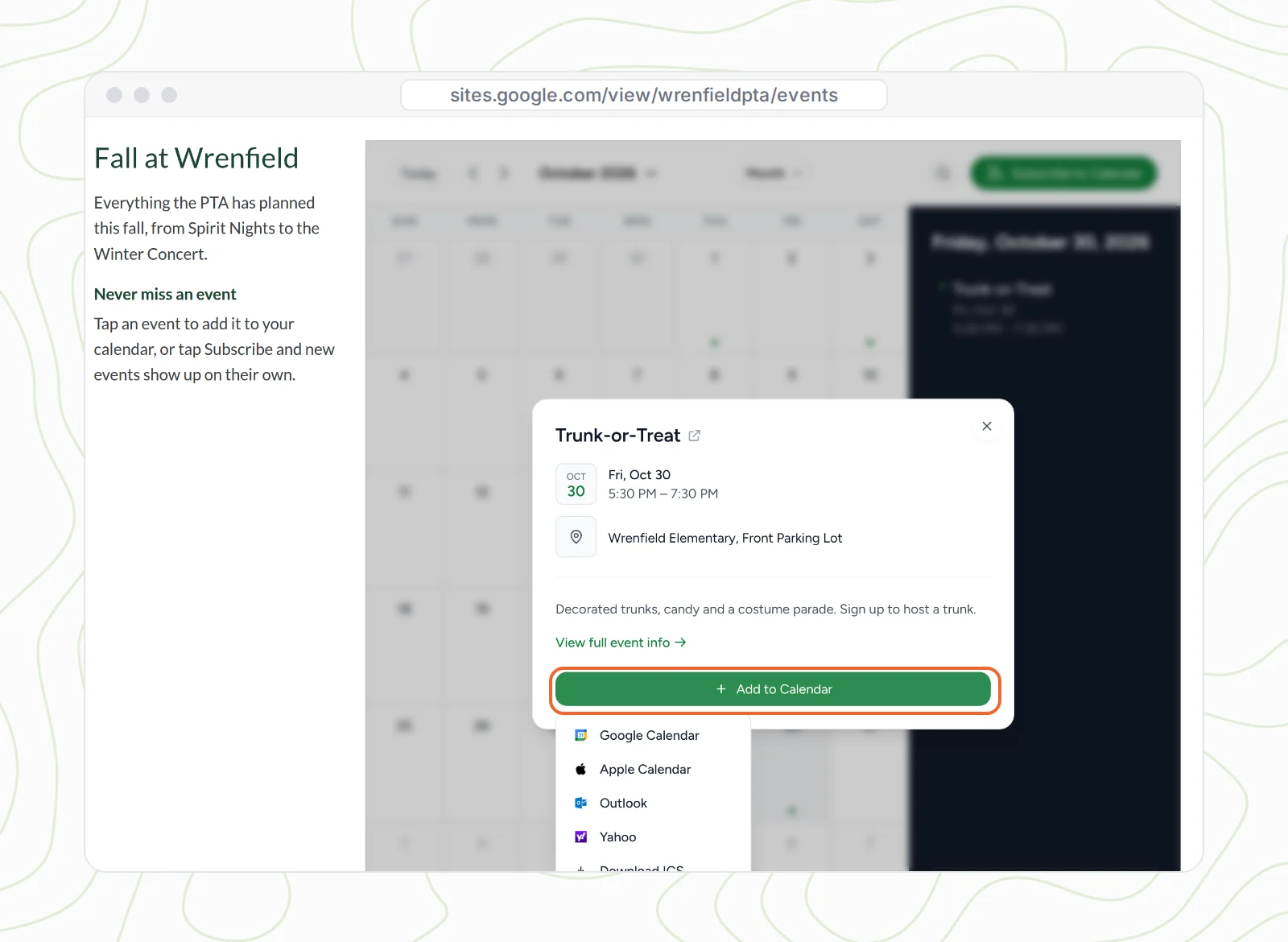
On a laptop, the calendar sits in your school colors with every title readable. Click a day and its events show in the side panel. Click an event for the time, the place and the details, then Add to Calendar: Google Calendar, Apple Calendar, Outlook or Yahoo, or a download for anything else. No Google account needed.
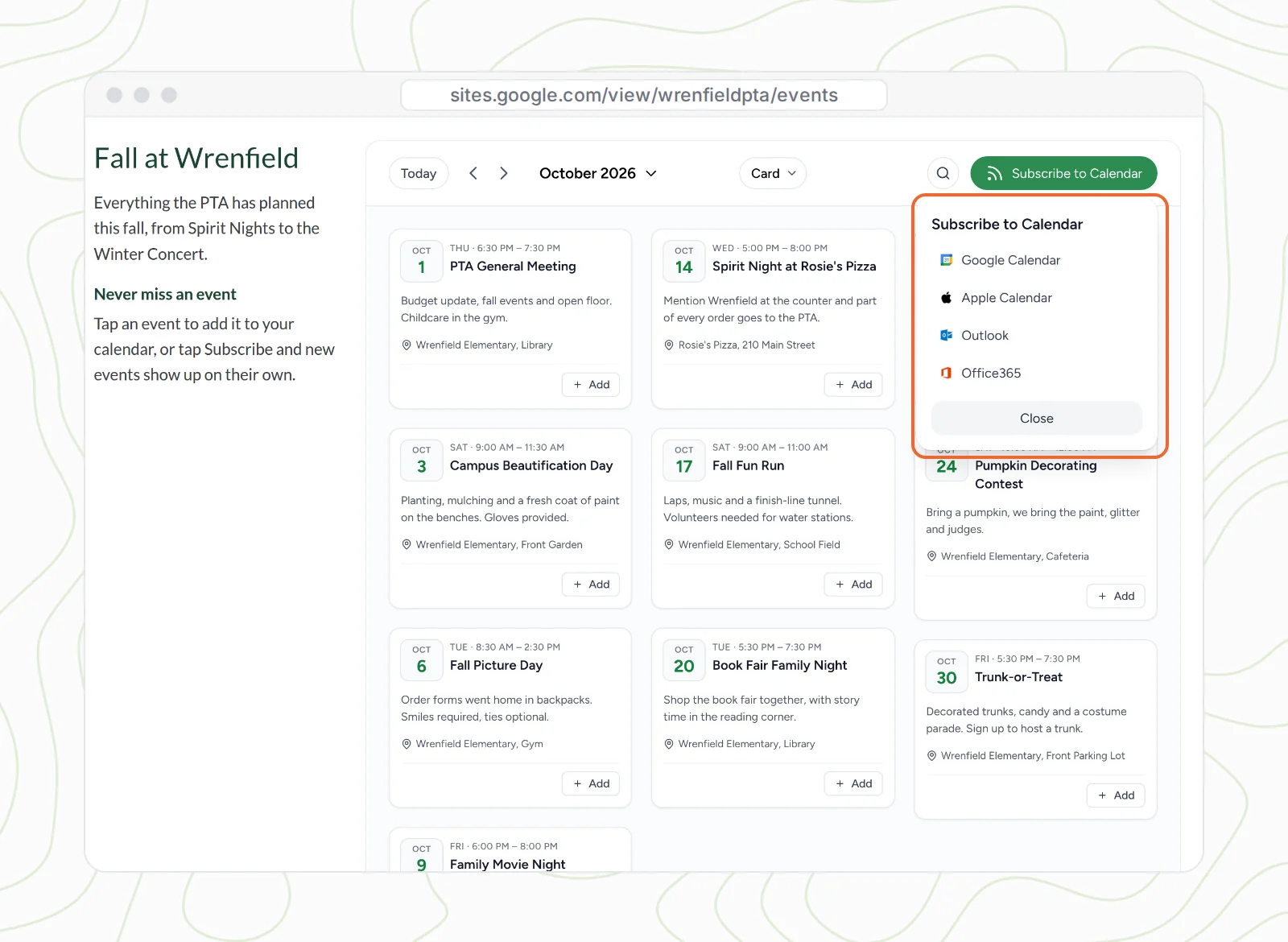
Switch to cards and every event is laid out with its own Add button. There's search for the parent who only wants to know when picture retakes are. And Subscribe to Calendar is the one that saves you the most emails: parents tap it once, and every event you add from then on appears in their own calendar. More on how that works on our subscription calendars page.
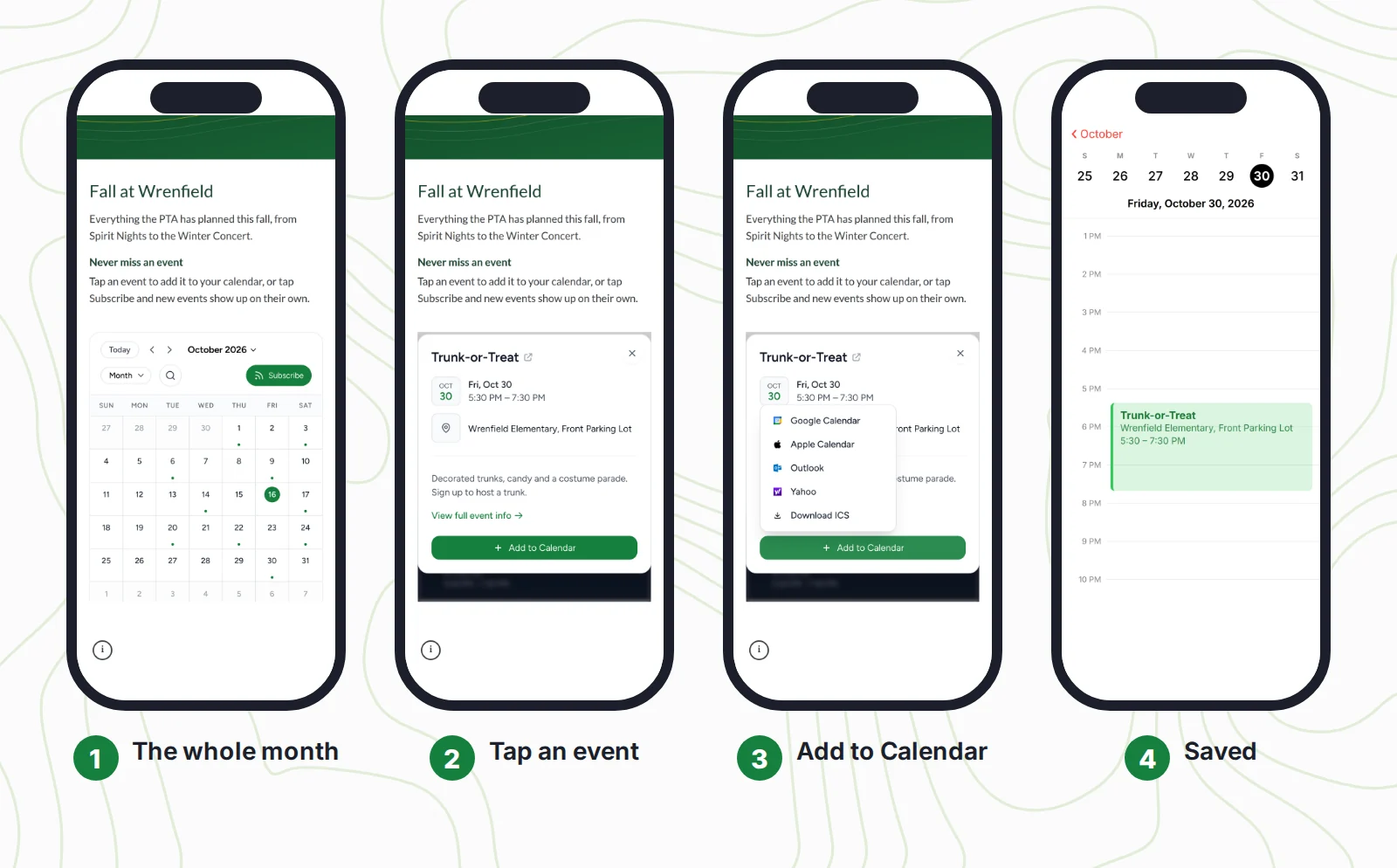
On a phone, it fits. Parents see the whole month, tap a day, tap the event, and add it to their calendar in two more taps.
When plans change, change the event in CalGet. The calendar on your site loads from CalGet every time the page opens, so you never have to touch Google Sites again for a new event, a new time or a cancellation.
Mistakes that make a Google Sites calendar look broken
- Copying the address from "Access Restricted". The number changes on every load. Add
*.googleusercontent.comonce instead. - Leaving the box wide and short. It looks fine on your laptop and turns into a strip on every phone. Taller than wide.
- Pasting only half the code. The embed code has a settings block and a script line. Paste both.
- Checking only in the editor. Open the published page on your own phone before you share the link.
- Forgetting the time zone. Set it on the calendar and on each event, or families see the wrong time.
How we tested this
In October 2026 we built a CalGet calendar for Wrenfield Elementary PTA, a made-up school group, with 16 events from October to December, styled it and copied its JS embed code. We measured Google's Calendar block and embed sizes on live Google Sites pages at laptop and iPhone widths, and confirmed which Domains entry lets Sites show the calendar. The Google Sites editor and site screens in this guide come from our video walkthrough and are modeled on the current Sites editor. The calendars inside them are real: Google's own calendar embed in the "before" and CalGet's real embed, running from a googleusercontent.com frame the way Sites runs it, in the "after".
Frequently asked questions
Can you add an events calendar to Google Sites?
Yes. Google Sites' only built-in option is the Calendar block, which shows a Google Calendar. For an events calendar with full event titles, Add to Calendar for any calendar and a layout that fits phones, paste a calendar's embed code with Insert → Embed → Embed code.
Why does my Google Sites calendar say "Sign in to your Google Account"?
The Google Calendar behind the Calendar block isn't public, so visitors without access see Google's sign-in screen. Making it public fixes it, if your domain administrator allows public sharing. An embedded CalGet calendar is visible to anyone who opens your page.
Why is my calendar so small on mobile in Google Sites?
Google Sites keeps an embed's shape and scales it to the phone's width, about 352 pixels. A wide box like 1154 × 483 shrinks to 352 × 147. Make the box taller than it is wide, such as 866 × 1000, and phones get the whole month.
What does "Access Restricted" mean when I embed CalGet in Google Sites?
CalGet only shows your calendar on websites you allow, and Google Sites runs embed code from its own googleusercontent.com address, with a number that changes on every load. In CalGet, open Domains and add *.googleusercontent.com, then refresh.
Do I need to republish my Google Site when I add events?
No. The embedded calendar loads your events from CalGet each time someone opens the page, so new, changed and canceled events show up on your site automatically.
Running your school, club or community group on Google Sites? Make your events calendar with CalGet, and if you take sign-ups with Google Forms too, here's how to add an add to calendar link to a Google Form.

Written by the CalGet team
Updated October 2026 · Checked against Google's help pages and live Sites pages
We build calendar tools for sharing events with lots of people, from sports clubs and schools to nonprofits. People at organizations like Harvard, Save the Children and OGC Nice use CalGet to get events into their audience's calendars.

“Great Add Event to Calendar platform. Easy to create events and add them to emails and websites. Support responds quickly to questions and provides clean and concise answers. Highly recommended.” Foto Guy, on Trustpilot
Get Your Events on Everyone's Calendar.
Generate universal "Add to Calendar" links that work everywhere. Perfect for social media, emails, and websites.


Written by
Yared