Back to Blog
How to Send a Calendar Invite to a Large Group (Without Showing Everyone's Email)
Calendar invites to big lists leak every address, trigger reply-all storms and hit hard limits (200 guests in Google Calendar). Here's how to hide the guest list in Google Calendar and Outlook, and how to invite any size of group with an Add to Calendar link instead.
Written by
Last updated: October 2026. We checked every limit and setting in this guide against Google's and Microsoft's own help pages in October 2026, and built the example below with a real CalGet event.
Quick answer
To send a calendar invite to a large group without showing everyone's email address:
- Google Calendar: invite a Google Group instead of individual people, and under Guest permissions, uncheck See guest list. You can invite up to 200 people directly, or groups of up to 100,000.
- Outlook: in new Outlook or Outlook on the web, open Response options and turn on Hide attendee list before you send. It isn't in classic Outlook for Windows.
- Any list size, any calendar app: skip the invite. Send a normal email (Bcc or your email tool) with an Add to Calendar link, so each person saves the event to Google, Apple, Outlook or Yahoo themselves and nobody sees the list.
Maya runs the People Team at a 312-person company. She needs everyone at the Open Enrollment Q&A on Tuesday, so she opens her calendar, types "All Staff" into the guest field and hits Send. Within an hour, every employee can see every other employee's address, two people have replied all asking which room, and 310 inboxes now hold a thread nobody asked for.
Calendar invites were built for meetings, not announcements. Past a few dozen guests they start to leak addresses, flood inboxes with replies and run into hard limits. This guide shows the three reliable ways to send a calendar invite to a large group without showing everyone's email: the built-in settings in Google Calendar and Outlook, and the method that works for any list size and any calendar app.
Why calendar invites break down with large groups
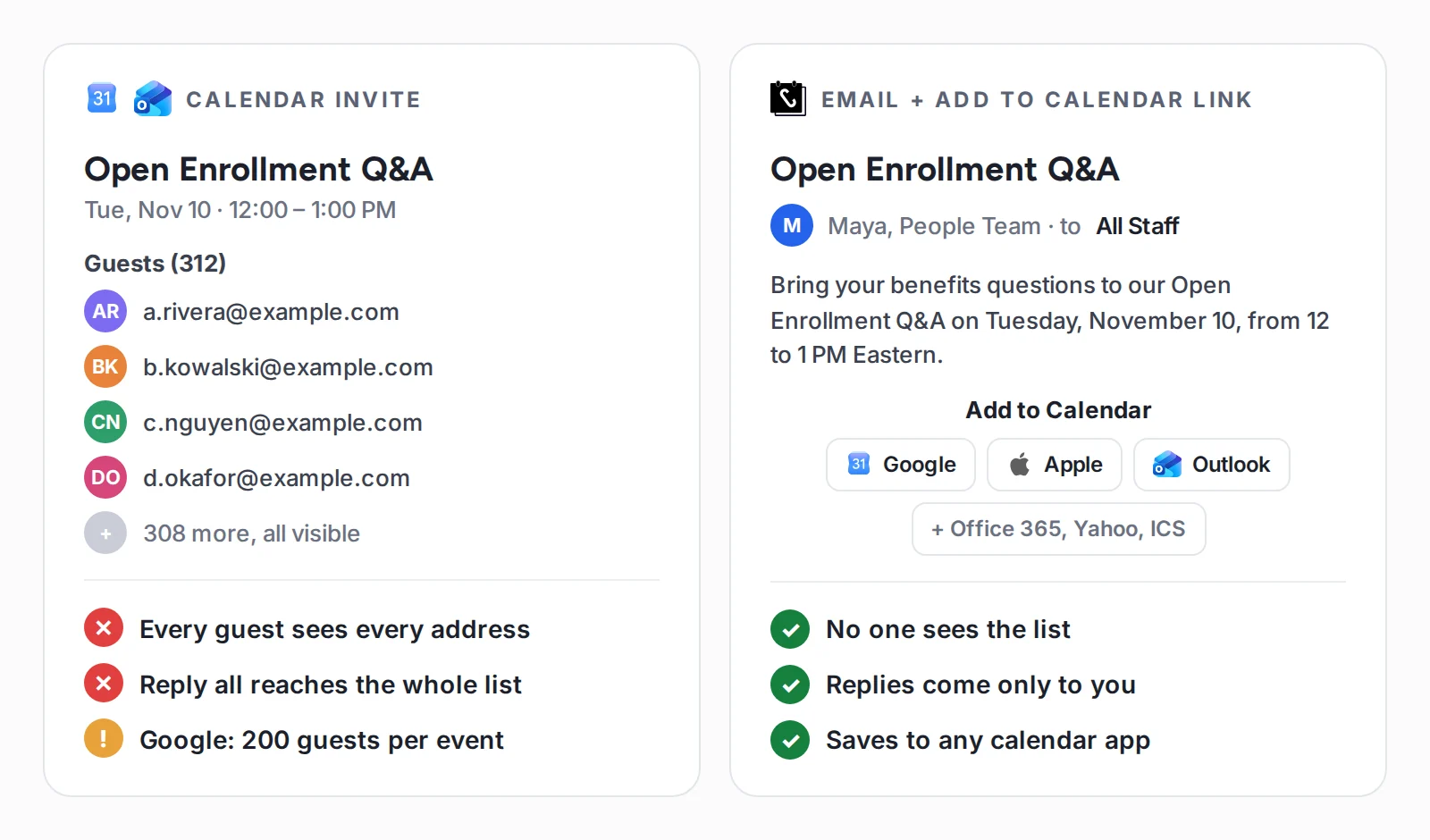
A calendar invite adds every recipient to the event itself. That's what makes RSVPs and updates work for a team meeting, and it's also what causes trouble at scale:
- Everyone can see everyone. By default, both Google Calendar and Outlook show the full guest list to every guest. For an all-staff event, a customer webinar or a parent group, that's a privacy problem.
- Reply all reaches the whole list. One "Will this be recorded?" lands in hundreds of inboxes.
- There are hard limits. Google Calendar lets you invite up to 200 people to an event, and points you to Google Groups for more. In Microsoft 365, a single meeting message can go to up to 5,000 recipients, and Teams meetings created from Outlook are limited to 750, according to Microsoft's guide to scheduling meetings with hundreds of attendees.
- Responses stop being useful. The same Microsoft guide notes that Outlook stops tracking new responses as an invite approaches 500 recipients, and recommends distribution lists instead of adding thousands of people one by one.
- Every change is another mass email. Fix a typo in the room number and the update goes to the whole list again.
None of this means you can't invite a big group. It means you should pick the right tool for the size and the audience. Here are the options, starting with the settings already in your calendar.
Method 1: Google Calendar, invite a group and hide the guest list
This works well inside a Google Workspace organization, where your audience already has a group address like all-staff@yourcompany.com.
- In Google Calendar, create the event and click More options to open the full event page.
- Under Guests, add the Google Group address instead of individual people. Google lets you invite groups of up to 100,000 people, while individual guests top out at 200.
- Under Guest permissions, uncheck See guest list. Uncheck Invite others too if you don't want guests adding more people.
- Click Save, then choose to send the invitation emails.
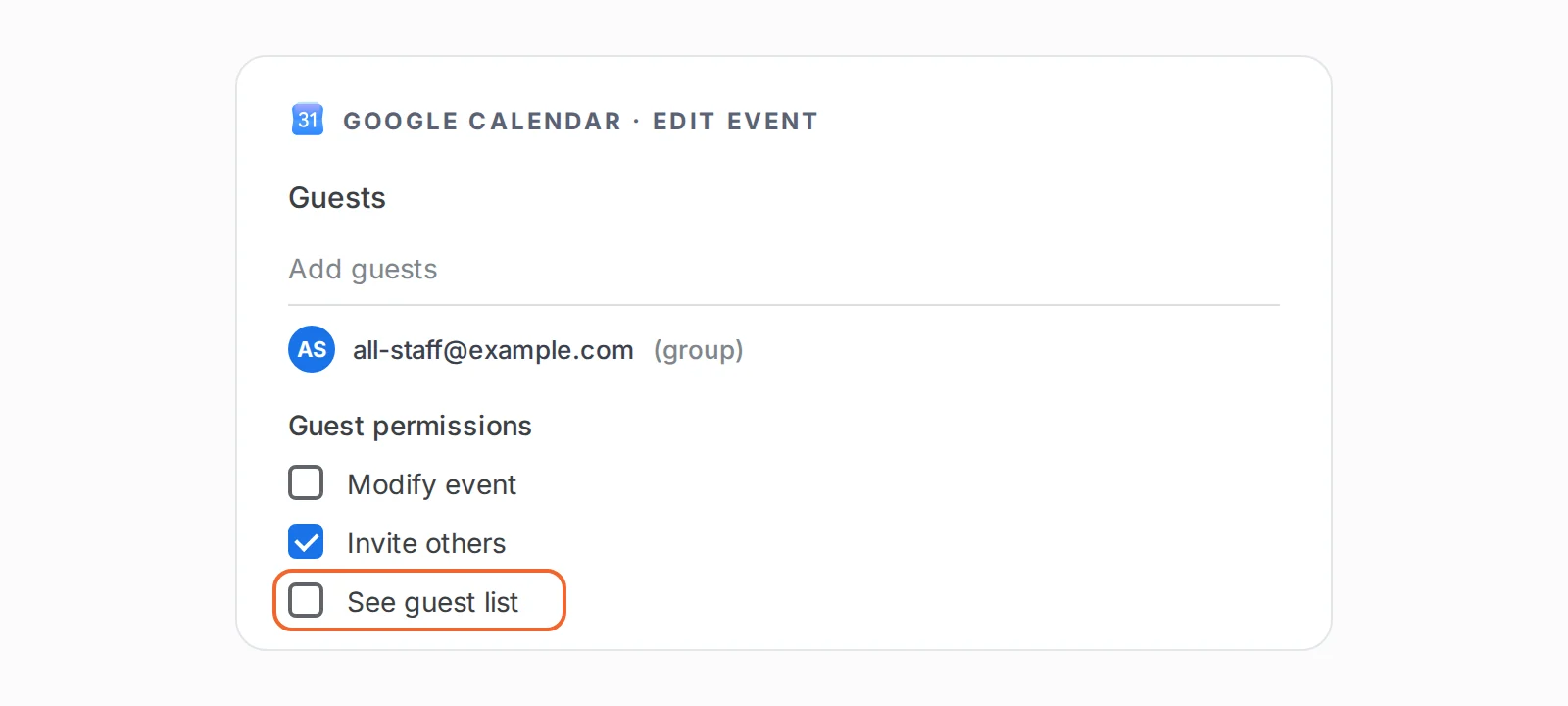
Two things to know. First, Google's help page on sharing events explains that turning off See guest list also turns off the event's shareable link, so you can't use "Invite via link" for the same event. Second, guests still see you as the organizer, and the event still lives in each person's calendar, so every edit you make sends an update to the whole group.
Method 2: Outlook, turn on Hide attendee list
For Microsoft 365 organizations, Outlook has a setting built for exactly this. According to Microsoft's support page on attendee lists and responses, organizers can hide the attendee list in new Outlook for Windows and Outlook on the web.
- In new Outlook or Outlook on the web, create a new event and add your attendees. Use a distribution list from your organization's address book: Microsoft counts it as one recipient.
- Select Response options, then turn on Hide attendee list.
- For hundreds of attendees, consider turning off Request responses too. Microsoft suggests this when you don't need to know who's coming, so you don't get an email for every reply.
- Click Send.
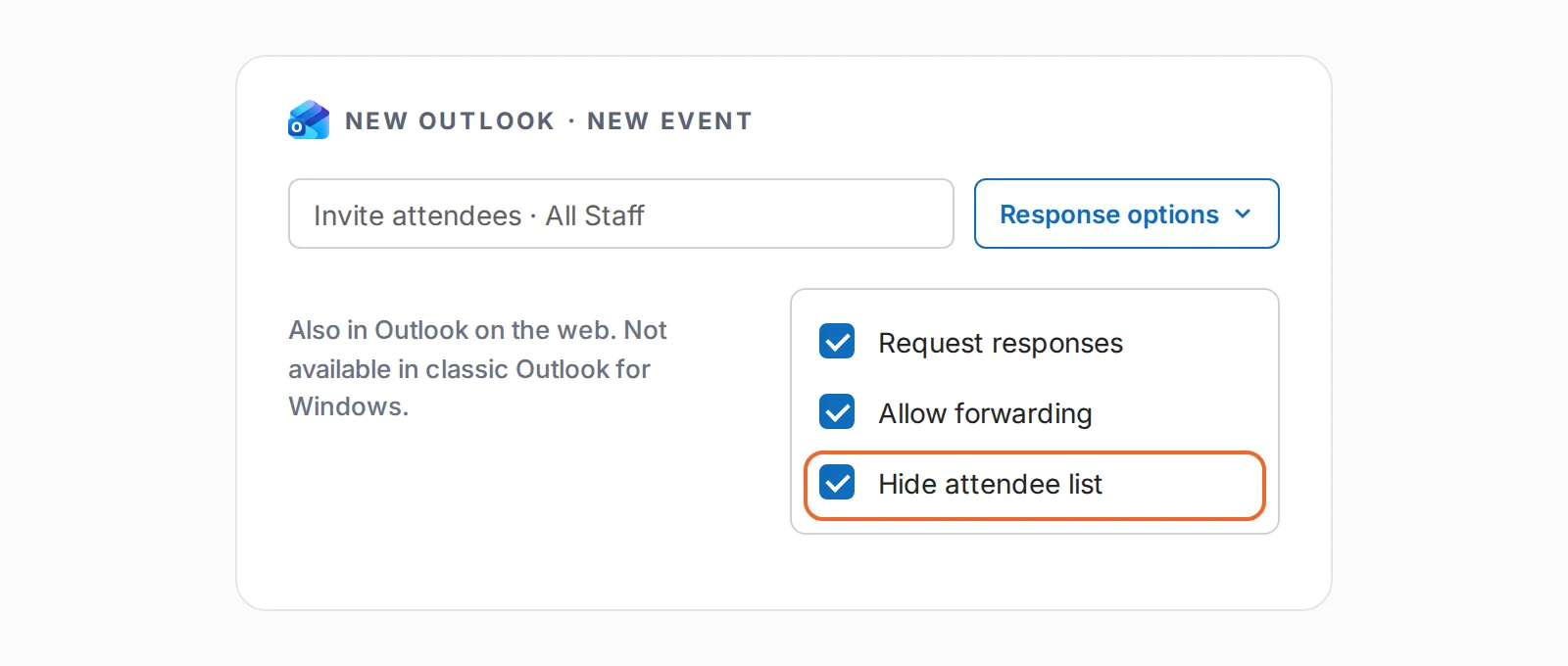
The catches: the option isn't available in classic Outlook for Windows, so check which Outlook you're in. If you forget and turn it on later, Microsoft notes that the change only applies to new recipients: anyone who already got the invite can still see the list. And if you don't see the option at all, your IT admin may have it turned off for your organization.
Method 3: Skip the invite and send an Add to Calendar link
Methods 1 and 2 work when everyone is inside your company's Google or Microsoft account. They get awkward the moment your list is customers, members, parents or anyone else outside your organization, or when it's bigger than your calendar's limits.
The alternative is to stop sending an invite at all. Send a normal email to the whole list, with recipients in Bcc or through your email marketing tool, and include an Add to Calendar link. Each person clicks it and saves the event to the calendar they use: Google Calendar, Apple Calendar, Outlook, Office 365 or Yahoo. There's no guest list to leak, replies come only to you, and the size of your list doesn't matter to the calendar.
Here's how Maya would send the Open Enrollment Q&A this way with CalGet.
Step 1: Create the event once
Add the title, date, time, time zone, location and a short description. The time zone matters for big lists: each person's calendar converts the time to their own zone when they save it.
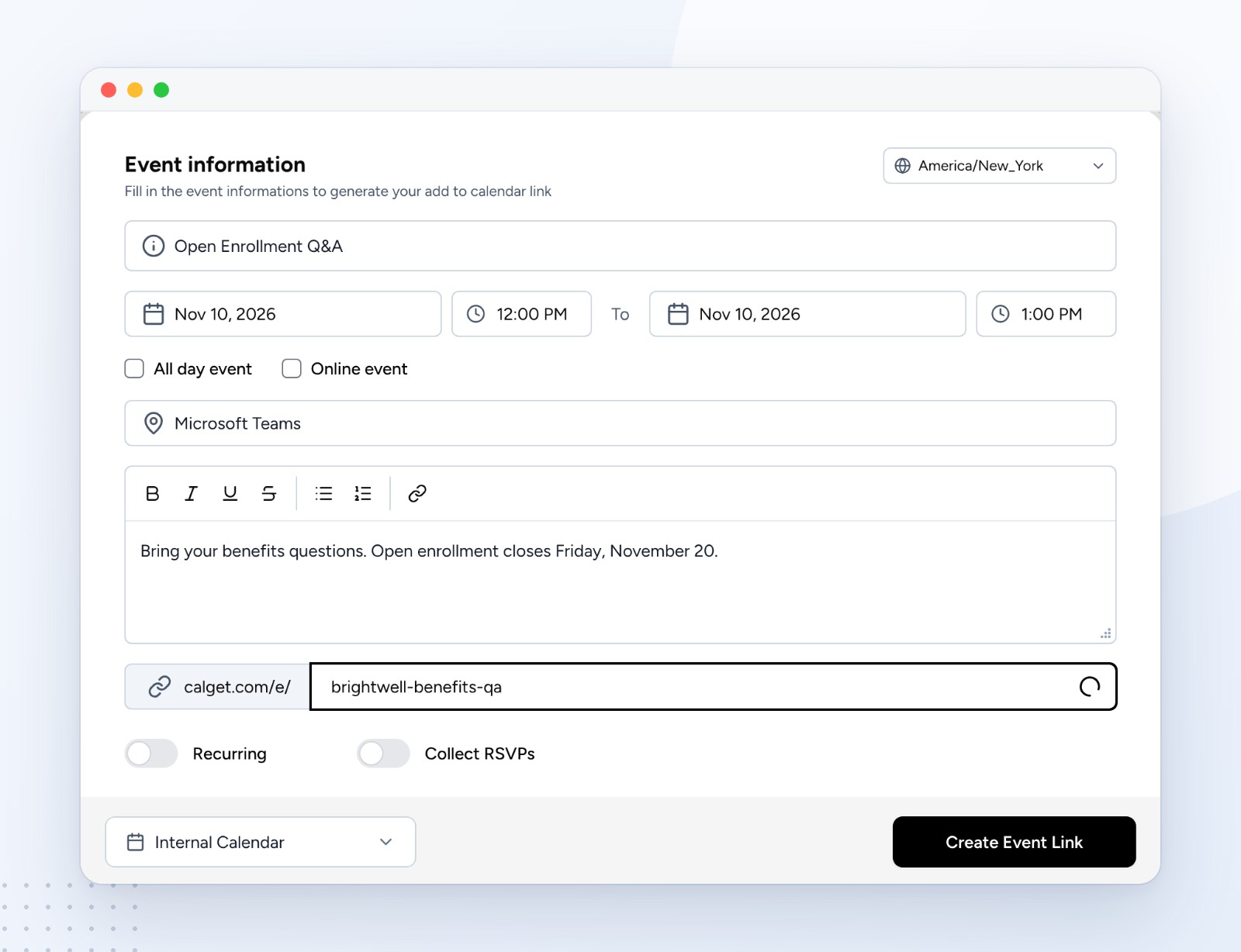
Step 2: Copy the Add to Calendar link or buttons
CalGet gives every event a link to its own page with an Add to Calendar menu. For an email, you can also copy ready-made buttons, one for each calendar app, and paste them straight into the message.
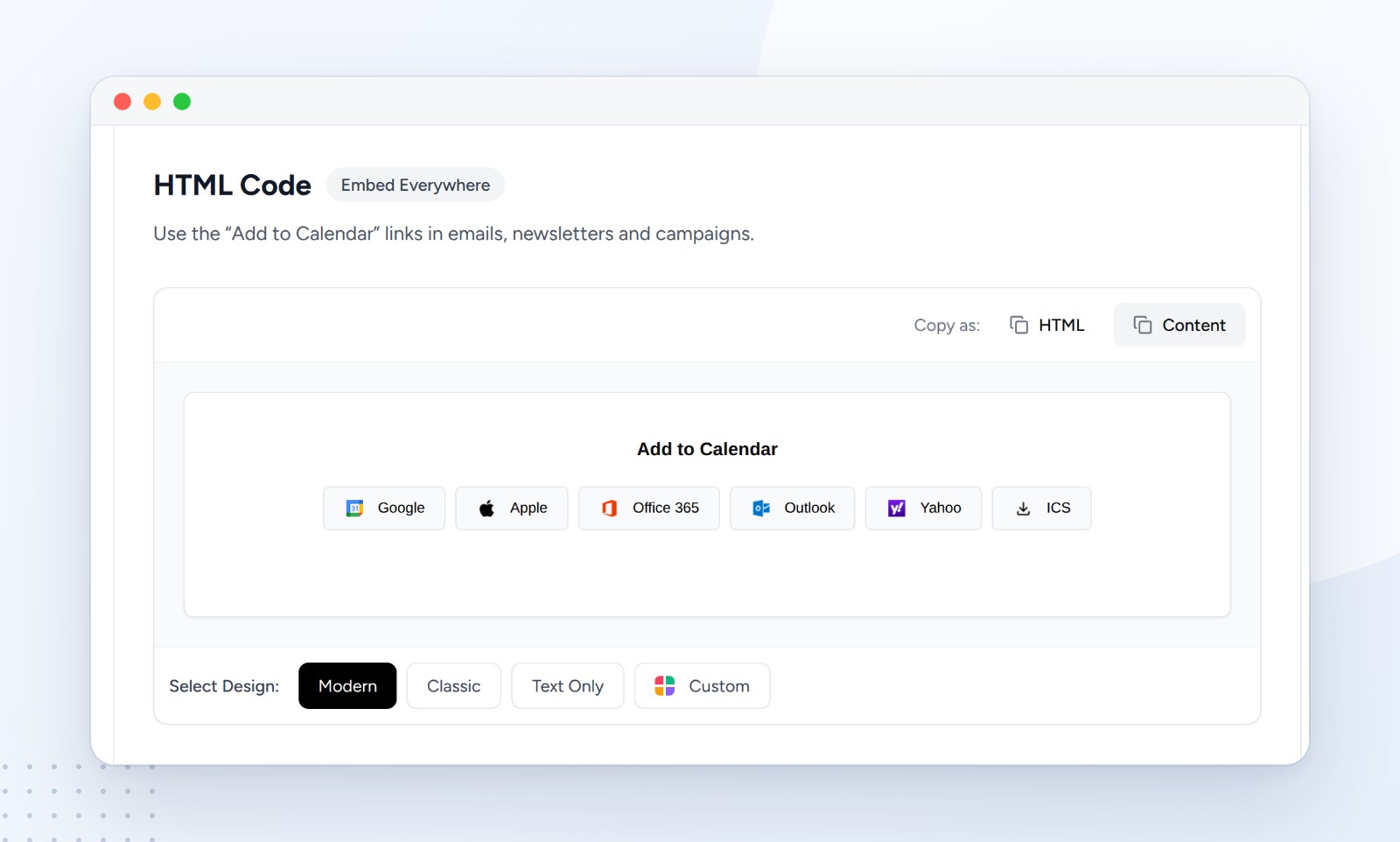
Step 3: Email the whole list, privately
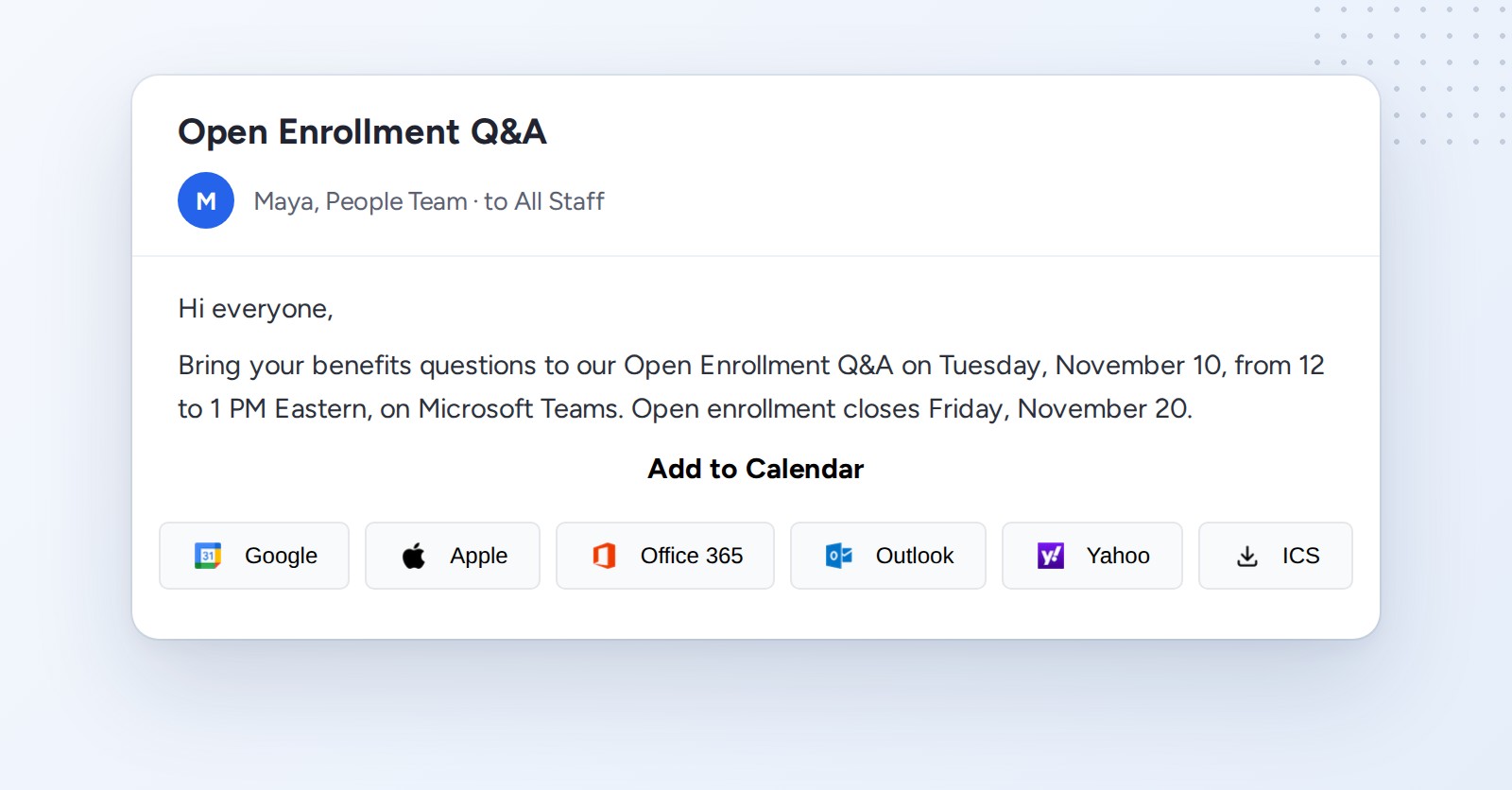
Paste the link or buttons into your email and send it the way you'd send any announcement: your company's distribution list, everyone in Bcc, or your newsletter tool. Every recipient gets the same email, and no one sees who else got it.
Mind your email limits. In Google Workspace, Gmail allows 2,000 recipients per message, with at most 500 outside your organization. Exchange Online allows up to 1,000 recipients per message and 10,000 per day, per Microsoft's Exchange Online limits. For bigger or external lists, use your newsletter tool: here's how to add the link in Mailchimp or an Outlook email.
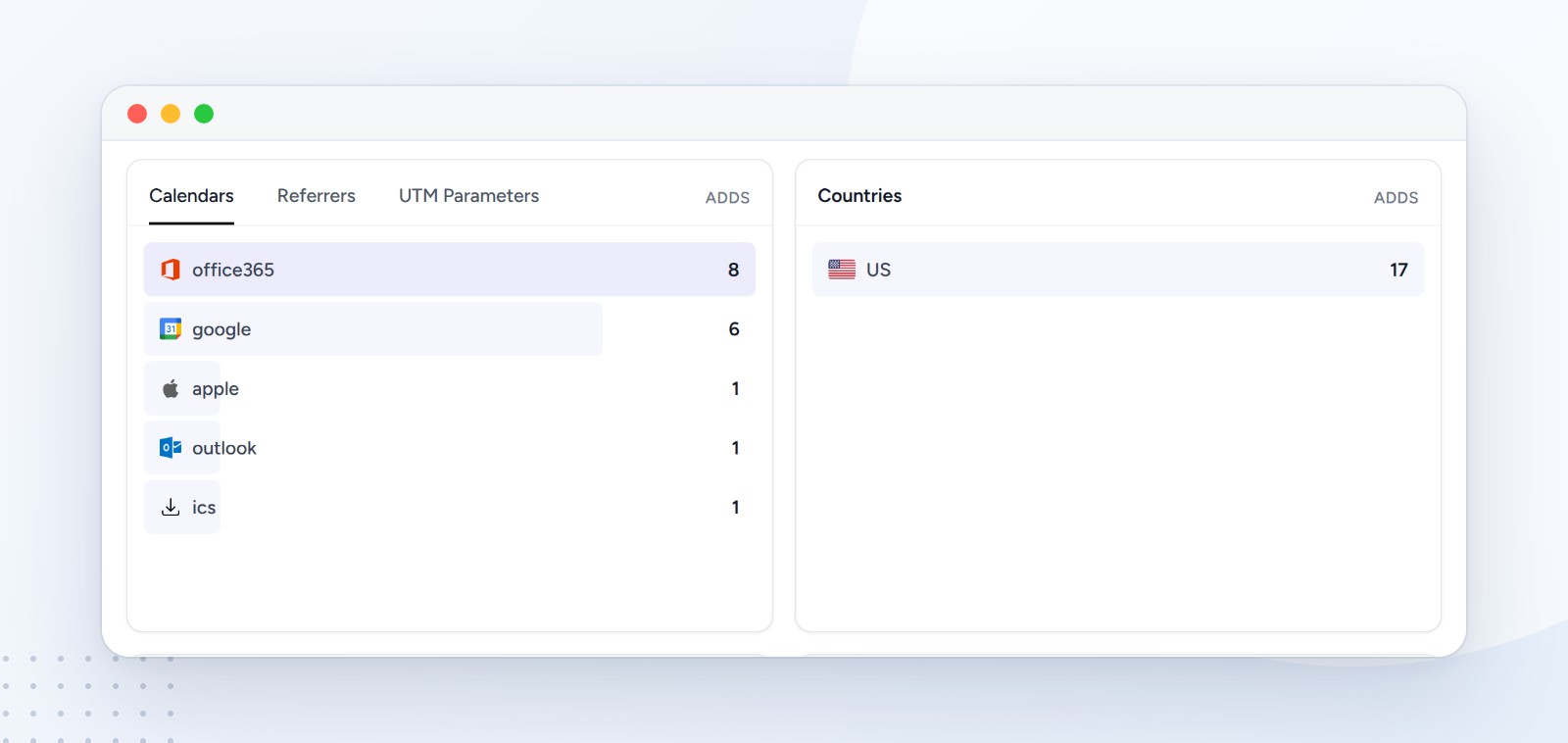
Step 4: See how many people saved it
With an invite, a hidden guest list also hides who's coming. With a link, you still get numbers: CalGet counts how many people added the event, and to which calendar.
One honest trade-off: a saved event is a copy in each person's calendar. If the time changes, send a short update email with the new link. If changes happen often, or you're sharing a whole series of events, use a subscription calendar instead (below).
Two upgrades for big events
Need a headcount? Add an RSVP
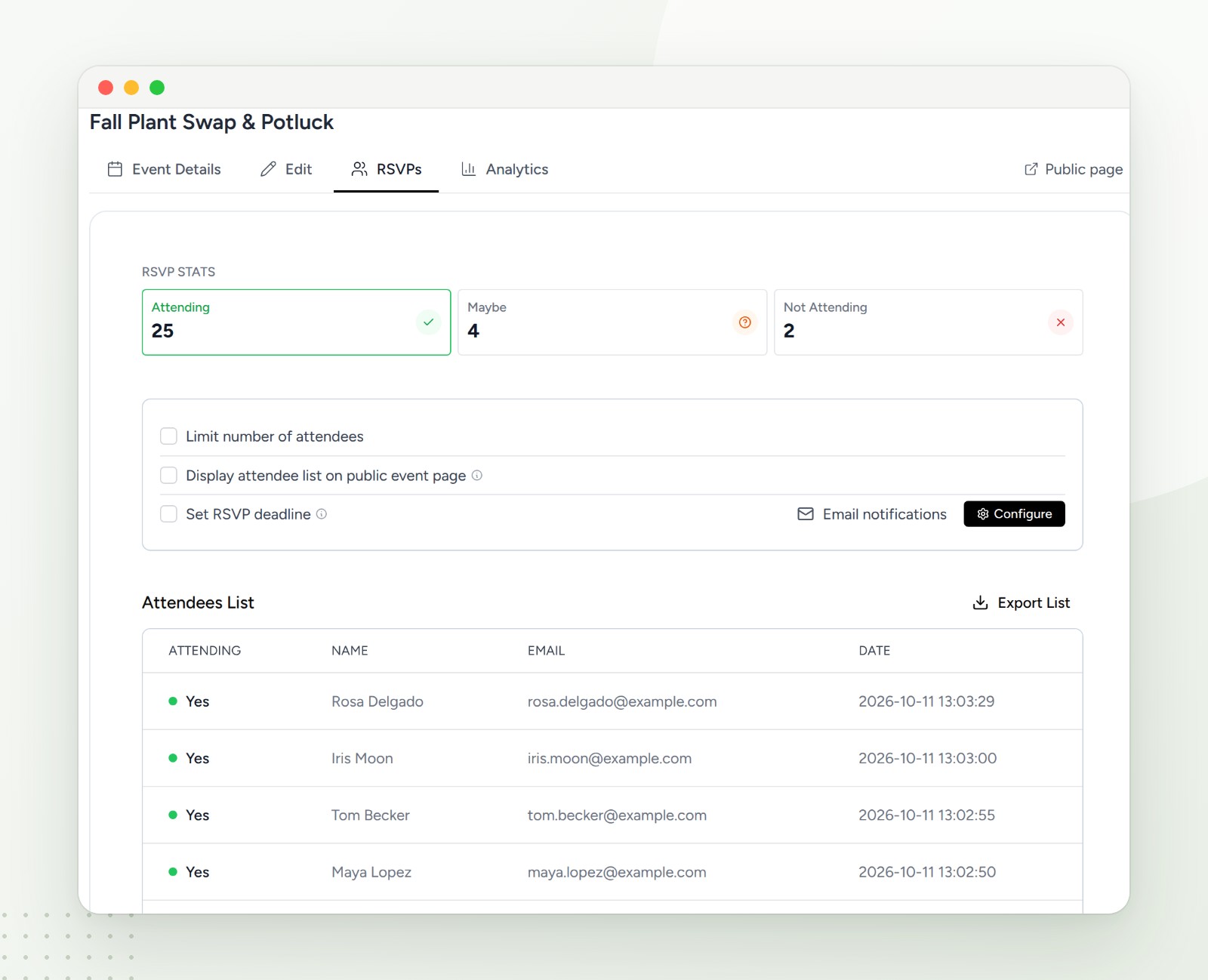
Hiding the guest list in Google or Outlook also makes it harder to know who's coming. If you need numbers for catering, seats or a webinar room, turn on RSVPs for the event. Each person answers yes, maybe or no on the event page and then saves it to their calendar, and you see the totals and the list in one place. Only you see the attendee list, unless you choose to show it. Learn more about collecting RSVPs with CalGet.
Sending a series? Share a subscription calendar
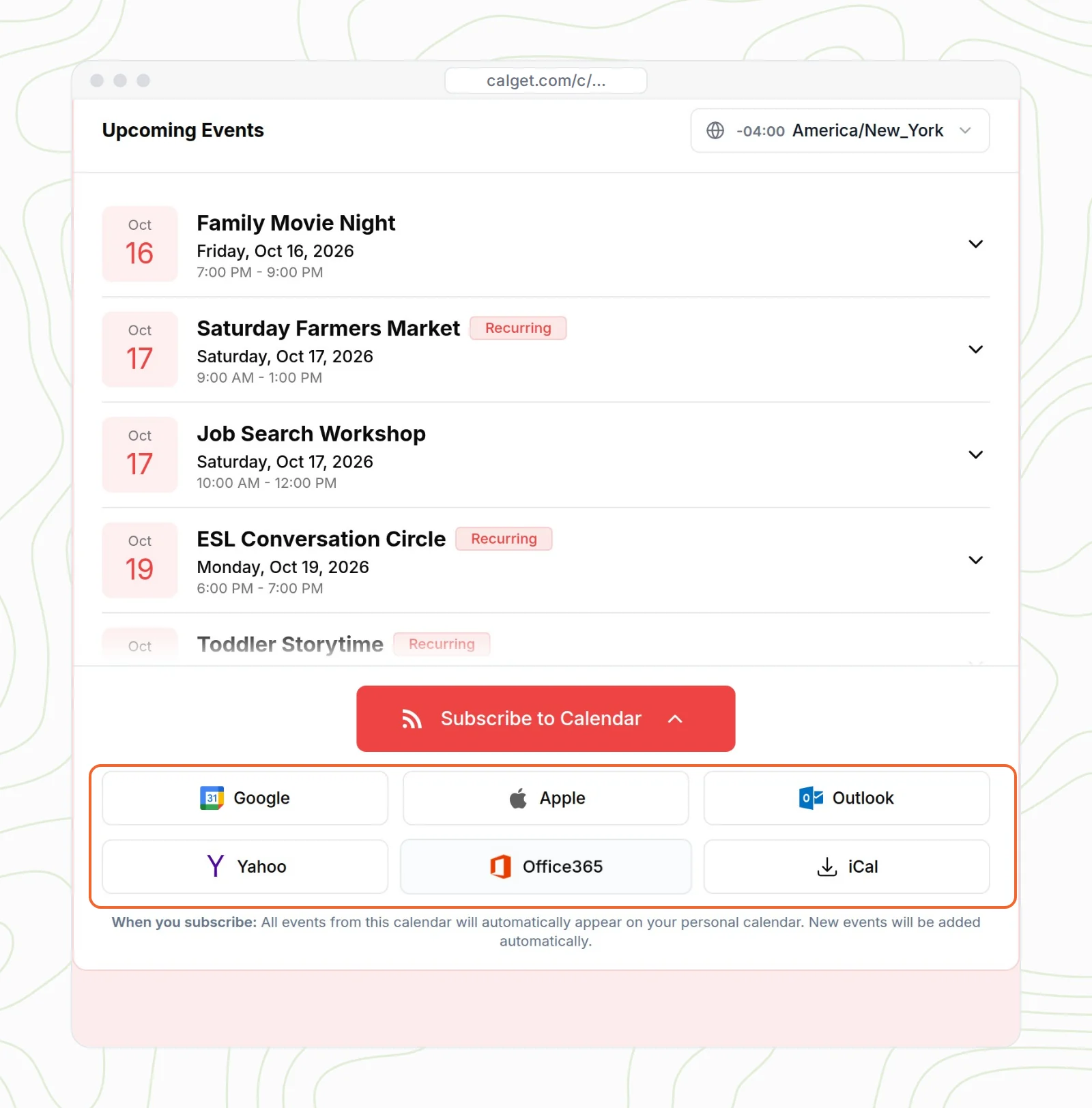
For monthly town halls, a training program or a season of games, one invite per event gets old fast. A subscription calendar is a single link: people subscribe once in Google Calendar, Apple Calendar or Outlook, and every event you add or change shows up in their calendar on its own. There's no guest list at all, and updates never go out as mass emails.
Which method should you use?
| Google invite, guest list hidden | Outlook invite, attendee list hidden | Email with Add to Calendar link | Subscription calendar | |
|---|---|---|---|---|
| Group size | 200 people, or groups up to 100,000 | Up to 5,000 per meeting message | Your email tool's limit | No list at all |
| Addresses hidden | Yes, with See guest list off | Yes (new Outlook and web only) | Yes, with Bcc or an email tool | Yes |
| Best for | Google Workspace teams | Microsoft 365 organizations | Customers, members, parents, mixed calendar apps | Recurring events and seasons |
| Headcount | Responses in Google Calendar | Responses, until about 500 recipients | Calendar adds, plus RSVPs if you turn them on | Subscriber count |
| When details change | Update goes to everyone | Update goes to everyone | Send a short update email | Updates appear on their own |
A simple rule: if everyone is in your organization and you need real meeting responses, use your calendar's own setting (Method 1 or 2). If your list goes beyond your organization, mixes calendar apps or is simply big, send an Add to Calendar link (Method 3), with RSVPs when you need a headcount.
Mistakes that expose your guest list
- Turning on the hide setting after sending. In Outlook, it only applies to new recipients. Set it before you click Send.
- Using a personal contact group in Outlook. Exchange counts each member of a personal list as a separate recipient. A distribution list in your organization's address book counts as one.
- Pasting a list into To or Cc for a regular email. If you send the Add to Calendar link by email, put the list in Bcc or use your email tool.
- Leaving responses on for hundreds of people. In Outlook, turn off Request responses unless you truly need them, or collect RSVPs on an event page instead.
- Sending small edits as updates. Every change to a big invite goes to everyone. Get the details right before you send.
How we tested this
In October 2026 we checked the Google Calendar steps and limits against Google's Calendar and Workspace help pages, and the Outlook steps and limits against Microsoft's support pages and the Exchange Online service description, all linked above. The Google Calendar and Outlook settings are shown as illustrations with the exact labels those pages use. For Method 3, we created the Open Enrollment Q&A as a real CalGet event and followed every Add to Calendar button to confirm where it leads; the CalGet screens are real. The company, Maya and the addresses are made up.
Frequently asked questions
How do I send a calendar invite without showing the recipients?
In Google Calendar, uncheck See guest list under Guest permissions before sending. In new Outlook or Outlook on the web, select Response options, then Hide attendee list. To hide recipients in any calendar app, send a regular email in Bcc with an Add to Calendar link instead of an invite.
How many people can you invite to a Google Calendar event?
Google Calendar lets you invite up to 200 people to an event. To invite more, add a Google Group as a guest: Google supports groups of up to 100,000 people.
Can you Bcc a calendar invite?
Not in Google Calendar: every guest is added to the event, so the closest option is turning off See guest list. In new Outlook and Outlook on the web, Hide attendee list does the same job. For true Bcc, send a normal email with recipients in Bcc and an Add to Calendar link, so each person saves the event themselves.
What is the maximum number of attendees for an Outlook meeting?
In Microsoft 365, a meeting invitation, update or cancellation can go to up to 5,000 recipients, and Teams meetings created from Outlook are limited to 750. A distribution list from your organization's address book counts as one recipient. Microsoft notes that Outlook stops tracking new responses as an invite approaches 500 recipients.
How do I stop reply-all on a large calendar invite?
Hide the guest or attendee list so people can't reply to everyone, and in Outlook turn off Request responses so you don't get an email for every answer. The most reliable fix is to send an email with an Add to Calendar link in Bcc: replies can only come back to you.
For your next big event
Invite hundreds of people without sharing a single address
Create the event once, paste one Add to Calendar link into your email, and let every person save it to the calendar they use. Turn on RSVPs when you need a headcount.
Create your Add to Calendar linkHow Add to Calendar links work

Written by the CalGet team
Updated October 2026 · Checked against Google and Microsoft help pages
We build calendar tools for sharing events with lots of people, from sports clubs and schools to nonprofits. People at organizations like Harvard, Save the Children and OGC Nice use CalGet to get events into their audience's calendars.

“Great Add Event to Calendar platform. Easy to create events and add them to emails and websites. Support responds quickly to questions and provides clean and concise answers. Highly recommended.” Foto Guy, on Trustpilot
Get Your Events on Everyone's Calendar.
Generate universal "Add to Calendar" links that work everywhere. Perfect for social media, emails, and websites.


Written by
Yared