Back to Blog
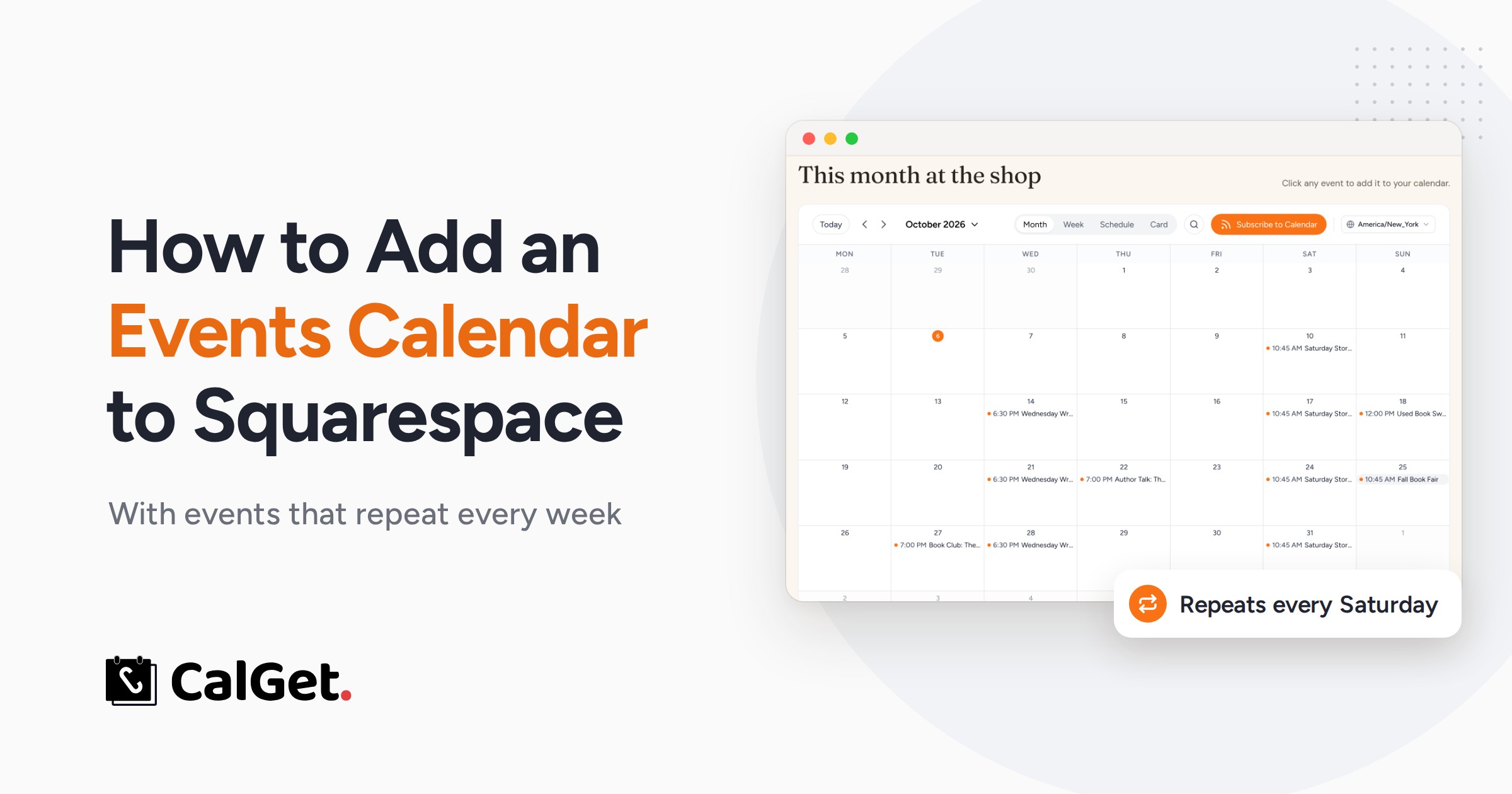
How to Add a Recurring Events Calendar to Squarespace
Squarespace's Events page can't repeat events, so every weekly class or story time gets duplicated by hand. Here's how to add a calendar where weekly events repeat on their own, what each Squarespace plan allows, and the two settings that trip people up.
Written by
Last updated: October 2026. Every CalGet step below was tested on a real calendar in October 2026, and the Squarespace limits come from Squarespace's own help center.
Quick answer
Squarespace can't repeat events: its help center says "It's not possible to set up recurring or repeating events." To get a recurring events calendar on Squarespace, build the calendar in a tool that can, such as CalGet, set your weekly events to repeat, add your site's address under Domains, copy the embed code, and paste it into a Code block on your Events page. Every week fills in by itself, and visitors can add any event to their own calendar.
If you run a weekly story time, a Tuesday class or a monthly meetup, you already know the Squarespace routine: open the event, duplicate it, change the date, save, repeat. Miss a week and your Events page quietly says there's nothing on.
This guide shows you how to add an events calendar to Squarespace where weekly events repeat on their own. We'll build it for a small bookstore with a Saturday story time and a Wednesday writers' circle, put it on the site, and show you exactly what visitors see on a computer and on a phone.
Prefer to watch? The whole setup is under three minutes on video.
What Squarespace's built-in events can and can't do
Squarespace's Events page (called a Calendar page on newer sites) is fine for a handful of one-off events. Its help center is clear about the limits: "It's not possible to set up recurring or repeating events," and the suggested workaround is to "manually duplicate events." Each calendar page supports up to 350 events a month and shows up to 250 upcoming events. You can turn on export links so visitors can add an event to Google Calendar or iCal. All of this is in Squarespace's guide to Calendar pages.
So the honest answer is: if your events don't repeat, Squarespace's own page may be all you need. If they do, a calendar that understands repeating events saves you that weekly copy-and-paste.
| Squarespace Events page | CalGet calendar on Squarespace | |
|---|---|---|
| Repeating events | No, duplicate each one | Yes, set once |
| Views | List, or month with a Calendar block | Month, Week, Schedule and Card |
| Add to a visitor's calendar | Google Calendar and iCal links, if turned on | Google, Apple, Outlook, Yahoo or a calendar file |
| Subscribe to all events | No | Yes, one button |
| Squarespace plan | Any | Core, Plus or Advanced (Basic: a link) |
| Best for | A few one-off events | Weekly classes, meetups, story times, anything that repeats |
How to add a recurring events calendar to Squarespace
Here's the whole process at a glance. Each step is explained below.
- 1Create a calendar in CalGet for your events.
- 2Add your events and set the weekly ones to repeat.
- 3Style it and allow your domain in Embeddable Calendar.
- 4Copy the embed code (or the direct link on the Basic plan).
- 5Paste it into a Code block on your Squarespace Events page.
Step 1: Create a calendar in CalGet
In CalGet, open Calendars, click New Calendar, give it a name your visitors will recognize (ours is "Lantern & Leaf Events") and click Create Calendar. One calendar can hold every event you want on the page.
Step 2: Add your events and make the weekly ones repeat
Click New Event and fill in the title, date, start and end time, the place and a short description. For anything that happens on a schedule, turn on Recurring. In the window that opens, set "Repeat every" to 1 Week, pick the day (or days), leave Ends on Never unless the series has an end date, and click Set Recurrence. Then click Create Event Link.
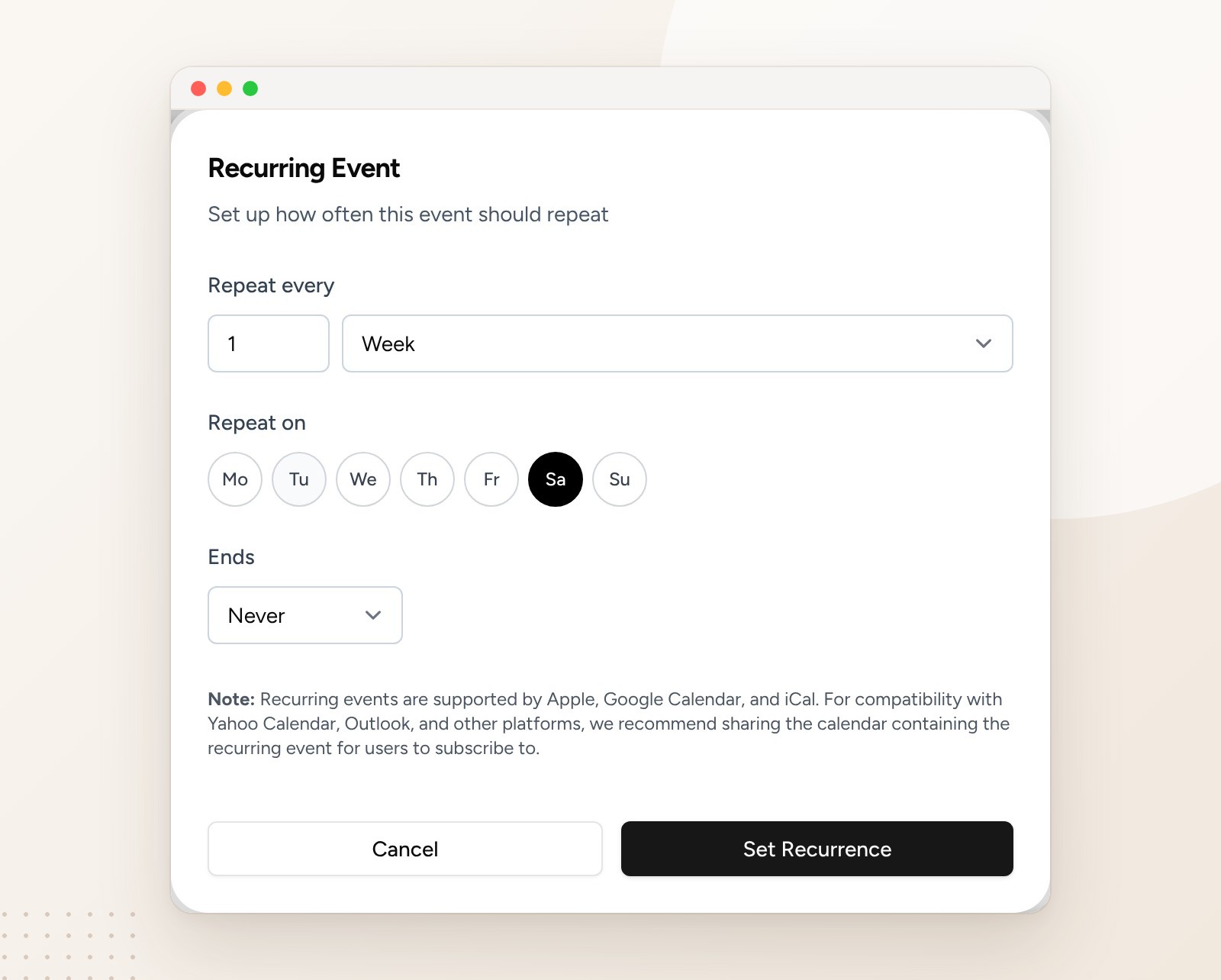
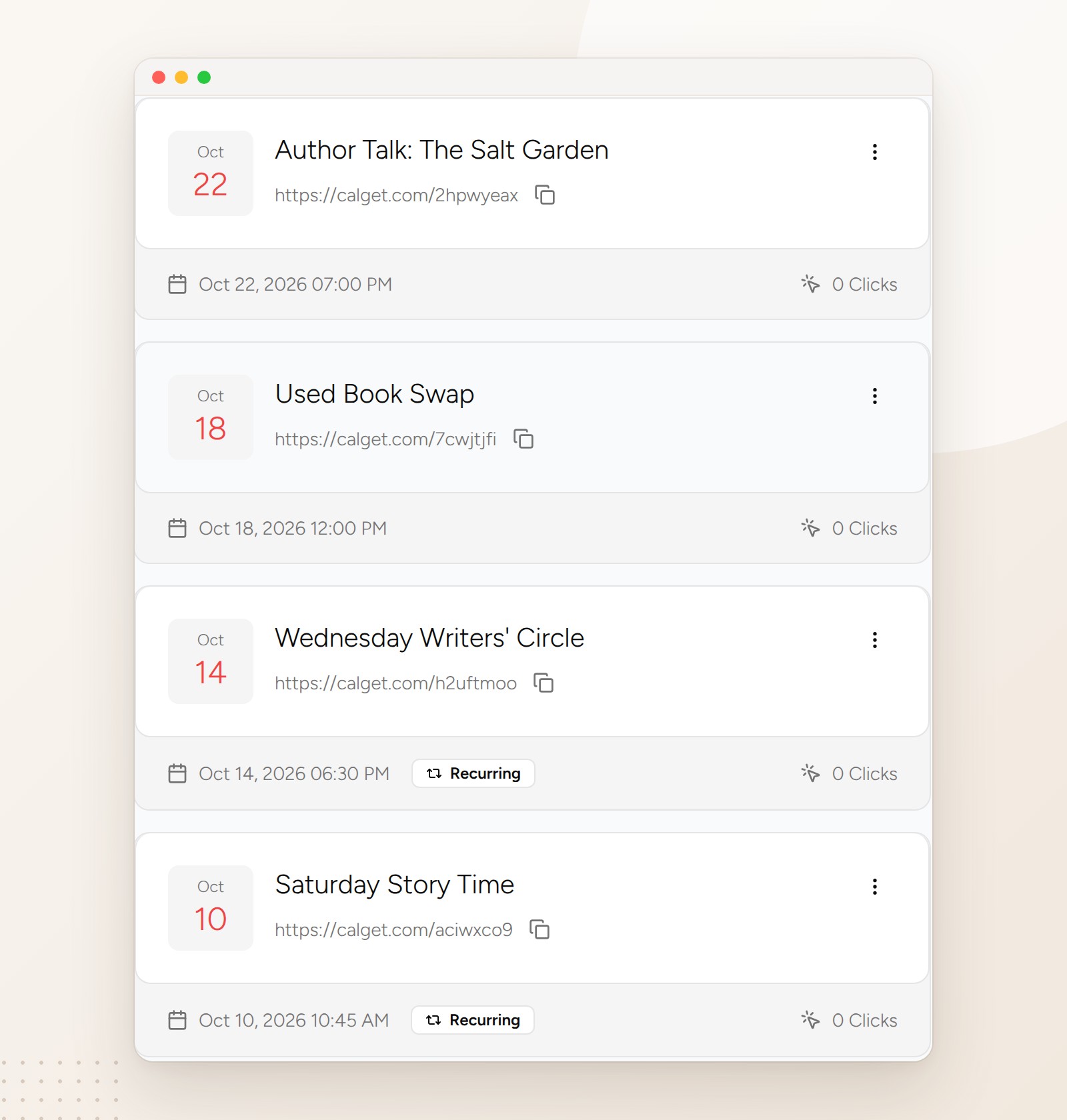
Repeat this for each event. One-off events, like an author talk or a book fair, skip the Recurring switch. Your calendar's event list marks the repeating ones so you can see the schedule at a glance.
Good to know about repeating events
When a visitor saves a repeating event, Google Calendar, Apple Calendar and calendar files keep the repeat. Outlook and Yahoo may save only the one date, so for regulars the better option is the calendar's Subscribe button, which keeps every week in their calendar. More on how repeating events work in our guide to recurring events.
Step 3: Style the calendar and allow your domain
Open Embeddable Calendar, pick your calendar at the top and choose a color that matches your site. You can also pick the default view, the first day of the week and the time zone.
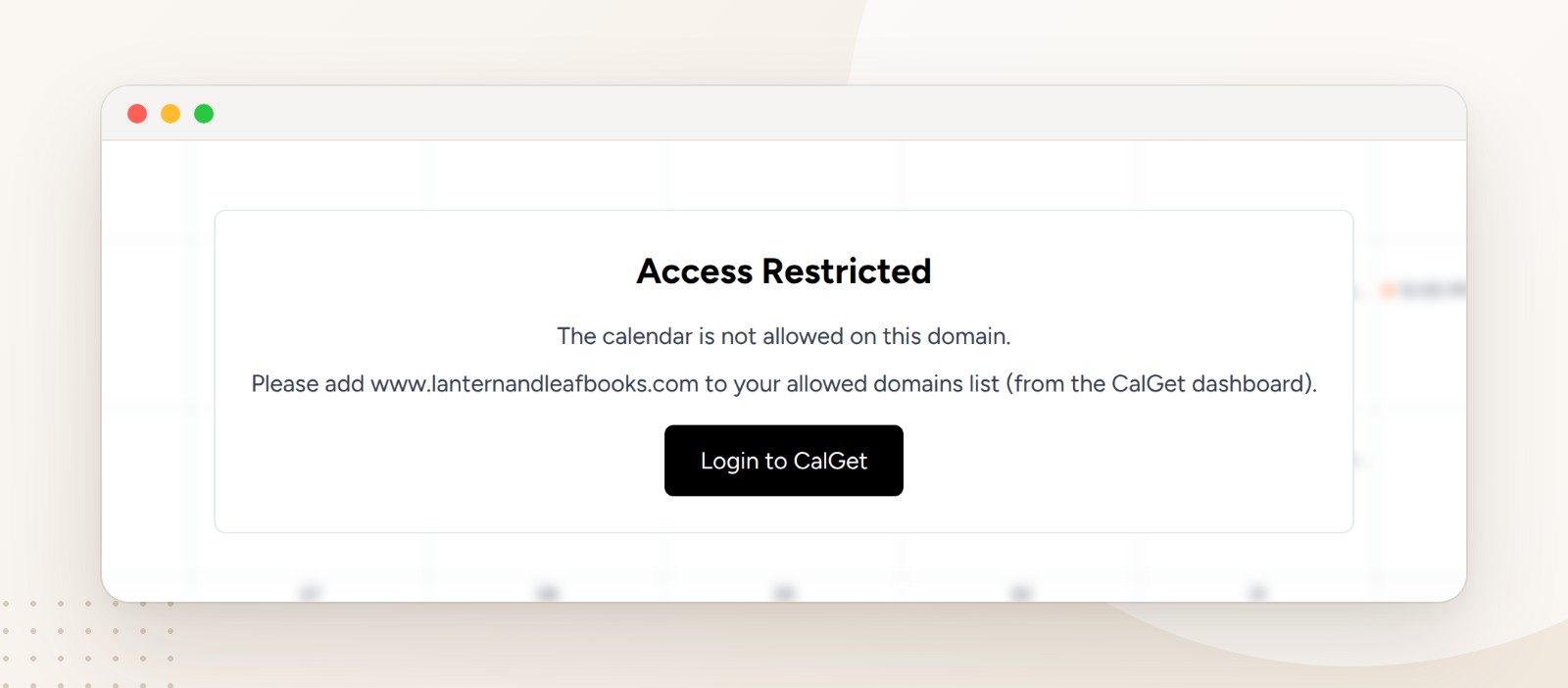
Then click Domains, then Add Domain, and type your site's address exactly as your browser shows it. CalGet only shows your calendar on the addresses in this list, so other sites can't borrow it. If you skip this step, your page shows this instead of your calendar:
The www trap
Domains are matched exactly. We tested it: allowing example.com does not cover www.example.com. If your site opens with www, add the www version, and add both if people reach your site both ways. A yoursite.squarespace.com address counts as its own domain too.
Step 4: Copy the embed code
Click Get embed code. You'll see three options. Keep JS Embed, which CalGet recommends because it resizes itself to fit your page, and click Copy code.
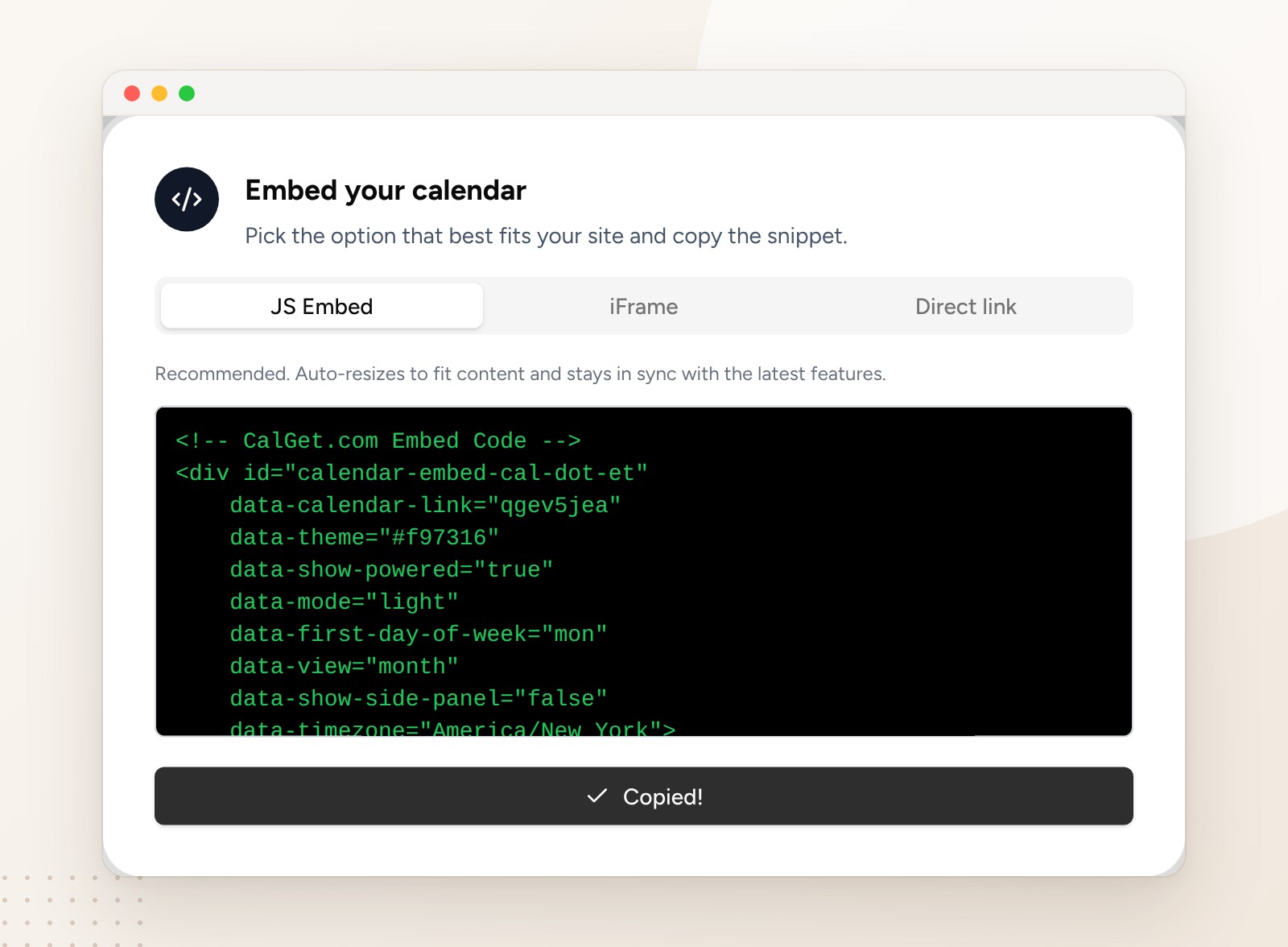
Here's what the code looks like. It's a placeholder and one script, so it's safe to paste as is:
<!-- CalGet.com Embed Code -->
<div id="calendar-embed-cal-dot-et"
    data-calendar-link="qgev5jea"
    data-theme="#f97316"
    data-mode="light"
    data-first-day-of-week="mon"
    data-view="month"
    data-timezone="America/New_York">
</div>

<script src="https://calget.com/assets/js/embedcalendar.js?v=71" defer></script>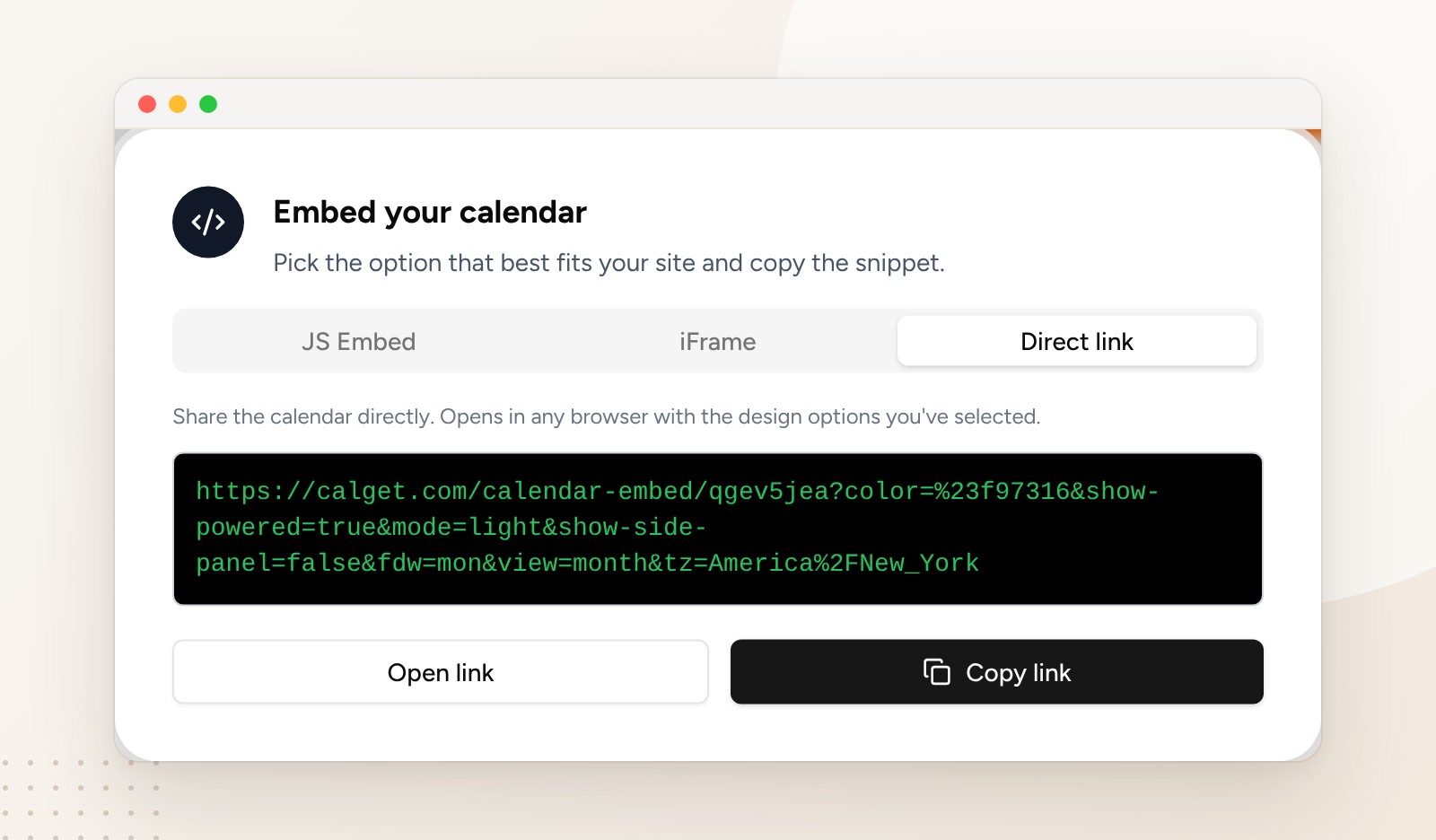
Step 5: Paste it into a Code block on Squarespace
- In Squarespace, open your Events page and click Edit.
- Hover over the section where the calendar should go, click Add block (or +) and choose Code.
- Click the pencil icon on the block, make sure Mode is set to HTML, delete the sample code and paste yours.
- Drag the block's edges so it fills the width of the section.
- Click Save, then Exit.
Squarespace documents the same steps in its guide to Code blocks.
Don't panic if the calendar is missing in the editor
Squarespace hides some embedded code while you're logged in. In its words: "your code sometimes doesn't appear while you're logged in, even when visitors can view it." Save, exit and open your live site in a private window, or use Preview in Safe Mode, and the calendar will be there.
What your visitors see
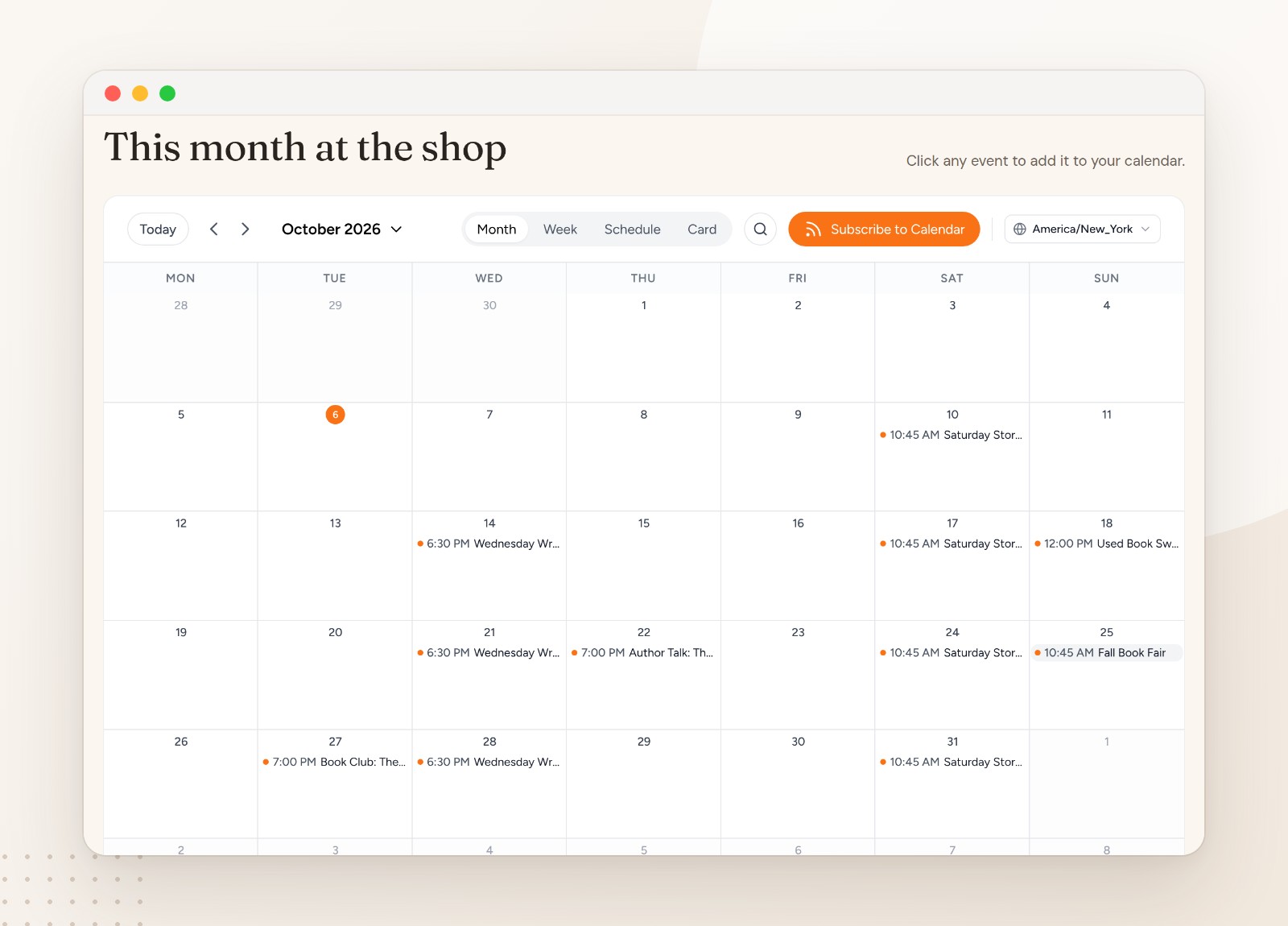
Visitors get a full month at a glance, with every weekly event in place. They can switch to Week, Schedule or Card view, search, change the time zone, and subscribe to the whole calendar with one button. Clicking an event opens its details, including the repeat ("Occurs weekly on Saturday, starting from Oct 10, 2026, forever"), and an Add to Calendar button for Google, Apple, Outlook, Yahoo or a calendar file.
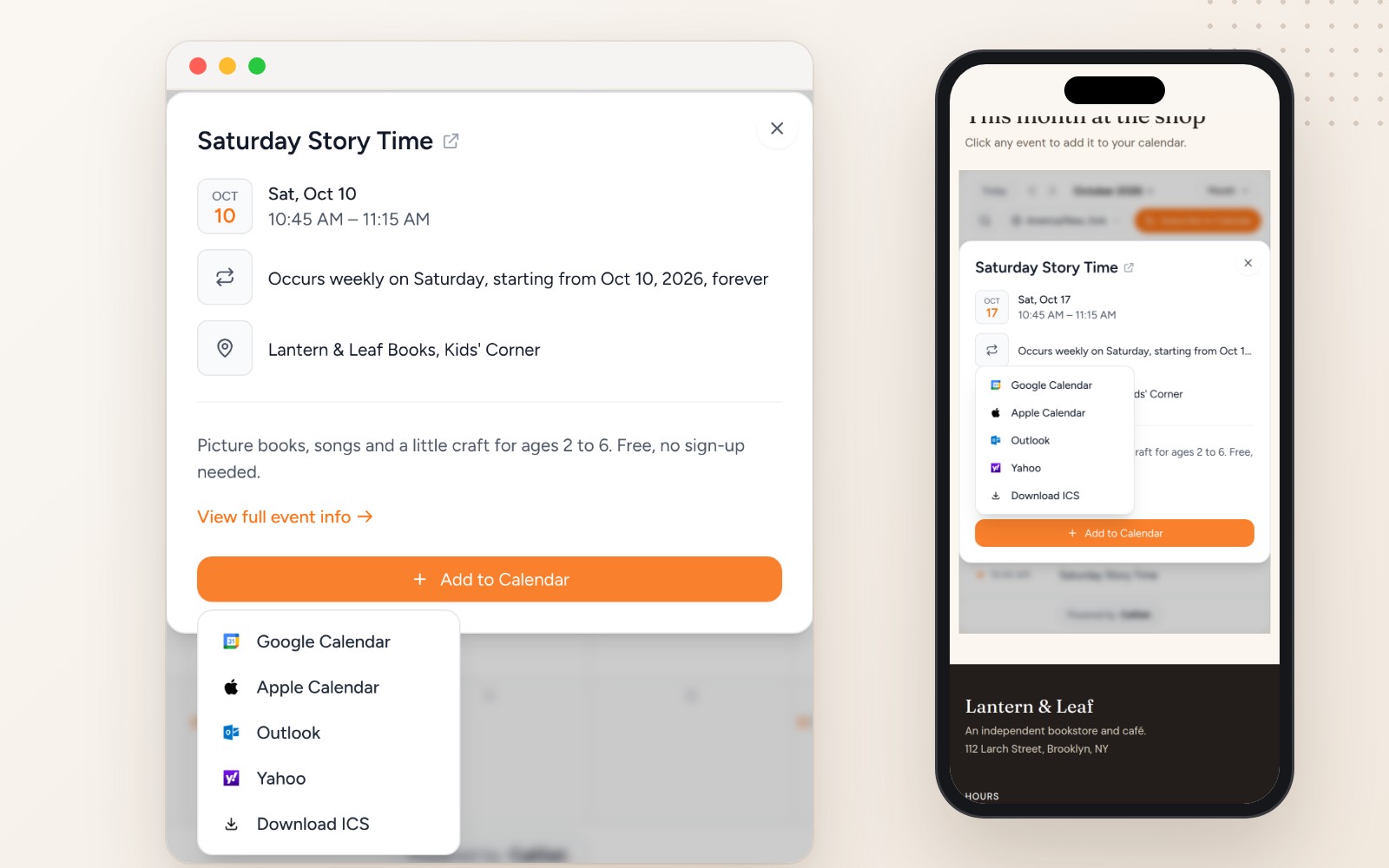
The part you'll like most comes later. When you add or change an event in CalGet, the calendar on your Squarespace page updates by itself. We added a Fall Book Fair after the page was live, and it appeared on the site with no Squarespace edit at all. You only touch Squarespace once.
Common mistakes when adding a calendar to Squarespace
Allowing the wrong version of your domain. www and non-www are different. Add the address exactly as your browser shows it.
Pasting the code on the Basic plan. The block stays empty because Basic doesn't run scripts. Use the Direct link on a button, or upgrade to Core.
Judging it from the editor. Squarespace may hide the calendar while you're logged in. Check the live page.
Duplicating events out of habit. If you copy a weekly event instead of setting it to repeat, you're back to updating it by hand. Set the repeat once.
Leaving the Code block narrow. A calendar squeezed into a third of the page is hard to read. Stretch the block to the full width of the section.
How we tested this
We built a real CalGet calendar, "Lantern & Leaf Events", with two weekly events (Saturday Story Time and Wednesday Writers' Circle) and four one-offs, and ran its real JS embed code on a bookstore page laid out like a Squarespace 7.1 site. We tested the Access Restricted message and the exact domain matching, and added an event after the page was live to confirm it updates without touching the page. Squarespace's limits are quoted from its help center as of October 2026.
The bookstore, its address and its events are made up. The Squarespace editor in the video is a recreation, so your screen may look a little different; every CalGet screen and the live calendar are real.
Key takeaways
- Squarespace can't repeat events; its own workaround is duplicating them by hand.
- A CalGet calendar repeats weekly events for you and drops into a Squarespace Code block.
- Code blocks run the embed on Core, Plus and Advanced. On Basic, use the Direct link on a button.
- Add your domain exactly as the browser shows it, www included.
- Change events in CalGet and the page updates by itself.
Frequently asked questions
Can Squarespace do recurring events?
No. Squarespace's help center says "It's not possible to set up recurring or repeating events," and suggests duplicating events instead. To get repeating events on a Squarespace site, embed a calendar that supports them, like CalGet, in a Code block.
How do I add a calendar to my Squarespace website?
Create the calendar and events in a calendar tool, copy its embed code, then in Squarespace edit your page, click Add block, choose Code, set Mode to HTML and paste the code. Save, exit, and check the live page.
Which Squarespace plan do I need to embed a calendar?
Squarespace runs JavaScript and iframes in Code blocks on the Core, Plus and Advanced plans. On the Basic plan, link to the calendar instead, for example with a Button block.
Why isn't my embedded calendar showing on Squarespace?
Three usual reasons: you're looking at it while logged in, and Squarespace hides some code there; your site's domain isn't on the calendar's allowed list, which shows an Access Restricted message; or your site is on the Basic plan, which doesn't run scripts.
Will the calendar update when I add new events?
Yes. The calendar on your page reads from CalGet, so new or changed events appear on your Squarespace site without editing the page again.
Put a calendar that repeats on your Squarespace site
Set up your weekly events once, paste one Code block, and stop duplicating events every Monday. The same calendar works on WordPress, Wix and any other site that takes embed code.
Create your embeddable calendar in CalGet and add it to your Squarespace Events page.
Written by the CalGet team. We build the calendar tools that organizers use to get their events onto their websites and into their visitors' calendars, and we tested every CalGet step in this guide ourselves.
Get Your Events on Everyone's Calendar.
Generate universal "Add to Calendar" links that work everywhere. Perfect for social media, emails, and websites.




Written by
Yared