Back to Blog
How to Add an Events Calendar to Your Canva Website (2026)
Canva websites only come with calendar templates, and a template is just a picture. Here's how to add a live events calendar to your Canva website with the Calendar By CalGet app: connect your account, add your events with photos, style it right in Canva and publish. Tested step by step, with a video.
Written by
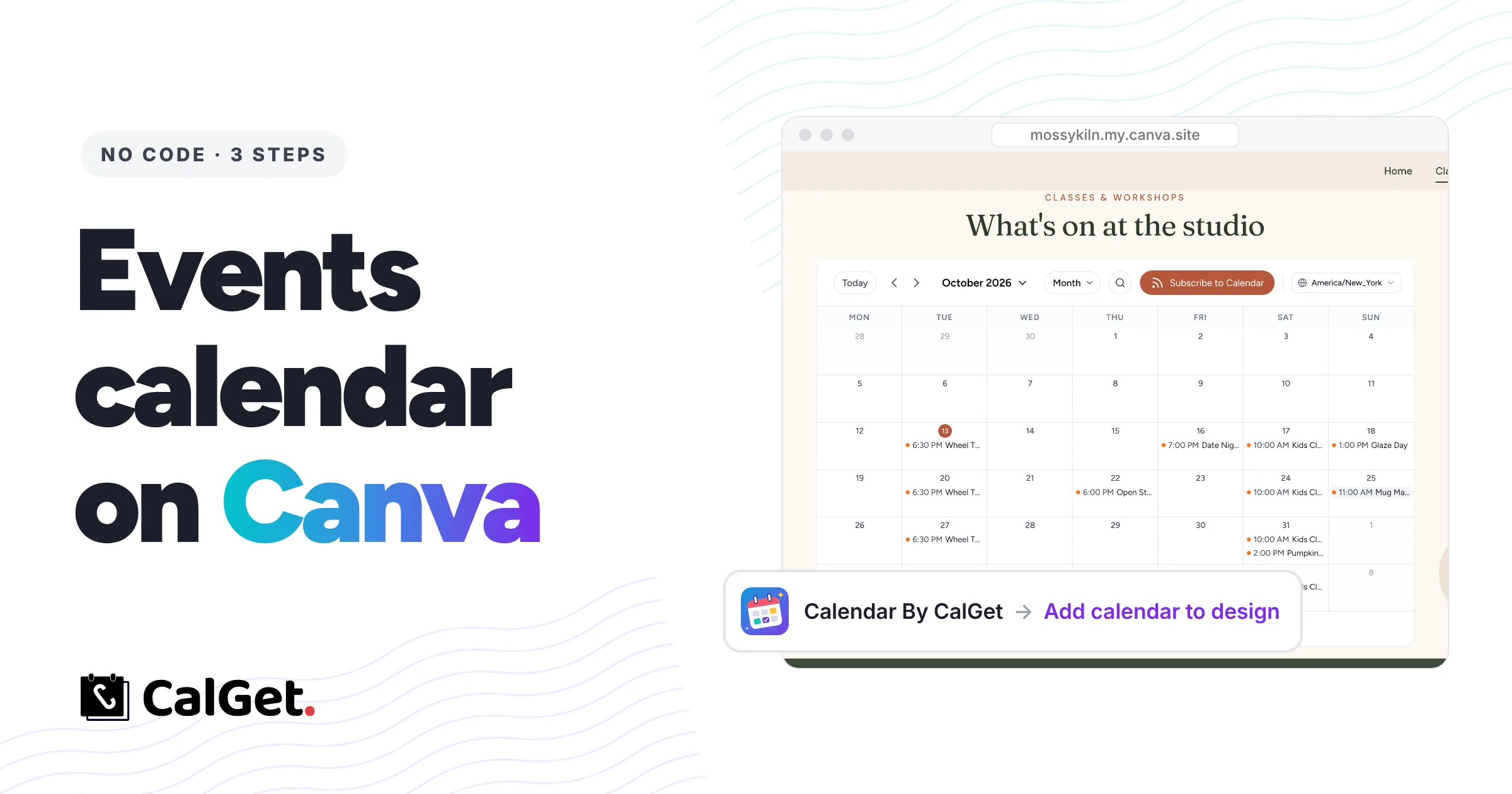
Last updated: November 2026. We rebuilt this guide around the Calendar By CalGet app for Canva. The steps below were tested in a real Canva website design with a real CalGet account, and the Canva screens match the app as it appears in Canva today.
Quick answer
To add a calendar to your Canva website, use the Calendar By CalGet app. No code, and it takes about 10 minutes:
- Open your website design in Canva, click Apps, search Calendar By CalGet and click Open.
- Click Connect CalGet account, then sign up or sign in and click Authorize.
- Add your events in CalGet, with a photo for each one if you like.
- Back in Canva, pick your calendar and click Add calendar to design. Set the color, view and layout right in the app.
- Click Publish Website. New events show up on your site by themselves.
Canva websites don't include a working events calendar. If you search Canva, you'll mostly find calendar templates. They look tidy, but they're still images. Move one class to a different day and you're back editing the page and publishing it again. Visitors still can't click an event or save it to their own calendar.
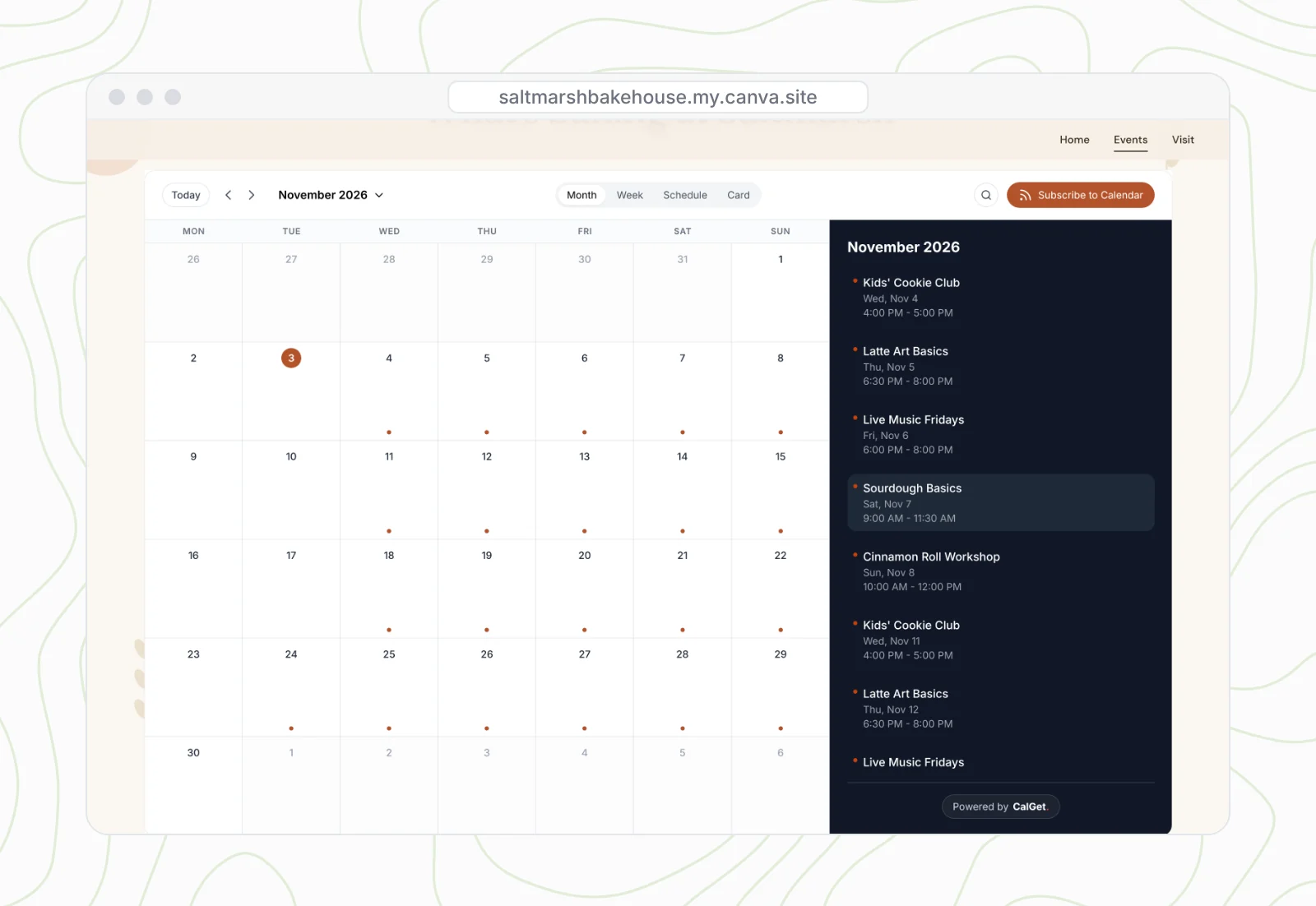
The Calendar By CalGet app solves that problem. It adds a live embeddable events calendar to your Canva design and keeps it current. It works for a yoga studio, a school, a library, a nonprofit or a cinema. In this guide, we'll build one for a small bakery, Saltmarsh Bakehouse, with weekly classes and a few one-off workshops.
Create your CalGet calendar Get the app in Canva
Why a calendar template on Canva goes stale
A calendar template is an image you update by hand. That's fine for a printed flyer. On a website, it creates three jobs every time something changes: edit the design, check the page and publish again. Skip one and your site shows last month's schedule. Since it's only a picture, visitors can't tap an event for details or add it to Google Calendar.
A live events calendar works differently. Your events stay in CalGet, the calendar on your Canva page reads them, and every visitor sees the latest schedule.
| Calendar By CalGet app | Canva's Embed app with a link | A calendar template | |
|---|---|---|---|
| Updates by itself | Yes | Yes | No, it's a picture |
| Setup | Connect once, pick a calendar from a list | Copy a link from CalGet, paste it in Embed | Design it by hand |
| Styling | In the app, changes show right away | In CalGet, then copy a new link | By hand, every time |
| Visitors can save events | Yes: Google, Apple, Outlook, Yahoo | Yes | No |
| Event photos (Card view) | Yes | Yes | No |
Both live options display the same calendar. The app is faster to work with because you can change the color or view without leaving Canva.
How to add a calendar to your Canva website, step by step
Start with a Canva design made from a Website template and set aside about ten minutes. You don't need a CalGet account before you begin. You can create one in step 2.
Step 1: Find Calendar By CalGet in Canva Apps
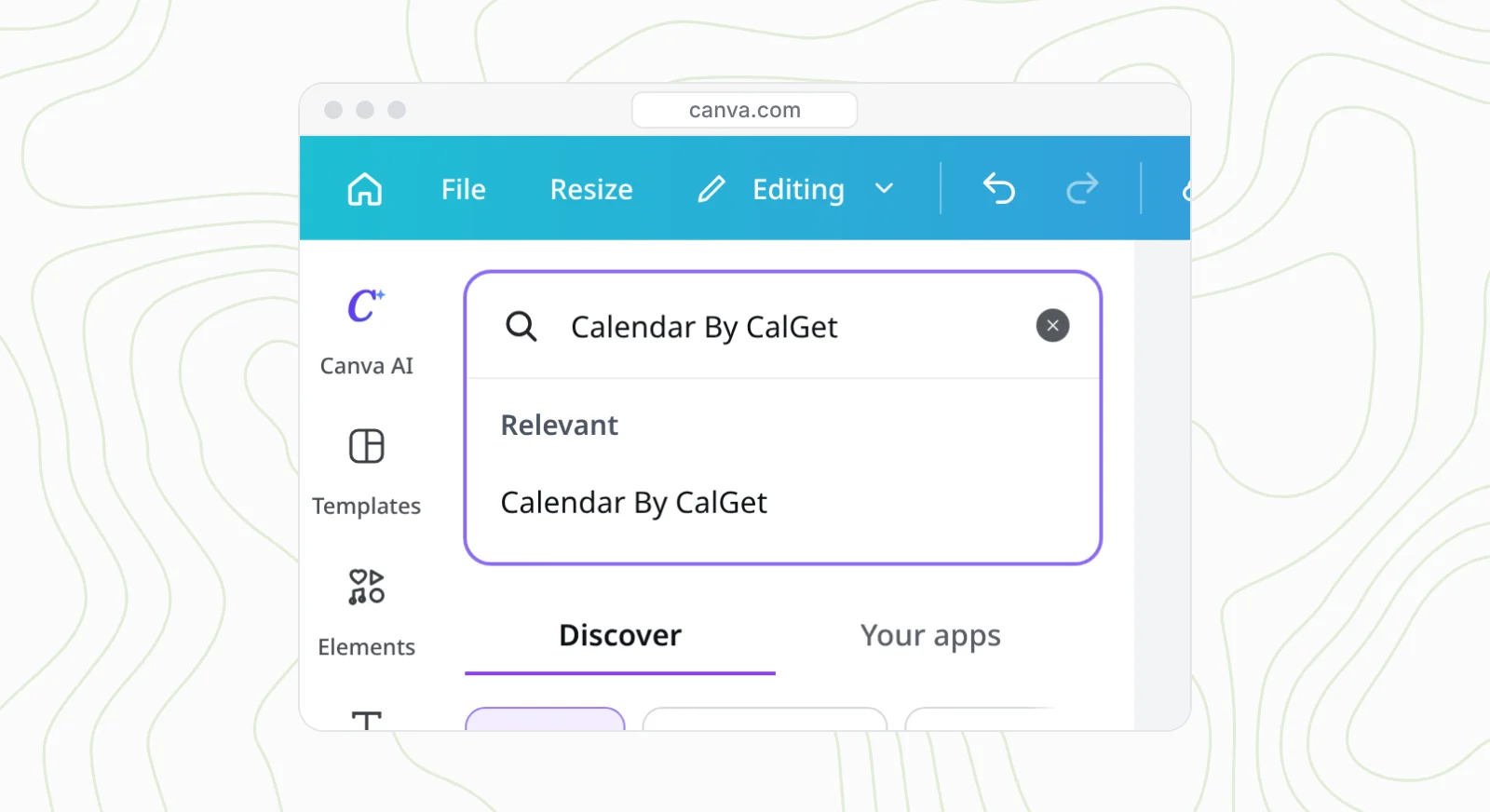
Open your website design and go to the page where the calendar belongs. We used the bakery's Events page. In the side panel, click Apps and type Calendar By CalGet into Search Canva apps.
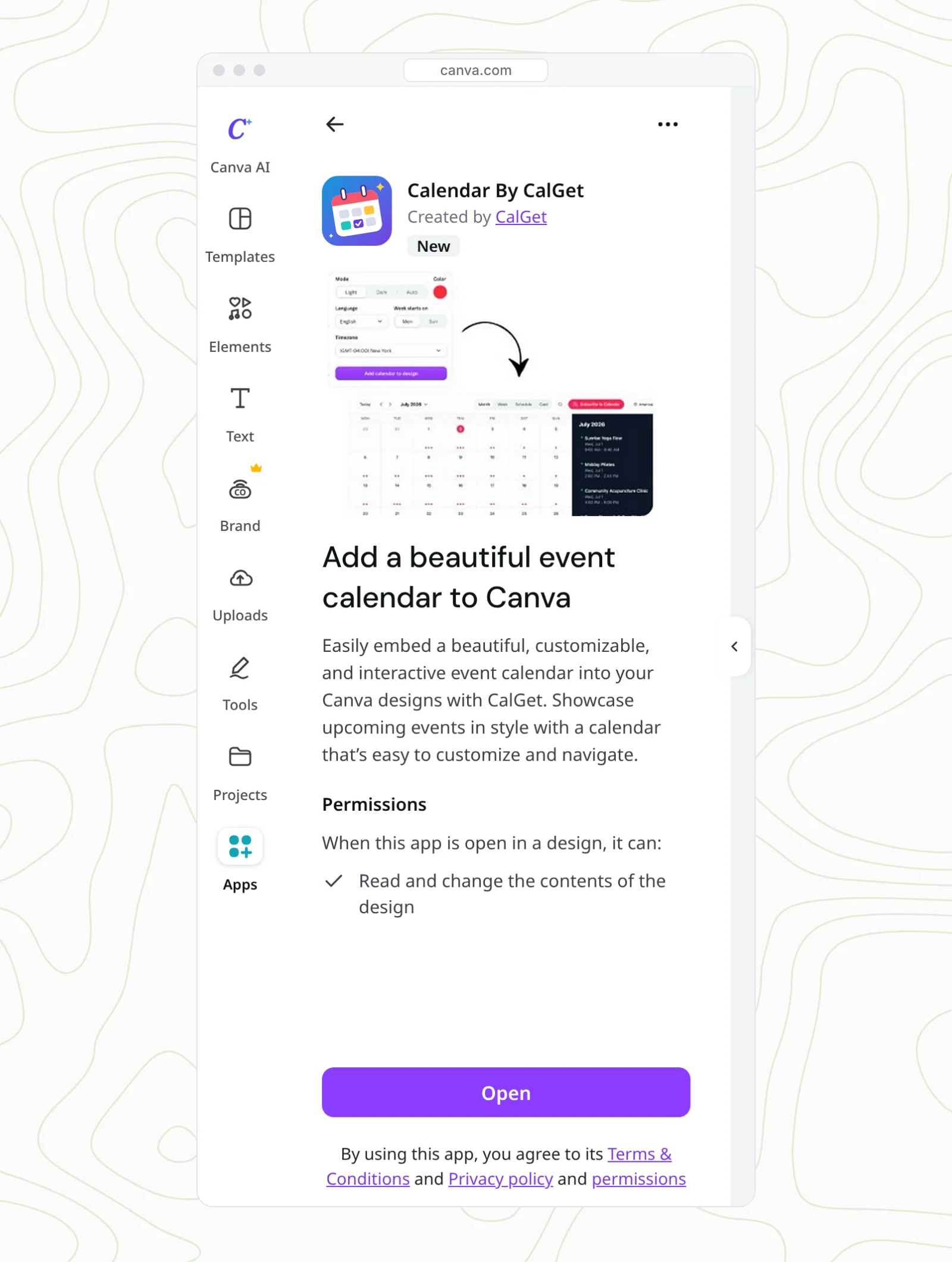
Click the app to open its page, then click Open. The app asks only to read and change the design it's open in. That's the permission it needs to place the calendar on your page.
Step 2: Connect your CalGet account
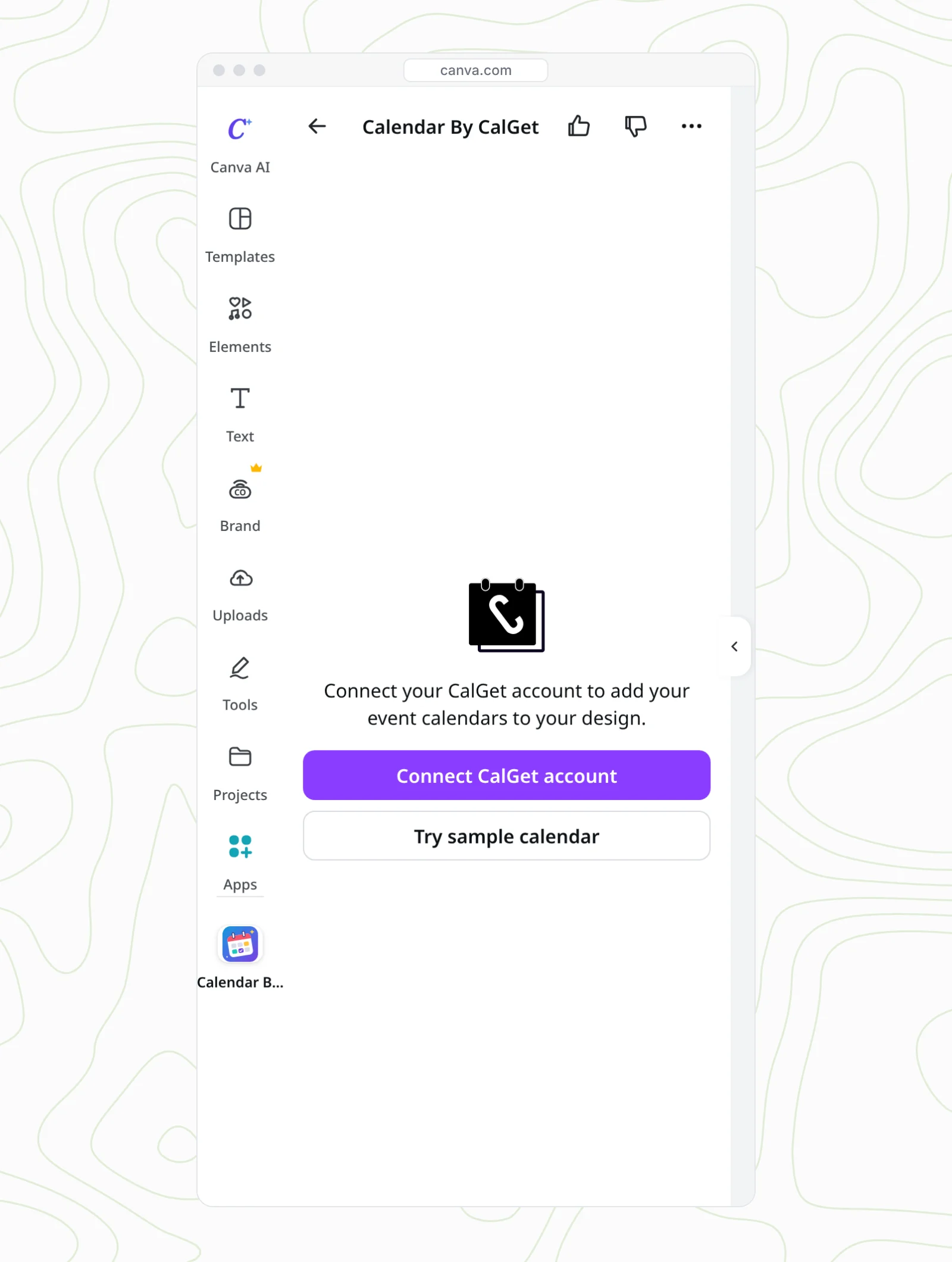
The calendar pulls your events from CalGet, so the app asks you to connect an account the first time you use it. Click Connect CalGet account, then Connect on Canva's screen. If you want to try the controls first, Try sample calendar adds a demo calendar to your page.
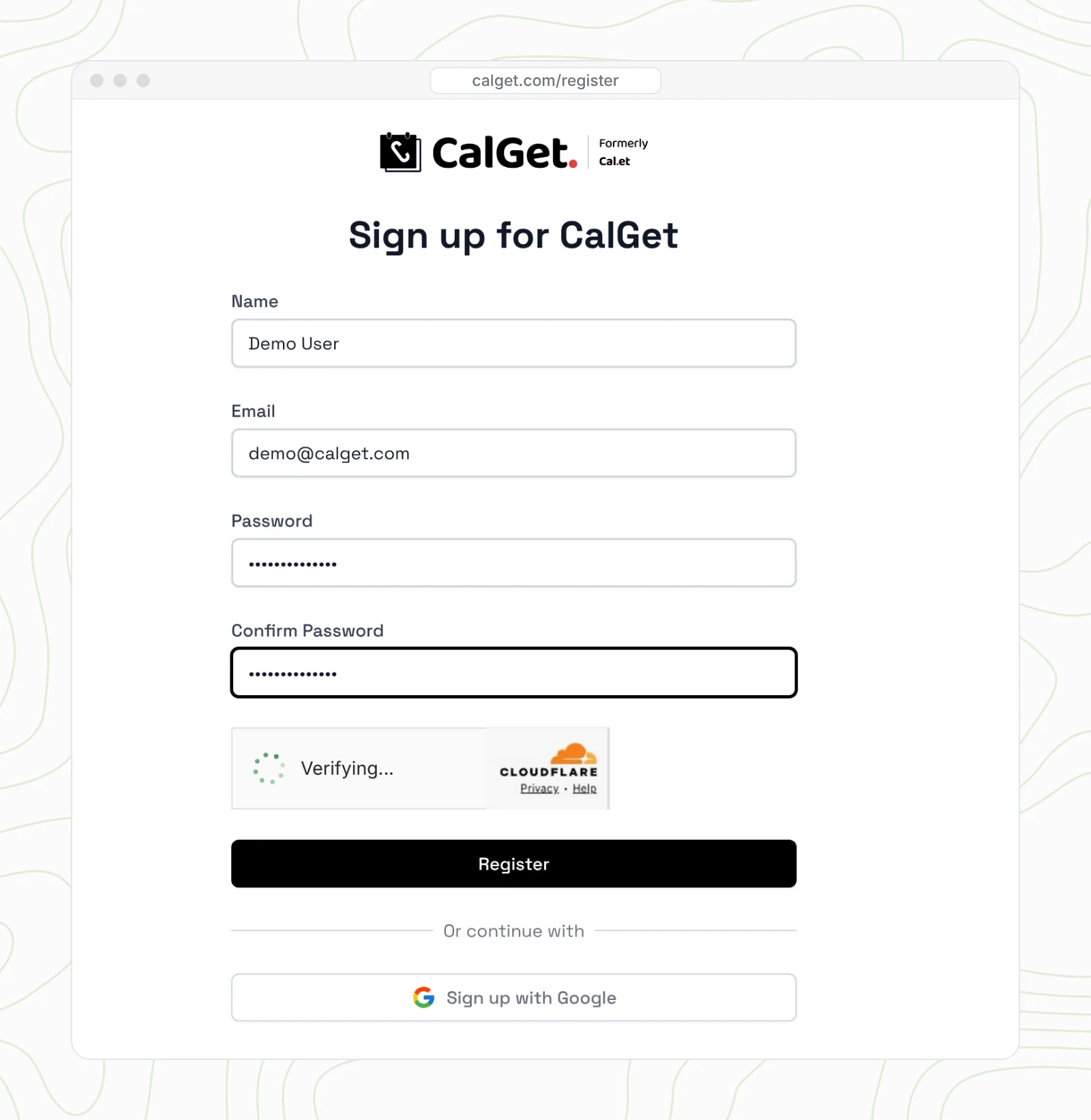
A CalGet window opens. If you're new to CalGet, sign up with your name, email and a password and click Register, or use Sign up with Google. If you already have an account, sign in instead.
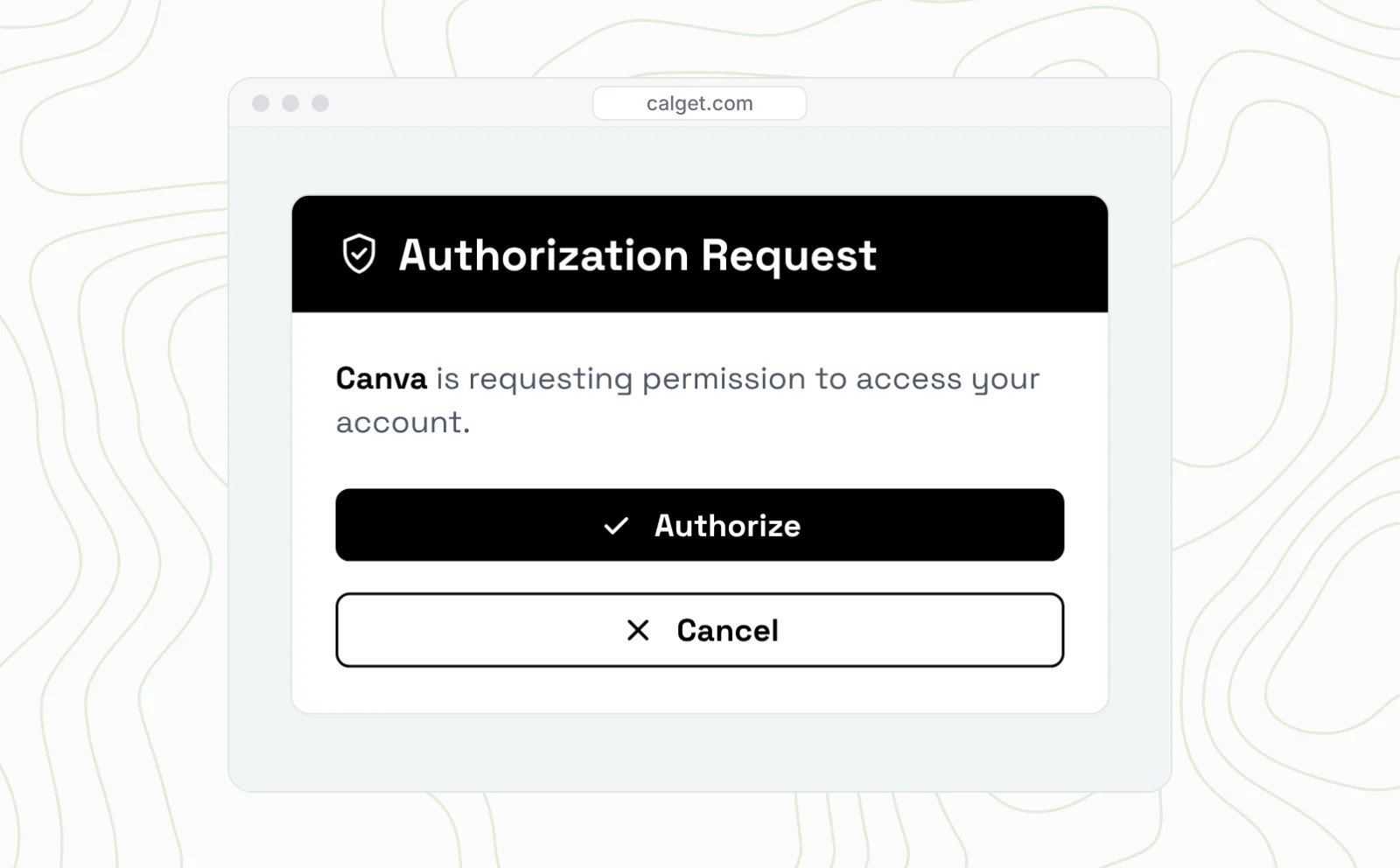
CalGet then asks if Canva can use your account. Click Authorize, and you'll return to Canva with the account connected.
Step 3: Add your events in CalGet (with photos)
Your events are stored in CalGet, inside a calendar named after your business. The bakery's calendar includes Sourdough Basics every Saturday, Kids' Cookie Club every Wednesday and Live Music on Fridays as recurring events, plus one-off workshops like a Thanksgiving Pie Night.
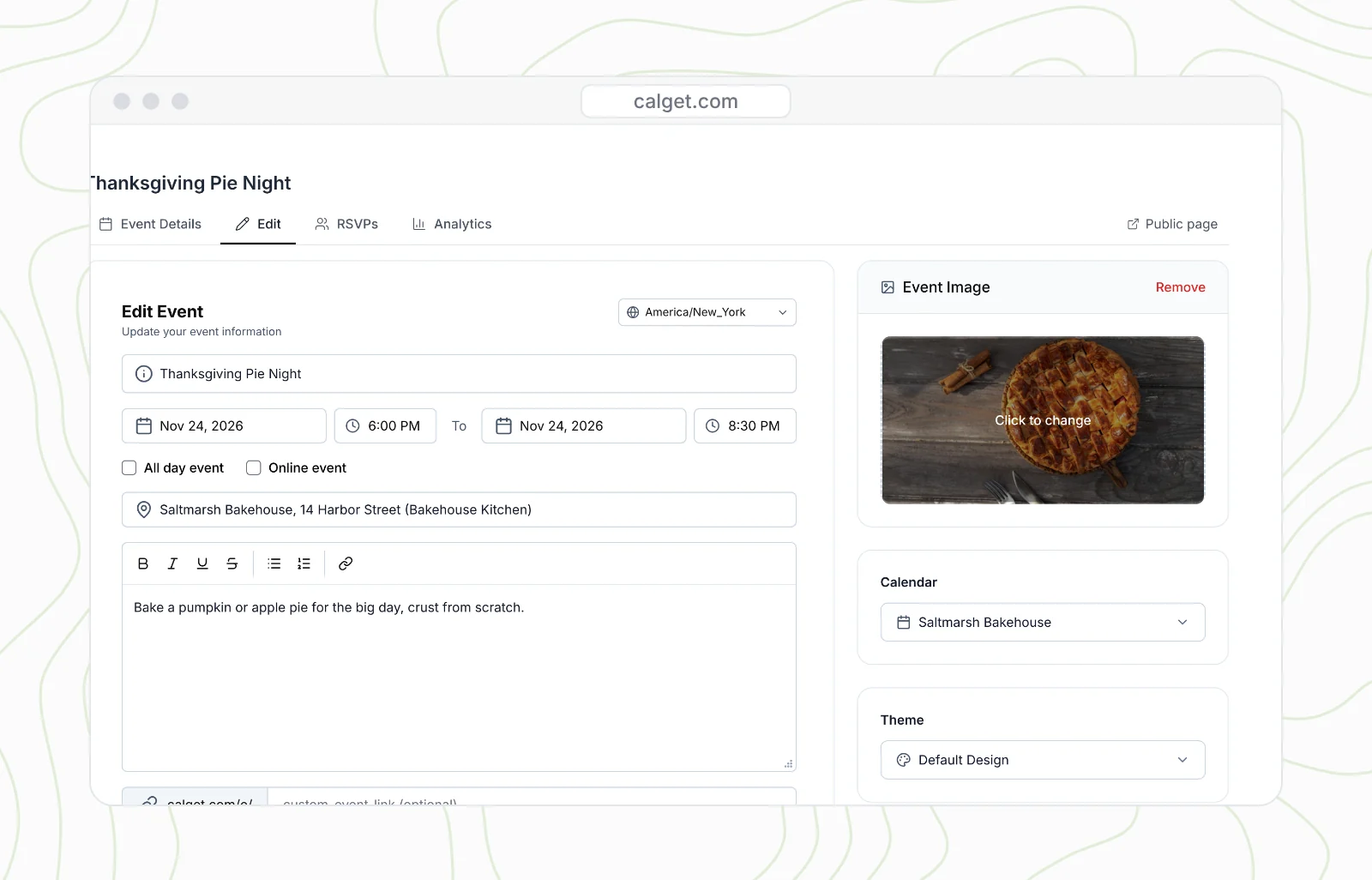
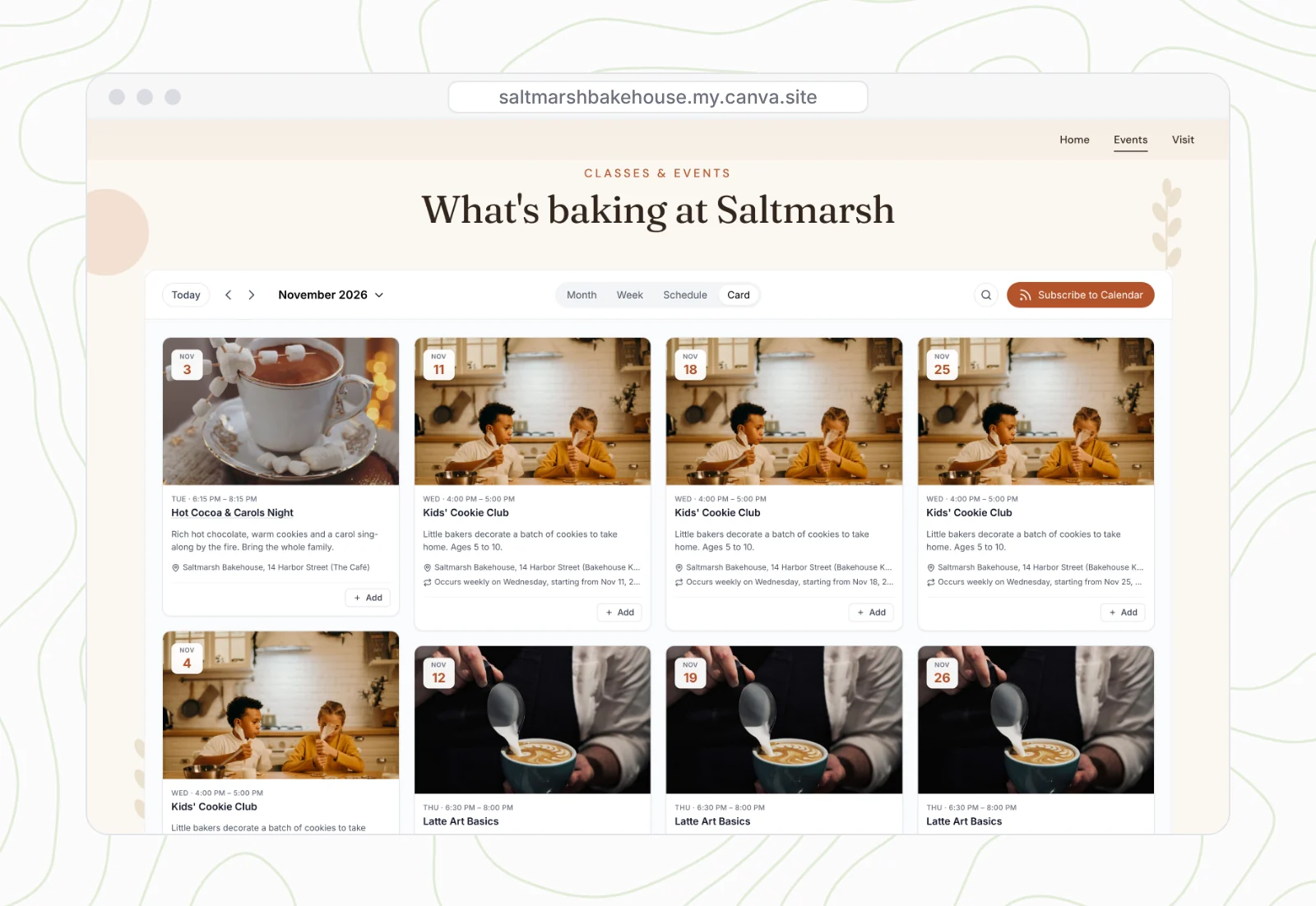
Add a photo to each event if you can. Open the event, click Edit and add it under Event Image. The photos appear in the calendar's Card view and on each event's details, which makes a schedule look a lot less like a spreadsheet.
Step 4: Pick your calendar and add it to your design
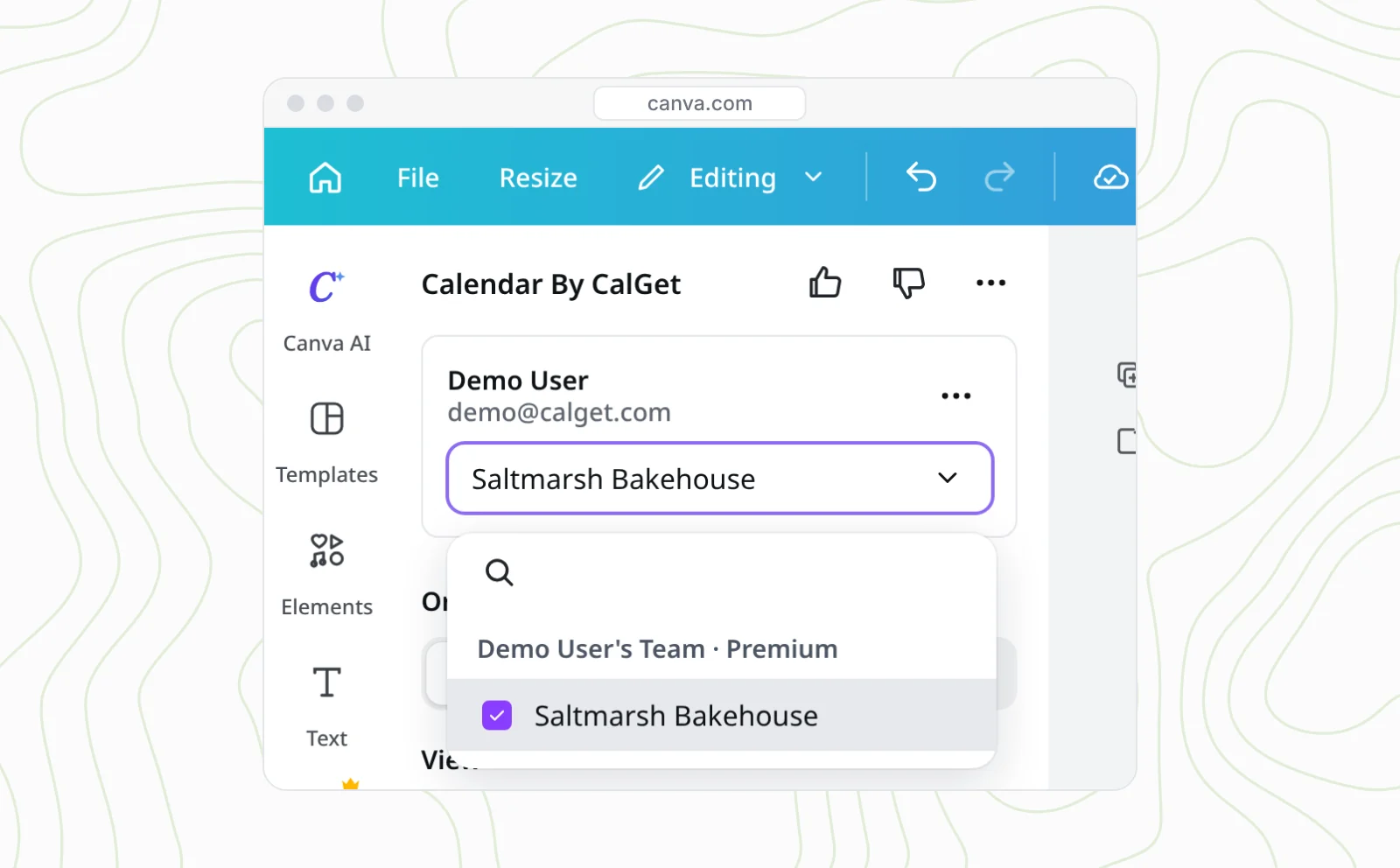
Back in Canva, the app shows your account and the calendars in it. Choose the calendar you want to display, then click Add calendar to design.
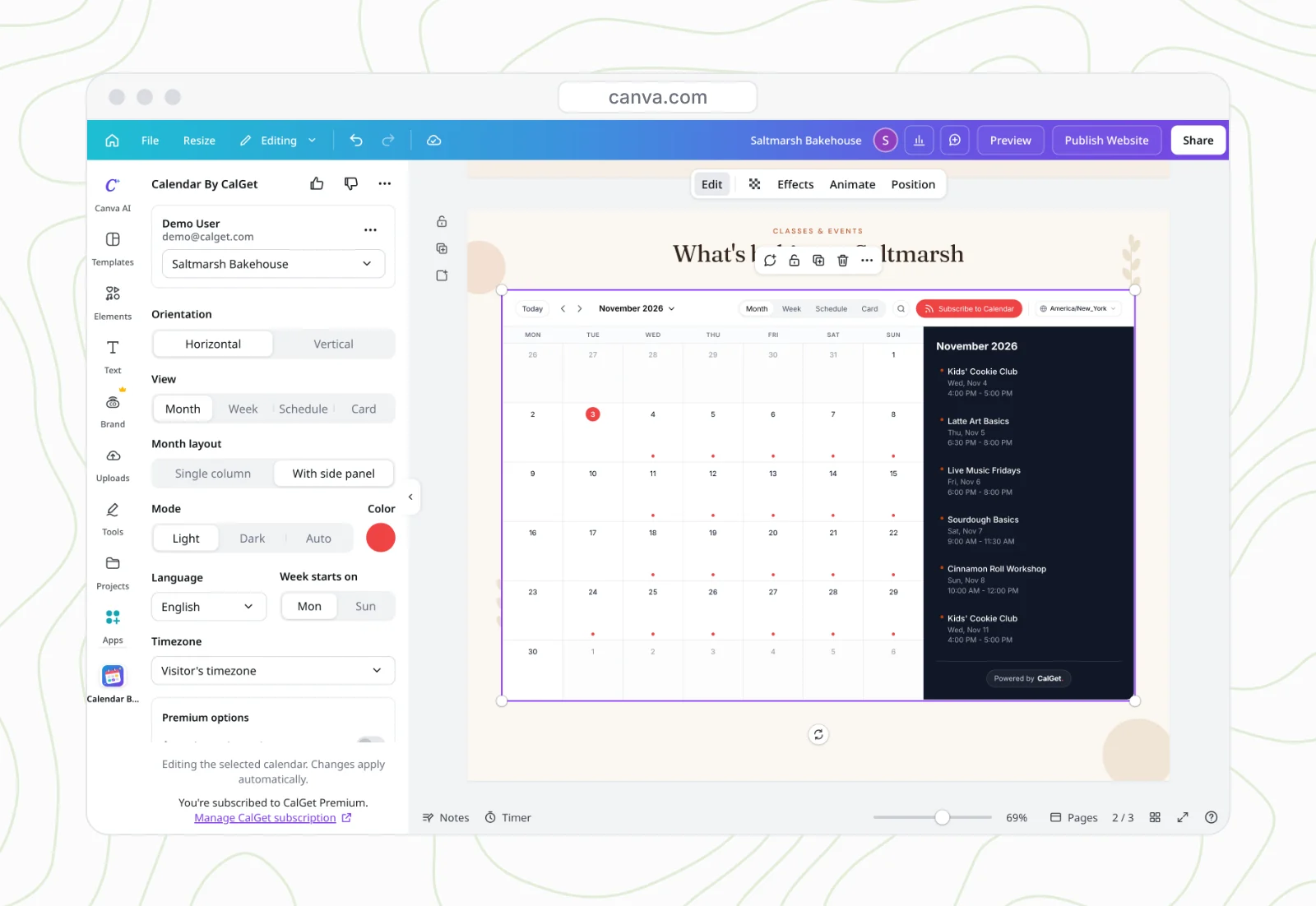
The live calendar appears on your page with your real events. Move it and resize it by dragging the corners, just like any other Canva element. While it's selected, changes in the app update the calendar right away.
Step 5: Make the calendar match your site
The styling controls live in the app panel, so you can adjust the calendar without leaving Canva:
- Color: click the swatch and enter your brand's hex code. The bakery's color is #B4532A.
- View: choose Month, Week, Schedule or Card. Card view shows each event with its photo.
- Month layout: use one column, or add a side panel that lists the month's events beside the dates.
- Mode: use Light, Dark, or Auto to match each visitor's device.
- Orientation: choose Horizontal for a wide page or Vertical for a narrow column. The calendar stacks to fit the space.
- Language, week start and time zone: choose from 20 languages, Monday or Sunday, and your time zone or each visitor's time zone.
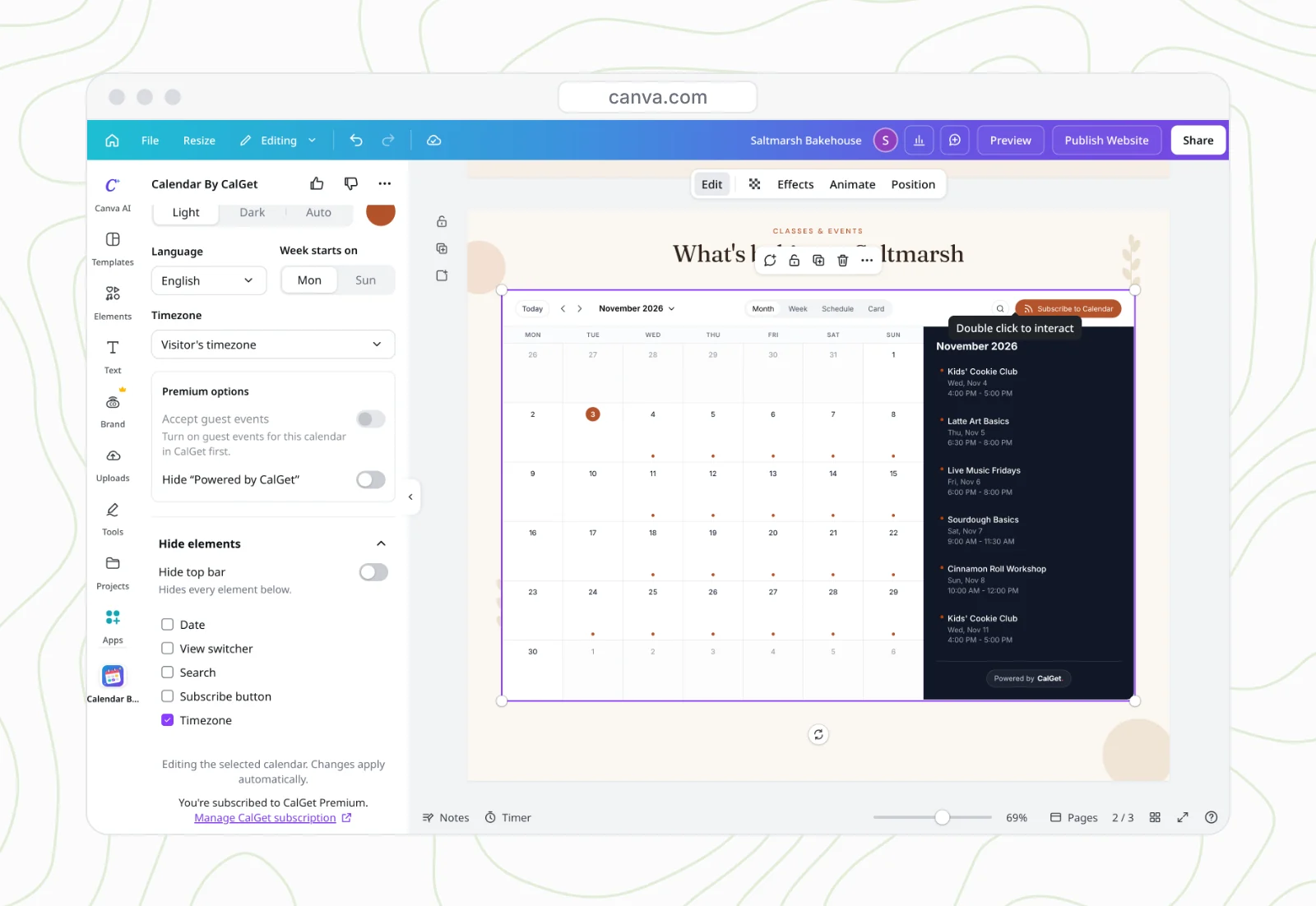
- Hide elements: turn off the date, view switcher, search, Subscribe button, time zone picker or the full top bar.
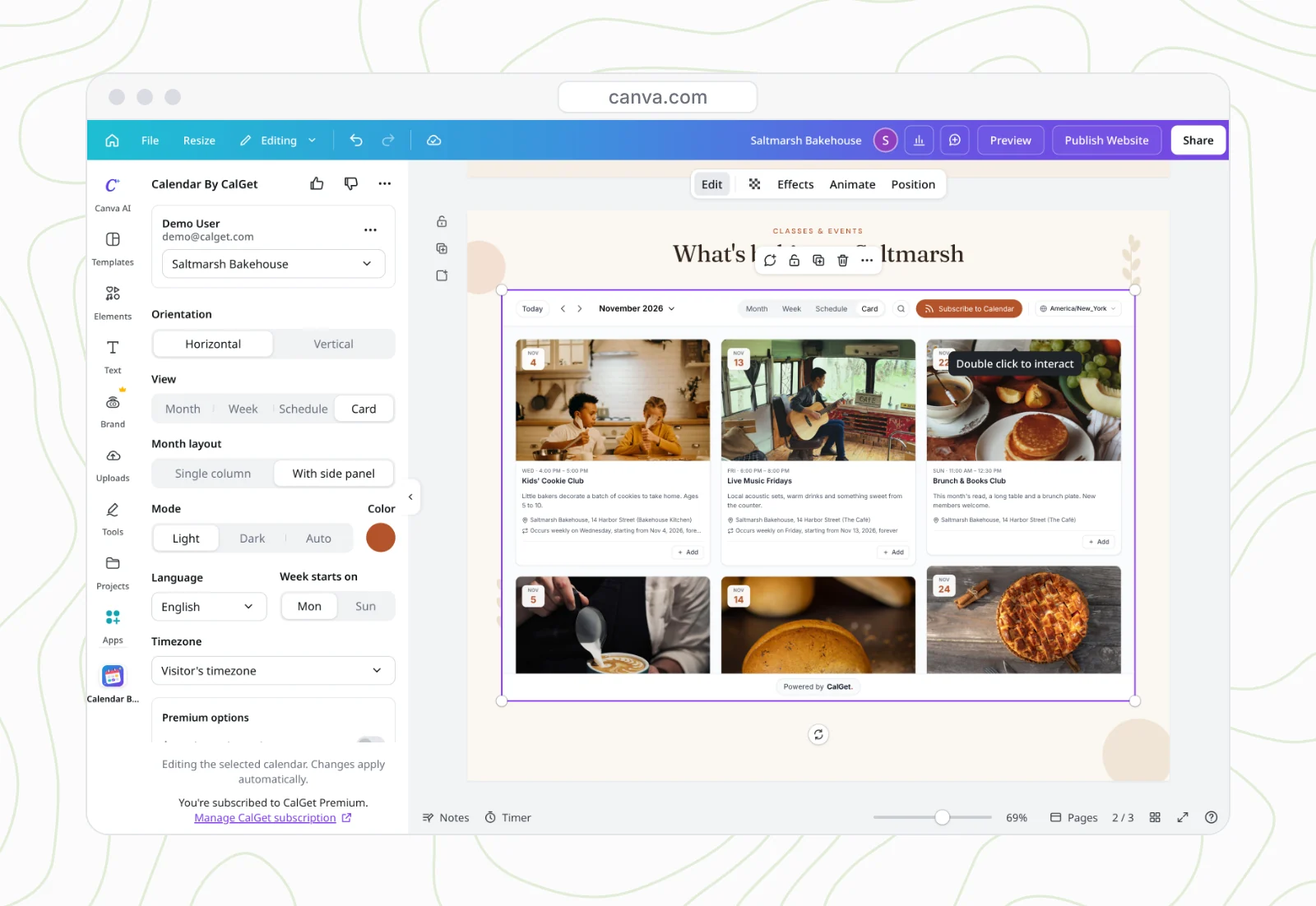
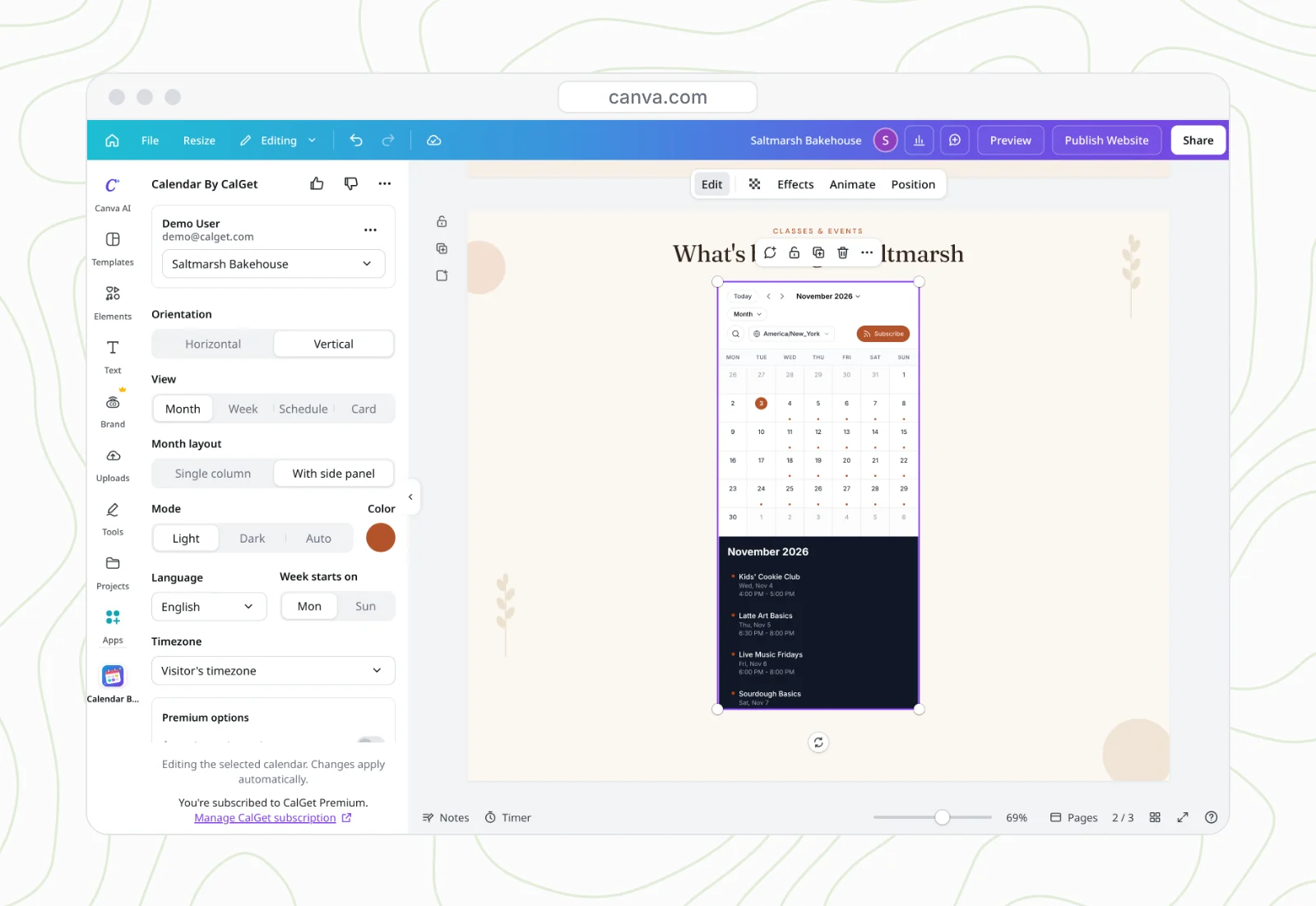
At the bottom, you'll see two premium options: Accept guest events, which lets visitors send you events to approve (turn guest events on for that calendar in CalGet first), and hiding the "Powered by CalGet" line, which needs a paid plan.
Step 6: Publish your Canva website
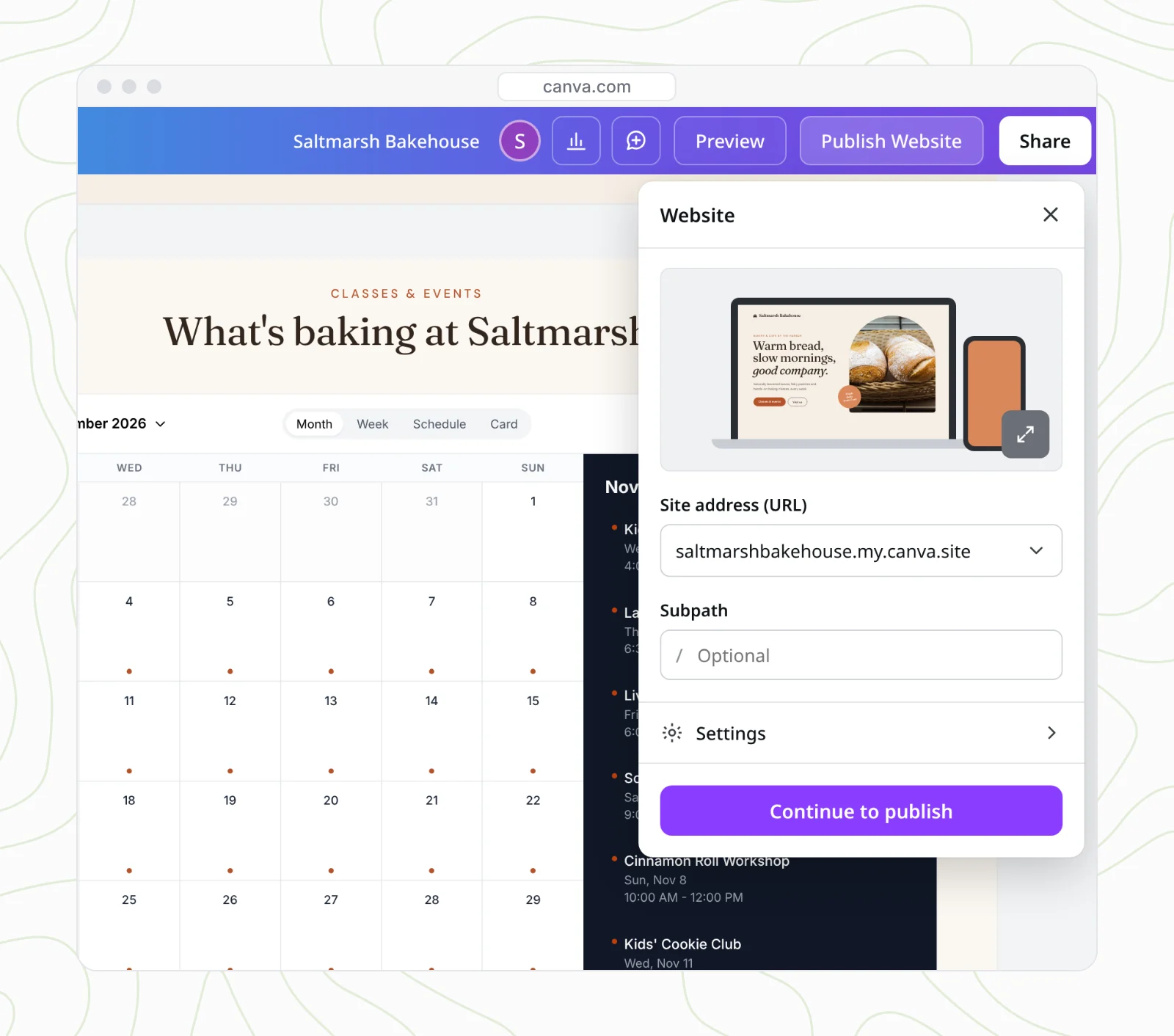
When everything looks right, click Publish Website, check your site address (a free yourname.my.canva.site address or your own domain), click Continue to publish, then Publish.
What visitors can do with your Canva events calendar
On the live site, visitors can click any event to see its details and photo. Then they can use Add to Calendar to save it to Google Calendar, Apple Calendar, Outlook or Yahoo, or download the .ics file. A calendar image can't do that.
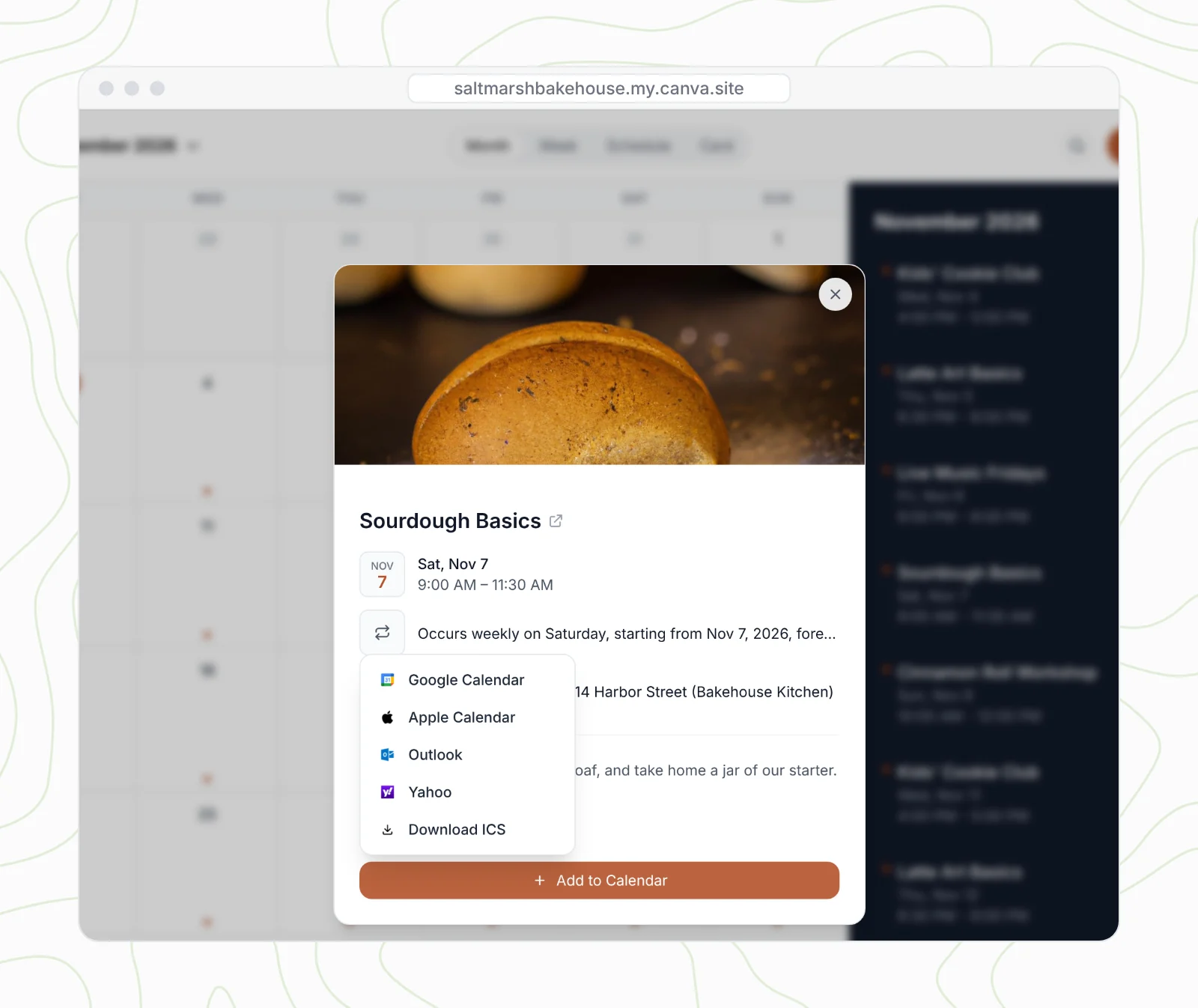
They can also click Subscribe to Calendar once, and every event you add after that appears in their own calendar app. If you want the details, here's how a subscription calendar works.
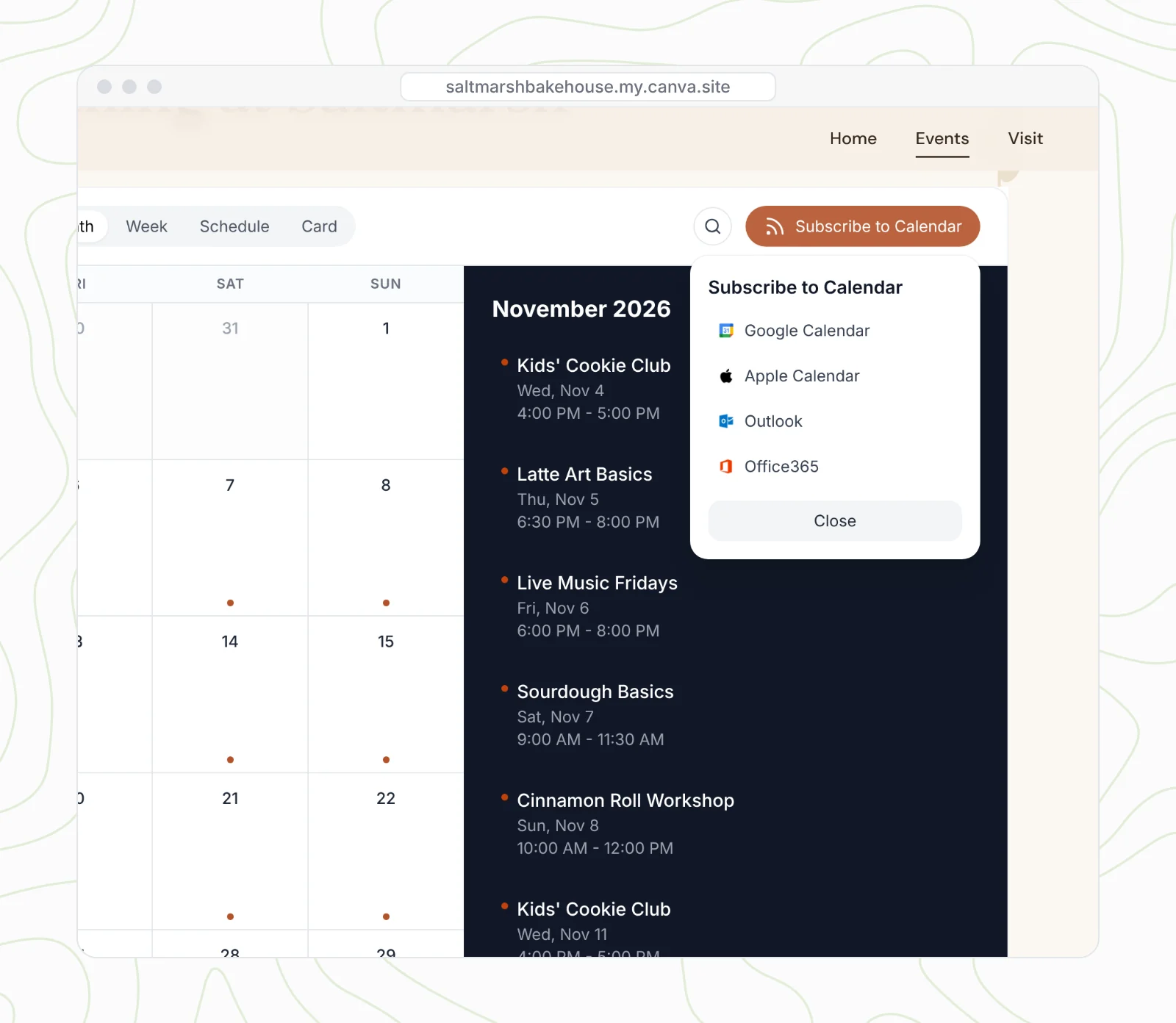
The best part is the work you avoid. Add a new event in CalGet, say a Hot Cocoa and Carols Night with its own photo, and it appears on your Canva site the next time the page loads. No editing. No republishing.
Who uses a Canva events calendar
It's useful for anyone with a Canva website and a schedule that changes. Think of a yoga or fitness studio with weekly classes, a school or PTA with term dates and events, a library with storytime and workshops, a nonprofit with fundraisers and volunteer days, a cinema or venue with showtimes, or a café or bakery with classes and live music. The setup is the same: one CalGet calendar, one app in Canva.
How to add Google Calendar to your Canva website
If your events are already in Google Calendar, copy your calendar's iCal address from its Google settings and add it in CalGet under External Calendars. CalGet keeps it in sync, and you add that calendar to your design with the app using the same steps above. You get your Google events with your colors, photos, Add to Calendar and Subscribe. Our guide to embedding Google Calendar on a website walks through the iCal address step by step.
Another way: Canva's Embed app with a calendar link
If you'd rather not use the app, Canva's own Embed app can take a link too. In CalGet, open Embeddable Calendar, choose your calendar and styling, click Get embed code, open the Direct link tab and click Copy link. In Canva, open Apps, search Embed, paste the link and click Add to design. It's the same live calendar. You style it in CalGet and copy a fresh link when you change the look.
Common problems and how to fix them
I can't click anything in the calendar while editing
Canva treats the calendar like an element you can move and resize. Double-click it when you want to interact with it, such as moving to the next month. On the published site, it works like a normal calendar.
The calendar shows the wrong events
If you clicked Try sample calendar, you're seeing demo events. Click Connect CalGet account in the app, then choose your own calendar from the list.
Accept guest events is grayed out
Turn on guest events for that calendar in CalGet first. After that, the switch in the app becomes available.
My design change isn't on the live site
New and changed events appear by themselves, but design changes such as color, view and size need a republish. Click Publish Website and publish again.
How we tested this
We built the full example on a Canva website design for a fictional bakery, Saltmarsh Bakehouse, using a real CalGet account with twelve events and a photo for each event. We checked every app setting against the live calendar. Saltmarsh Bakehouse and its website are made up. CalGet isn't affiliated with Canva.
Frequently asked questions
Can you add a calendar to a Canva website?
Yes. Canva websites don't include a live events calendar, but the Calendar By CalGet app adds one. Open Apps in your website design, search Calendar By CalGet, connect your CalGet account, pick your calendar and click Add calendar to design, then publish.
Is there a calendar app for Canva websites?
Yes, Calendar By CalGet. It adds an interactive events calendar to your Canva design with month, week, schedule and card views, your colors, light or dark mode, and Add to Calendar and Subscribe for visitors.
Does the calendar update automatically?
Yes. Events load from CalGet each time someone opens the page, so new, changed and canceled events appear without editing or republishing your Canva site.
How do I add Google Calendar to my Canva website?
Add your Google Calendar's iCal address in CalGet under External Calendars, then add that calendar to your design with the Calendar By CalGet app. Your Google events appear on your Canva site and stay in sync.
Can visitors save events to their own calendar?
Yes. Visitors click an event, then Add to Calendar for Google Calendar, Apple Calendar, Outlook, Yahoo or an .ics file. They can also subscribe once to get every future event.
Do I need a CalGet account?
You can try the app with its sample calendar first. To show your own events, you need a CalGet account. The embeddable calendar is included on every plan, including the free one.
For Canva websites
Put a live events calendar on your Canva website today
Create your calendar in CalGet, add your events with photos (or sync them from Google Calendar), then place it in your design with the app. Visitors get Add to Calendar and Subscribe on every event.
If you only need a button for one event, or an RSVP for an invitation, see how to add an Add to Calendar link to your Canva designs and how to add an RSVP button to a Canva invitation.

Written by the CalGet team
Updated November 2026 · Tested on a Canva website with the Calendar By CalGet app
We build calendar tools for sharing events with large groups, from sports clubs and schools to nonprofits. People at organizations like Harvard, Save the Children and OGC Nice use CalGet to get events into their audience's calendars.

“Great Add Event to Calendar platform. Easy to create events and add them to emails and websites. Support responds quickly to questions and provides clean and concise answers. Highly recommended.” Foto Guy, on Trustpilot
Get Your Events on Everyone's Calendar.
Generate universal "Add to Calendar" links that work everywhere. Perfect for social media, emails, and websites.


Written by
Yared