Back to Blog
How to Create a Subscription Calendar (Google, Apple, Outlook)
A subscription calendar lets people follow your events from their own calendar app, and every change updates on their side. Here's how to create one in Google Calendar, Apple Calendar and Outlook, what each method shares, and how to give people one Subscribe button for every app.
Written by
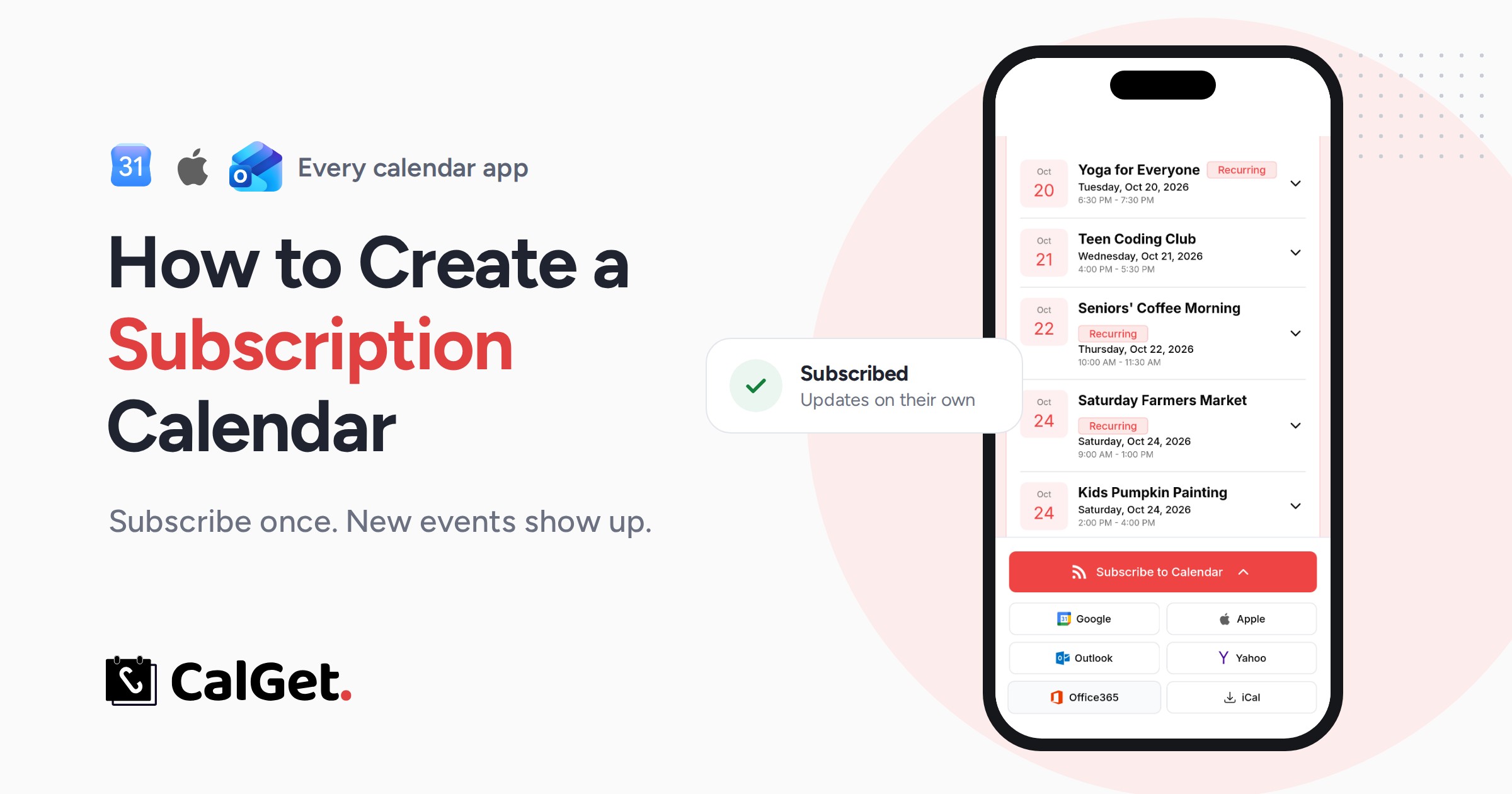
Last updated: October 2026. We built a real subscription calendar in CalGet, subscribed to it on a phone, and checked every Google, Apple and Microsoft step against their own help pages in October 2026.
Quick answer
To create a subscription calendar, put your events in one calendar, publish it as a read-only link, and share that link. People subscribe once, and new or changed events show up in their own calendar app.
- Google Calendar: make the calendar public, then share its Public address in iCal format.
- Apple Calendar: turn on Public Calendar for an iCloud calendar, then share the link.
- Outlook: Publish a calendar and share its ICS link.
- A subscription calendar tool like CalGet: one link with a Subscribe button for every app, and a list of who subscribed.
Every month, the coordinator at a community center does the same thing. She builds the new schedule, exports it to a PDF, emails it to 300 families, posts it on the website, and pins a printout by the door. Then the Tuesday yoga class moves to Thursday, and she does it all again. Half the families still turn up on Tuesday.
A subscription calendar fixes that. Families subscribe once, and the schedule lives in the calendar they already check every day. Move a class, and it moves on their phone too.
This guide shows how to create a subscription calendar four ways: in Google Calendar, Apple Calendar and Outlook, which you already have, and with a dedicated tool. We'll be honest about what each one shares, how fast updates arrive, and when the built-in way is all you need.
What is a subscription calendar?
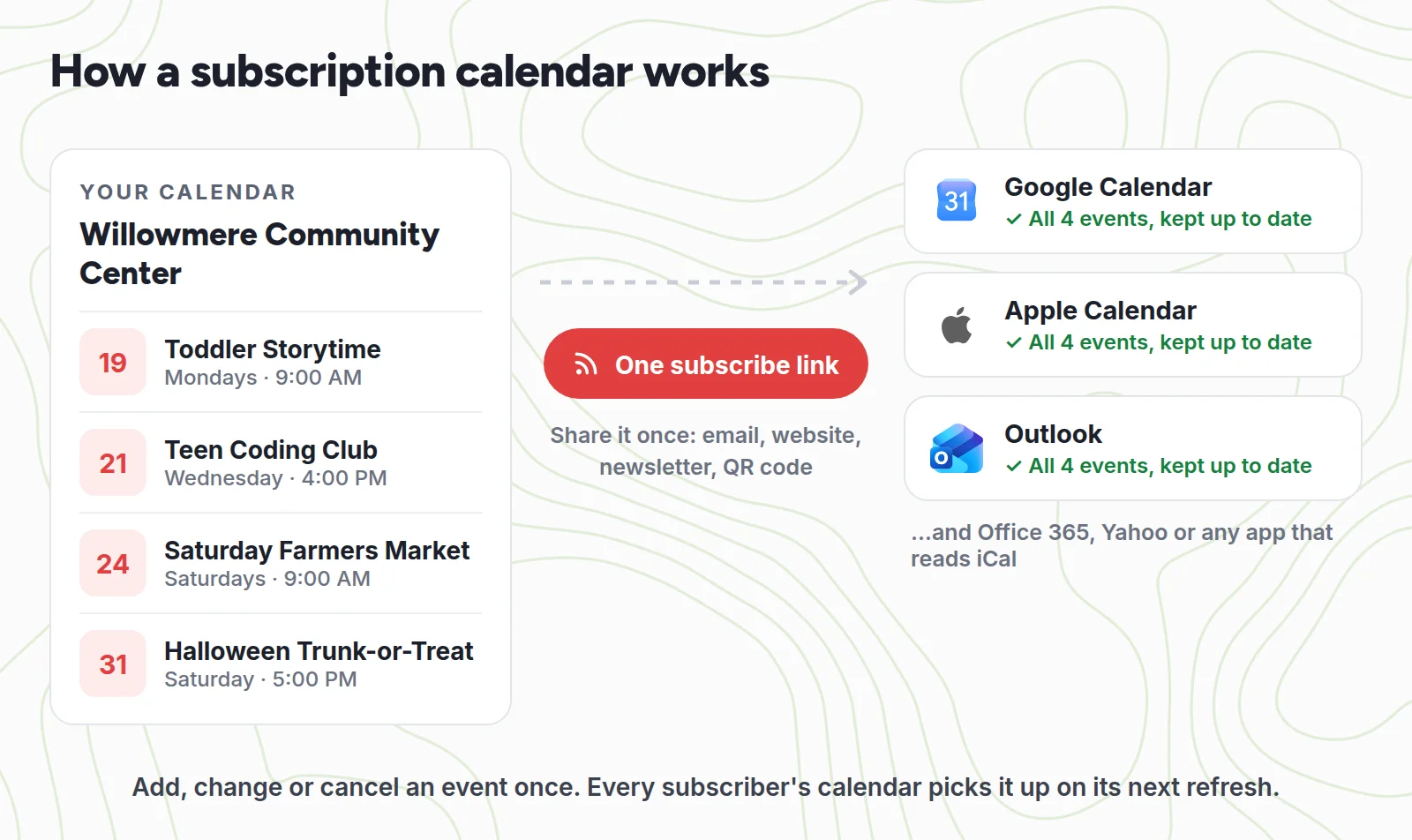
A subscription calendar is a read-only calendar that people add to their own calendar app with a link. Instead of copying your events once, their app keeps checking the link, so every event you add, move or cancel updates on their side too. They can see your events, but they can't change them.
Under the hood, the link points to an iCalendar (.ics) feed, the standard calendar format every major app reads. Links that start with webcal:// are the same feed with a prefix that tells phones and computers to subscribe instead of download. (We explain that in our guide to what webcal is.)
It's easy to mix up three different things:
- A calendar invite is one event, sent to people one at a time. Change it and you have to update everyone's invite.
- A shared calendar lets specific people, usually on the same system, see or edit your calendar. Great for a team of five. Awkward for 300 families on different apps.
- A subscription calendar is one-to-many and read-only. Anyone with the link can follow it from Google, Apple, Outlook or another app, and you stay in control of every event.
That's why schools, sports clubs, churches, libraries, gyms and community groups use them. One schedule, lots of people, every kind of phone.
Before you start: three questions
Your answers decide which method fits.
- What calendar apps do your people use? If everyone is on iPhones, Apple's built-in way works well. A mixed group (Android, iPhone, Outlook at work) needs a link that works everywhere, and ideally a button for each app.
- Are you okay making the whole calendar public? The built-in methods publish an entire calendar. Use a separate calendar that holds only the events you want to share, never your personal one.
- Do you need to know who subscribed? Google, Apple and Outlook give you a link and nothing else. If you want names, emails or a count, you'll need a subscription calendar tool.
How to create a subscription calendar in Google Calendar
Google calls this making a calendar public. You need a computer: Google says you can only change a calendar's sharing settings from a computer, not the mobile app.
- Create a new calendar for the events you'll share (Settings → Add calendar → Create new calendar), or pick an existing one that holds nothing private.
- Open Settings. Under Settings for my calendars, select that calendar.
- Under Access permissions for events, check Make available to public, then click OK.
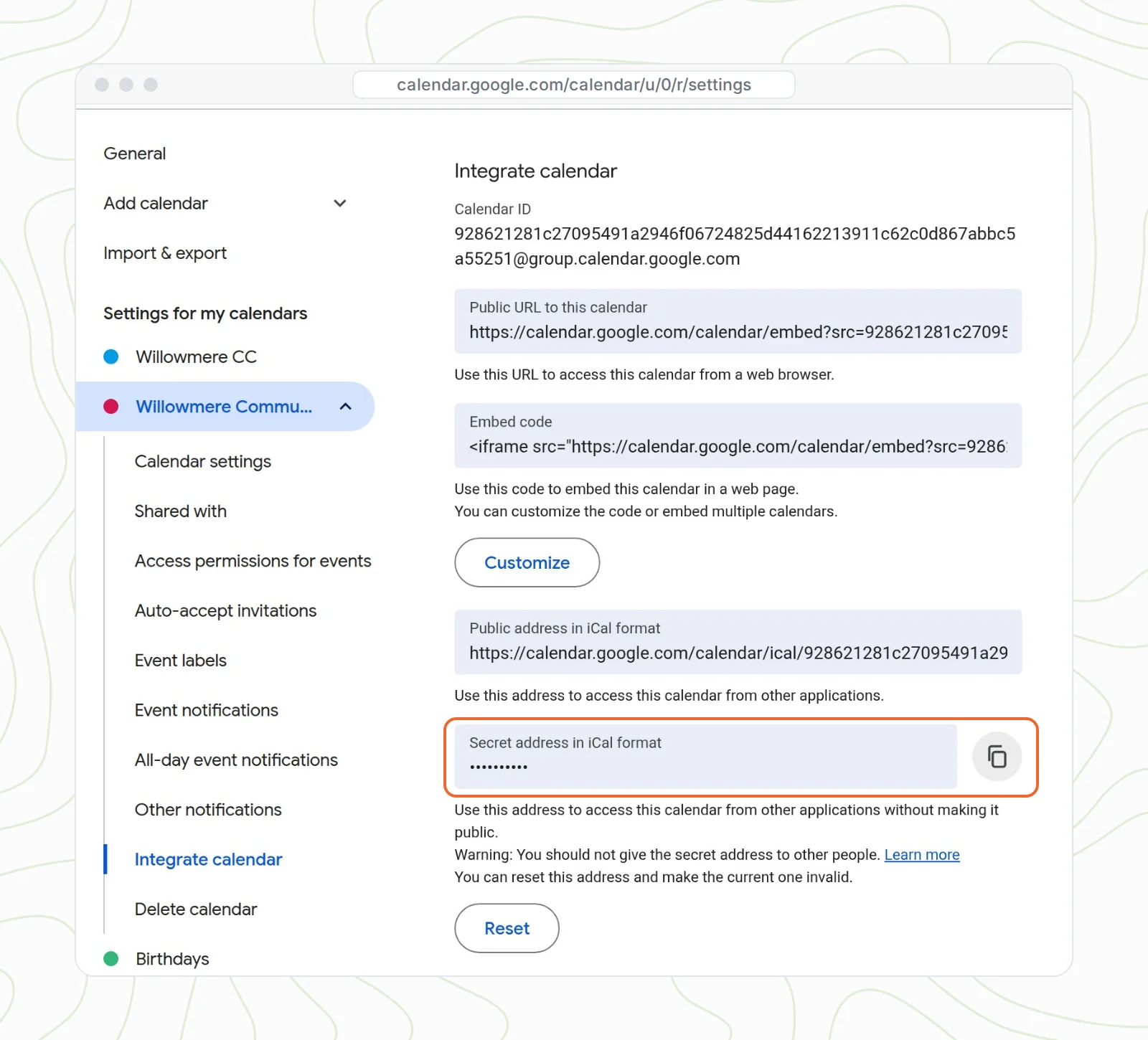
- Scroll to Integrate calendar and copy the Public address in iCal format. That's your subscription link.
What to know before you send it:
- The whole calendar becomes public. Google says that if a website is searchable, people can find your calendar in search results. Google's own help page suggests See only free/busy (hide details) if you want to keep details private, but then subscribers only see "busy" blocks.
- The iCal link only works while the calendar is public. In Google's words: "The iCal address only works if the calendar is public."
- Don't share the Secret address in iCal format. It's for your own apps. Anyone who has it sees every event, including private ones.
- Work and school accounts may not allow it. Google notes that your domain's administrator may restrict sharing settings.
- Subscribers on Android need a computer. Google says you can't subscribe to a calendar in the Google Calendar app for Android, iPhone or iPad. They add it on the web under Other calendars → + → From URL, and then it syncs to their phone.
Want to keep your personal Google Calendar private and still share a group schedule? We cover four ways in how to share a Google Calendar with people who don't use Google.
How to create a subscription calendar in Apple Calendar (iCloud)
Apple calls this a public calendar. It works with iCloud calendars, and Apple says the people you send it to don't need to use iCloud.
On iPhone or iPad
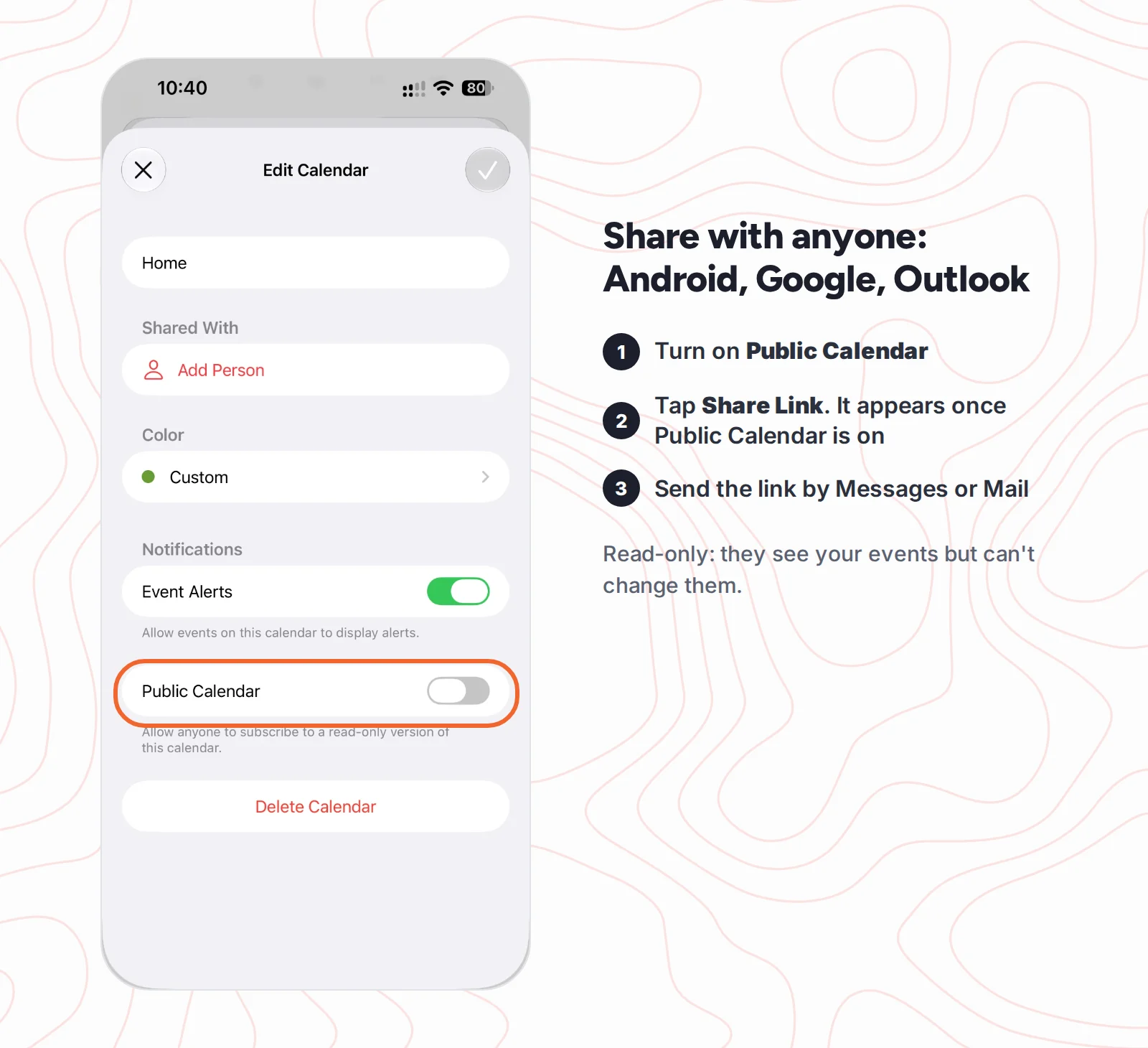
- Open Calendar and tap Calendars.
- Tap the Info button (i) next to the iCloud calendar you want to share.
- Turn on Public Calendar.
- Tap Share Link to copy the link or send it by Messages or Mail.
On a computer, at iCloud.com
- Go to icloud.com/calendar and sign in.
- Hold the pointer over the calendar in the sidebar and click the share button next to it.
- Turn on Public Calendar, then choose Copy to copy the link, or Email to send it.
What to know:
- It has to be an iCloud calendar. Public Calendar is an iCloud sharing option, so calendars that come from a Google or Exchange account on your iPhone can't be published this way.
- The link is the only lock. Anyone who has it can subscribe, and you can't see who did. To stop sharing, turn Public Calendar off.
- Apple users get the smoothest ride. On an iPhone or Mac, the link opens Calendar and asks to subscribe. Android and Google Calendar users have to copy it and add it in Google Calendar on a computer.
For the full picture of sharing from an iPhone, including Family Sharing and private sharing, see how to share your iPhone calendar.
How to create a subscription calendar in Outlook
Outlook calls this publishing a calendar. These are the steps in Outlook on the web and Outlook.com, from Microsoft's help page:
- In Calendar, select Settings, then Shared calendars.
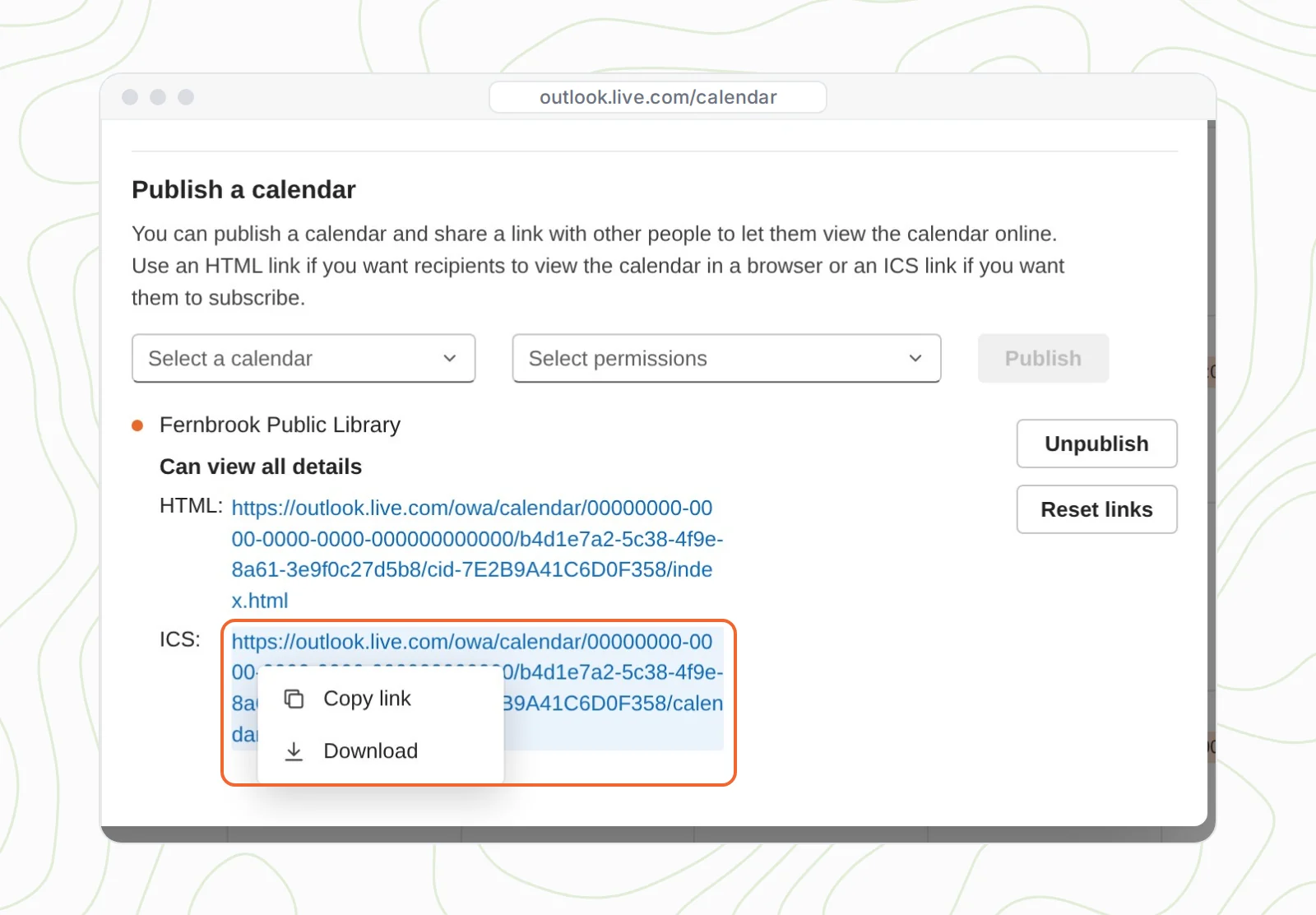
- Under Publish a calendar, choose the calendar and how much detail people can see.
- Select Publish.
- Copy the ICS link. That's the one people subscribe to. (The HTML link only opens your calendar in a browser.)
What to know:
- Anyone with the link can see it. Microsoft says published calendars are read-only and open to anyone who has the link.
- Updates arrive on the subscriber's schedule. Microsoft says how often an ICS calendar syncs depends on the recipient's email provider. In Outlook on the web, subscribed calendars update "approximately every 6 hours", and it can take more than 24 hours.
- Work and school accounts may not allow it. If you don't see Publish a calendar, your organization's admin may have turned it off.
- To stop sharing, go back to Publish a calendar and choose Unpublish. Reset links makes a new link and breaks the old one for everyone.
The catches all three built-in methods share
If your group is small and on one system, the built-in way is fine. For a club, a school or a community with hundreds of people, the same problems show up every time:
- You share a raw link, not a button. Each person has to know what to do with it in their app. An iPhone user taps it. An Outlook user goes to Add calendar → Subscribe from web. An Android user has to find a computer. Expect "how do I add this?" emails.
- The whole calendar is public. Not a few chosen events. You need a separate calendar for anything you share.
- You can't see who subscribed. No names, no count, no way to tell if anyone is using it.
- Your website gets nothing. People who don't want to subscribe have nowhere nice to browse the schedule (Google's embed is the closest, and it looks like Google).
- Updates take hours. That's true of every subscription calendar, built-in or not, because each app checks on its own schedule. Plan for it: for a same-day cancellation, send a message too.
How to create a subscription calendar with CalGet
A subscription calendar tool fixes the first four. Here's the whole setup in CalGet, using a real calendar we built for a made-up community center, Willowmere. It takes about ten minutes.
1. Create the calendar
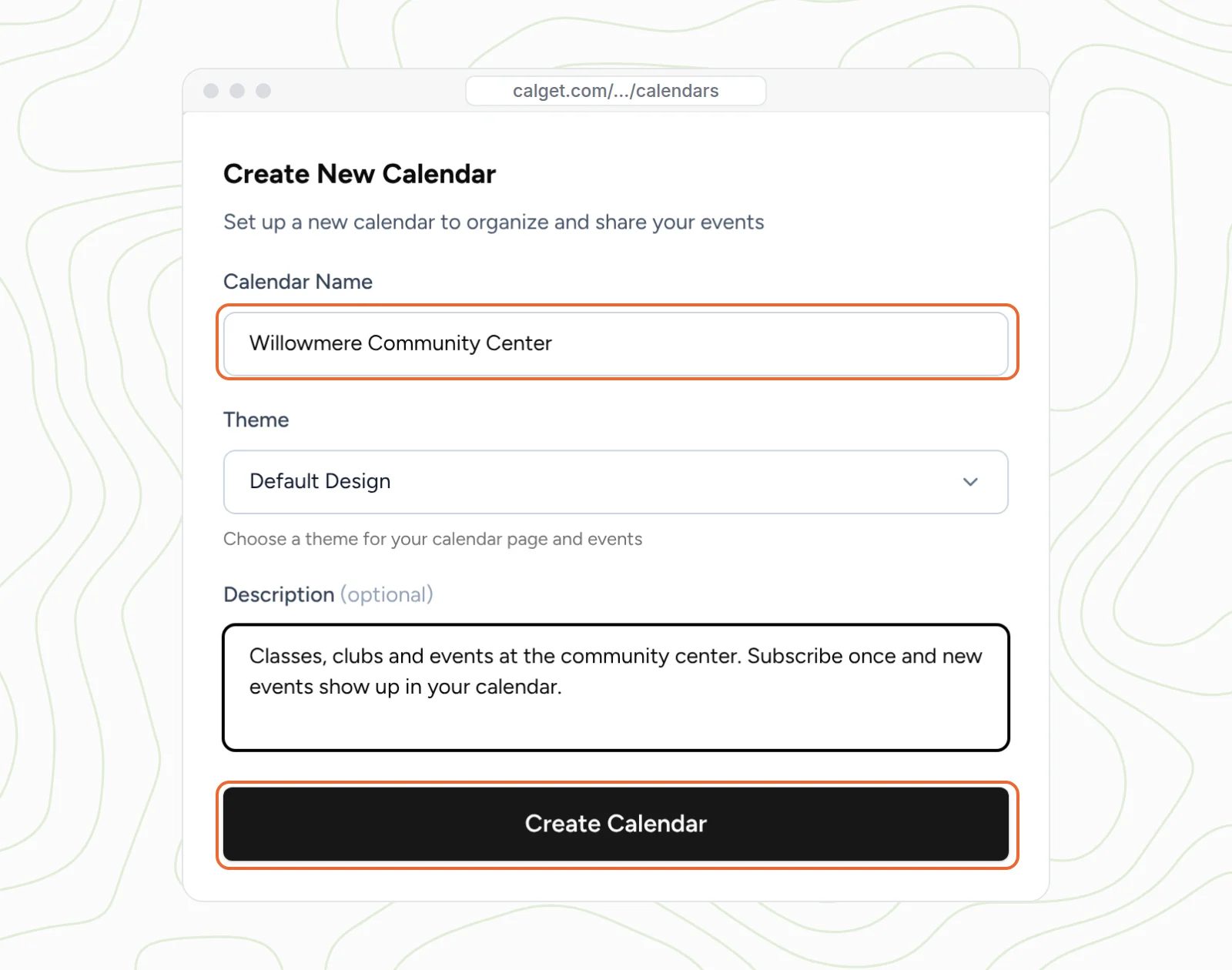
Go to Calendars → New Calendar. Give it a name people will recognize in their calendar app, pick a theme for the calendar page, add a short description, and click Create Calendar.
2. Add your events, including repeating ones
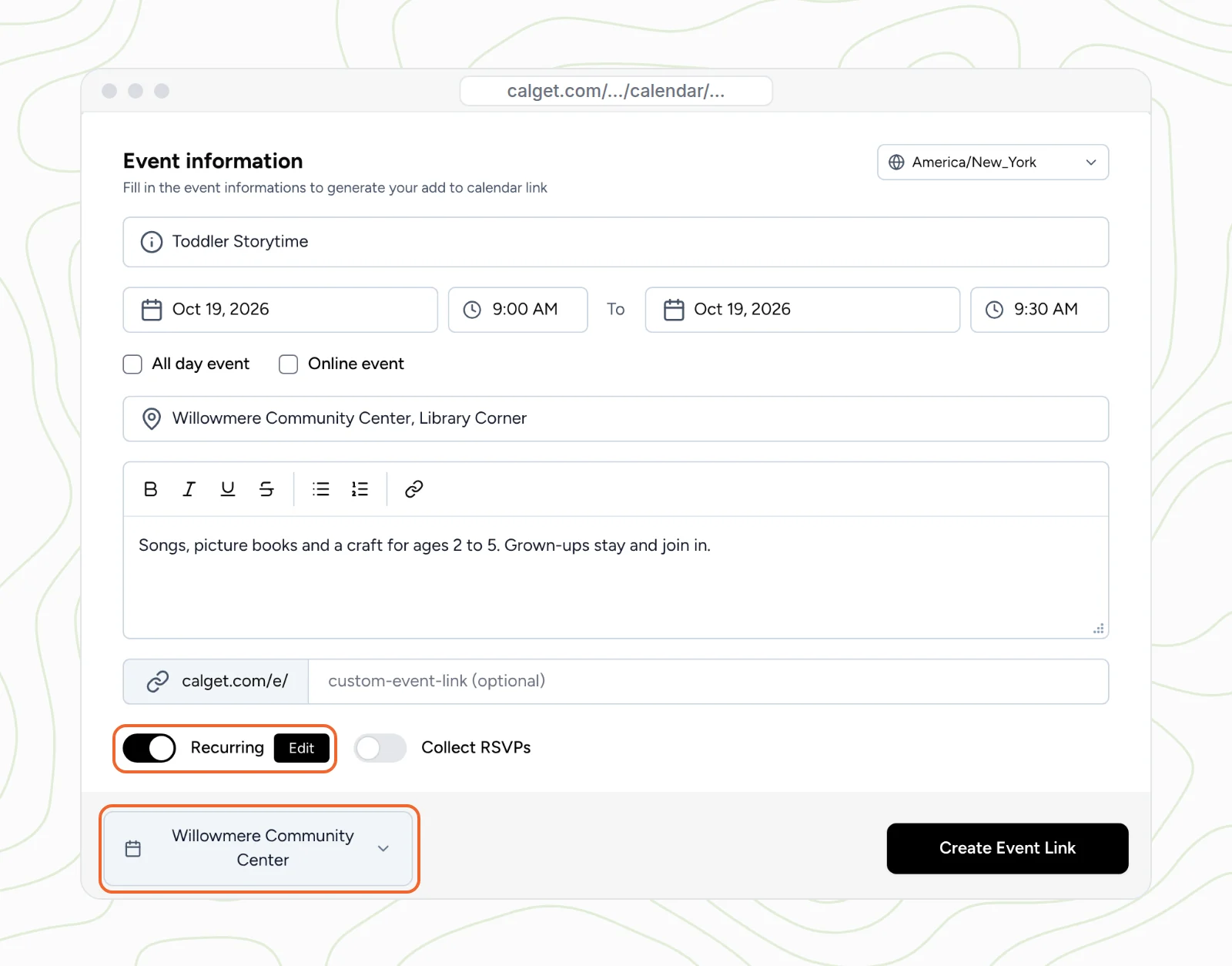
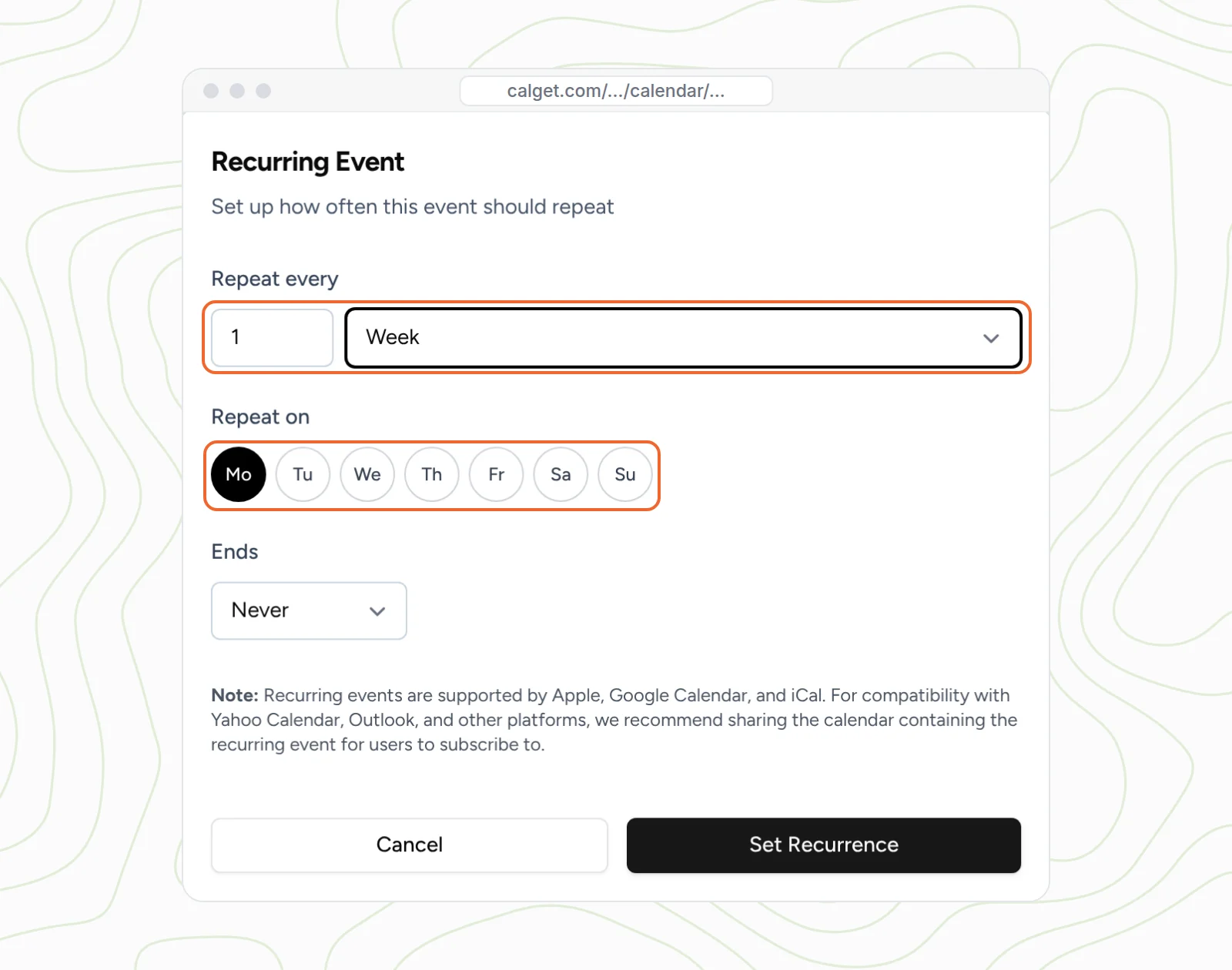
Click New Event, fill in the title, date, time, location and description, and make sure the calendar picker at the bottom shows your new calendar. For a weekly class, turn on Recurring, set it to repeat every week on the right day, and click Set Recurrence.
One detail we found worth knowing: CalGet's own recurrence window notes that recurring events are supported by Apple, Google Calendar and iCal, and that for Yahoo Calendar, Outlook and other platforms it recommends sharing the calendar that contains the recurring event. In other words, a subscription calendar is the most reliable way to get a repeating series into everyone's calendar, whatever app they use.
3. Or keep using Google Calendar or Outlook
If you already keep your schedule in Google Calendar or Outlook, you don't have to retype it. Open the calendar's External Calendars tab, click Add External Calendar, and paste that calendar's iCal (ICS) address. CalGet syncs it every 12 hours, or right away when you click Sync. You keep working where you are, and the subscription calendar follows. (External Calendars is on the Standard and Professional plans.)
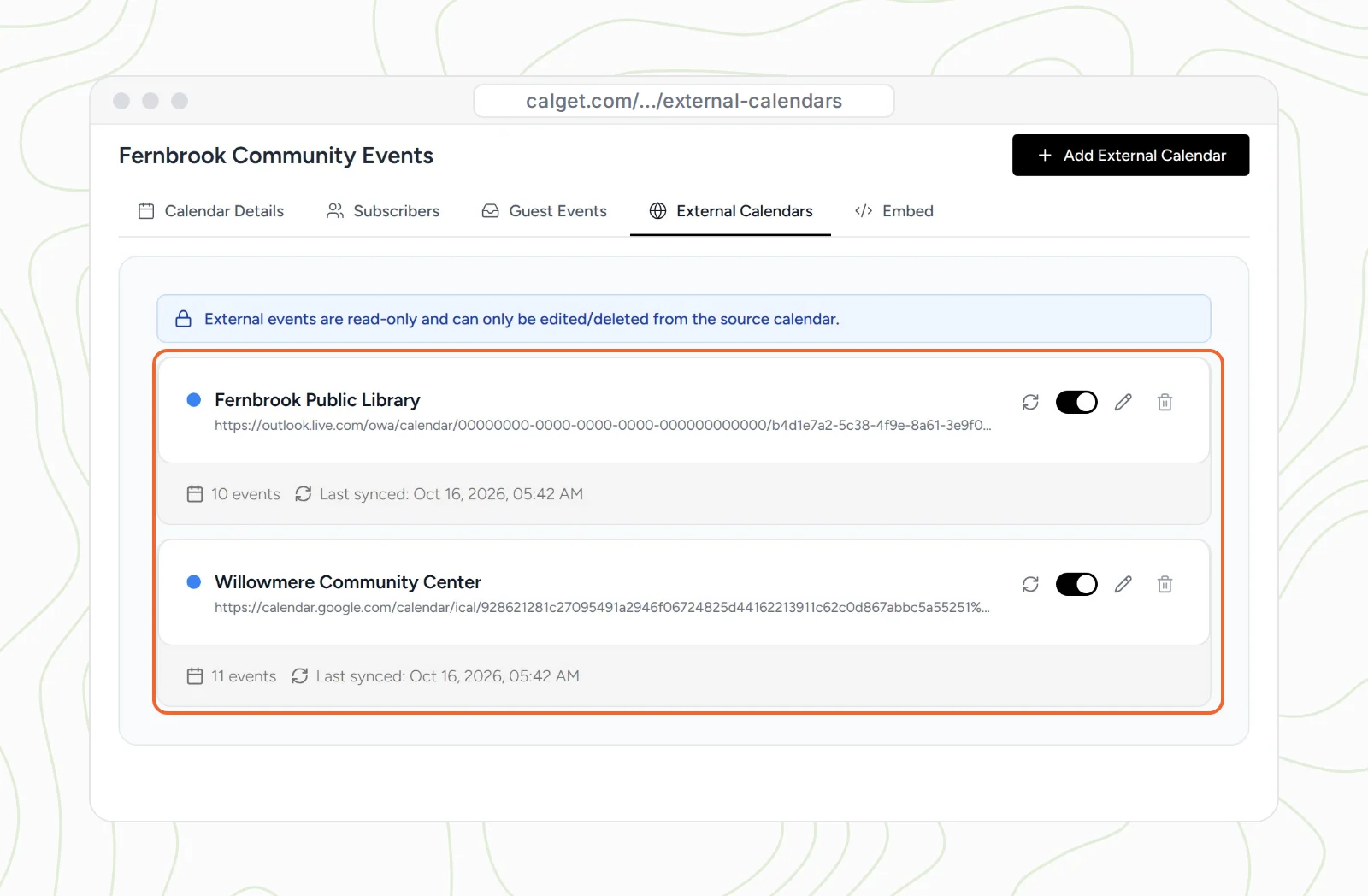
4. Copy your calendar's link
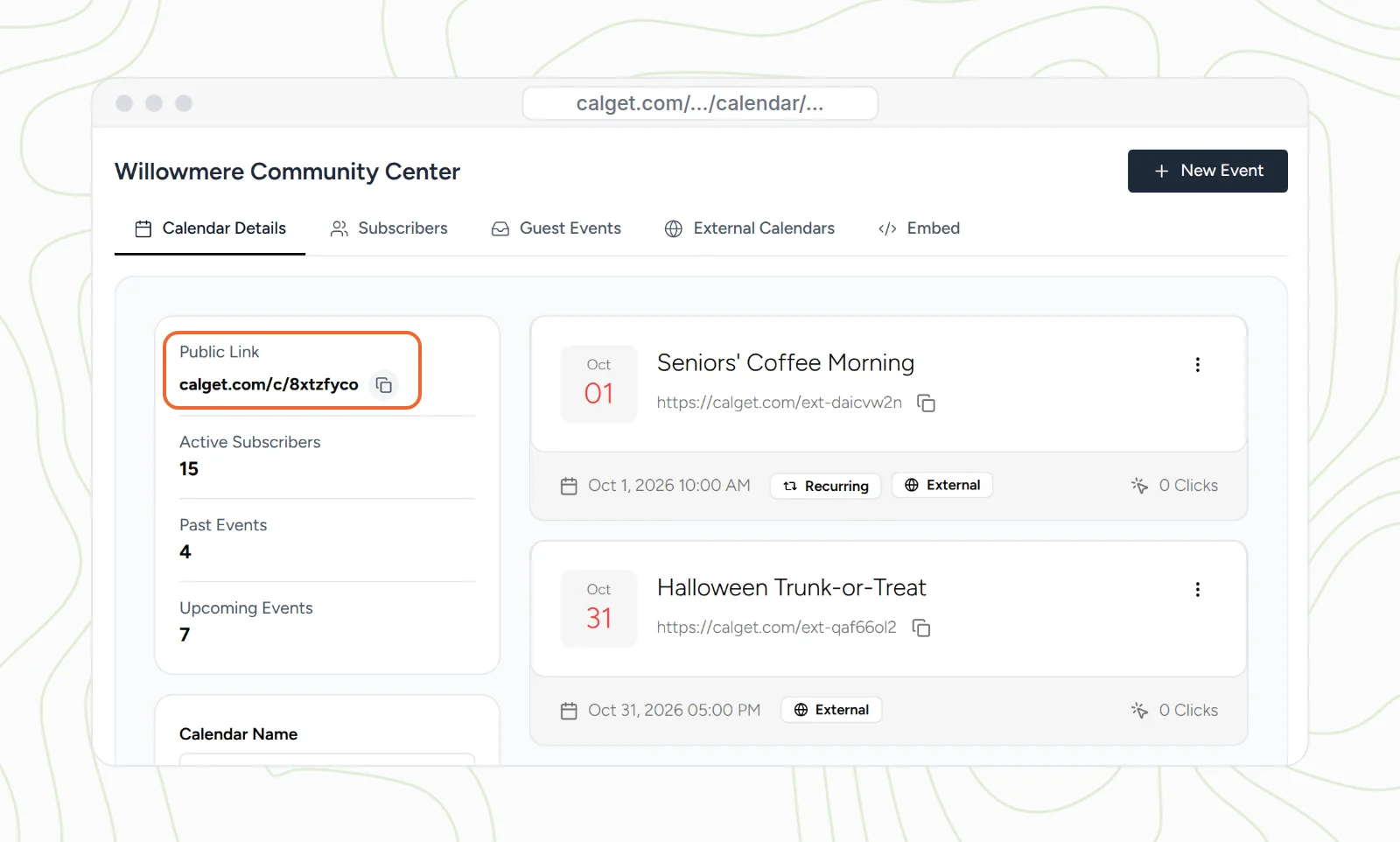
Every calendar has a Public Link on its Calendar Details tab, like calget.com/c/8xtzfyco. That's the one link you share: on your website, in your newsletter, in an email signature, or as a QR code on a flyer. The same panel shows how many active subscribers you have.
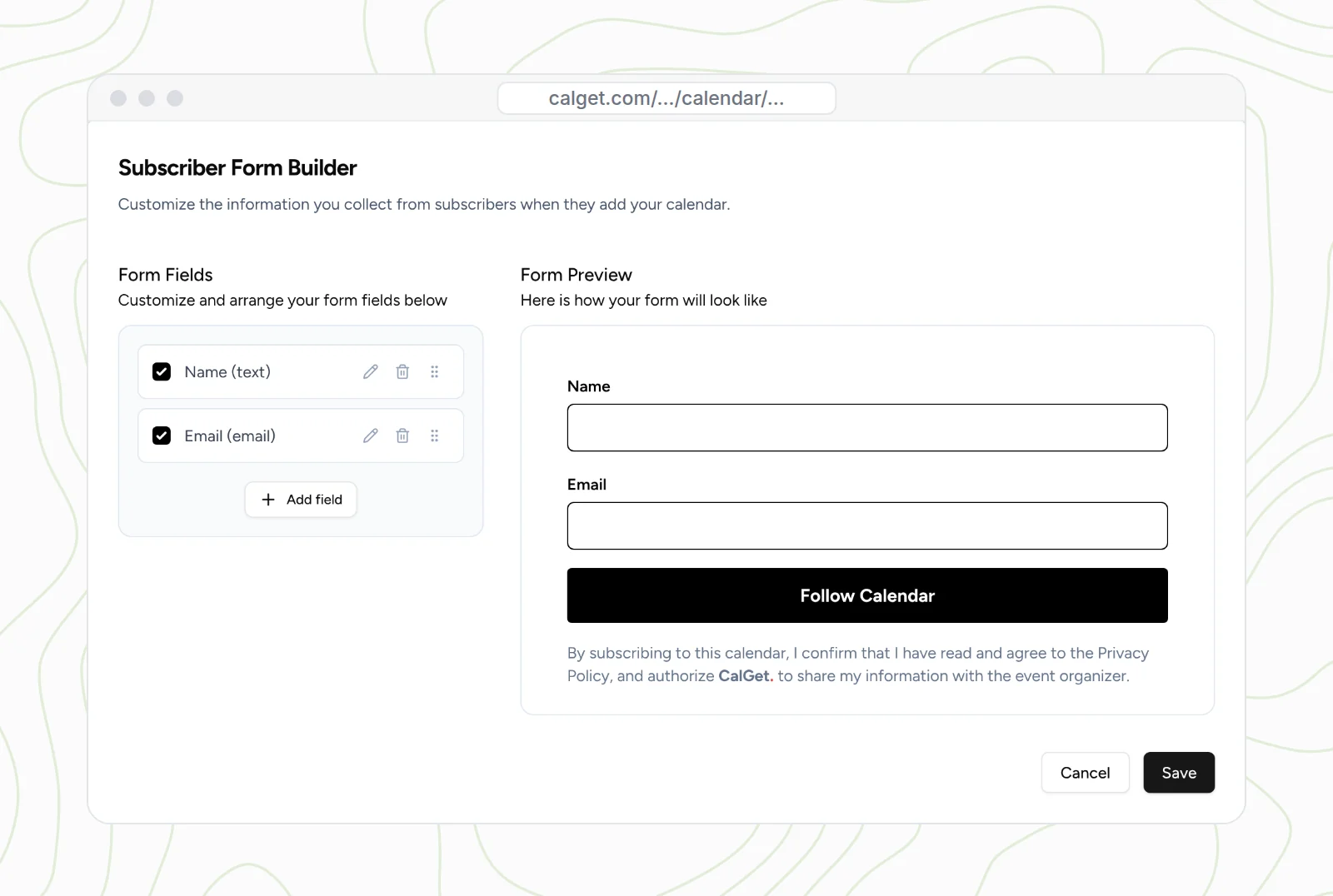
5. Optional: ask subscribers for their name and email
If you'd like to know who follows your calendar, open the Subscribers tab and turn on Collect Personal Information. Click Edit Form to choose the fields: name and email to start, plus your own with Add field, such as a team or a grade. People fill it in once before they subscribe. We go deeper on this in how to collect calendar subscribers' information.
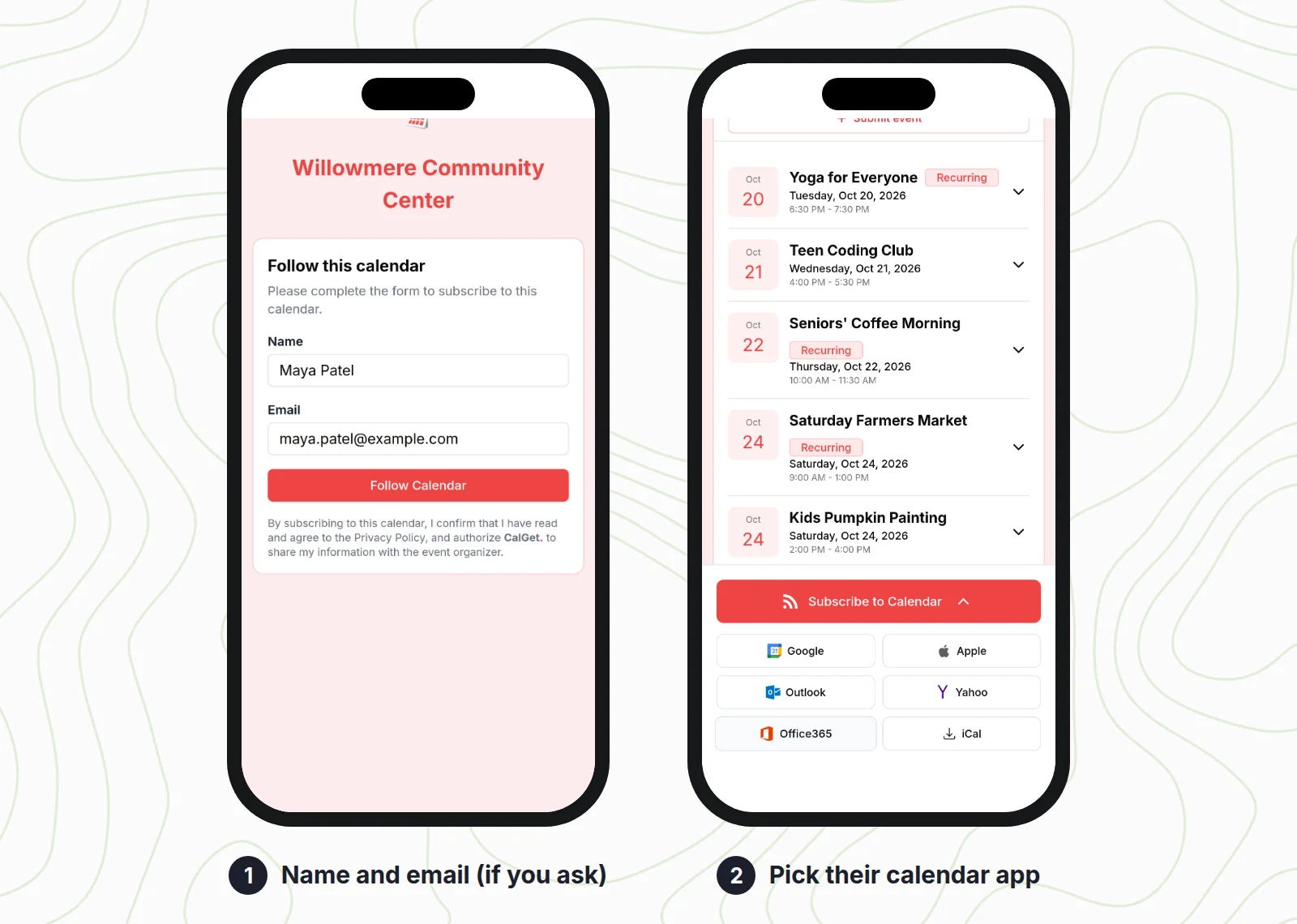
6. What your subscribers see
The link opens your calendar page. If you collect information, they fill in the short form and tap Follow Calendar. Then they see your upcoming events and a Subscribe to Calendar button with a choice for every app: Google, Apple, Outlook, Yahoo, Office365 and iCal. Each button opens that app's own subscribe step, so nobody has to copy and paste a link.
7. See who subscribed
Back on the Subscribers tab, the list shows each subscriber's name and email (if you collected them), which calendar app they chose, their country, how many times their app has synced and when it last did. Export List downloads it. If someone's app stops syncing, you'll see it here, which no built-in method can tell you.
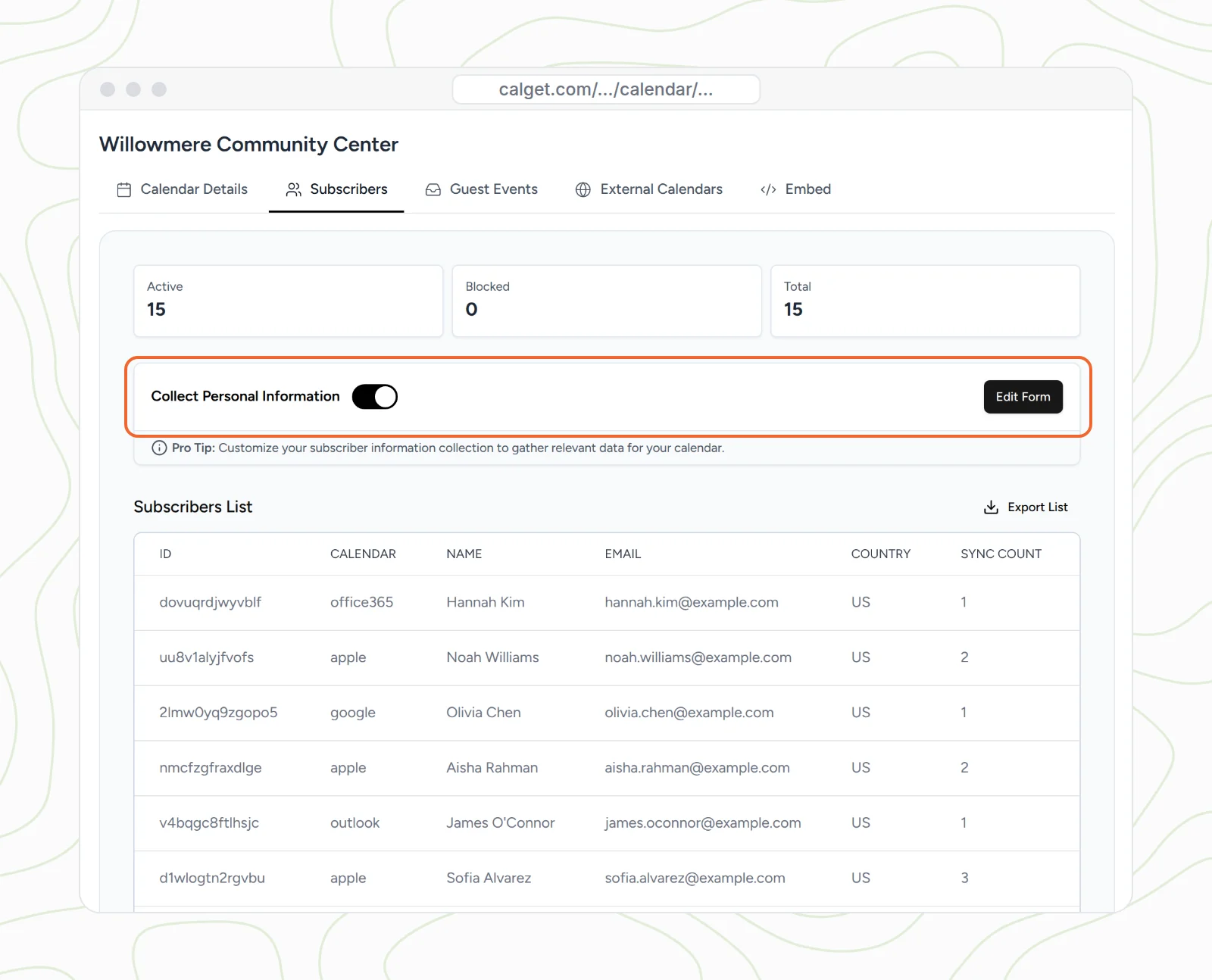
Two more things come with the same calendar. You can put it on your website as an embeddable calendar, so people who'd rather browse can browse, with a Subscribe button right there. And you can let your community submit events through the calendar page's Submit event button, which land on the Guest Events tab for you to review.
Which way should you create your subscription calendar?
| Google Calendar | Apple (iCloud) | Outlook | CalGet | |
|---|---|---|---|---|
| What you share | Public address in iCal format | Public Calendar link | ICS link from Publish a calendar | One calendar link |
| How people subscribe | Paste the link into their app | Tap it on Apple devices, paste it elsewhere | Paste the link into their app | A button for Google, Apple, Outlook, Office 365, Yahoo or iCal |
| See who subscribed | No | No | No | Yes, with their app and last sync |
| Collect names and emails | No | No | No | Optional form |
| Calendar on your website | Google embed | No | HTML link (opens in a browser) | Embeddable calendar |
| Where you add events | Google Calendar | Apple Calendar | Outlook | CalGet, or synced from Google Calendar or Outlook |
| Best for | A group that mostly uses Google | A group that mostly uses iPhones and Macs | A group that mostly uses Outlook | Mixed groups: schools, clubs, teams, communities |
The short version: if everyone uses the same app and you're happy with a public calendar, use what you have. If your audience is mixed, or you want a button instead of instructions, or you want to know who's following, use a subscription calendar tool.
How to get people to actually subscribe
A subscription calendar only helps if people add it. What works:
- Put the link where people already look. Your website's events page, the footer of every newsletter, your email signature, the bio link on social media, and a QR code on posters and handouts.
- Say what they get, in one line. "Every class, game and closure in your calendar, updated automatically" beats "Subscribe to our calendar".
- Name things for their calendar, not yours. In someone's calendar list, "Willowmere Community Center" makes sense. "Events 2026 (final)" doesn't. Write event titles that make sense on their own, like "U10 Soccer vs. Eastside" rather than "Game".
- Keep one calendar per audience. Parents of the under-10s don't want the adult league. Several focused calendars get more subscribers than one crowded one. Sports clubs do this with a calendar per team, as in how clubs share fixtures with calendar subscriptions.
- Ask at the moment of interest. Right after someone registers, joins or buys, show the subscribe link. That's when they want the dates.
Subscription calendar not working? Common fixes
The link downloads a file instead of subscribing
The link starts with https:// and ends in .ics, so the browser downloads a one-time copy that never updates. Have them use their app's subscribe option instead (for example From URL in Google Calendar or Subscribe from web in Outlook), or share a webcal:// version of the link. Our webcal guide explains the difference.
Nothing happens on Android
Most Android phones have no app that opens calendar subscription links, and Google's app can't subscribe. Subscribe in Google Calendar on a computer, and the calendar appears on the phone.
Subscribers don't see a change I made
Their app hasn't refreshed yet. Google doesn't publish how often it checks, and Microsoft says Outlook on the web checks about every 6 hours. This is normal, and it's the same with every tool. For urgent changes, message people as well.
Someone wants to stop following
They remove or unsubscribe from the calendar in their app, the same way they'd remove any other calendar. Nothing is needed on your side.
The events show at the wrong time
Check the time zone on your calendar and on each event. Subscribers' apps convert times into their own time zone, which is right, as long as your events were created in the correct one.
How we tested this
In October 2026 we created the Willowmere Community Center calendar in a real CalGet account, added events (including a weekly one), connected a Google calendar under External Calendars, turned on Collect Personal Information, and subscribed from an iPhone-size screen. All screenshots of CalGet are real; the community center and its subscribers are made up. We checked every Google Calendar, Apple and Outlook step against Google Calendar Help, Apple Support and Microsoft Support, linked above.
Frequently asked questions
How do I create a calendar that people can subscribe to?
Put the events in their own calendar, publish it as a read-only link, and share the link. In Google Calendar, make the calendar public and share the Public address in iCal format. In Apple Calendar, turn on Public Calendar. In Outlook, publish the calendar and share the ICS link. A tool like CalGet gives you one link with a Subscribe button for every app.
What's the difference between a shared calendar and a subscription calendar?
A shared calendar gives specific people access, often including editing, usually inside the same system. A subscription calendar is a read-only link anyone can follow from any calendar app. Shared calendars suit small teams. Subscription calendars suit schedules for lots of people.
Can people subscribe to my Google Calendar?
Yes, if you make that calendar public and share its Public address in iCal format. They have to add it on a computer, because Google says you can't subscribe in the Google Calendar mobile app. Use a separate calendar for this, not your personal one.
How do I create a subscription calendar on iPhone?
Open Calendar, tap Calendars, tap the Info button next to an iCloud calendar, turn on Public Calendar, then tap Share Link. Anyone with the link can subscribe to a read-only copy.
How often does a subscription calendar update?
It depends on the subscriber's app, not on you. Microsoft says Outlook on the web updates subscribed calendars about every 6 hours and that it can take more than 24 hours. Google doesn't publish a schedule. Apple Calendar on a Mac lets you choose how often it refreshes.
Can I see who subscribed to my calendar?
Not with Google Calendar, Apple Calendar or Outlook. They only give you a link. CalGet shows a subscriber list with the calendar app each person chose and when their app last synced, plus names and emails if you turn on Collect Personal Information.
Share your schedule
Create your subscription calendar in about ten minutes
One link, a Subscribe button for Google, Apple, Outlook, Office 365 and Yahoo, and a list of everyone who follows it. Keep your events in CalGet, Google Calendar or Outlook.
Create your subscription calendarHow subscription calendars work
Running weekly classes or practices? Here's how recurring events work. Want to group events by theme? See how to create a calendar event collection.
Written by the CalGet team
Updated October 2026 · Tested in a real CalGet account, checked against Google, Apple and Microsoft
We build calendar tools for sharing events with lots of people, from sports clubs and schools to nonprofits. People at organizations like Harvard, Save the Children and OGC Nice use CalGet to get events into their audience's calendars.

“The entire team at CalGet is professional, easy to work with, and on top of every question.” Women's Network, a small nonprofit, on Trustpilot
Get Your Events on Everyone's Calendar.
Generate universal "Add to Calendar" links that work everywhere. Perfect for social media, emails, and websites.

Written by
Yared