Upgrade, change or cancel your plan
Updated October 20, 2026
Your plan belongs to your team. If you belong to more than one team, switch to the right team first, using the team menu at the top of the menu on the left. See Invite team members and switch teams.
Upgrade from the Free plan
- Click Go Premium at the bottom of the menu on the left. You can also click Upgrade in the note above your events, or Upgrade to Pro in the menu under your name.
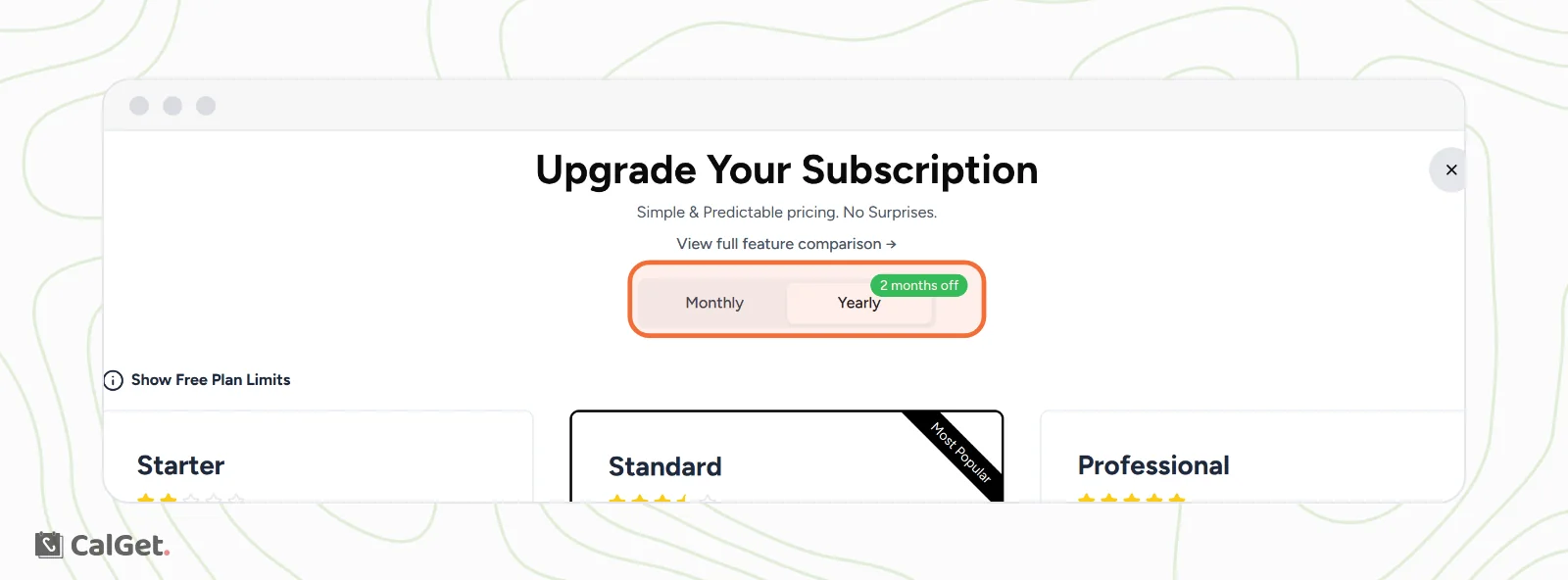
- In Upgrade Your Subscription, choose Monthly or Yearly. Yearly billing gives you 2 months off.
- To compare, click Show Free Plan Limits or View full feature comparison.
- On the plan you want, click Subscribe Now and complete the payment.

To see what each plan includes, see Compare plans and see what each limit counts.
Change, cancel or update your payment details
For a team on a paid plan, billing is handled on a secure billing page from Stripe, our payment provider.
- Click your name at the bottom of the menu on the left.
- Click Manage Billing.

The billing page opens. There you can:
| To do this | Click |
|---|---|
| Move to another plan | Update subscription |
| Cancel your plan | Cancel subscription |
| Add or change your card | Add payment method |
| Change the name or email on your invoices | Update information |
| See past payments | The list under INVOICE HISTORY |
Read the confirmation on the billing page before you finish, so you know when the change takes effect. To go back to CalGet, click Return to CalGet LLC.
Common questions
I don't see Manage Billing. Why?
The team you're in is on the Free plan, so there's nothing to manage yet. You see Upgrade to Pro in its place. If you pay for another team, switch to that team first.
Can I get a nonprofit discount?
Yes, on yearly Standard and Professional plans. See Get the nonprofit discount.
Who can I ask about a payment?
Click Support in the menu on the left to chat with the CalGet team.