Find your way around the CalGet dashboard
Updated October 20, 2026
This is a quick tour of the CalGet dashboard: what each item in the sidebar does, and where to find your team, your profile and your billing.
The sidebar
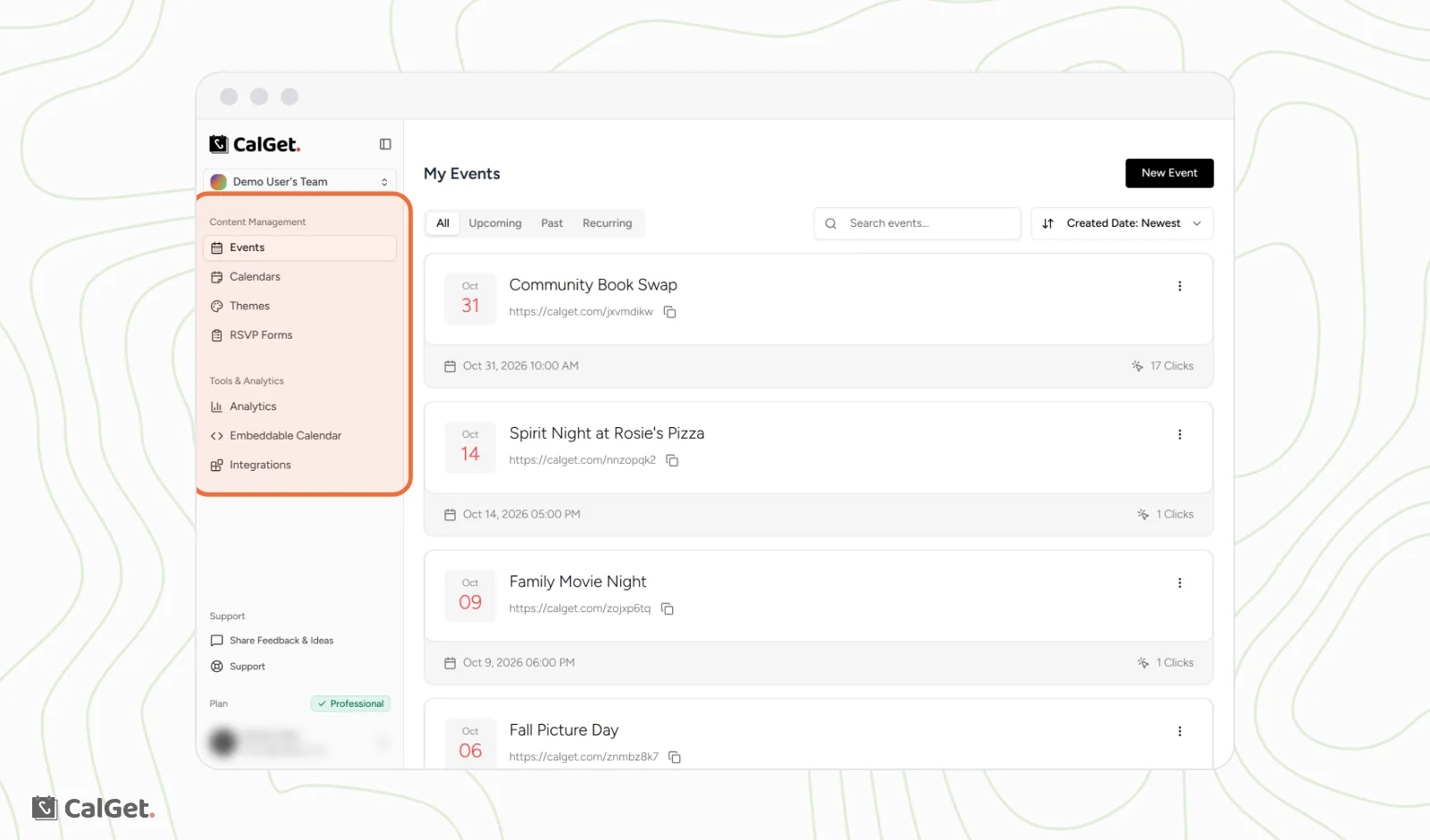
Everything starts from the sidebar on the left. It has three groups: Content Management for what you create, Tools & Analytics for results, embeds and integrations, and Support. To hide it and get more room, click the Toggle Sidebar button at the top.
| Sidebar item | What you do there |
|---|---|
| Events | See all your events on My Events and create new ones with New Event. Filter by All, Upcoming, Past or Recurring, search by name, and see each event's link and click count. |
| Calendars | Group events into calendars that people can subscribe to or that you can show on your website. Each calendar shows its upcoming events and its number of subscribers. |
| Themes | Design how your event pages look. Create one with New Theme or change one with Edit Theme. |
| RSVP Forms | Build the questions guests answer when they RSVP, with New RSVP Form. |
| Analytics | See Clicks, Calendar Adds and RSVPs for one event or all of them, plus Referrers and UTM Parameters. |
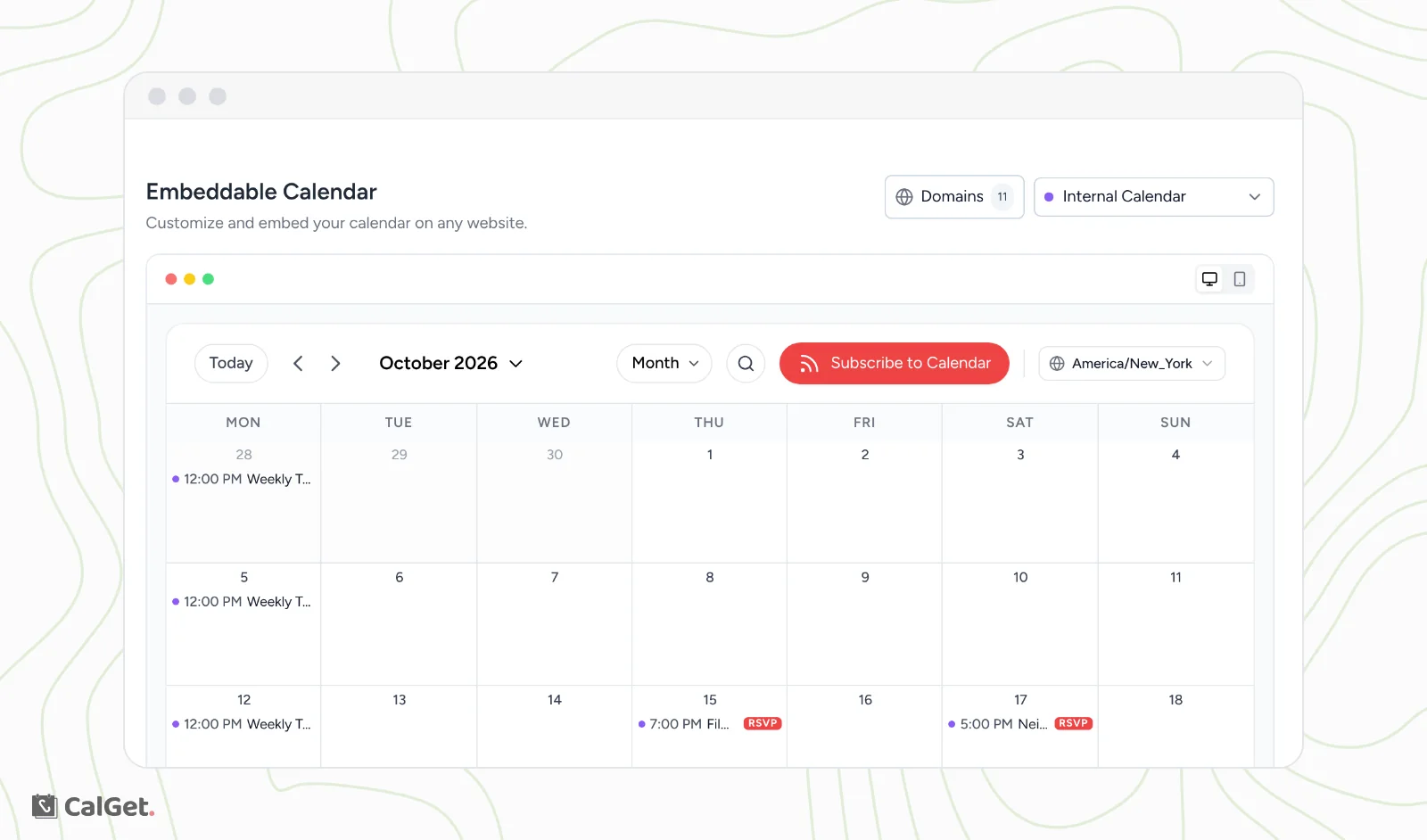
| Embeddable Calendar | Style a calendar for your website (color, view and layout), set the Domains it can appear on, and click Get embed code. |
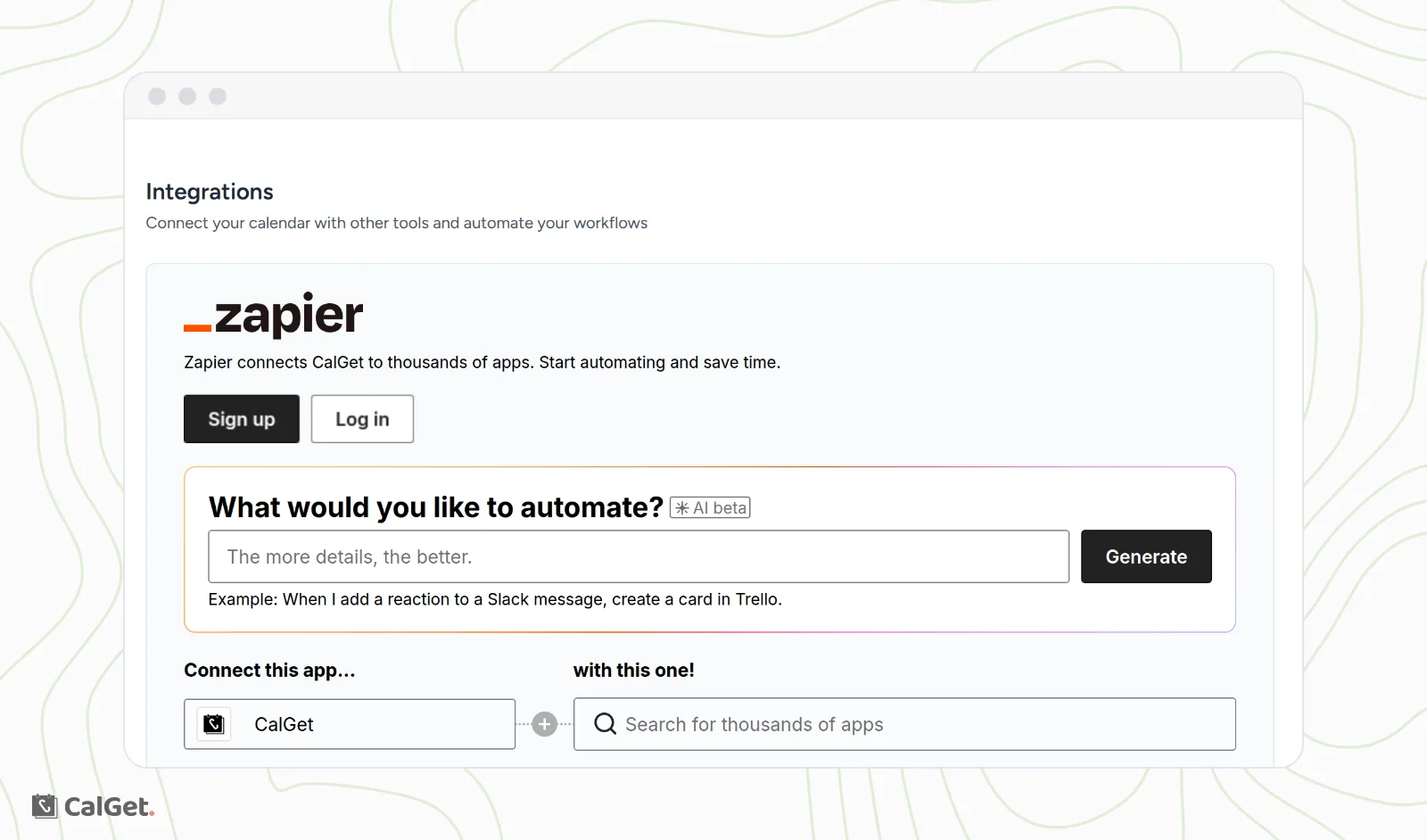
| Integrations | Connect CalGet to other apps with Zapier. |
| Share Feedback & Ideas | Opens our feature request board, where you can suggest what we build next. |
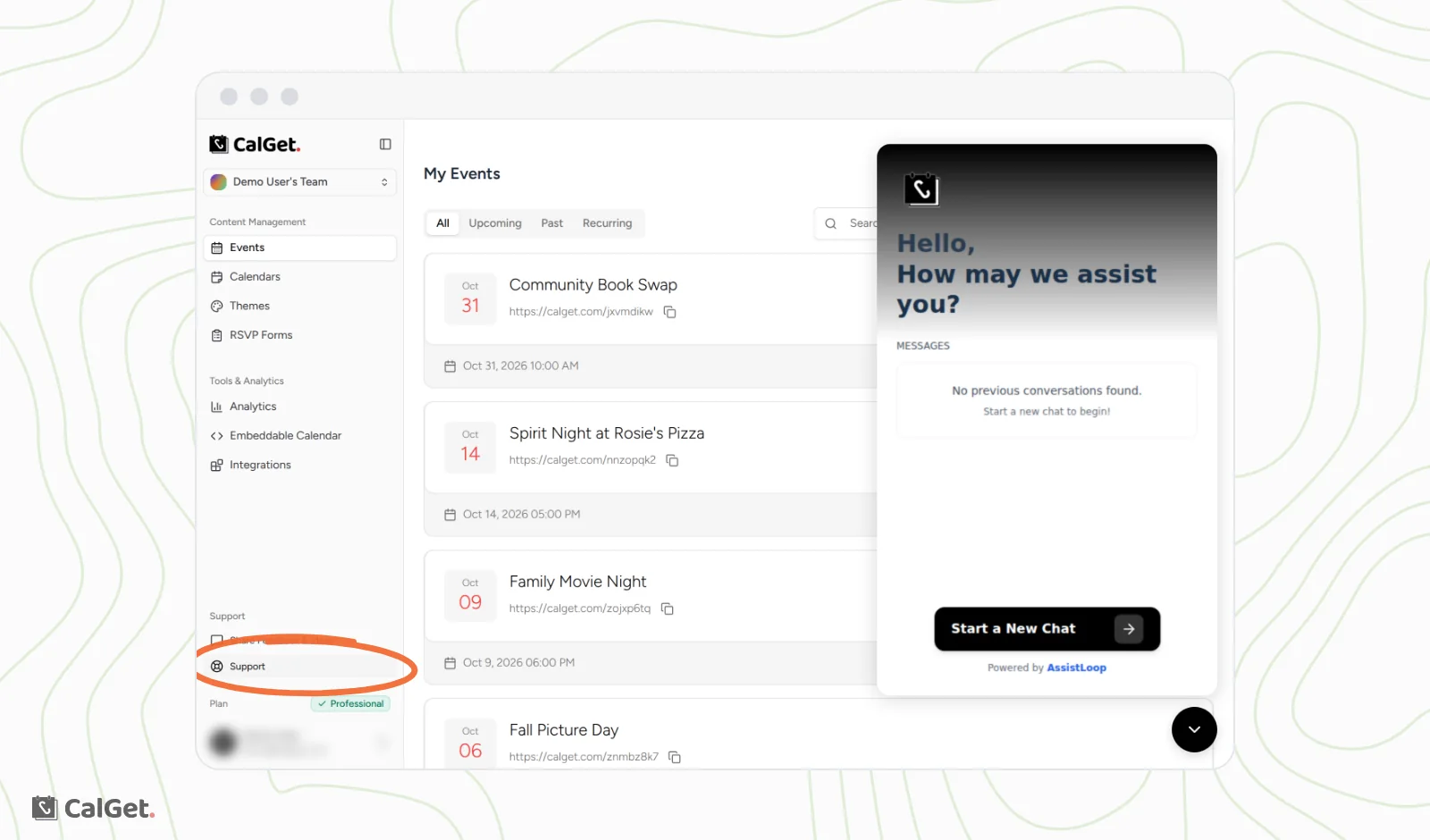
| Support | Opens a chat with our team, right in the dashboard. |
Calendars
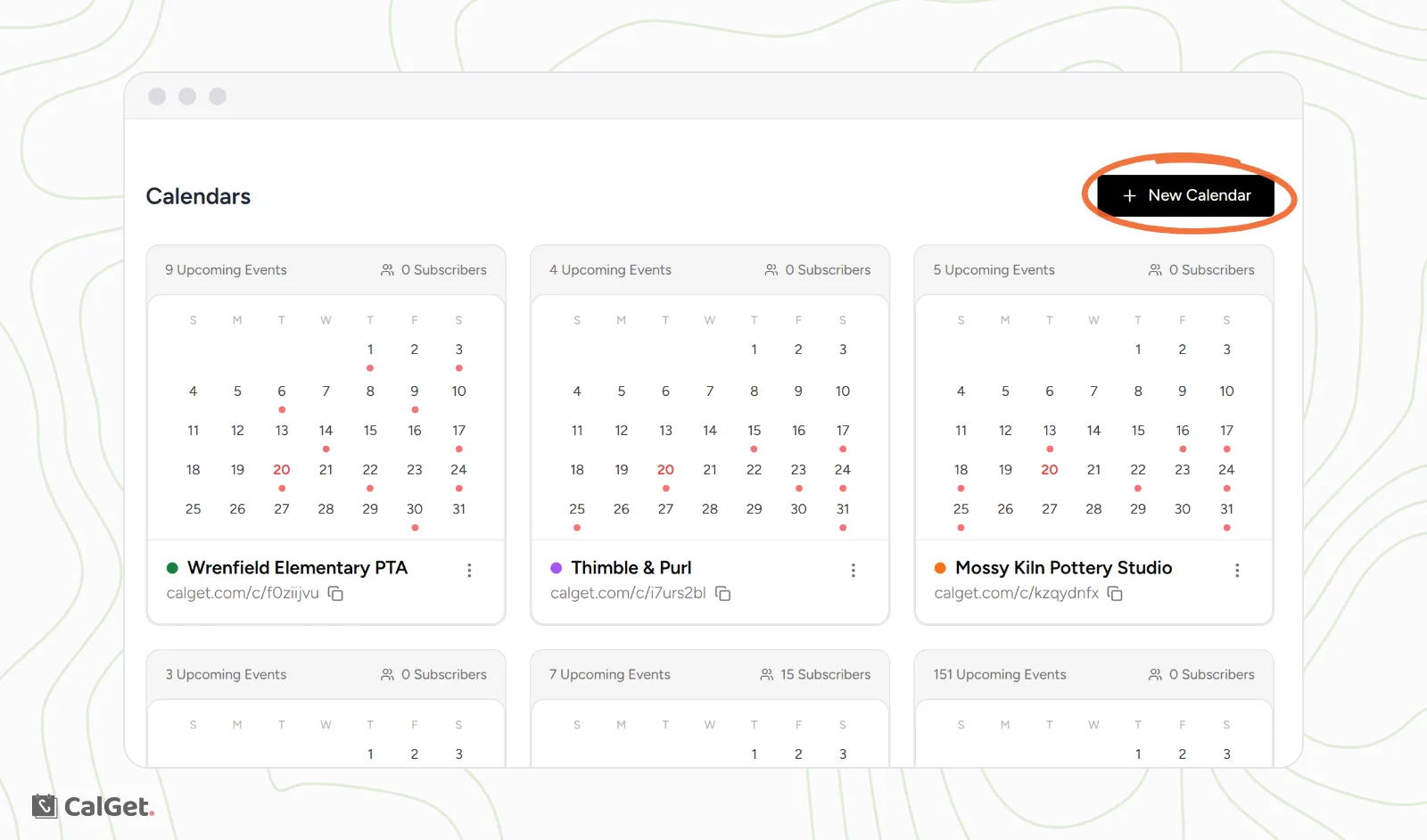
Each card on Calendars shows the calendar's name, its public link, a small month view, its number of upcoming events and its subscribers. Click New Calendar to make another one. To learn how calendars work, see How subscription calendars work in CalGet
Analytics
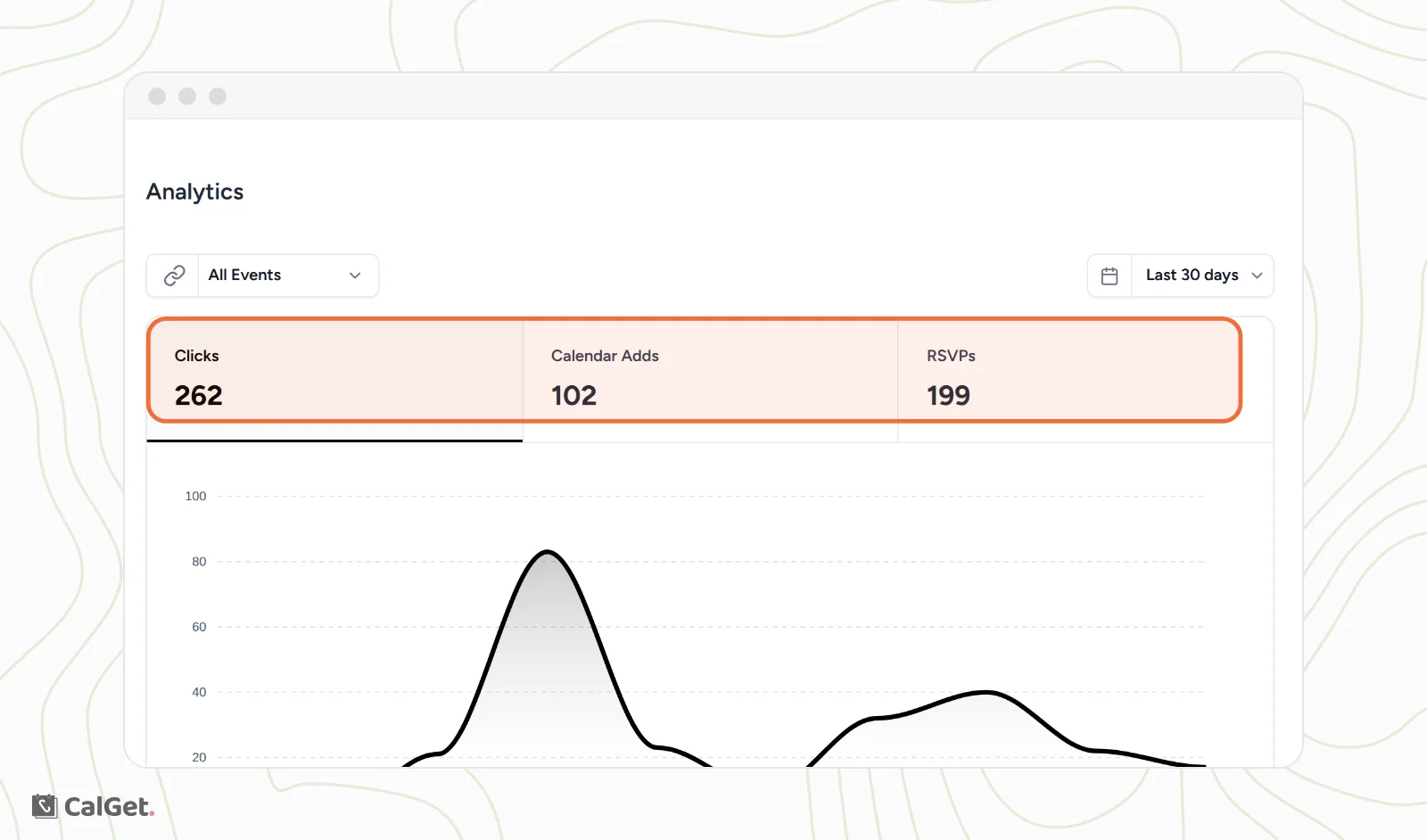
Pick an event (or All Events) and a date range such as Last 30 days. The three numbers at the top count the clicks on your links, the times your events were added to a calendar, and the RSVPs you received. The chart shows them day by day.
Embeddable Calendar
Choose which calendar to show, then set its color, its view (for example Month) and its layout. The preview updates as you go. When it looks right, click Get embed code and paste the code into your website. For the full steps, see Embeddable Calendar setup: domains, look and code.
Integrations
CalGet connects to thousands of apps through Zapier. Sign up or log in to Zapier from this page, start from one of the popular workflows, or describe what you'd like to automate.
Your team
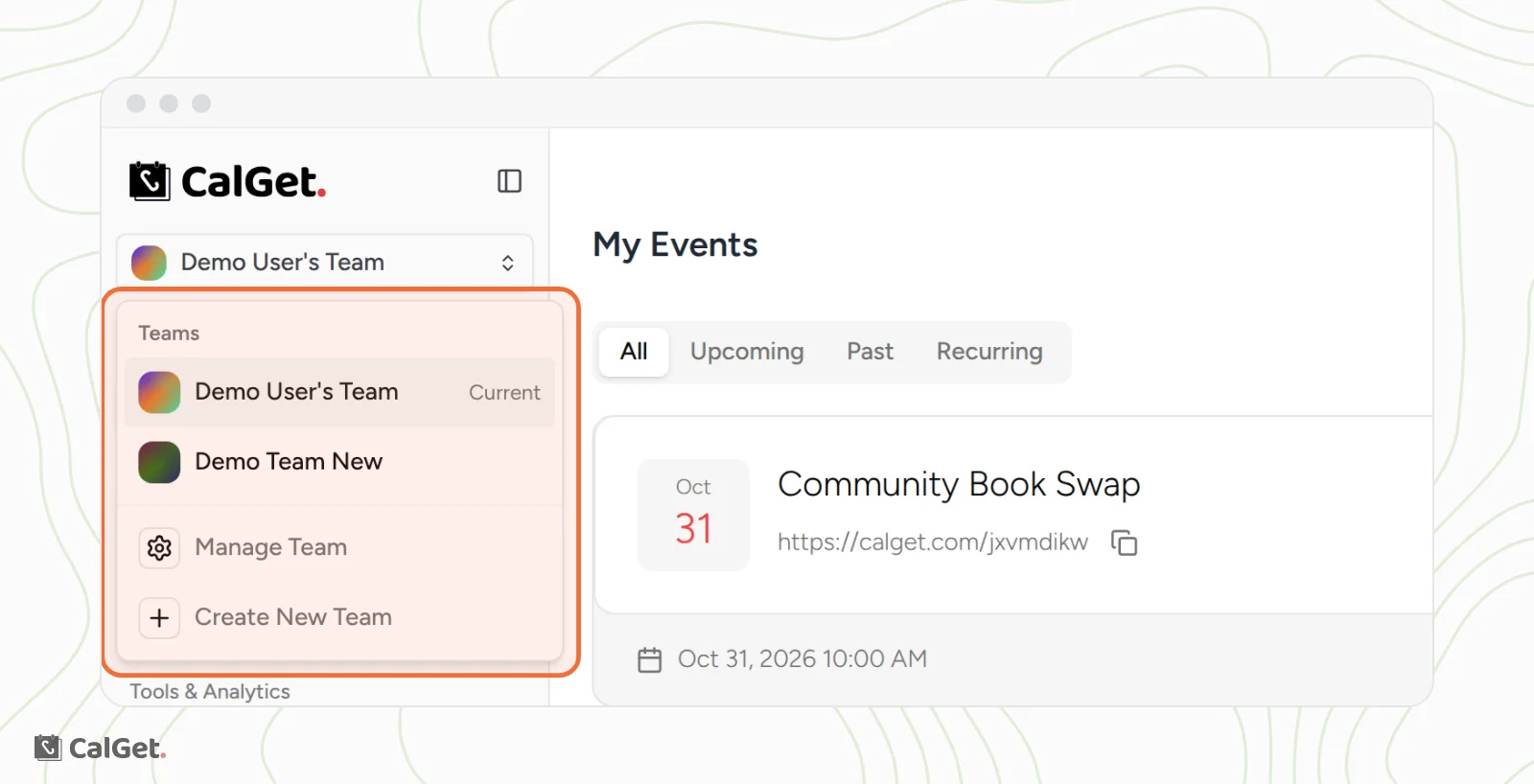
Click your team's name at the top of the sidebar to open the team menu. From there you can:
- Switch to another team you belong to. The one you're in is marked Current.
- Click Manage Team to rename the team, find your team URL and API key, and invite people.
- Click Create New Team to start another team.
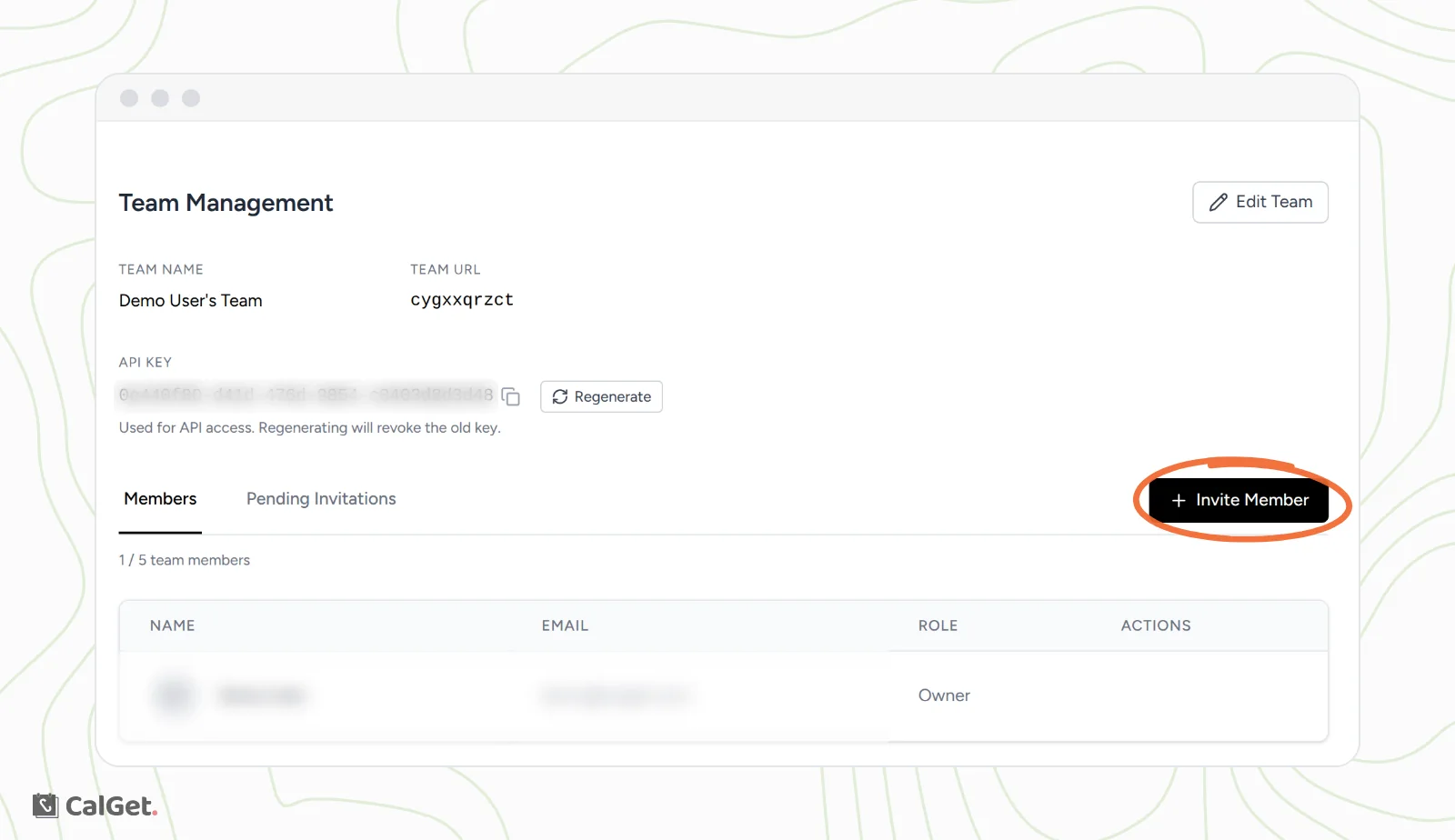
On Team Management, click Invite Member to add a teammate. Invitations you've sent wait under Pending Invitations. Your API KEY is here too. Keep it private: Regenerate creates a new key and turns off the old one.
Your account and billing
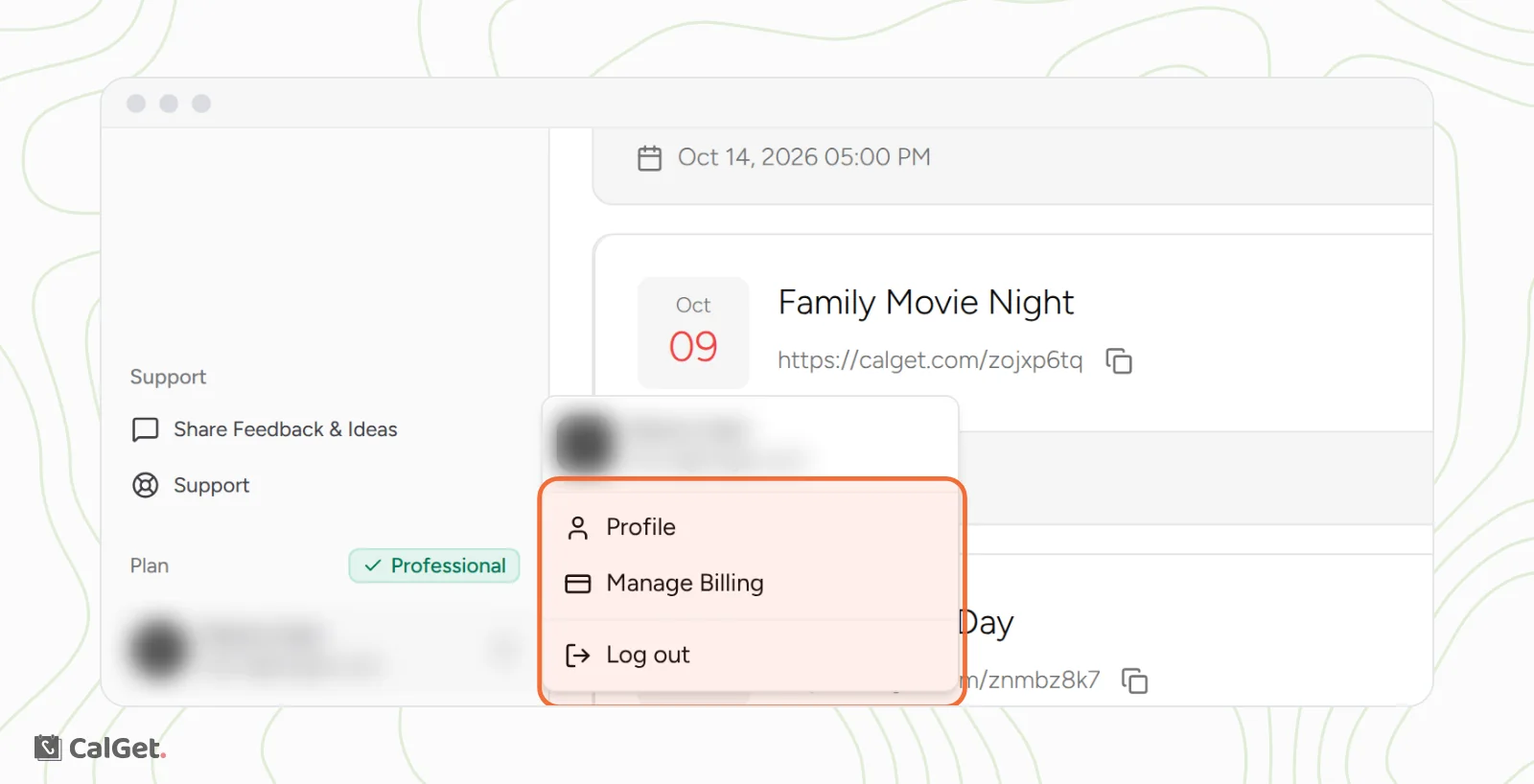
Your plan is shown under Plan, above your name at the bottom of the sidebar. Click your name to open the account menu:
- Profile: change your name and email, and update your password.
- Manage Billing: opens your billing page, where you can change or cancel your subscription, update your payment method and see your invoices.
- Log out
Get help
Click Support in the sidebar to chat with our team, then Start a New Chat. You can also search this help center for step-by-step guides.