Invite team members and switch teams
Updated October 20, 2026
Work on CalGet together with your colleagues. This article shows how to invite people to your team, what each role can do, and how to switch between teams or create a new one.
Invite someone to your team
- Click your team's name at the top of the sidebar, then click Manage Team.
- Click Invite Member.
- Type their Email address.
- Choose a Role: Admin, Member or Viewer. Click View role descriptions to compare them.
- Click Send Invitation.
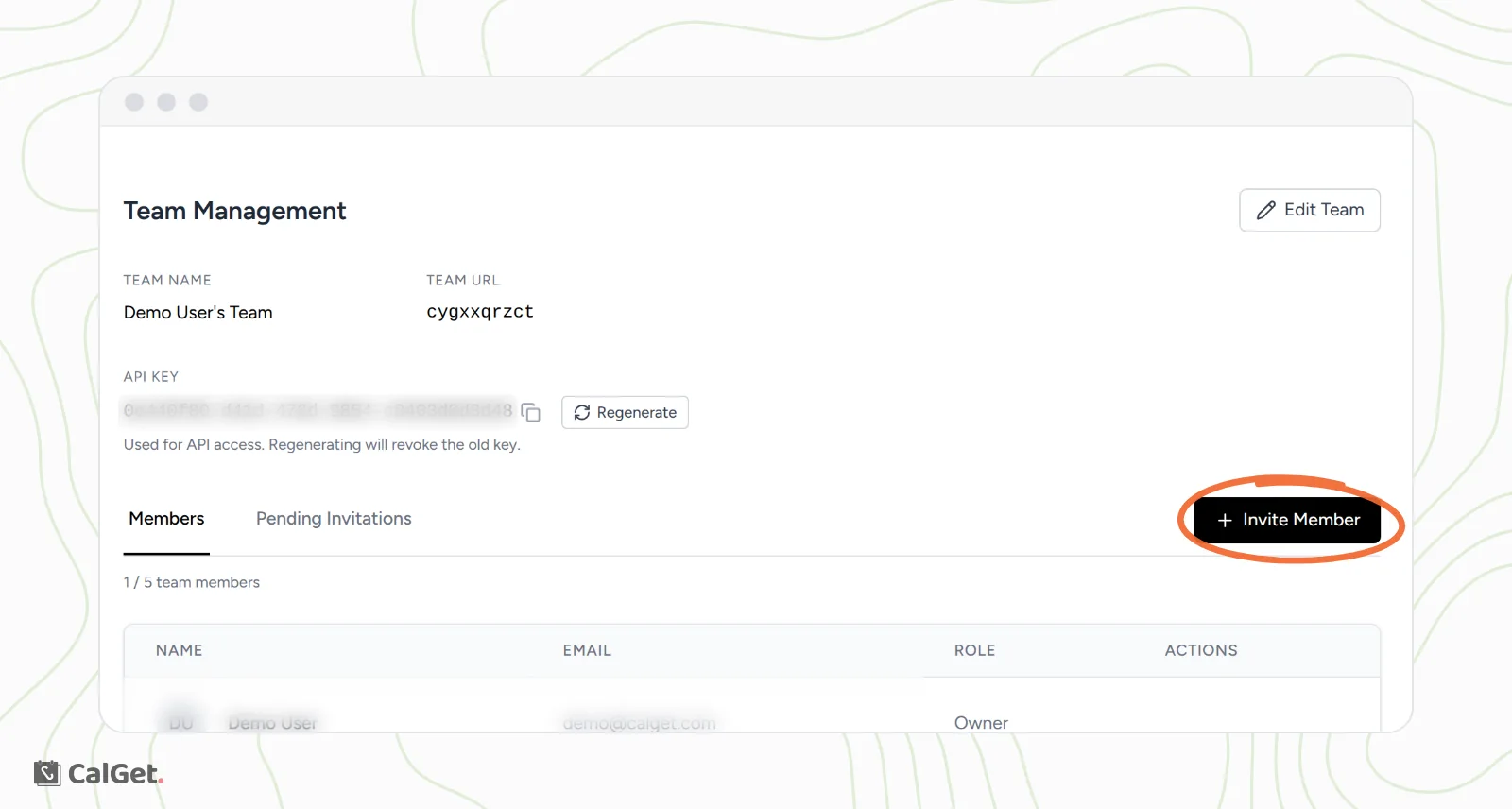
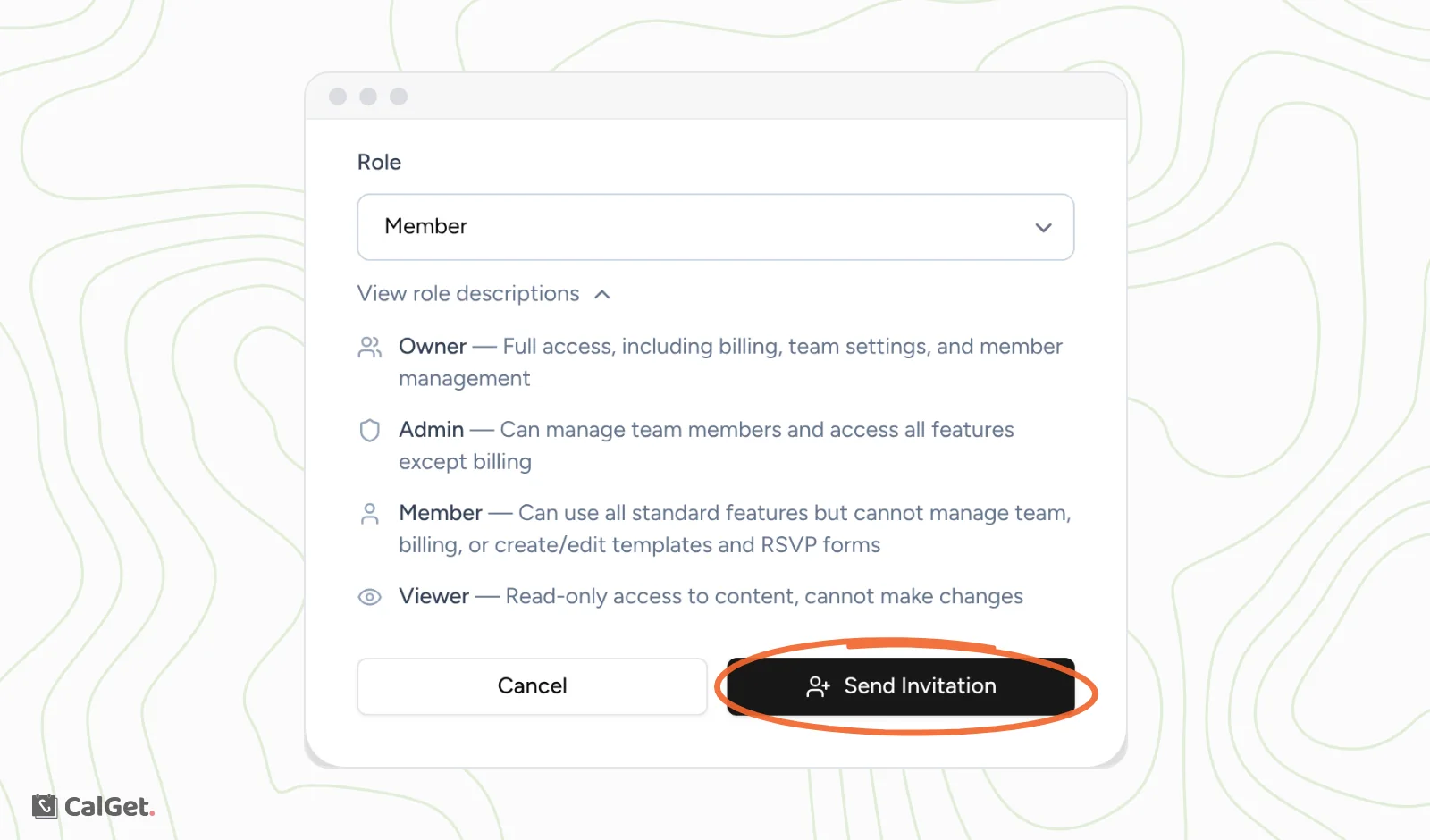
The invitation is listed under Pending Invitations until the person accepts it. Above the list, Team Management shows how many places on your team are used, for example "1 / 5 team members".
What each role can do
| Role | What they can do |
|---|---|
| Owner | Full access, including billing, team settings and member management. |
| Admin | Can manage team members and access all features except billing. |
| Member | Can use all standard features, but can't manage the team or billing, or create and edit templates and RSVP forms. |
| Viewer | Read-only access to content. Can't make changes. |
The person who creates a team is its owner. When you invite someone, you choose between Admin, Member and Viewer.
Switch between teams
If you belong to more than one team, each has its own dashboard.
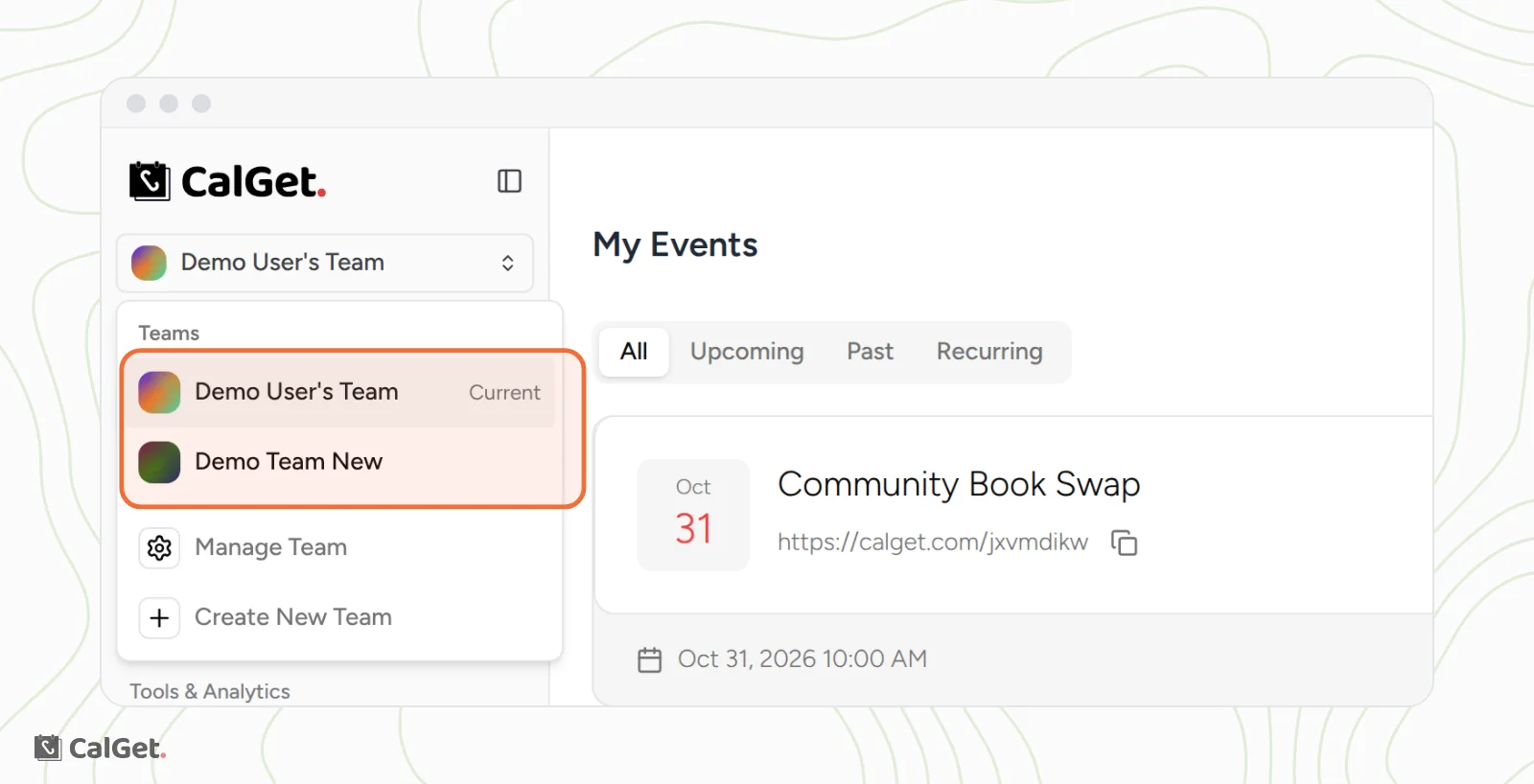
- Click your team's name at the top of the sidebar.
- Under Teams, click the team you want to open. The team you're in now is marked Current.
Create another team
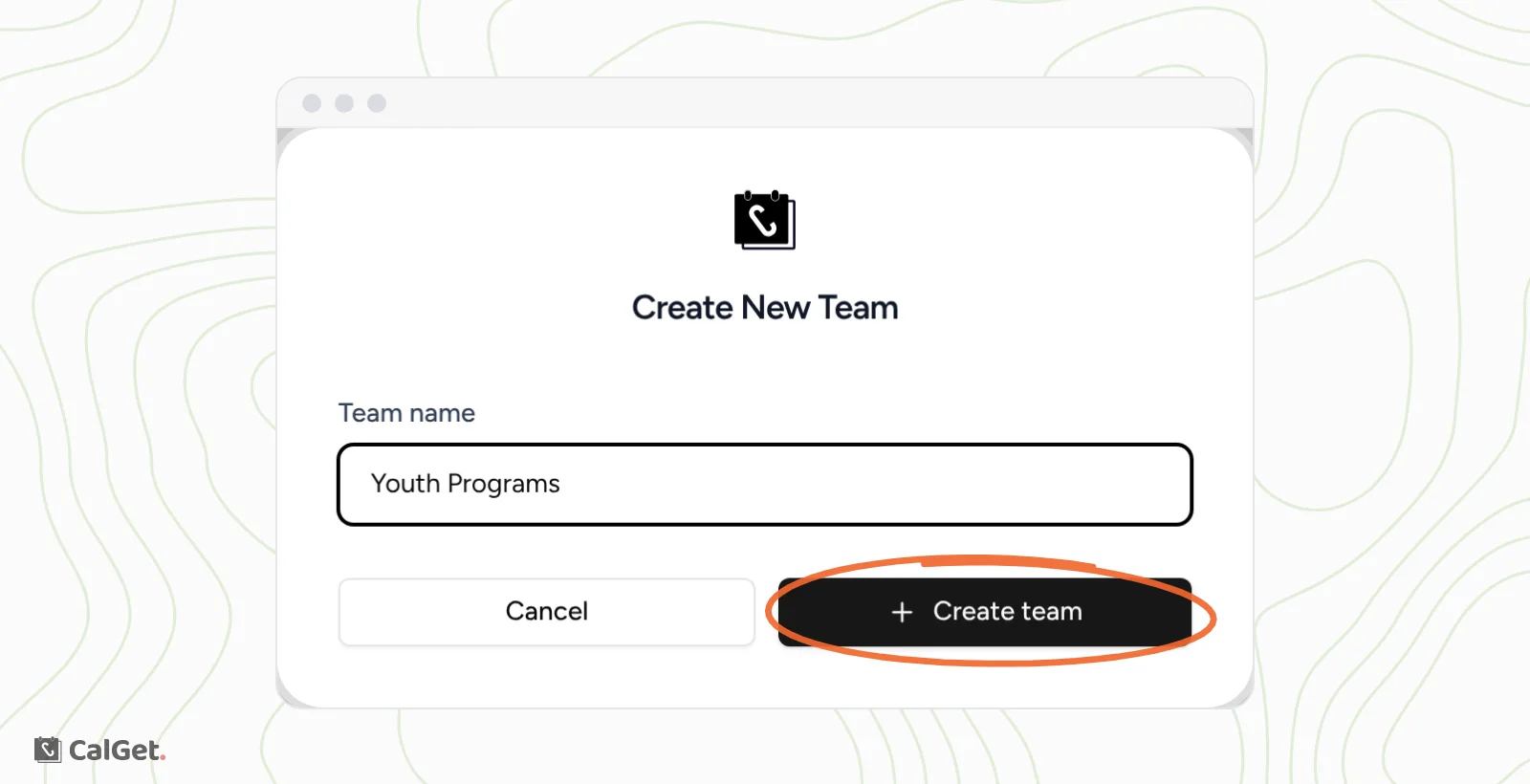
- Click your team's name at the top of the sidebar, then click Create New Team.
- Type the Team name.
- Click Create team.
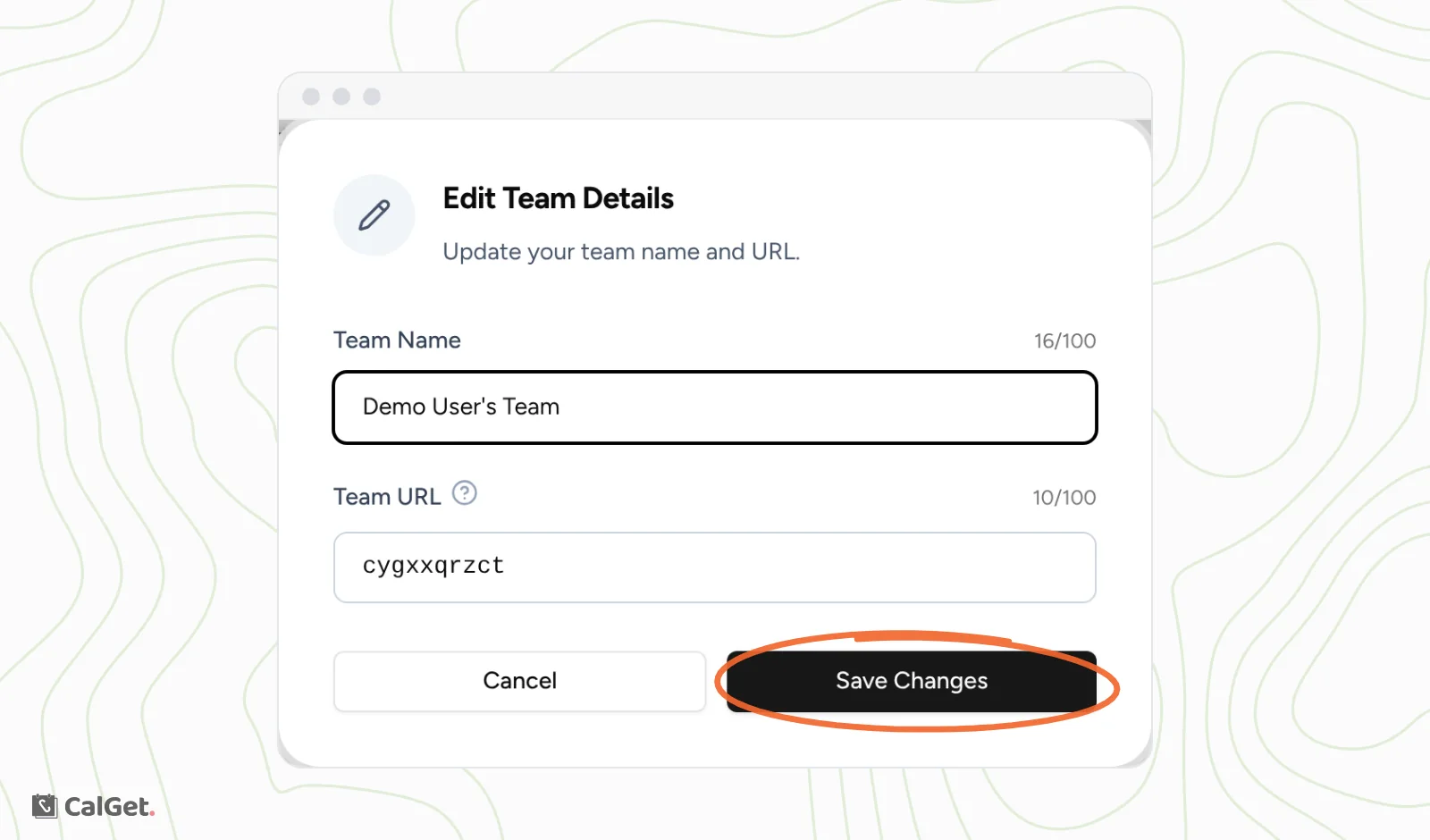
Rename your team or change its URL
- Open Manage Team from the team menu.
- Click Edit Team.
- Change the Team Name or the Team URL. The team URL is the part of your dashboard address after calget.com.
- Click Save Changes.
Common questions
How many people can I add?
Team Management shows your limit above the member list, for example "1 / 5 team members". The number of team members depends on your plan. See Pricing.
What is the API key on Team Management?
It's your team's key for connecting other tools to CalGet. Keep it private. Regenerate creates a new key and turns off the old one, so anything using the old key stops working until you update it.
Can a Member create RSVP forms?
No. Members can use all standard features, but only Owners and Admins can create or edit templates and RSVP forms.