Back to Blog
QR Code for a Calendar Event That Won't Break (2026)
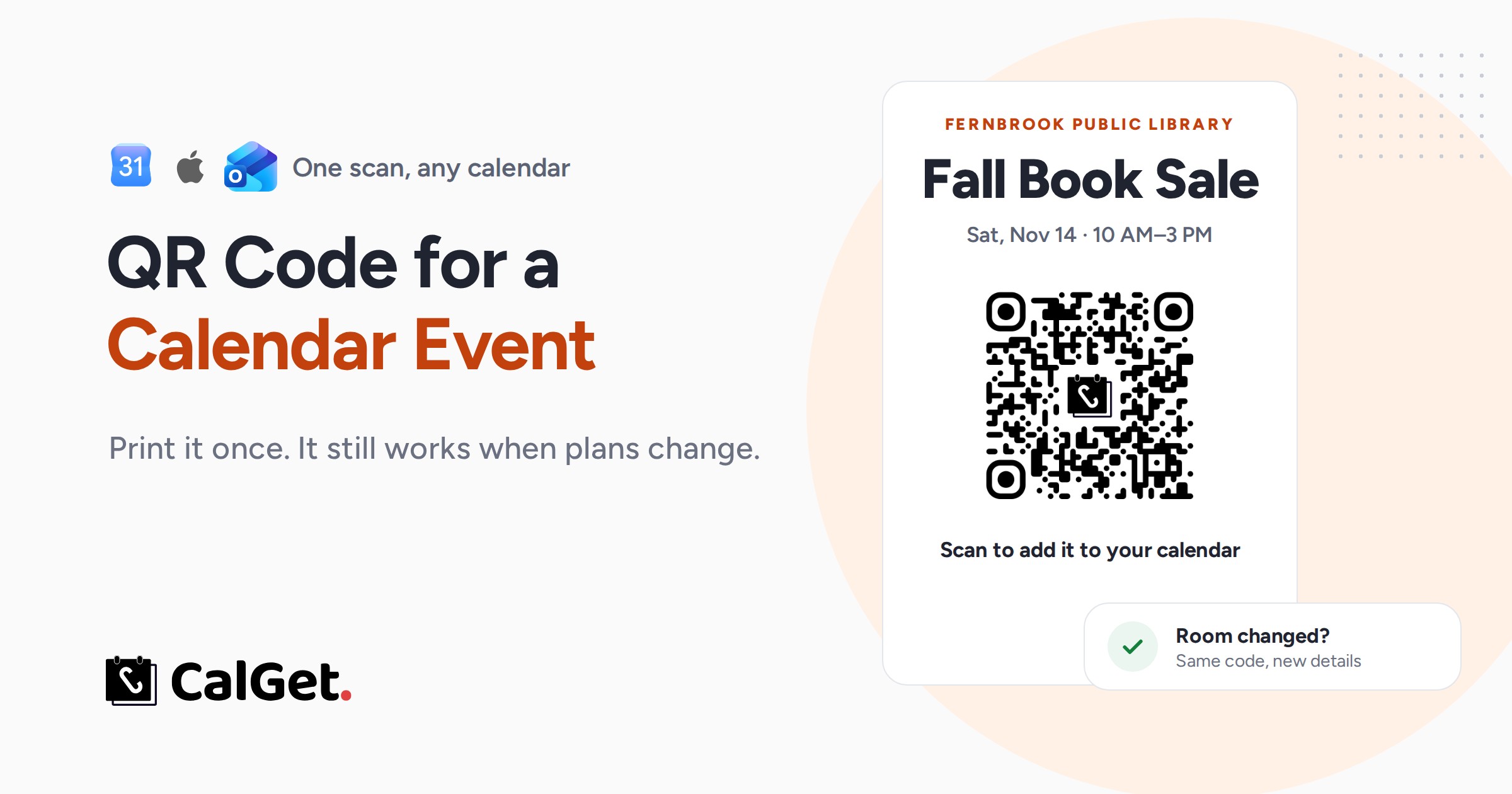
Two kinds of QR codes can put an event in someone's calendar. We tested both on a real event: the one that writes the event into the code breaks when plans change, the one that links to the event doesn't. Here's how to make it, print it and track it.
Written by
Last updated: October 2026. We tested everything in this guide on a real CalGet event and two kinds of calendar QR codes in October 2026: we decoded each code, measured it, changed the event after "printing" and tracked test scans.
Quick answer
There are two ways to make a QR code for a calendar event. You can write the event's details into the code itself, or you can make the code open a link to the event. For anything printed, use the link. Our test showed why: when we moved the event to another room, the link code didn't change at all and every new scan showed the new room.
- In CalGet, every event has a QR code. Open the event and click Download QR Code.
- When someone scans it, their phone opens the event page. They tap Add to Calendar and pick Google, Apple, Outlook, Yahoo, Office 365 or an ICS file.
- Print it at least 2.5 cm (1 inch) wide, with a white border and a line like "Scan to add it to your calendar".
Forty flyers are taped up around town: the library entrance, the café, the laundromat, two church notice boards. Then the Community Room gets booked for a funeral and the Fall Book Sale moves to the Main Hall. If the QR code on those flyers holds the old room, everyone who scans it saves the wrong place. If it holds a link, you change the room in one spot and you're done.
This guide is for anyone who promotes events on paper: libraries, schools, churches, clubs and small venues. It covers the two kinds of calendar QR codes, how to make one with CalGet, what people see when they scan it, how to print it so it scans on the first try, and how to tell which flyer people actually scanned.
Two kinds of QR codes for a calendar event
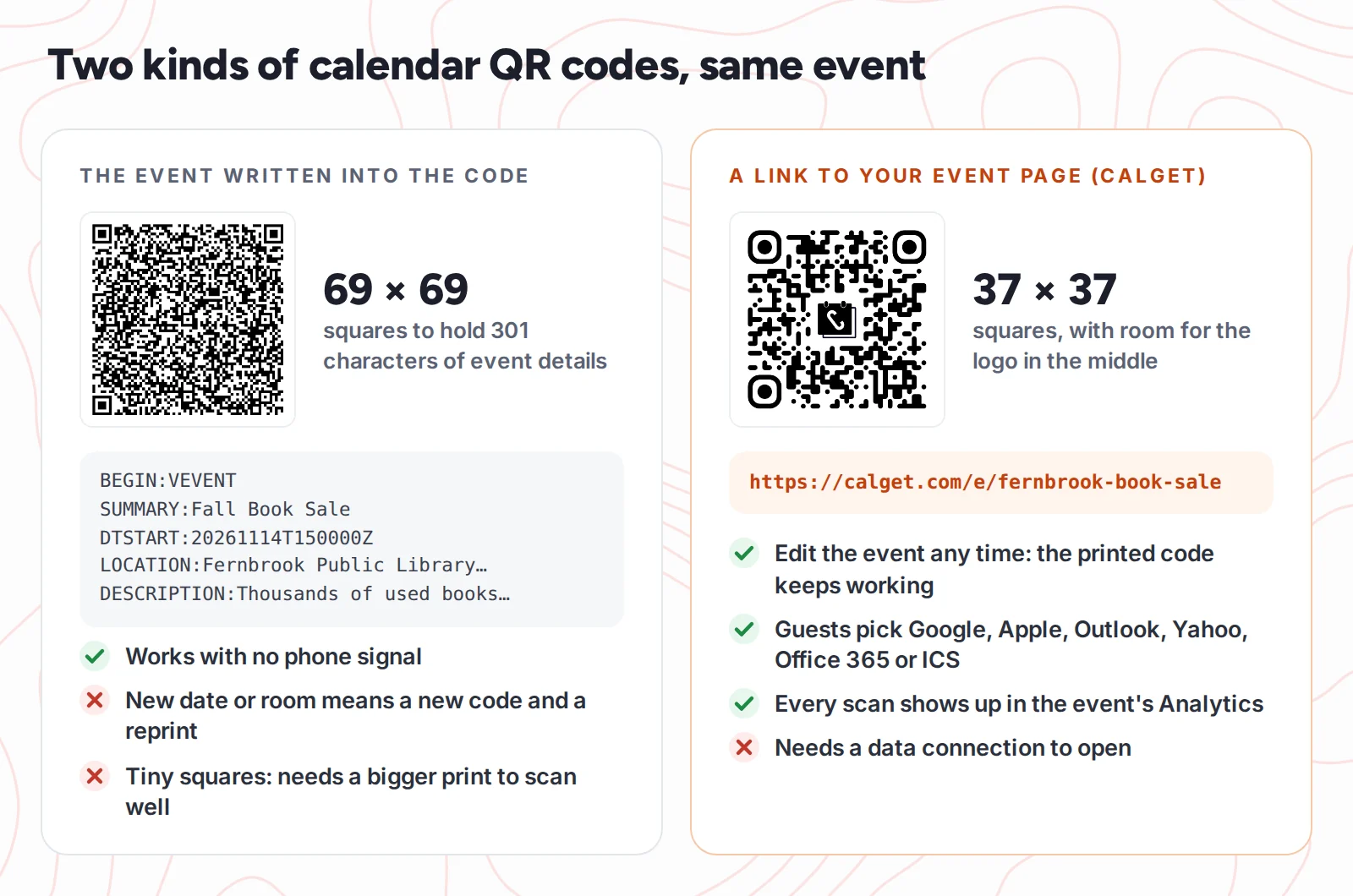
Many "calendar event" QR generators write the event straight into the code. The format comes from iCalendar: a short text block that starts with BEGIN:VEVENT and lists the title, start, end and location. The ZXing project, an open-source barcode library used by many scanner apps, documents this format for calendar events. The other kind holds nothing but a link, and the event lives on a web page you can edit.
We made both for the same event, the made-up Fernbrook Public Library Fall Book Sale, and measured them.
| Event written into the code | Link to an event page (CalGet) | |
|---|---|---|
| What the code holds | The title, times, place and description (301 characters in our test) | One link: https://calget.com/e/fernbrook-book-sale |
| Size of the grid | 69 × 69 squares, and it grows with every detail you add | 37 × 37 squares, logo included |
| Date or room changes | Make a new code and reprint | Edit the event. The printed code still works |
| Which calendar | Whatever the phone's scanner decides to do with it | The guest picks: Google, Apple, Outlook, Yahoo, Office 365 or ICS |
| Time zone | Depends on how the generator wrote the times | Set on the event (America/New_York in our test) and passed to each calendar |
| Scans you can count | None | Every scan counts as a click on the event's Analytics tab |
| Works with no signal | Yes | No, the page has to load |
Scanners don't always read the event format the same way, either. In 2022, 9to5Google reported that some Pixel phones misread calendar QR codes, pushing dates forward by up to a month and sometimes ignoring the time zone. A link sidesteps that problem: phones simply open it in the browser.
The downside of event-in-the-code QR codes: more details, harder scans
QR generators sell these as "event", "calendar" or vCalendar codes, the calendar cousin of the vCard code that holds a contact. They all share one catch, and it gets worse the more helpful you try to be. Every character you add has to fit inside the code, so the code grows more rows and columns of squares. Print it at the same width and each square gets smaller.
We measured it. We took the same event and added one detail at a time, using medium error correction, the usual default:
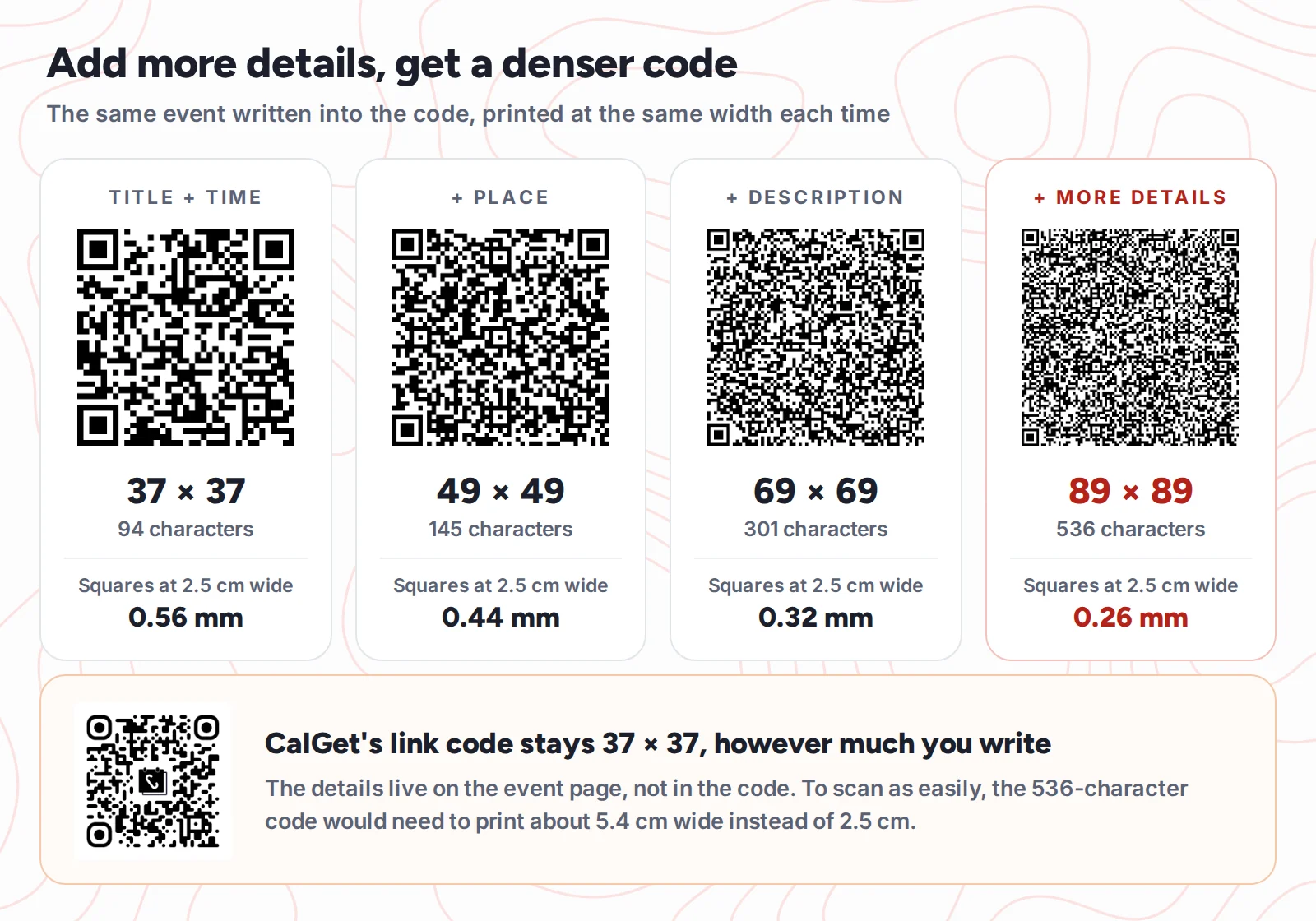
- Title and time: 94 characters, 37 × 37 squares.
- Add the place: 145 characters, 49 × 49.
- Add a short description: 301 characters, 69 × 69.
- Add parking and payment notes, a web link and a reminder: 536 characters, 89 × 89.
Printed 2.5 cm wide with a white border, that last code has squares about a quarter of a millimeter across (0.26 mm). CalGet's link code at the same width has squares more than twice that size (0.56 mm). On a real flyer, tiny squares cause real problems:
- People have to hold the phone closer and steadier and wait for it to focus.
- A crease, smudge, staple or bit of glare covers more squares at once, which can be enough to break the scan.
- Office printers and photocopiers blur fine squares together. A flyer that has been copied twice may stop scanning at all.
- Accented letters and emoji take two to four bytes each instead of one, so they grow the code faster than plain text.
- Asking for more damage protection makes it worse. At the highest error correction level, often used for codes with a logo in the middle, our 301-character event jumps from 69 × 69 to 89 × 89 squares.
To scan as easily as CalGet's 2.5 cm code, the 536-character version would have to print about 5.4 cm wide: more than twice the width and over four times the space on your flyer. A link code doesn't have this problem. It holds the same short address whether your description is one line or ten, because the details live on the event page.
How to make a calendar event QR code with CalGet
Every CalGet event comes with a QR code. There's nothing to set up beyond the event itself.
- Create the event. In CalGet, click New Event. Add the title, date, start and end time, time zone and location. A short description helps people decide on the spot.
- Give it a short link (optional, on paid plans). In the field after calget.com/e/, type something people can read, like
fernbrook-book-sale. Your event gets the address calget.com/e/fernbrook-book-sale, and the QR code uses it. You'll want that short link on the flyer too (more on that below). - Click Create Event Link.
- Download the code. On the event's Event Details tab, scroll to QR Code and click Download QR Code. You get
qr.png, 928 × 928 pixels, ready for Canva, Word or a print shop.
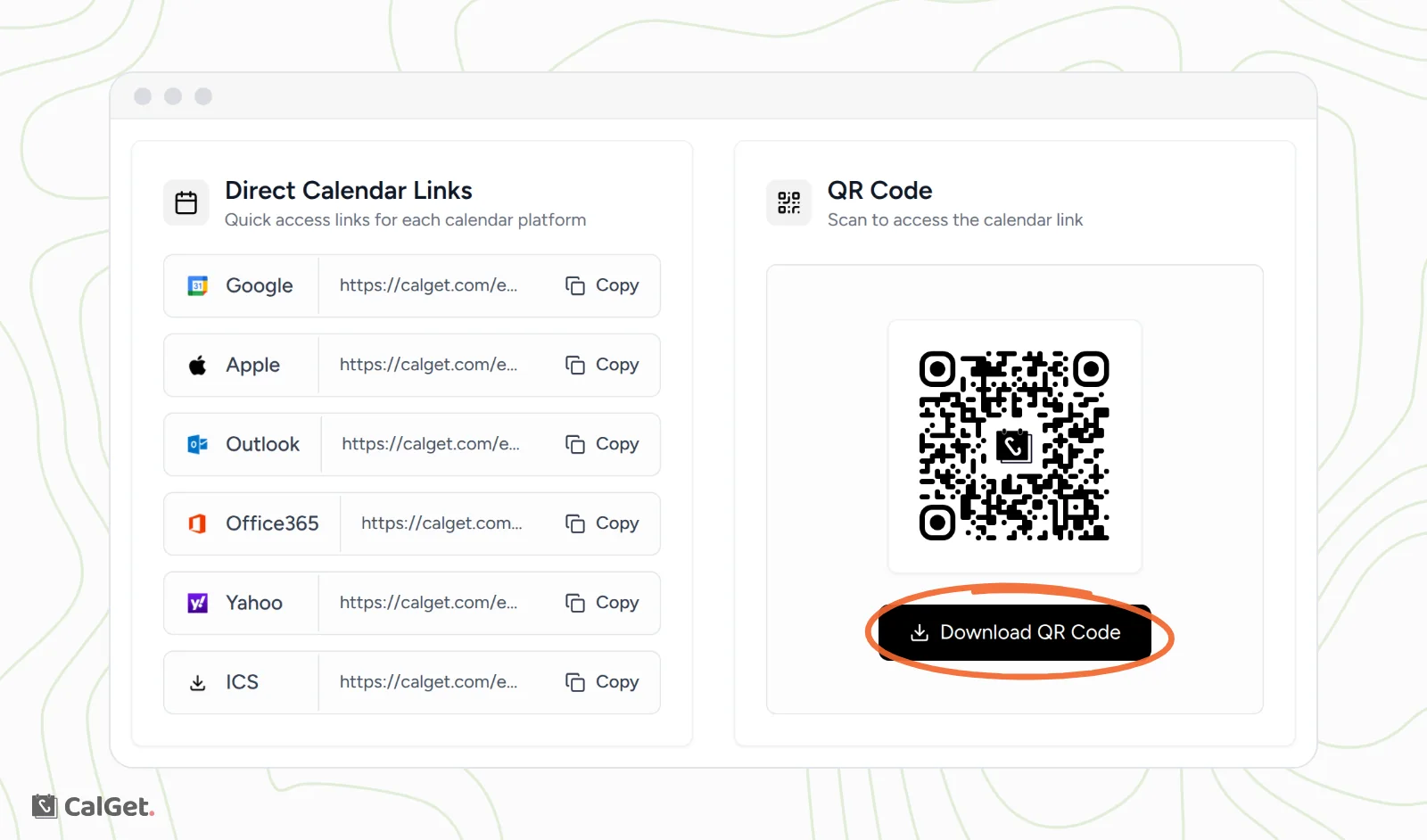
We decoded the file CalGet gave us. It holds exactly one thing: https://calget.com/e/fernbrook-book-sale. No event details, no tracking redirect, no expiry date. Many QR generator services route "dynamic" codes through their own short link, and those codes can stop working when the subscription behind them ends. A CalGet code points straight at your event page.
The full list of ways to share a CalGet event, from the link to the direct calendar links, is in our help guide to sharing an event.
What happens when someone scans it
On an iPhone, Apple's instructions are short: open Camera, hold the phone so the code is in the frame, and tap the link that appears. Android phones do the same from the camera or Google Lens. Here's what comes next, captured from our test event on a phone-size screen.
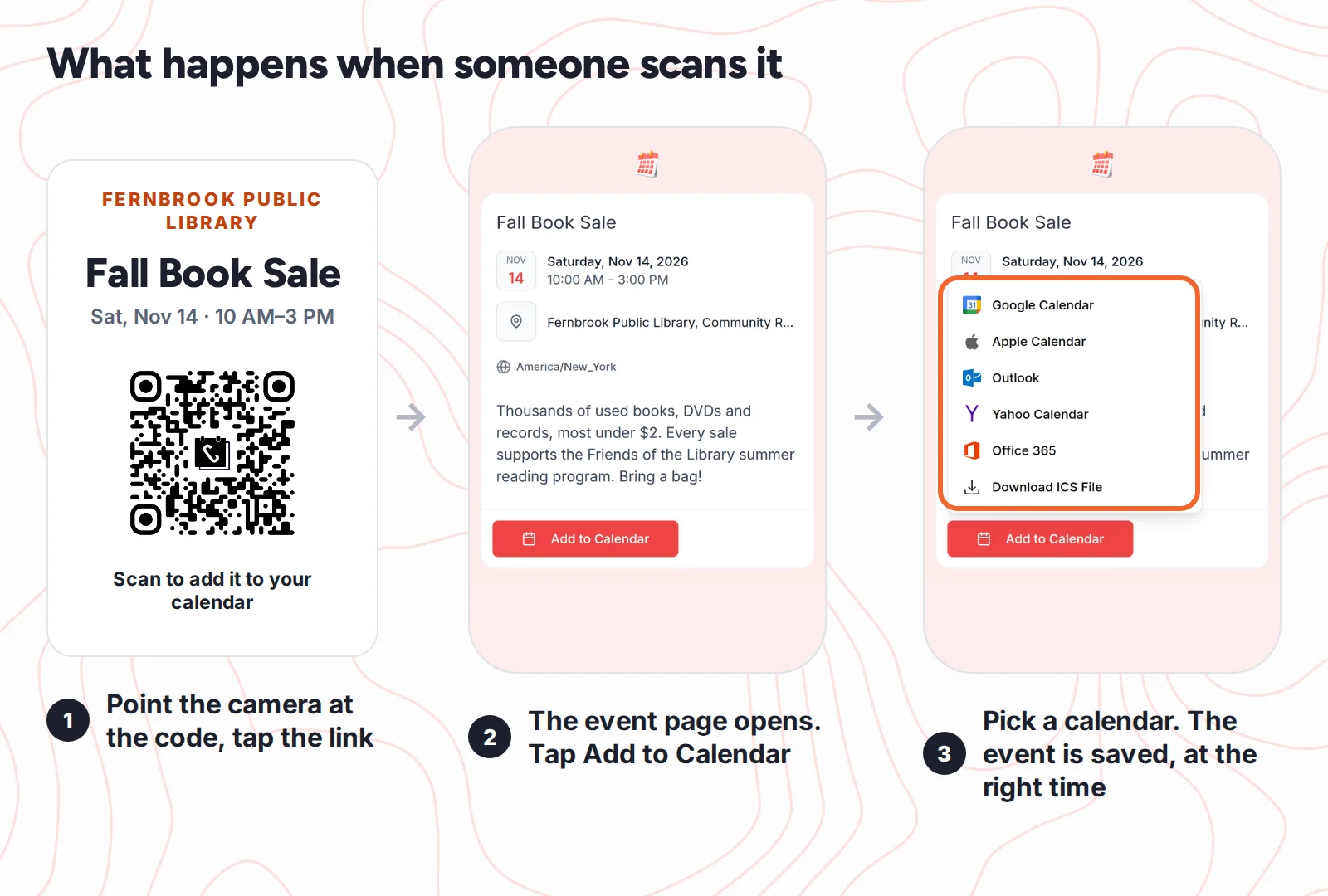
That's one more tap than a code that writes the event into the phone directly. In return, the guest picks the calendar they actually use, and the event lands with its time zone. We checked the Google Calendar link behind the button: it carries the title, the 10 AM to 3 PM time and America/New_York, so someone visiting from another time zone still sees the right local time.
Plans changed after you printed? Test results
This is the part we wanted to prove rather than promise. After downloading the QR code, we moved the Fall Book Sale from the Community Room to the Main Hall in CalGet, then downloaded the code again and scanned it.
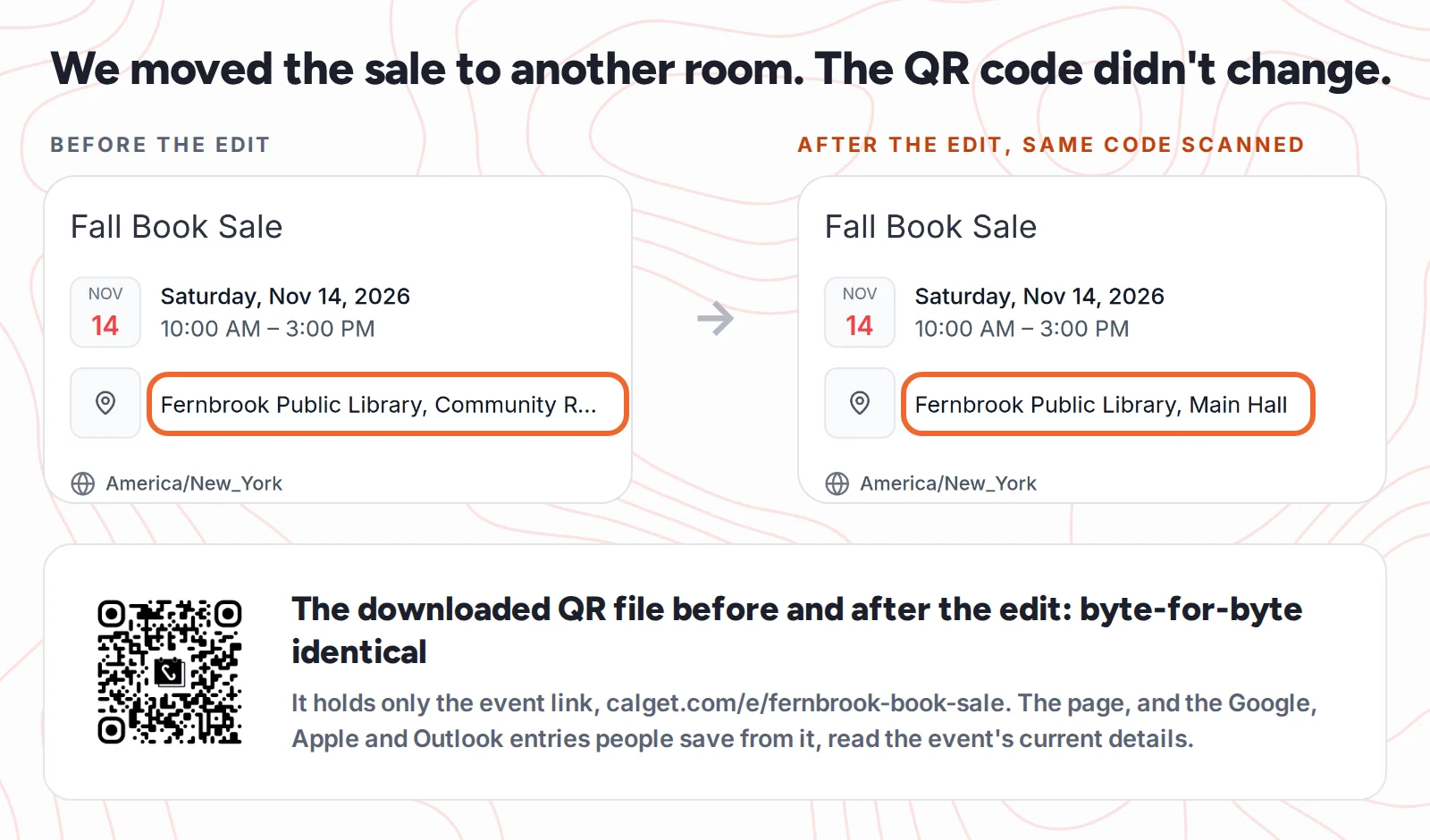
Here's what happened:
- The two QR files were byte-for-byte identical. The code doesn't change when the event does.
- Scanning it opened the event page with "Main Hall".
- The Google Calendar entry behind the button carried the new location, so anyone saving the event from then on got the right room.
- Moving it back was the same one-field edit.
One honest limit: people who saved the event before you changed it keep their saved copy. A calendar entry is a copy, not a live link. If the date or room changes after people have saved it, tell them too: an email, a post, a note on the door. For a season of events that keeps changing, a subscription calendar is the better tool, because subscribers' calendars update on their own.
How to print a calendar QR code that scans the first time
A QR code that people walk past is worse than no code at all. These are the print rules we follow, with the sources behind the numbers.
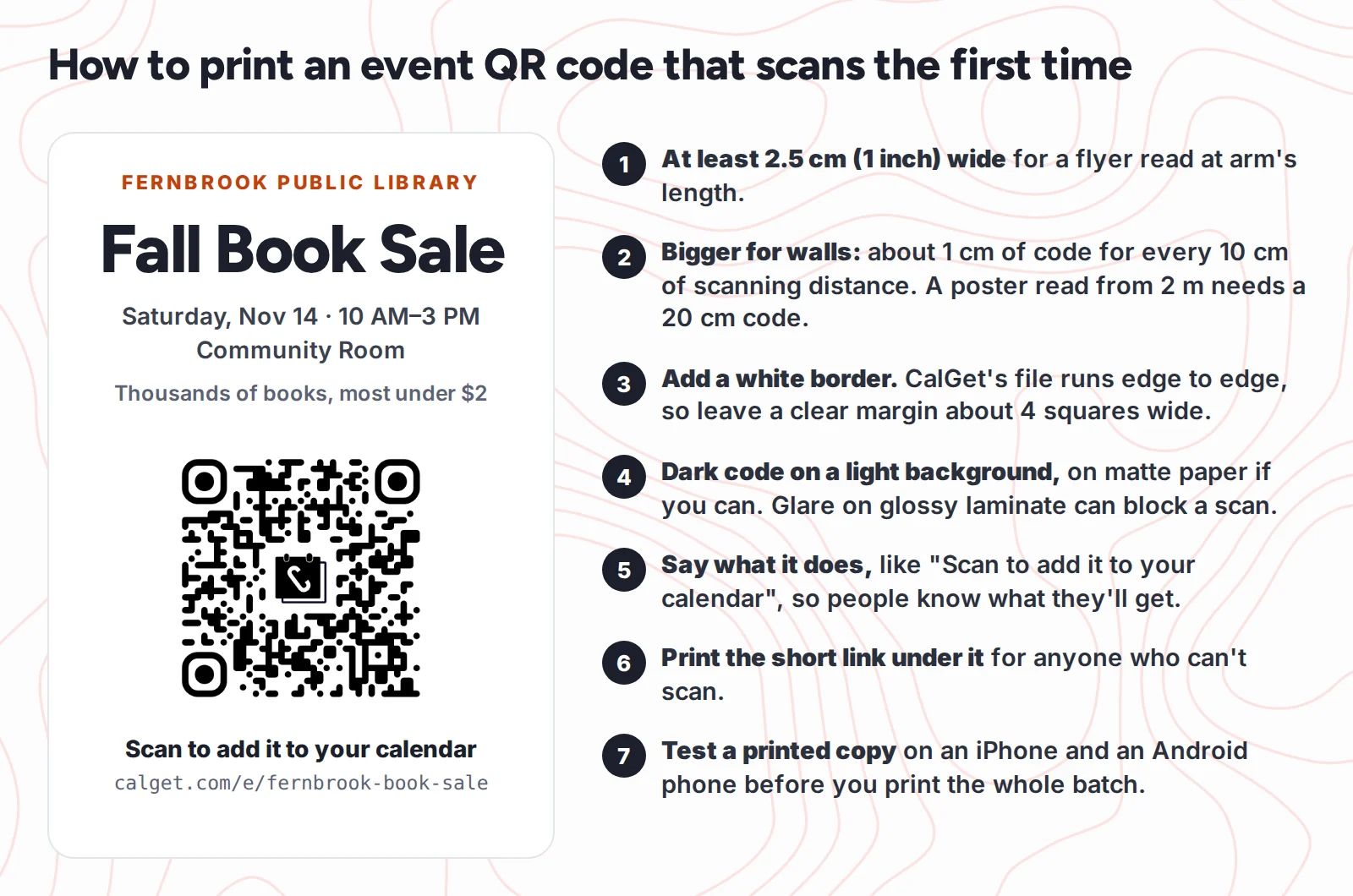
- Size: at least 2 to 2.5 cm (about 1 inch) wide for something people hold or read at arm's length. For walls, the common rule of thumb is about 1 cm of code for every 10 cm between the code and the person scanning it, as Deloitte's QR help center puts it. A poster across a hallway, read from 2 metres, needs a code around 20 cm wide.
- White border: leave a clear margin around the code, about four squares wide. The file CalGet gives you runs edge to edge, so add the margin in your design, for example by placing it on a white box a little bigger than the code.
- Contrast: dark code on a light background. Avoid putting the code on a photo or a busy pattern.
- Say what happens: "Scan to add it to your calendar" tells people what they get. A bare code asks them to guess.
- Print the short link: put calget.com/e/your-event under the code. Some people won't scan, and a readable link is the fallback.
- Test before the batch: print one copy, scan it with an iPhone and an Android phone from the distance people will really stand, then print the rest.
Track which flyer people actually scan
Because the code is a link, you can tell your flyers apart. Add tracking tags (UTM tags) to the event link, one set per location, and turn each tagged link into its own QR code with any QR generator that makes link codes. The tagged link still opens the same event page.
We tested it with two made-up placements: ?utm_source=library-poster&utm_medium=print and ?utm_source=cafe-flyer&utm_medium=print. After three test scans, the event's Analytics tab split them by source.
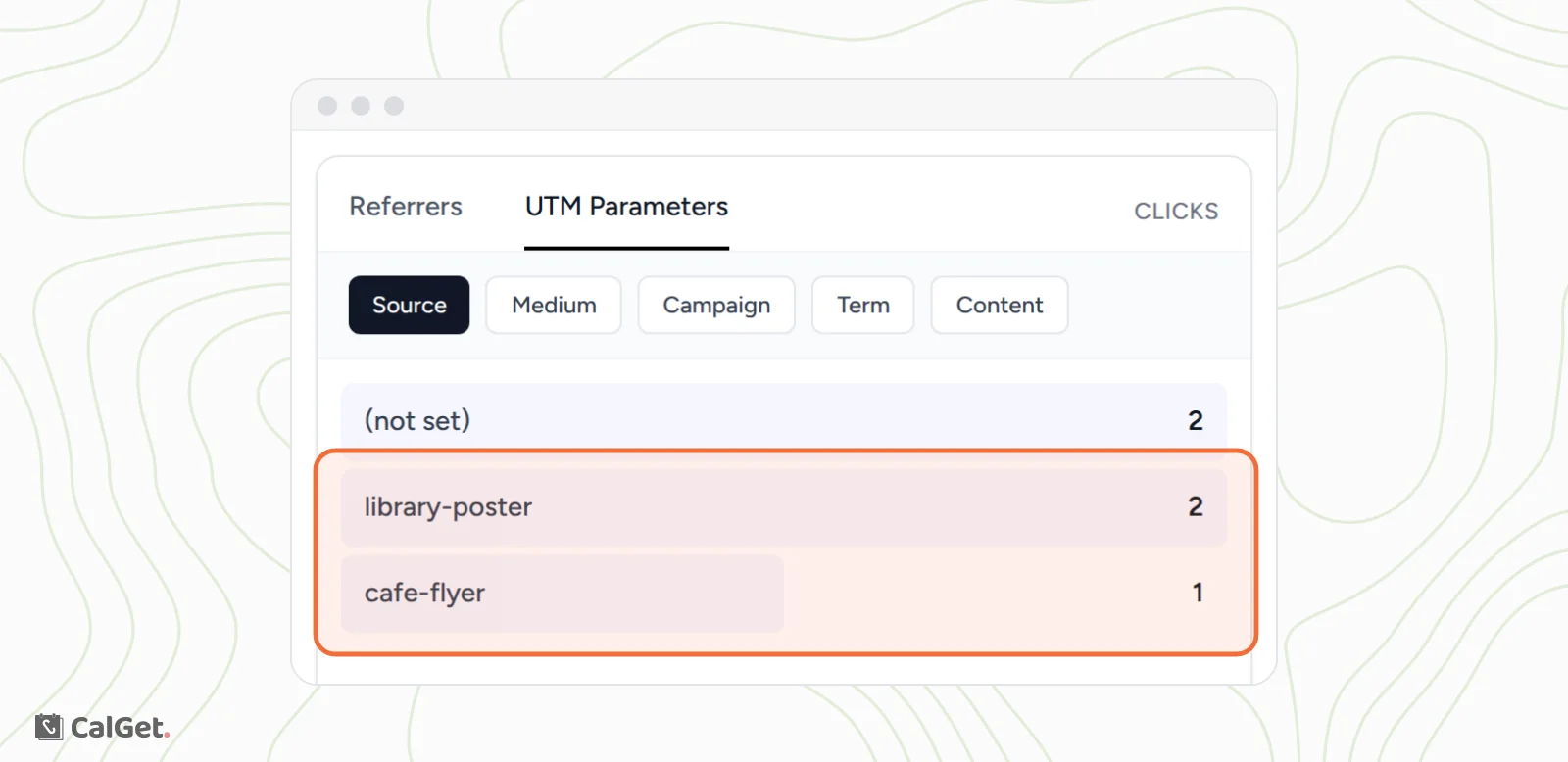
Every scan shows up as a click on the event. When the person goes on to pick a calendar, it also counts as a calendar add. If the café flyer gets nothing after a week, move it. The analytics tabs are explained in our guide to reading event analytics.
Use CalGet's own downloaded code for most flyers. Tag your links only when you want to compare placements, and keep a list of which tagged code went where.
When a code with the event inside is the better choice
The link isn't always the right answer. Write the event into the code when:
- People will scan it with no signal, like in a basement hall or at a rural fair.
- The details are truly fixed, such as a one-time event printed the week before.
- You'd rather not have a web page for the event at all.
- You're printing large enough that the denser code scans easily.
- You can keep it short: the title, the time and the place. Leave the long description out of the code.
If any of those apply, test the code on both an iPhone and an Android phone, and check that the date and time come out right in the saved event.
Common mistakes with calendar QR codes
- Printing before the details are final with a code that has the event inside. Every change means a reprint.
- Linking the code to a homepage instead of the event. People scan, land on a menu and give up.
- Packing the full description, address and notes into a code with the event inside. The code gets so dense that phones struggle to read it.
- Shrinking the code to fit the design. At under 2 cm, scans start to fail.
- Using a trial "dynamic" code from a QR service for a long-running poster. If the subscription ends, the redirect can stop.
- Forgetting the time zone for online or traveling events. Set it on the event so the saved time is right everywhere.
- Placing the code with no white space around it, right against a photo or the page edge.
How we tested this
On October 20, 2026, we created the made-up Fall Book Sale event in CalGet (Saturday, November 14, 2026, 10 AM to 3 PM, America/New_York) and downloaded its QR code. We decoded the file, then generated a second code with the same event written in the VEVENT format documented by ZXing, using medium error correction, and recorded the size of each grid. We opened the event page on a phone-size screen, followed the Google Calendar link behind the Add to Calendar button, changed the event's location, downloaded the code again and compared the files, then moved the event back. Finally, we opened the event link three times with UTM tags and read the results on the event's Analytics tab. The size and scanning guidance comes from the sources linked above.
Frequently asked questions
Can a QR code add an event to Google Calendar?
Yes. A QR code that links to an event page with Add to Calendar buttons works with Google Calendar, Apple Calendar, Outlook and more: the person scans, taps the button and picks their calendar. Codes with the event written inside can also work, but how they open depends on the phone and scanner.
Do QR codes for events expire?
A QR code itself never expires. What can stop is the page or redirect it points to. A CalGet event QR code holds the event's own link, so it works as long as the event exists in your account.
Can I change the event after printing the QR code?
With a code that links to the event page, yes. We changed the room after downloading the code: the code file stayed identical and new scans showed the new room. People who saved the event earlier keep their copy, so tell them about big changes.
Why is my calendar QR code hard to scan?
Usually because it holds too much. A code with the event written inside grows denser with every detail: in our test, adding a description and a few notes took it from 49 × 49 to 89 × 89 squares at the same size. Print it bigger, cut the text, or use a code that links to an event page instead.
What size should a QR code be on a flyer?
At least 2 to 2.5 cm (about 1 inch) wide for a flyer read up close. For posters, plan about 1 cm of code for every 10 cm of scanning distance, and leave a white border around it.
Can I see how many people scanned my flyer?
Yes, if the code links to a CalGet event: each scan counts as a click on the event's Analytics tab. Give each flyer location its own UTM-tagged link and QR code, and Analytics shows the scans per location.
Is it free?
Every CalGet event includes its QR code, on every plan. The Free plan allows 50 calendar adds per event; larger events need a paid plan. See CalGet's pricing for current limits.
A QR code for a calendar event should do one job: get your event into people's calendars, with the right details, long after the flyer goes up. If you want to learn more about the links behind it, start with what an add-to-calendar link is or how ICS files work. When you're ready, create your event in CalGet and download its QR code. It takes a couple of minutes, and the code keeps working when your plans change.
Written by the CalGet team
Updated October 2026 · Tested on a real CalGet event: QR codes decoded, measured, edited and tracked
We build calendar tools for sharing events with lots of people, from sports clubs and schools to nonprofits. People at organizations like Harvard, Save the Children and OGC Nice use CalGet to get events into their audience's calendars.

“Great Add Event to Calendar platform. Easy to create events and add them to emails and websites. Support responds quickly to questions and provides clean and concise answers. Highly recommended.” Foto Guy, on Trustpilot
Get Your Events on Everyone's Calendar.
Generate universal "Add to Calendar" links that work everywhere. Perfect for social media, emails, and websites.


Written by
Yared