Read your event analytics: clicks, calendar adds and RSVPs
Updated October 20, 2026
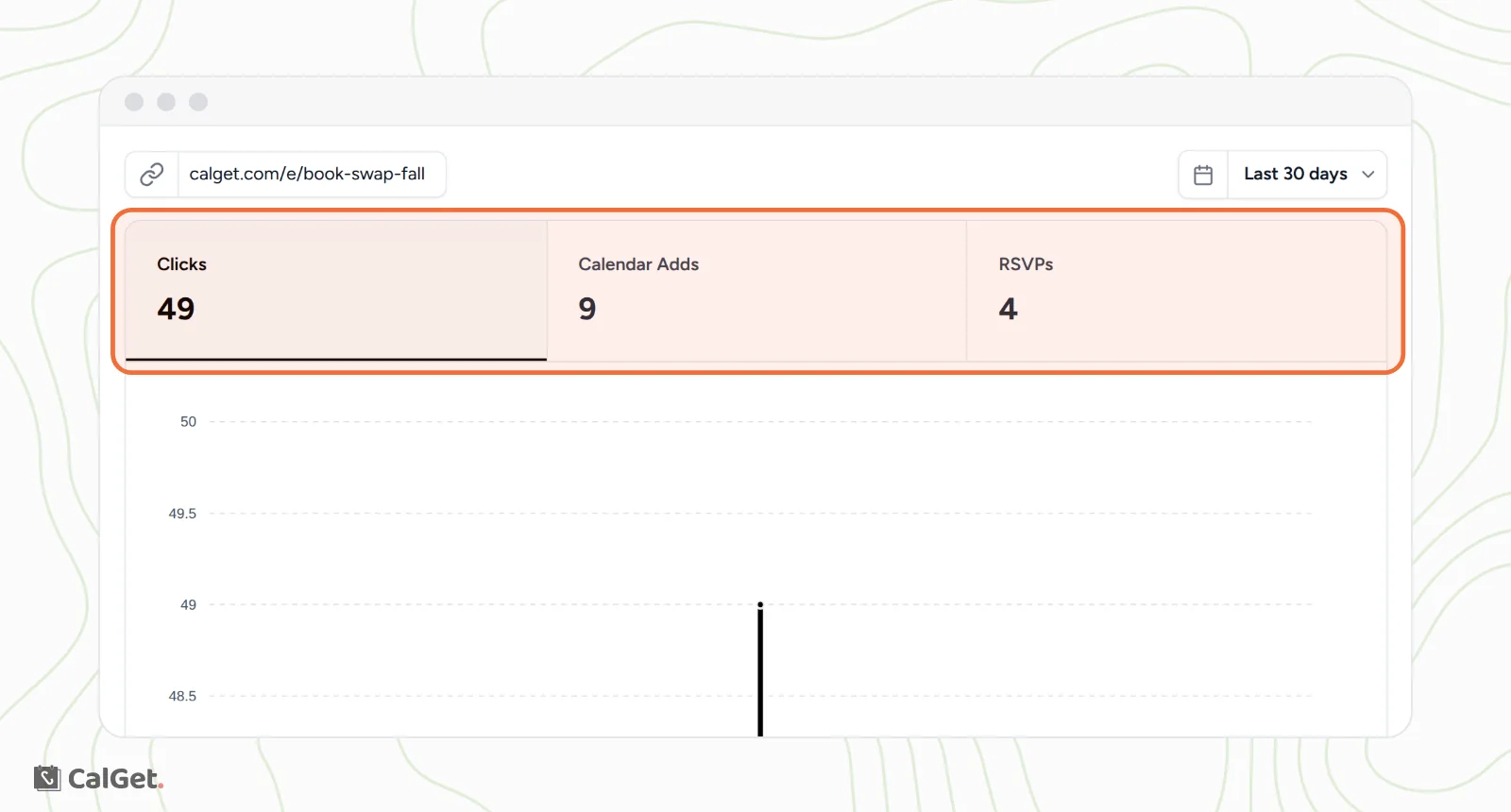
Analytics shows how people respond to your event: how many open its page, how many add it to their calendar and how many RSVP. It also shows where they came from and which calendar apps they use.
Open an event's analytics
- Go to Events and click your event.
- Click the Analytics tab.
To see all your events together, click Analytics in the menu on the left instead. It has the same layout, with All Events at the top to pick one event.
What the numbers mean
| Total | What it counts |
|---|---|
| Clicks | Visits to your event page. |
| Calendar Adds | Each time someone uses an Add to Calendar button or link to save the event. |
| RSVPs | Replies to your RSVP form. |
Click a total to show it in the chart and in the tables below.
See which calendar apps people use
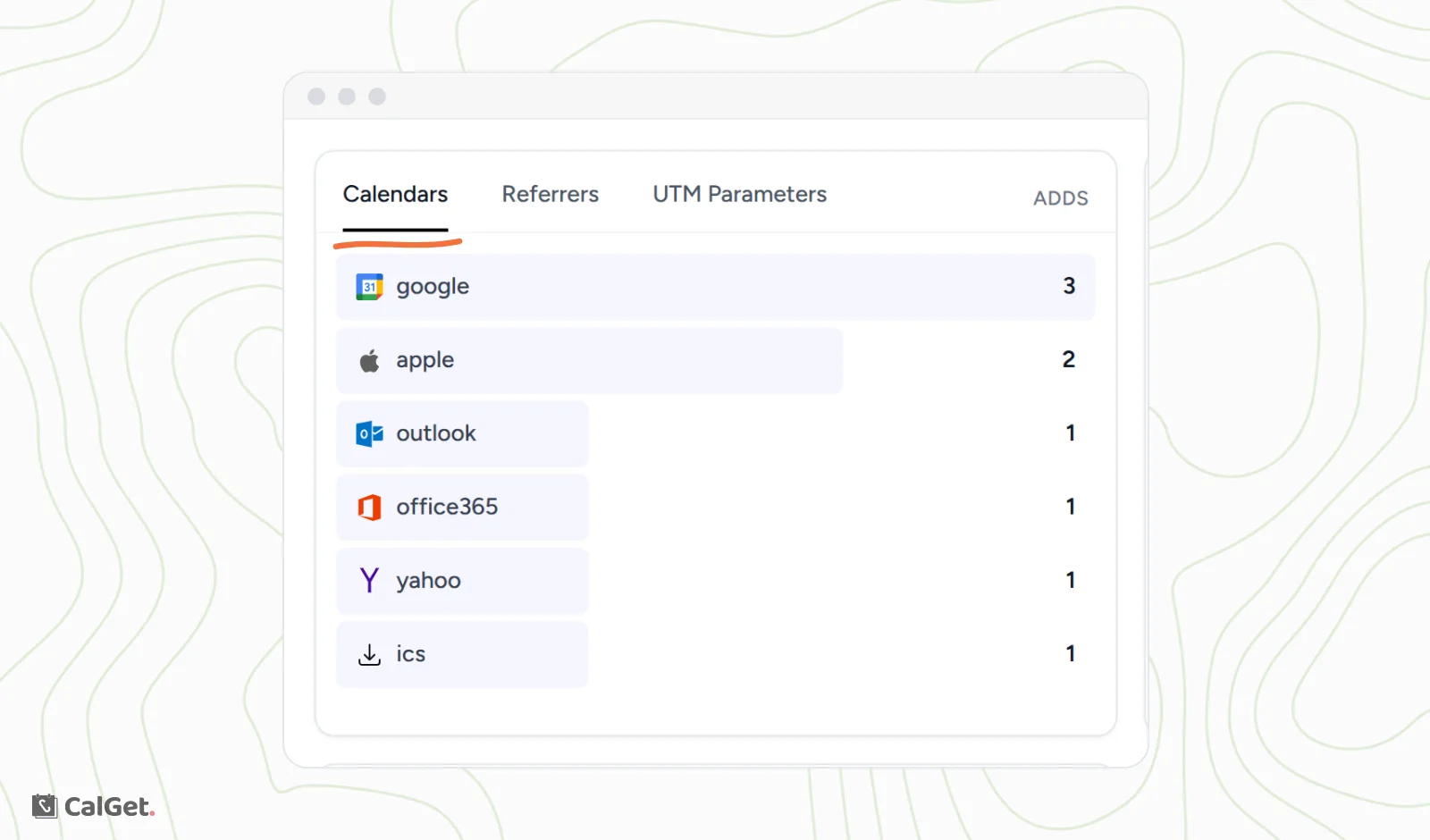
Click Calendar Adds, then the Calendars tab. It lists how many adds came from each calendar app: Google, Apple, Outlook, Office 365, Yahoo and ICS downloads.
See where visitors came from
- Referrers lists the websites people came from. Direct means no website was recorded, for example a link typed in, opened from an email app or scanned from a QR code.
- Countries, Devices, OS and Browsers break the numbers down further.
Track your campaigns with UTM tags
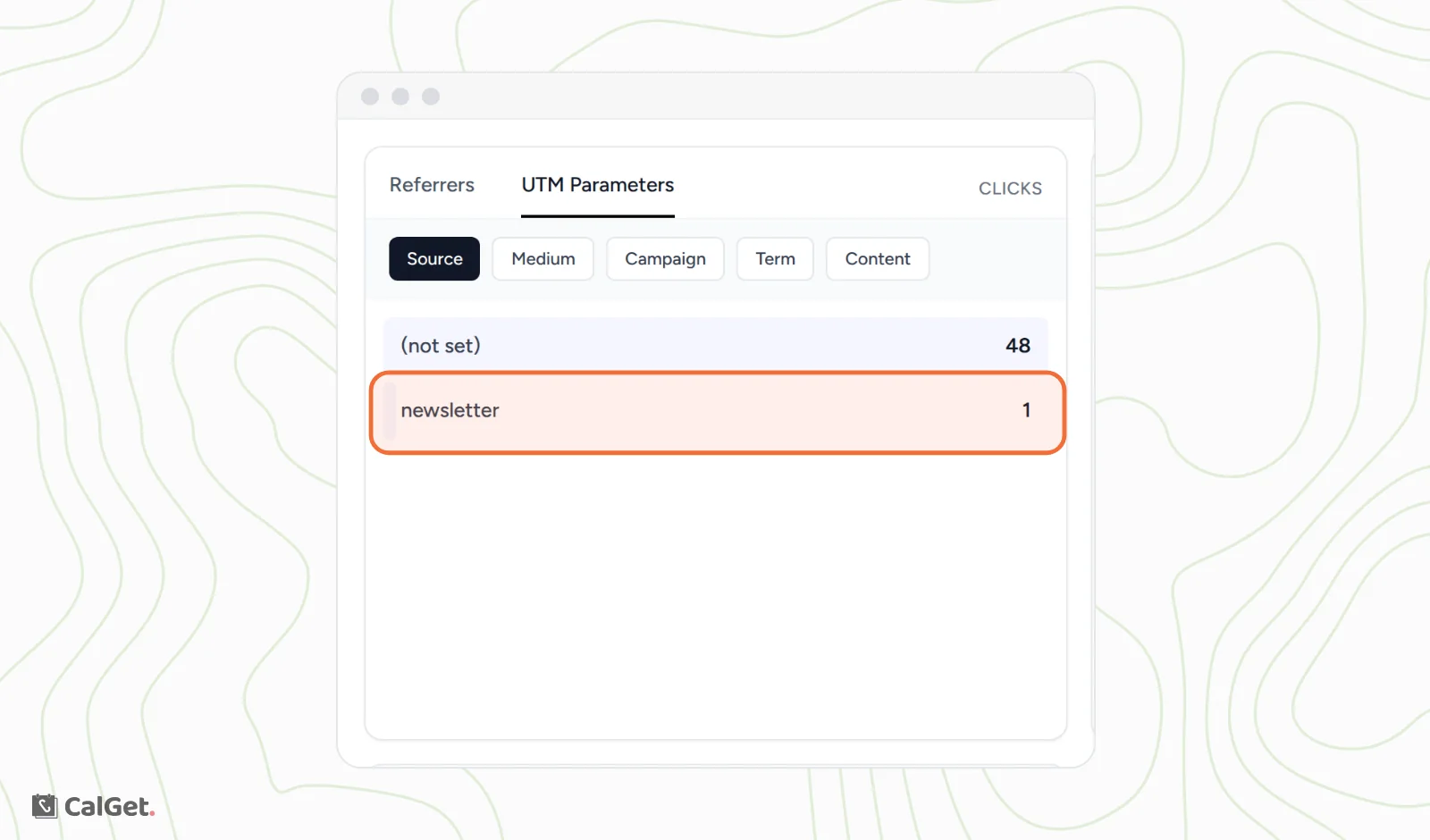
To see which newsletter, post or ad brought people in, add UTM tags to your event link before you share it. For example:
calget.com/e/your-event?utm_source=newsletter&utm_campaign=fall
Visits from that link show up under UTM Parameters, split by Source, Medium, Campaign, Term and Content. Visits without tags show as (not set).
Change the date range
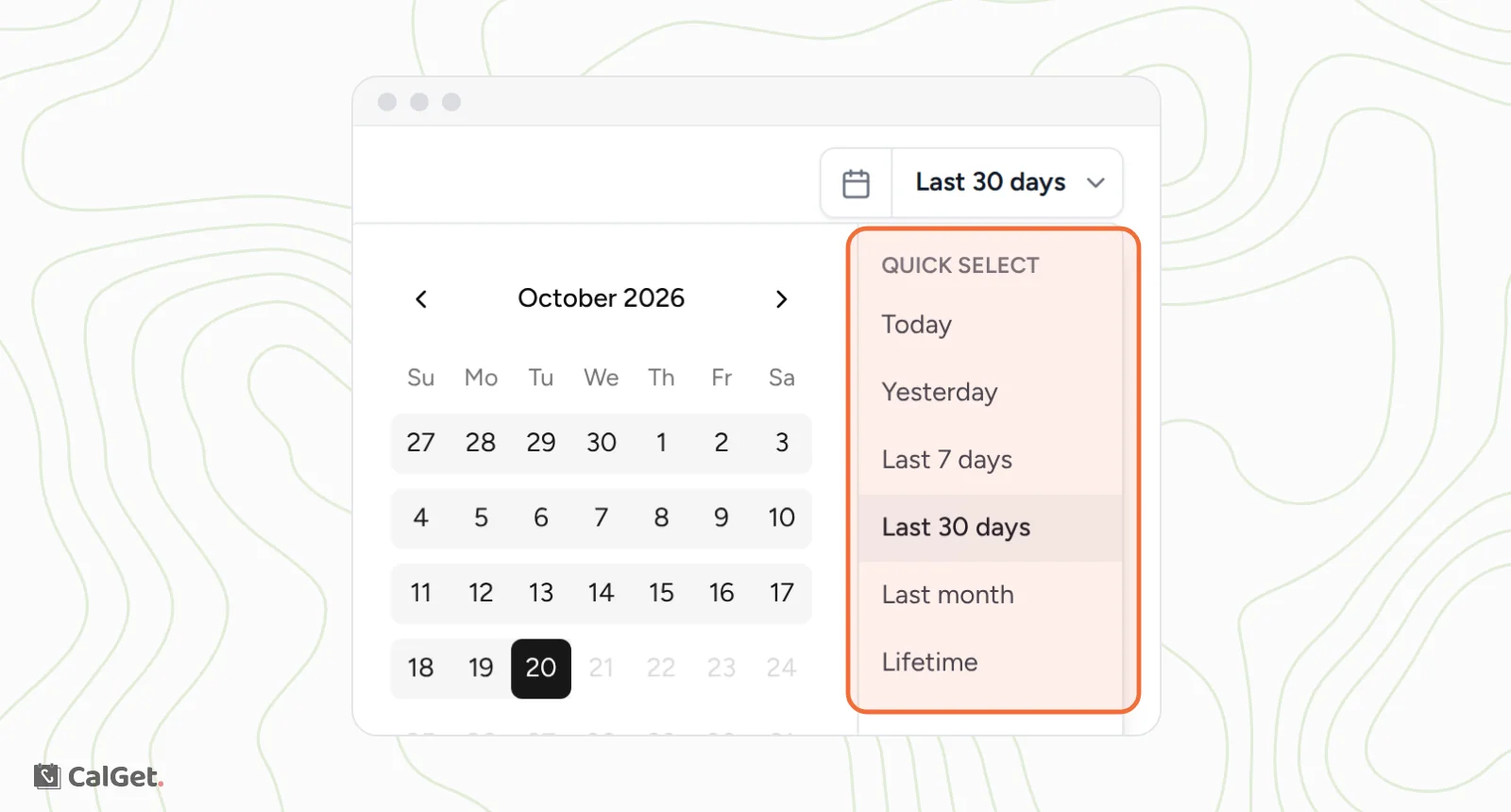
Click Last 30 days at the top right. Pick a start and end date in the calendar, or use Quick Select: Today, Yesterday, Last 7 days, Last 30 days, Last month or Lifetime.