Share an event: link, QR code and direct calendar links
Updated October 20, 2026
Every CalGet event comes with several ways to share it: a link, buttons for social media, a link for each calendar app, a QR code and a widget for your website. This article explains each one and when to use it.
To find them, go to Events, click your event, and stay on the Event Details tab.
Share the event link
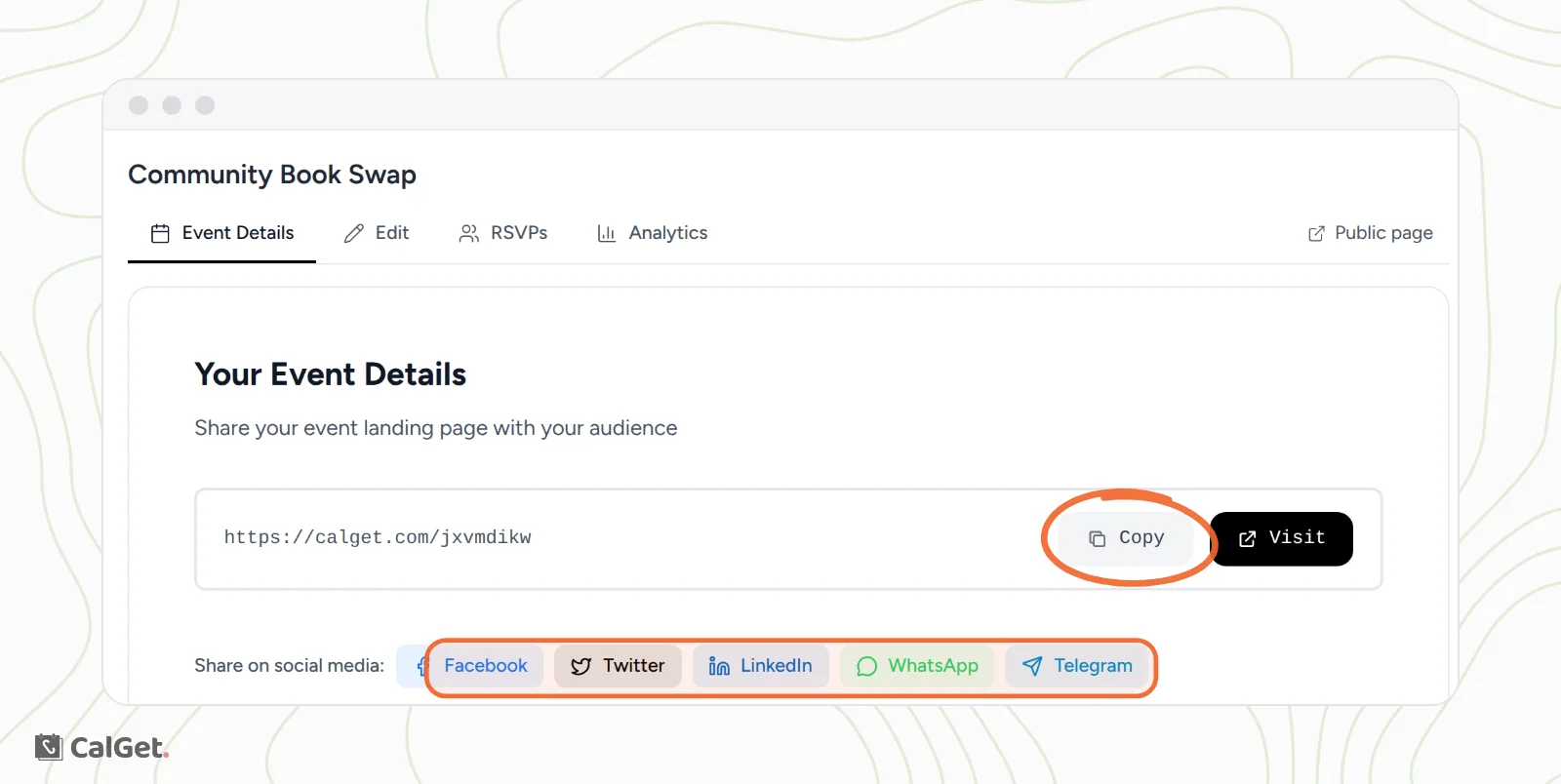
The link under Your Event Details opens your event page, where guests see the details and click Add to Calendar. It works for everyone, whatever calendar they use.
- Click Copy to copy the link, then paste it into an email, a message or a post.
- Click Visit, or Public page at the top right, to open the event page in a new tab and see what guests see.
- Click Facebook, Twitter, LinkedIn, WhatsApp or Telegram to open that site's share window with your event link already filled in.
Send people straight to one calendar app
Direct Calendar Links skip the event page. Each link takes guests directly to one calendar app, with the event details filled in. Use them when you know which calendar your audience uses, for example an Outlook link for colleagues who all use Outlook.
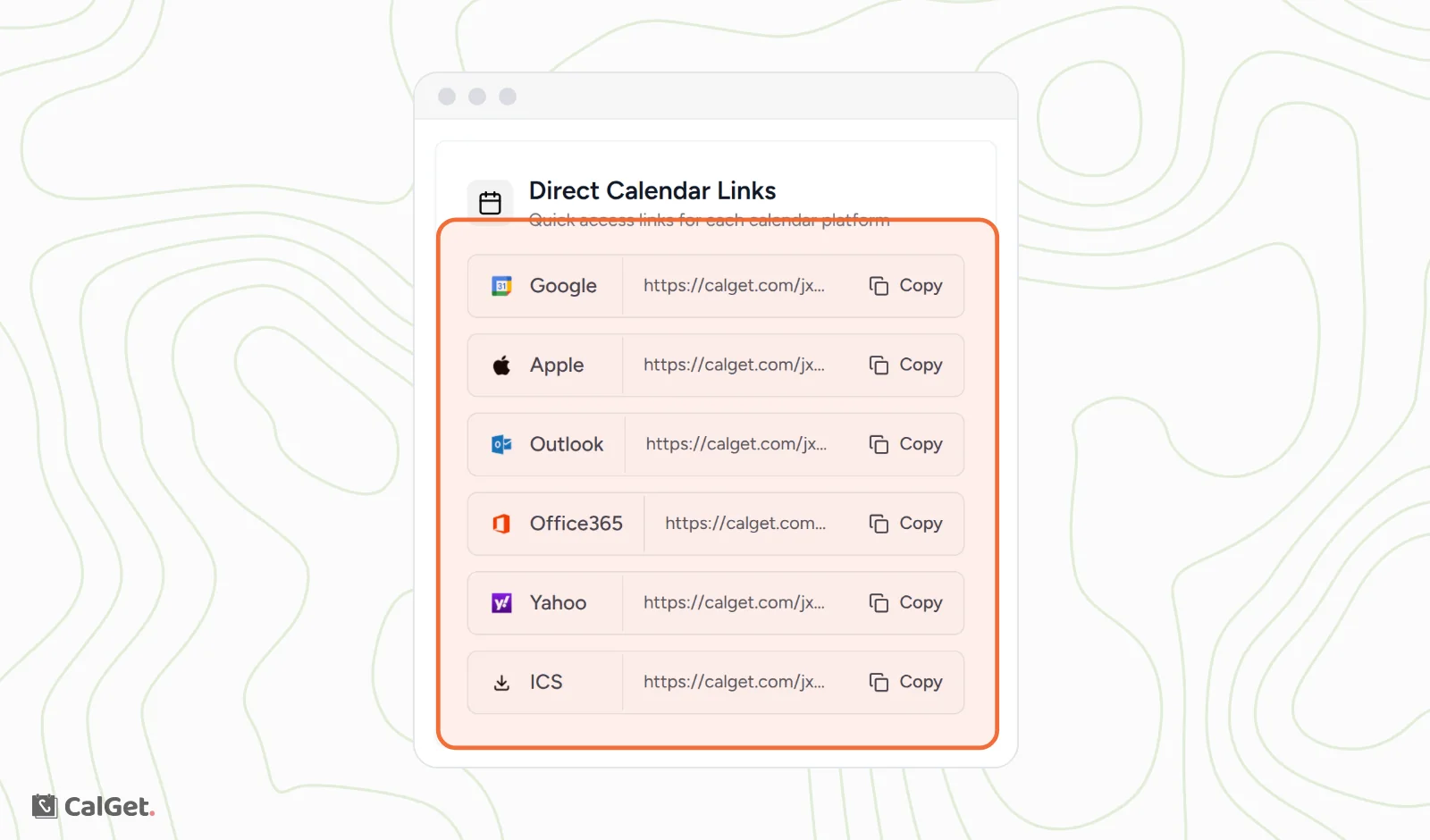
| Link | What happens when someone opens it |
|---|---|
| Google Calendar opens a new event with your details, ready to save. | |
| Outlook | Outlook on the web (Outlook.com) opens a new event with your details. |
| Office365 | Outlook for work or school accounts opens a new event with your details. |
| Yahoo | Yahoo Calendar opens a new event with your details. |
| Apple and ICS | The event downloads as a calendar file (.ics). Apple Calendar and most other calendar apps can open it. |
Print a QR code
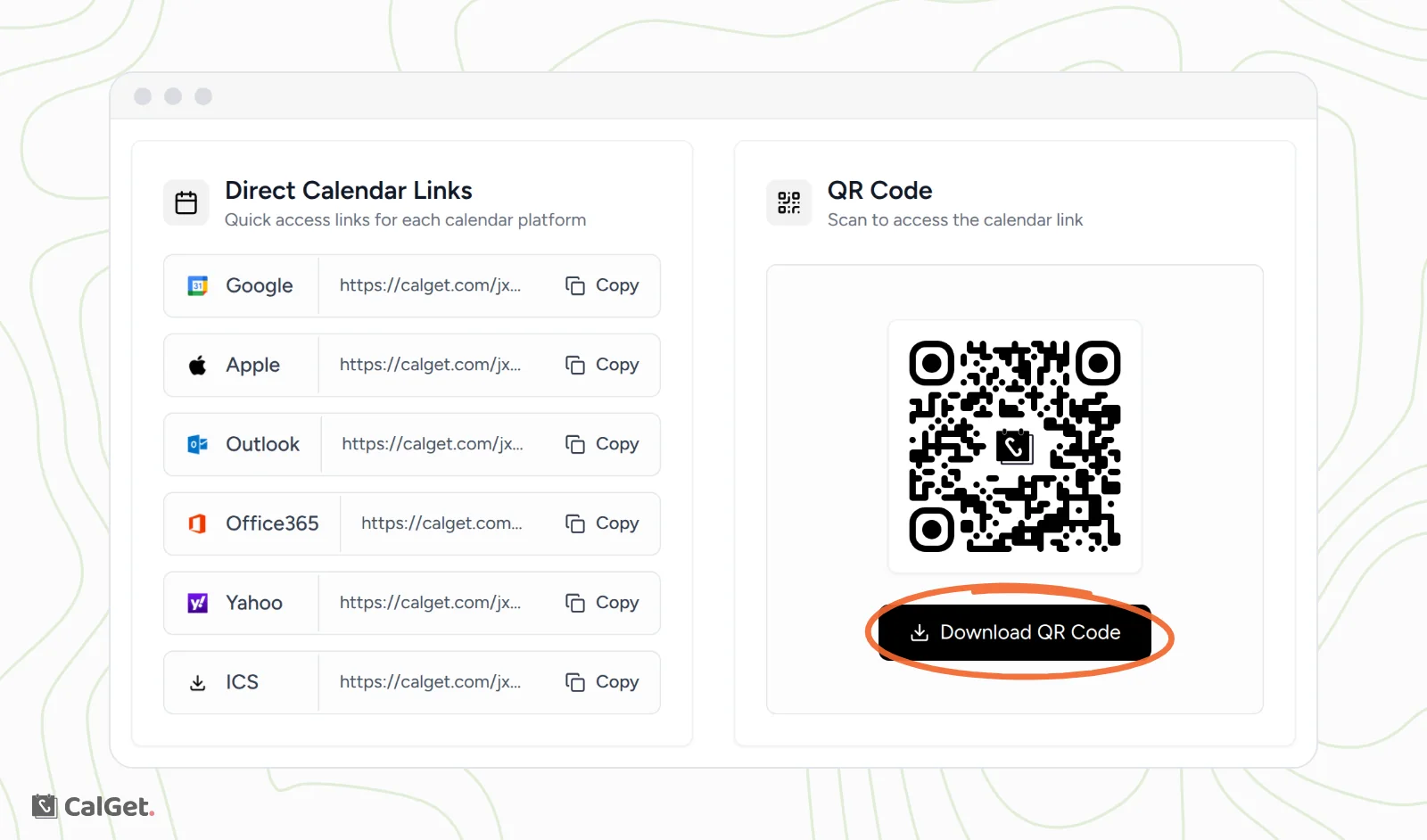
For flyers, posters, tickets and slides, click Download QR Code. You get an image file (qr.png) to add to your design. When someone scans it, their phone opens your event page.
Show the event on a website or Notion page
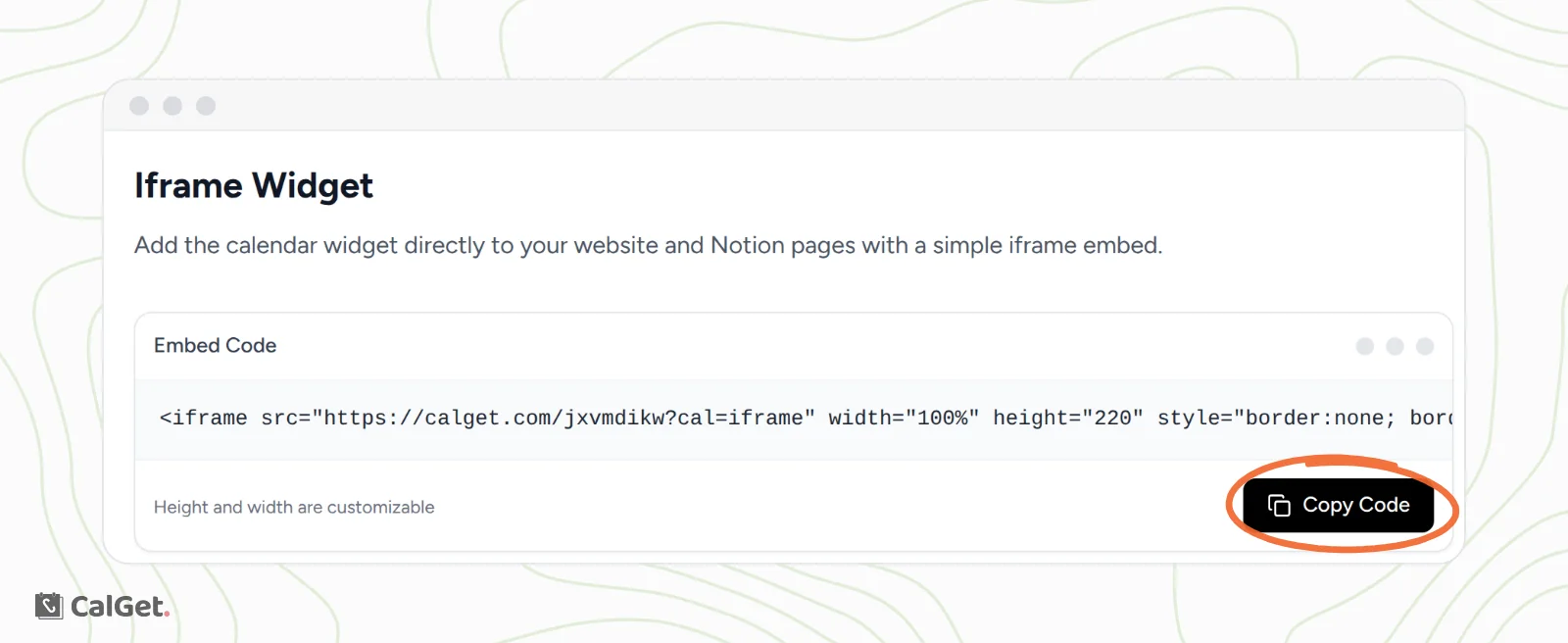
The Iframe Widget puts an Add to Calendar button for your event on any page that accepts embed code, including Notion.
- Under Iframe Widget, click Copy Code.
- Paste the code into your website builder's embed or HTML block, or into a Notion embed.
- To change the size, edit the width and height in the code.
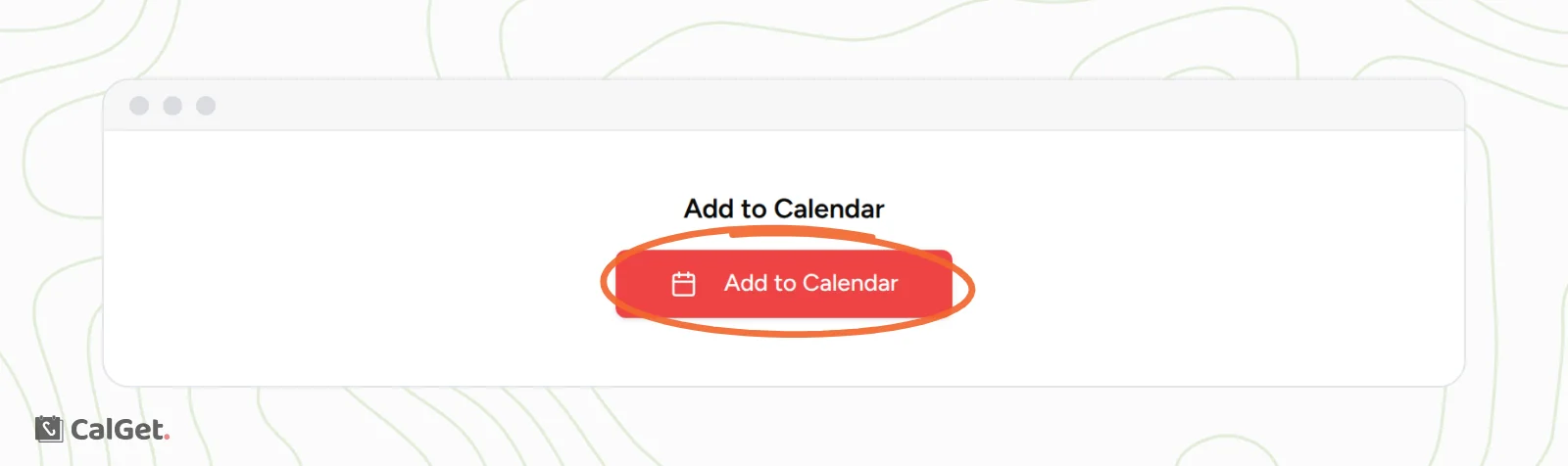
For Add to Calendar buttons in emails and newsletters, use the HTML Code section on the same tab instead. See Change the design of your Add to Calendar buttons.
Common questions
Which option should I use?
Use the event link when you don't know which calendar people use. It works for everyone. Use a direct calendar link when your whole audience uses the same calendar, and the QR code for anything printed.
Do my links change if I edit the event?
No. The event link, the direct calendar links and the QR code stay the same, and they always use the event's latest details. The only exception is when you set a custom link: the new address replaces it on the Event Details tab, and the old links keep working. See Add an image and a custom link to your event. People who added the event before you changed it keep their saved copy, so tell them about important changes.
Can I see which link people used?
Open the event's Analytics tab to see its clicks, calendar adds and where visitors came from.