Back to Blog
How to Share a Google Calendar With People Who Don't Use Google
Google's sharing settings only work for people with a Google account. Here are the four ways to share a Google Calendar with iPhone, Outlook and everyone else, which one to pick, and the one address Google says you should never share.
Written by
Last updated: October 2026. We checked every step in this guide against Google Calendar Help, Apple Support and Microsoft Support in October 2026, and built the example with a real Google calendar and a real CalGet account.
Quick answer
Google Calendar's "Share with specific people" is built for Google users. To share with people who use Apple Calendar, Outlook or no calendar app at all:
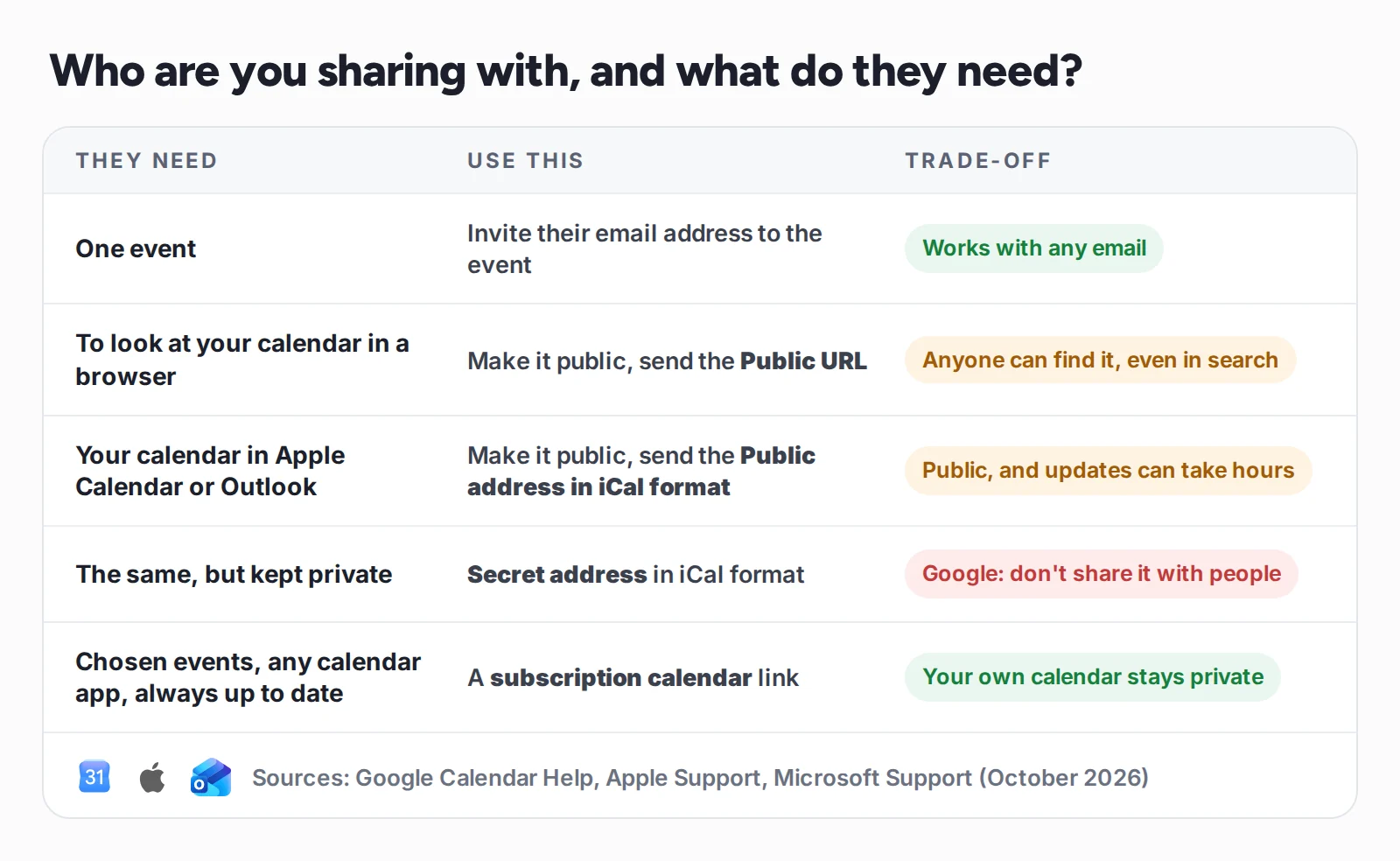
- One event: invite their email address. Anyone with an email can get the invitation.
- The whole calendar, to view in a browser: make the calendar public, then send the Public URL from Settings → your calendar → Integrate calendar.
- The whole calendar, inside Apple Calendar or Outlook: make it public and send the Public address in iCal format. They subscribe to it once.
- Without making your calendar public: use a subscription calendar link that shares only the events you choose. Don't send your "Secret address in iCal format": Google says only you should know it.
The Willowmere Community Center keeps its events in Google Calendar: yoga on Tuesdays, the farmers market on Saturdays, a coffee morning for seniors every Thursday. The coordinator wants members to see them in their own calendars. Half the members use iPhones. A few use Outlook at work. Some don't have a Google account and never will.
Open Google Calendar's sharing settings and you'll find "Share with specific people or groups", which sends an email asking the person to add your calendar to Google Calendar. Search for help and most guides give you one of two answers: make the whole calendar public, or send your secret iCal link. The first exposes every event to the internet. The second is the one thing Google tells you not to do.
This guide covers every way to share a Google Calendar with people who don't use Google, what each one really exposes, and the setup we recommend for groups, clubs, schools and teams.
Why Google's normal sharing doesn't work for non-Google users
When you open a calendar's Settings and sharing and add someone under Shared with, Google emails them, and they click the link to add your calendar. According to Google's help page on sharing your calendar, that's how every permission level works, from "See only free/busy (hide details)" to "Make changes and manage sharing". It's designed for people who use Google Calendar.
For everyone else, Google offers three other routes: invite them to single events, make the calendar public, or give them an iCal address. Each has a trade-off worth knowing before you pick.
Method 1: Sharing one event? Invite their email address
For a single event, you don't need to share a calendar at all. Open the event, add the person's email under Guests, and save. The invitation goes to any email address, Gmail or not, and they can save it to the calendar they use.
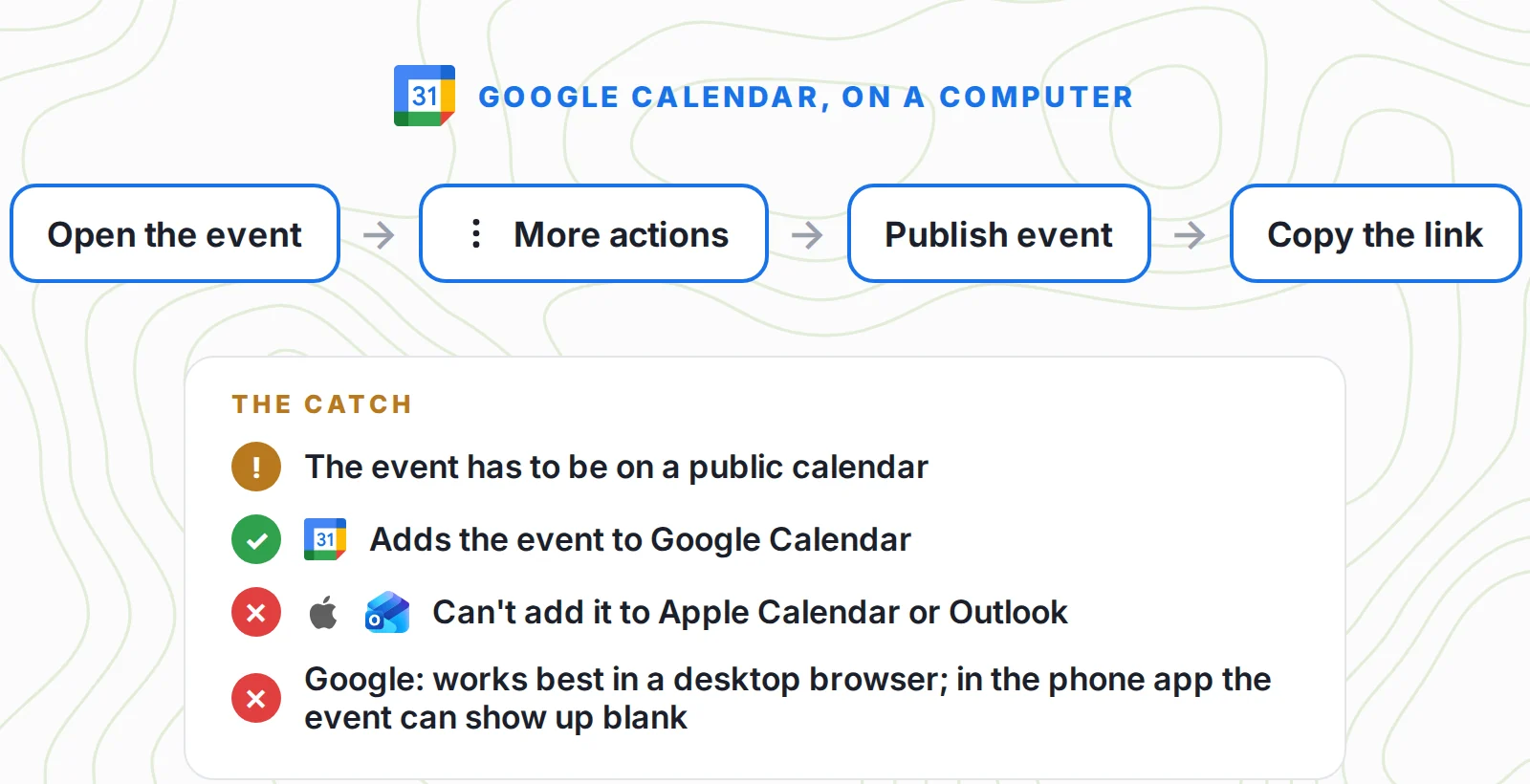
Google also has a Publish event option (open the event → More actions → Publish event) that gives you a link to one event. It only works for events on a public calendar, and Google notes the link works best in a desktop browser, as described in its guide to adding a calendar to your website.
Invites are fine for a handful of events. For a schedule that keeps changing, inviting everyone to every event gets old fast. That's where calendar-level sharing comes in.
Method 2: Make the calendar public and send the Public URL
This lets anyone view your calendar in a web browser, no account needed. Google's steps for a public Google calendar, on a computer:
- Open Google Calendar, click Settings, and under Settings for my calendars, pick the calendar.
- Under Access permissions for events, check Make available to public, and choose whether people see event details or only "See only free/busy (hide details)".
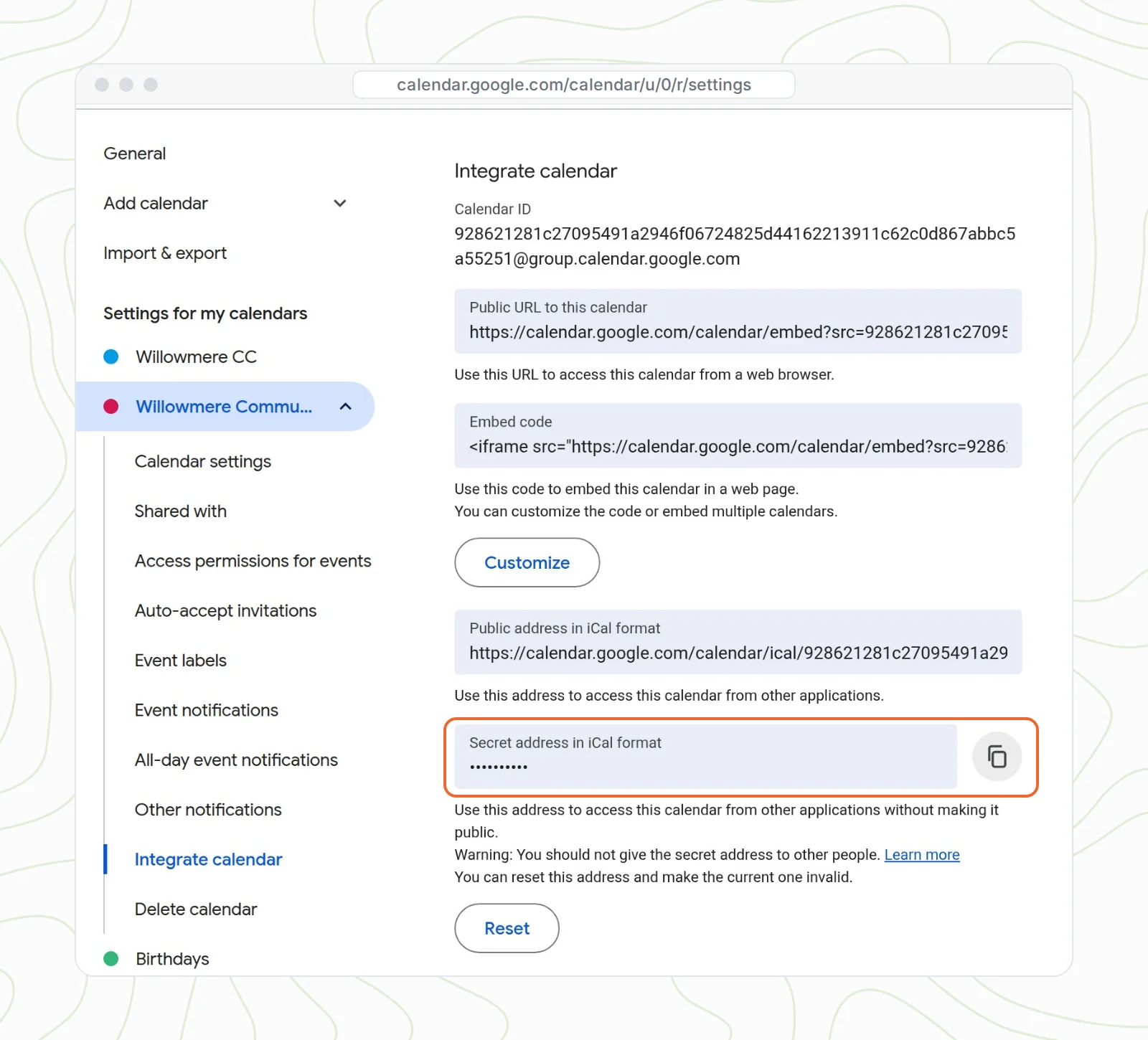
- Click Integrate calendar and copy the Public URL to this calendar.
- Send that link. It opens your calendar in any browser.
Before you do this, know what "public" means. Google's own page warns that if your calendar is on a searchable website, people can find it in search results. New events follow the calendar's default visibility, so a public calendar makes every new event public too. And if you change your mind, Google says it can take up to 4 hours for the calendar to stop being public. On a work or school account, your administrator may not allow public sharing at all.
That's why the safest public calendar is a separate one, used only for events you're happy to publish, never your personal calendar.
Method 3: Let them add it to Apple Calendar or Outlook with an iCal link
A browser link is fine for looking. Most people would rather see your events inside the calendar app they already use. For that, send the Public address in iCal format from the same Integrate calendar section. It only works once the calendar is public.
On an iPhone, iPad or Mac
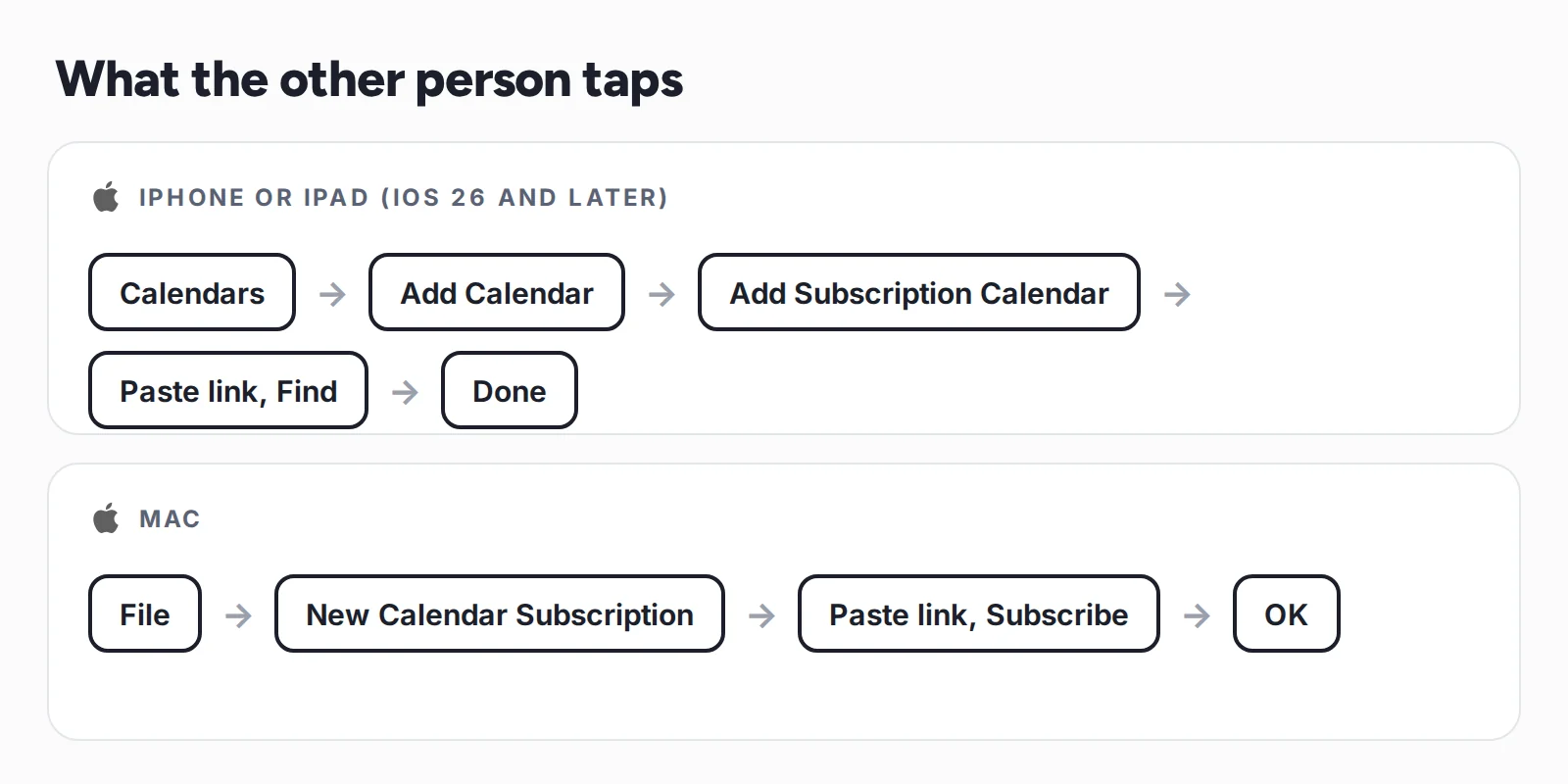
Apple's guide to adding calendar subscriptions lists the steps. On iOS 26 and later, the other person opens Calendar, taps Calendars, then Add Calendar → Add Subscription Calendar, pastes your link, taps Find, and then Done. On a Mac: File → New Calendar Subscription.
In Outlook
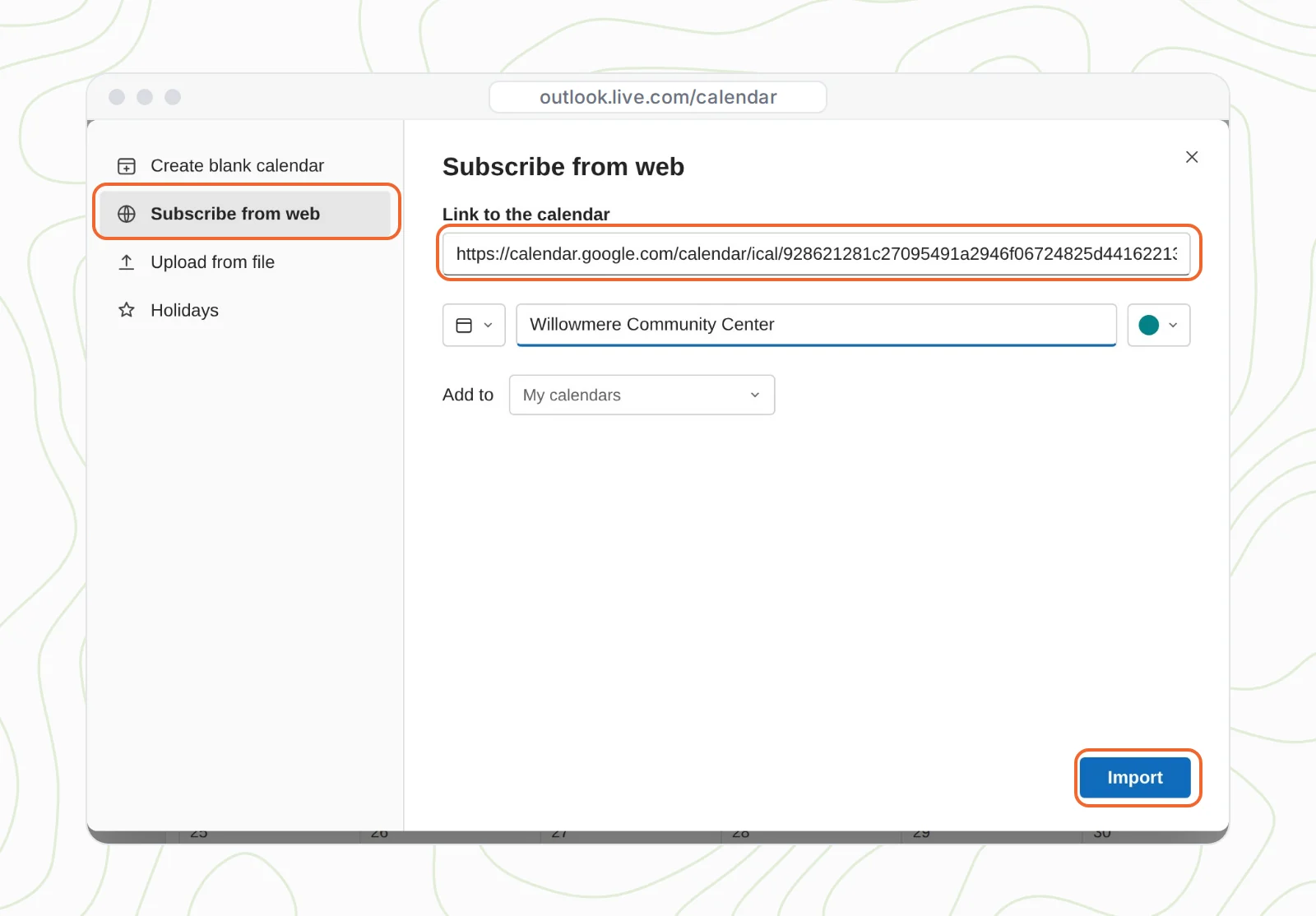
In Outlook on the web or Outlook.com, they open Calendar, choose Add calendar → Subscribe from web, paste the link and click Import.
One thing to tell people up front: subscribed calendars don't update instantly. Microsoft's page on subscribing to calendars in Outlook says updates "should happen approximately every 6 hours" in Outlook on the web, and can take more than 24 hours. A same-day change, like a moved start time, may not reach Outlook in time. Subscribed calendars are also view only: people can see your events, not change them.
Why you shouldn't send your secret iCal address
Right below the public address, Google shows a Secret address in iCal format. It works without making your calendar public, which is why so many guides suggest sending it. Google's help page on syncing your calendar with other programs is clear: "Only you should know the Secret Address for your calendar. Do not share this address with other people."
The reasons are practical:
- It shows everything on that calendar, including event details you'd never publish.
- Anyone it's forwarded to sees the same, and you can't tell who has it.
- The only fix is Reset, which breaks the link for everyone, including the people you meant to share with.
The secret address is meant for apps and services you use yourself, like your own Outlook or a calendar tool you trust. Not for people.
Method 4: Share only the events you choose with a subscription calendar
If you share events with a group regularly, a club, a class, a team, a congregation, members of a community center, the cleanest setup is a dedicated subscription calendar. Your personal Google Calendar stays private. You decide which events go into the shared calendar. People subscribe with one tap in the calendar they already use.
Here's how the Willowmere coordinator set it up with CalGet, keeping Google Calendar as the place she adds events:
- Create a CalGet calendar for the events you want to share, for example "Willowmere Community Center".
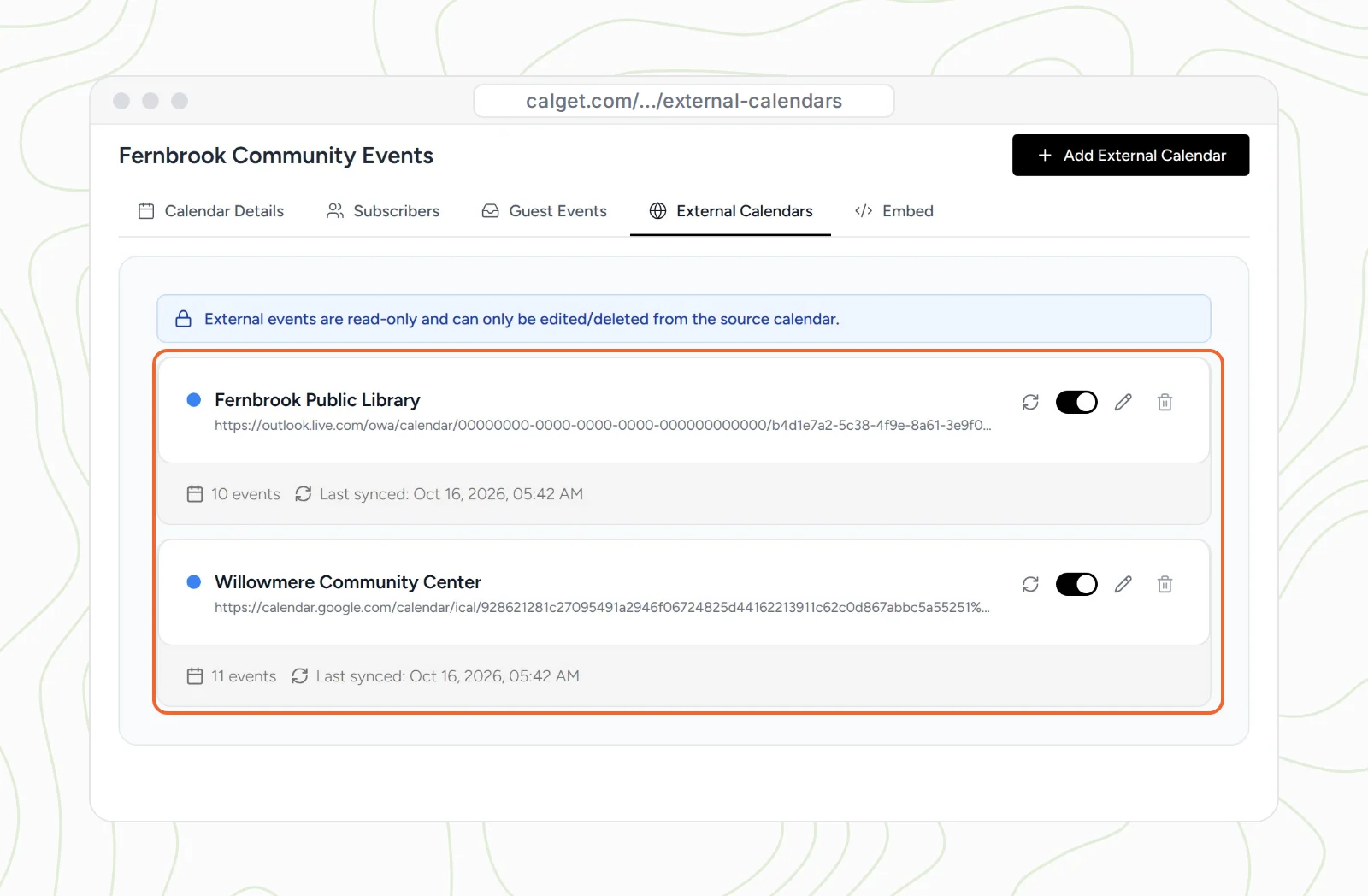
- Connect your Google calendar to it. In CalGet, open the calendar, go to External Calendars and click Add External Calendar, then paste the iCal address of the Google calendar that holds your public events. This is exactly what the secret address is for: an app you use, not a person. (External Calendars is on the Standard and Professional plans. You can also create events directly in CalGet.)
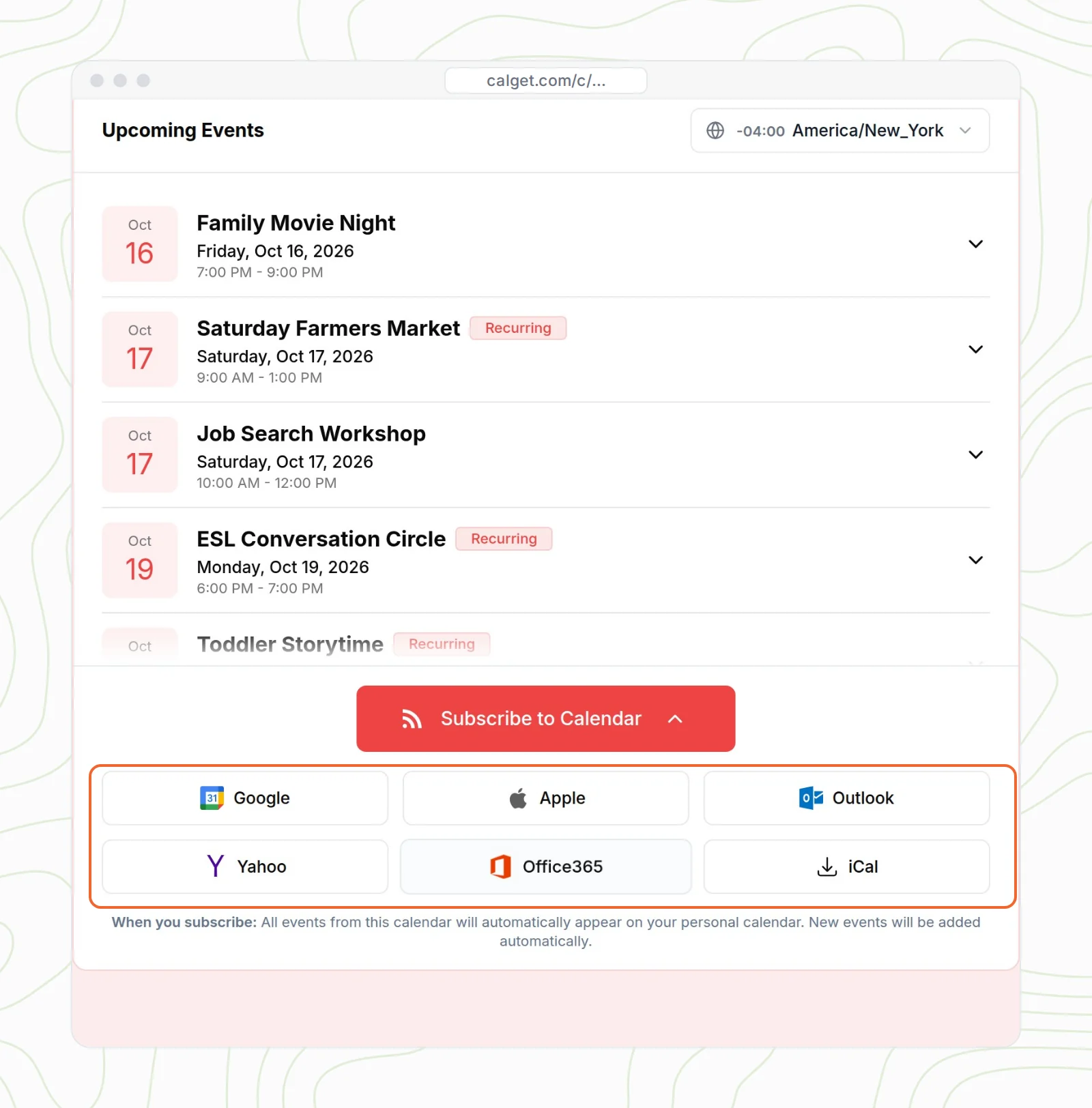
- Share the subscribe link or page. People choose Google Calendar, Apple Calendar, Outlook, Office 365 or Yahoo, and the events appear in their calendar.
- Keep working in Google Calendar. New and changed events sync into the CalGet calendar and on to your subscribers.
Starting from scratch? Our step-by-step guide covers how to create a subscription calendar in Google Calendar, Apple Calendar, Outlook and CalGet.
The same calendar can also go on your website as an embeddable calendar, so people who don't want to subscribe can still browse it, and every event gets its own page with an Add to Calendar button. If you want to know who's subscribing, CalGet can collect subscribers' information too.
Which way should you share your Google Calendar?
| Event invite | Public URL | Public iCal address | Secret iCal address | Subscription calendar | |
|---|---|---|---|---|---|
| Google account needed | No | No | No | No | No |
| Calendar made public | No | Yes, findable in search | Yes | No, but Google says don't share it | No, only the events you choose |
| Shows in their calendar app | That one event | No, browser only | Yes, after they subscribe | Yes, after they subscribe | Yes, one tap per app |
| New events reach them | Only if you invite them again | Yes | Yes, on their app's refresh schedule | Yes, on their app's refresh schedule | Yes |
| Best for | A one-off event | A calendar meant to be public | A public calendar people follow | Your own apps only | Groups, clubs, schools and teams |
How to make a public Google Calendar without oversharing
If you do go the public route, set it up so nothing private slips through:
- Create a separate calendar for public events instead of making your main calendar public.
- Check the default visibility on that calendar. New events follow it.
- Write event details for strangers. Leave out phone numbers, home addresses and internal notes.
- Use "See only free/busy (hide details)" if people only need to know when you're busy.
- Give it time to stop. Google says turning off public sharing can take up to 4 hours to take effect.
Mistakes people make when sharing a Google Calendar
- Making the main calendar public. Everything on it becomes visible, including events you add later.
- Sending the secret iCal address to people. It exposes the whole calendar and can be forwarded. Keep it for your own apps.
- Sending the Public URL to people who want it in their calendar app. It only opens in a browser. Send the iCal address or a subscription link instead.
- Expecting instant updates in Outlook. Subscribed calendars refresh on Outlook's schedule, roughly every 6 hours on the web. Email people about last-minute changes.
- Importing instead of subscribing. If someone imports an .ics file, they get a snapshot that never updates. Tell them to subscribe.
How we tested this
In October 2026 we followed each method against the current help pages from Google Calendar, Apple Support and Microsoft Support, linked throughout this guide. We used a Google calendar for a made-up community center, Willowmere Community Center, made it public to check the Public URL and Public address in iCal format, subscribed to it in Outlook on the web, and connected it to a real CalGet calendar under External Calendars. The Google Calendar and Outlook screens are our recreations, modeled on the real ones; the CalGet screens are real.
Frequently asked questions
Can I share my Google Calendar with someone who doesn't have a Google account?
Yes, but not with "Share with specific people", which is built for Google users. Make the calendar public and send its Public URL to view in a browser or its Public address in iCal format to subscribe in Apple Calendar or Outlook. To keep your calendar private, share a subscription calendar with only the events you choose.
How do I share a Google Calendar with an iPhone user?
Send them a calendar link they can subscribe to: your calendar's Public address in iCal format, or a subscription calendar link. On iOS 26 and later, they open Calendar, tap Calendars, then Add Calendar and Add Subscription Calendar, paste the link, tap Find and then Done.
Is it safe to share my Google Calendar's secret iCal address?
No. Google says only you should know the secret address and not to share it with other people. It shows every event on that calendar to anyone who has the link, and resetting it breaks the link for everyone. Use it for your own apps, and share a public or subscription link with people instead.
Can people who don't use Google edit my calendar?
No. Public links and iCal subscriptions are view only. Edit access in Google Calendar ("Make changes to events") is given through Share with specific people, which is meant for people who use Google Calendar.
How often does a shared Google Calendar update in Outlook or Apple Calendar?
On the subscriber's app's schedule, not instantly. Microsoft says Outlook on the web updates subscribed calendars approximately every 6 hours, and it can take more than 24 hours. Tell people about urgent changes directly.
How do I make a Google Calendar public?
On a computer, open Settings, pick the calendar under Settings for my calendars, and under Access permissions for events check Make available to public. Then copy the Public URL or Public address in iCal format from Integrate calendar. Use a separate calendar for public events so your personal events stay private.
Share with everyone
One calendar link for Google, Apple and Outlook users
Keep your personal Google Calendar private. Share only the events you choose, and let people subscribe in the calendar they already use. New events show up on their own.
Create your subscription calendarHow subscription calendars work
Sharing an iPhone calendar instead? Here's how to share a calendar on iPhone with anyone. Keeping Outlook and Google in step? See how to sync Outlook and Google Calendar.
Written by the CalGet team
Updated October 2026 · Checked against Google, Apple and Microsoft help pages
We build calendar tools for sharing events with lots of people, from sports clubs and schools to nonprofits. People at organizations like Harvard, Save the Children and OGC Nice use CalGet to get events into their audience's calendars.

“Great Add Event to Calendar platform. Easy to create events and add them to emails and websites. Support responds quickly to questions and provides clean and concise answers. Highly recommended.” Foto Guy, on Trustpilot
Get Your Events on Everyone's Calendar.
Generate universal "Add to Calendar" links that work everywhere. Perfect for social media, emails, and websites.

Written by
Yared