Turn on RSVP email notifications
Updated October 20, 2026
CalGet can email the event organizer when guests RSVP: every time, once a day, or both. You choose this separately for each event, on its RSVPs tab.
Choose your notifications
- Go to Events and click your event.
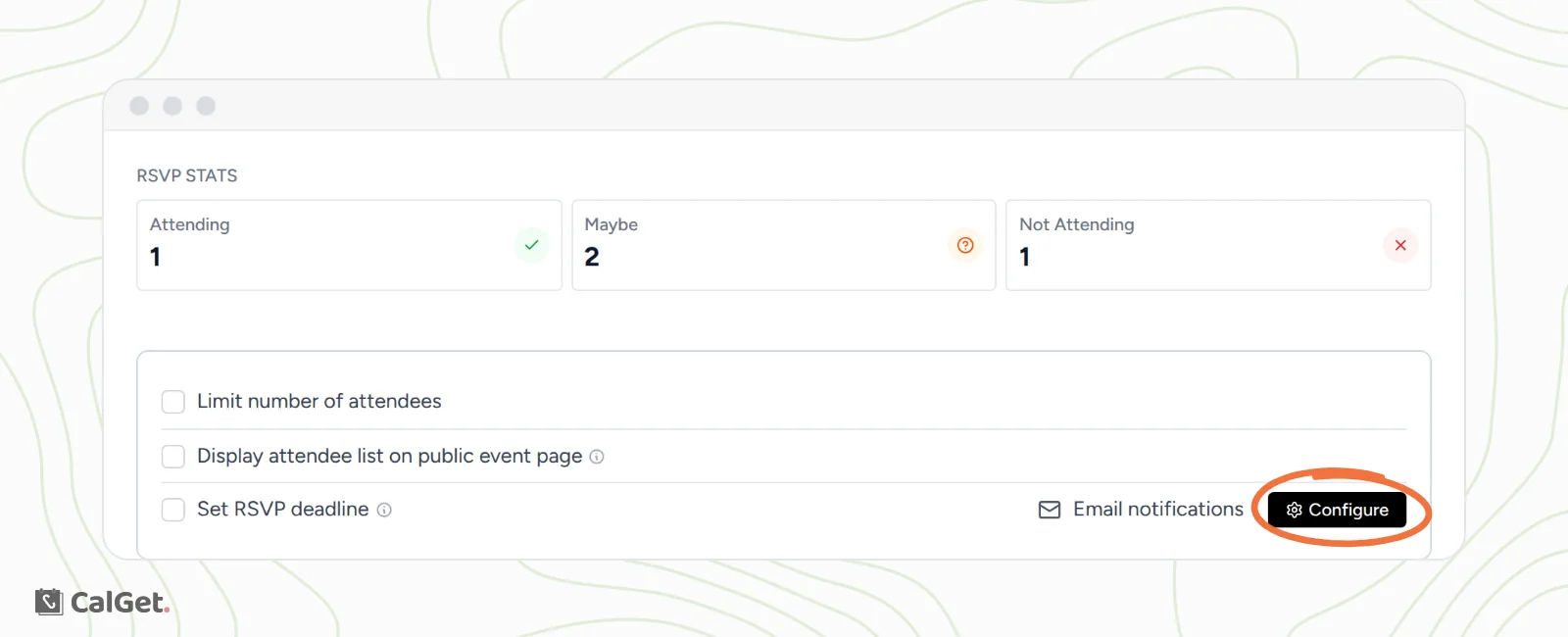
- Click the RSVPs tab.
- Next to Email notifications, click Configure.
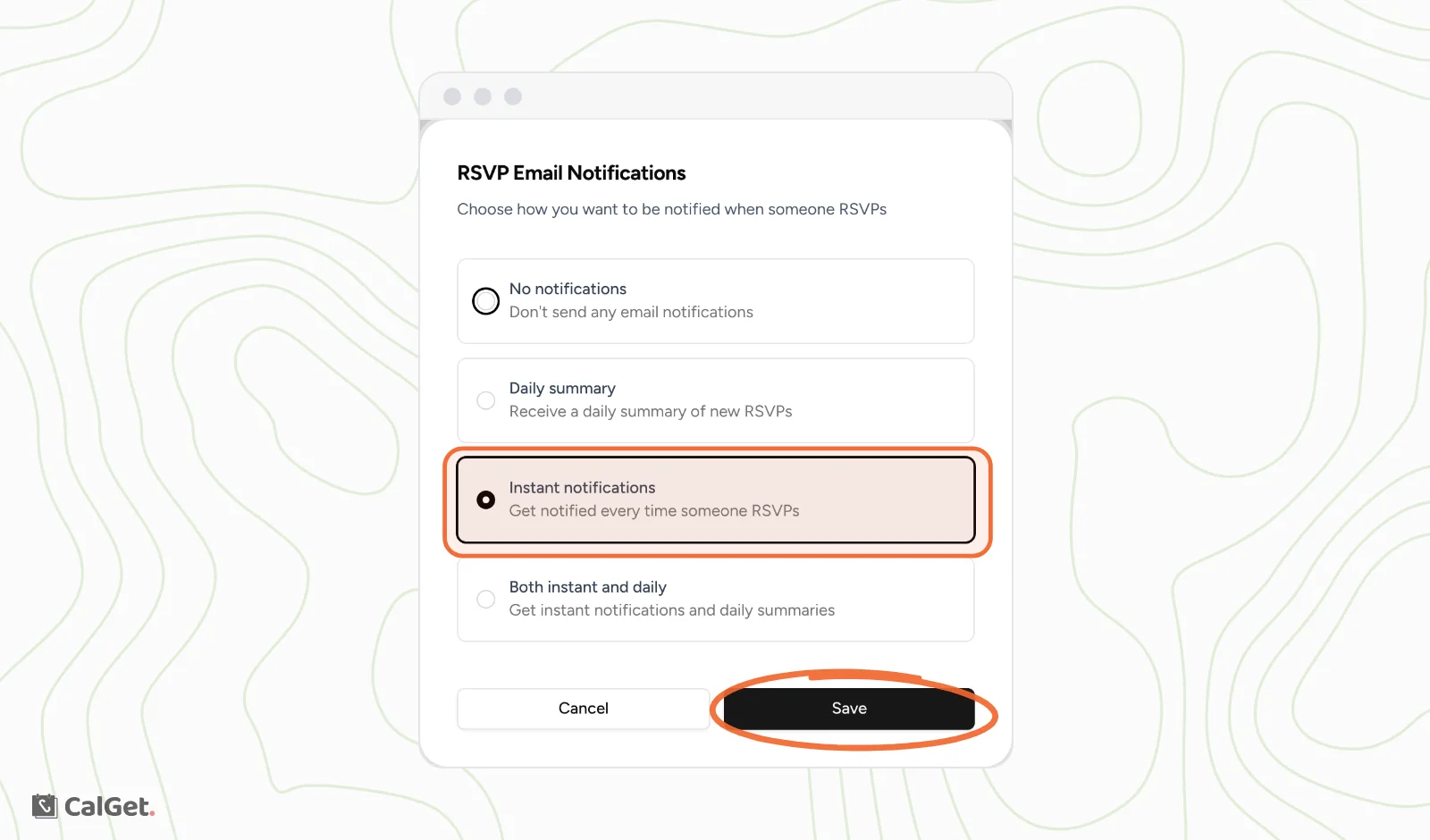
- Choose one of the four options (see the table).
- Click Save.
| Option | What you get |
|---|---|
| No notifications | No emails. Check the RSVPs tab when you want to see replies. |
| Daily summary | One email a day with the new RSVPs. |
| Instant notifications | An email every time someone RSVPs. |
| Both instant and daily | An email for each RSVP, plus the daily summary. |
Which one to pick
- Instant notifications suit small events where each reply matters, like a dinner or a workshop with a few seats.
- Daily summary suits bigger events, so your inbox doesn't fill up with one email per guest.
- Both instant and daily gives you each reply as it comes and a daily recap to scan.
Whatever you pick, every reply is also listed on the RSVPs tab. See View and export your RSVPs.
Common questions
Does this setting apply to all my events?
No. Each event has its own setting, so set it on every event where you want emails.
The RSVPs tab says RSVP not Enabled. What do I do?
The event isn't collecting RSVPs yet. Click Enable RSVP on that message, or turn on Collect RSVPs on the event's Edit tab. See Build a custom RSVP form.
Do these settings change anything for guests?
No. They only decide which emails the organizer gets. After replying, guests see a confirmation on the event page that says the organizer has been notified, with Add to Calendar buttons if they said Yes or Maybe.