Build a custom RSVP form
Updated October 20, 2026
An RSVP form decides what guests answer when they reply to your event: Yes, Maybe or No, plus any questions you add, like a meal choice or how many people they're bringing. You build the form once under RSVP Forms, then choose it on any event.
Create a form
- In the menu on the left, click RSVP Forms.
- Click New RSVP Form.
- Under Form Name, type a name. Guests don't see it. It's how you find the form when you pick one for an event.
- Under RSVP Options, keep the answers you want guests to choose from. Untick Maybe, for example, to offer only Yes and No.
- Add your own questions (see below).
- Click Save.
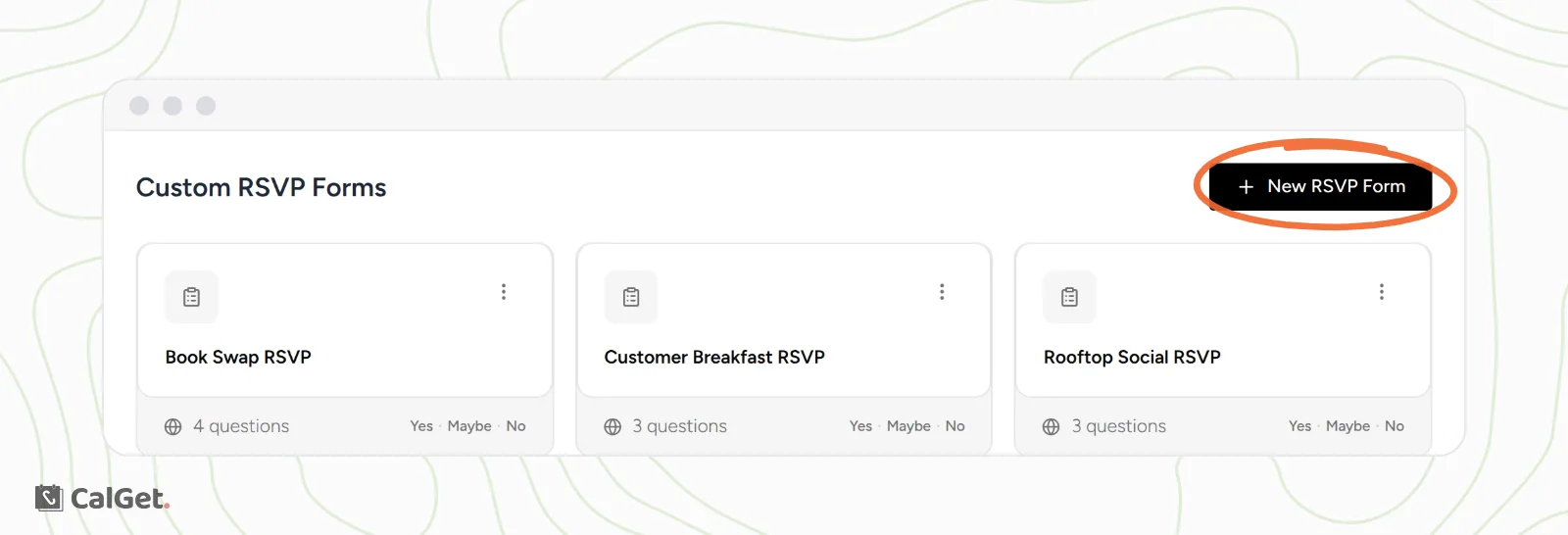
As you work, the Design Preview on the right shows the form the way guests will see it.
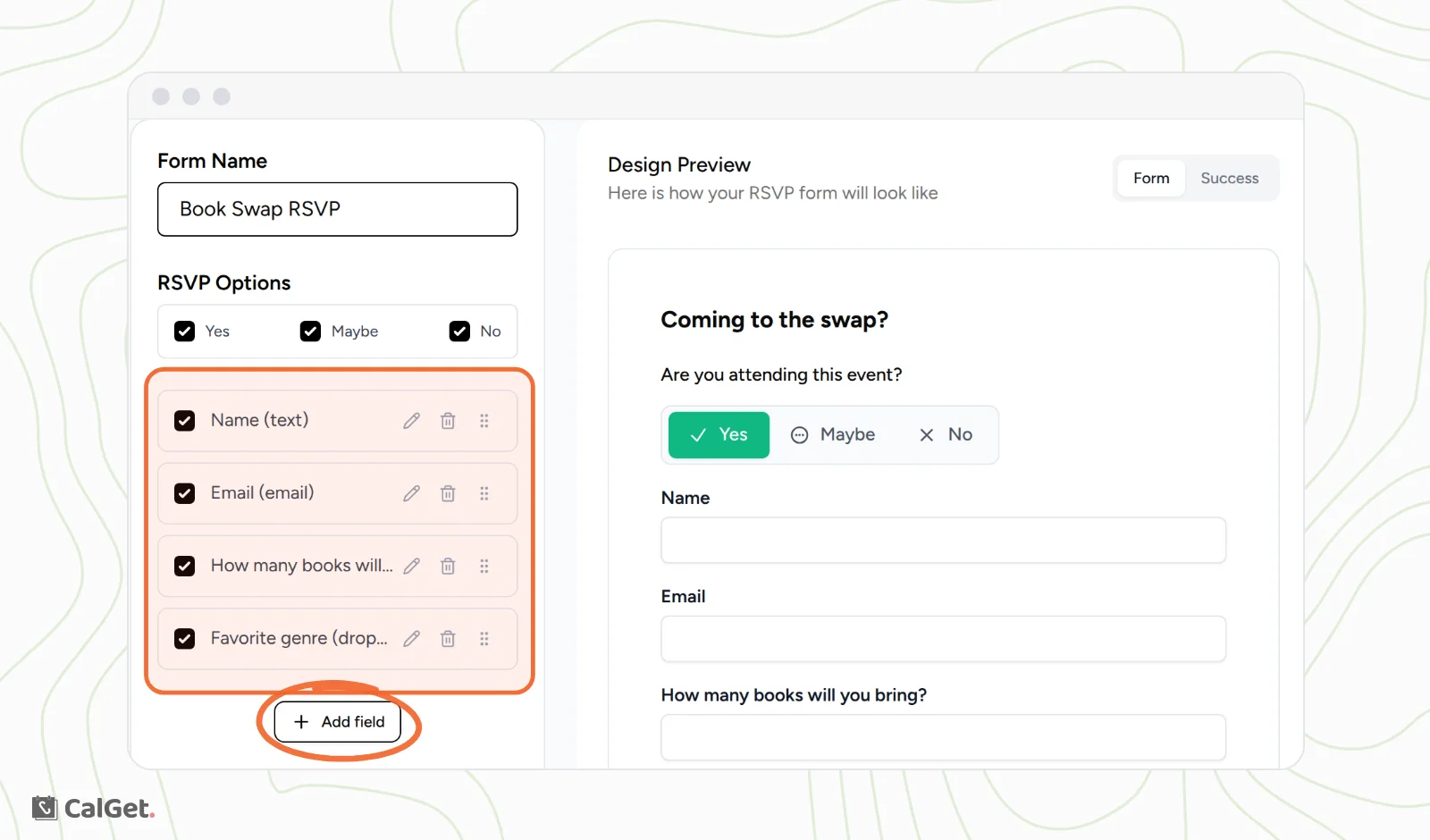
Add your own questions
Every new form starts with Name and Email. To ask something else:
- Click Add field.
- Under Field Text, type the question, for example "How many books will you bring?".
- Under Type, choose what kind of answer you want (see the table).
- Leave Required ticked if every guest must answer, or untick it to make the question optional.
- Click Save.
| Type | Guests answer with |
|---|---|
| Text | Any words, like a name or a note. |
| Number | A number, like how many guests they're bringing. |
| An email address. | |
| Dropdown (Options) | One choice from a list you write, like a meal or a session. |
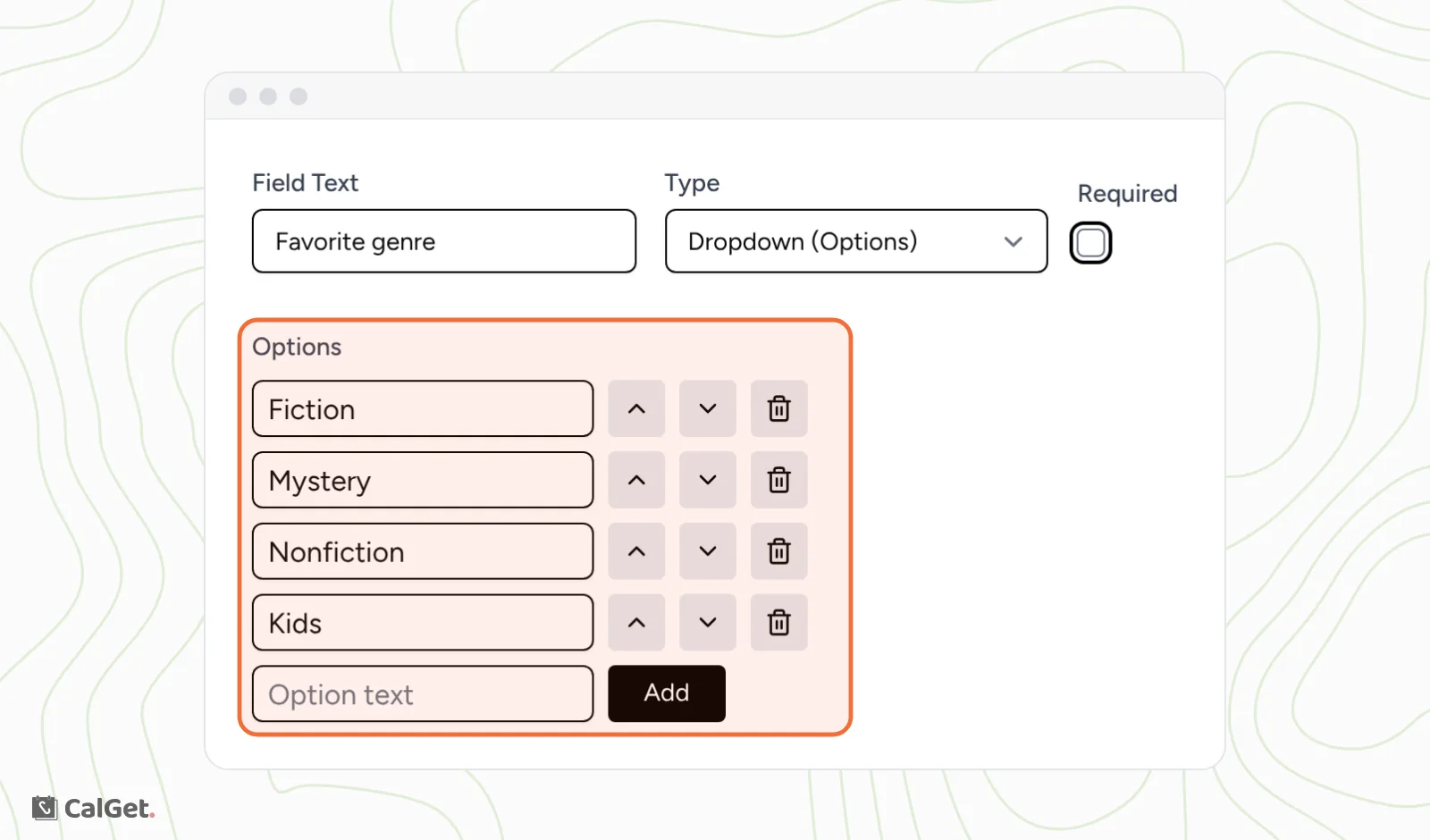
For a Dropdown (Options) question, an Options list appears. Type each choice in Option text and click Add. Use the arrows next to a choice to move it up or down, and the bin to remove it.
Change, hide or remove a question
- Click the pencil next to a question to change its text, type or Required setting.
- Untick a question to hide it from the form without deleting it.
- Click the bin to delete it.
Change the heading and button
A new form has the heading RSVP Here and a Submit button. To change either one, click it in the Design Preview, type your own words, and press Enter. For example, "Coming to the swap?" and "Save my spot".
To see what guests see after they reply, click Success above the preview. Next to Preview as, click Yes, Maybe or No to see each message.
Use the form on an event
- Go to Events, click your event, and click the Edit tab. For a new event, click New Event and fill in the details first.
- Turn on Collect RSVPs.
- In the menu next to it, choose your form. Default Template is used if you don't choose one.
- Click Save changes, or Create Event Link for a new event.
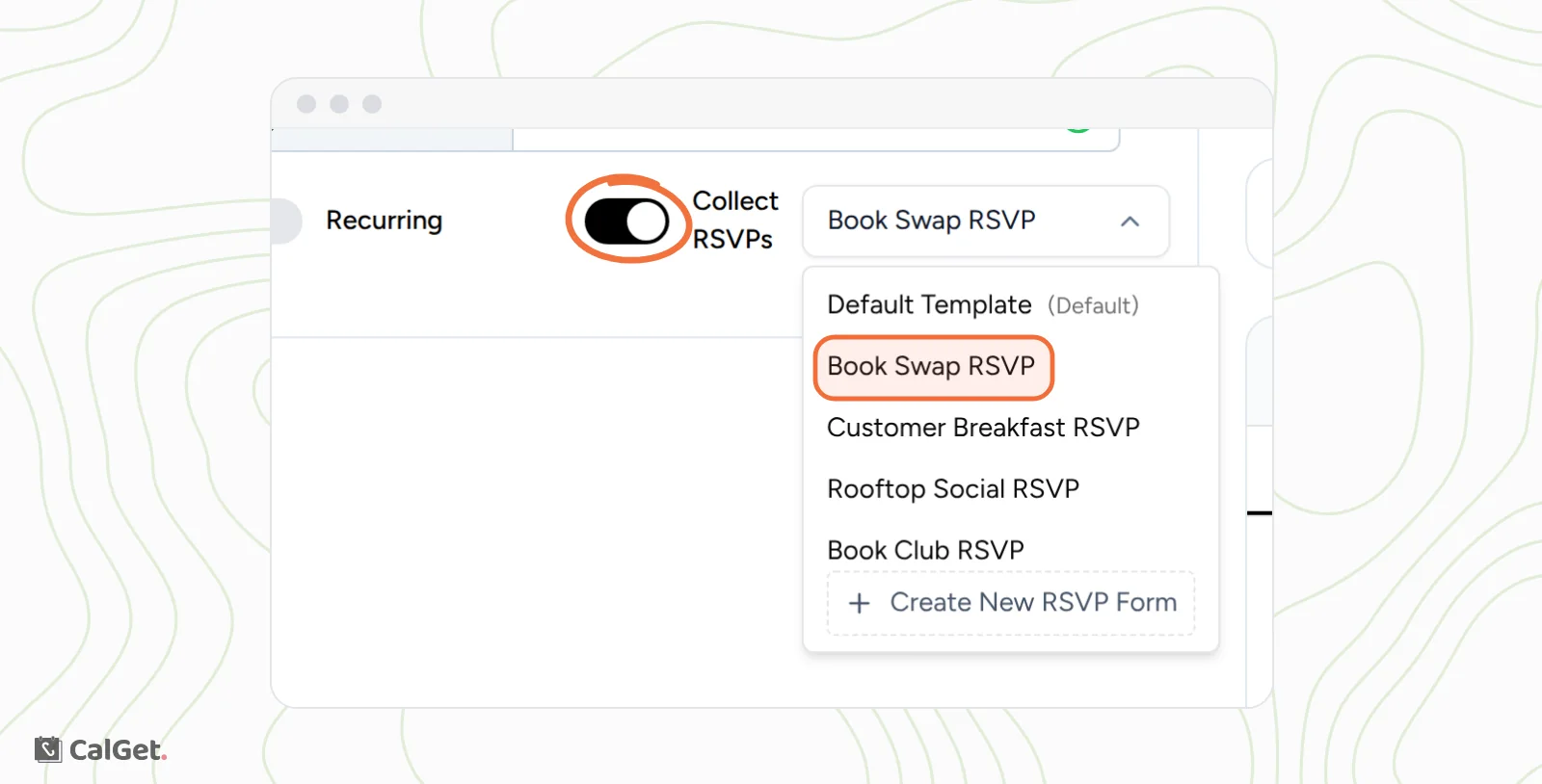
You can use the same form on as many events as you like.
What your guests see
Your event page shows an RSVP button. Guests click it, choose an answer, fill in your questions and click your button. They can't send the form until every required question is answered. Optional questions are marked "(optional)".
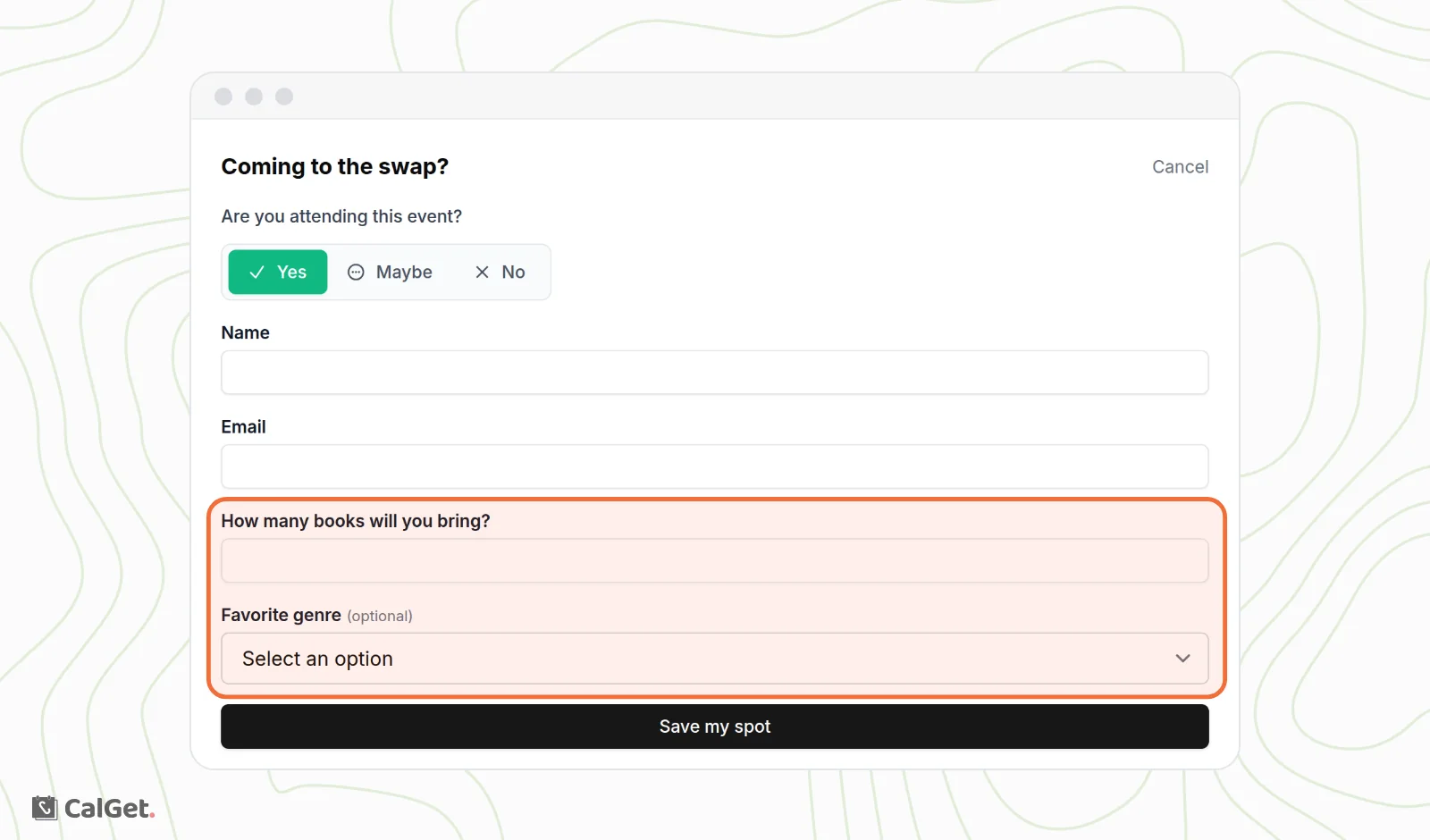
After they send it:
- Yes shows "You're attending" with the event name, and Add to Calendar buttons.
- Maybe shows "You're interested in" with the event name, and Add to Calendar buttons.
- No shows a thank-you message.
Every reply, with the answer to each of your questions, appears on the event's RSVPs tab. See View and export your RSVPs.
Common questions
If I change a form, do events that use it change too?
Yes. When you click Update, every event that uses the form shows the new version right away.
Can I make Name or Email optional?
They're questions like any other. Click the pencil next to one to change its Required setting, or untick it to hide it.
Can guests reply without RSVPs turned on?
No. Without Collect RSVPs, your event page shows Add to Calendar buttons instead of the RSVP button.