Customize the embeddable calendar and get its code
Updated October 20, 2026
The embeddable calendar puts your events on your own website as a month, week, list or card view. You choose its look on the Embed tab, see a live preview, and copy the code.
Open the embed settings
- Click Calendars, then click your calendar.
- Click the Embed tab. (You can also click Embeddable Calendar in the menu on the left and pick the calendar there.)
A live preview fills the page, with a toolbar at the bottom. Use the screen icons above the preview to switch between Desktop preview and Mobile preview.
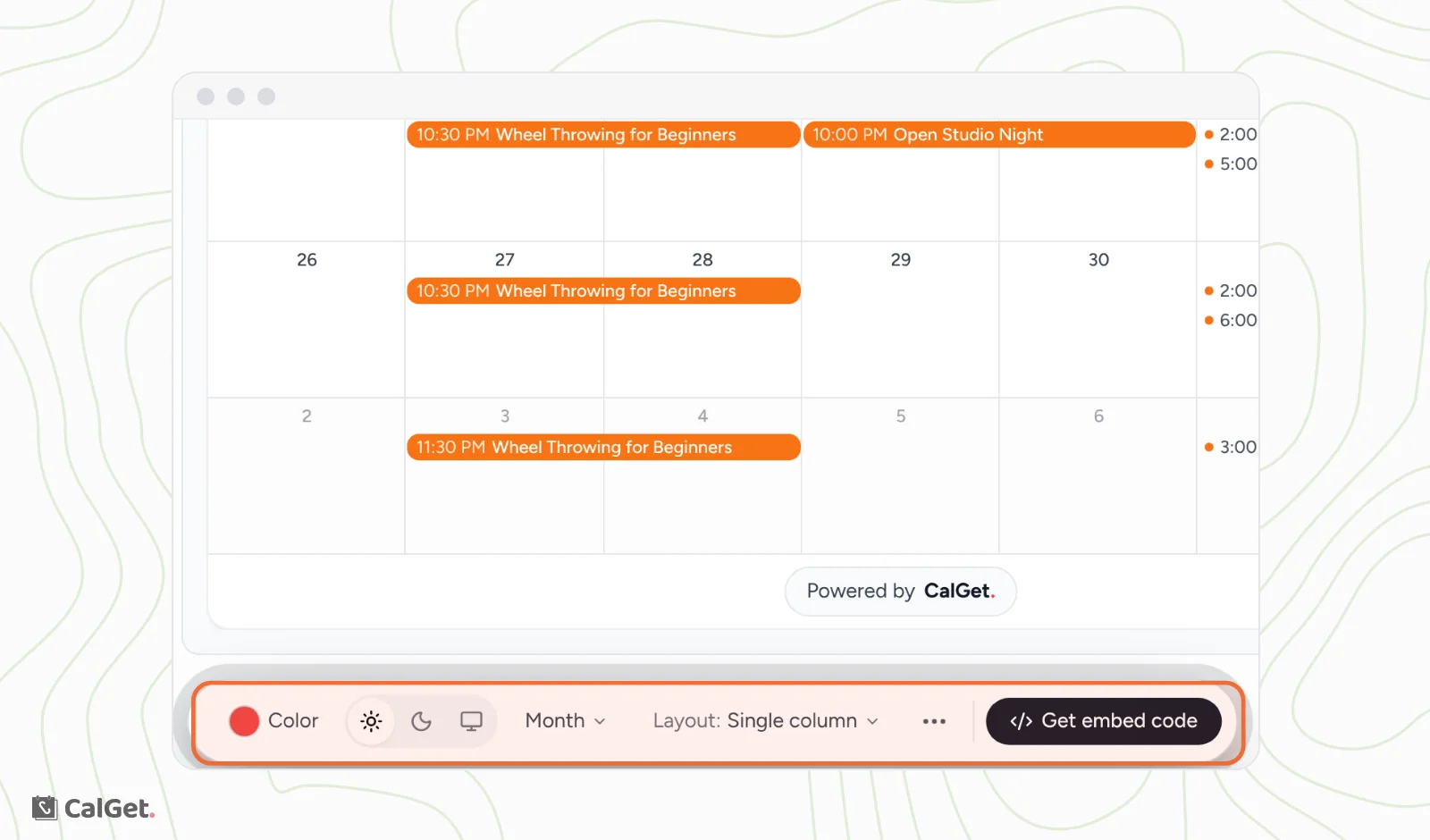
Change the look
| Control | What it does |
|---|---|
| Color | The accent color, used for example on the Subscribe to Calendar button. Pick a swatch or add your own. |
| Sun, moon and screen icons | Light, dark, or auto (follows the visitor's device setting). |
| View (Month) | The view visitors see first: Month, Week, Schedule (a list) or Card. |
| Layout | Single column, or With side panel. |
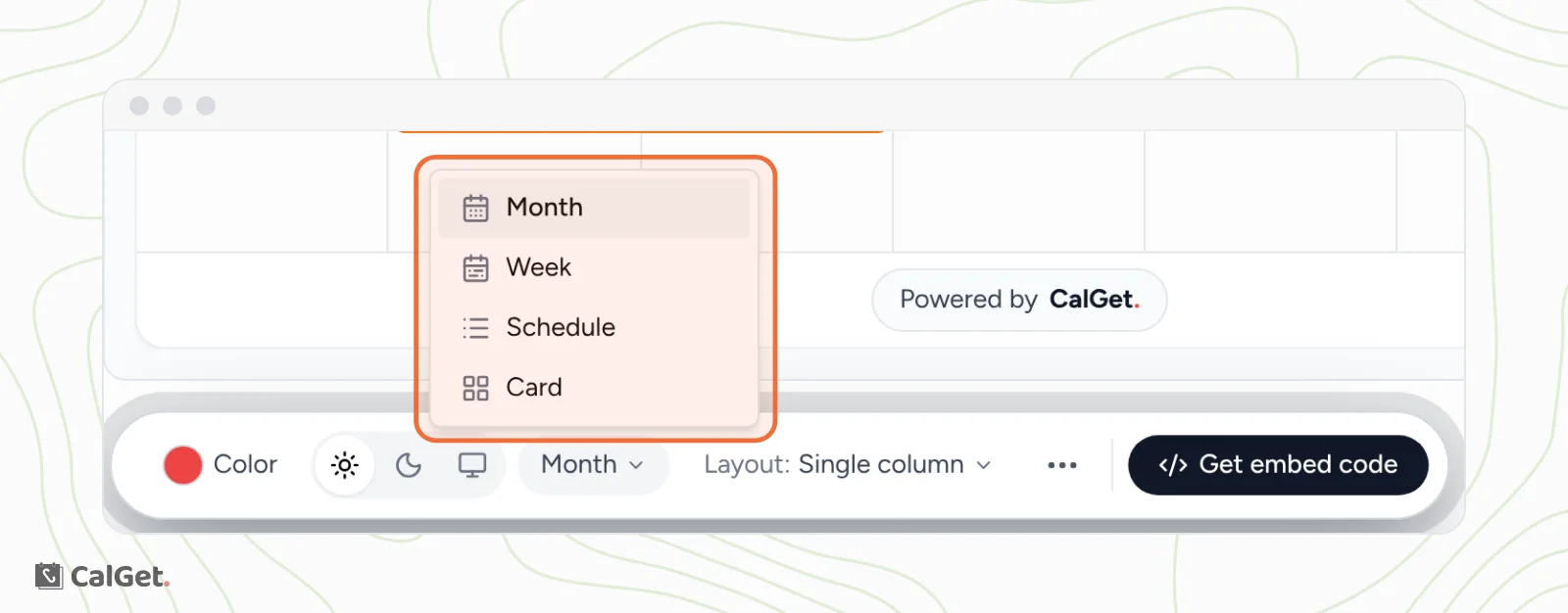
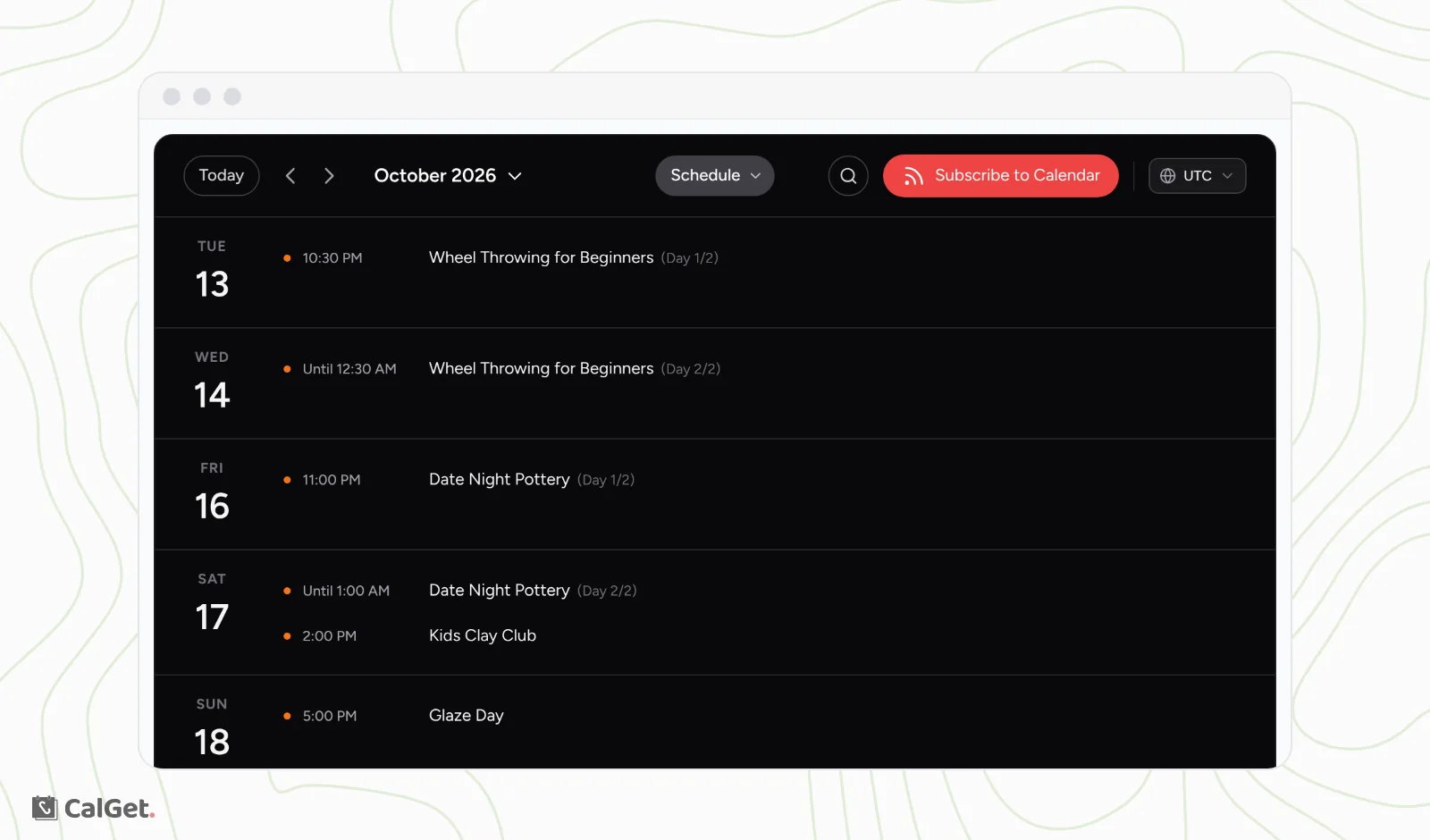
More options
Click the three dots in the toolbar for more settings.
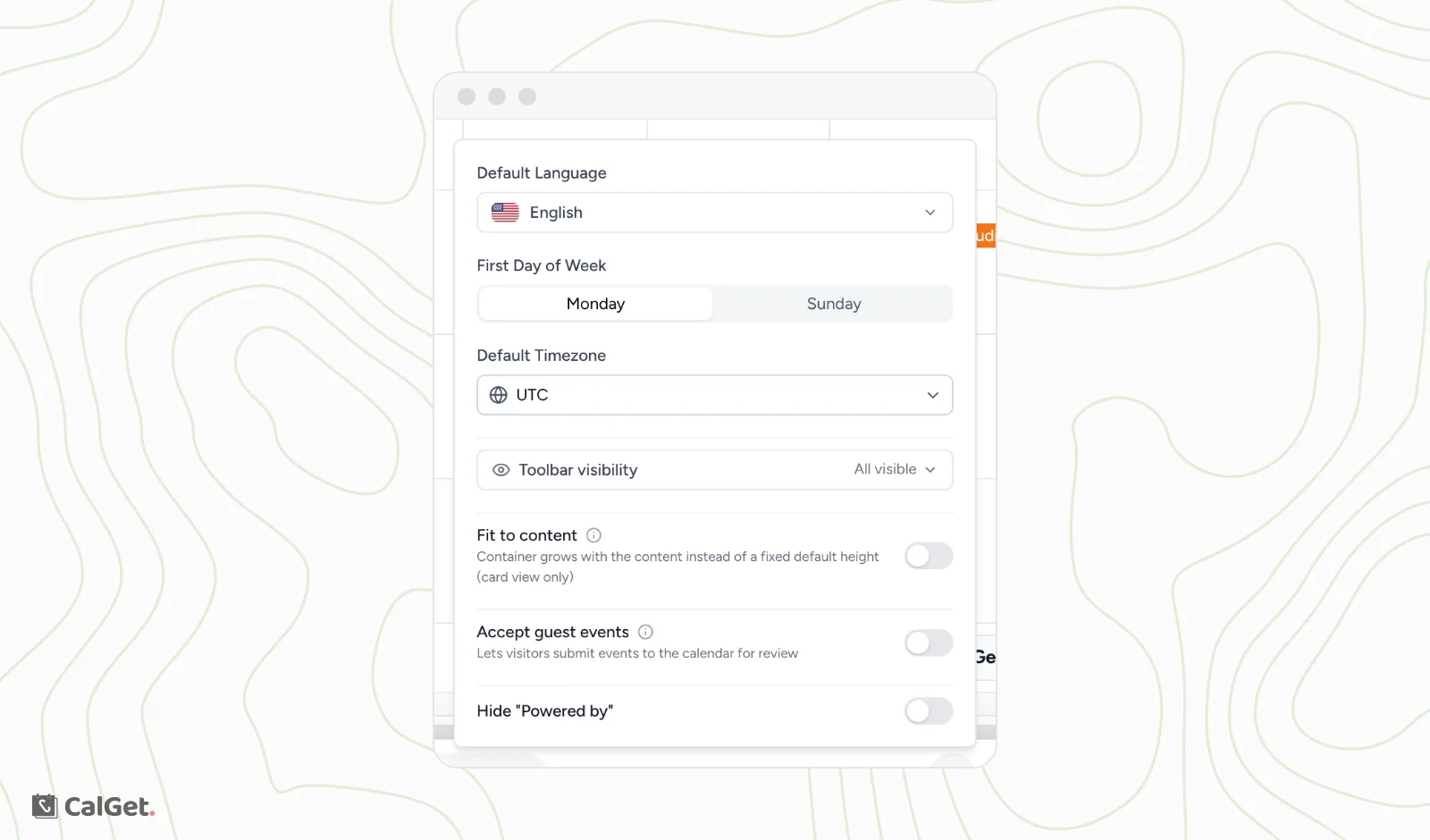
- Default Language, First Day of Week and Default Timezone set how the calendar opens.
- Toolbar visibility is set to All visible to start.
- Fit to content lets the calendar grow with its content instead of a fixed height (card view only).
- Accept guest events lets visitors submit events from the embedded calendar. It needs guest submissions turned on for the calendar. See Let visitors submit events with Guest Events.
- Hide "Powered by" removes the Powered by CalGet badge.
Copy the code
- Click Get embed code.
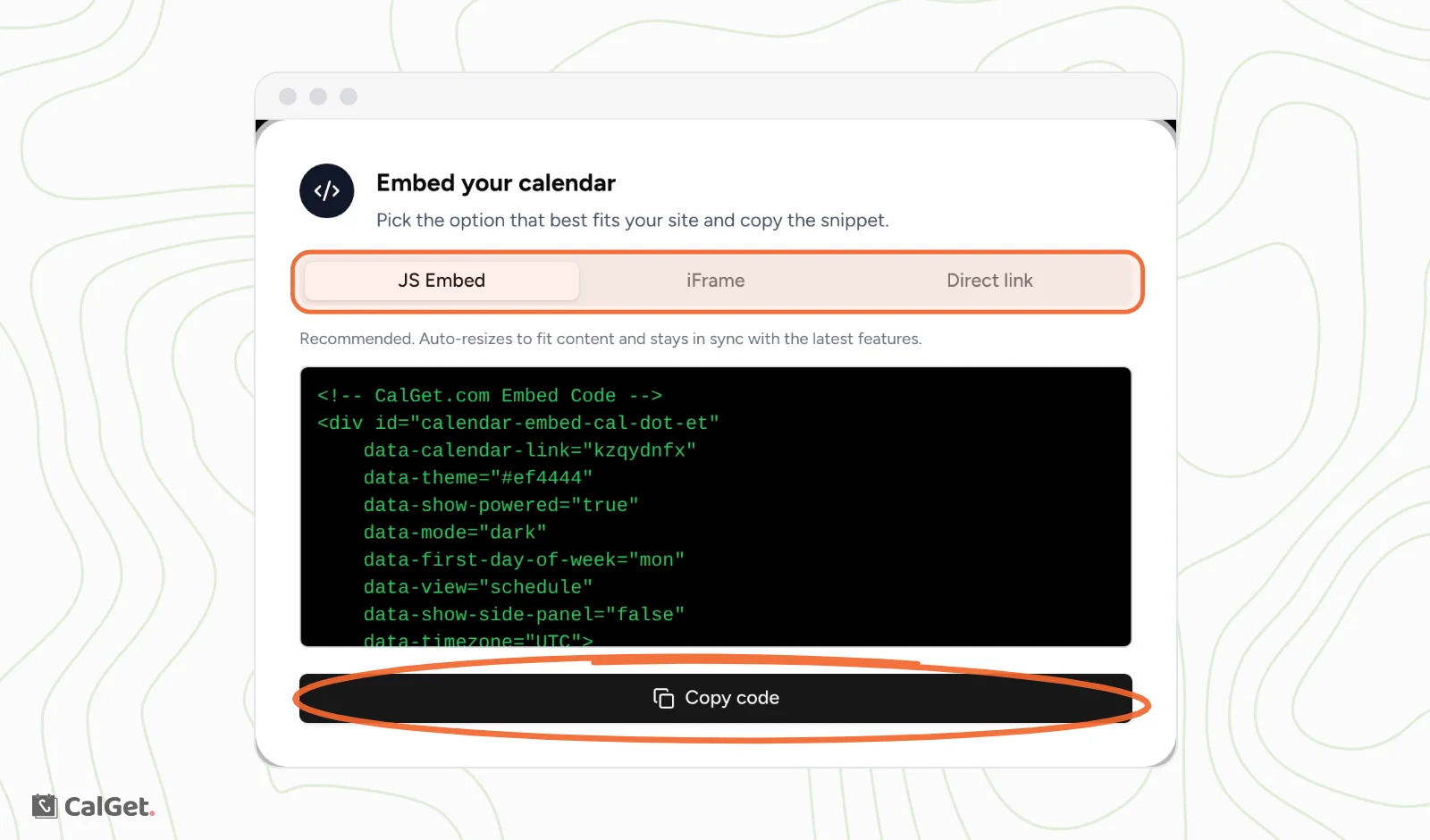
- Choose JS Embed (recommended: it resizes to fit its content), iFrame (plain HTML, you set the height), or Direct link (a link to the calendar on its own).
- Click Copy code and paste it into your website's HTML or embed block.
If the calendar shows "Access Restricted" on your site, add your website's domain. See Allow your website's domain for the embedded calendar.
Common questions
I changed the look. Why didn't my website change?
Your choices aren't saved in CalGet. They're written into the embed code. After changing the look, copy the code again and replace the old code on your website. The settings also go back to the defaults when you reload the Embed tab, so copy the code before you leave.
Do new events show up on my website by themselves?
Yes. The embedded calendar shows the calendar's events as they are now, so you don't need new code when you add or change events.