Start a new calendar and share its Public Link
Updated October 20, 2026
A calendar groups your events on one page with one link. People who open the link can subscribe, and the calendar's events then appear in their own Google, Apple or Outlook calendar. New events you add later show up there too.
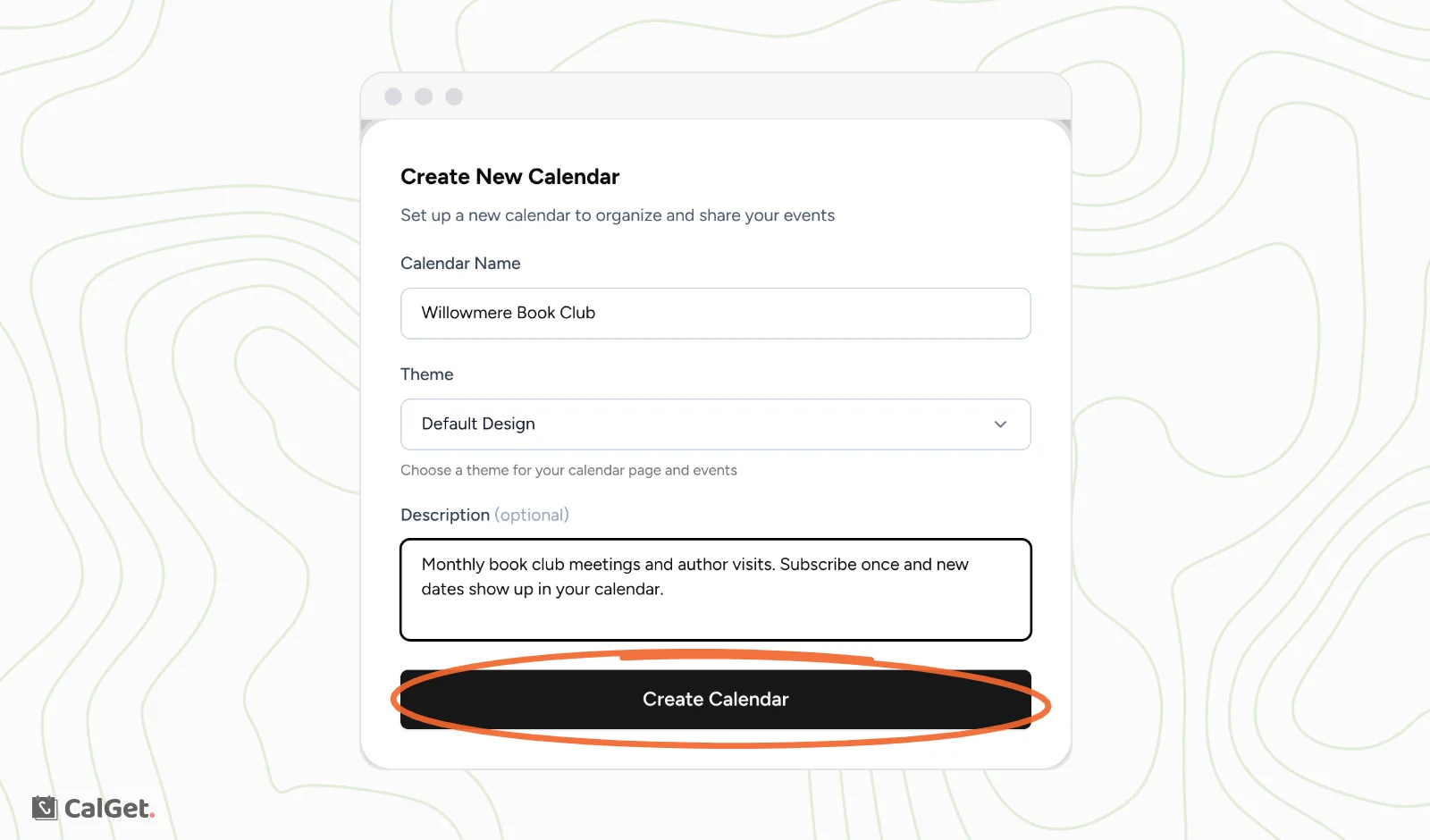
Create the calendar
- In the menu on the left, click Calendars.
- Click New Calendar.
- Under Calendar Name, type the name people will see, for example the name of your club or venue.
- Under Theme, keep Default Design or pick one of your themes.
- Add a short Description if you like.
- Click Create Calendar.
Add events to it
Open the calendar from Calendars and click New Event at the top. The new event goes into that calendar.
To move an event you already have, open it and click the Edit tab. At the bottom of the form, open the calendar menu (it shows Internal Calendar until you pick one), choose your calendar, and click Save changes.
Already keep your events in Google Calendar or Outlook? You can sync them in instead. See Sync an external calendar to CalGet.
Share the calendar's link
On the calendar's Calendar Details tab, the Public Link (like calget.com/c/8xtzfyco) is the link to share. Click the copy button next to it. You can also click Copy link under any calendar on the Calendars page.
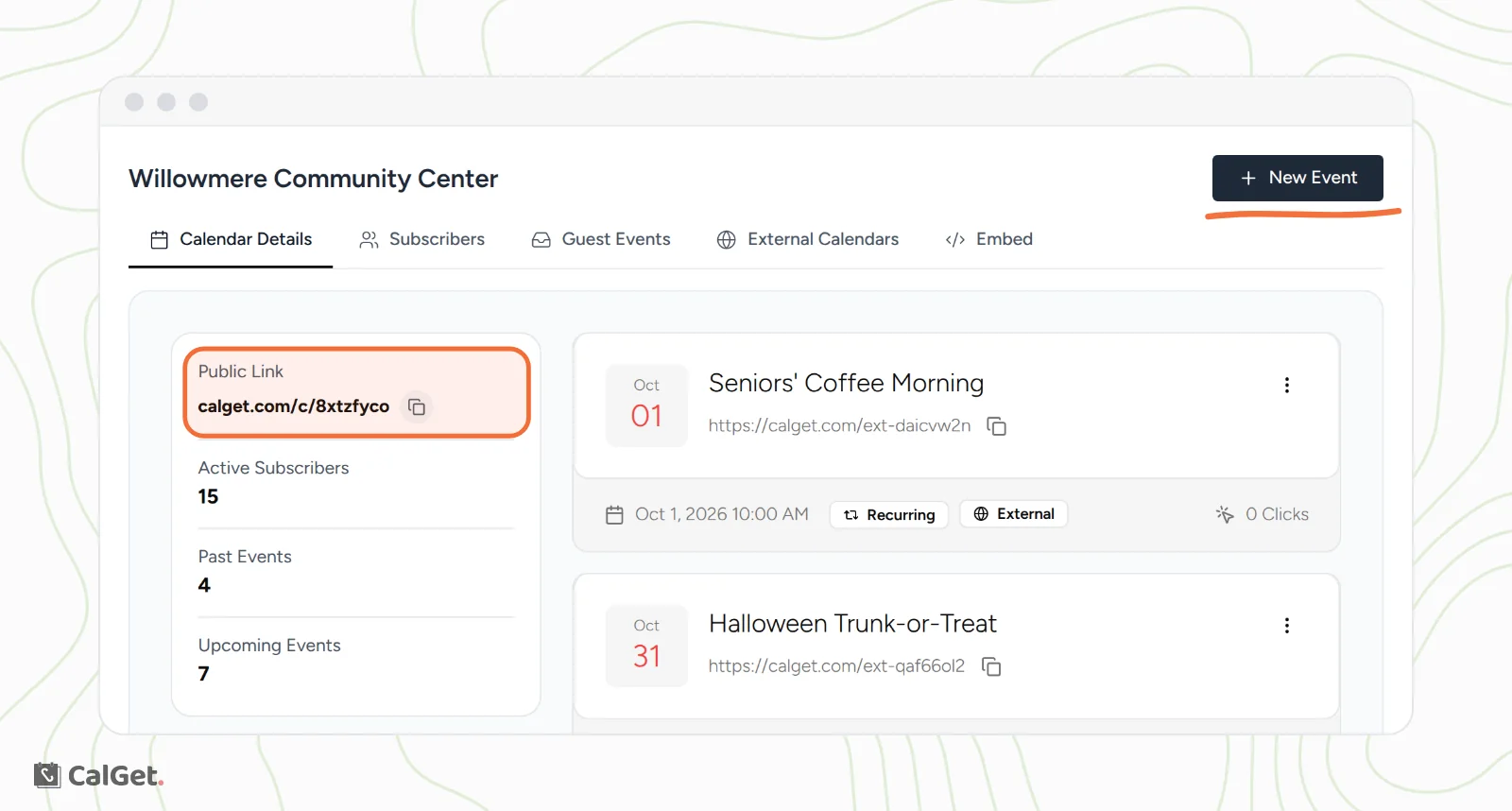
Put the link on your website, in a newsletter, in an email signature or in social posts. To show the calendar on your website instead, use the Embed tab. See Embeddable Calendar setup: domains, look and code.
What people see when they open it
The link opens your calendar page with its upcoming events. At the bottom, Subscribe to Calendar opens a choice of calendar apps.
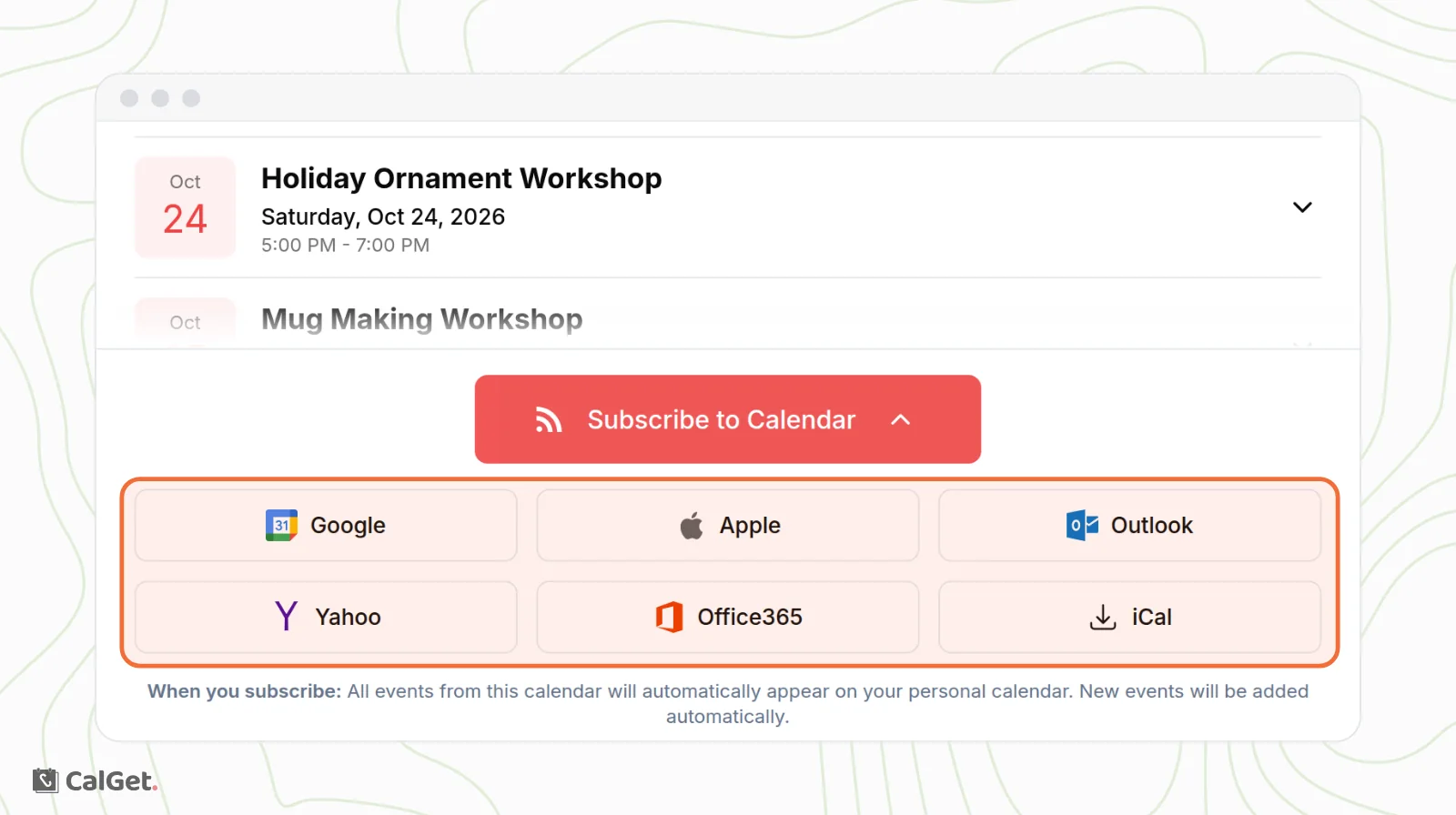
| Option | What happens |
|---|---|
| Google Calendar opens and offers to add the calendar. | |
| Outlook | Outlook on the web (Outlook.com) opens and offers to subscribe. |
| Office365 | Outlook for work or school accounts opens and offers to subscribe. |
| Apple and iCal | The device's calendar app (Apple Calendar on iPhone, iPad and Mac) opens and asks to subscribe. |
As the page says, all events from the calendar then appear in their calendar, and new events are added automatically.
Common questions
Can I see who subscribed?
The Calendar Details tab shows the number of active subscribers. To get names and emails, ask people to fill in a short form before they subscribe on the Subscribers tab. See Ask subscribers for their name and email
Can I change the calendar's name or look later?
Yes. On the Calendar Details tab, change Calendar Name, Color, Default Theme or Description, and click Save.