Allow your website's domain for the embedded calendar
Updated October 20, 2026
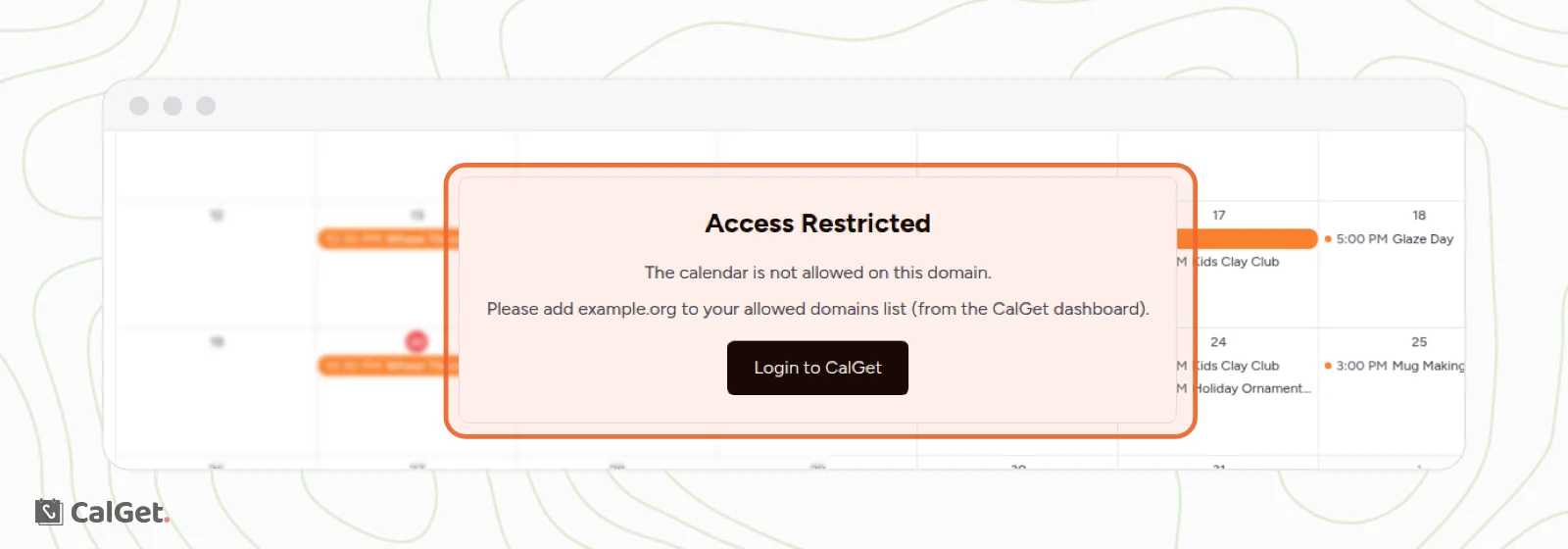
If your embedded calendar shows Access Restricted on your website, CalGet doesn't know that website yet. Add the website's domain to your Allowed Domains and the calendar appears right away.
What the message looks like
Instead of your calendar, visitors see "Access Restricted. The calendar is not allowed on this domain." The message also names the exact domain to add, for example "Please add example.org to your allowed domains list".
Add your website's domain
- In the menu on the left, click Embeddable Calendar. (The same button is on each calendar's Embed tab.)
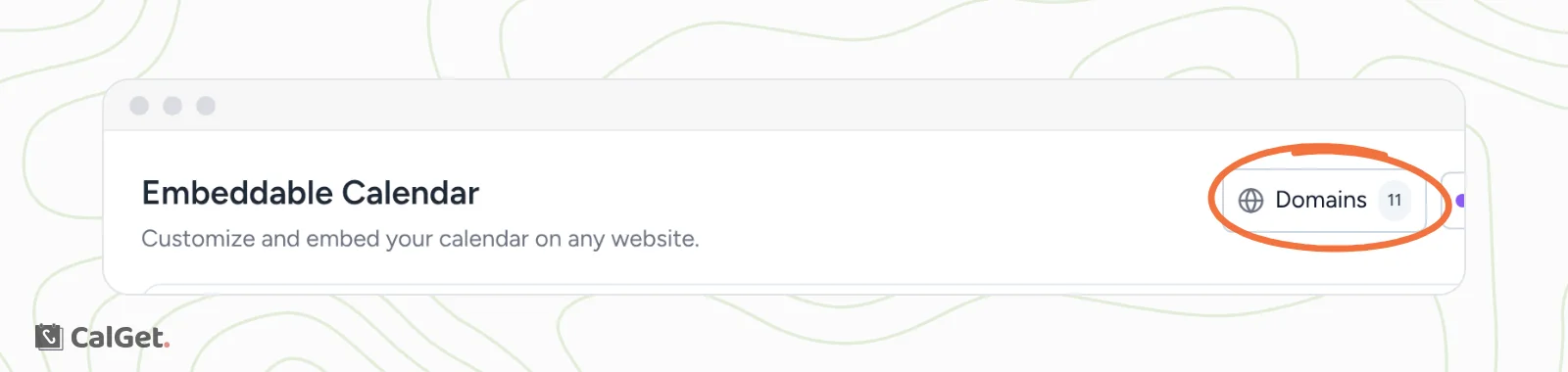
- At the top right, click Domains. The number next to it is how many domains you've allowed.
- In Allowed Domains, click Add Domain.
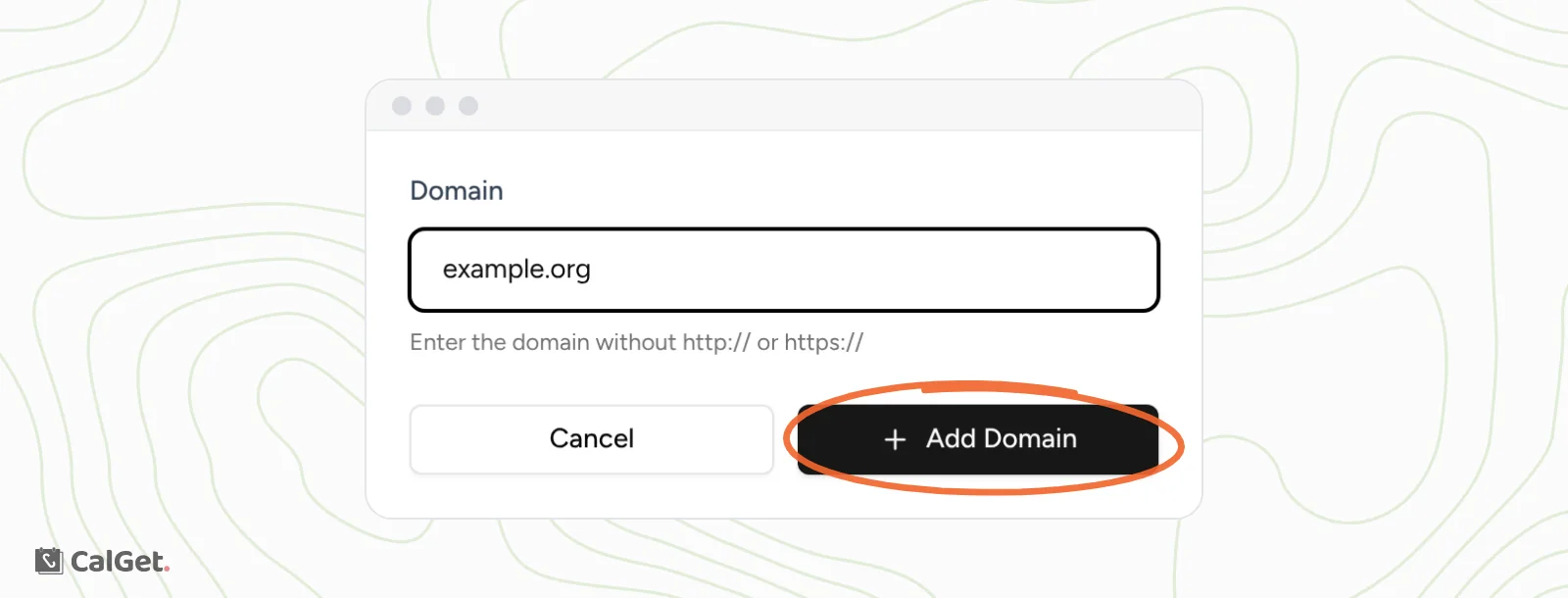
- Under Domain, type the domain without http:// or https://, exactly as the message shows it. For example www.example.org.
- Click Add Domain.
- Reload the page on your website. The calendar now shows.
One list covers all your calendars, so you only add a domain once.
Tips
- With and without www are different. In our test, allowing www.example.org didn't allow example.org. If your site opens both ways, add both.
- Website builders use their own domains. If your site also opens on an address from your website builder, such as a preview or editor address, add that domain too. The message tells you which one.
- Use a domain, not an address. Leave out https://, page paths like /events, and IP addresses. CalGet only accepts a domain name.
Remove a domain
In Allowed Domains, click the delete button next to the domain, then click Delete. Your calendar will no longer show on that website.