Let visitors submit events with Guest Events
Updated October 20, 2026
With Guest Events, people can suggest events for your calendar, like a club meetup or a class, from your calendar page or a form on your website. Nothing goes live until you review and approve it.
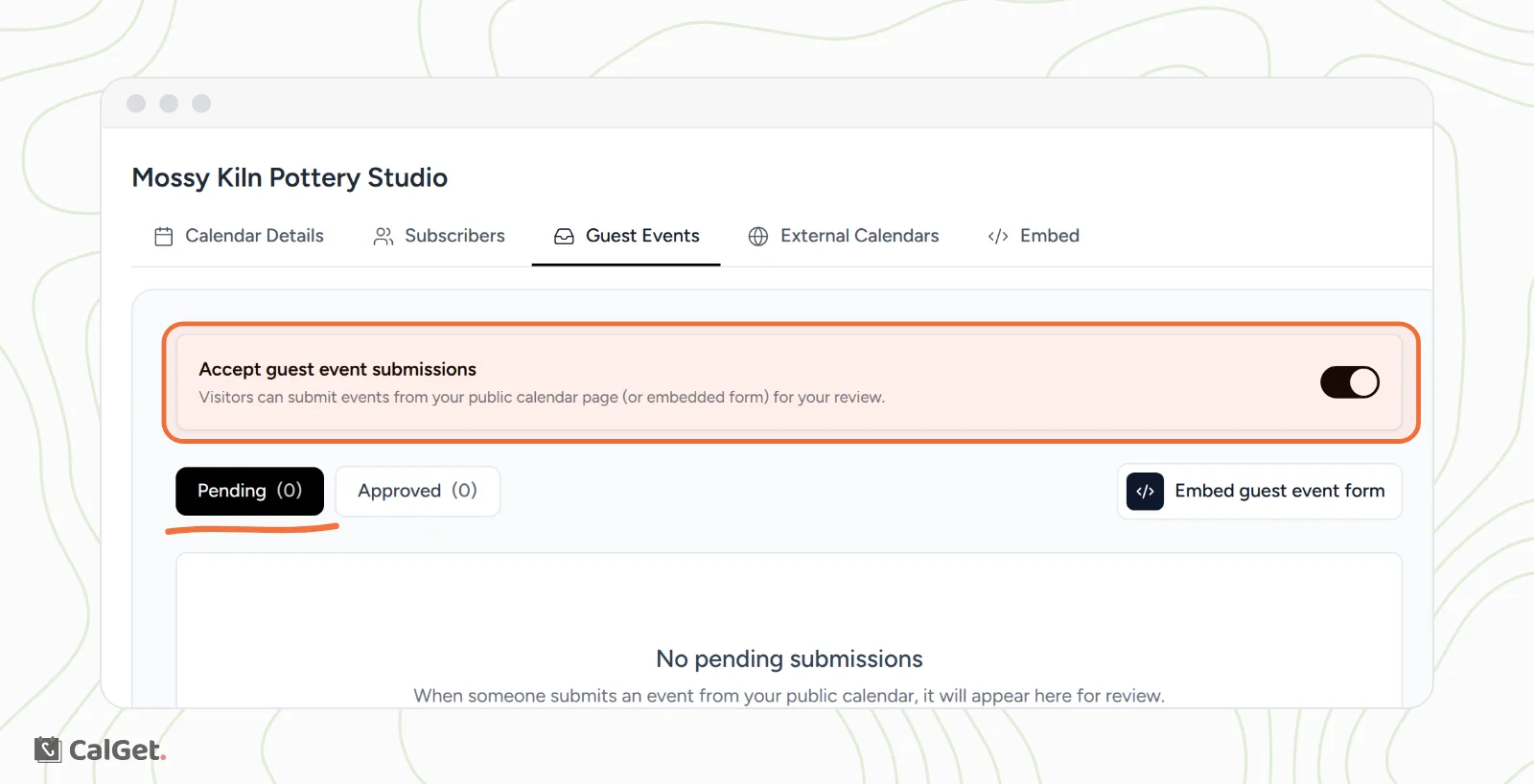
Turn on guest submissions
- In the menu on the left, click Calendars, then click your calendar.
- Click the Guest Events tab.
- Click Enable guest submissions.
You'll see "Guest event submissions enabled", and Accept guest event submissions is now on. New submissions wait under Pending.
Where visitors submit events
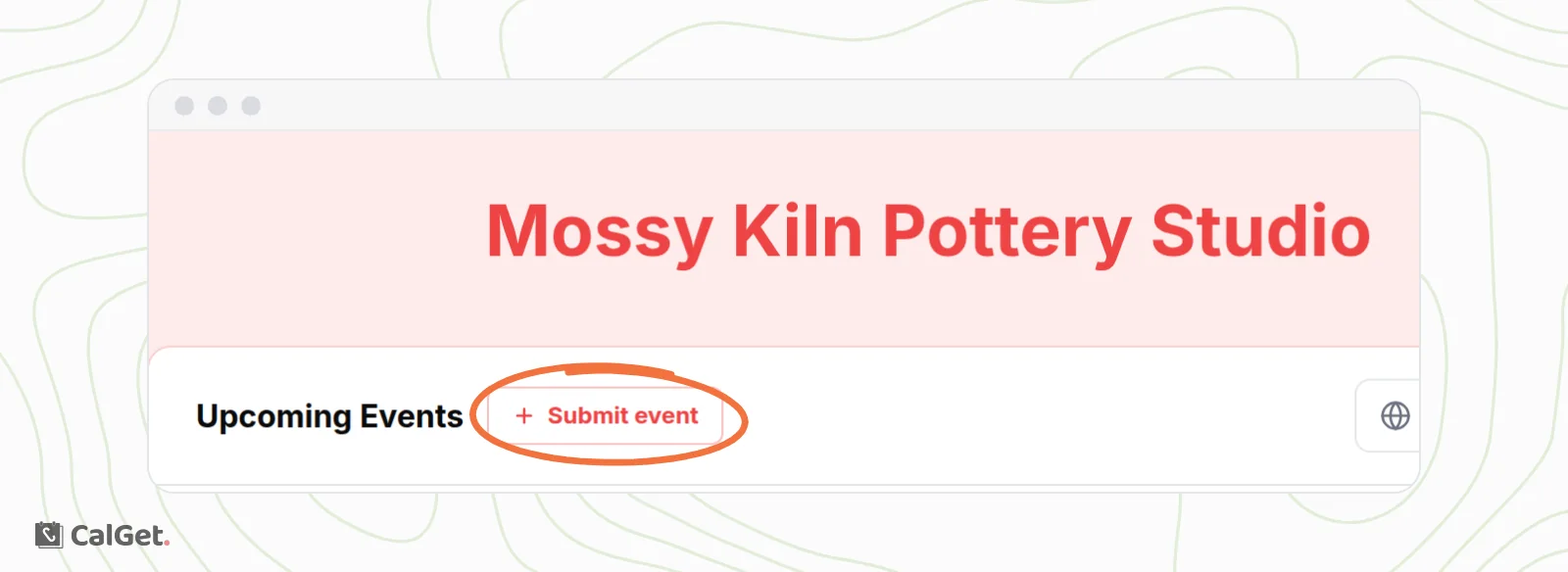
Your calendar page now shows a Submit event button next to Upcoming Events.
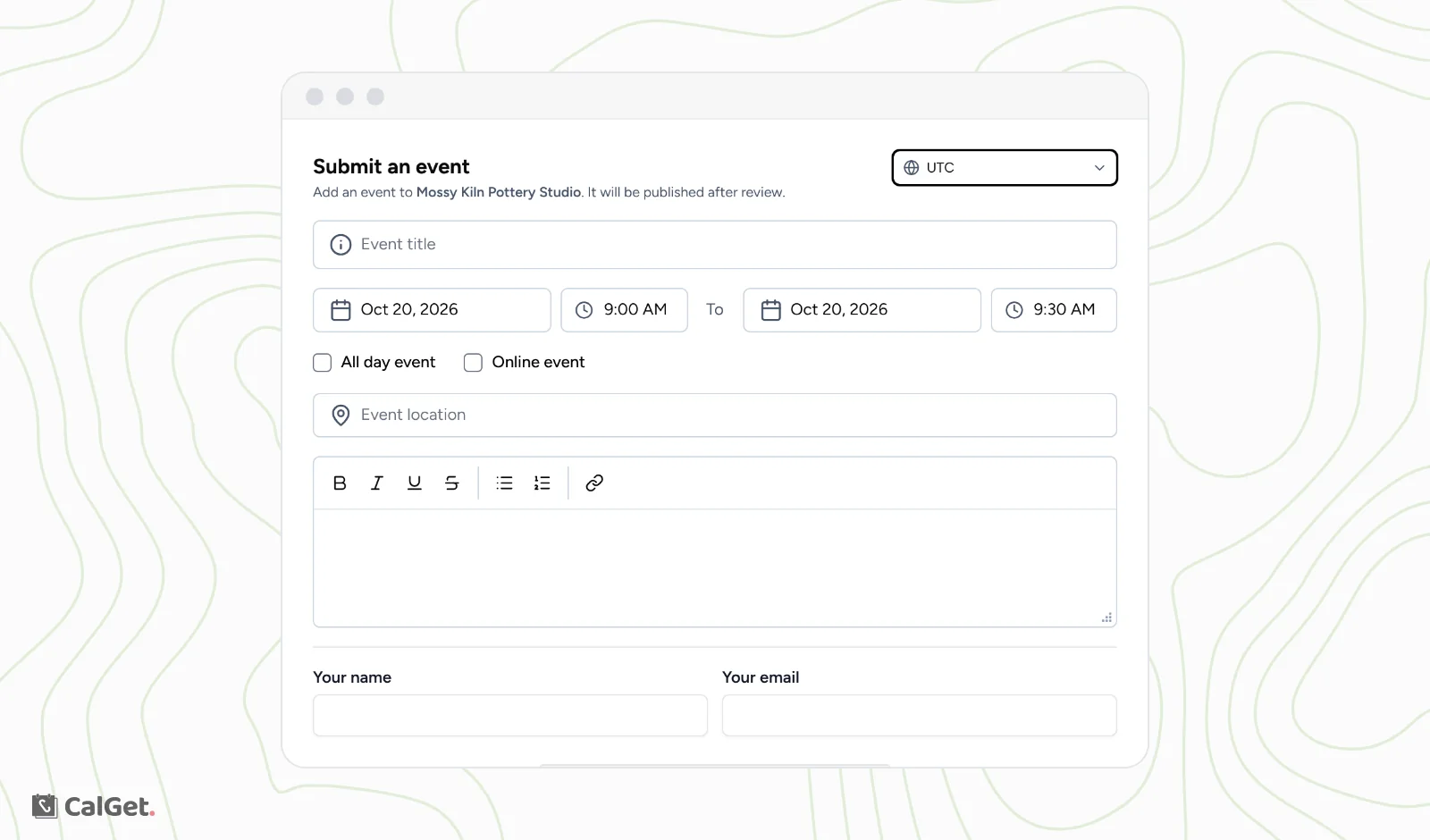
It opens a Submit an event form with the event title, date and time, location and description, plus the visitor's name and email. A short security check runs before they can send it.
Put the form on your own website
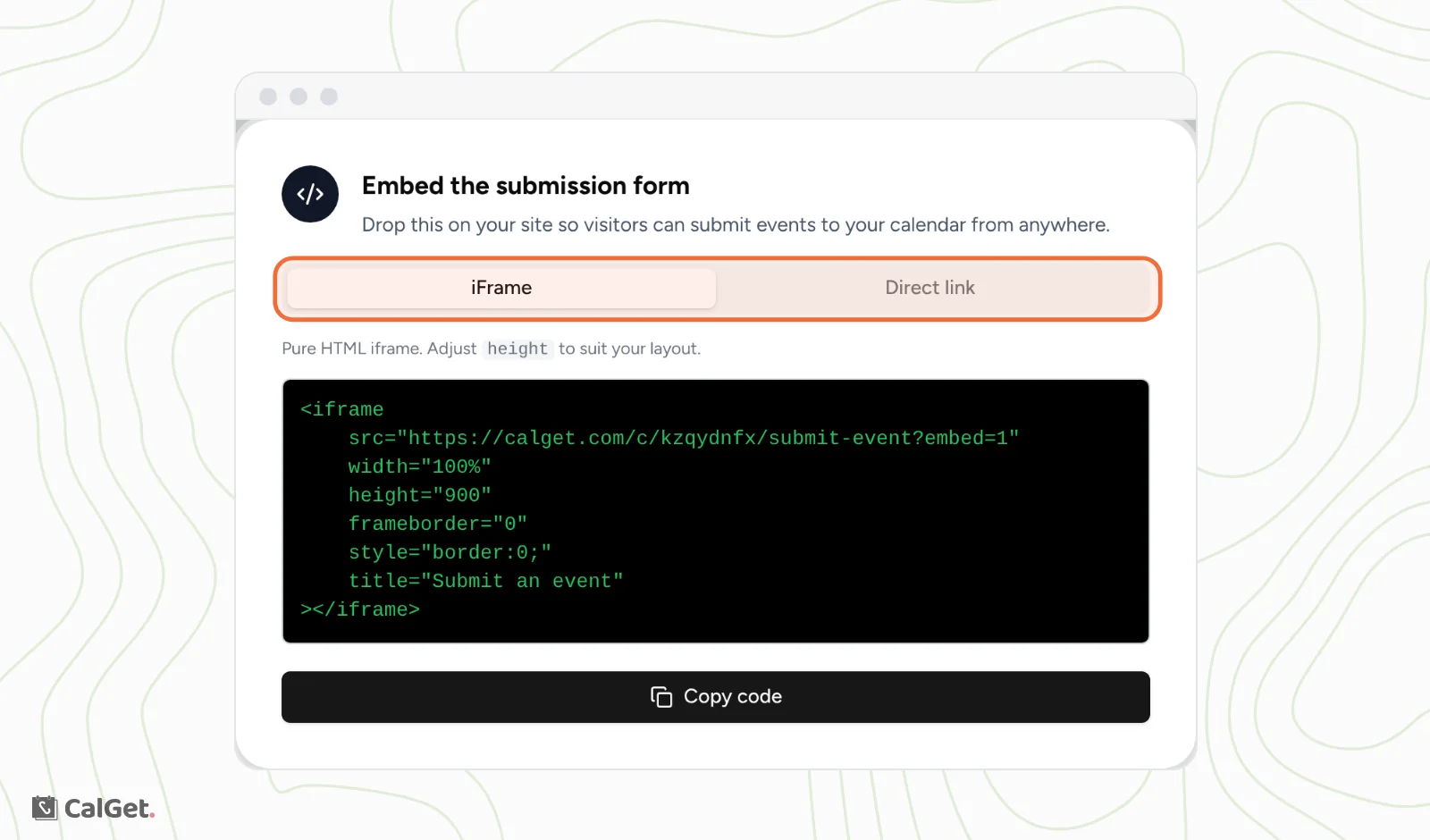
- On the Guest Events tab, click Embed guest event form.
- Choose iFrame to copy code for your website, or Direct link to share the form's link.
- Click Copy code and paste it into your site's HTML or embed block.
Review a submission
Each submission appears under Pending with its title, date, location and who sent it.
- Click Review & approve to open Review guest submission. It's the same form as a new event, filled in with what the visitor sent. Fix anything you need, then click Create Event Link. The event is added to your calendar and moves to Approved.
- Click Reject if you don't want to publish it.
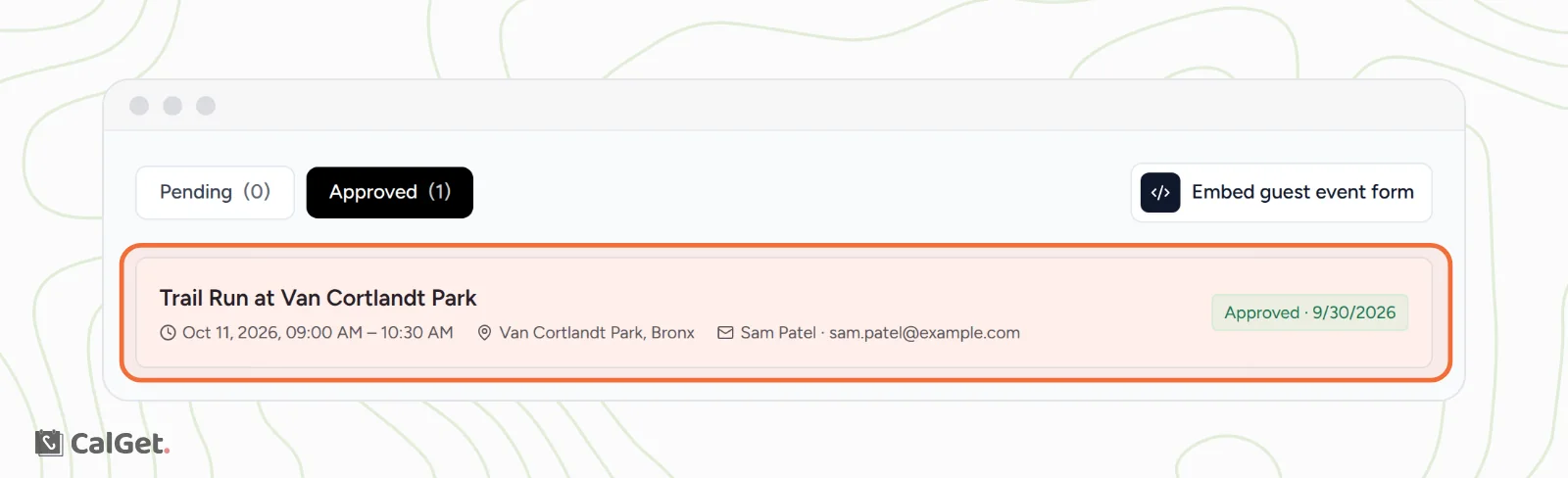
Once approved, the event is a normal event on your calendar. Subscribers get it like any other event, and you can edit it later from Events.
Turn guest submissions off
On the Guest Events tab, turn off Accept guest event submissions. You'll see "Guest event submissions disabled", and the Submit event button disappears from your calendar page.
Common questions
Do visitors need a CalGet account?
No. They fill in the form with their name and email.
Can I change a submission before it goes live?
Yes. Review & approve opens the full event form. Change the title, time, description or anything else, or turn on Collect RSVPs. Then click Create Event Link.