Change how your calendar page looks with a theme
Updated October 20, 2026
Your calendar page can match your brand: your logo, background, fonts and colors. You set these up once as a theme under Themes, then choose the theme for your calendar.
Create a theme
- In the menu on the left, click Themes.
- Click New Theme.
- Under Template Name, type a name, for example your organization's name.
- Click Calendar Page to see a preview of a calendar page and its settings.
- Change the settings (see below). The preview updates as you go.
- Click Save. You'll see "Theme created".
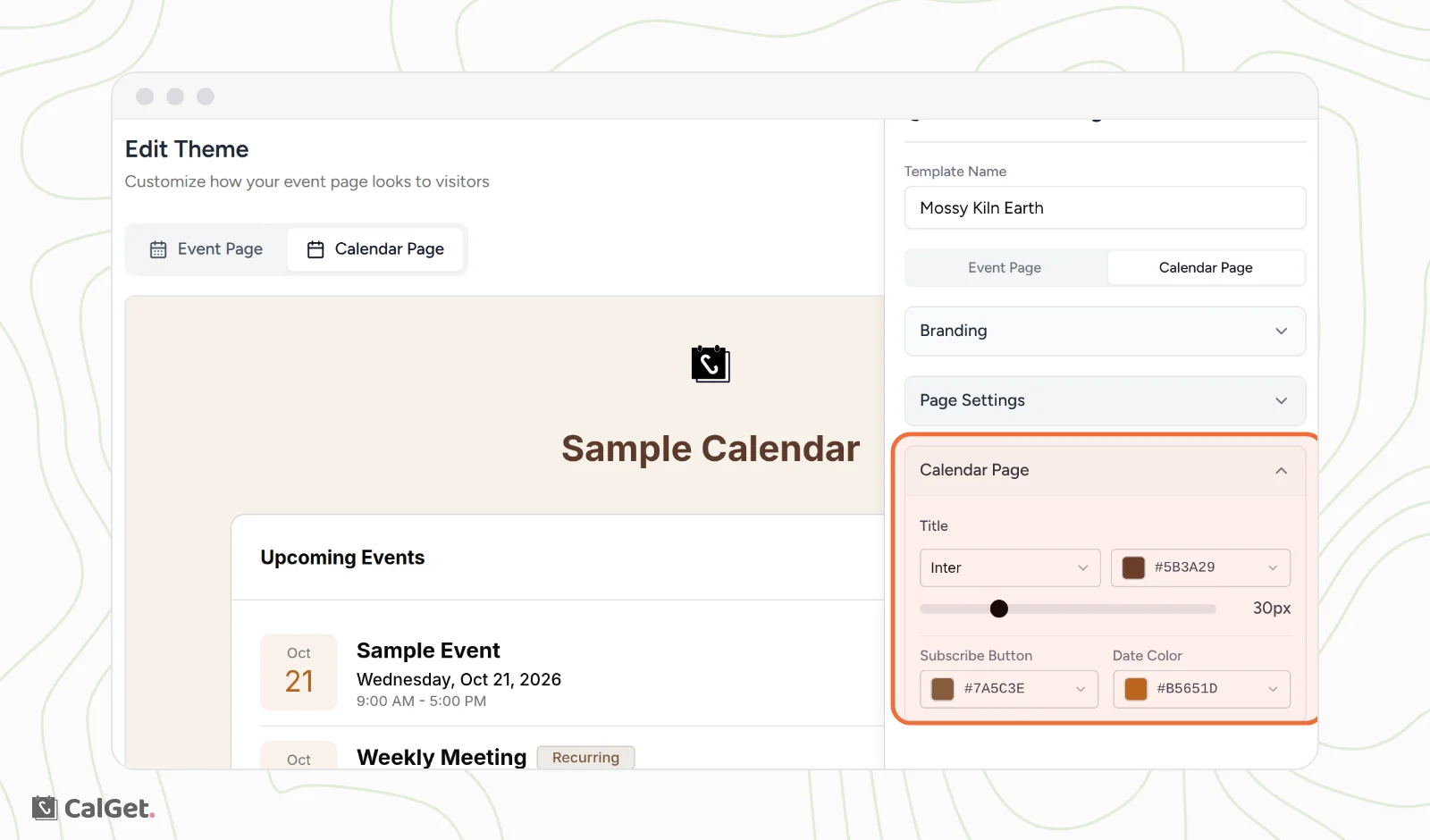
| Setting | What it changes |
|---|---|
| Branding | Your Logo at the top of the page, and its Logo Size. |
| Page Settings | The Background (Solid, Gradient or Image) and the Body Text font and size. |
| Calendar Page | The calendar name's font, color and size (Title), the Subscribe Button color and the Date Color. |
To pick a color, click the color box and type a hex code, like #7A5C3E, or choose one.
The same theme also has an Event Page tab for the look of your event pages, including the Button Color and which calendar apps show under Add to Calendar.
Use the theme on your calendar
- Click Calendars, then click your calendar.
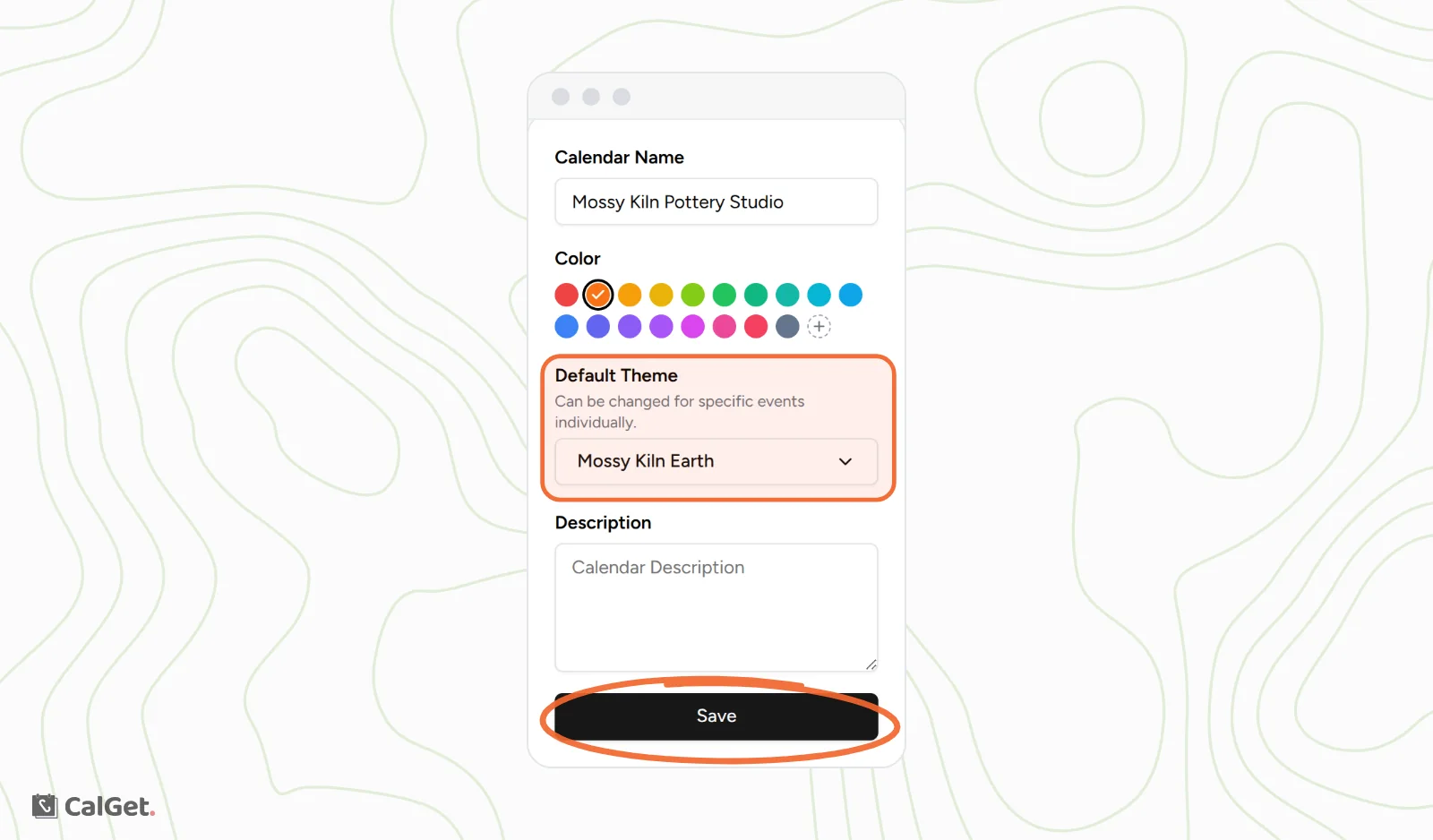
- On the Calendar Details tab, open the Default Theme menu and choose your theme.
- Click Save. You'll see "Calendar updated successfully".
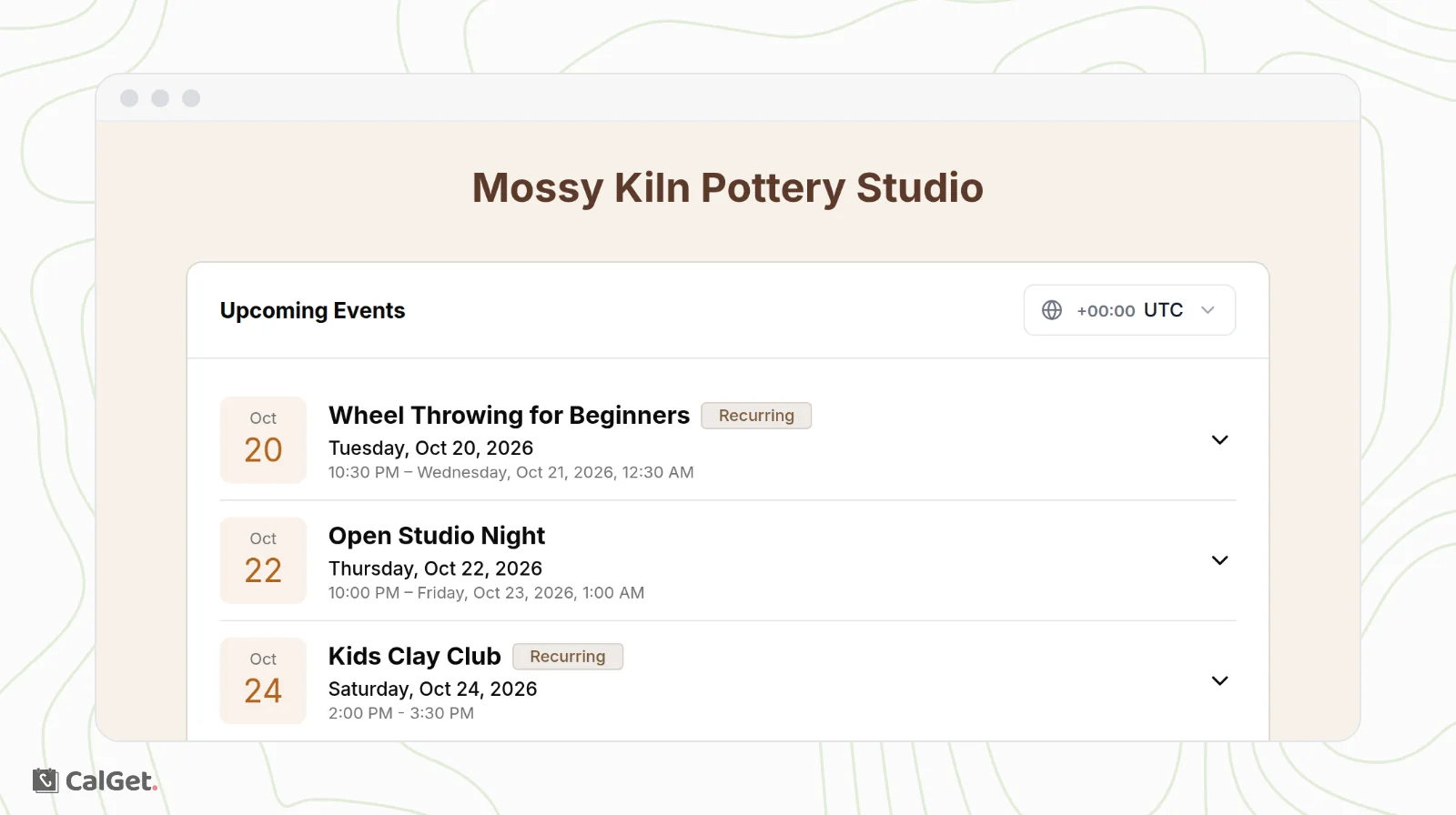
Open your calendar's Public Link to see the result.
As the setting says, the default theme can be changed for specific events individually. Use Change Theme in an event's menu. See Edit, duplicate or delete an event.
Common questions
What does the Color setting do?
Color on the Calendar Details tab doesn't change your public calendar page. To change how the page looks, use a theme.
How do I go back to the original look?
Set Default Theme back to Default Design and click Save.