Connect CalGet to other apps with Zapier
Updated October 20, 2026
CalGet works with Zapier, so you can link it to thousands of other apps without code. For example, you can add each RSVP to your Mailchimp list, or turn rows in a Google Sheet into CalGet events. You start from the Integrations page in CalGet and finish the setup in Zapier.
What CalGet can do in Zapier
A Zapier workflow (a "Zap") starts with a trigger and then runs one or more actions. CalGet offers one of each:
| In Zapier | What it does | You choose |
|---|---|---|
| Get RSVP Responses (trigger) | Starts the Zap when a guest sends an RSVP for your event. | Your Team and the RSVP Event. |
| Create Event (action) | Makes a new event in CalGet. | The event's title, description, location, start and end dates, time zone, design template and calendar. You can also make it an online or all-day event and turn on Collect RSVPs with an RSVP template. |
Open Integrations
In the menu on the left, under Tools & Analytics, click Integrations.

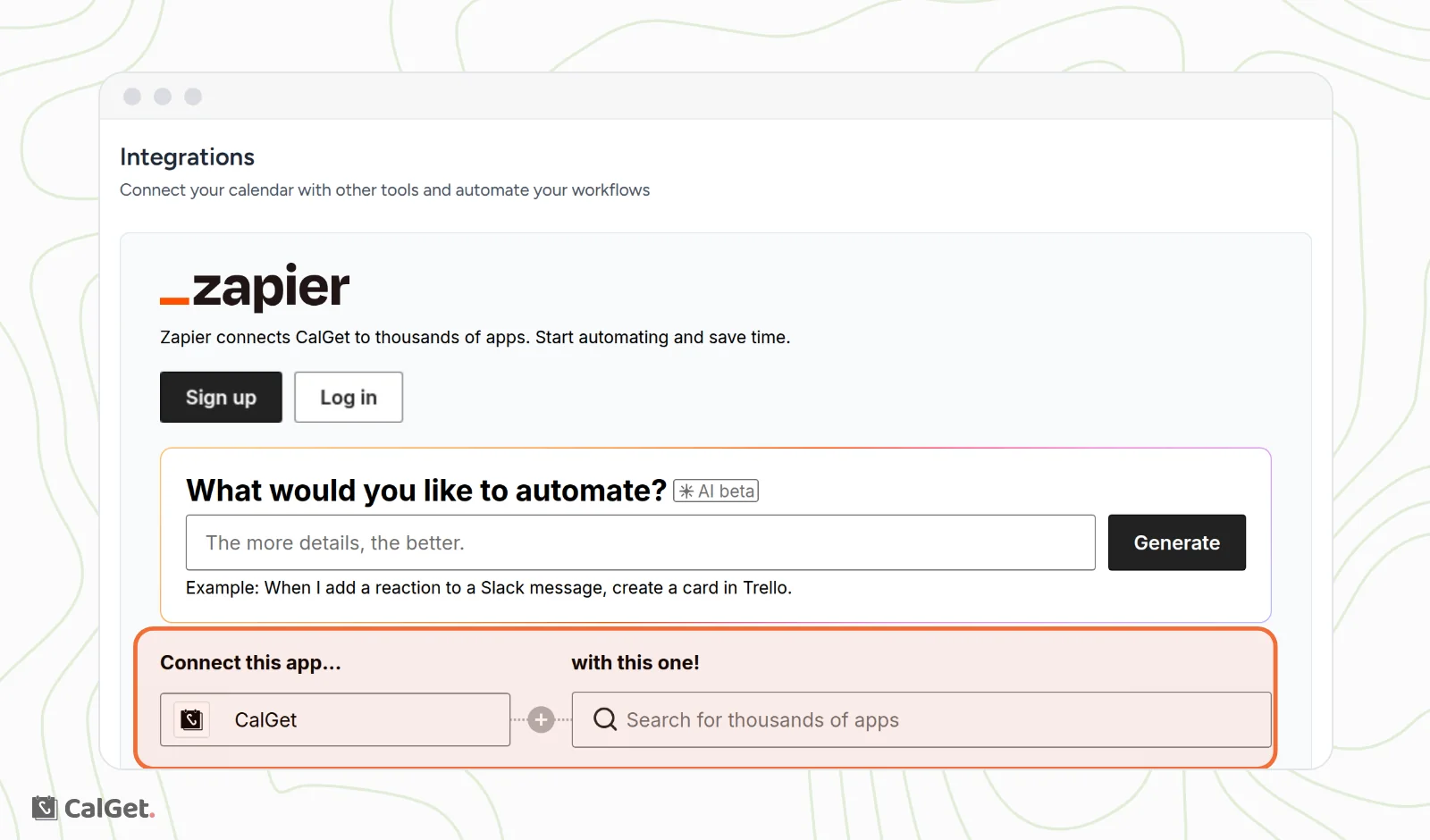
The page shows a Zapier panel. Use Sign up or Log in there if you don't have a Zapier account yet, or you're not signed in.
Pick a ready-made workflow
- Under Connect this app..., CalGet is already chosen.
- Under with this one!, click Search for thousands of apps and type the other app, for example Mailchimp. Choose it from the list.
- Under Popular workflows, find the one you want and click Use this workflow.
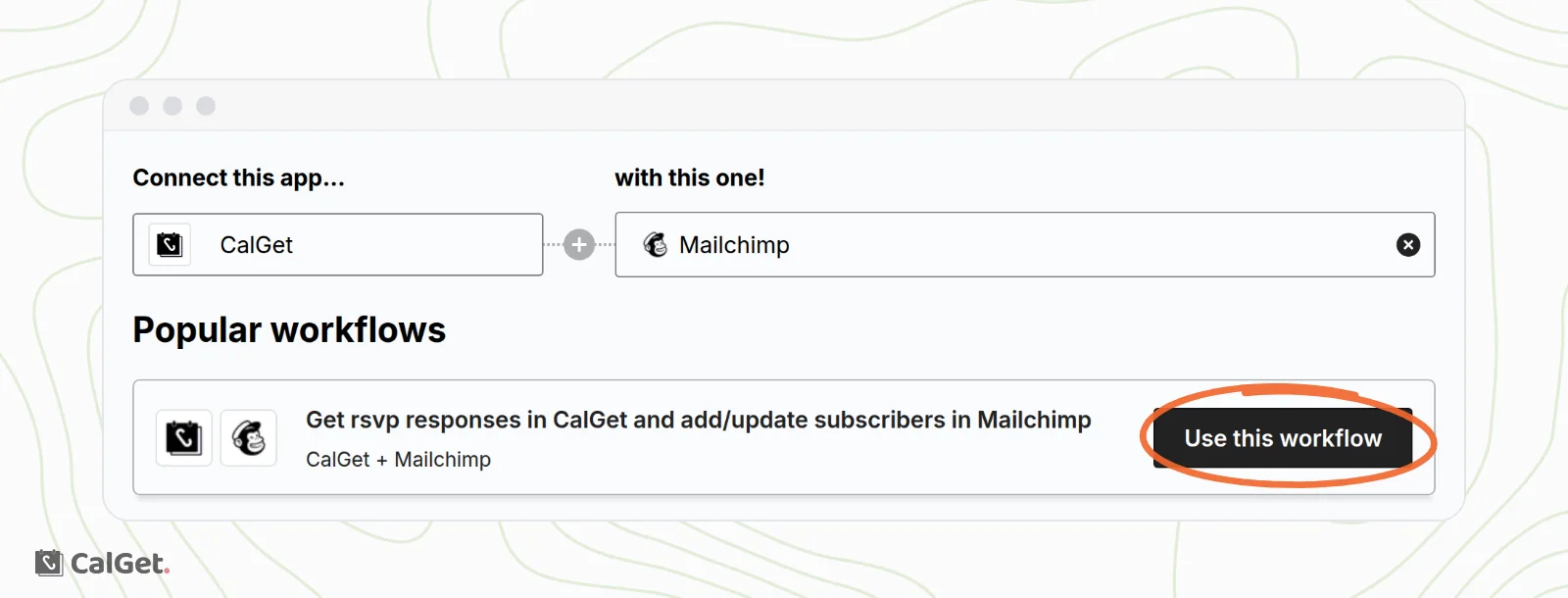
Zapier opens in a new tab with the workflow ready to set up. Before you search, Popular workflows lists a few to start from, such as:
- Create events in CalGet for new Google Sheets rows.
- Generate calendar links in CalGet for new Google Calendar events.
- Add tag to new Kit subscribers when getting RSVP responses in CalGet.
Some apps have no ready-made workflow. You can still build your own in Zapier with the trigger and action above.
Finish in Zapier
- When Zapier asks you to connect CalGet, sign in to CalGet and allow access.
- Choose your team, then fill in the fields for each step.
- Test the Zap and turn it on.
For an RSVP workflow, send a test reply to your event first, so Zapier has a reply to test with. Zapier checks CalGet for new replies on a schedule, not the moment they come in, so a reply can take up to about 15 minutes to reach your other app.
Common questions
Do I need my API key?
No. You sign in to CalGet from Zapier, so you don't paste a key. To find your key for other uses, see Find and copy your team's API key.
I belong to more than one team. Which team does Zapier use?
The one you pick in the Team field of each CalGet step.
Can Zapier change or delete my CalGet events?
No. CalGet's only action in Zapier is Create Event. To change an event, edit it in CalGet. See Edit, duplicate or delete an event.