Create your first event and share it
Updated October 20, 2026
This guide takes you from a new CalGet account to an event that anyone can add to their own calendar. It takes about five minutes.
1. Create your account
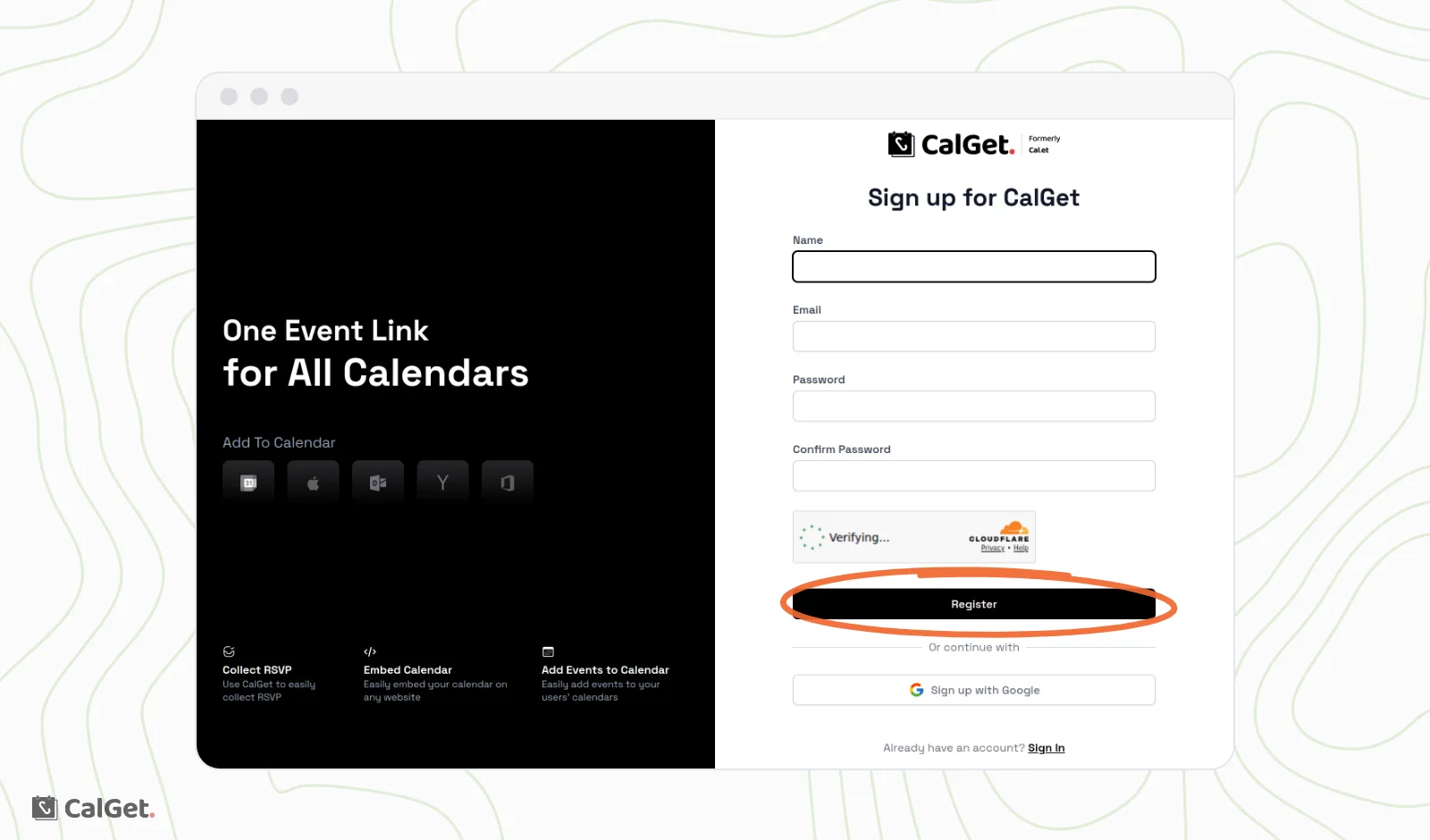
- Go to calget.com/register.
- Enter your Name and Email, choose a Password and type it again under Confirm Password.
- Click Register. To use your Google account instead, click Sign up with Google.
2. Create your event
- On My Events, click New Event.
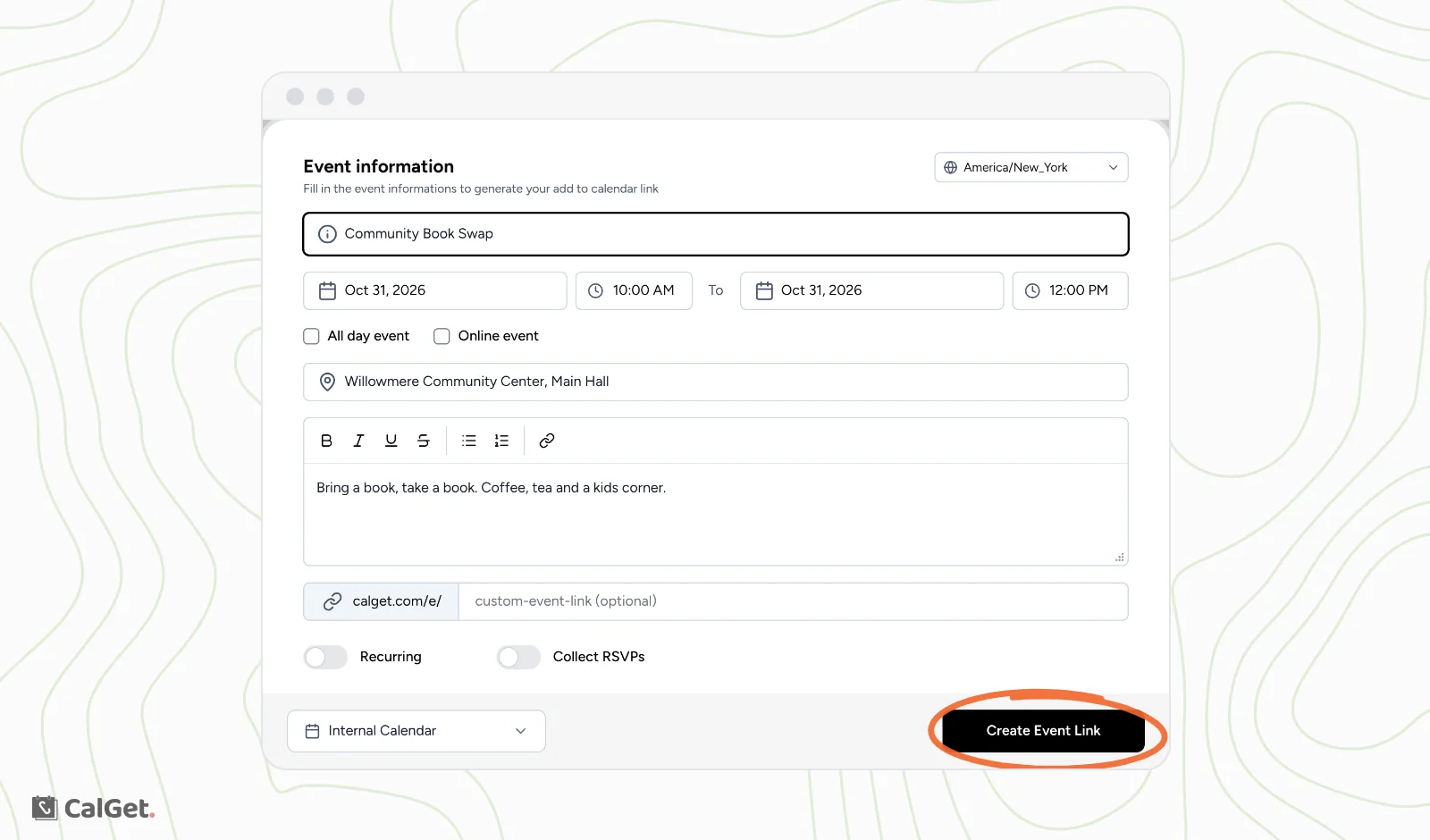
- Type the Event title.
- Pick the start date and time and the end date and time.
- Check the time zone in the top-right corner of the form, and change it if your event takes place somewhere else.
- Type the address in Event Location, or turn on Online event. For an event without set times, turn on All day event.
- Add a description. Guests see it on your event page.
- Click Create Event Link.
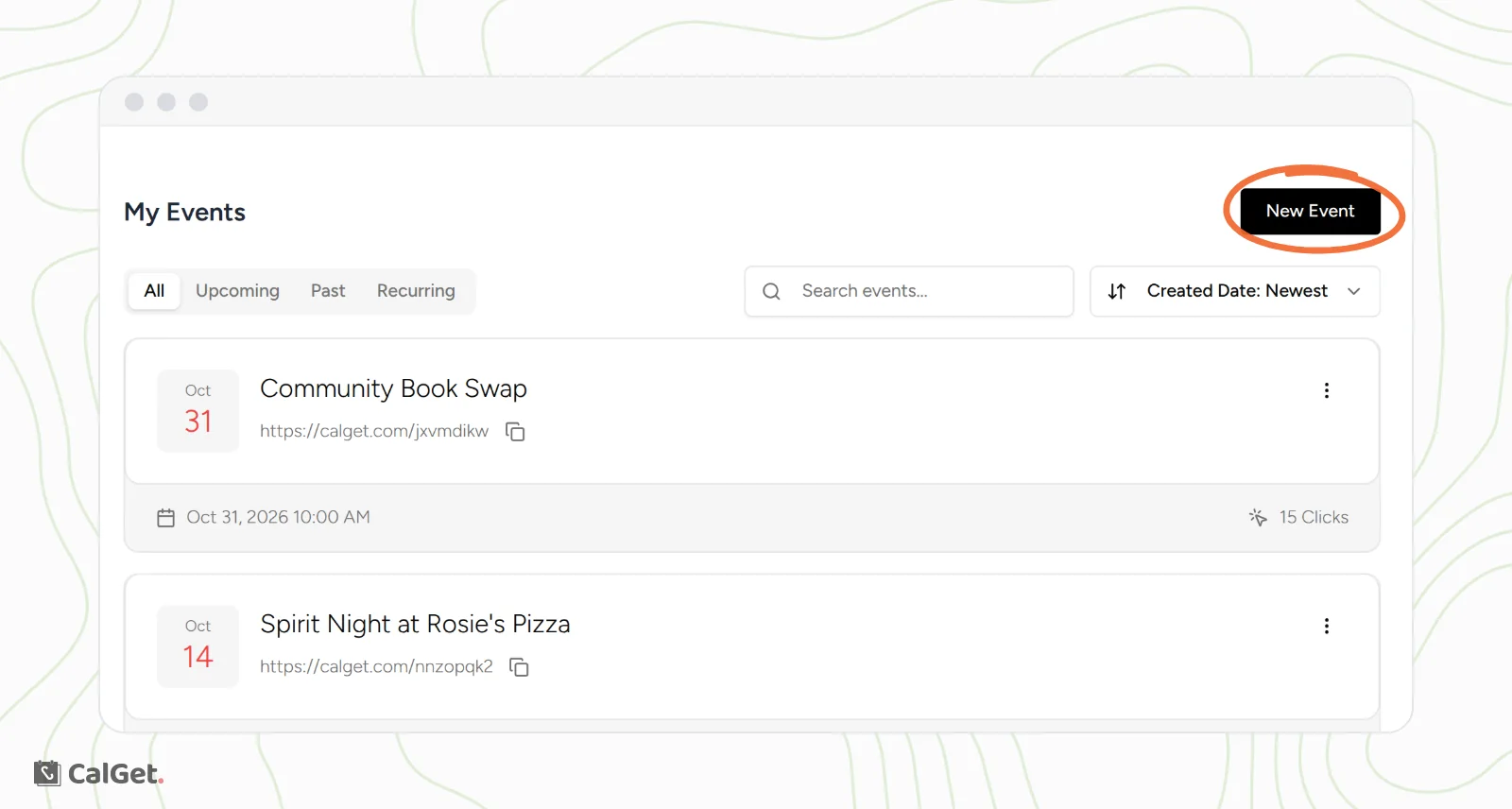
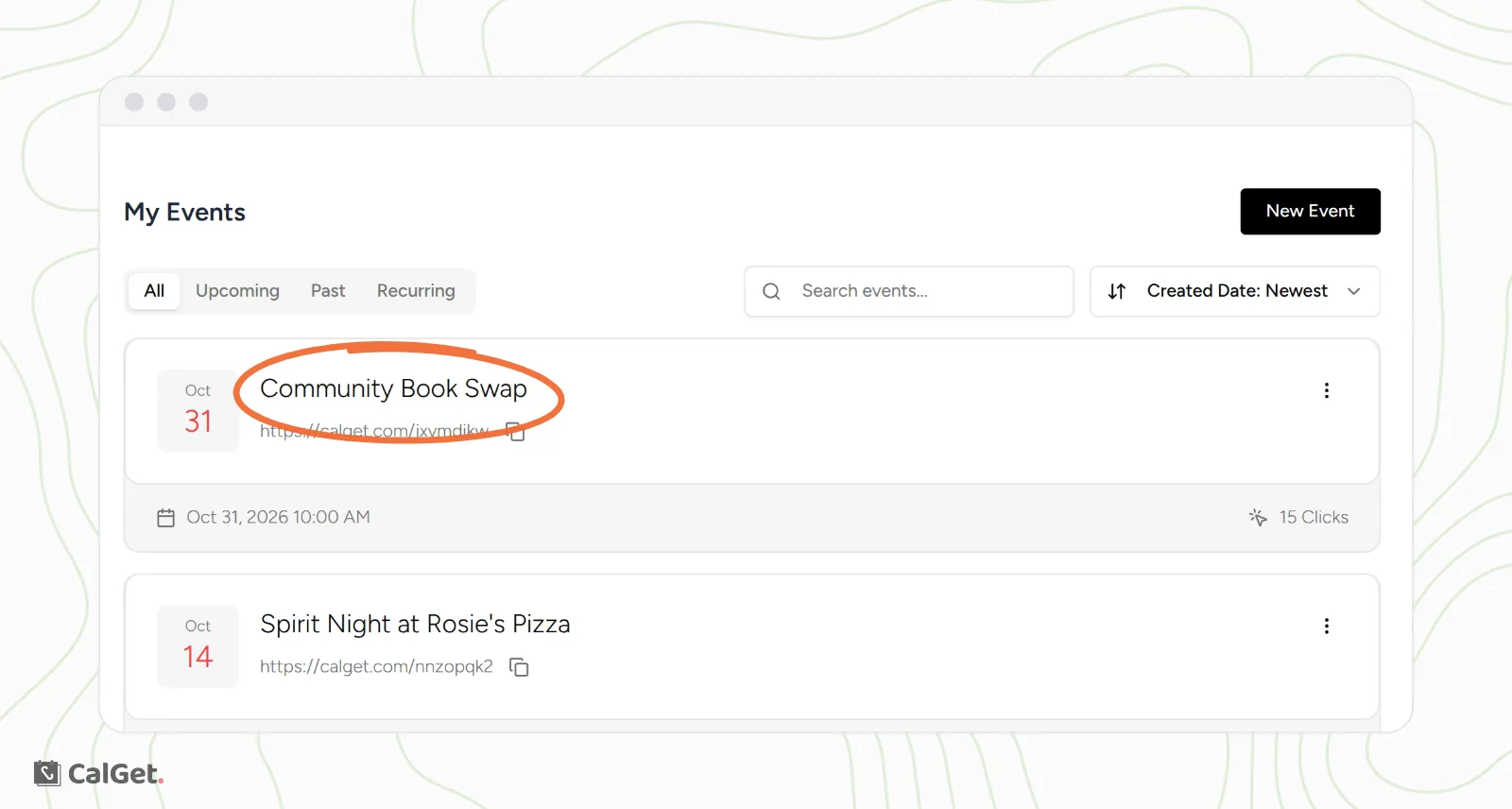
Your new event appears at the top of My Events, with its link under the title.
Optional settings in the form
- Recurring: repeat the event every day, week, month or year. See How to create a recurring event.
- Collect RSVPs: ask guests to RSVP before they add the event. See Collect RSVPs for your event.
- calget.com/e/: type your own ending for the event link, or leave it empty.
- The calendar menu at the bottom of the form: choose which of your calendars the event belongs to. See How subscription calendars work in CalGet
3. Share your event
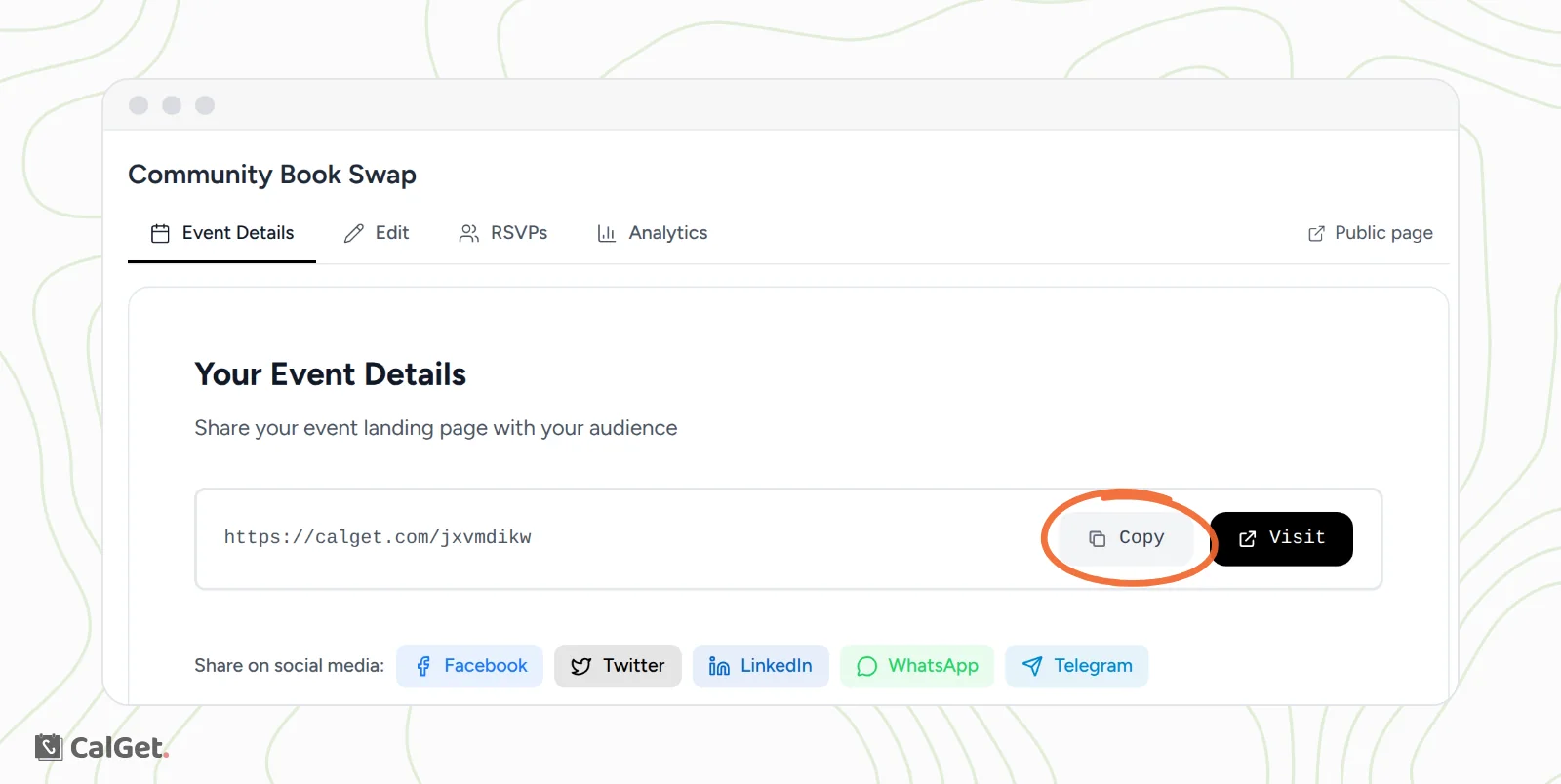
Click your event in My Events to open it. The Event Details tab has every way to share it:
| To do this | Use |
|---|---|
| Send the event in a message, an email or a post | The link under Your Event Details: click Copy. Or use the Facebook, Twitter, LinkedIn, WhatsApp or Telegram buttons. |
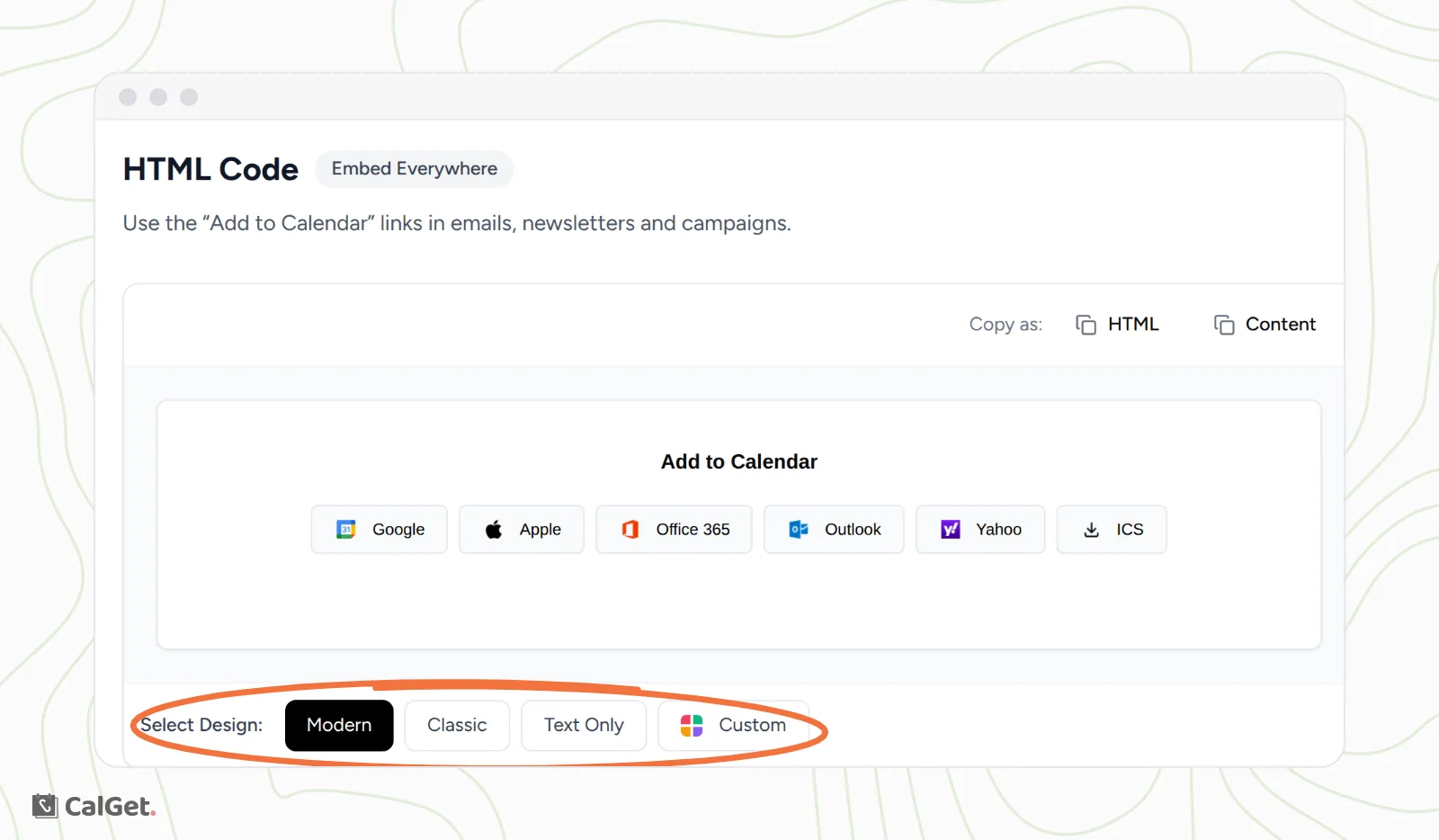
| Put Add to Calendar buttons in an email or newsletter | HTML Code: pick a design (Modern, Classic, Text Only or Custom). Next to Copy as, click Content to paste the buttons into an email, or HTML for a code editor. |
| Show the event on a website or a Notion page | Iframe Widget: click Copy Code and paste it into your page. |
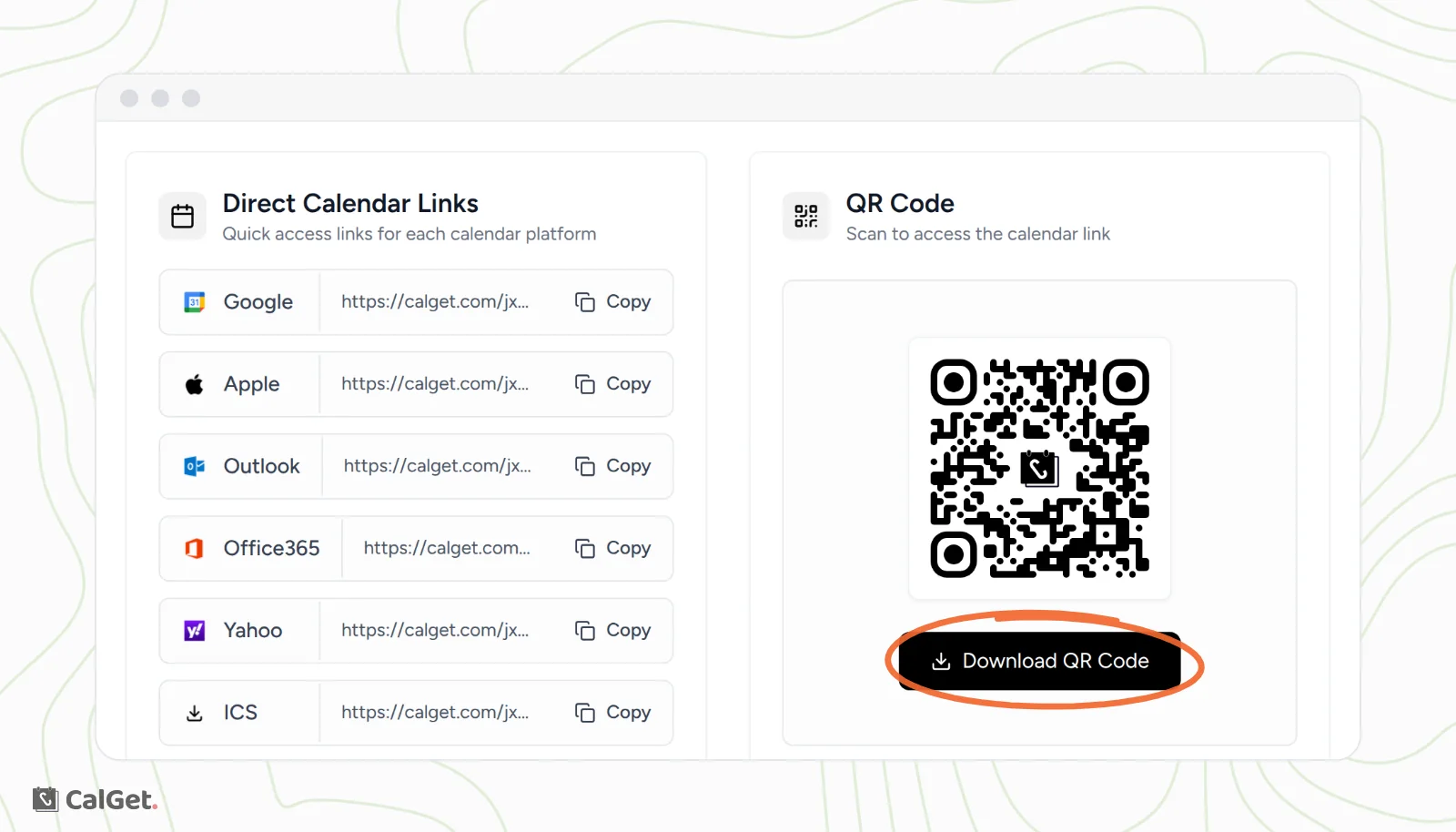
| Send people straight to one calendar app | Direct Calendar Links: copy the Google, Apple, Outlook, Office365, Yahoo or ICS link. |
| Print it on a flyer, poster or slide | QR Code: click Download QR Code. |
What your guests see
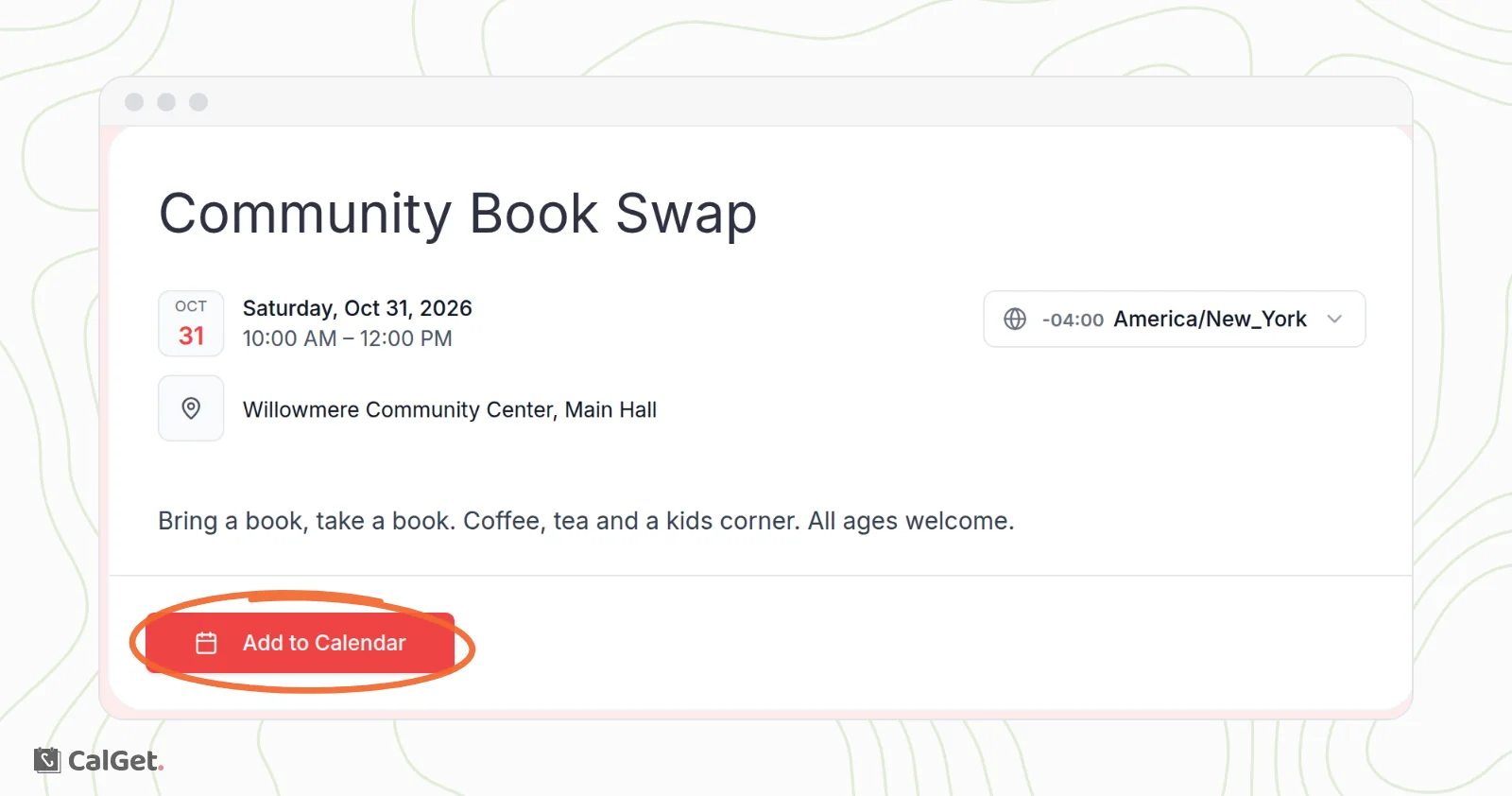
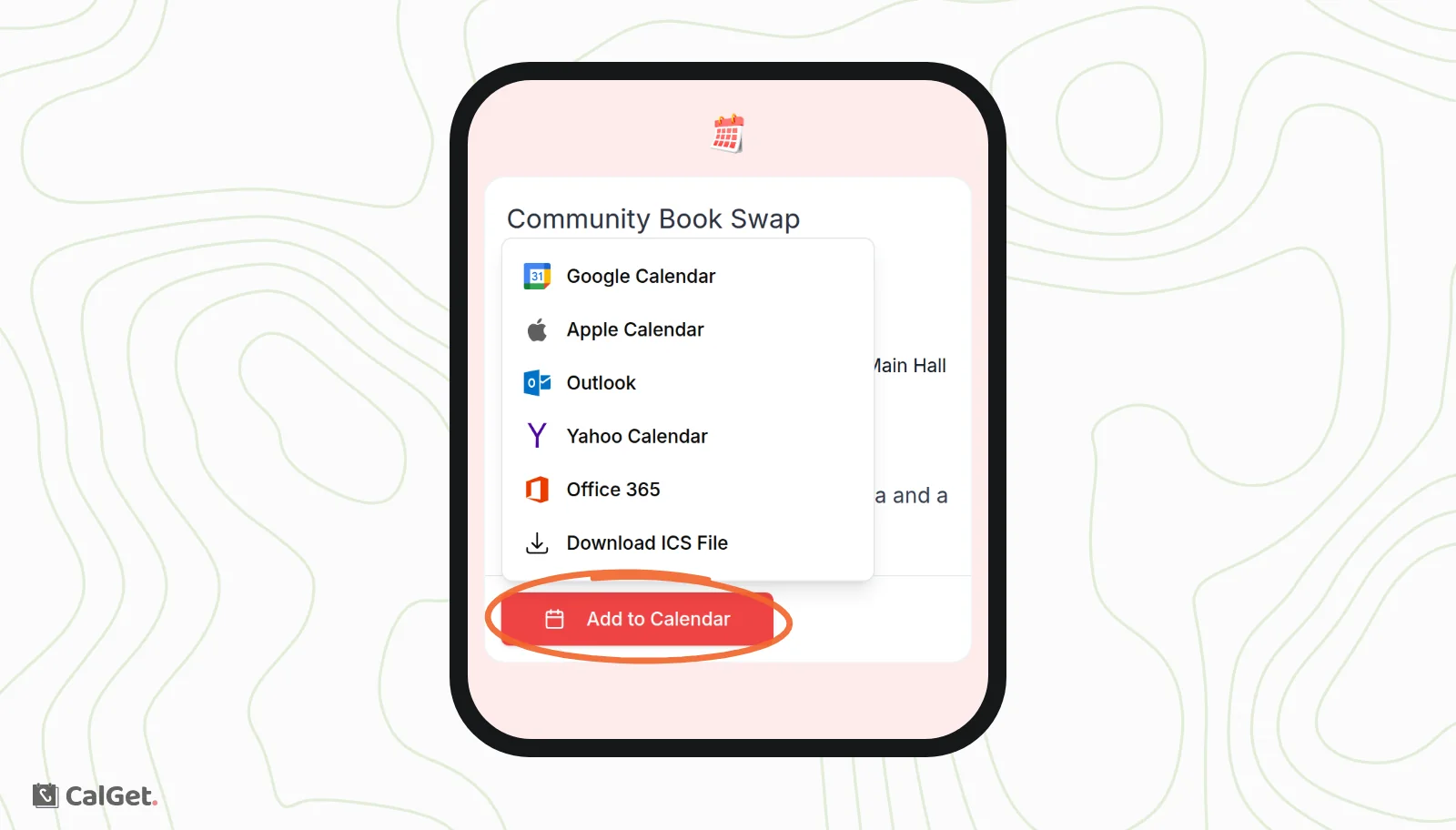
Your link opens your event page with the title, date, time, location and description. Guests don't need a CalGet account. They click Add to Calendar and choose Google Calendar, Apple Calendar, Outlook, Yahoo Calendar, Office 365 or Download ICS File.
Common questions
Can I change the event after I've shared it?
Yes. Open the event, go to the Edit tab, make your changes and click Save changes. The link stays the same and the event page updates right away. Guests who already added the event keep the copy in their calendar, so let them know about important changes.
Where do I see how many people used my link?
Each event in My Events shows a click count. For more detail, open the event and go to the Analytics tab.
Can I add an image or a password?
Yes. On the event's Edit tab you can upload an Event Image, turn on Password Protection and set the Social Media Preview.