Find and copy your team's API key
Updated October 20, 2026
Each CalGet team has its own API key. It's on the Team Management page, where you can copy it or replace it with a new one.
Find your key
- At the top of the menu on the left, click your team's name.
- Click Manage Team.
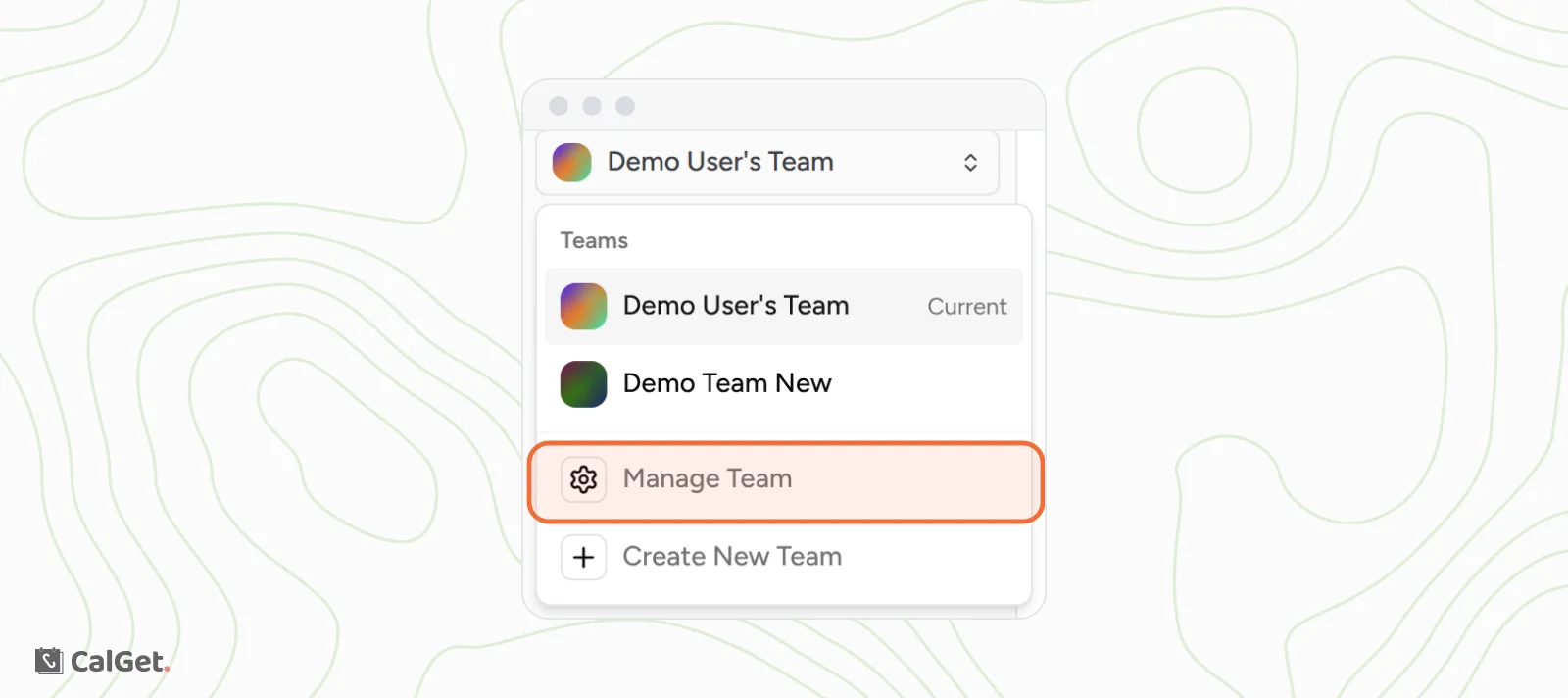
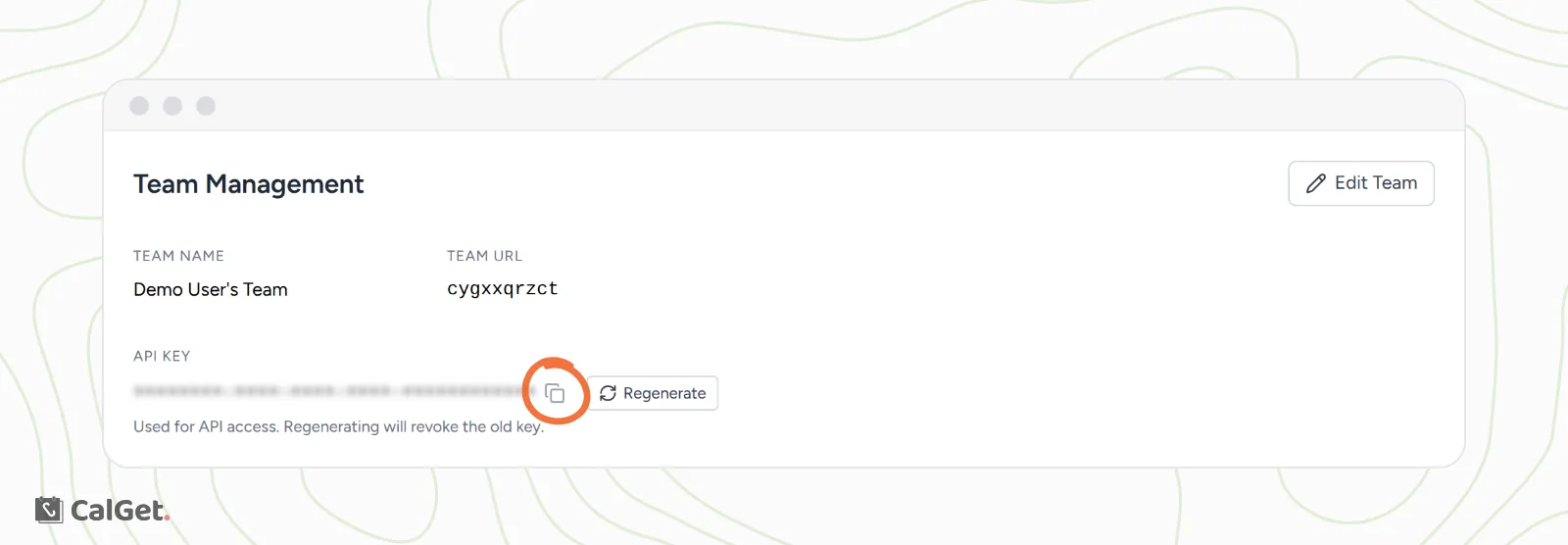
The Team Management page opens. Your key is under API KEY, below the team's name and URL.
Copy your key
Click the key, or the copy icon next to it. The whole key is copied, ready to paste where you need it.
Keep your key private
Your key gives access to your team's CalGet account through the API. Treat it like a password:
- Share it only with people and tools you trust.
- Don't post it in emails, chats or code that others can see.
- If you think someone else has it, make a new one (see below).
Make a new key
Click Regenerate next to your key. CalGet makes a new key and the old one stops working right away.
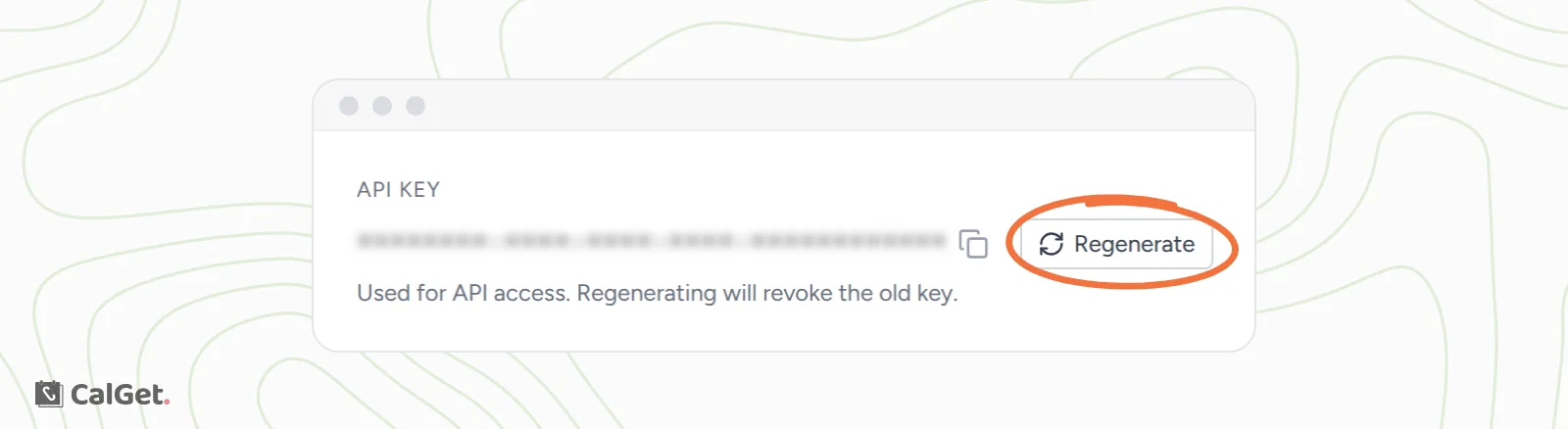
Anything that still uses the old key stops connecting. Paste the new key into each tool that needs it.
One key per team
If you belong to more than one team, each team has a different key. The key on Team Management is for the team you're working in now, marked Current in the team menu. To get another team's key, click that team in the menu first, then open Manage Team. See Invite team members and switch teams.
Common questions
Do I need my API key to connect Zapier?
No. You connect Zapier by signing in to CalGet from Zapier, so you don't paste a key.
Can I see my old key after I regenerate it?
No. The old key is gone and stops working. Only the new key shows on Team Management.
Can I change my team's name or URL here?
Yes. Click Edit Team at the top of the page.