Back to Blog
PDF Game Schedule to Calendar: One Link for the Season (2026)
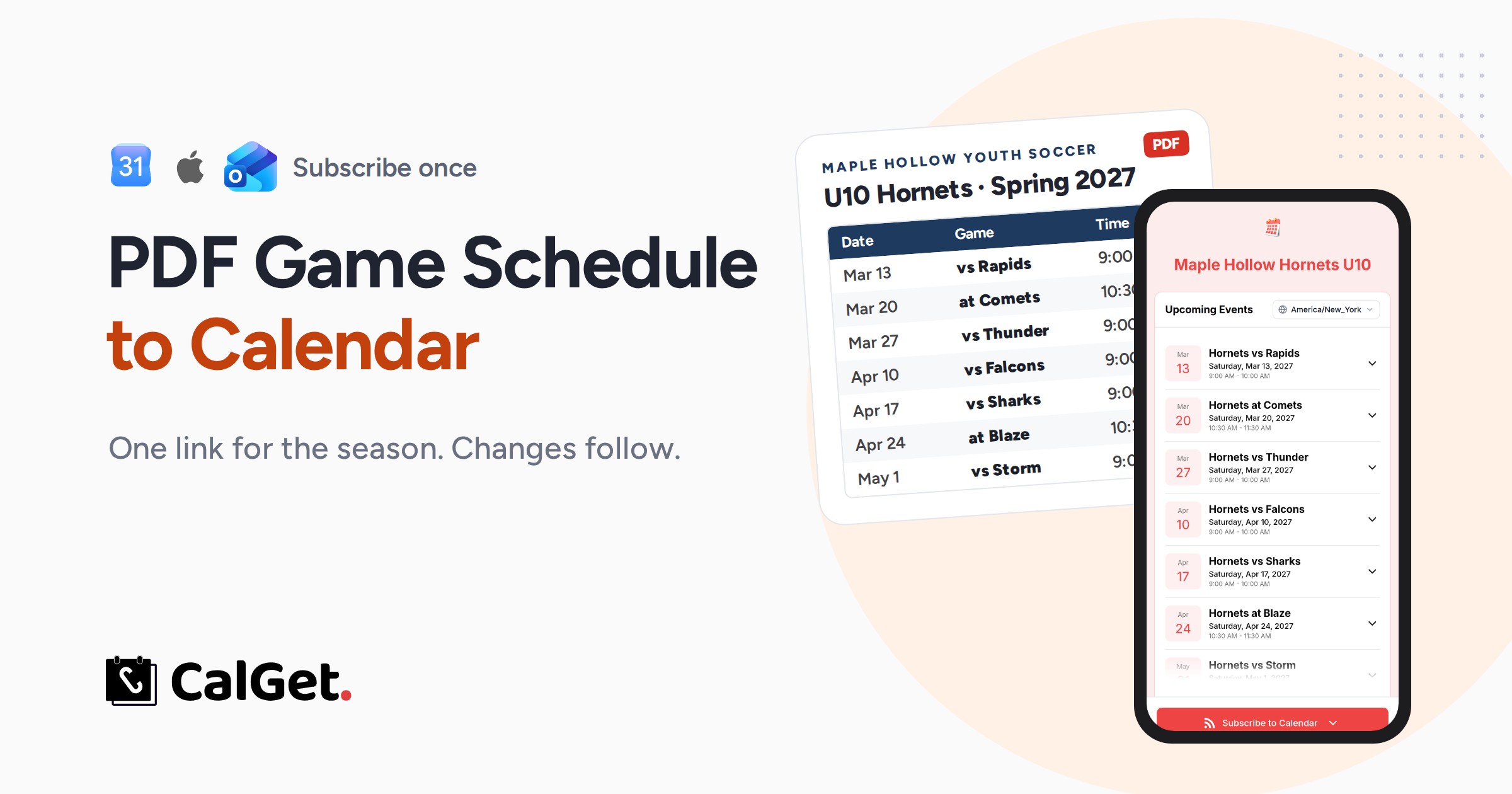
Google Calendar can't import a PDF, and a PDF can't update itself. Here's the quick CSV fix for one family, and the better fix for coordinators: one team calendar parents subscribe to once, tested with a real rained-out game.
Written by
Last updated: October 2026. We built a real season in CalGet for a made-up youth soccer team, subscribed to it on a phone and moved a rained-out game to see what parents get. We also checked how TeamSnap, GameChanger, SportsEngine and Spond handle calendar sync, from their own help pages.
Quick answer
You can't import a PDF schedule into Google Calendar directly. Google Calendar only imports ICS and CSV files. You have two ways to turn a PDF game schedule into calendar events:
- For your own family: type the games into a CSV file and import it on a computer. It's a one-time copy, so later changes won't show up.
- For the whole team: put the games in one shared calendar and send parents a single subscribe link. In CalGet, you add the first game, duplicate it for the rest and share the calendar's Public Link. Parents pick Google, Apple or Outlook once, and when a game moves, you change it in one place.
- Already on a team app like TeamSnap or GameChanger? Use its calendar sync instead. This guide is for schedules that only live in a PDF.
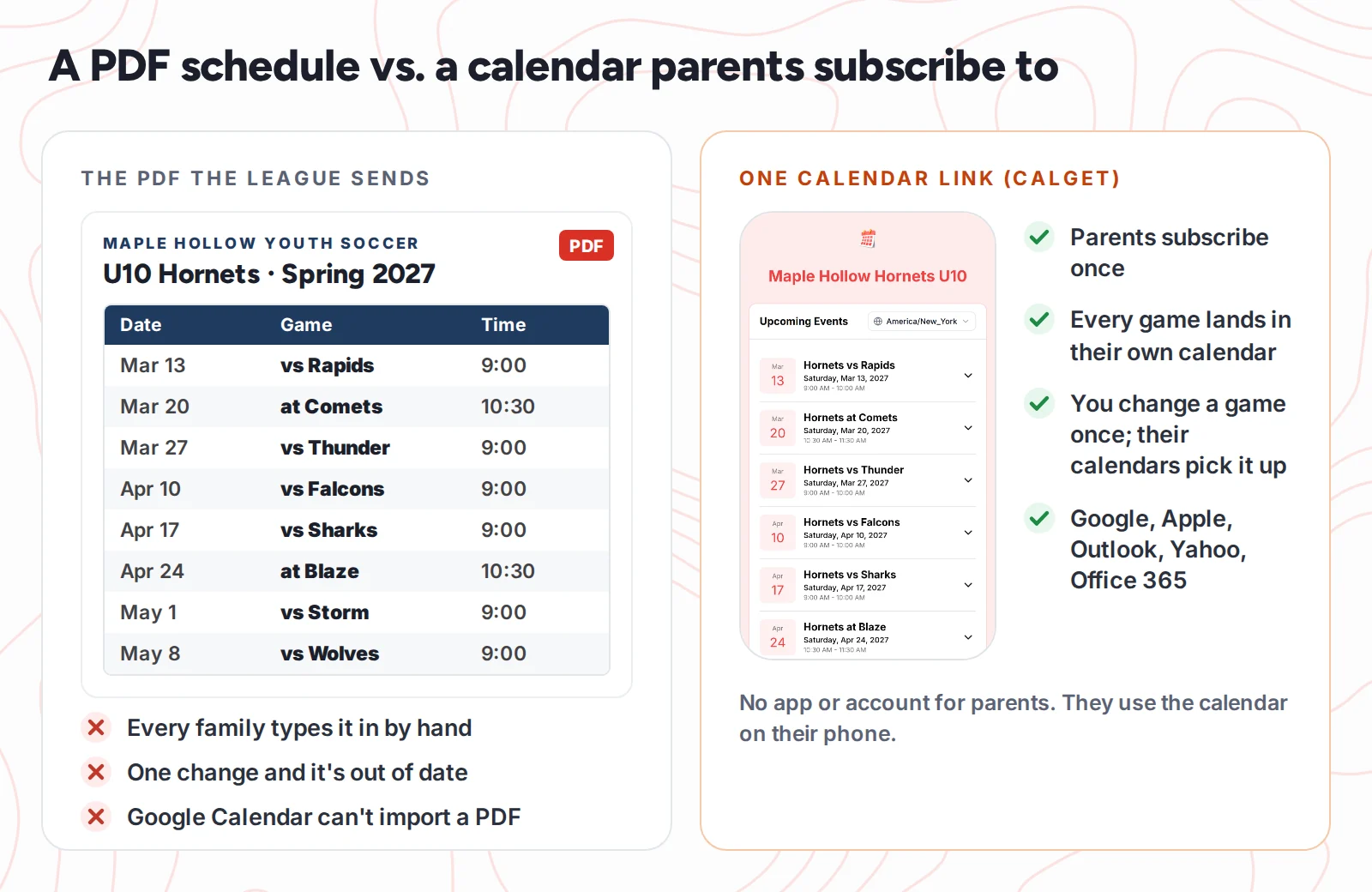
The league emails the spring schedule as a PDF on a Tuesday night. By Saturday, eighteen families have typed eight games into eighteen phones, each a little differently. Then the first game gets rained out and moves to Sunday. You send an email, a text and a group chat message, and one family still turns up at an empty field on Saturday morning.
The schedule isn't the problem. The PDF is. It's a picture of the season on the day it was made, and nobody's calendar knows when it changes. This guide shows how to turn a PDF game schedule into a calendar: the quick fix for one family, and the better fix for the volunteer coordinator who sends the schedule to everyone.
Why a PDF game schedule doesn't work in anyone's calendar
A PDF is fine for printing and pinning to the fridge. It falls apart as soon as families want the games on their phones:
- Every family types it in by hand. Eight games times eighteen families is 144 calendar entries, and every one is a chance for a wrong time or field.
- Calendars can't read it. Google Calendar imports ICS and CSV files, on a computer. A PDF isn't one of them.
- Changes don't travel. When a game moves, the PDF on everyone's phone is still the old one. The only fix is another email and hoping everyone reads it.
Option 1: get a PDF schedule into your own Google Calendar
If you're a parent with a PDF and you just want the games in your own calendar, a CSV file is the fastest route. Google Calendar reads a simple spreadsheet with the column names in English. Only Subject and Start Date are required. Adding times and the field makes it useful:
Subject,Start Date,Start Time,End Date,End Time,Location
Hornets vs Rapids,03/13/2027,9:00 AM,03/13/2027,10:00 AM,"Maple Hollow Park, Field 3"
Hornets at Comets,03/20/2027,10:30 AM,03/20/2027,11:30 AM,"Riverside Fields, Field 1"
Hornets vs Thunder,03/27/2027,9:00 AM,03/27/2027,10:00 AM,"Maple Hollow Park, Field 3"- Copy the games from the PDF into a spreadsheet with those six columns, one game per row. Put the field in quotes if it has a comma.
- Save it as a .csv file.
- On a computer, open Google Calendar, then Settings → Import & export.
- Choose your file, pick which calendar the games go into and click Import.
Some parents paste the PDF into an AI chatbot and ask for a CSV in exactly this format. That can save typing, but check every date and time against the PDF before you import. A game on the wrong Saturday is worse than no game at all.
The catch: an import is a copy. If the league moves a game, your calendar won't know. You fix that event by hand, or delete the games and import again. If you're the one who sends the schedule to everyone, Option 2 is the one you want.
Option 2: turn the PDF into one calendar every family subscribes to
A subscription calendar is a calendar people follow instead of copy. Each family subscribes once from a link, and their Google, Apple or Outlook calendar keeps checking it for changes. You keep one copy of the season. Here's how we set one up in CalGet for the made-up Maple Hollow Hornets U10 team.
1. Create a calendar for the team
In CalGet, click Calendars, then New Calendar. Name it the way parents will recognize it, like "Maple Hollow Hornets U10", add a line of description and click Create Calendar. One calendar per team works best, so a family with two kids subscribes to exactly the teams they need.
2. Add the first game
Open the calendar and click New Event. Give it a title families can scan at a glance, such as "Hornets vs Rapids" for a home game and "Hornets at Comets" for an away game. Set the date, start and end time and the location with the field number, like "Maple Hollow Park, Field 3". Use the description for what parents actually need: arrival time, jersey color, who's bringing snacks. Then click Create Event Link.
3. Duplicate it for every other game
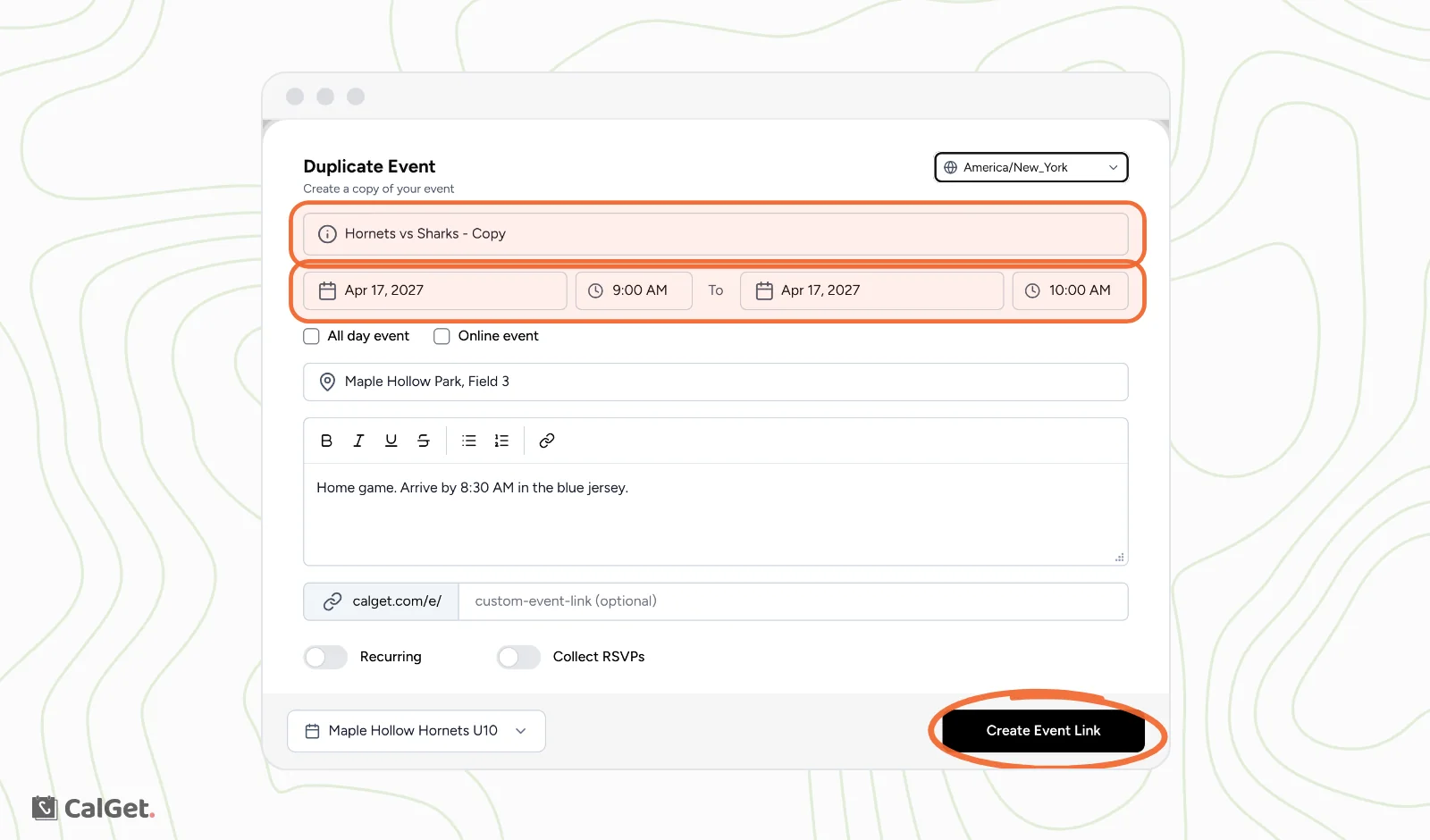
This is where the PDF turns into a season fast. On Events, open the game's menu (the three dots) and choose Duplicate. The form opens with everything filled in. Change the opponent and the date, and click Create Event Link. Each game after the first is three changes: the title, the date and Create Event Link. More detail is in our help article on duplicating events.
Practices that repeat every week don't need duplicating. Make one recurring event, for example every Tuesday and Thursday until the season ends. See how to create a recurring event (recurring events are on paid plans).
4. Share the calendar's link
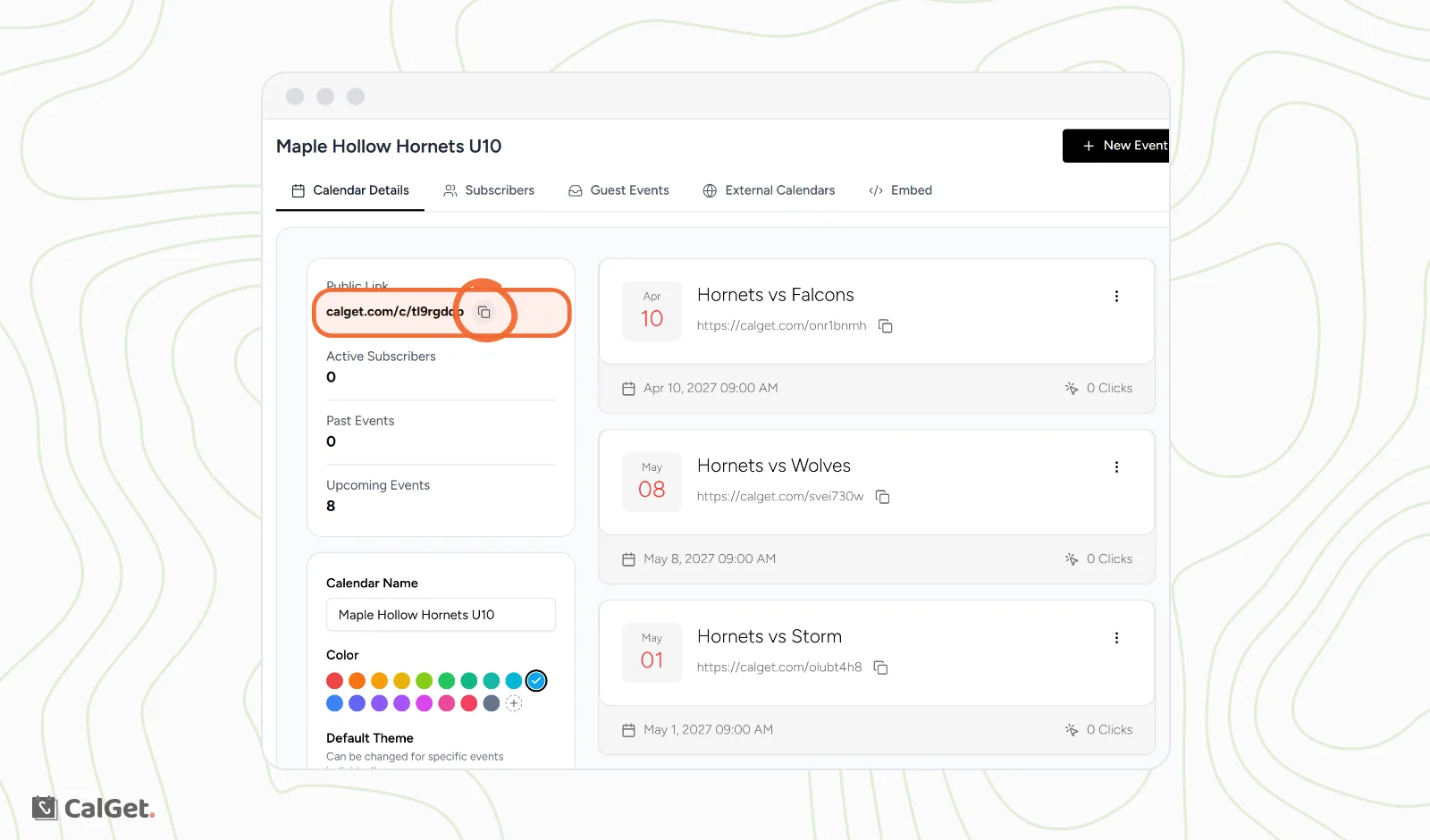
On the calendar's Calendar Details tab, copy the Public Link (it looks like calget.com/c/tl9rgdqp). Put it wherever the PDF used to go: the season email, the team group chat, the league website. If you still hand out a printed schedule, add a QR code that opens the calendar so parents can scan it from the paper.
What parents see when they subscribe
The link opens the team's calendar page with every upcoming game, its time and its field. At the bottom, Subscribe to Calendar opens the choices: Google, Apple, Outlook, Yahoo, Office365 and iCal. Parents tap the one they use, confirm in their calendar app, and the whole season appears. They don't need a CalGet account or another app.
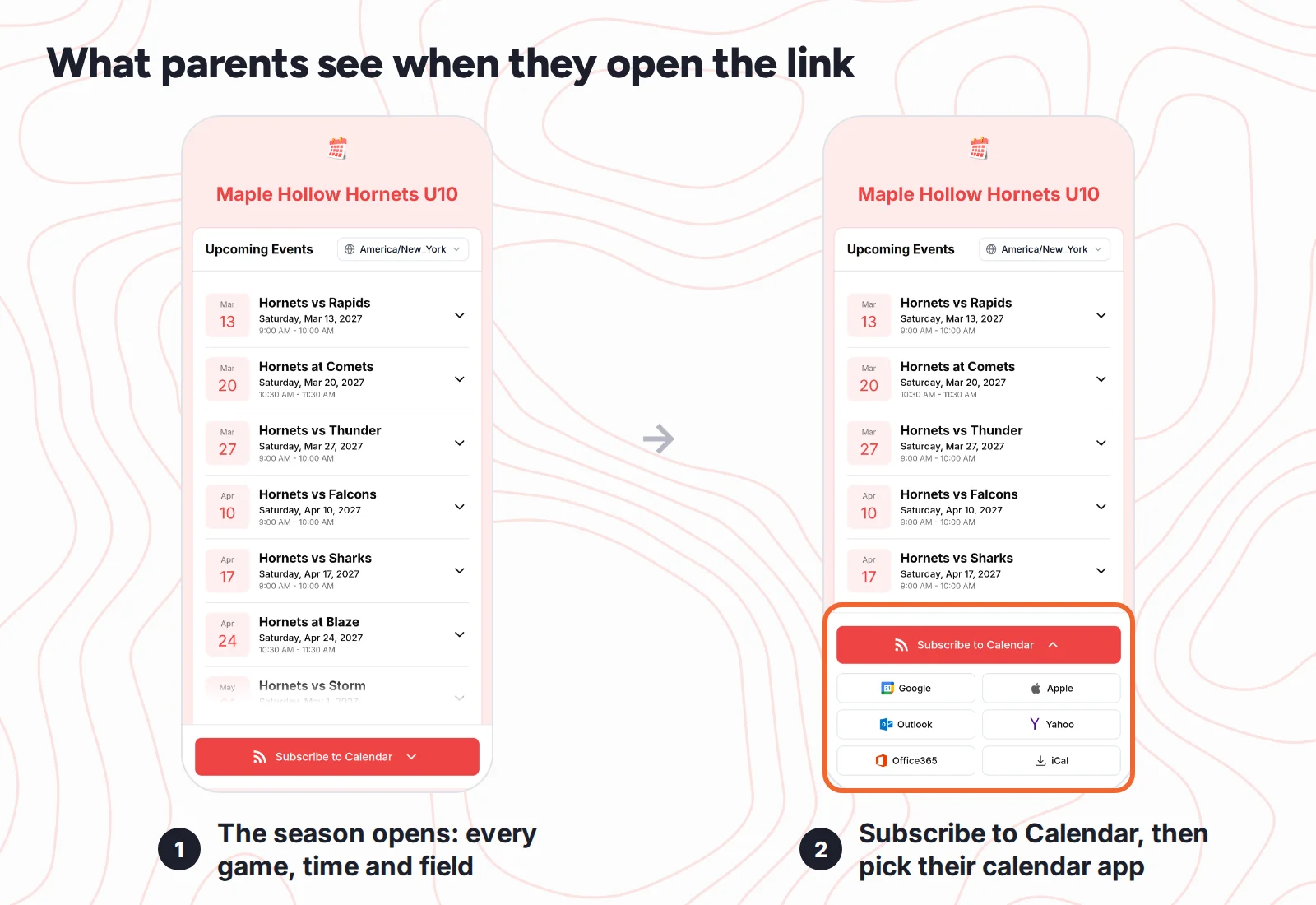
A tip for the season email: tell Android families to pick Google. Android phones show Google Calendar, so that's where the games should go. If you want the details on why some calendar links do nothing on Android, our guide to webcal links explains it.
When a game gets rained out: what we saw
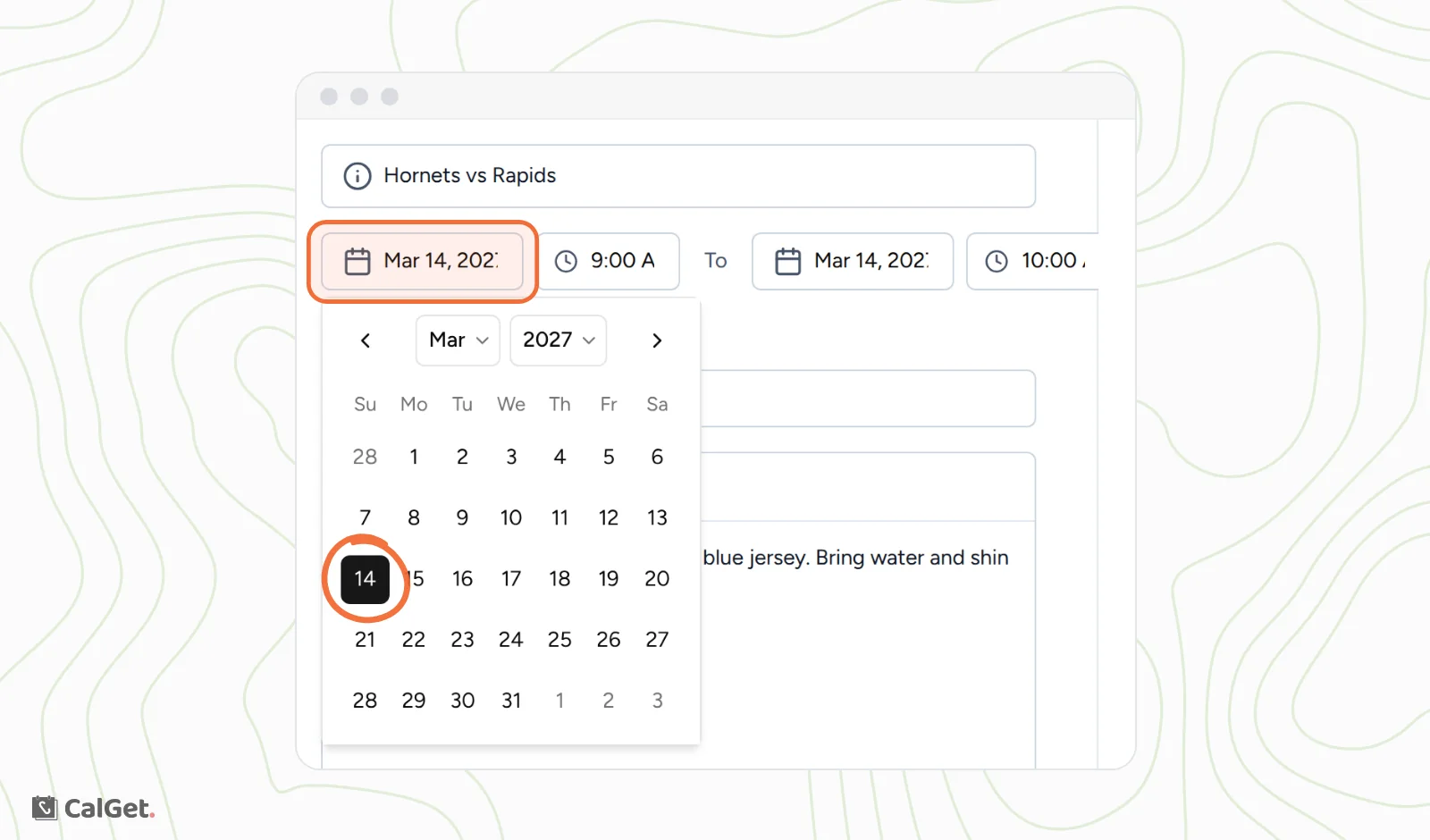
We moved the Hornets vs Rapids game from Saturday, March 13 to Sunday, March 14. That took one change: open the game, click the Edit tab, pick the new date (the end date followed on its own) and click Save changes.
The calendar page showed Sunday, March 14 as soon as we saved. We also fetched the calendar's subscribe feed, the file every subscribed calendar reads, and it already had the game on March 14 at 9:00 AM, New York time.
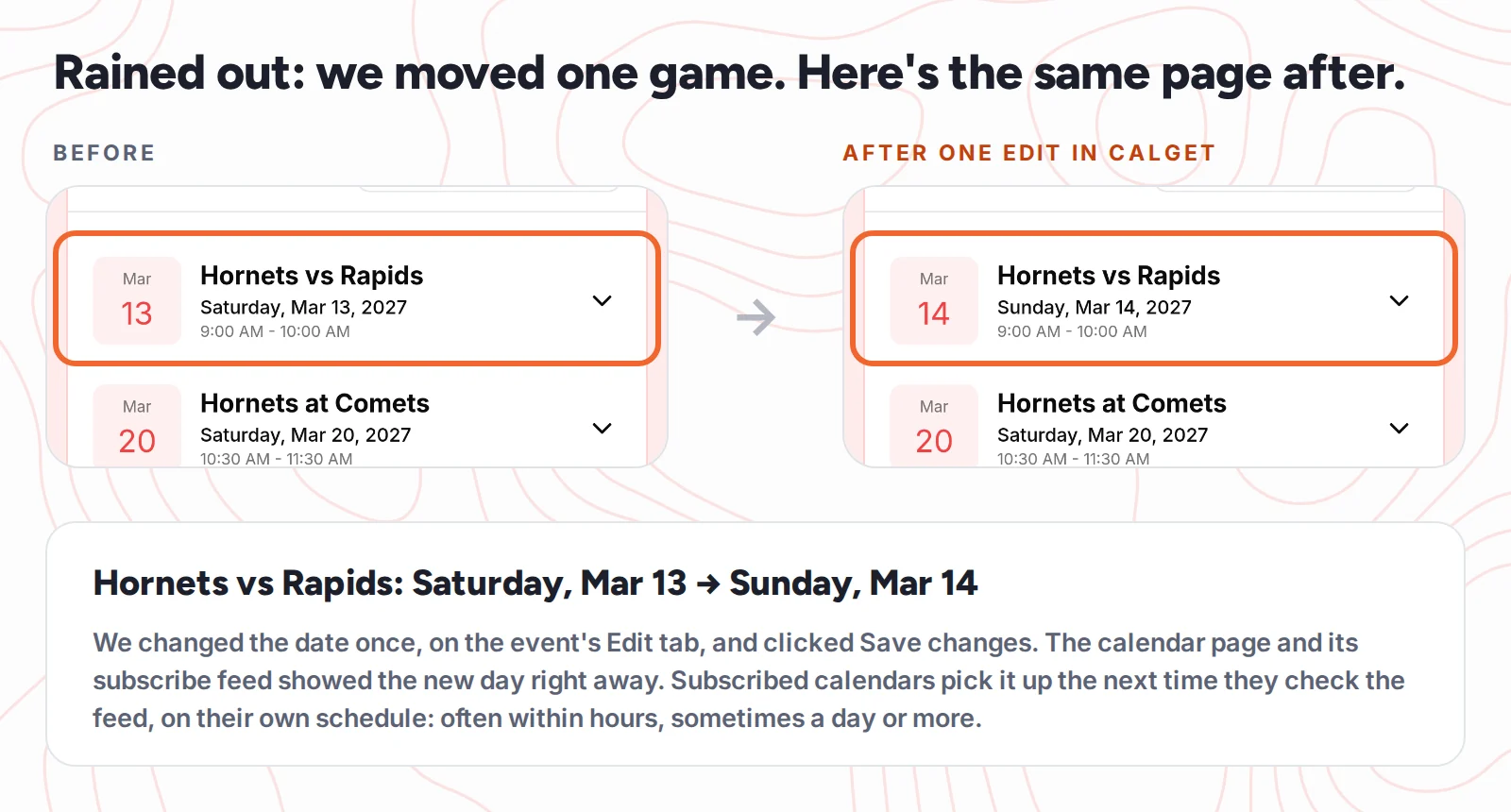
Be clear with families about timing. Their calendar apps check the feed on their own schedule, not the second you save. Microsoft says Outlook.com checks about every 3 hours, and it can take more than a day. Google doesn't publish a schedule, so expect hours. Apple Calendar on a Mac refreshes as often as the person sets it. Our help article on when subscribers don't see a change yet has the details. For a game-day change, still send a quick message. The calendar catches up; the text gets read now.
Already using TeamSnap, GameChanger, SportsEngine or Spond?
Then you may not need any of this. The big team apps all get games into parents' calendars. Here's how each one does it, according to its own help pages:
| Team app | How games get into a parent's calendar | Worth knowing |
|---|---|---|
| TeamSnap | On the web, the team's Schedule tab has a Subscribe/Export option with a link for Google, Apple or Outlook. | A team member can send a games-only link to family and friends, from the website rather than the app. |
| GameChanger | In the team's settings, Schedule Sync adds the schedule to Apple or Google Calendar. | Staff, players and parents sync every event. People who only follow the team get the game schedule. |
| SportsEngine | In a MySE account, the Schedule tab's Sync Schedule button gives a link to paste into a calendar app. | Each family needs to sign in to a SportsEngine account to get the link. |
| Spond | In the Spond app, Calendar settings sync events to the phone's calendar. | Each family uses the Spond app to turn it on. |
Our take: if your team already runs on one of these, use its calendar sync. Adding a second calendar would only confuse parents. A shared calendar like CalGet's fits when:
- The schedule arrives as a PDF or a spreadsheet from the league or the rec department, and nobody has set up a team app.
- Many of your families won't install another app or create another account.
- Grandparents, carpool neighbors or fans want the games too, without joining anything.
- A club with several teams wants one page per team, or the whole schedule on its website with an embeddable calendar.
Tips for a team calendar parents can trust
- Write "vs" and "at". "Hornets vs Rapids" reads as a home game and "Hornets at Comets" as away, even in a crowded calendar week.
- Put the field number in the location. "Riverside Fields, Field 2" saves a lot of wandering across a big complex, and phones turn it into a map link.
- Use the description for game-day details: arrival time, jersey color, snack family, what to bring.
- Don't delete a cancelled game right away. Change its title to start with "Cancelled:" first, so families see the change instead of a game quietly disappearing.
- Keep the subscribe link in the same spot all season, like the pinned message in the team chat, so new families can find it.
- Check your plan's limits before the season. CalGet's Free plan allows 2 calendars, 25 subscribers per calendar and 5 new events a day. A parent who subscribes on a phone and a laptop counts twice. See pricing for the current limits.
How we tested this
On October 20, 2026, we created a calendar for the made-up Maple Hollow Hornets U10 team in CalGet, with eight Saturday games from March 13 to May 8, 2027, in the America/New_York time zone. We added seven games with New Event and the eighth with Duplicate. We opened the calendar's public page on an iPhone-size screen and opened the Subscribe to Calendar options. We then moved the March 13 game to March 14 on the Edit tab, checked the public page again and fetched the subscribe feed to confirm the new date was in it. The team app details come from TeamSnap, GameChanger, SportsEngine and Spond help pages, and the CSV format from Google Calendar Help, all checked in October 2026.
Frequently asked questions
Can Google Calendar import a PDF schedule?
No. Google Calendar imports ICS and CSV files, and only on a computer. To use a PDF schedule, copy the games into a CSV file with columns like Subject, Start Date, Start Time and Location, or ask whoever sends the schedule for a calendar link you can subscribe to.
How do I add a team schedule to my iPhone calendar?
If the team has a subscribe link, open it on the iPhone and choose Apple. The Calendar app asks you to subscribe, and every game appears. If all you have is a PDF, you'll need to add the games by hand or import a CSV into Google Calendar first.
Will parents see changes to the schedule automatically?
Yes, if they subscribed to a calendar rather than importing a file. Their calendar app picks up the change the next time it checks the feed. That's often within hours, but Outlook can take more than a day, so send a quick message for same-day changes.
Do parents need an account or an app?
Not with a CalGet calendar. Parents open the link and subscribe in the calendar they already use: Google, Apple, Outlook, Yahoo or Office 365.
Our league uses TeamSnap. Should we switch?
No. If your team already uses TeamSnap, GameChanger, SportsEngine or Spond, use its calendar sync. A shared calendar link makes the most sense when the schedule only exists as a PDF or a spreadsheet.
Can we put the team schedule on our club website too?
Yes. The same CalGet calendar can be embedded on a website, so the schedule on the site and in parents' calendars always match. See our guide to creating a subscription calendar for the full setup.
A PDF is how a schedule gets sent. A calendar is how it gets used. Put the season in one place, send one link and let the calendars do the remembering. When you're ready, create your team's calendar in CalGet and add the first game. The rest of the season is a few duplicates away.

Written by the CalGet team
Updated October 2026 · Tested on a real CalGet calendar: a season built, subscribed to and rescheduled
We build calendar tools for sharing events with lots of people, from sports clubs and schools to nonprofits. People at organizations like Harvard, Save the Children and OGC Nice use CalGet to get events into their audience's calendars.

“Great Add Event to Calendar platform. Easy to create events and add them to emails and websites. Support responds quickly to questions and provides clean and concise answers. Highly recommended.” Foto Guy, on Trustpilot
Get Your Events on Everyone's Calendar.
Generate universal "Add to Calendar" links that work everywhere. Perfect for social media, emails, and websites.


Written by
Yared