Edit, duplicate or delete an event
Updated October 20, 2026
Change an event after you've created it, copy it to make a similar one, or remove it. Every option is in the event's menu on My Events.
Open the event menu
- Go to Events.
- Find your event on My Events and click the three dots on the right of its card.
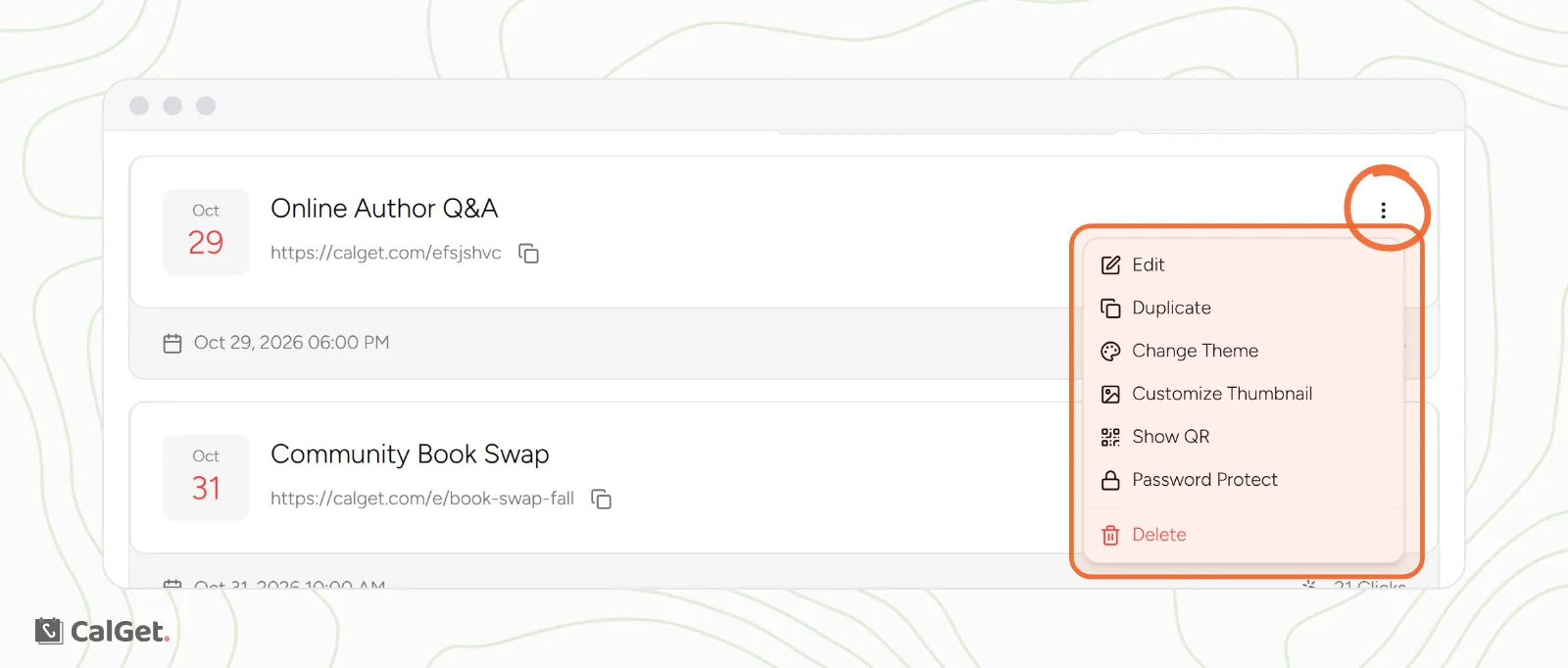
| Option | What it does |
|---|---|
| Edit | Opens the event's Edit tab to change any detail. |
| Duplicate | Starts a new event filled in with this one's details. |
| Change Theme | Picks the design of the event page, with a live preview. |
| Customize Thumbnail | Sets the image, title and description people see when the link is shared on social media. |
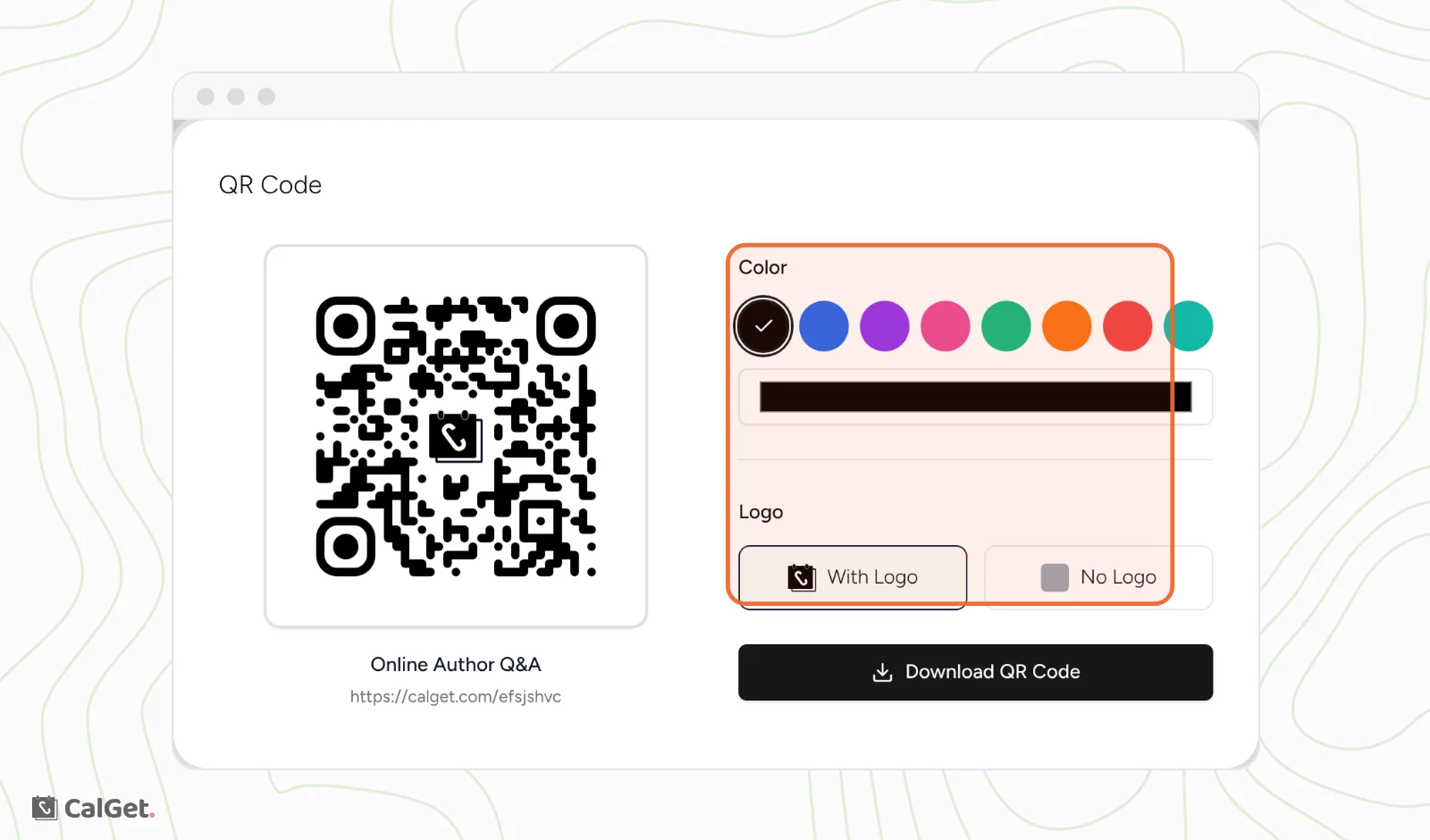
| Show QR | Opens the event's QR code, where you can change its color, add the logo and download it. |
| Password Protect | Adds a passcode guests must enter to open the event page. |
| Delete | Removes the event for good. |
Edit an event
- In the event menu, click Edit. You can also open the event and click the Edit tab.
- Change what you need.
- Click Save changes.
The event page and its links update right away, and the event link stays the same. Guests who already added the event to their calendar keep the copy they saved, so let them know about important changes such as a new date.
Duplicate an event
Duplicating is the fastest way to set up a similar event, such as next month's meetup.
- In the event menu, click Duplicate. The Duplicate Event form opens with the same details, and " - Copy" added to the title.
- Change the title, the date and anything else that's different.
- Click Create Event Link.
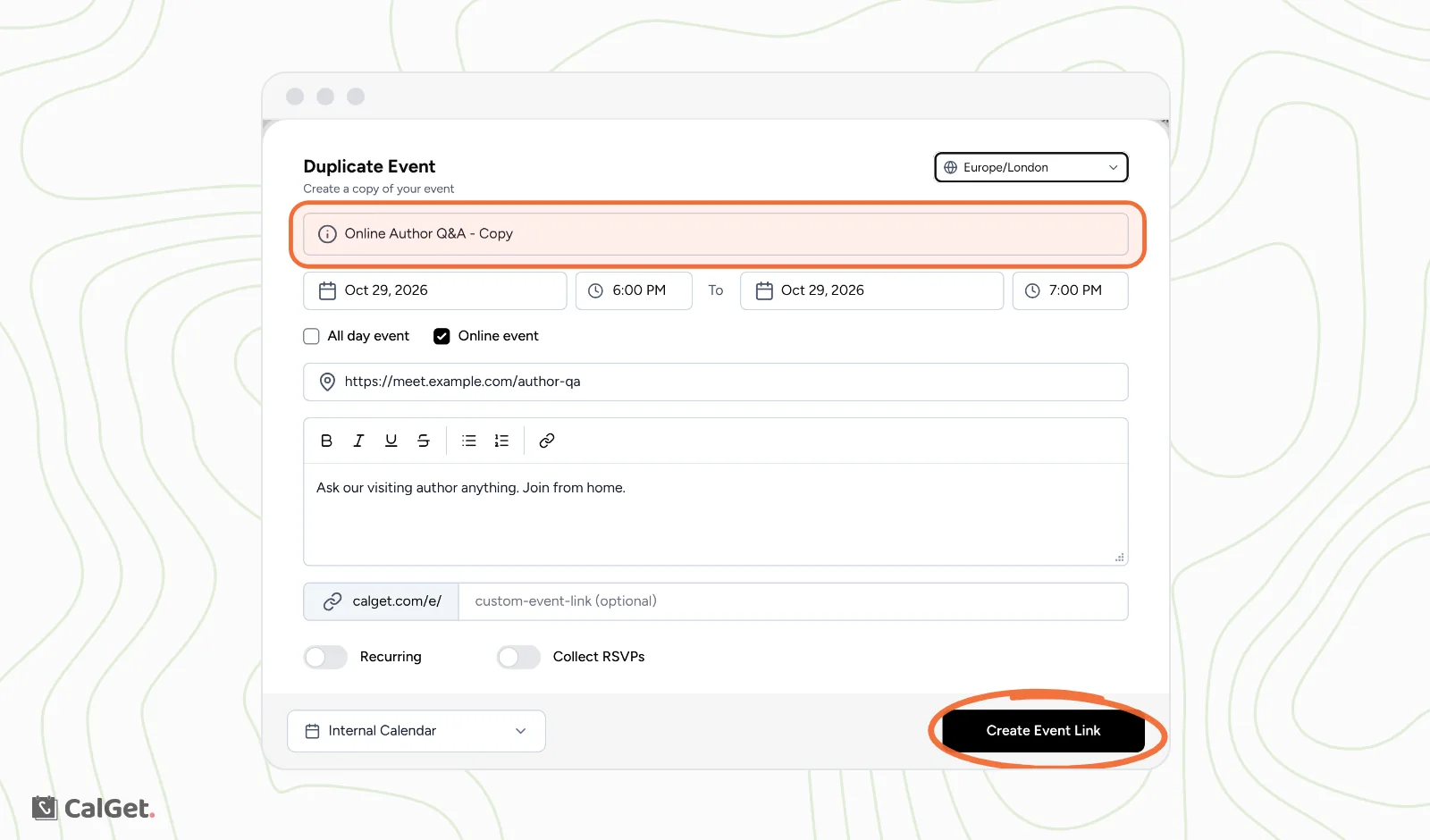
Nothing is created until you click Create Event Link. The copy is a separate event with its own link, and the original doesn't change.
Delete an event
- In the event menu, click Delete.
- Check that the event shown is the right one.
- Click Delete Event.
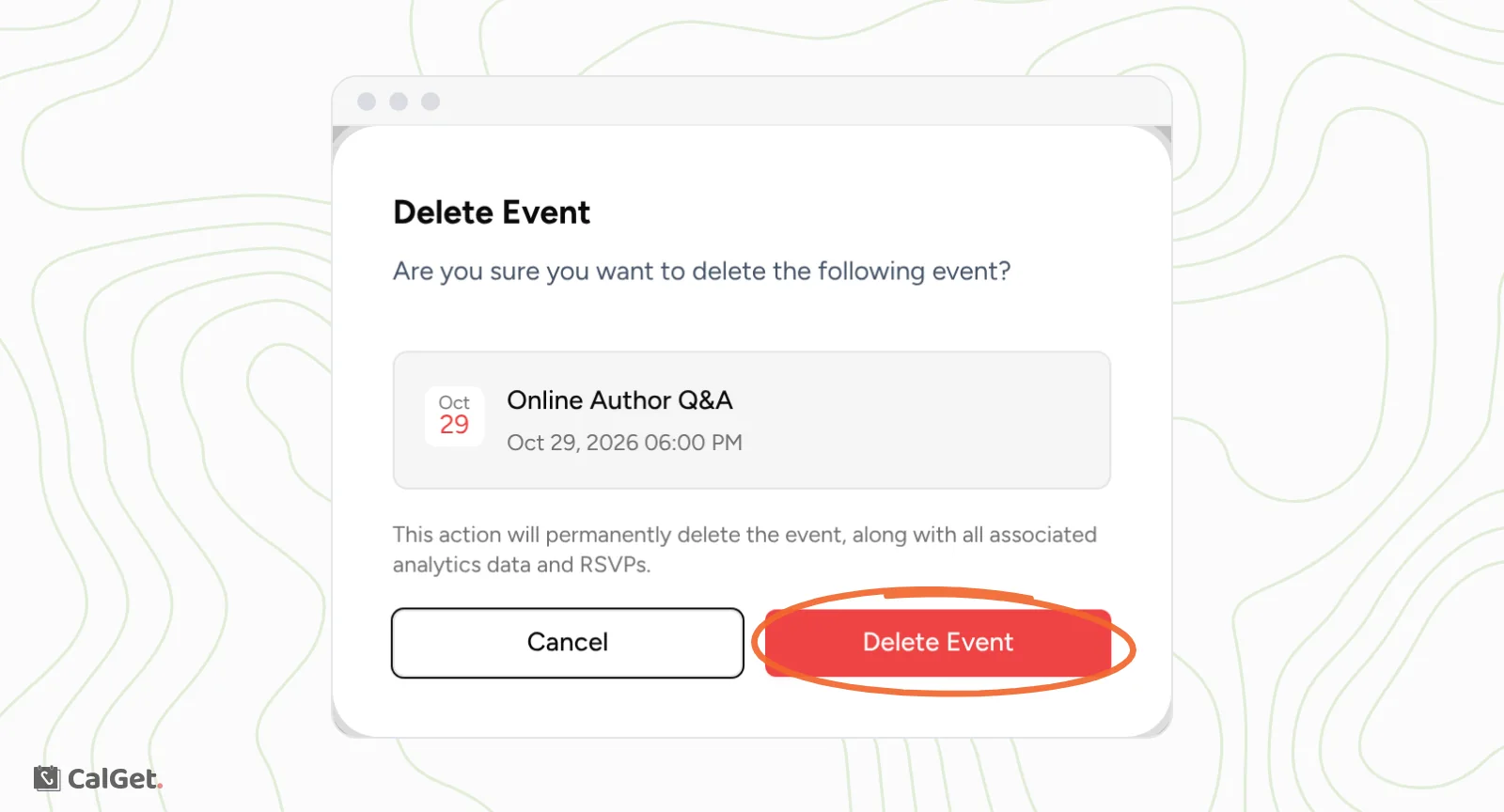
Deleting removes the event along with its analytics data and RSVPs, and it can't be undone. The event's links stop working and send visitors to the CalGet home page. Events already saved in guests' calendars stay there, so tell guests if the event is cancelled.
Customize the QR code
In the event menu, click Show QR. Choose a Color, pick With Logo or No Logo, then click Download QR Code.
Common questions
Can I get a deleted event back?
No. Deleting is permanent. If you might need the event again, keep it instead. Past events move to the Past filter on My Events.
Does duplicating copy the RSVPs?
No. The copy is a new event with its own link, so it starts with no RSVPs and no analytics.