Add your event to an email or newsletter
Updated October 20, 2026
Put Add to Calendar buttons for your event in any email or newsletter, so readers can save the date in one click. You copy the buttons from the event's HTML Code section and paste them where you write your email.
Copy the buttons
- Go to Events and click your event. It opens on the Event Details tab.
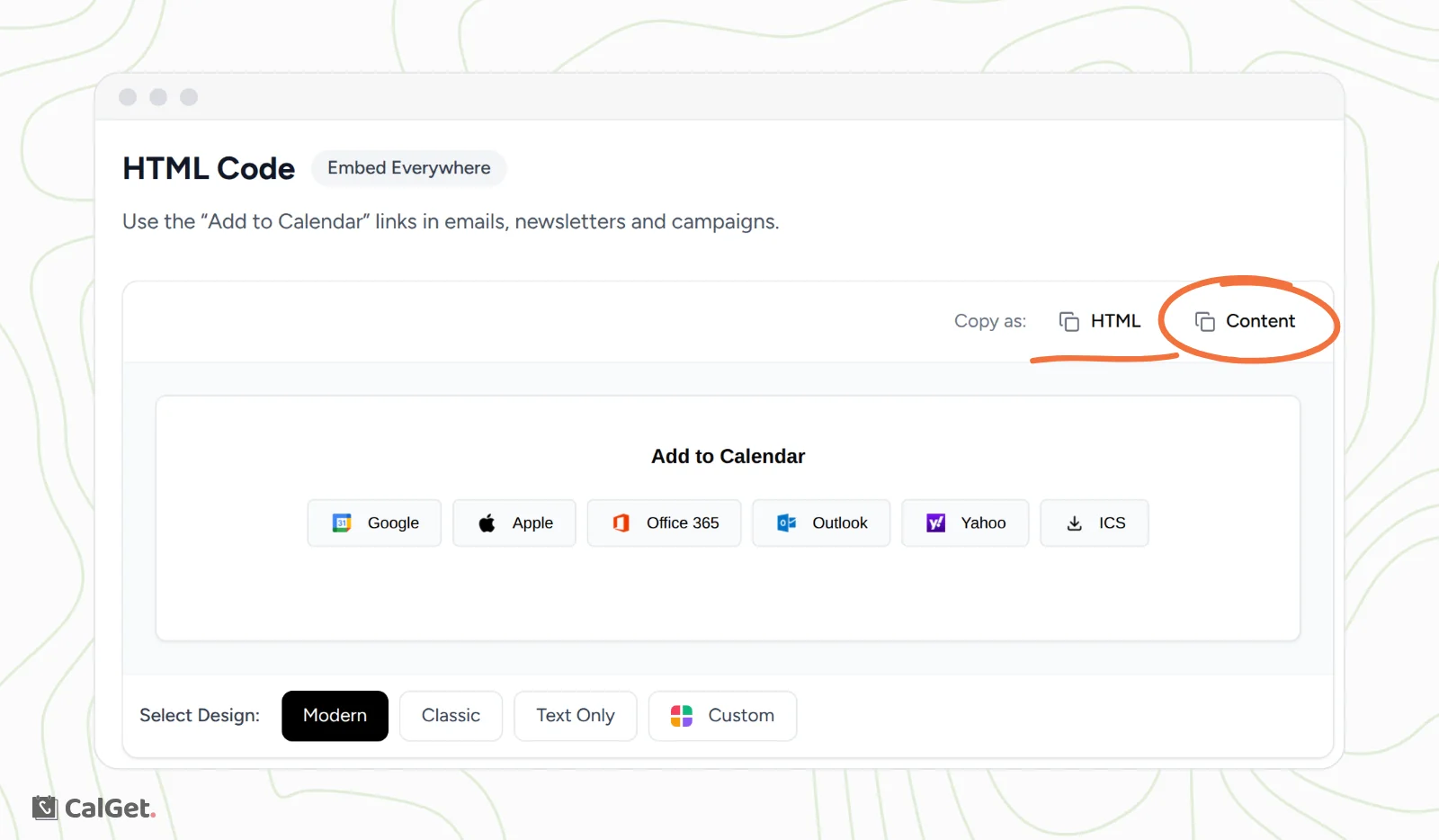
- Scroll to HTML Code.
- Next to Select Design, pick Modern, Classic, Text Only or Custom. To change colors and corners, see Change the design of your Add to Calendar buttons.
- Next to Copy as, click Content or HTML. The table below shows which one to use.
| Where you write the email | Copy as | Then |
|---|---|---|
| An email app, like Gmail or Outlook | Content | Click in the message where the buttons should go and paste. |
| An email marketing tool, like Mailchimp, HubSpot or Constant Contact | HTML | Add an HTML or code block to your email and paste the code into it. |
| A plain-text email or a text message | Neither | Paste your event link instead. See below. |
Paste into an email app
- Copy the buttons with Content.
- Start a new email, or open the draft you're writing.
- Click where the buttons should go, then paste (Ctrl+V on Windows, Cmd+V on a Mac).
- Send yourself a test email and click a button to check it.
The buttons paste as they look in the preview, with a link behind each one. Step-by-step guides for Outlook and other tools are on our blog, for example add an Add to Calendar link to an Outlook email.
Paste into an email marketing tool
- Copy the buttons with HTML.
- In your email tool, add an HTML or code block where the buttons should go.
- Paste the code into the block and save it.
- Preview the email or send a test, and click a button to check it.
The name of the block depends on the tool. These guides show each one:
Plain-text emails and text messages
Buttons can't show in plain text. Paste a link instead:
- Your event link, from Your Event Details at the top of the Event Details tab. Click Copy next to it. It opens your event page, where anyone can add the event to their calendar.
- A link for one calendar app, from Direct Calendar Links, when everyone you're writing to uses the same calendar.
Both are explained in Share an event: link, QR code and direct calendar links.
What your readers see
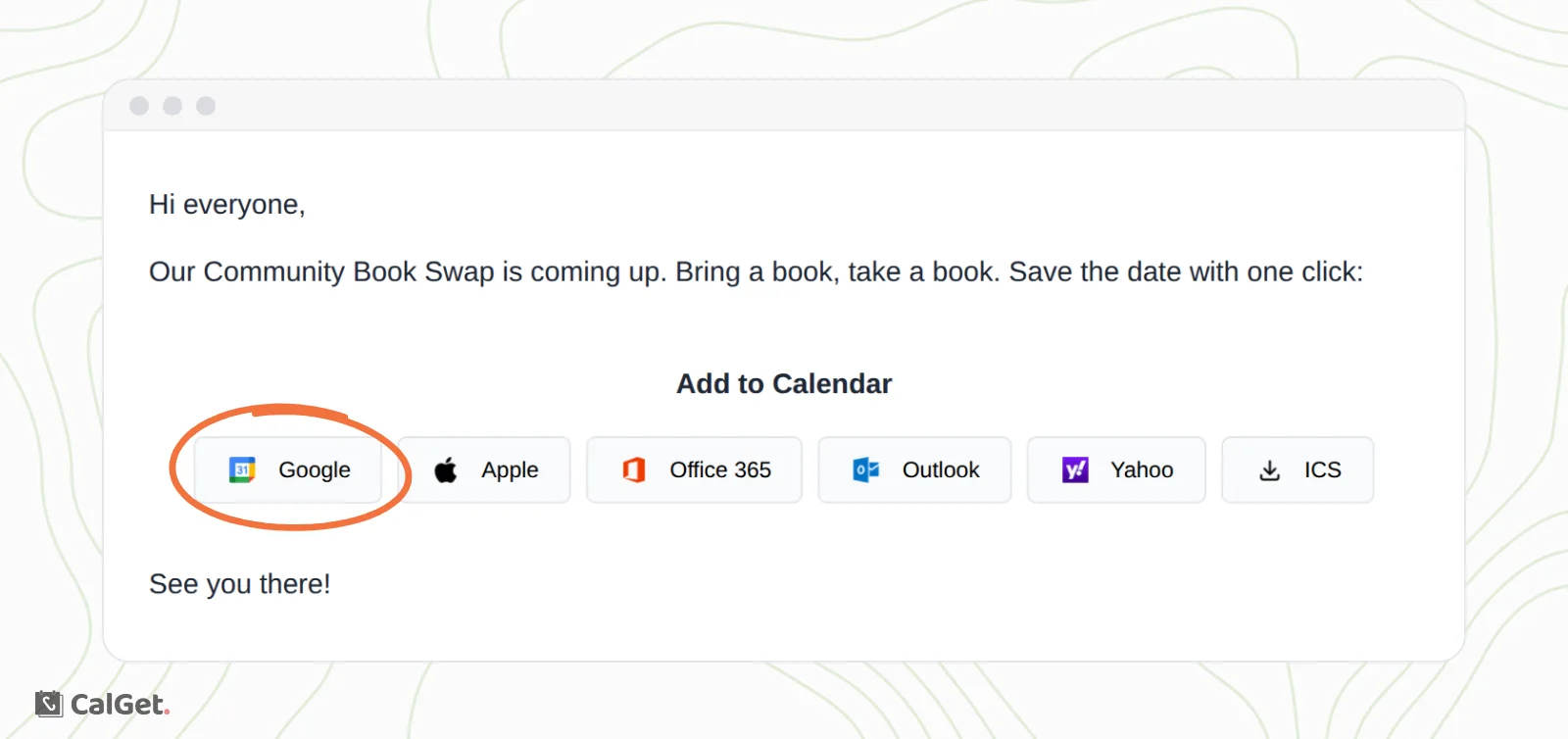
Readers see an Add to Calendar heading and a button for each calendar. Google, Office 365, Outlook and Yahoo open the reader's calendar with a new event already filled in, ready to save. Apple and ICS download the event as a calendar file that Apple Calendar and most other calendar apps open.
See how many people saved it
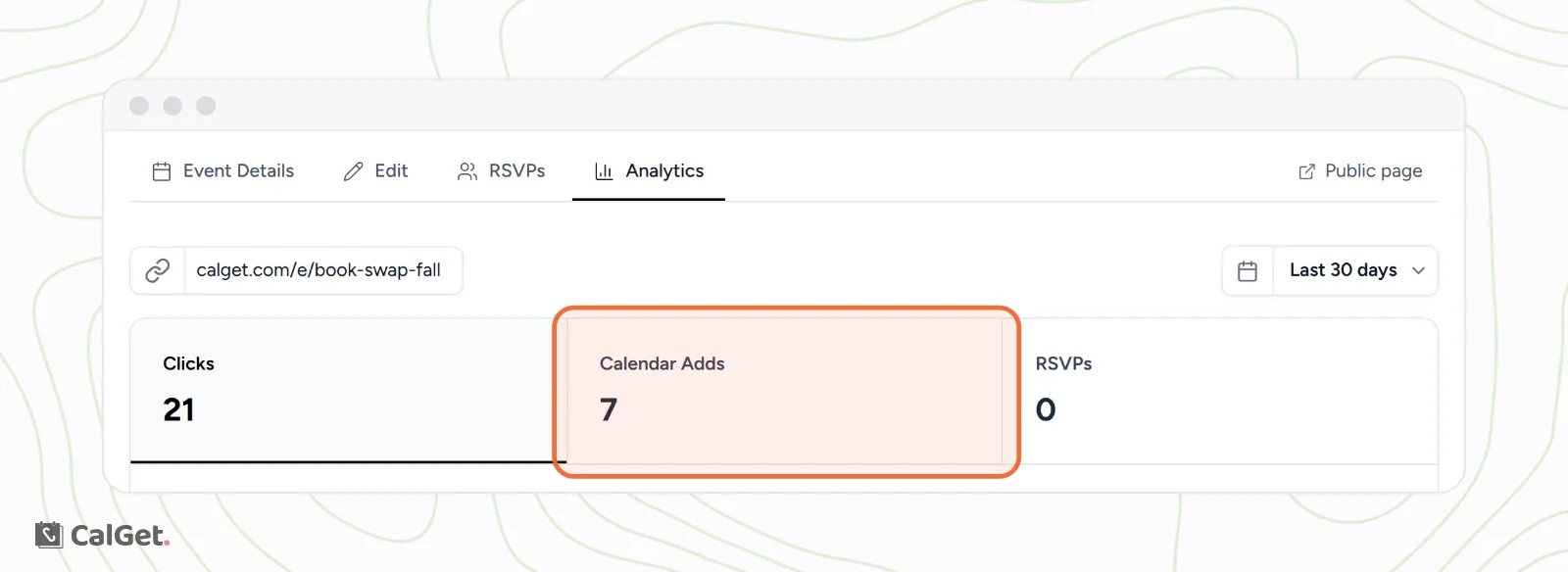
Each time a reader uses one of the buttons, it counts on the event's Analytics tab under Calendar Adds.
Common questions
I pasted and nothing appeared. What happened?
Content copies formatted buttons, which only paste into a message that allows formatting. If your email is set to plain text, switch it to formatted text (often called HTML or rich text), or paste the event link instead. If you pasted into a code block, copy with HTML instead.
Some readers see the buttons without logos. Why?
The Modern and Classic designs show small calendar logos, and some email apps hide images until the reader allows them. The calendar names still show, so the buttons still work. For no images at all, choose Text Only.
Do I need to copy the buttons again after I edit the event?
No. The buttons point to your event, so they always use its latest details. If you set a custom link after sending, the buttons you already sent keep working. Readers who saved the event before your edit keep their copy, so tell them about important changes.