Change the design of your Add to Calendar buttons
Updated October 20, 2026
Every event has ready-made Add to Calendar buttons for emails, newsletters and web pages. This article shows how to pick a design, change the color and corners, and copy the buttons.
Choose a design
- Go to Events and click your event. It opens on the Event Details tab.
- Scroll to HTML Code.
- Next to Select Design, click Modern, Classic, Text Only or Custom. The preview changes as you click.
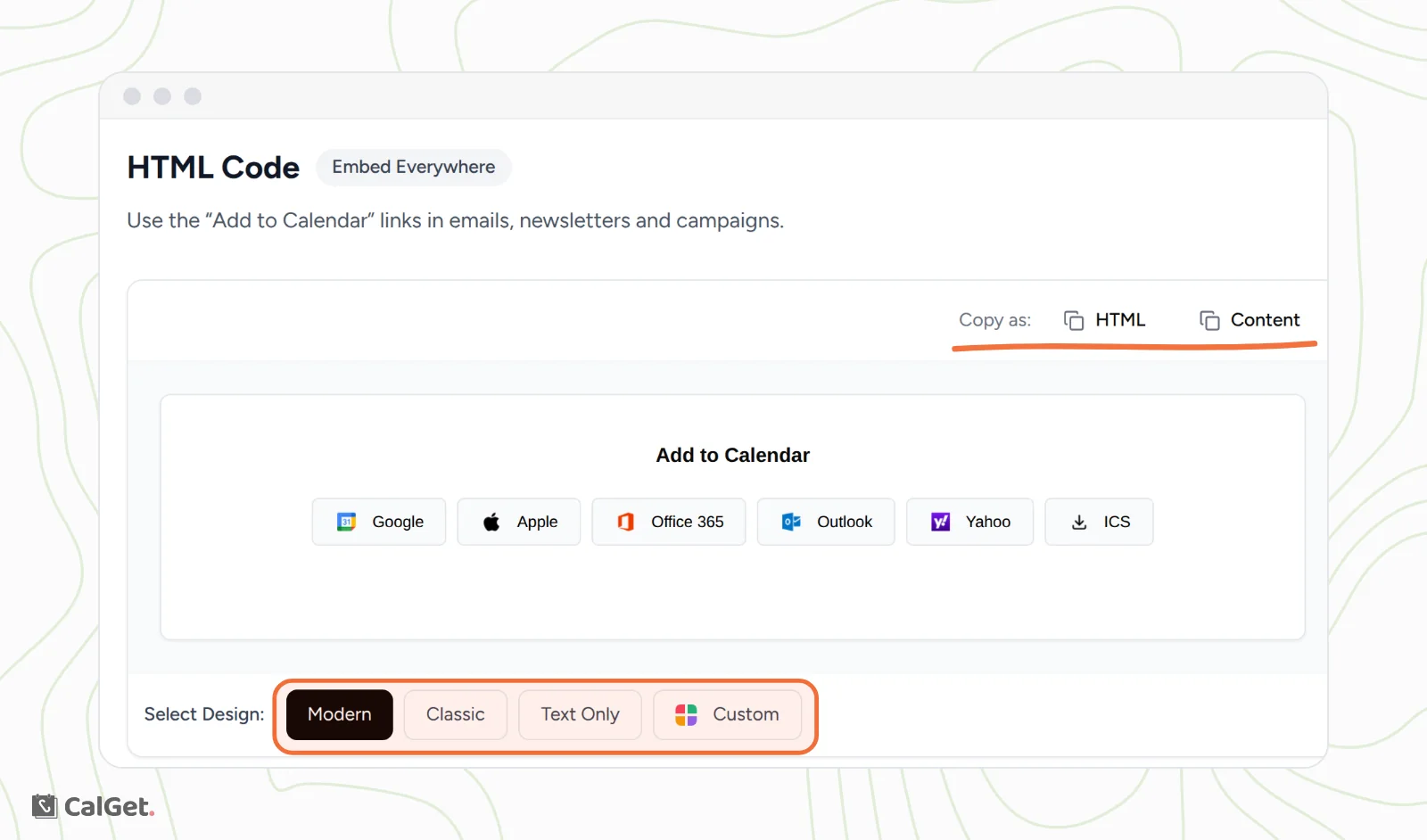
| Design | What it looks like |
|---|---|
| Modern | Outlined buttons with each calendar's logo and name. |
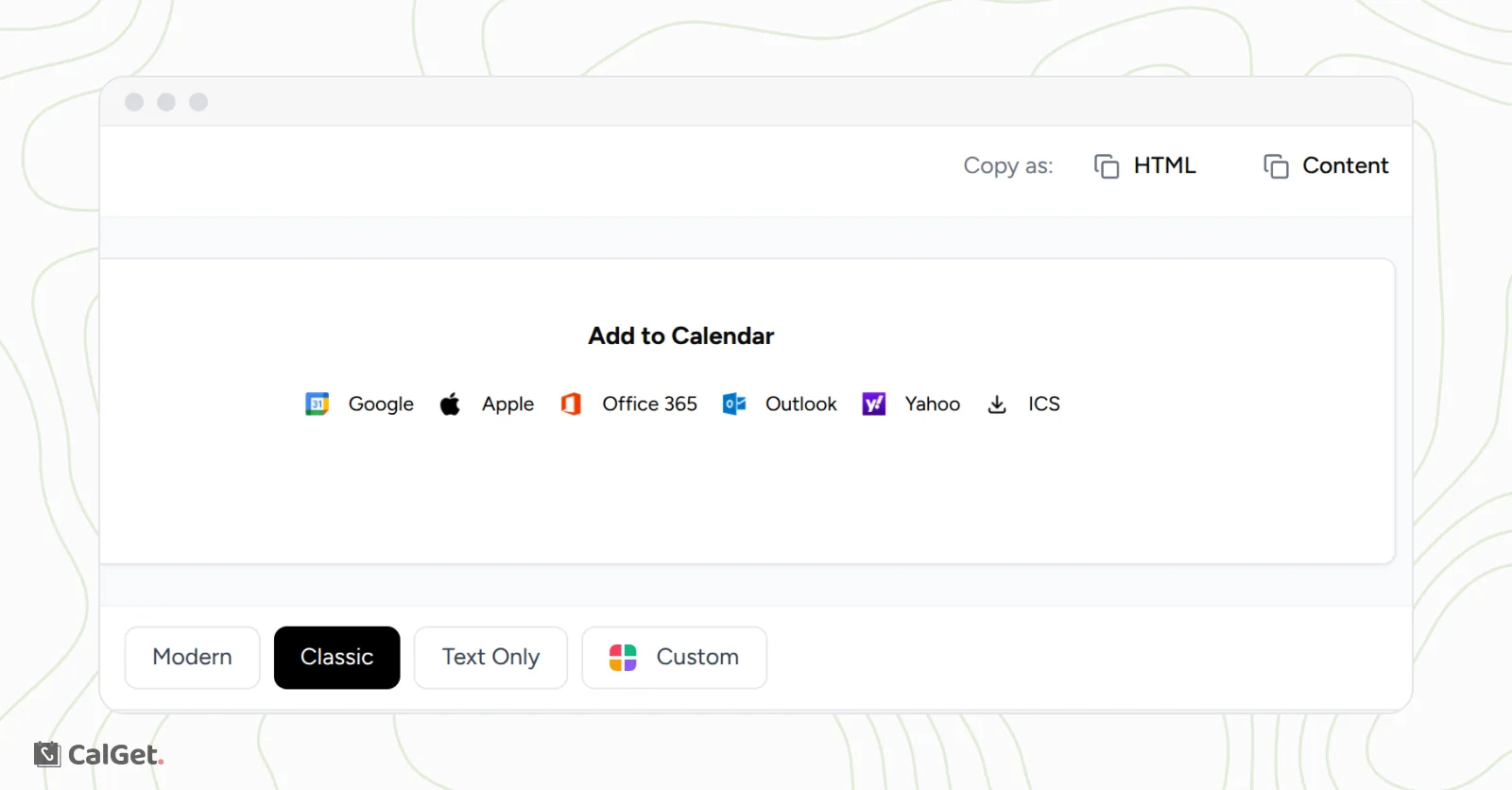
| Classic | Each calendar's logo and name, without buttons around them. |
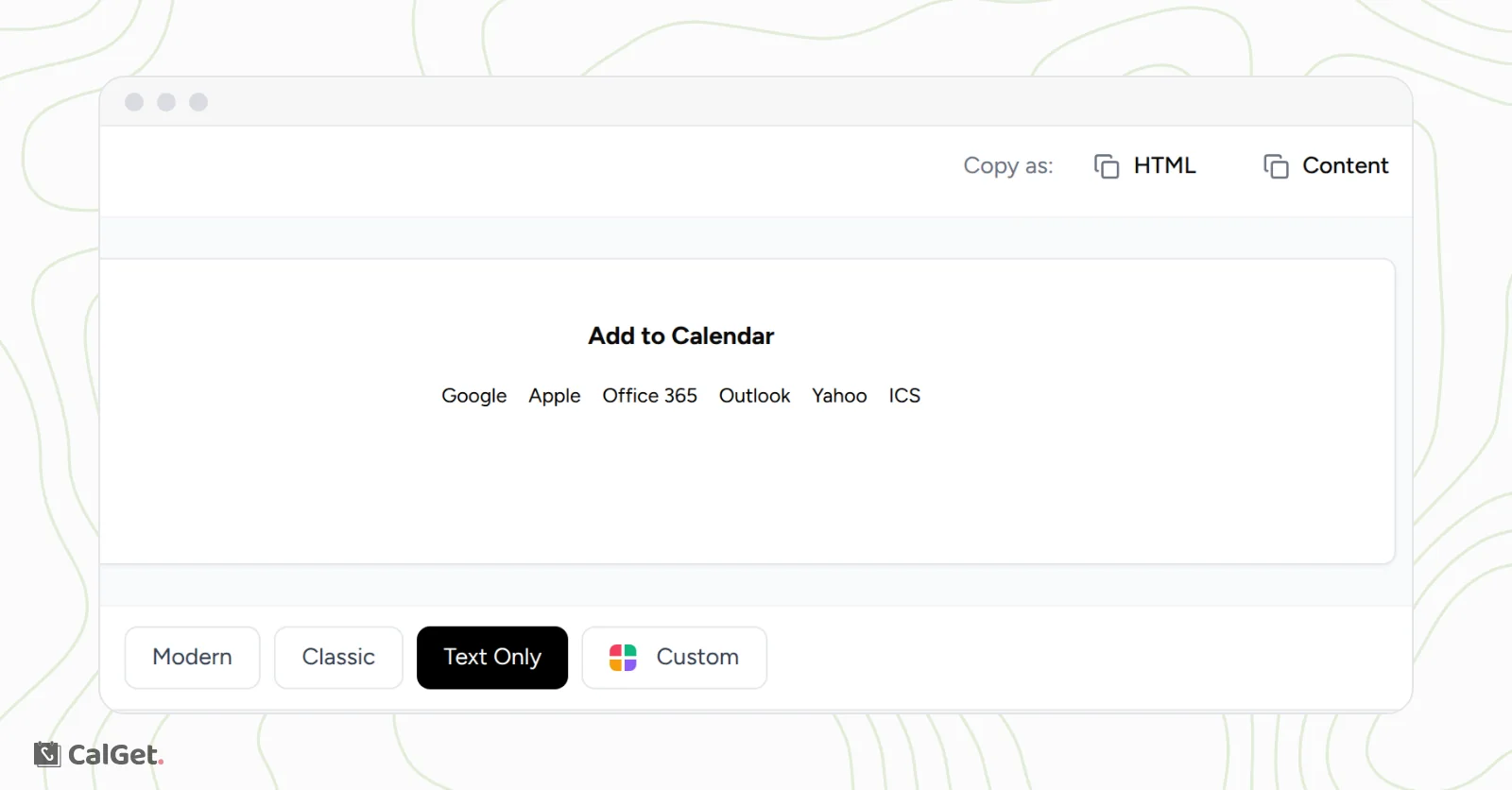
| Text Only | Calendar names only, with no logos. |
| Custom | Filled buttons in the colors and corner style you choose. |
Change the color and corners
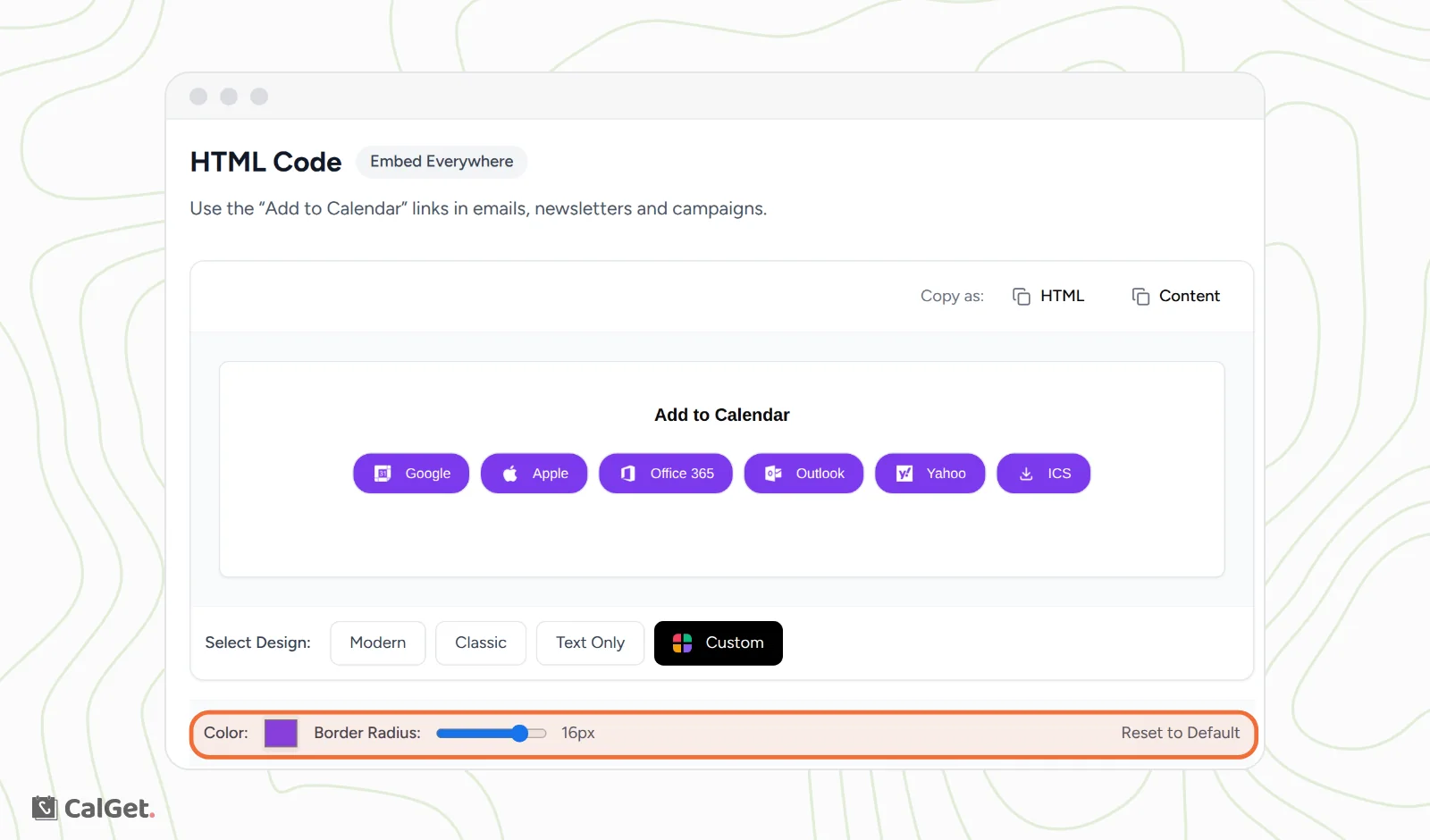
With Custom selected, two settings appear under the preview:
- Color: pick one color for all the buttons, for example your brand color.
- Border Radius: drag the slider from 0 px for square corners to 20 px for round ones.
Click Reset to Default to go back to each calendar's own color.
Copy the buttons
Above the preview, next to Copy as, choose how to copy the buttons:
- Content copies the buttons as they look. Paste them straight into an email you're writing, for example in Outlook.
- HTML copies the code. Paste it into an HTML or code block in your email tool or website builder.
Each button links to that calendar's direct link for your event, so guests go straight to their calendar with the event details filled in.
For step-by-step instructions for email apps, email marketing tools and plain-text emails, see Add your event to an email or newsletter.
Common questions
Do the buttons update if I change the event?
Yes. The buttons point to your event's links, which always use the latest details, so you don't need to copy them again after an edit. Guests who already saved the event keep their copy.
Can I put the buttons on a website?
Yes. Paste the HTML into your site's HTML or embed block. You can also use the Iframe Widget, which shows a single Add to Calendar button. See Share an event: link, QR code and direct calendar links.