Set the time zone, all-day and online events
Updated October 20, 2026
Every event has a time zone, and can be all-day or online. This article shows how to set each one in the event form, and how the times look to your guests.
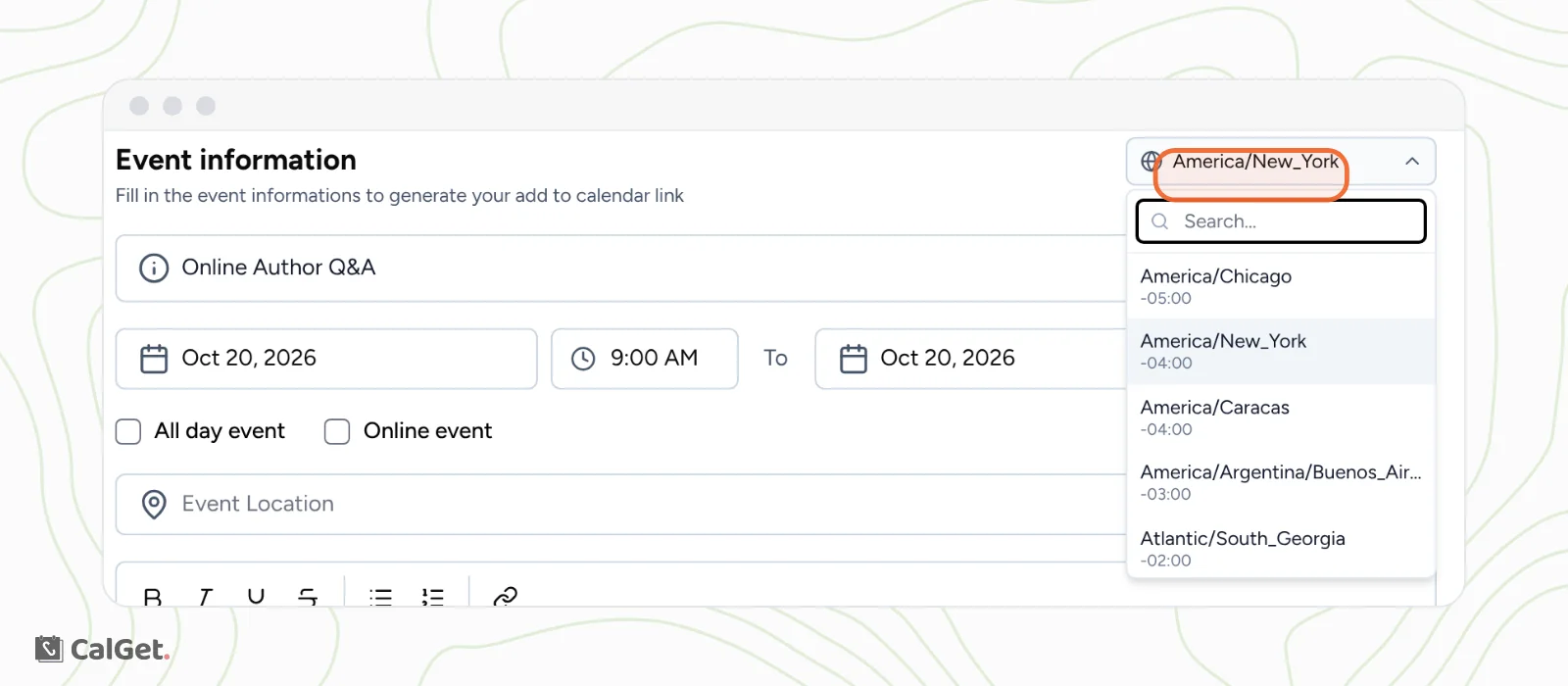
Choose the event's time zone
Pick the time zone of the place where the event happens. CalGet uses it to put the event at the right time in every guest's calendar.
- In the New Event form (or on the event's Edit tab), click the time zone in the top-right corner, for example America/New_York.
- Scroll the list or type a city in Search..., for example London.
- Click the time zone, for example Europe/London. Each one shows its offset from UTC.
- Set the start and end times in that time zone.
What your guests see
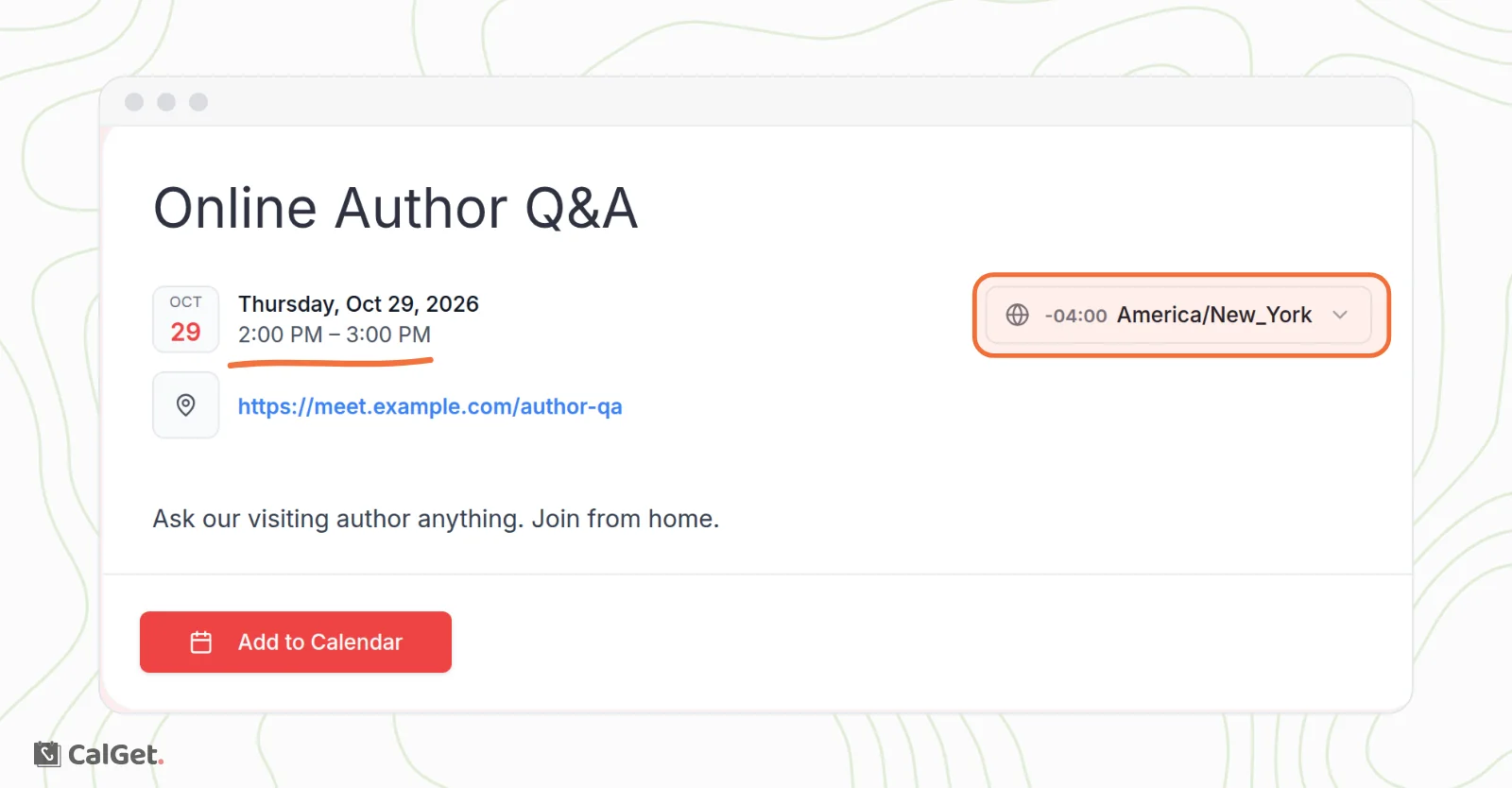
Your event page shows the date and time in the guest's own time zone, with a time zone selector next to it so they can switch. For example, an event at 6:00 PM in London shows as 2:00 PM to a guest in New York. When they add it to their calendar, it lands at the right time for them.
Make it an all-day event
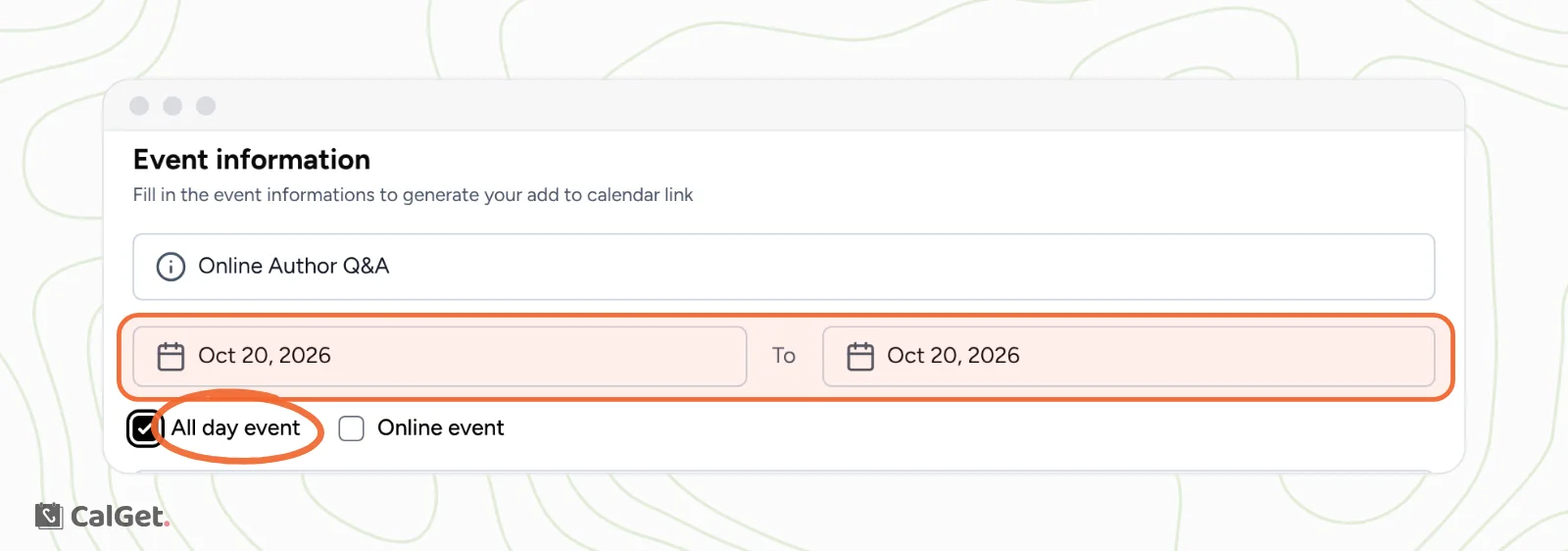
For an event without set times, such as a holiday, a deadline or a festival day, check All day event. The time fields and the time zone disappear, and you only pick the start and end dates. For an event over several days, set the end date to the last day.
Make it an online event
Check Online event. The location field becomes Meeting Link. Paste the link to your video call or livestream there.
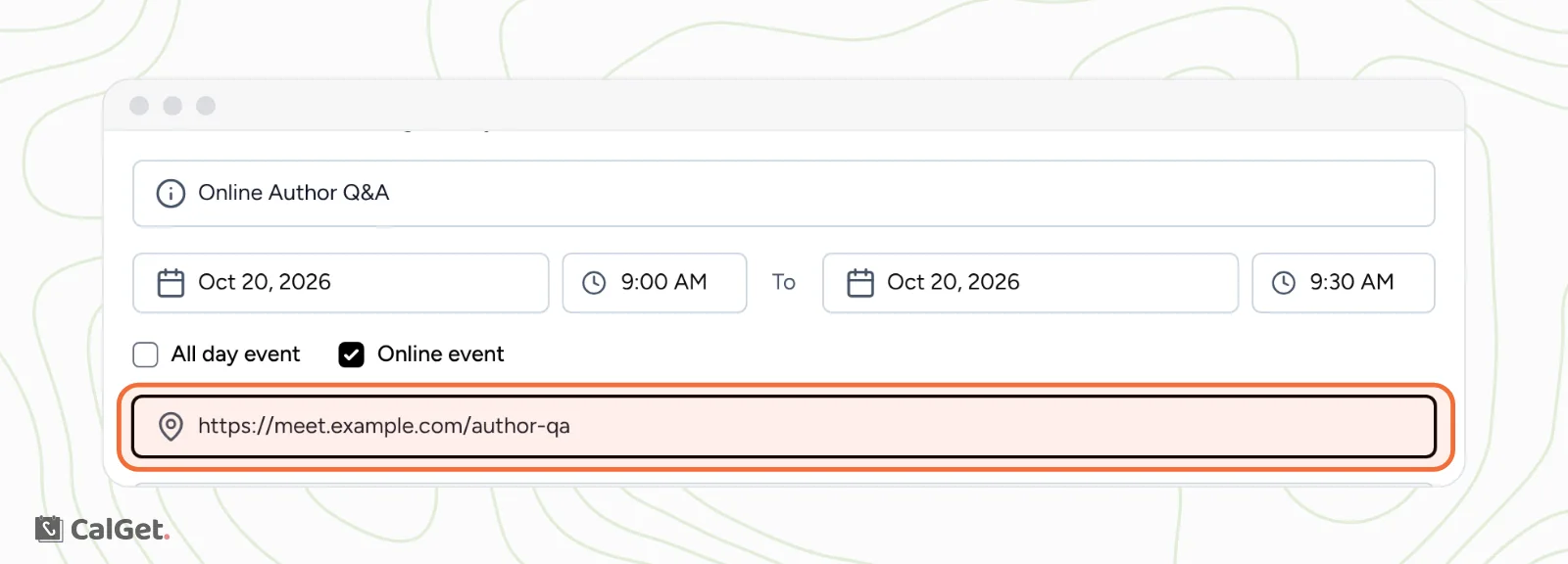
The meeting link shows on your event page as a link guests can click. When they add the event to their calendar, the link goes into the event's location.
Common questions
My end date disappeared. Why?
If you move the start date after the end date, the end date is cleared. Pick the end date again.
I set the wrong time zone. Can I fix it?
Yes. Open the event, go to the Edit tab, change the time zone and click Save changes. Guests who already added the event keep the time they saved, so tell them about the change.
Can an online event also have an address?
No. With Online event checked, the location field holds the meeting link. For an event that's in person and online, leave Online event unchecked, type the address in Event Location and put the meeting link in the description.