Back to Blog
How to Add an Events Calendar to Any Website (No Code, 2026)
Your events page shouldn't still show last summer. Here's how to add an events calendar widget to any website without code, an honest look at the free options, and where to paste the code in WordPress, Wix, Squarespace, Shopify and Google Sites.
Written by
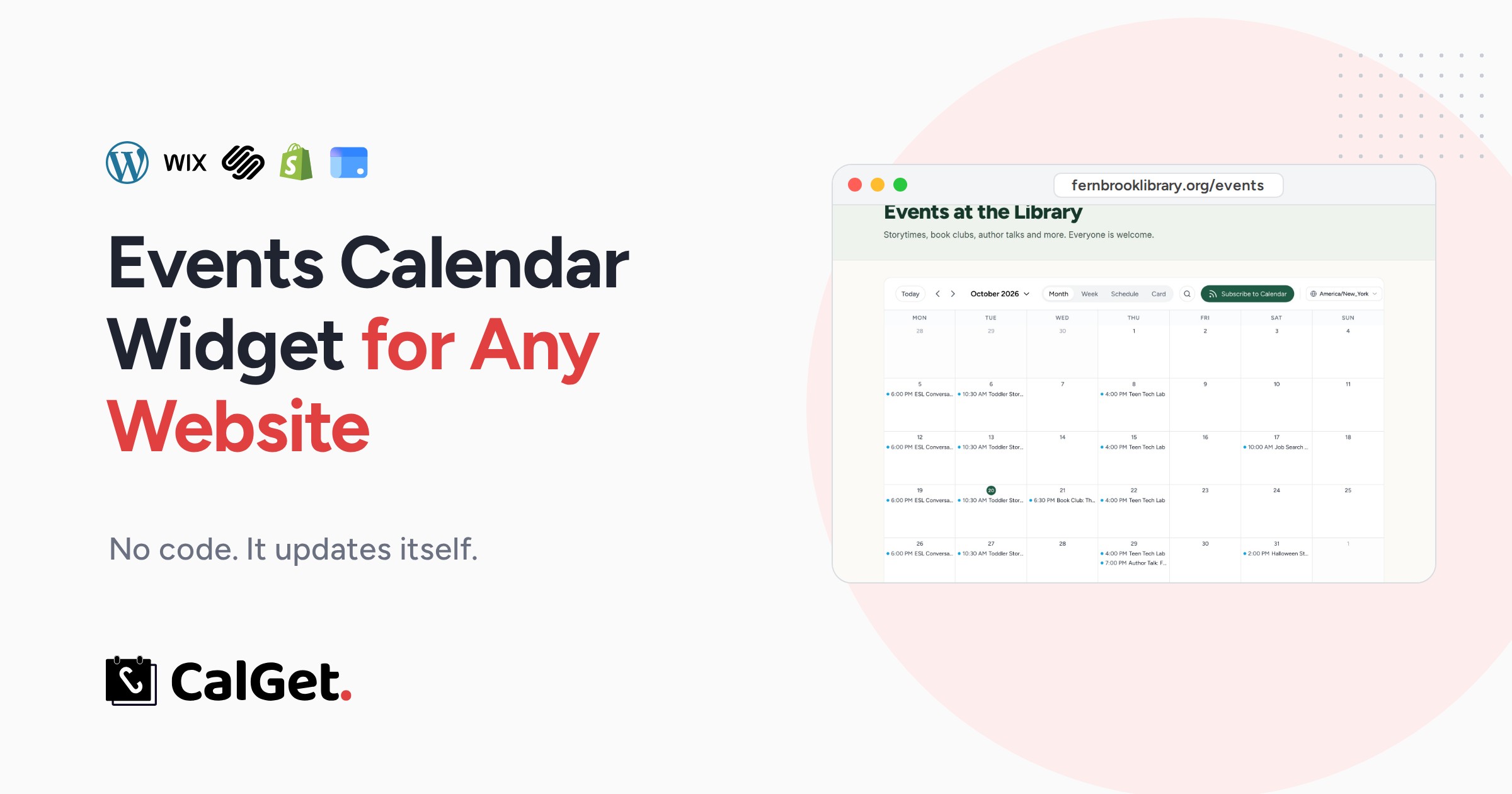
Last updated: October 2026. We built a real events calendar for a made-up public library, put it on a demo website with the real embed code, and tested it on a computer and a phone. We also checked what the free options actually give you, from Google's and Elfsight's own pages.
Quick answer
An events calendar widget is a calendar you paste onto your website once with a short piece of code. It shows your upcoming events, and it updates itself every time you add or change an event, so you never edit the page again. To add one to any website without coding:
- Put your events in one calendar (in CalGet, or sync the Google Calendar or Outlook calendar you already use).
- Design the widget: view, brand color, theme and layout.
- Copy the embed code.
- Paste it into your page: a Custom HTML block in WordPress, Embed HTML in Wix, a Code block in Squarespace, a Custom Liquid section in Shopify, or Embed code in Google Sites.
- Allow your website's domain, so the calendar only shows on your own site.
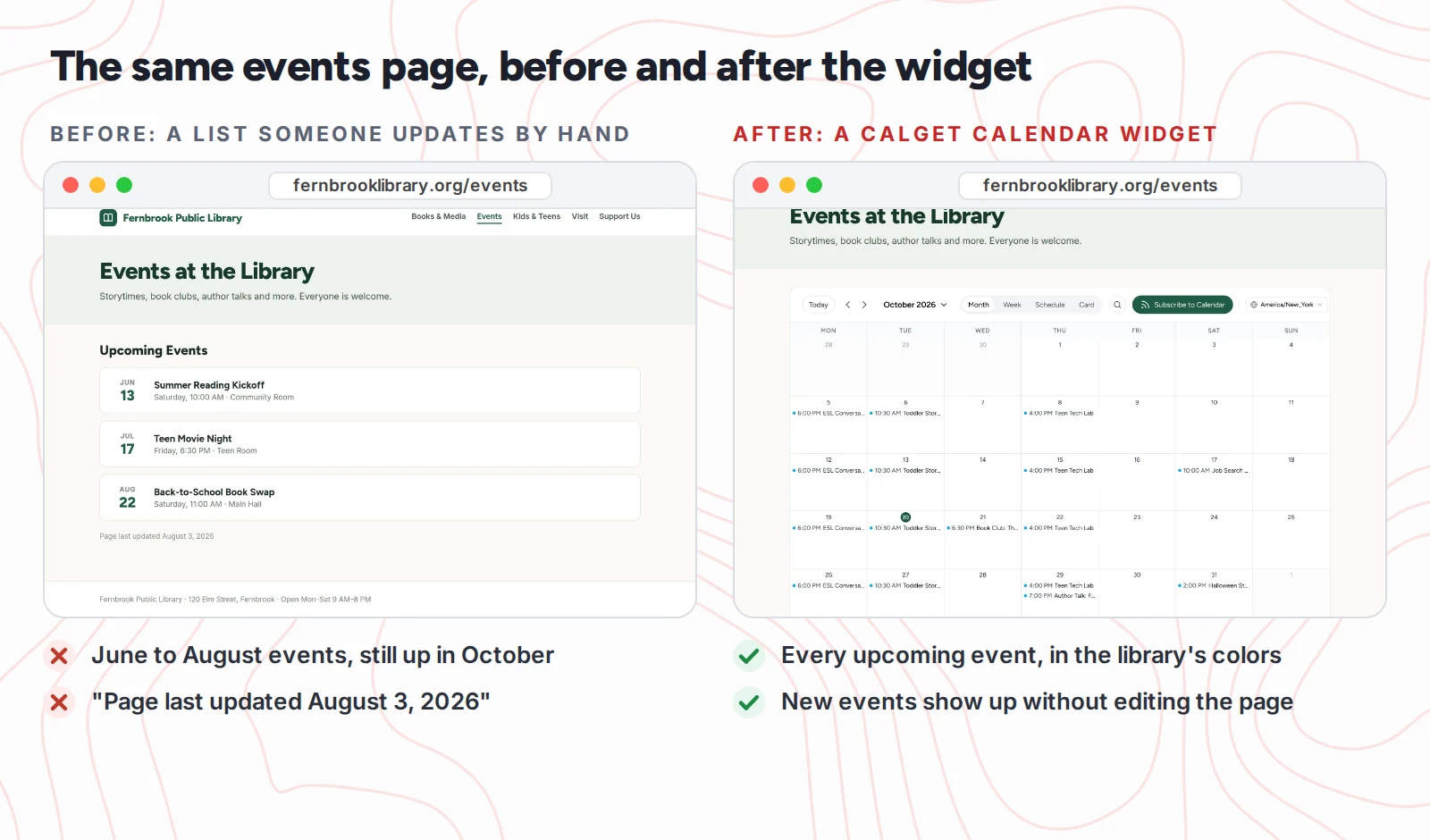
Open the events page on a lot of small websites and you'll find the same thing: a list of events from June, July and August, still up in October, with a line at the bottom that says "Page last updated August 3." Nobody forgot on purpose. Somebody had to remember to open the website editor, delete the old events and type in the new ones, every single time, on top of everything else.
An events calendar widget takes that job away. You add an event in one place, and it shows up on your website on its own, in your colors, in a calendar that works on phones. This guide shows exactly how to add one to any website, step by step, with real screenshots, and it answers the question most people search first: is there a good free one?
What a good events calendar widget does
Before you pick a tool, it helps to know what "good" looks like for a public events page. These are the six things we'd check, in order of how much trouble they save you:
- It updates itself. New and changed events appear on your website without editing the page. This is the whole point.
- It looks like your website. Your brand color, a light or dark theme, and a layout that fits the page.
- It works on phones. Most visitors will see your events page on a phone. A calendar that's only readable on a laptop isn't doing its job.
- Visitors can save events. An Add to Calendar button for Google Calendar, Apple Calendar and Outlook turns "I might go" into a reminder on their phone.
- Visitors can subscribe. Regulars can follow the whole calendar and get every future event in their own calendar app automatically.
- It stays on your website. Only websites you approve can show your calendar, so nobody can copy your code onto theirs.
Is there a free events calendar widget for your website?
Yes, but each free option has a catch, and it's worth knowing which catch you can live with. Here's an honest comparison of the options people usually try first, checked in October 2026:
| Option | Cost | Updates itself | The catch |
|---|---|---|---|
| Google Calendar embed | Free | Yes | The calendar has to be public for visitors to see it, styling is limited, and it gets cramped on phones. |
| Elfsight Event Calendar, free plan | Free | Yes | One widget, 200 views a month (the widget pauses after that), and Elfsight branding, per Elfsight's pricing page. |
| A hand-typed events list | Free | No | Someone has to edit the page for every change. It goes stale. |
| CalGet embeddable calendar | Paid plans (Starter and up) | Yes | Not on CalGet's Free plan. In return: your colors, four views, Add to Calendar, Subscribe, phone layout and domain control. |
Our take: if your calendar is already public in Google and you only need something on the page this afternoon, Google's free embed is fine. If you get a few visitors a day, Elfsight's free plan can work, but 200 views a month is roughly seven a day, and an events page that goes blank in the middle of the month is worse than no calendar. If the events page matters to your organization, a calendar built for websites pays for itself in the time you stop spending on the page. That's what the rest of this guide sets up. You can see what's in each CalGet plan on the pricing page.
Why not just embed Google Calendar?
You can, and we've written a full guide on how to embed Google Calendar in your website. Three things trip people up. First, Google says the calendar has to be public for everyone to see it: "To make your calendar visible to everyone, make your calendar public." Second, the embed only lets you change a few settings, like which tabs show and a background color, so it rarely matches your website. Third, it was made for a laptop screen. On a phone, the month view shrinks to a few columns of tiny text. A widget made for websites fixes all three.
How to add an events calendar to your website in 5 steps
We'll use CalGet's embeddable calendar and a made-up public library, Fernbrook Public Library. Every screenshot below is real, taken on October 20, 2026. The whole setup takes about ten minutes the first time.
Step 1: Put your events in one calendar
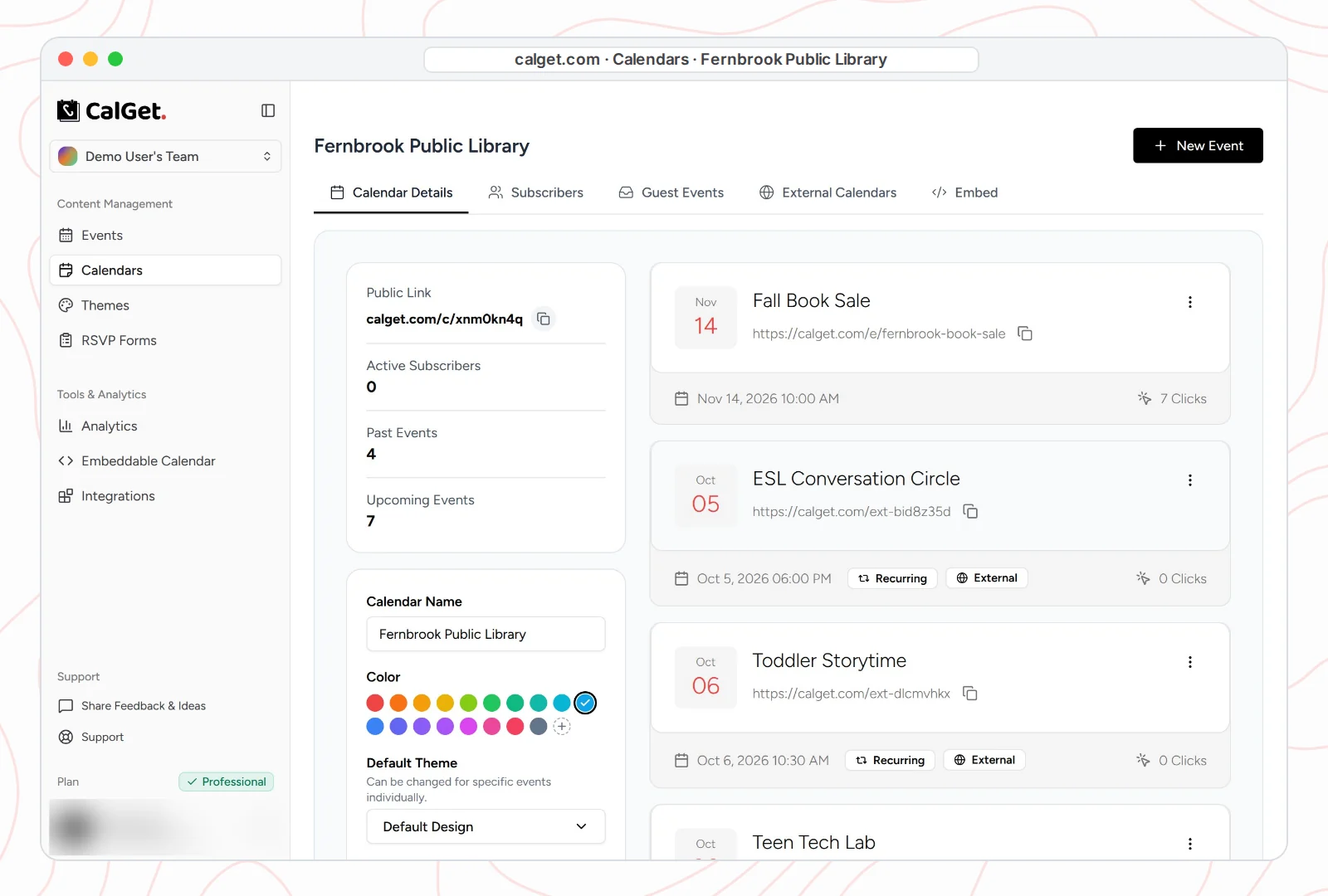
Your widget shows the events in one calendar, so start there. In CalGet, click Calendars and open your calendar (or click New Calendar to make one). You'll see its upcoming events on the right.
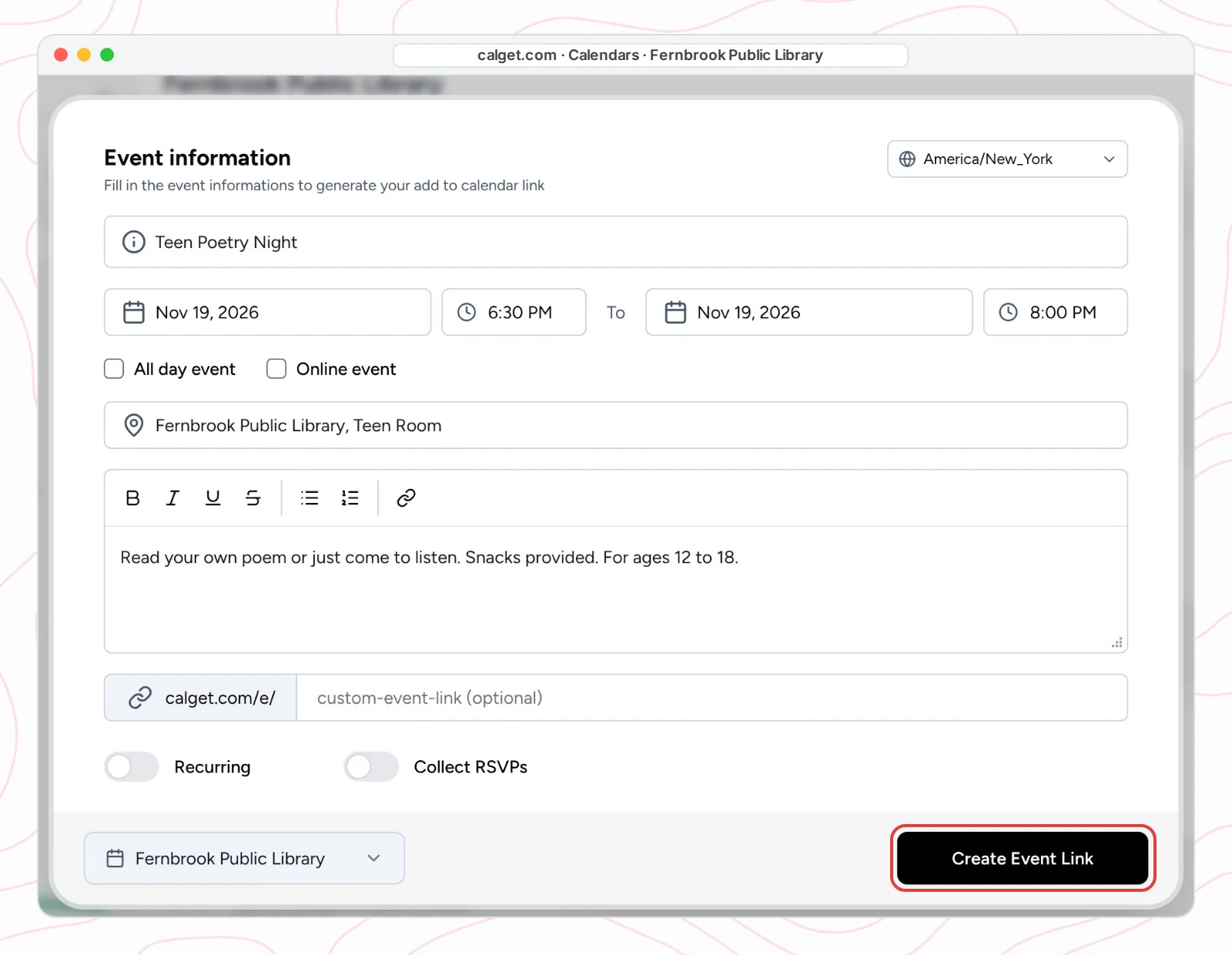
To add an event, click New Event. Give it a title, a date and time, a location and a short description, and make sure your calendar is picked at the bottom. Then click Create Event Link.
Already keep your events in Google Calendar or Outlook? You don't have to move them. Open your calendar's External Calendars tab and sync the calendar you already use, so you never type an event twice. Our guide to syncing Outlook and Google Calendar covers where to find each calendar's address.
Step 2: Design your calendar widget
Click Embeddable Calendar in the sidebar and pick your calendar at the top right. Everything you change shows up in the live preview, so you can see it before it goes anywhere near your website.
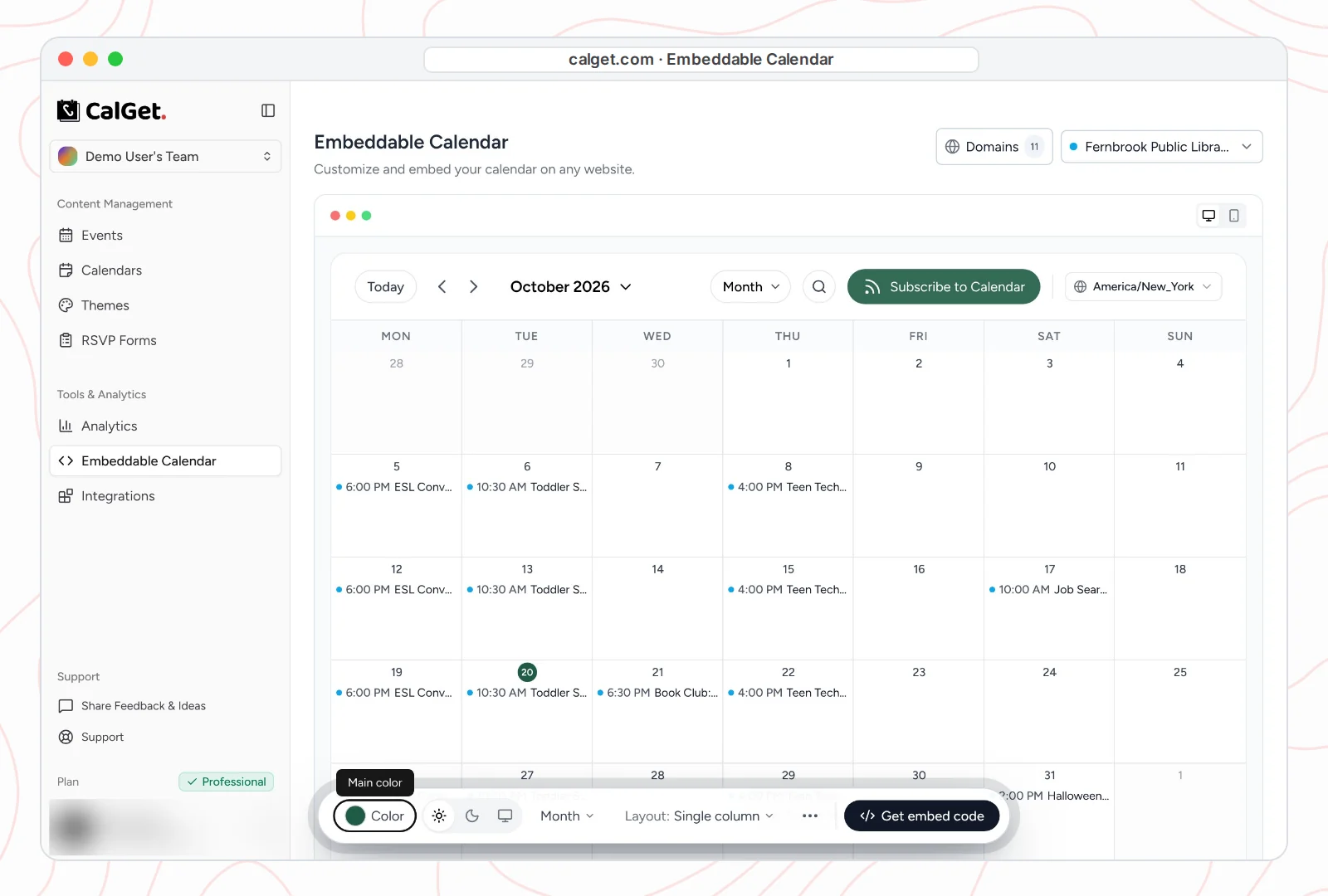
Work through the toolbar from left to right:
- View: the view visitors see first. Month, Week, Schedule (a simple list, great for phones) or Card.
- Color: your brand color. We used the library's green, #1f5b45.
- Theme: light, dark, or auto, which follows each visitor's device.
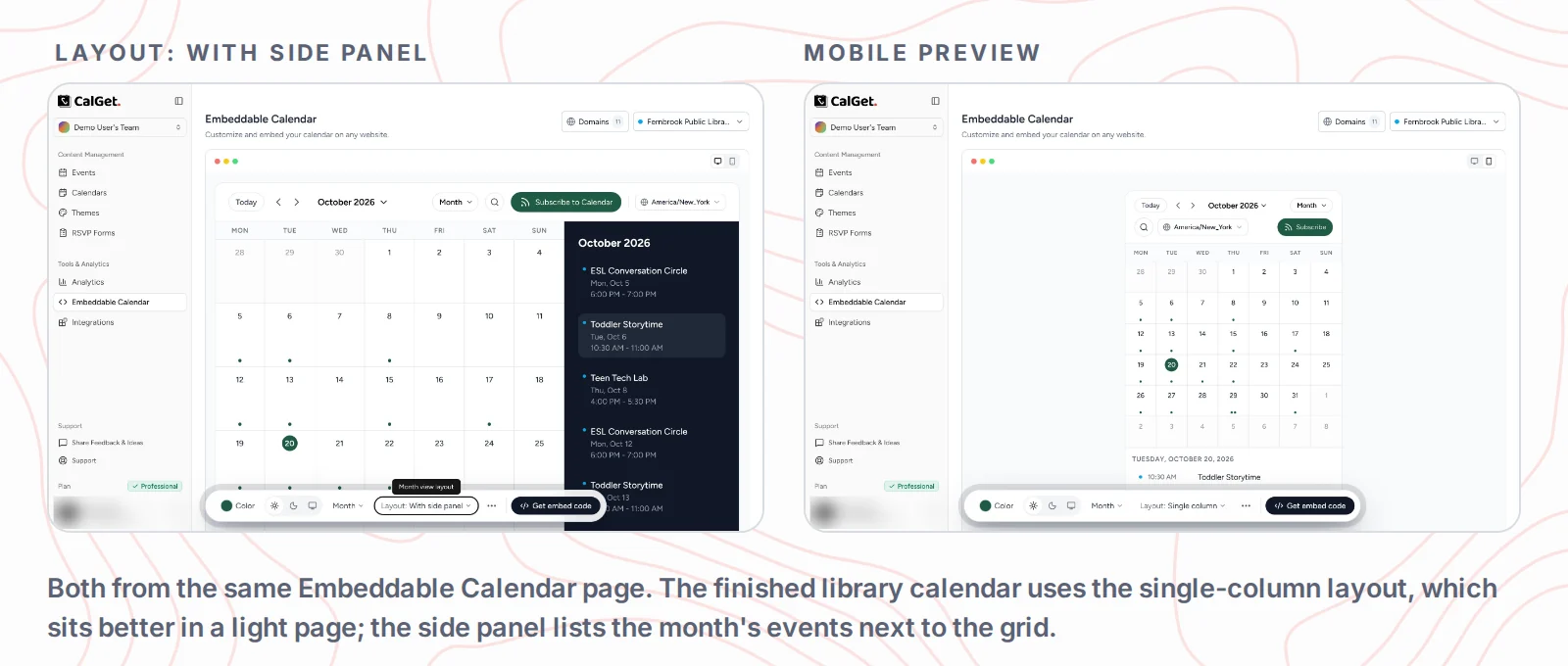
- Layout: single column, or a side panel that lists the month's events right next to the calendar.
- More options: the language, the first day of the week, the time zone, which toolbar buttons show, and more.
- Preview: switch to the mobile preview to see exactly how it looks on a phone.
Step 3: Get the embed code
Click Get embed code. You'll see three options:
- JS Embed (recommended): resizes itself to fit your page and stays in sync with the latest features.
- iFrame: a fixed-size frame, for website builders that only accept iframes.
- Direct link: a link to the calendar on its own page, for a button or a menu item when you can't paste code at all.
Pick JS Embed and click Copy code.
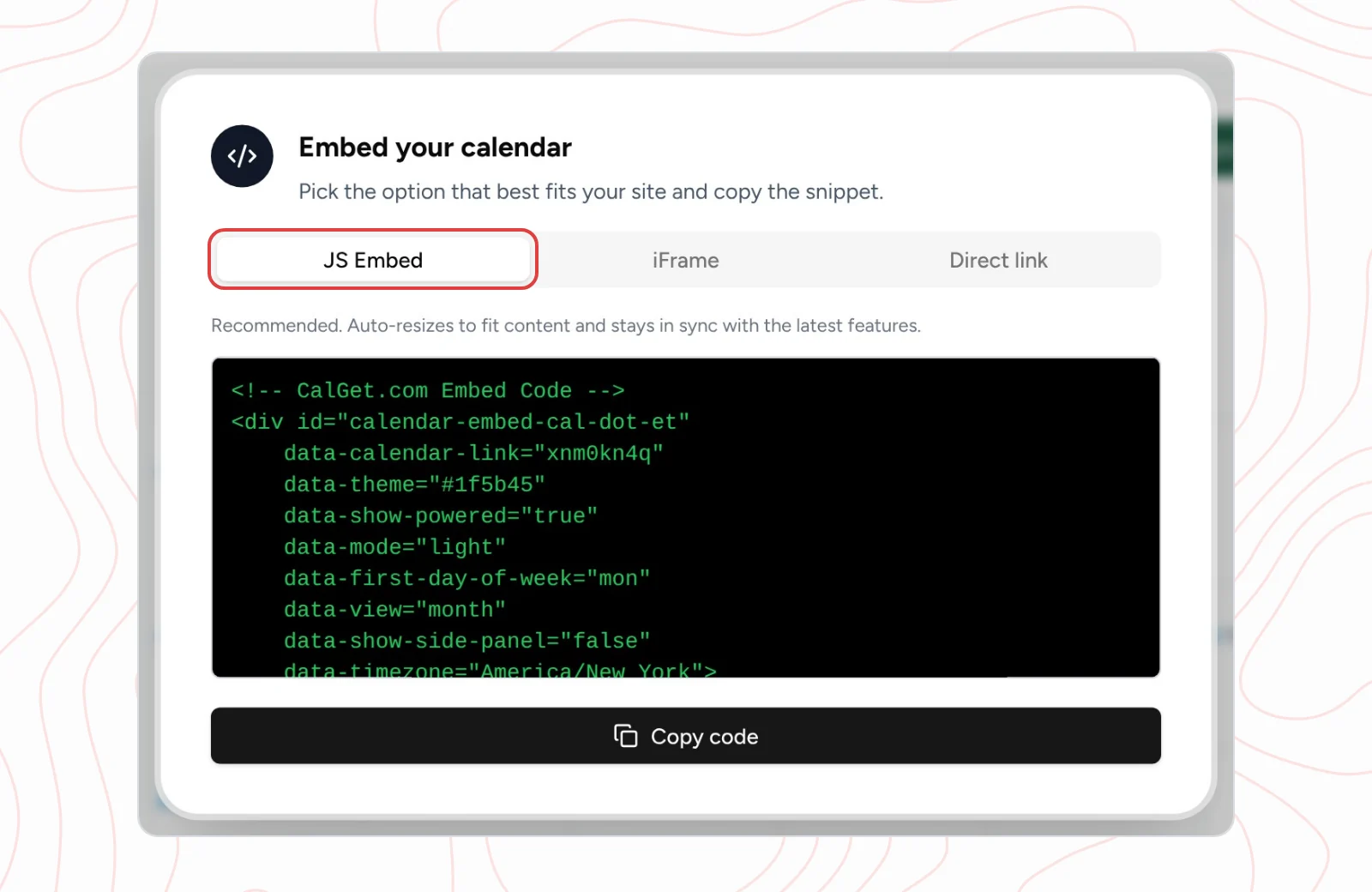
Here's the exact code we copied for the library. It's short: a div that holds your settings and one script that draws the calendar.
<div id="calendar-embed-cal-dot-et"
    data-calendar-link="xnm0kn4q"
    data-theme="#1f5b45"
    data-show-powered="true"
    data-mode="light"
    data-first-day-of-week="mon"
    data-view="month"
    data-show-side-panel="false"
    data-timezone="America/New_York">
</div>

<script src="https://calget.com/assets/js/embedcalendar.js?v=71" defer></script>
Notice that your design choices live inside the code (data-theme, data-view and so on). Your events don't. That's why new events show up on their own, and why you only need to copy the code again if you change the design.
Step 4: Paste the code into your website
Open the page where you want the calendar, usually your Events page, and paste the code where the calendar should appear. On a plain HTML page, that's straight into the page's HTML. In a website builder, you paste it into the builder's code or HTML block (see the table in the next section for each one). Then save and publish the page.
Open the published page, and the first time you'll probably see this instead of your calendar:
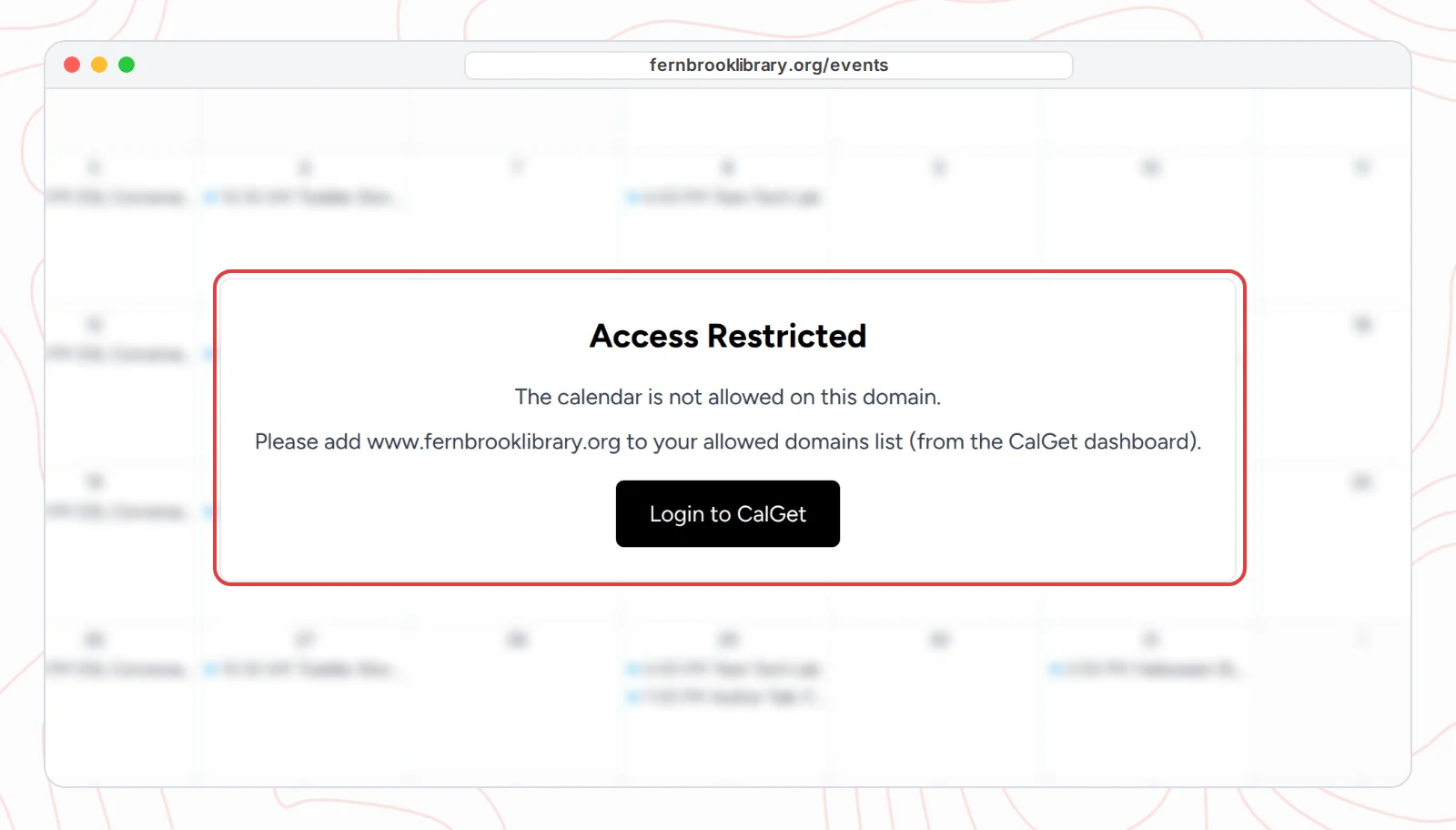
That's a good thing. CalGet only shows your calendar on websites you allow, so nobody can copy your code onto their own site. The message even tells you which address to allow.
Step 5: Allow your domain
Back in CalGet's Embeddable Calendar page, click Domains, then Add Domain. Type your website's address without the https://, exactly as your browser shows it, and click Add Domain.
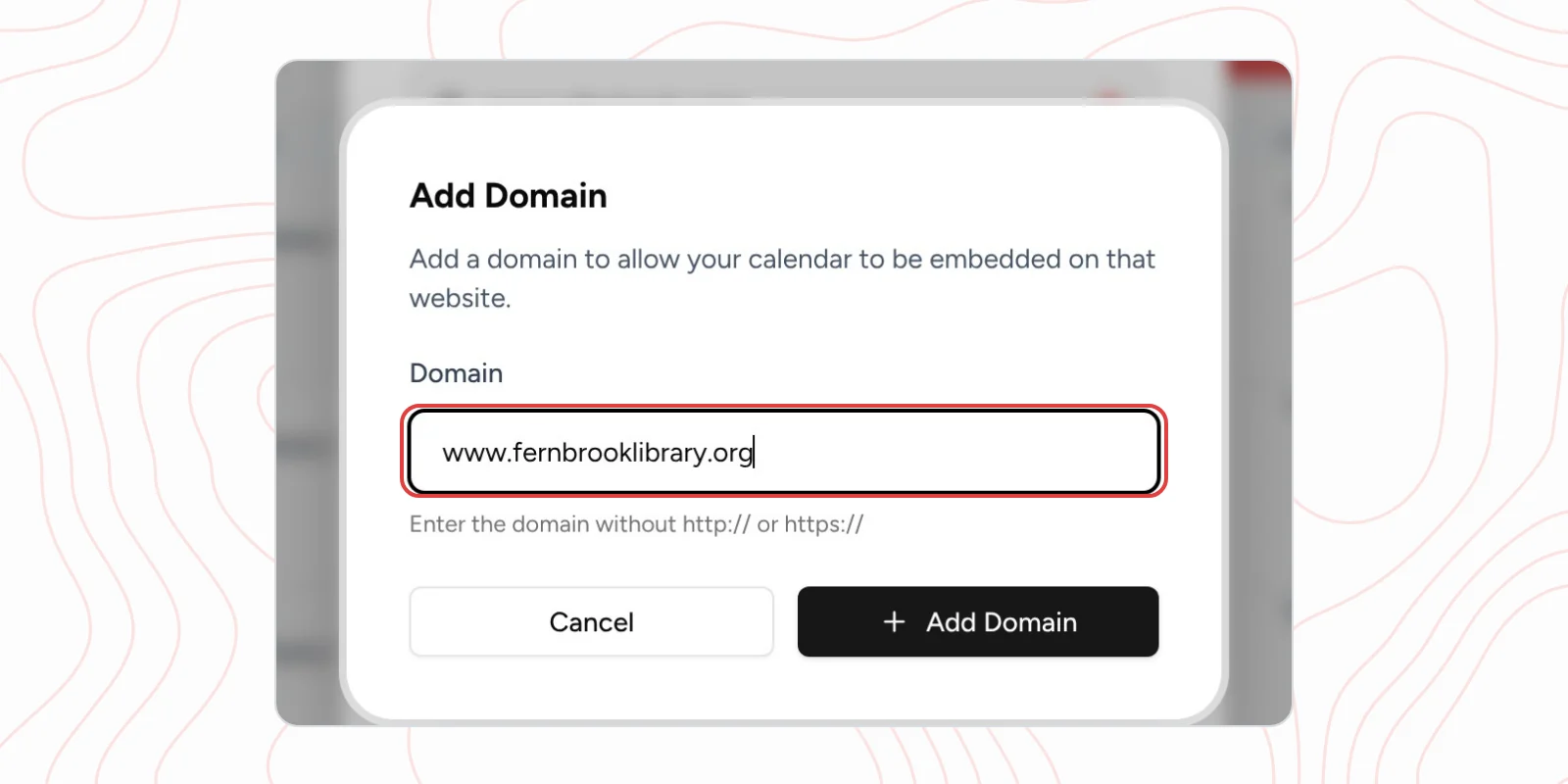
The www trap: www.yoursite.org and yoursite.org count as two different domains. If your site opens both ways, add both. Then reload your page. There it is: a live events calendar on your website, in your colors.
Where to paste the code in WordPress, Wix, Squarespace, Shopify and Google Sites
The same embed code works in any website builder that lets you paste HTML. The only differences are the name of the block and, on two builders, the address you allow in Step 5. Each builder has its own detailed guide on our blog:
| Website builder | Where to paste the code | Domain to allow |
|---|---|---|
| WordPress | A Custom HTML block (WordPress guide) | Your site's domain |
| Wix | Add Elements → Embed Code → Embed HTML (Wix guide) | The filesusr.com address in the Access Restricted message (Wix runs embedded code there) |
| Squarespace | A Code block, on the Core, Plus or Advanced plan; on Basic, use the Direct link on a button (Squarespace guide) | Your site's domain |
| Shopify | A Custom Liquid section in the theme editor (Shopify guide) | Your store's domain and its myshopify.com address |
| Google Sites | Insert → Embed → Embed code (Google Sites guide) | *.googleusercontent.com |
| Canva websites | The Embed app, with the calendar's Direct link (Canva guide) | None needed |
| Framer, Kajabi | An embed or code element (Framer guide, Kajabi guide) | Your site's domain |
If you can paste HTML, you can add this calendar.
The best part: new events show up on their own
Once the code is on your page, you never touch your website again to update events. We tested it: November on the library's site had nothing on Thursday the 19th. We created Teen Poetry Night in CalGet, refreshed the website, and it was already there. The embed code on the page didn't change at all.
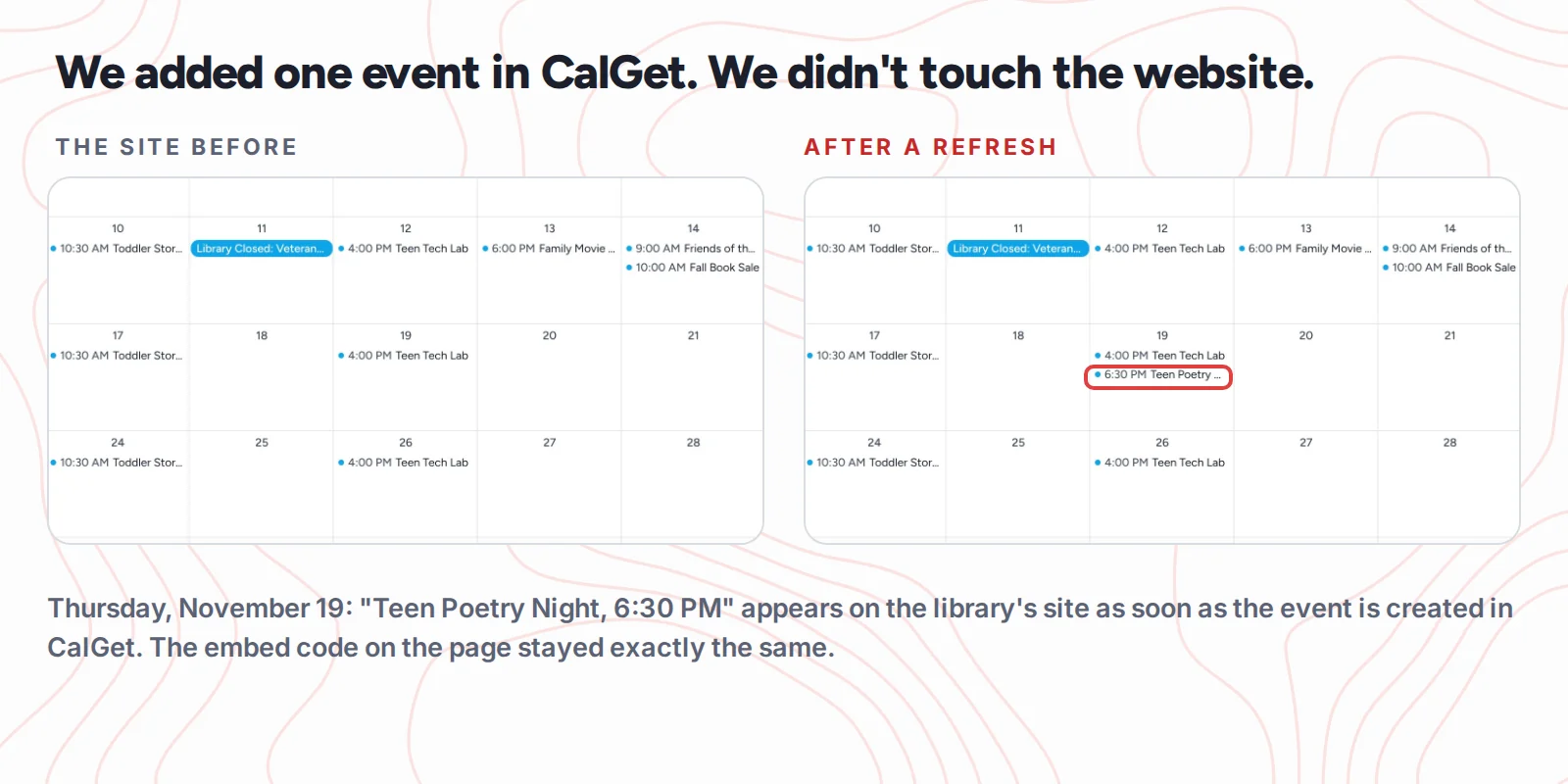
The same goes for changes: move an event to another room or another day in CalGet, and the website shows the new details. That's the job the old hand-typed list could never do.
What your visitors get
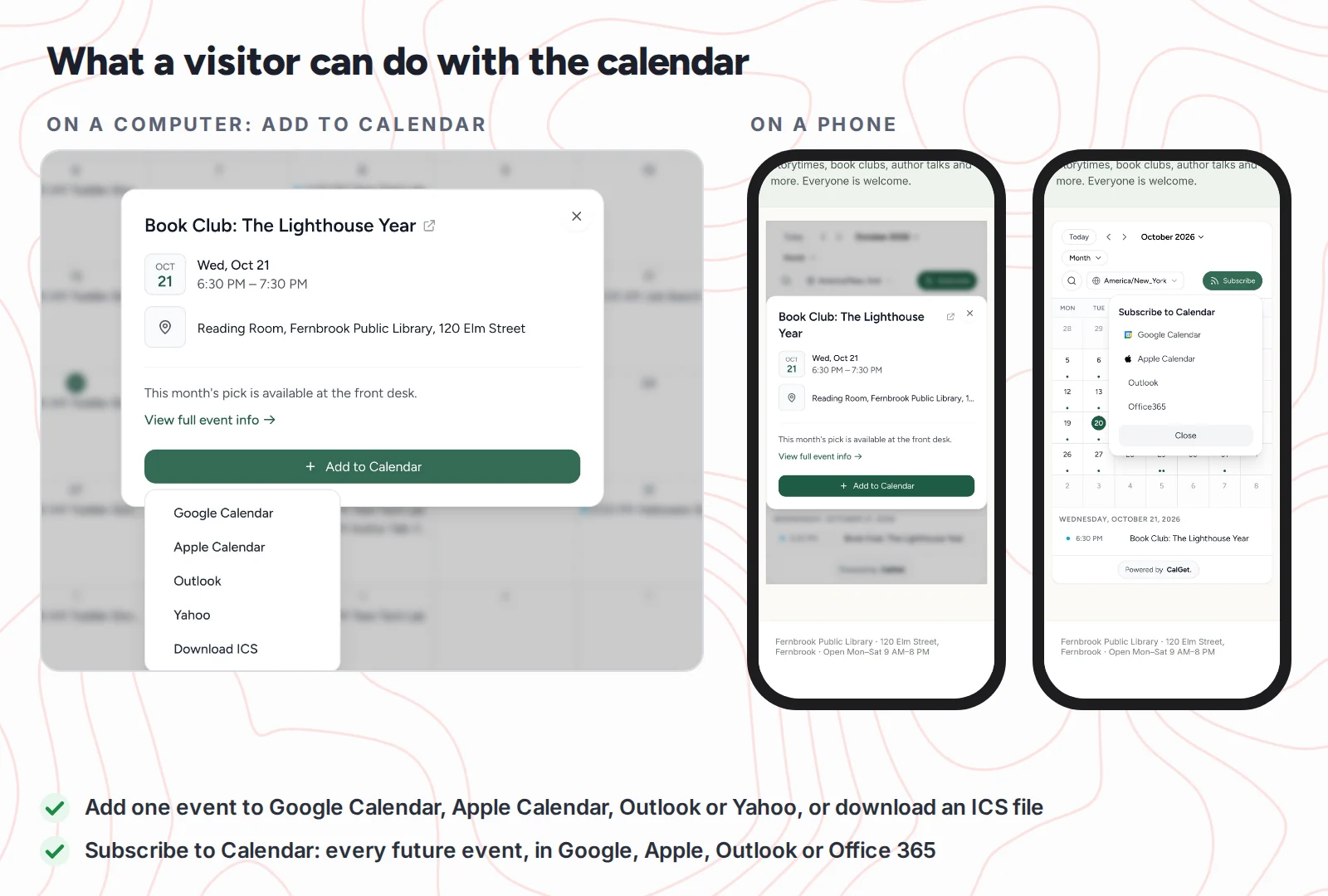
A calendar on your website is only useful if people act on it. Here's what a visitor can do with the CalGet widget, on a computer or a phone:
- Switch views: month, week, a simple list, or cards.
- Open any event to see the time, place and description.
- Add to Calendar: save one event to Google Calendar, Apple Calendar, Outlook or Yahoo, or download an ICS file. (More on how add to calendar links work.)
- Subscribe to Calendar: follow the whole calendar in Google, Apple, Outlook or Office 365, and get every future event automatically. This is a subscription calendar, built into the widget.
Common problems (and quick fixes)
- "Access Restricted" on your page. Your domain isn't on the allowed list yet, or you added the wrong version. Add the exact address the message names (Step 5).
- It works on www but not without it (or the other way around). Add both versions of your domain.
- The calendar shows in the editor but not on the live site, or the reverse. Some builders preview embedded code from a different address. On Wix that's filesusr.com, on Google Sites it's googleusercontent.com, and Shopify's theme editor uses your myshopify.com address. Allow those too.
- You changed the color or view, but the website didn't change. Design settings live inside the embed code. Copy the code again and replace the old one on your page. (Events never need this.)
- The block stays empty on Squarespace. The Basic plan doesn't run scripts in Code blocks. Use the Direct link on a button instead, and check the live site in a private window, since Squarespace hides some embedded code while you're logged in.
- The calendar is cut off with scroll bars. You probably used the iFrame code in a box that's too small. Switch to JS Embed, which resizes itself.
How we tested this
On October 20, 2026, we set up a calendar for the made-up Fernbrook Public Library in CalGet, with real upcoming events from October to December. We designed the widget on the Embeddable Calendar page, copied the real JS Embed code, and pasted it into a demo library website served at www.fernbrooklibrary.org in a test browser. We confirmed the Access Restricted message before the domain was allowed and the live calendar after. We then added Teen Poetry Night for November 19 in CalGet and refreshed the website to confirm it appeared without touching the page, and we opened events, the Add to Calendar menu and Subscribe to Calendar on desktop and phone-sized screens. The builder steps come from our own tested guides for each builder. Google Calendar's embed steps come from Google Calendar Help, and Elfsight's free plan limits from Elfsight's pricing page, both checked in October 2026.
Frequently asked questions
How do I add an events calendar to my website without coding?
Use a calendar tool that gives you an embed code. In CalGet: put your events in a calendar, design the widget on the Embeddable Calendar page, click Get embed code, copy the JS Embed code, paste it into your page's HTML or code block, and allow your website's domain. You copy and paste; you don't write any code.
Is there a free event calendar widget for websites?
Yes. Google Calendar's embed is free if your calendar is public, and Elfsight's free plan gives you one widget with 200 views a month and Elfsight branding. CalGet's embeddable calendar is part of its paid plans (Starter and up), and adds your colors, four views, Add to Calendar and Subscribe buttons, a phone layout and control over which websites can show it.
Will the calendar update when I add new events?
Yes. The widget reads your events from CalGet every time the page loads, so new and changed events appear on your website without editing the page. You only copy the code again if you change the widget's design.
Does the calendar work on phones?
Yes. The CalGet widget adjusts to the screen, and you can check it with the mobile preview before you copy the code. The Schedule view, a simple list, works especially well on small screens.
Can I use my existing Google Calendar or Outlook calendar?
Yes. Sync it into a CalGet calendar from the External Calendars tab and keep adding events where you always have. The widget shows the synced events, and your Google Calendar doesn't need to be public.
Why does my calendar say "Access Restricted"?
Because the website it's on isn't on your calendar's allowed list yet. Open Embeddable Calendar, click Domains, then Add Domain, and add the address the message shows, without https://. This stops anyone else from showing your calendar on their website.
An events page should be the easiest page on your website to keep current, not the hardest. Put your events in one calendar, paste one piece of code, and let the calendar do the updating. When you're ready, create your calendar in CalGet and see CalGet's events calendar widget in action on your own site. For more detail on each setting, see the help article on how to embed an event calendar on your website.

Written by the CalGet team
Updated October 2026 · Tested on a real CalGet calendar, embedded on a demo website on desktop and phone
We build calendar tools for sharing events with lots of people, from sports clubs and schools to nonprofits. People at organizations like Harvard, Save the Children and OGC Nice use CalGet to get events into their audience's calendars.

“Great Add Event to Calendar platform. Easy to create events and add them to emails and websites. Support responds quickly to questions and provides clean and concise answers. Highly recommended.” Foto Guy, on Trustpilot
Get Your Events on Everyone's Calendar.
Generate universal "Add to Calendar" links that work everywhere. Perfect for social media, emails, and websites.


Written by
Yared